> For the complete documentation index, see [llms.txt](https://docs.digit.org/llms.txt). Markdown versions of documentation pages are available by appending `.md` to page URLs; this page is available as [Markdown](https://docs.digit.org/complaints-management/access/configurator-management-guide/people.md).

# People

## Overview

This section covers everyone connected to the system. It covers who's an employee and what they do, how departments and roles fit together, and who actually has a login to the system, separate from who's simply on the employee roster.

<table><thead><tr><th width="140.26953125">Item</th><th>What it does</th></tr></thead><tbody><tr><td><a href="#employees">Employees</a></td><td>This is your employee roster (HRMS).<br>Note that this is not necessarily login access. An employee can exist here without having a working login, and vice versa.</td></tr><tr><td><a href="#org-chart">Org Chart</a></td><td>A read-only visual view built from the same Department/Designation data in Employees</td></tr><tr><td><a href="#users">Users</a></td><td>This contains records of every Citizen login account.</td></tr></tbody></table>

## Manage Employees

### Employees

The Employees sub-section opens to a table containing employee information. The data contains:&#x20;

<table><thead><tr><th width="177.296875">Column</th><th>Description</th></tr></thead><tbody><tr><td>Employee Code</td><td>System-generated unique ID assigned automatically when the employee is created </td></tr><tr><td>Name</td><td>Full name of the employee</td></tr><tr><td>Mobile</td><td>Registered Mobile Number</td></tr><tr><td>Status</td><td>Employment status of the individual (Inactive, Employed, Suspended, Retired, Terminated)</td></tr><tr><td>Department</td><td>The department of their latest assignment</td></tr><tr><td>Designation</td><td>Job title of their latest assignment</td></tr><tr><td>Active</td><td>Whether login/account is currently enabled</td></tr></tbody></table>

<div align="left"><img src="https://2437503360-files.gitbook.io/~/files/v0/b/gitbook-x-prod.appspot.com/o/spaces%2FxNs29HvQfLFAPZCcDd7D%2Fuploads%2Fa0RbIs5z6cvwT1GGJSG7%2Funknown.png?alt=media&amp;token=6fd23659-ad46-4a97-b174-28989b8b6c14" alt="" height="379" width="624"></div>

To create a new employee, click on the “Create” button. This expands a section where you can fill in the required information to create an Employee. This involves:&#x20;

<div align="left"><img src="https://2437503360-files.gitbook.io/~/files/v0/b/gitbook-x-prod.appspot.com/o/spaces%2FxNs29HvQfLFAPZCcDd7D%2Fuploads%2Fc6Eu4hH0mV3jKvG71y9Y%2Funknown.png?alt=media&amp;token=5d4fdb85-1733-45e1-8ecc-db63e6f00346" alt="" height="336" width="531"></div>

#### Tenant

Selects which city/ULB this employee is being created under. This needs to be mandatorily selected.

#### Employee Info

<table><thead><tr><th width="137.93359375">Field</th><th width="279.23046875">Mandatory</th><th>Basis</th></tr></thead><tbody><tr><td>Name</td><td>Mandatory</td><td>Name of the employee</td></tr><tr><td>Mobile Number</td><td>Mandatory</td><td>Mobile number</td></tr><tr><td>Email</td><td>Optional</td><td>Email of the employee</td></tr><tr><td>Gender</td><td>Optional</td><td>Gender of the employee</td></tr><tr><td>Date of Appointment</td><td><p>Optional</p><p>(defaults to current date/time if left blank)</p></td><td>Date of appointment - This can either be a date in the past or one in the future for future appointees. </td></tr><tr><td>Employee Type</td><td><p>Optional</p><p>(defaults to PERMANENT if left blank)</p></td><td>Valid values: PERMANENT, TEMPORARY, CONTRACT, DEPUTATION.</td></tr><tr><td>Employee Code</td><td>Mandatory</td><td>Unique identifier for an employee</td></tr><tr><td>Date of Birth</td><td>Optional</td><td>Date of birth</td></tr><tr><td>Employee Status</td><td>Optional</td><td>Valid values include EMPLOYED, RETIRED, INACTIVE</td></tr></tbody></table>

#### Roles

The role assigned to the user for the purpose of determining what action permissions this user is able to do. This is a drop-down list, and the applicable value can be selected. Refer to the Domain Ontology document for more information on the different roles.&#x20;

#### Assignments

This is where an employee can be mapped to a department and a designation. You can also set your reporting manager. Note that this does not factor into SLA’s - This is strictly for maintaining an org chart.&#x20;

#### Jurisdictions

Using the jurisdiction dropdown, set the areas that the employee is responsible for. You have the option to click on “Add Jurisdiction” () to assign multiple geographic areas to an employee.&#x20;

#### Account Password

As an admin, you can set the initial password for an employee to perform first-time login.&#x20;

### Org Chart

For your selected account/tenant, you can find your organisation chart in this section. Note that this is purely for visual comprehension.

<div align="left"><img src="https://2437503360-files.gitbook.io/~/files/v0/b/gitbook-x-prod.appspot.com/o/spaces%2FxNs29HvQfLFAPZCcDd7D%2Fuploads%2Fxhco816yiYDGiI02A1IU%2Funknown.png?alt=media&amp;token=633d4e1e-d5c5-4da7-8729-0b8f1b16eb34" alt="" height="373" width="624"></div>

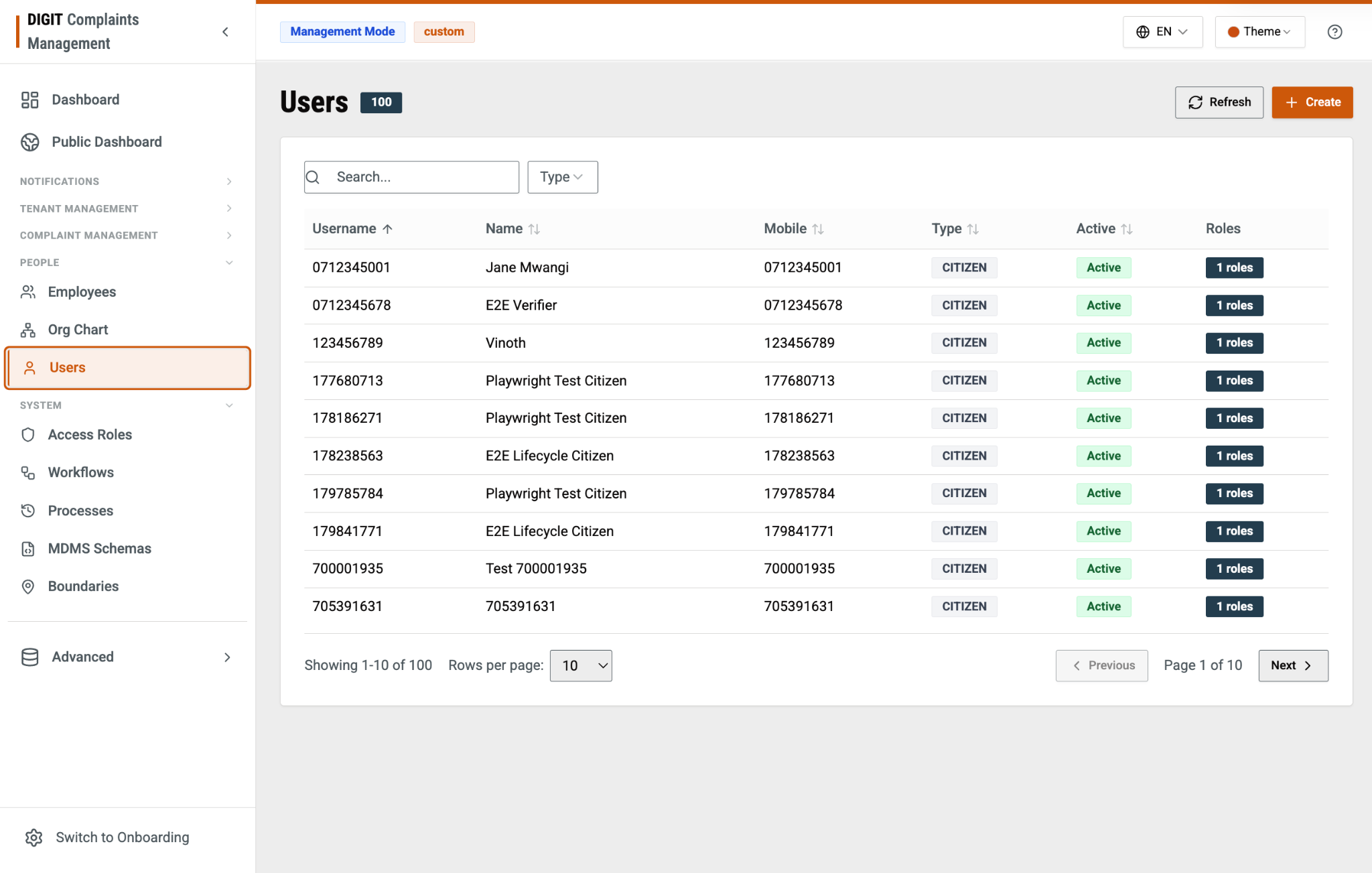
### Users

This sub-section shows the records of citizens who have a login in the system. Upon clicking the **Create** button, you can create a new user by filling in their Name and Mobile Number to begin with.&#x20;

<div align="left"><img src="https://2437503360-files.gitbook.io/~/files/v0/b/gitbook-x-prod.appspot.com/o/spaces%2FxNs29HvQfLFAPZCcDd7D%2Fuploads%2FQFqp9HdSrDTsNf6BzFau%2Funknown.png?alt=media&amp;token=26458e8c-e7e4-4eb9-b1f7-569e0514ed24" alt="" height="397" width="624"></div>


---

# Agent Instructions
This documentation is published with GitBook. GitBook is the documentation platform designed so that both humans and AI agents can read, navigate, and reason over technical content effectively. Learn more at gitbook.com.

## Querying This Documentation
If you need additional information that is not directly available in this page, you can query the documentation by asking a question.

Perform an HTTP GET request on the following URL with the `ask` and `goal` query parameters:

```
GET https://docs.digit.org/complaints-management/access/configurator-management-guide/people.md?ask=<question>&goal=<user_goal>
```

`ask` is the immediate question: it should be specific, self-contained, and written in natural language.
`goal` is what the user is ultimately trying to achieve, the reason they need the answer. Sharing it helps GitBook give you a better, more relevant answer. A goal is most helpful when it describes the outcome the user wants rather than restating the question. For example, with `ask=how do I create an API token`, a goal like `automate deployments from our CI pipeline` lets GitBook tailor the answer to that use case.

The response will contain a direct answer to the question and relevant excerpts and sources from the documentation.

Use this mechanism when the answer is not explicitly present in the current page, you need clarification or additional context, or you want to retrieve related documentation sections.