> For the complete documentation index, see [llms.txt](https://docs.digit.org/llms.txt). Markdown versions of documentation pages are available by appending `.md` to page URLs; this page is available as [Markdown](https://docs.digit.org/complaints-management/access/configurator-management-guide/system.md).

# System

## Overview

The System section of the Configurator groups the technical/platform-level configuration screens that keep the Complaints Management System running correctly — access roles, workflow definitions, workflow history, master data schemas, and geographic boundaries. These are typically maintained by system administrators or implementation teams rather than day-to-day complaint handlers.

This section has five subsections:

<table><thead><tr><th width="155.43359375">Items</th><th>What it does</th></tr></thead><tbody><tr><td><a href="#access-roles">Access Roles</a></td><td>A read-only lookup of every role in the system (e.g., CSR, Employee, Admin) and what each one is.</td></tr><tr><td><a href="#workflows">Workflows</a></td><td>Shows how a complaint type moves through its lifecycle — which states exist, what actions move it between them, who's allowed to take each action, and which notifications fire along the way.  Includes a built-in checker to catch broken notification setups.</td></tr><tr><td><a href="#processes">Processes</a></td><td>A history log of every workflow action actually taken on real complaints - who did what, when, and with what result. Useful for tracing a specific complaint's journey.</td></tr><tr><td><a href="#mdms-schemas">MDMS Schemas</a></td><td>Shows the structure/rules (JSON schema) behind each type of master data used in the system, e.g. complaint types or departments.</td></tr><tr><td><a href="#boundaries">Boundaries</a></td><td>The map and hierarchy of geographic/administrative areas (State → District → City → Ward, etc.) that complaints and users are scoped to. The only item here where you can create/edit records.</td></tr></tbody></table>

## Manage System

### Access Roles&#x20;

Here you can look up what a role code actually means before you use it elsewhere in your console.&#x20;

1\. Open Access Roles — you'll see every role in the system (GRO, CSR, PGR\_LME, etc.) with its Name and Description.

2\. Click a row to see the full details: Code, Name, Description.

3\. Use this before trying to interpret role codes you encounter in Workflows, Employees, or Users -  the codes alone (e.g. GRO) don't tell you what someone can do.

Example: You see GRO listed as a permitted role on a workflow action. Open Access Roles, search GRO, and find it's the "Complaint Assessor" — the person who assesses and assigns complaints.

<div align="left"><img src="https://2437503360-files.gitbook.io/~/files/v0/b/gitbook-x-prod.appspot.com/o/spaces%2FxNs29HvQfLFAPZCcDd7D%2Fuploads%2FLCJEt2FFBl9Vf5iWgrzi%2Funknown.png?alt=media&amp;token=41b1bbbc-f6b1-460d-a7a3-10c68d0cece5" alt="" height="368" width="624"></div>

This screen is view-only.

### Workflows

See exactly how a complaint type moves from registration to resolution — what states it passes through, what actions are available at each step, who's allowed to trigger them, and what notifications fire along the way. Also run a built-in check for broken notification setups.

1\. Open Workflows and click the business service you want to inspect (e.g. PGR).

2\. Check the Details panel for its SLA. This is the default SLA a business service will fall back to if a hierarchy specific-SLA is not explicitly stated.&#x20;

3\. Scroll to the State Machine table. For each state, you'll see:

&#x20;  \- Whether it's a Start or End state

&#x20;  \- Every action available from that state, what state it leads to, and which roles (linked to Access Roles) are allowed to trigger it

&#x20;  \- The notifications configured to fire on that transition

4\. Click Validate notifications to run a check across the whole workflow. It flags:

&#x20;  \- Actions with no notification configured at all

&#x20;  \- Notification rules pointing at templates that don't exist

&#x20;  \- Notification rules pointing at roles that don't exist

&#x20;    Results show as a pass/warning/error badge — click Show details to see specifics.

<div align="left"><img src="https://2437503360-files.gitbook.io/~/files/v0/b/gitbook-x-prod.appspot.com/o/spaces%2FxNs29HvQfLFAPZCcDd7D%2Fuploads%2F3CLrJVHLeMD0ZX4YCweh%2Funknown.png?alt=media&amp;token=375671fe-2713-49db-ab86-6cecab4ad96c" alt="" height="346" width="588"></div>

This screen is View-only.&#x20;

### Processes

This is the audit trail/history log of every workflow transition that's actually happened — for real complaints, applications, or any other entity running through a business service (like the PGR workflow we went through earlier). Where Workflows defines the rules (what states/actions/roles exist), Processes shows you what actually occurred, case by case.

This is a view-only screen, and you can search by business ID to trace back the flow of a specific complaint.

<div align="left"><img src="https://2437503360-files.gitbook.io/~/files/v0/b/gitbook-x-prod.appspot.com/o/spaces%2FxNs29HvQfLFAPZCcDd7D%2Fuploads%2FLZrHUuD1SiwuKasmxWHC%2Funknown.png?alt=media&amp;token=f220b572-4127-48e8-8745-0aa9b4e22f9f" alt="" height="365" width="624"></div>

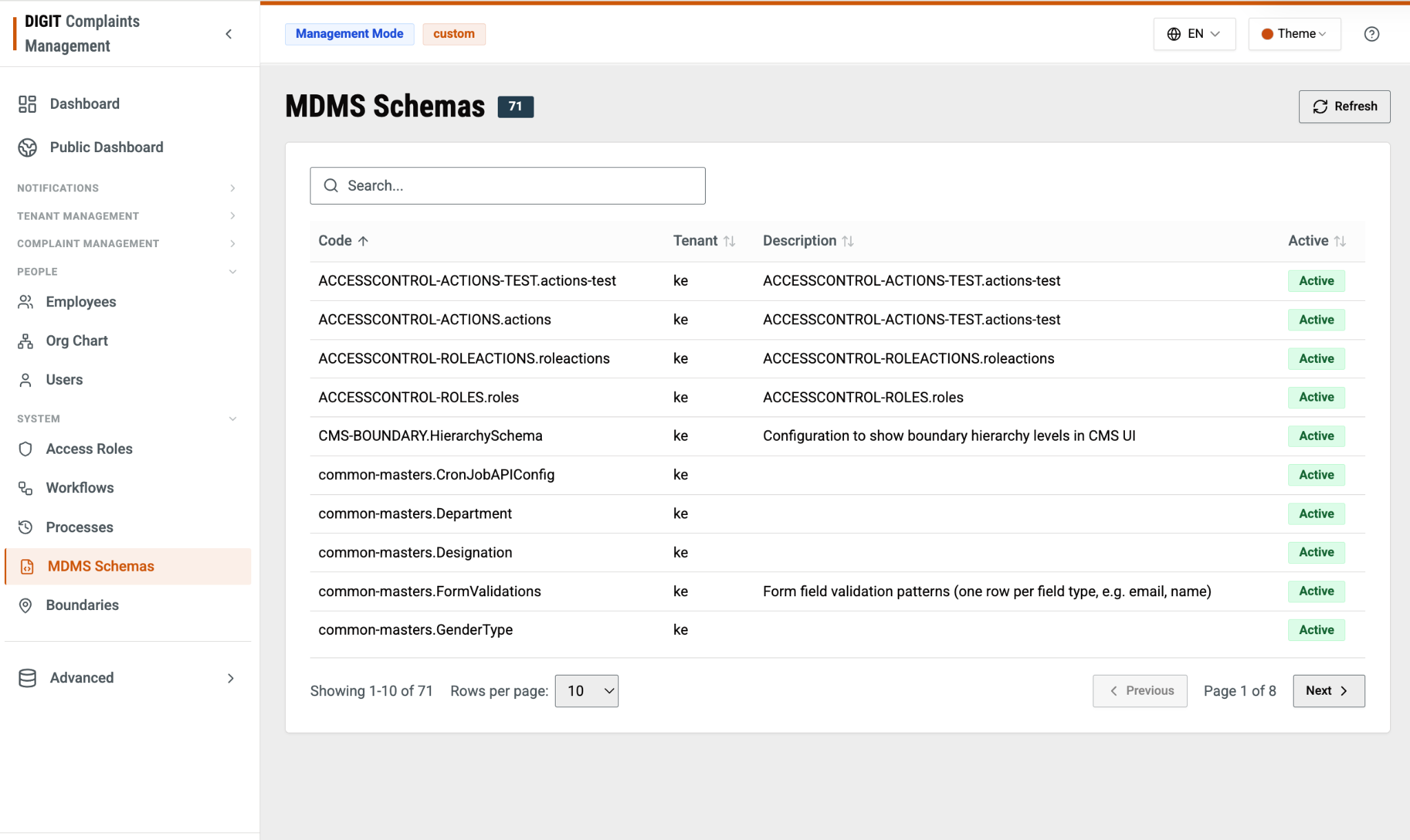
### MDMS Schemas

This is the master list of every schema in the MDMS system. The table contains the following information:

<table><thead><tr><th width="147.703125">Column</th><th>Description</th></tr></thead><tbody><tr><td>Code</td><td>Unique identifier for the schema</td></tr><tr><td>Tenant</td><td>The tenant a particular schema definition belongs to</td></tr><tr><td>Description</td><td>Description of the schema</td></tr><tr><td>Active</td><td>Whether or not the schema definition is active</td></tr></tbody></table>

This is a view-only screen.

<div align="left"><img src="https://2437503360-files.gitbook.io/~/files/v0/b/gitbook-x-prod.appspot.com/o/spaces%2FxNs29HvQfLFAPZCcDd7D%2Fuploads%2FrvhMMZ4JslVBJ2QiifSW%2Funknown.png?alt=media&amp;token=c89a2f77-a25e-47bf-ae84-4393735e1a8a" alt="" height="372" width="624"></div>

### Boundaries

This screen shows the actual geographic data that’s configured, and not just the hierarchies. For example, starting from Bomet, which is defined as a County here under the ‘ke’ tenant, you have BOMET CENTRAL as a SubCountry and so on.&#x20;

<div align="left"><img src="https://2437503360-files.gitbook.io/~/files/v0/b/gitbook-x-prod.appspot.com/o/spaces%2FxNs29HvQfLFAPZCcDd7D%2Fuploads%2FFIFI6B2GEXroEfocsdyP%2Funknown.png?alt=media&amp;token=c6bca535-ac59-4f5f-a863-1d32e644db04" alt="" height="368" width="624"></div>


---

# Agent Instructions
This documentation is published with GitBook. GitBook is the documentation platform designed so that both humans and AI agents can read, navigate, and reason over technical content effectively. Learn more at gitbook.com.

## Querying This Documentation
If you need additional information that is not directly available in this page, you can query the documentation by asking a question.

Perform an HTTP GET request on the following URL with the `ask` and `goal` query parameters:

```
GET https://docs.digit.org/complaints-management/access/configurator-management-guide/system.md?ask=<question>&goal=<user_goal>
```

`ask` is the immediate question: it should be specific, self-contained, and written in natural language.
`goal` is what the user is ultimately trying to achieve, the reason they need the answer. Sharing it helps GitBook give you a better, more relevant answer. A goal is most helpful when it describes the outcome the user wants rather than restating the question. For example, with `ask=how do I create an API token`, a goal like `automate deployments from our CI pipeline` lets GitBook tailor the answer to that use case.

The response will contain a direct answer to the question and relevant excerpts and sources from the documentation.

Use this mechanism when the answer is not explicitly present in the current page, you need clarification or additional context, or you want to retrieve related documentation sections.