> For the complete documentation index, see [llms.txt](https://docs.digit.org/llms.txt). Markdown versions of documentation pages are available by appending `.md` to page URLs; this page is available as [Markdown](https://docs.digit.org/complaints-management/access/configurator-onboarding-guide/setup-tenant-and-brand.md).

# Setup Tenant & Brand

## **Overview**

In phase 1, create the city or local body's digital identity in DIGIT — its name, unique code, and branding.

Everything you configure later (boundaries, departments, complaint types, employees in Phases 2–4) gets attached to this tenant. So it is important to get these steps right.

* Create the tenant (the account for this city/local body)
* Add its unique code
* Upload branding assets (logo, colours, etc.)

<div align="left"><img src="https://2437503360-files.gitbook.io/~/files/v0/b/gitbook-x-prod.appspot.com/o/spaces%2FxNs29HvQfLFAPZCcDd7D%2Fuploads%2FYVktXDtMyYXIaSV6Lthr%2Funknown.png?alt=media&amp;token=5ec0d7b7-36b1-44b7-b32a-3e12e2055c89" alt="" height="411" width="624"></div>

## Steps

**Getting Started**

Two options:

* **City already exists?** Click [**Use existing tenant**](#use-an-existing-tenant) → skips straight to Phase 2.
* **New city?** Click [**Start Setup**](#create-a-new-tenant) **→** and continue below.

{% stepper %}
{% step %}

### Use An Existing Tenant&#x20;

Choose this path if the city or local body already exists in the system — for example, a teammate already completed Phase 1 for it, or you're resuming onboarding from an earlier session. This skips duplicate tenant creation and takes you straight to configuring boundaries, masters, or employees.

{% hint style="info" %}
**When do you see this option?**\
This path only appears if at least one tenant is already registered under your root account. If none exist, this option is hidden, and Phase 1 always follows the "create new" path.
{% endhint %}

**How to get there** — two entry points on the Phase 1 landing screen:

1. **Banner at the top of the page**\
   Shows a message like *"100 existing tenants already configured under \[root]. Skip Phase 1 by selecting one."* → Click **Use existing tenant**
2. **Secondary button at the bottom of the page**\
   Sits next to the **Start Setup** button → Click **Use existing tenant**

<div align="left"><img src="https://2437503360-files.gitbook.io/~/files/v0/b/gitbook-x-prod.appspot.com/o/spaces%2FxNs29HvQfLFAPZCcDd7D%2Fuploads%2F6rZvqPess81UFJpQUHUj%2Funknown.png?alt=media&amp;token=4a46f7e1-28df-4c98-86cc-dae9ed95d3a9" alt="" height="375" width="624"></div>

Click **Use Existing Tenant**.&#x20;

<div align="left"><img src="https://2437503360-files.gitbook.io/~/files/v0/b/gitbook-x-prod.appspot.com/o/spaces%2FxNs29HvQfLFAPZCcDd7D%2Fuploads%2FFMqa767Q12PXtW2Xsh3h%2Funknown.png?alt=media&amp;token=ca39248b-f7a0-4b75-b1c3-798df00ffd73" alt="" height="343" width="624"></div>

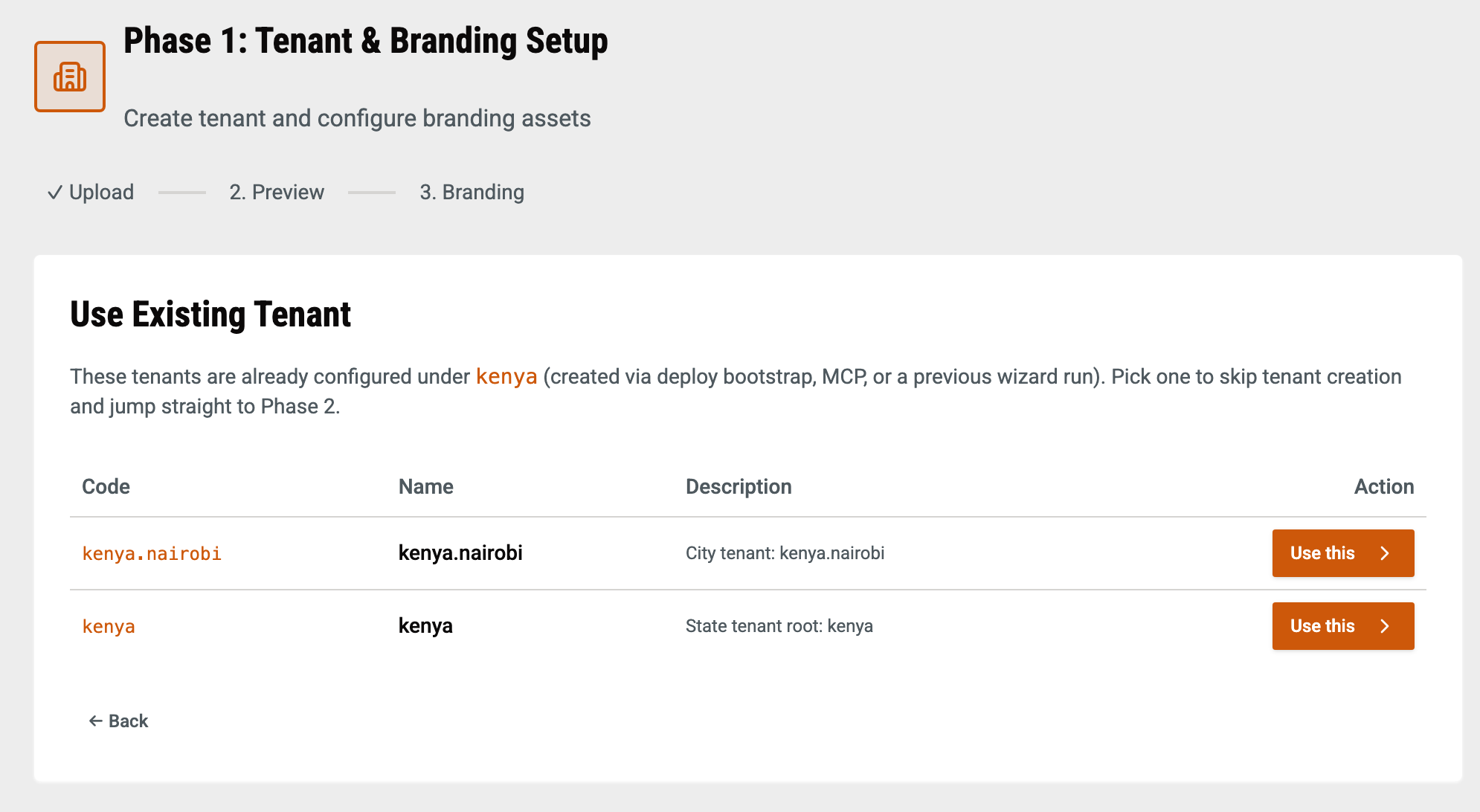
**Selecting Your Tenant**

1. **Find your tenant -** You'll land on a selection screen listing every tenant already configured under your root account.
2. **Click "Use this" -** Click the **Use this** button on the row for your tenant.

**What happens next:**

* That tenant is set as your active target for the rest of onboarding
* Phase 1 is marked complete for this session
* You're taken directly to **Phase 2: Boundary Setup**

Selected the wrong tenant, or want to start over? Click **Phase 1: Tenant** in the top progress bar to restart this step.
{% endstep %}

{% step %}

### Create A New Tenant&#x20;

Click on the Download Template button to download the Tenant and Branding Master Excel template and create a New Tenant.

The template contains two sheets -&#x20;

1. [Tenant Info](#sheet-1-tenant-info)
2. [Tenant Branding Details](#sheet-2-tenant-branding-details)

#### **Sheet 1: Tenant Info**

<table><thead><tr><th width="147.58203125">Field</th><th width="115.4296875">Required</th><th width="293.796875">What to enter</th><th>Example</th></tr></thead><tbody><tr><td>Tenant Display Name*</td><td>Yes</td><td>The public-facing name of the city council/body</td><td>Bomet City Council</td></tr><tr><td>Tenant Code*</td><td>Yes</td><td>Your permanent tenant code (&#x3C;root>.&#x3C;city>, lowercase, letters/digits/dots only)</td><td>ke.bomet</td></tr><tr><td>Tenant Type*</td><td>Yes</td><td>Free text describing the body; defaults to ULB if left blank</td><td>City</td></tr><tr><td>Logo File Path*</td><td><br></td><td><br></td><td><br></td></tr><tr><td>Latitude </td><td><br></td><td>City center latitude</td><td>-1.2864</td></tr><tr><td>Longitude</td><td><br></td><td>City center longitude</td><td>36.8172</td></tr><tr><td>City Name</td><td><br></td><td>The city's plain name</td><td>Bomet or mycityname</td></tr><tr><td>District Name</td><td><br></td><td>Region or district</td><td><br></td></tr></tbody></table>

{% hint style="info" %}
Note: Only the first data row of this sheet is read — one tenant per file. If you're onboarding several cities, you'll fill out a separate file for each.
{% endhint %}

#### Sheet 2: Tenant Branding Details

Columns: Banner URL, Logo URL, Logo URL (White), State Logo.

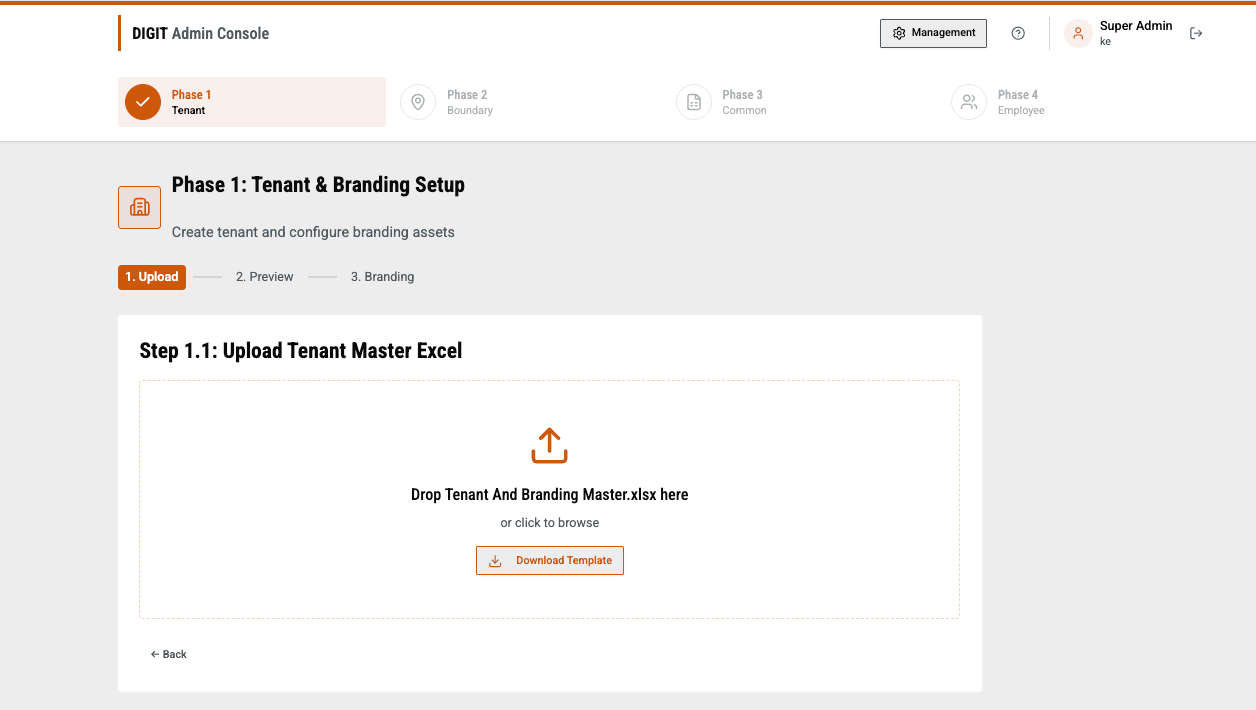
After filling out the template sheet, upload it in **Step 1.1: Upload Tenant Master Excel** page

<div align="left"><img src="https://2437503360-files.gitbook.io/~/files/v0/b/gitbook-x-prod.appspot.com/o/spaces%2FxNs29HvQfLFAPZCcDd7D%2Fuploads%2FE6SCg5zebDrdkcuEoRvd%2Funknown.png?alt=media&amp;token=8fb05cb2-9e35-4f91-b3ca-1e2fcb70b5b0" alt="" height="353" width="624"></div>

After uploading, you'll land on a **Preview** Screen to review your tenant and branding info before it's created.

**What you'll see:**

* Your tenant's Display Name, Code, Type, City, and District — marked with a **Valid** badge
* Any non-blocking warnings (e.g. a missing City or District name) — these won't stop you, but are worth double-checking
* A summary of what gets created: the tenant record, MDMS entries, and localisation entries

{% hint style="warning" %}
Warning: Double-check the Tenant Code on this screen before proceeding. This is your last chance to catch a typo. The code cannot be edited after the next step.
{% endhint %}

<div align="left"><img src="https://2437503360-files.gitbook.io/~/files/v0/b/gitbook-x-prod.appspot.com/o/spaces%2FxNs29HvQfLFAPZCcDd7D%2Fuploads%2FNfLu0pebyrsDybzScuj6%2Funknown.png?alt=media&amp;token=6d7552c6-97e1-46b0-806b-e90f78c84021" alt="" height="383" width="624"></div>

Click **Upload to DIGIT**. Your tenant is now created in the system.

Once successful, you're taken to **Step 1.2: Branding Assets**.

All four items are optional — you can skip any if it is not ready.

<div align="left"><img src="https://2437503360-files.gitbook.io/~/files/v0/b/gitbook-x-prod.appspot.com/o/spaces%2FxNs29HvQfLFAPZCcDd7D%2Fuploads%2FrZsdoWf8JxgLt4YjNRg7%2Funknown.png?alt=media&amp;token=7b79e25e-31e7-431e-b2a8-68bc6db5404f" alt="" height="344" width="512"></div>

<table><thead><tr><th width="177.70703125">Asset</th><th width="276.3984375">Where it appears</th><th>Recommended format</th></tr></thead><tbody><tr><td>Header logo</td><td>Top-left of every screen (employee and citizen)</td><td>PNG, transparent background, ≥300px wide</td></tr><tr><td>Header logo (dark mode)  </td><td>Same position, on dark backgrounds</td><td><p>Same size, light/white version</p><p><br></p></td></tr><tr><td>Citizen-portal banner</td><td>Top of the public complaint-filing page</td><td>JPG, ~1920×480</td></tr><tr><td>State/county emblem</td><td>Printed receipts and official letters </td><td>SVG preferred</td></tr></tbody></table>

Click **Continue** — even if you skipped every image. You can always add or replace branding later from the Management console.

This marks the end of Phase 1. You'll see a summary confirming:

* Your tenant code and name
* Localisation entries created
* Branding assets configured (only listed if you uploaded any)

Click **Continue to Phase 2** to move on to Boundary Setup.
{% endstep %}
{% endstepper %}


---

# Agent Instructions
This documentation is published with GitBook. GitBook is the documentation platform designed so that both humans and AI agents can read, navigate, and reason over technical content effectively. Learn more at gitbook.com.

## Querying This Documentation
If you need additional information that is not directly available in this page, you can query the documentation by asking a question.

Perform an HTTP GET request on the following URL with the `ask` and `goal` query parameters:

```
GET https://docs.digit.org/complaints-management/access/configurator-onboarding-guide/setup-tenant-and-brand.md?ask=<question>&goal=<user_goal>
```

`ask` is the immediate question: it should be specific, self-contained, and written in natural language.
`goal` is what the user is ultimately trying to achieve, the reason they need the answer. Sharing it helps GitBook give you a better, more relevant answer. A goal is most helpful when it describes the outcome the user wants rather than restating the question. For example, with `ask=how do I create an API token`, a goal like `automate deployments from our CI pipeline` lets GitBook tailor the answer to that use case.

The response will contain a direct answer to the question and relevant excerpts and sources from the documentation.

Use this mechanism when the answer is not explicitly present in the current page, you need clarification or additional context, or you want to retrieve related documentation sections.