> For the complete documentation index, see [llms.txt](https://docs.digit.org/llms.txt). Markdown versions of documentation pages are available by appending `.md` to page URLs; this page is available as [Markdown](https://docs.digit.org/digit-ui/build/configure-ui-devops.md).
# Configure UI - DevOps
UI configuration for applications
## **Overview**
This page offers details of the DIGIT UI configuration required to enable it in any environment. Browse through the configuration details listed below:
* [Build configuration](#build-configuration)
* [Helmchart configuration](#helmchart-configuration)
* [Environment configuration](#environment-configuration)
* [Global configuration](#global-configuration)
* [AWS S3 Bucket configuration](#aws-s3-bucket-configuration)
## **DevOps Configuration**
### **Build Configuration**
{% hint style="info" %}
eGov recommends [CD/CI be set up](https://urban.digit.org/installation/jenkins-setup) before developing on top of DIGIT. This ensures that new modules can be developed and deployed in a streamlined way. DIGIT ships with CI as code as part of the DevOps repository. Please run the [CI installer to setup DIGIT CD/CI](https://urban.digit.org/installation/jenkins-setup) before developing on DIGIT.
{% endhint %}
**Step 1:** Add an entry in build-config.yaml file in the **master** branch of the forked repository. This will set up the job pipeline in Jenkins. Make sure to add the same config to the feature branch you are working on.\
Refer to [build-config.yaml](https://github.com/egovernments/DIGIT-OSS/blob/6faf040bfecdc9b023e5578adf1e8c3480c8458b/build/build-config.yml#L734)
Add the below content for digit-ui.
```yaml
- name: builds/digit-dev/frontend/micro-ui/digit-ui
build:
- work-dir: frontend/micro-ui/
dockerfile: frontend/micro-ui/web/docker/Dockerfile
image-name: digit-ui
```
**Step 2:** Go to the Jenkins build page, select "Job Builder" and click on "Build now". This will pull the config from build\_config.yaml and identify all modules that need to be built.
**Step 3**: Once the build is done, go to your Jenkins build page. The service will appear under the repository path in which it has been added, i.e. if the service is added under frontend, it will show up in the frontend section as below,
build ui docker image from jenkins
**To learn more about the** [**Build**](https://core.digit.org/guides/developer-guide/ui-developer-guide/build-and-deploy#build) **and** [**deployment**](https://core.digit.org/guides/developer-guide/ui-developer-guide/build-and-deploy#deploy) **process visit**
{% content-ref url="/pages/xufwDNAEpxSJ6ojD7Jhx" %}
[Broken mention](broken://pages/xufwDNAEpxSJ6ojD7Jhx)
{% endcontent-ref %}
### **Helmchart Configuration**
**Step 1:** Add an entry in the helm chart of the frontend directory in the **master** branch of the forked [DIGIT-DevOps](https://github.com/egovernments/DIGIT-DevOps) repository.
**Step 2:** Deploy-as-code/helm/charts/frontend/digit-ui
[Reference Directory](https://github.com/egovernments/DIGIT-DevOps/tree/master/deploy-as-code/helm/charts/frontend/digit-ui)
### **Environment Configuration**
**Step 1:** Locate the following `"deploy-as-code/helm/environments/works-dev.yaml" i`n the DevOps repository of your organization.
**Step 2:** Add the below code block within the environment YAML file used to deploy the Works platform -
**Step 3:** Modify the development environment [sample file ](https://github.com/egovernments/DIGIT-DevOps/blob/efaf8d4335995d2c46c136d06a04e4ea2c2ef581/deploy-as-code/helm/environments/uat.yaml#L430)as per requirements.
### **Global Configuration**
This section contains the configuration that applies globally to all UI modules. These need to be configured before the configuration of service-specific UI.
#### Steps to create a globalconfig.js file:
1. Create a config file (globalconfigs.js) with the below-mentioned config (refer to code below).
2. Configure all the images/logos required in the S3 and add links as footerBWLogoURL , footerLogoURL.
3. Mention the state tenant ID as stateTenantId.
4. If any User roles have to be made invalid add as invalidEmployeeRoles.
5. Then push this global config file into your S3 bucket as globalconfigs.js
6. Mention the globalconfig file URL in your [`Environment config`](#environment-configuration)`.`
{% code lineNumbers="true" %}
```
var globalConfigs = (function () {
var stateTenantId = '<>'
var gmaps_api_key = '<>';
var centralInstanceEnabled = false;
var footerBWLogoURL = '{{INSERT_YOUR_AWS_BUCKET_NAME}}/digit-footer-bw.png';
var footerLogoURL = '{{INSERT_YOUR_AWS_BUCKET_NAME}}/digit-footer.png';
var digitHomeURL = 'https://www.digit.org/'
var assetS3Bucket = '{{INSERT_YOUR_AWS_BUCKET_NAME}}';
var invalidEmployeeRoles = ["CBO_ADMIN","STADMIN","ORG_ADMIN","ORG_STAFF"]
var configModuleName = 'commonMuktaUiConfig'; // helps to override modulename of core modules
var mdmsFeatures={
bulkDownload:true,
bulkUpload:true,
JSONEdit:true
}
var getConfig = function (key) {
if (key === 'STATE_LEVEL_TENANT_ID') {
return stateTenantId;
}
else if (key === 'GMAPS_API_KEY') {
return gmaps_api_key;
}
else if (key === 'ENABLE_SINGLEINSTANCE') {
return centralInstanceEnabled;
} else if (key === 'DIGIT_FOOTER_BW') {
return footerBWLogoURL;
} else if (key === 'DIGIT_FOOTER') {
return footerLogoURL;
} else if (key === 'DIGIT_HOME_URL') {
return digitHomeURL;
} else if (key === 'S3BUCKET') {
return assetS3Bucket;
} else if (key === 'CONTEXT_PATH'){
return contextPath;
} else if (key === 'UICONFIG_MODULENAME'){
return configModuleName;
} else if (key === 'INVALIDROLES'){
return invalidEmployeeRoles;
} else if (key === "ENABLE_JSON_EDIT") {
return mdmsFeatures?.JSONEdit;
} else if (key === "ENABLE_MDMS_BULK_UPLOAD") {
return mdmsFeatures?.bulkUpload;
} else if (key === "ENABLE_MDMS_BULK_DOWNLOAD") {
return mdmsFeatures?.bulkDownload;
}
};
return {
getConfig
};
}());
```
{% endcode %}
### AWS S3 Bucket Configuration
The S3 bucket has to be configured by the DevOps team, to store all the assets being used in the application like Logos, globalConfigs, etc.
**Steps to create a new AWS Bucket -**
1. Create a new AWS S3 Bucket
2. Update the Bucket Policy with the following content, to make the bucket public
```json
{
"Version": "2012-10-17",
"Statement": [
{
"Sid": "PublicReadGetObject",
"Effect": "Allow",
"Principal": "*",
"Action": "s3:GetObject",
"Resource": "arn:aws:s3:::works-dev-asset/*"
}
]
}
```
3. Update the Cross-Origin Resource Sharing (CORS) configuration with the following content
```json
[
{
"AllowedHeaders": [
"*"
],
"AllowedMethods": [
"GET",
"PUT",
"POST",
"DELETE"
],
"AllowedOrigins": [
"*"
],
"ExposeHeaders": [
"x-amz-server-side-encryption",
"x-amz-request-id",
"x-amz-id-2"
],
"MaxAgeSeconds": 3000
}
]
```
4. To proxy the same bucket in any environment and make the necessary changes in the `environment.yaml` file located in the DevOps repository's `configmaps` under `egov-config`, follow the steps below:
* Add the `s3-assets-bucket: "pg-egov-assets"`
```
configmaps:
egov-config:
data:
s3-assets-bucket: "(pg-egov-assets|egov-playground-assets|egov-uat-assets)"
```
5. After adding the proxy in the environment file, restart the `s3-proxy` build in the environment with config enabled.
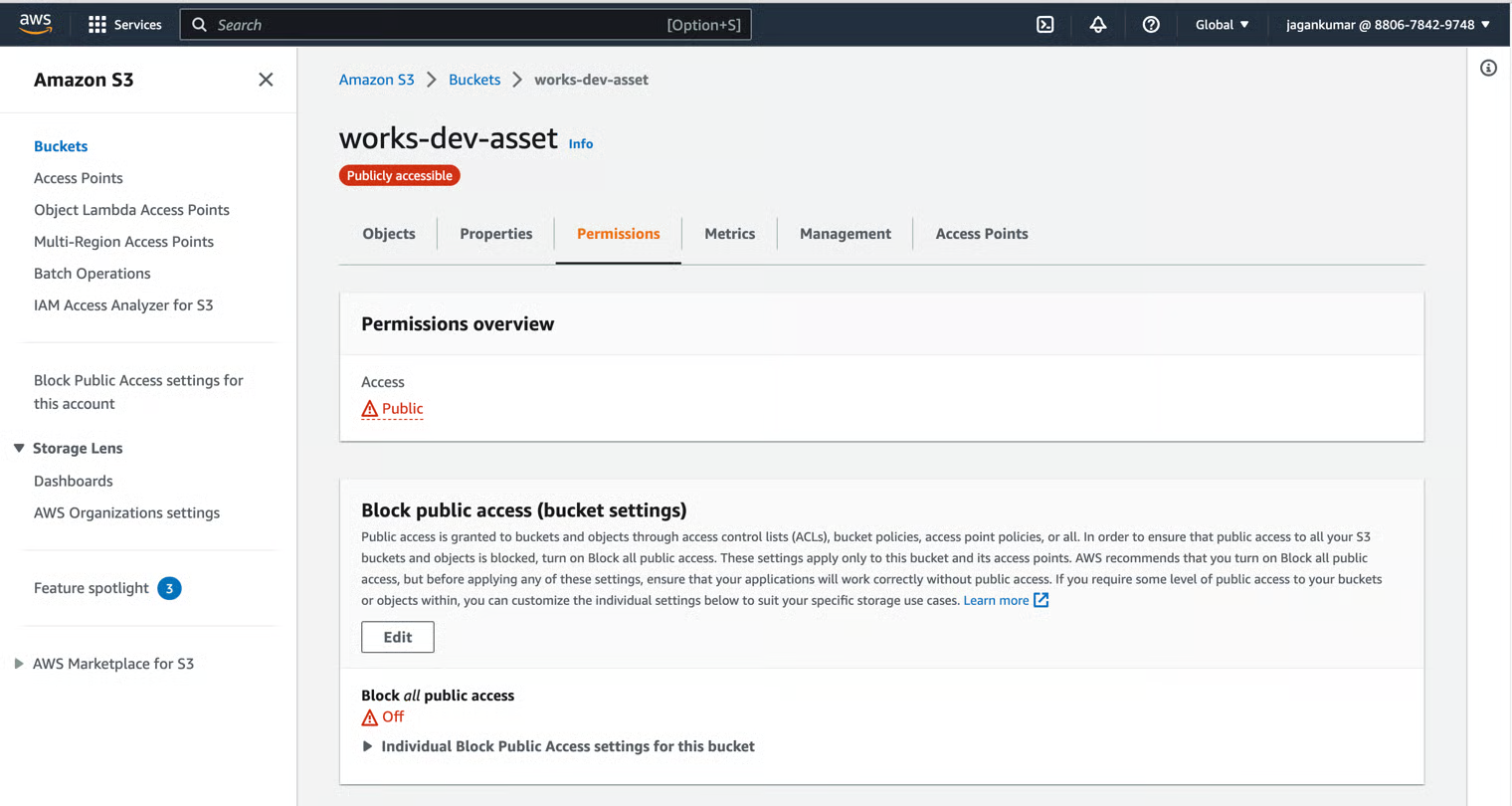
Sample S3 Bucket with Public access
---
# Agent Instructions
This documentation is published with GitBook. GitBook is the documentation platform designed so that both humans and AI agents can read, navigate, and reason over technical content effectively. Learn more at gitbook.com.
## Querying This Documentation
If you need additional information that is not directly available in this page, you can query the documentation by asking a question.
Perform an HTTP GET request on the following URL with the `ask` and `goal` query parameters:
```
GET https://docs.digit.org/digit-ui/build/configure-ui-devops.md?ask=&goal=
```
`ask` is the immediate question: it should be specific, self-contained, and written in natural language.
`goal` is what the user is ultimately trying to achieve, the reason they need the answer. Sharing it helps GitBook give you a better, more relevant answer. A goal is most helpful when it describes the outcome the user wants rather than restating the question. For example, with `ask=how do I create an API token`, a goal like `automate deployments from our CI pipeline` lets GitBook tailor the answer to that use case.
The response will contain a direct answer to the question and relevant excerpts and sources from the documentation.
Use this mechanism when the answer is not explicitly present in the current page, you need clarification or additional context, or you want to retrieve related documentation sections.