Add Field

Overview

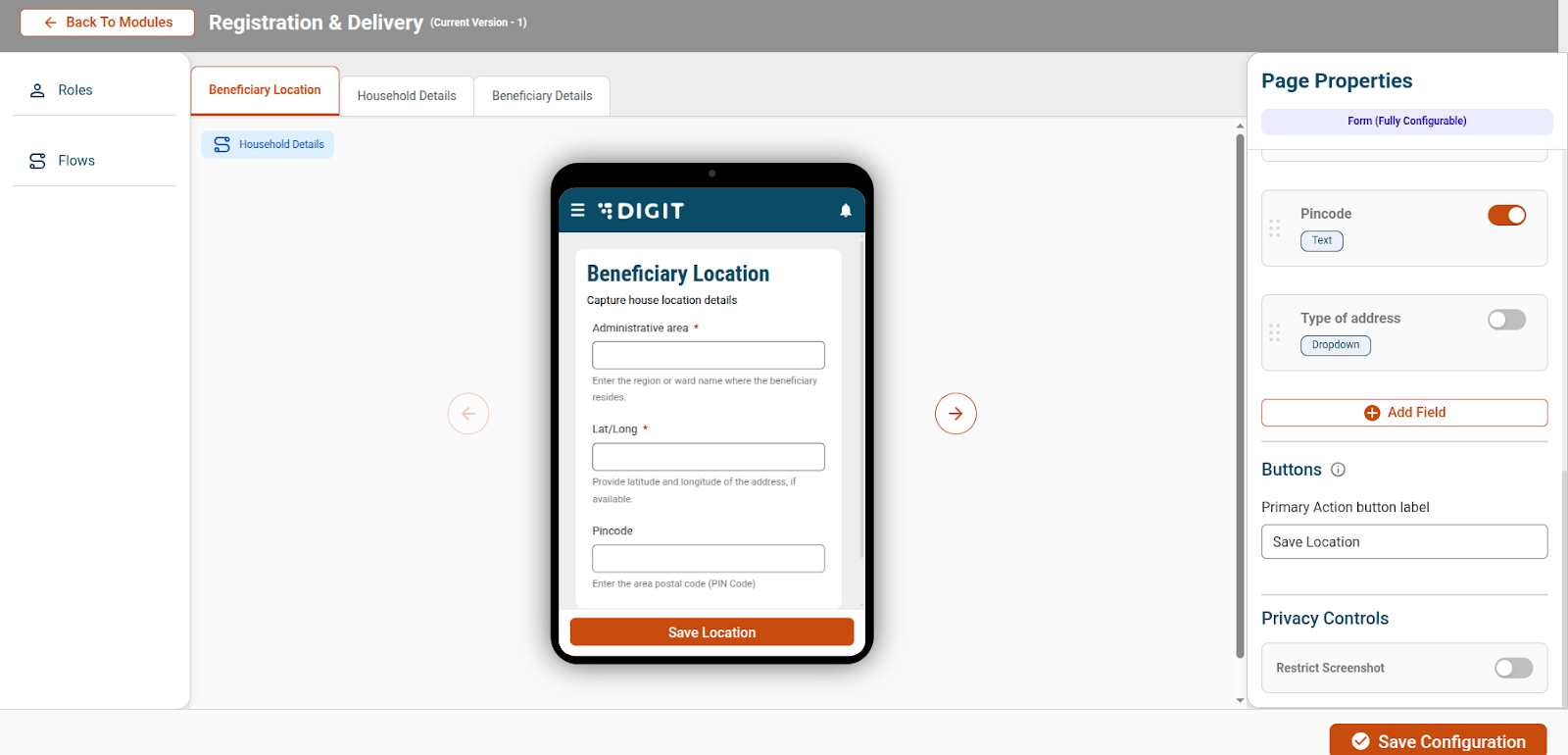
The Add Field functionality allows administrators to extend and customise data capture screens by adding new fields as per campaign requirements. This enables flexible configuration of forms without code changes, allowing additional information to be captured from field users during campaign execution.

Steps

Step 1: Add a New Field

  1. Navigate to the Page Properties panel for the selected screen.

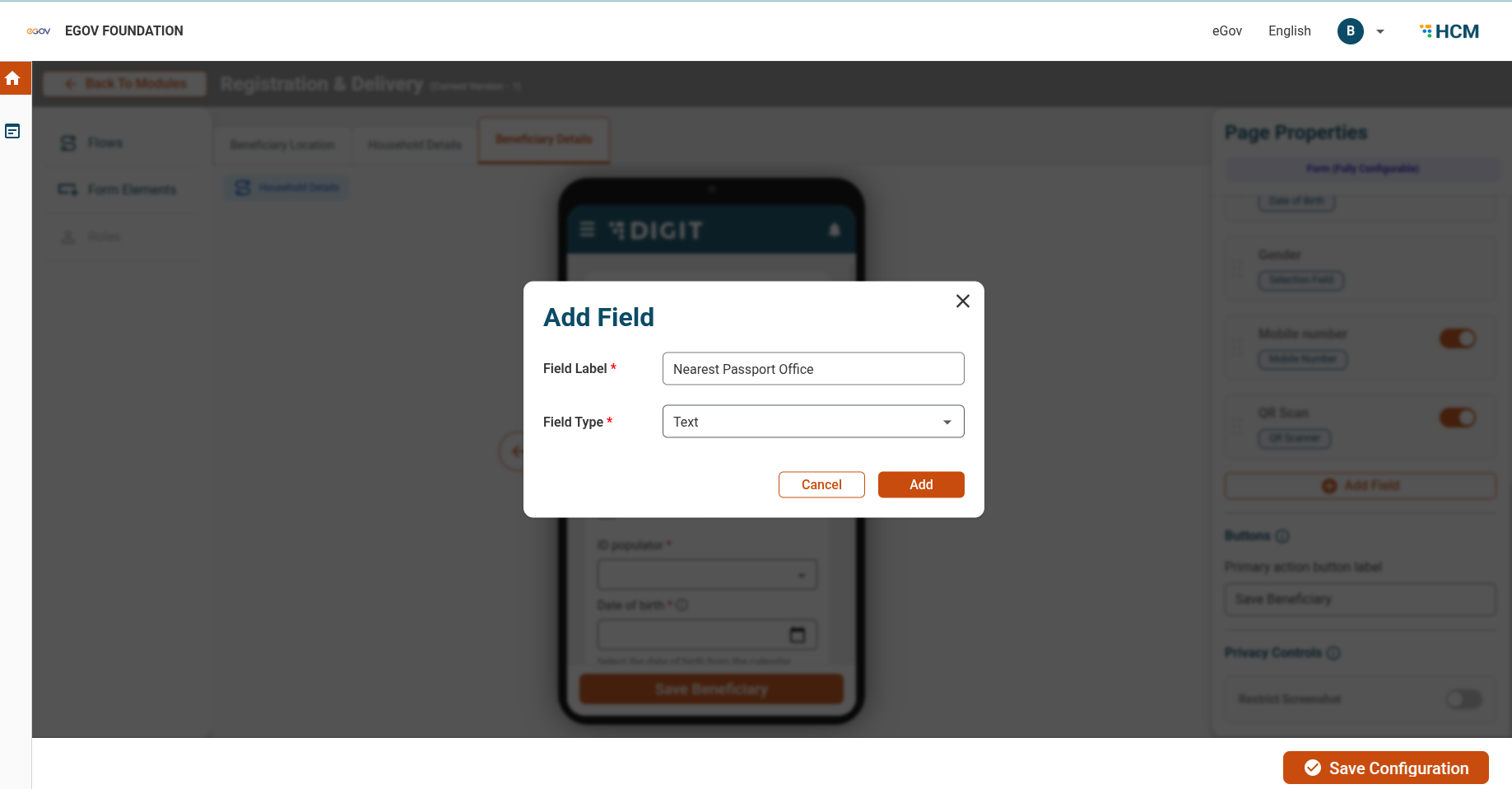
  2. Click Add Field.

  3. Enter the required field details, such as:

    • Field Label

    • Field Type (e.g., text, number, dropdown, date)

    • Helper Text (optional guidance for field users)

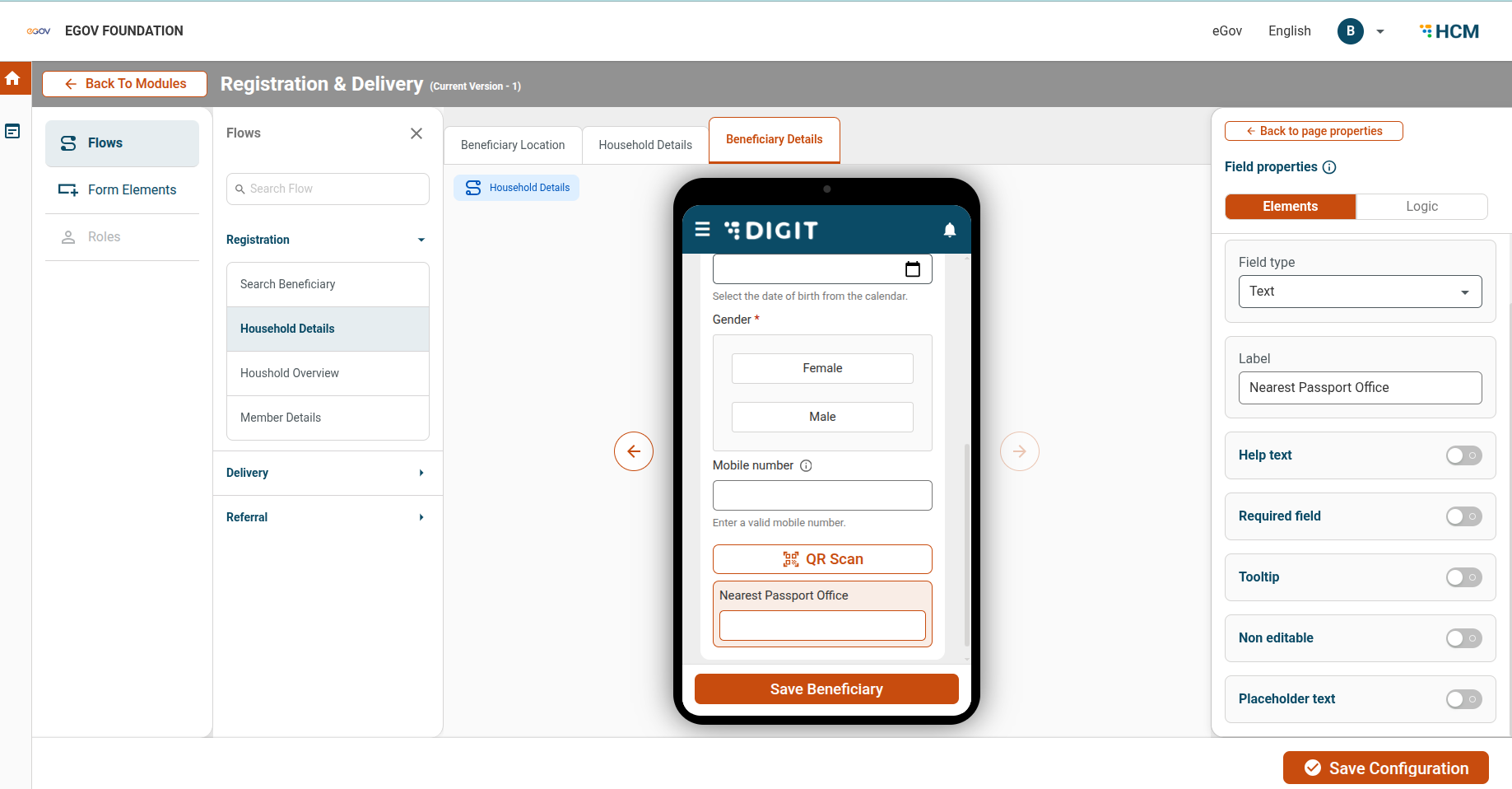
  4. Configure additional properties if required (e.g., mandatory, validation rules). Refer to the field properties and field types table for details.

Step 2: Review the Field Configuration

  1. Verify that the new field appears correctly on the screen.

  2. Ensure the label and helper text are clear and aligned with campaign requirements.

Step 3: Save Changes

  1. Review all configurations.

  2. Click Save Configuration before exiting the module configuration screen.

Repeat the process for any additional fields or modules as required.

The newly added fields will now be available in the mobile application during campaign execution.

Field Properties

Property
Description
Applicable Fields

Non Editable

Allows you to lock a field so users cannot modify its value. Useful for auto-filled or system-generated fields.

All field types

Label

Defines the display name of the field shown to users. This text can be updated according to the user.

All field types

Field Type

A dropdown that allows you to select the type of field. It contains all available field types and determines how the field will be displayed and what kind of input is allowed.

All field types

Required field

Marks a field as required. The form cannot be submitted if this field is left empty.

All field types

Default Value

Sets a pre-filled value that appears automatically when the form loads.

Text, Number, Date, Dropdown

Tool tip

Displays guidance or instructions to help users understand what to enter in the field.

All field types

Help Text

Displays guidance or instructions to help users understand what to enter in the field.

All field types

Dependent Field

Controls when a field is shown or hidden based on other field values.

All field types

Input Validation

Ensures the entered data follows specific rules (e.g., format, range, pattern).

Text, Number, Date, Phone, QR

Use Existing Data

Connects the field to a predefined list of values or master data for selection.

Dropdown, Checkbox, Radio, Search

Field Types

Field Type
Description

Text

Used to capture free text input such as names, descriptions, or comments.

Number

Used to capture numeric values (integer or decimal).

Dropdown

Allows users to select one or more options from a list.

Checkbox

Allows users to select multiple options from a list.

Radio Button

Allows users to select only one option from a list.

Date Picker

Used to capture a date (e.g., Date of Birth, event date).

Numeric Counter

Allows users to increase or decrease a numeric value using + / – buttons.

Phone Number

Used to capture mobile or phone numbers with country code support.

QR Scanner

Allows scanning of QR codes (including GS1 QR codes).

Coordinates

Automatically captures latitude and longitude coordinates.

ID Populator

Displays auto-generated or system-calculated values (e.g., IDs, timestamps).

Last updated

Was this helpful?