> For the complete documentation index, see [llms.txt](https://docs.digit.org/llms.txt). Markdown versions of documentation pages are available by appending `.md` to page URLs; this page is available as [Markdown](https://docs.digit.org/health/access/public-health-product-suite/health-campaign-management-hcm/hcm-console/campaign-home-page.md).
# Campaign Home Page
## Overview
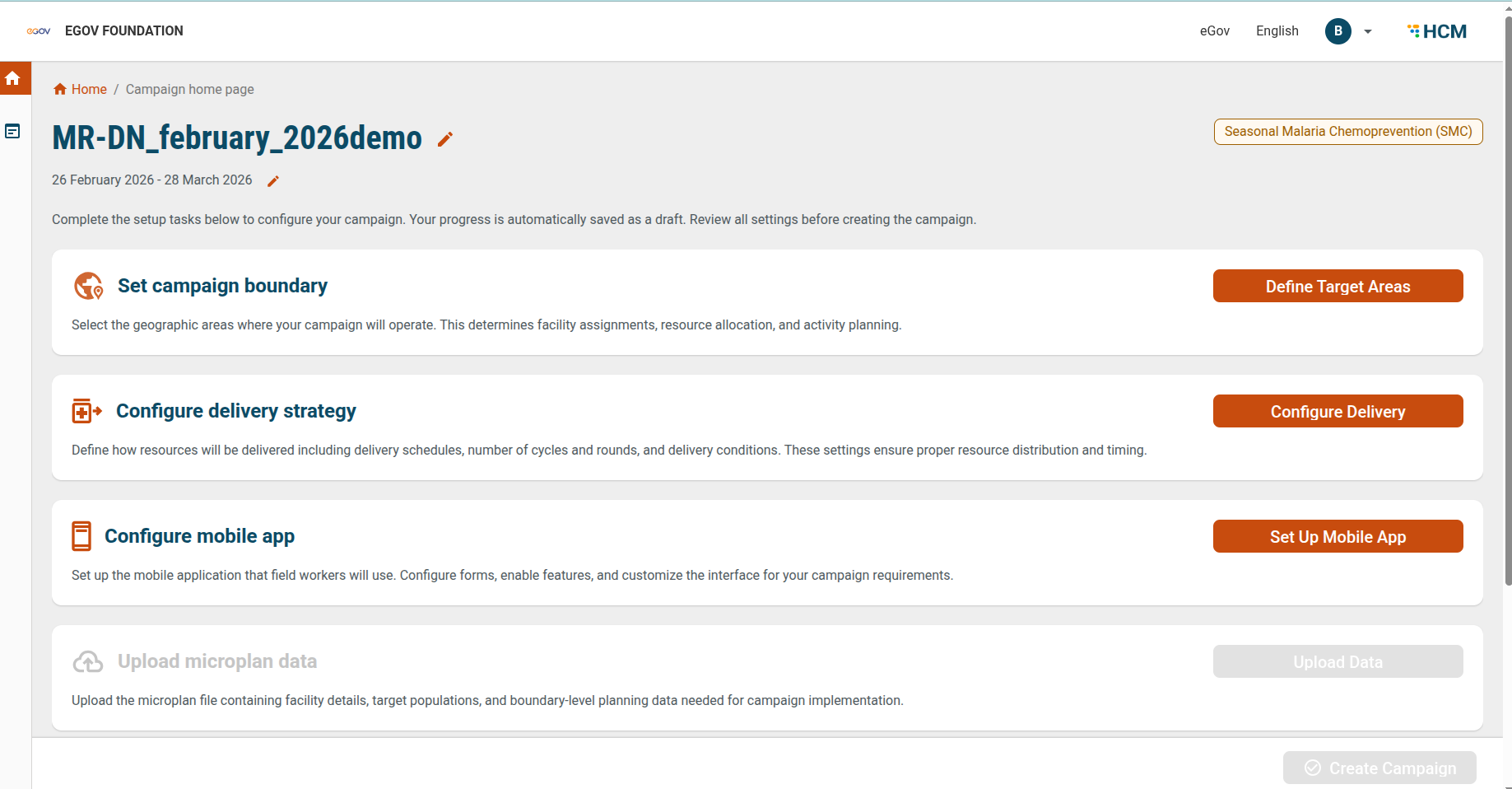
The **Campaign Home Page** is the central configuration dashboard for your campaign. It provides a guided setup flow where you complete all required configurations before activating the campaign.
From this page, you can:
* Review and edit campaign details
* Complete mandatory setup tasks
* Track progress
* Create and activate the campaign
All progress is automatically saved as a **draft**, so you can safely exit and return later.
## Steps
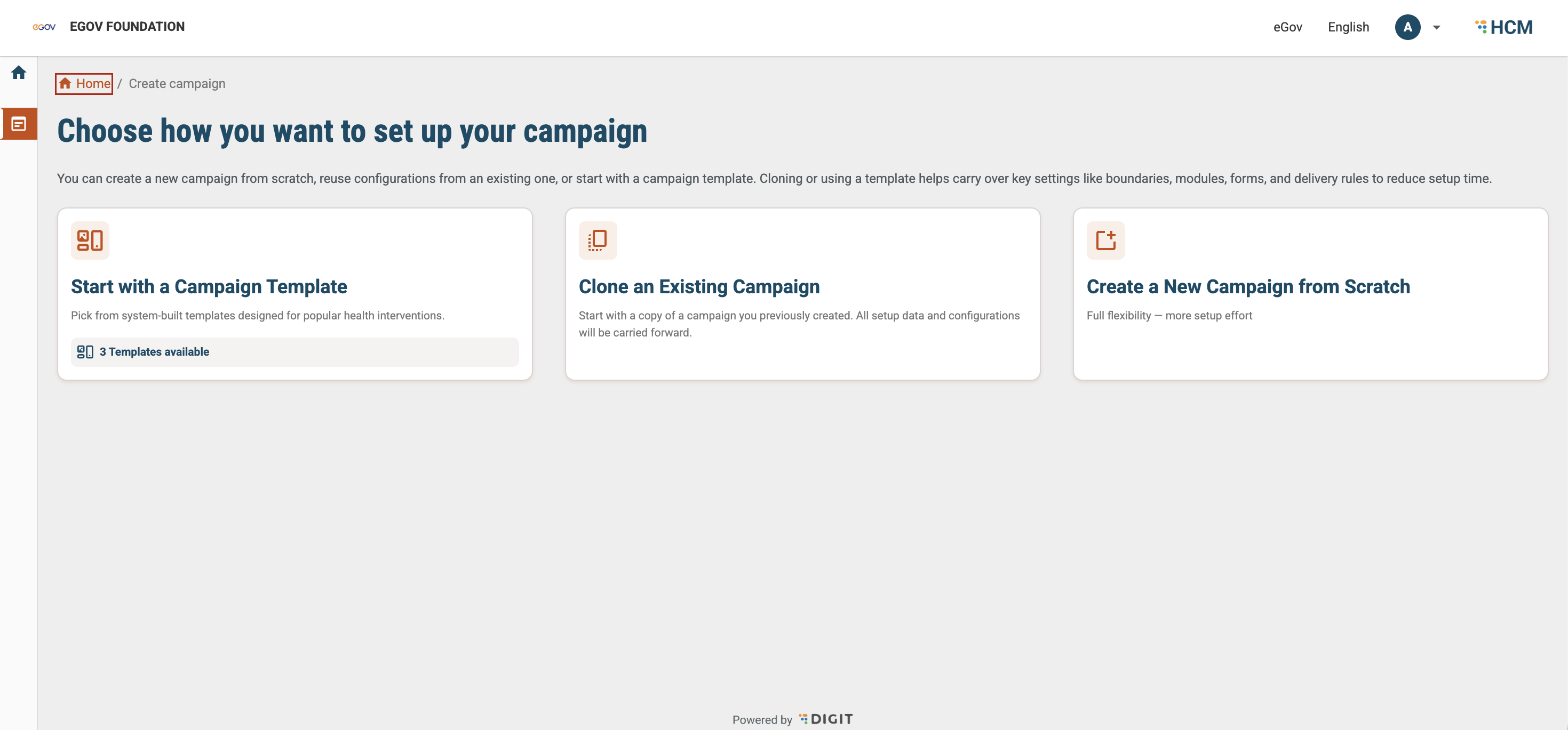
### Step 1: Choose How to Set Up Your Campaign
Overview
Before configuring campaign details, you must select how you want to set up your campaign. This step determines the starting point for your configuration.
You will see three options:
* **Start with a Campaign Template** — Pick from system-built templates designed for popular health interventions. Templates come pre-configured with key settings like boundaries, modules, forms, and delivery rules, reducing setup time. The number of available templates is displayed on the card.
* **Clone an Existing Campaign** — Start with a copy of a campaign you previously created. All setup data and configurations will be carried forward, allowing you to reuse and adjust an existing setup.
* **Create a New Campaign from Scratch** — Start with a blank configuration. This gives full flexibility but requires more setup effort.
#### Steps
1. From the Console Home Page, click **Create Campaign**.
2. Review the three options and select the one that best fits your need.
3. You will be redirected to the Campaign Home Page to continue setup.
### Step 2: Campaign Details
At the top of the page, you will see:
* **Campaign Name**
* **Campaign Duration**
* **Campaign Type**
To edit any of these:
1. Click the **Edit** icon next to the respective field.
2. Update the details.
3. Click **Save**.
### Step 3: Action Cards
Below the campaign details, you will see a series of **action cards**.
Each card represents a mandatory configuration module required to complete the campaign setup.
The action cards include:
* **Set Campaign Boundary**
* **Configure Delivery Strategy**
* **Configure Mobile App**
* **Upload Microplan Data**
* **Bulk Upload Language Content**
* **Configure Checklist**
### Step 4: Configuration Tasks
1. Click the **action button** on a task card.
2. You will be redirected to the corresponding configuration screen.
3. Complete the required settings.
4. Click **Save** before exiting the screen.
Repeat this process until all mandatory tasks are completed.
### Step 5: Verify Completion
Once all required configurations are completed:
* Confirm that the **Create Campaign** button is enabled.
If the button is disabled, review the task cards to identify any incomplete sections.
### Step 6: Create and Activate the Campaign
1. Click **Create Campaign**.
2. Confirm the action (if prompted).
Your campaign is now finalised and activated.
---
# Agent Instructions
This documentation is published with GitBook. GitBook is the documentation platform designed so that both humans and AI agents can read, navigate, and reason over technical content effectively. Learn more at gitbook.com.
## Querying This Documentation
If you need additional information that is not directly available in this page, you can query the documentation by asking a question.
Perform an HTTP GET request on the following URL with the `ask` and `goal` query parameters:
```
GET https://docs.digit.org/health/access/public-health-product-suite/health-campaign-management-hcm/hcm-console/campaign-home-page.md?ask=&goal=
```
`ask` is the immediate question: it should be specific, self-contained, and written in natural language.
`goal` is what the user is ultimately trying to achieve, the reason they need the answer. Sharing it helps GitBook give you a better, more relevant answer. A goal is most helpful when it describes the outcome the user wants rather than restating the question. For example, with `ask=how do I create an API token`, a goal like `automate deployments from our CI pipeline` lets GitBook tailor the answer to that use case.
The response will contain a direct answer to the question and relevant excerpts and sources from the documentation.
Use this mechanism when the answer is not explicitly present in the current page, you need clarification or additional context, or you want to retrieve related documentation sections.