
Actions
Overview
The My Actions feature adds an Actions column to the My Campaign screen. This column allows users to perform context-specific tasks on a campaign—based on its current status—using a simple action menu.
Steps
Step 1: Enable the Actions Column
Purpose: Add an Actions column to the My Campaign table.

Configuration
The Actions column is defined in
myCampaignConfig.js.
Outcome
An Actions column is rendered for each campaign row.
The column supports custom UI rendering.
Step 2: Render the Actions Button
Purpose: Display an interactive action menu for each campaign.
Implementation
In
UICustomizations.js, a custom component is rendered usingadditionalCustomizations.
Outcome
Each campaign row displays an Action button.
Clicking the button opens a dropdown menu with available actions.
Step 3: Handle Action Selection
Purpose: Trigger the correct behaviour when a user selects an action.
Implementation
An
onActionSelectfunction is used to handle user selections.The function:
Reads the selected option
Determines the campaign status
Executes the corresponding action
Step 4: Configure Actions by Campaign Status
Available actions vary depending on the campaign’s current state.
Available Actions:
Update campaign
Configure checklist
View user credentials ➡️ All actions are enabled.
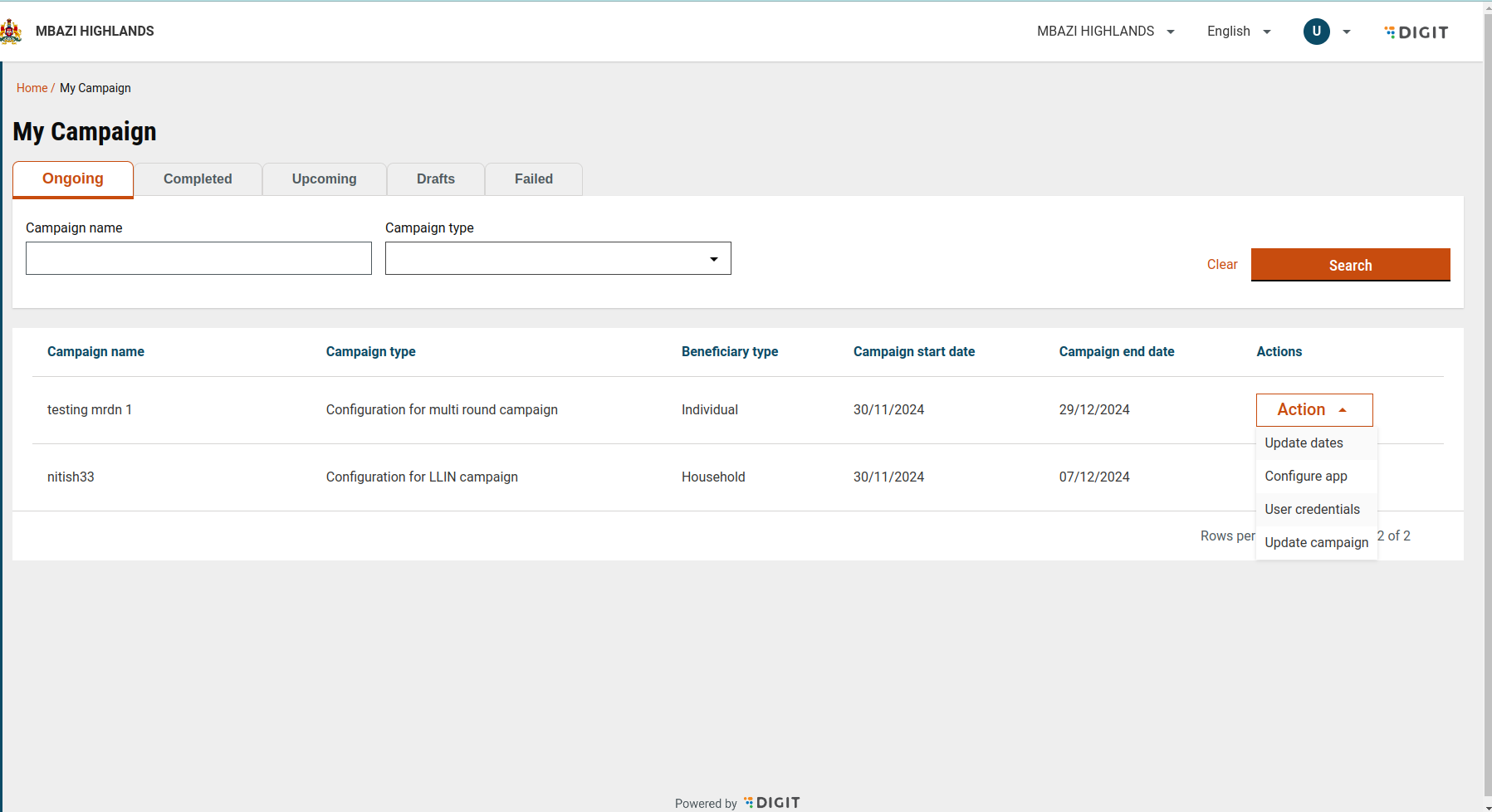
Available Actions:
View user credentials ➡️ Update and configuration actions are disabled.
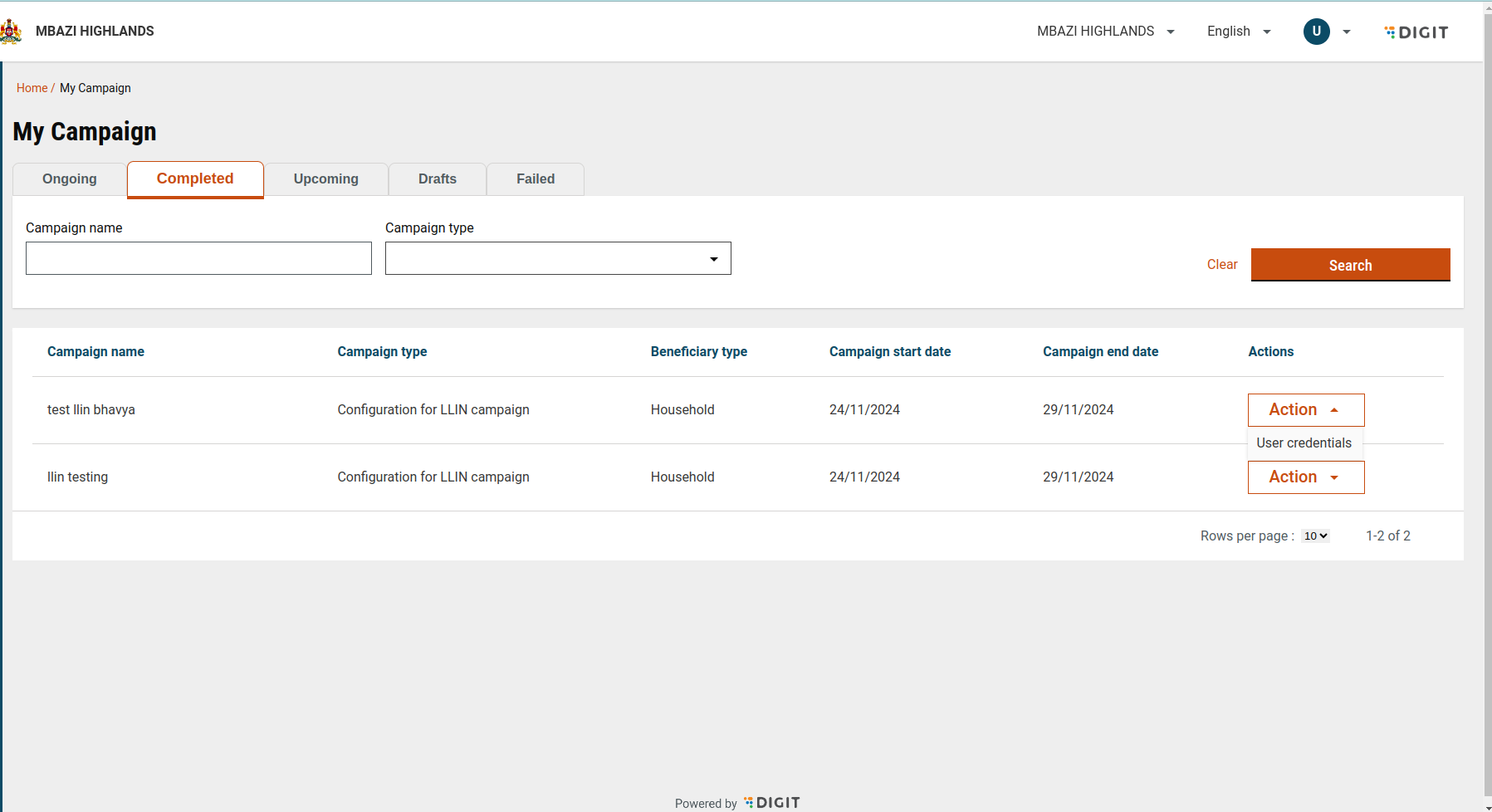
Available Actions:
Update campaign
Configure checklist
View user credentials ➡️ All actions are enabled.
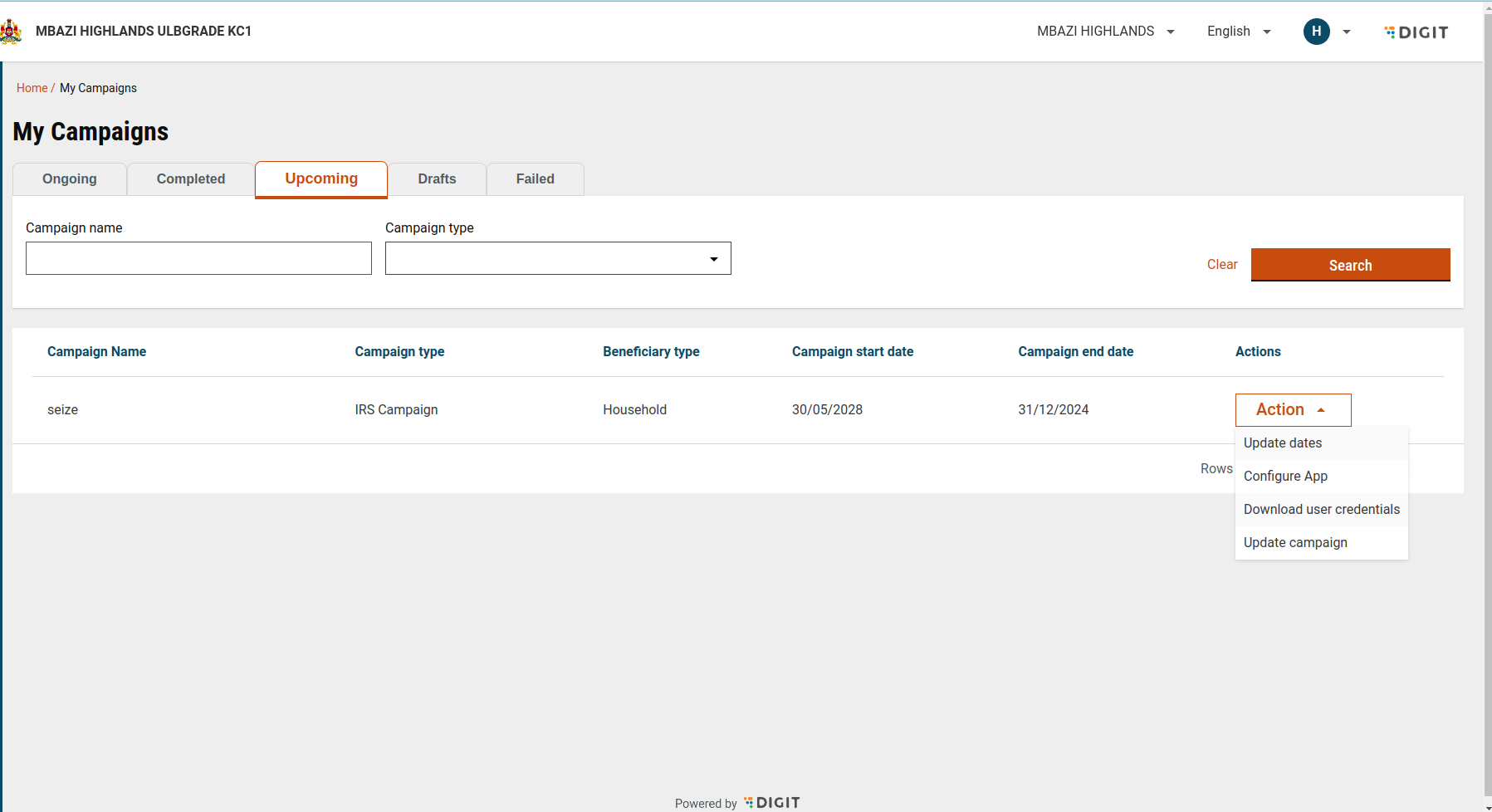
Available Actions:
No action button is shown.
Available Actions:
No action button is shown.
Reference Links
Was this helpful?