> For the complete documentation index, see [llms.txt](https://docs.digit.org/llms.txt). Markdown versions of documentation pages are available by appending `.md` to page URLs; this page is available as [Markdown](https://docs.digit.org/health/ph-v1.7/access/public-health-product-suite/health-campaign-management-hcm/user-manual/common-functions/manage-users.md).
# Manage Users
An illustrative guide to using the User Management feature
## Overview
The User Management feature allows the supervisors/managers to create and manage users and team assignments for their respective boundaries through the user interface.
## User Roles
| User Roles | Scope of Action | Role Description |
| -------------------- | ------------------------------------------------------------------------------------------------------------------------------------------------------------------------------------------------------------------------------------------------------------------------------------------------ | ------------------------------------------------------------------------------------------------------------------------------- |
| System administrator |
Create, search, update, and deactivate user accounts.
Create, search, update, and deactivate other system administrator accounts.
Create, assign, update, and delete role assignments.
Create, assign, update, and delete campaign assignments.
| A system administrator is a super user, who has complete access to all the features that the product includes. |
| Supervisors |
Create, search, update, and deactivate user accounts (except system admin).
Assign/update/delete role assignments.
Assign/update/delete campaign assignments
| Supervisors are responsible to monitor and guide the teams during the campaign and ensure that the targets are met effectively. |
| Helpdesk user |
Create, search, update, and deactivate user accounts (except system admin).
Assign/update/delete role assignments.
Assign/update/delete campaign assignments.
| Helpdesk users are the support team established to provide assistance throughout the campaign. |
## Steps
### Create Employee
* Click on the **User Management** card on the home page to access.
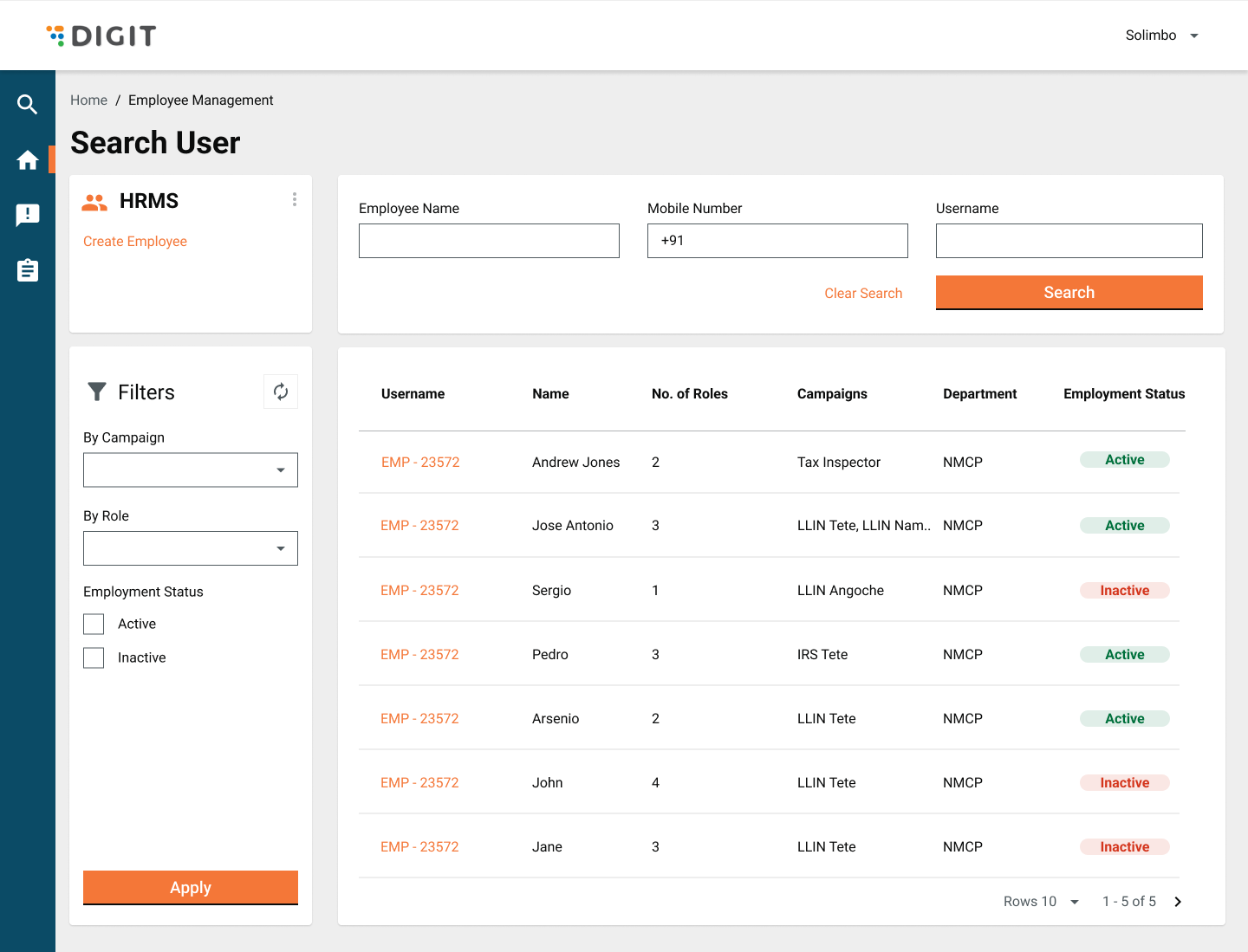
* Enter the **Employee Name**, **Mobile Number** or **Username** to search for specific users.
* The **Search User** option allows you to filter the search for users.
* **By Campaign**
* **By Role**
* **Employment Status - Active** or **Inactive**
* Click on the **Create Employee** option on the search user screen to add a user.
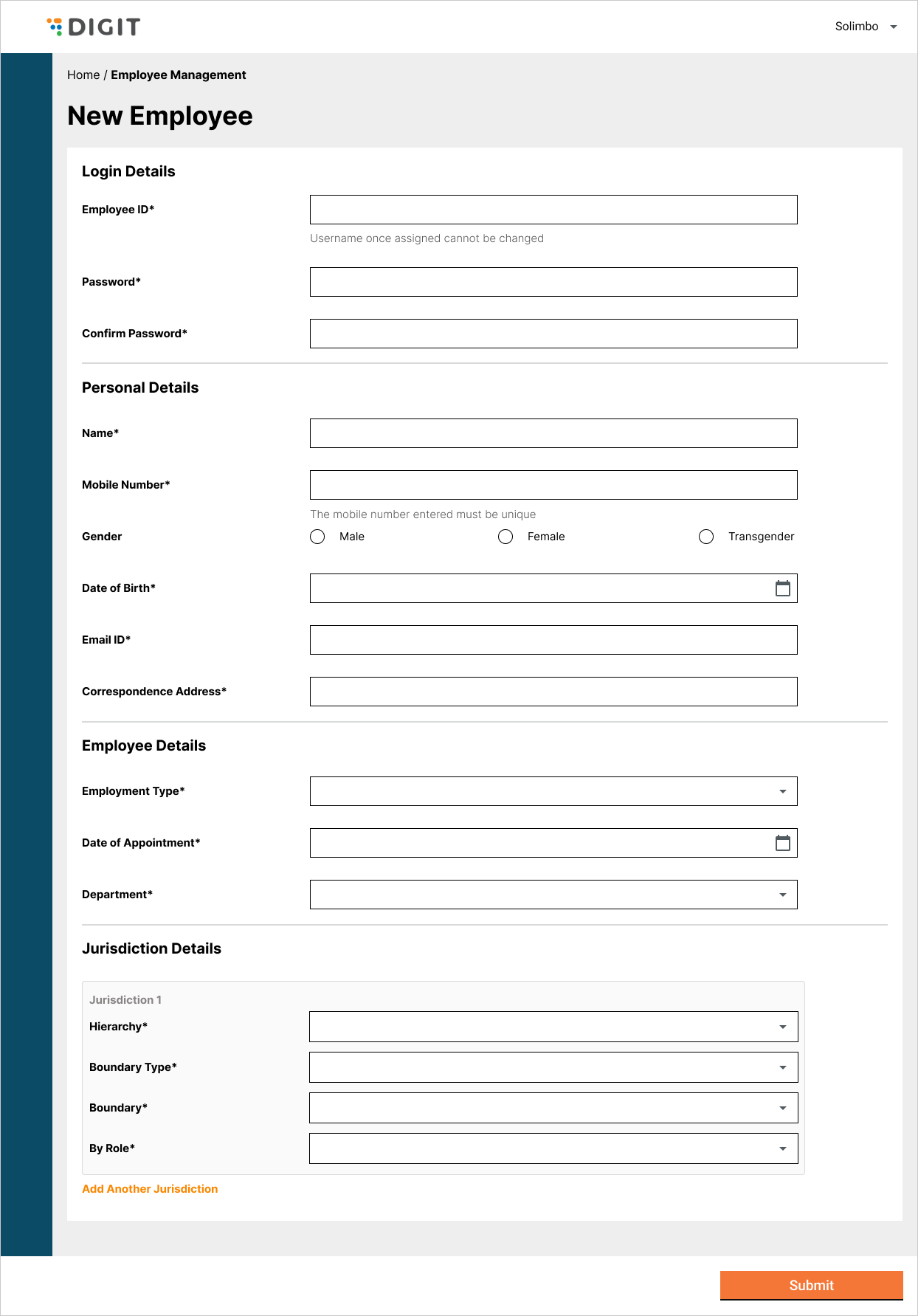
* Fill in the employee details in the form. Click on the **Submit** button to add the employee to the database.
### Assign Campaigns
* Click on the **Proceed For Campaign** button to assign a campaign to the employee user.
* Select the applicable campaign from the drop-down list and add the dates for assignment.
### View & Edit Users
The view and edit user option enables users to reset the password and edit employee details.
* Click on the **Edit Employee** option to update or change details.
### Deactivate Employee
* Click on the **Deactivate Employee** option to remove or disable any employee.
---
# Agent Instructions
This documentation is published with GitBook. GitBook is the documentation platform designed so that both humans and AI agents can read, navigate, and reason over technical content effectively. Learn more at gitbook.com.
## Querying This Documentation
If you need additional information that is not directly available in this page, you can query the documentation dynamically by asking a question.
Perform an HTTP GET request on the current page URL with the `ask` query parameter, and the optional `goal` query parameter:
```
GET https://docs.digit.org/health/ph-v1.7/access/public-health-product-suite/health-campaign-management-hcm/user-manual/common-functions/manage-users.md?ask=&goal=
```
`ask` is the immediate question: it should be specific, self-contained, and written in natural language.
`goal` is optional and describes the broader end goal you are ultimately trying to accomplish on behalf of the user. GitBook uses it to tailor the answer towards what is most useful for that goal.
The response will contain a direct answer to the question and relevant excerpts and sources from the documentation.
Use this mechanism when the answer is not explicitly present in the current page, you need clarification or additional context, or you want to retrieve related documentation sections.
.png)
.png)
.png)
.png)
.png)
.png)