> For the complete documentation index, see [llms.txt](https://docs.digit.org/llms.txt). Markdown versions of documentation pages are available by appending `.md` to page URLs; this page is available as [Markdown](https://docs.digit.org/health/ph-v1.7/access/public-health-product-suite/health-campaign-management-hcm/user-manual/common-functions/registration-and-distribution-voucher-based.md).

# Registration & Distribution: Voucher-based

An illustrative guide to using the voucher based registration & distribution feature

## Overview

With the help of Voucher-Based Registration and Distribution, the registrar can use a QR code-based voucher provided by the program to link beneficiaries to the QR code voucher at the time of registration. This will enable distributors to search for beneficiaries at the time of delivery by scanning the QR code vouchers linked to a specific beneficiary.

## Key Features

* Allows a registrar to link a QR code voucher provided by the program to the beneficiary by scanning the QR code at the time of registration.
* Allows a distributor to search for a beneficiary in the system by scanning the QR code voucher shown by the beneficiary when the Distributor has to deliver the drug.

## User Roles

<table><thead><tr><th width="140">User Role</th><th width="166">Scope of Action</th><th>Role Description</th></tr></thead><tbody><tr><td>Registrar</td><td>Scan and link voucher to the households during registration</td><td>The user goes from house-to-house and links the beneficiaries to the QR code voucher at the time of registration. </td></tr><tr><td>Distributor</td><td>Scan and retrieve household details for distribution</td><td>The user goes from house-to-house, and searches for beneficiaries by scanning the QR code voucher.</td></tr></tbody></table>

## Steps

#### User Role: Registrar

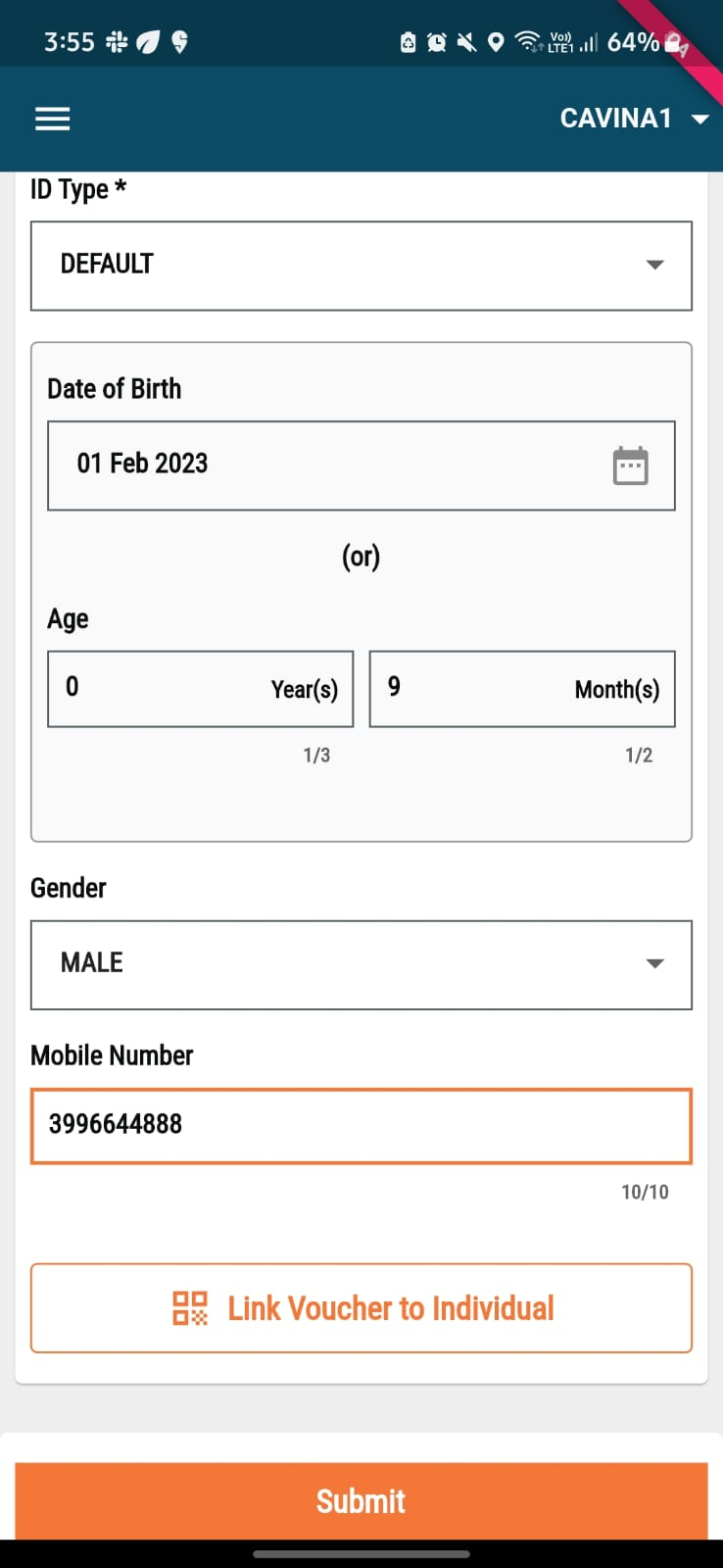
* Add the mandatory details for an individual on the **Individual Details** screen
* Click on the **Link Voucher To Individual** button.

{% columns %}
{% column %}

<figure><img src="https://content.gitbook.com/content/ugLvZh3s3IGcc8JYqNN7/blobs/oh5Ah4Q2Z7qRz4o9OS8d/image.png" alt="" width="185"><figcaption></figcaption></figure>
{% endcolumn %}

{% column %}

<figure><img src="https://content.gitbook.com/content/ugLvZh3s3IGcc8JYqNN7/blobs/cNRRAeIYuKC07H6i420l/image.png" alt="" width="185"><figcaption></figcaption></figure>
{% endcolumn %}
{% endcolumns %}

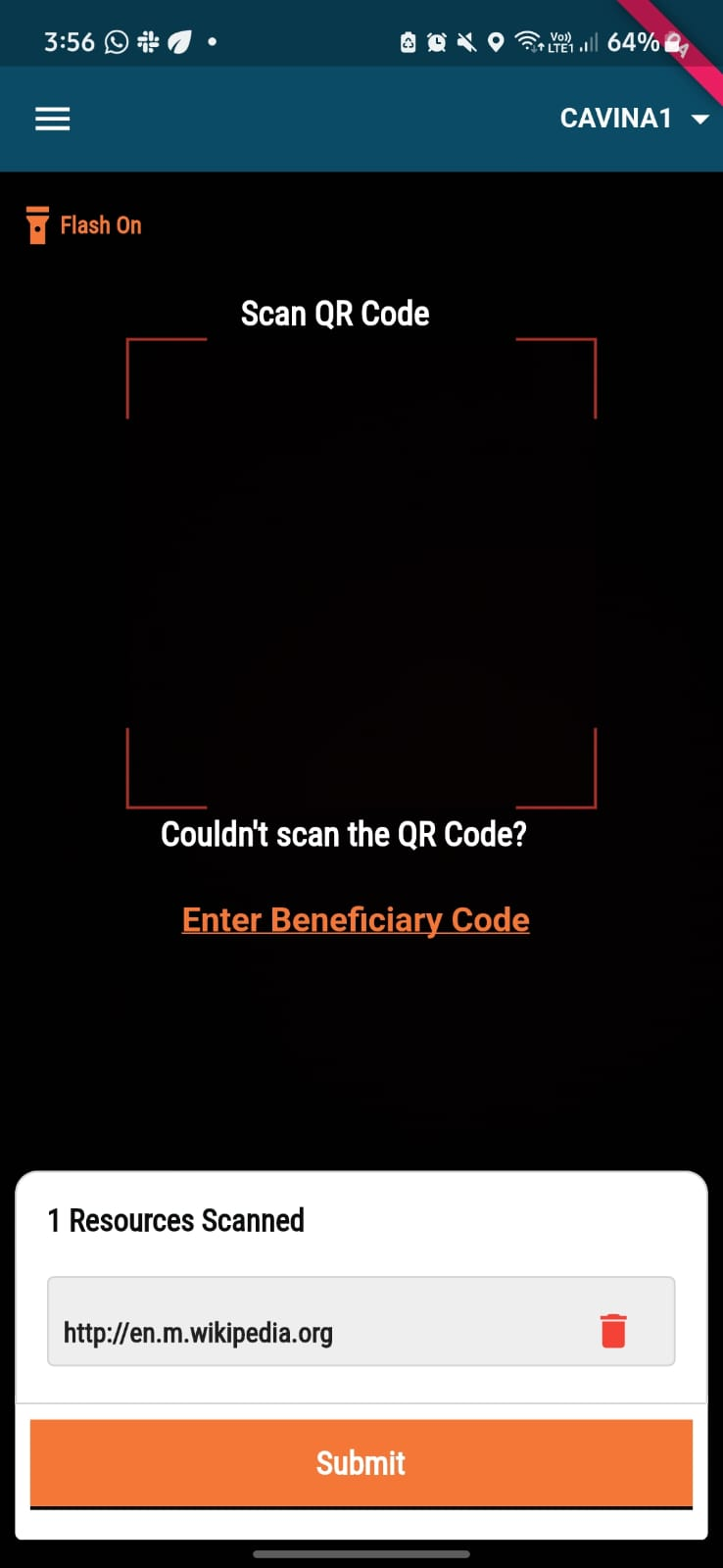
* The QR code scanner is launched.&#x20;
* Scan the unique QR code linked to the beneficiary. The **1 Resource Scanned** message appears below the QR scanning panel.&#x20;
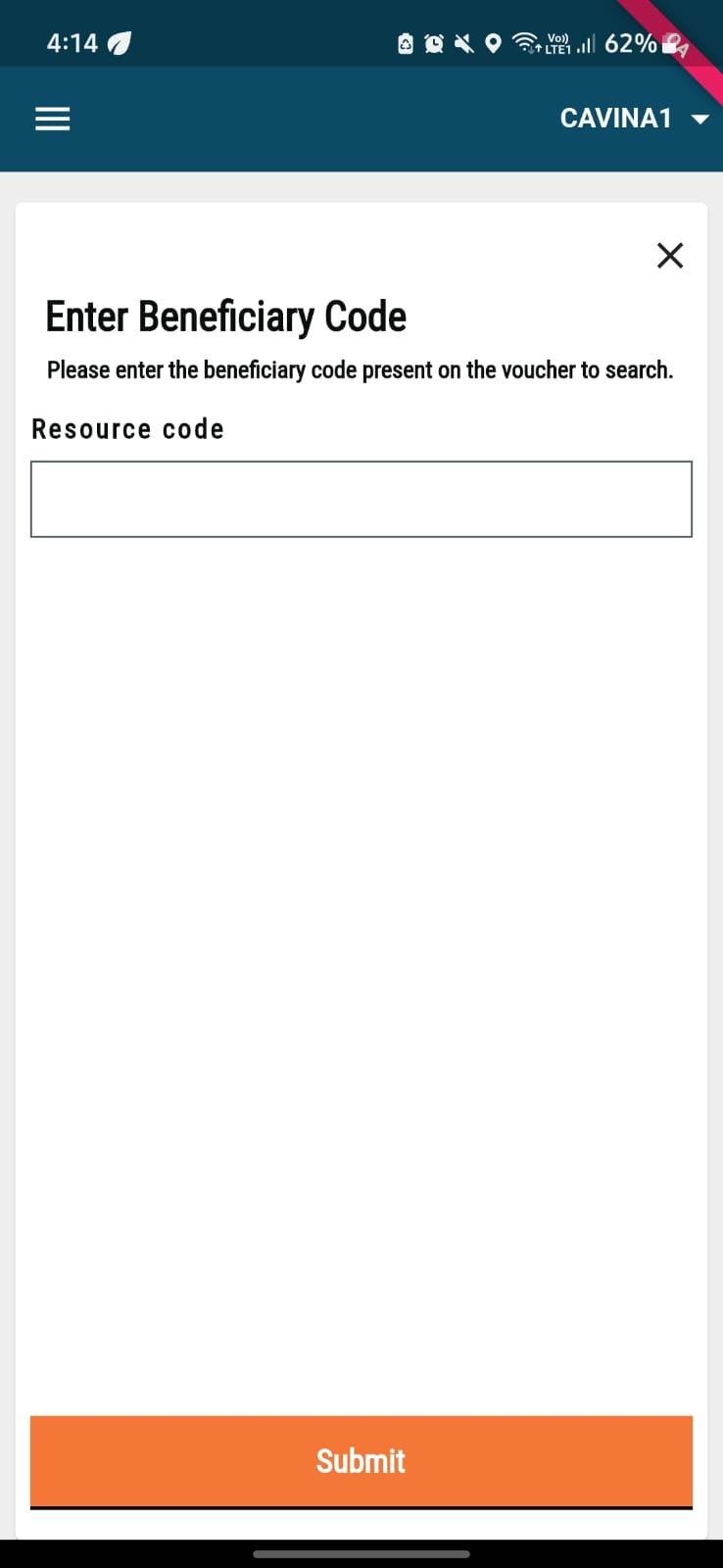
* If the QR code voucher scanning shows an error, click on the Enter Beneficiary Code option to link the voucher manually.&#x20;
* Add the voucher code. Click on the **Submit** button to link the code successfully to the beneficiary.

{% columns %}
{% column %}

<figure><img src="https://content.gitbook.com/content/ugLvZh3s3IGcc8JYqNN7/blobs/0zLYGGvpkqi8ea5NdLjW/image.png" alt="" width="185"><figcaption></figcaption></figure>
{% endcolumn %}

{% column %}

<figure><img src="https://content.gitbook.com/content/ugLvZh3s3IGcc8JYqNN7/blobs/yRLtGaXcwN6U7wEx52PE/image.png" alt="" width="185"><figcaption></figcaption></figure>
{% endcolumn %}
{% endcolumns %}

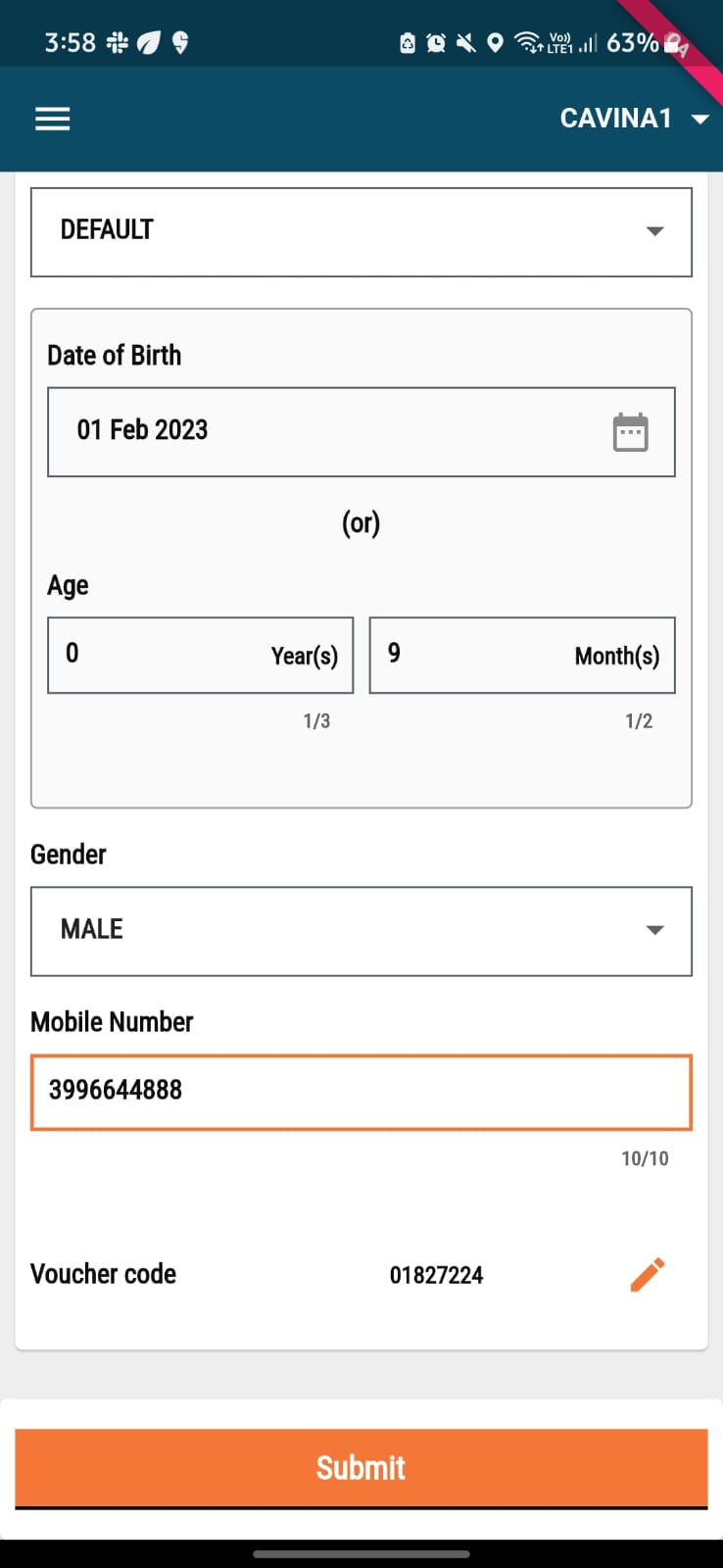
* The voucher appears on the **Individual Details** page. Click on the **Edit** button next to the voucher code. Redo step 2 and link the correct QR code voucher to the beneficiary.&#x20;
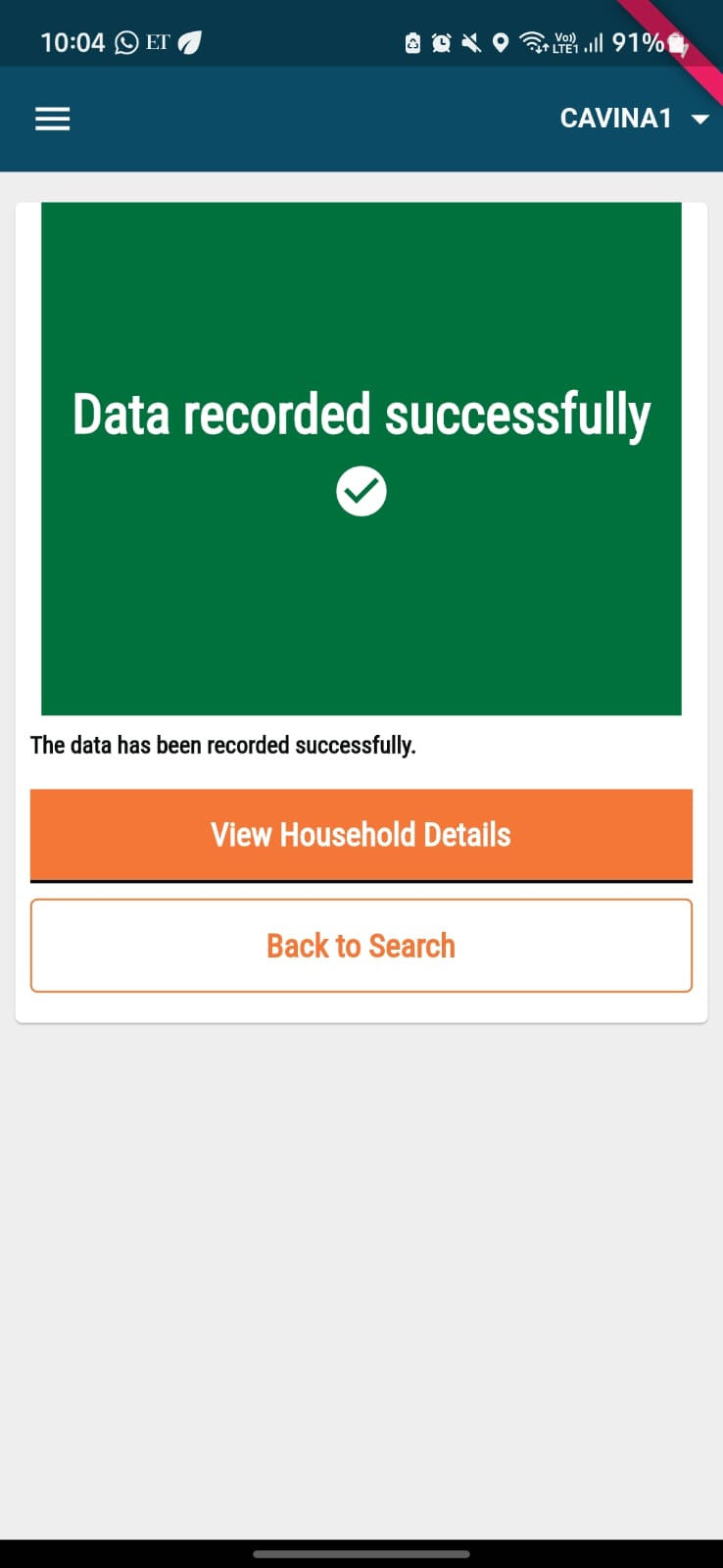
* Click on **Submit** after adding the correct voucher code for the beneficiary to link the Voucher to the Beneficiary in the database.

<div align="left"><figure><img src="https://content.gitbook.com/content/ugLvZh3s3IGcc8JYqNN7/blobs/zdk11AG6eEYCYbx6oBZm/image.png" alt="" width="185"><figcaption></figcaption></figure></div>

#### **User Role: Distributor**

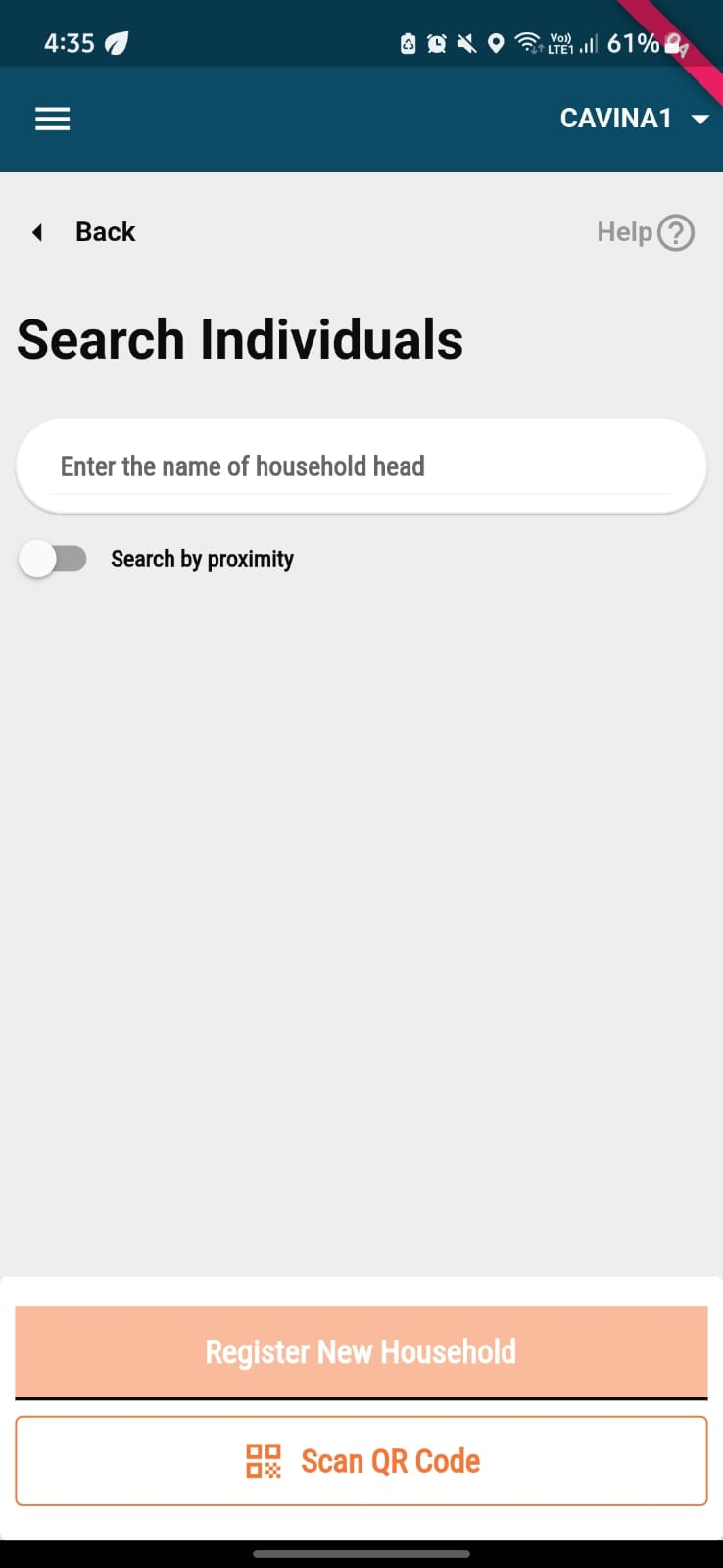
Distributors at the time of delivering the drug can search for beneficiaries using the QR code voucher associated with that beneficiary.

* Click on the **Search Individual** and the **Scan QR Code** button.

{% columns %}
{% column %}

<figure><img src="https://content.gitbook.com/content/ugLvZh3s3IGcc8JYqNN7/blobs/9J1cl8Pp49XeOAH1KFPO/image.png" alt="" width="185"><figcaption></figcaption></figure>
{% endcolumn %}

{% column %}

<figure><img src="https://content.gitbook.com/content/ugLvZh3s3IGcc8JYqNN7/blobs/dZhPOcrVWUxLiyHIso45/image.png" alt="" width="185"><figcaption></figcaption></figure>
{% endcolumn %}
{% endcolumns %}

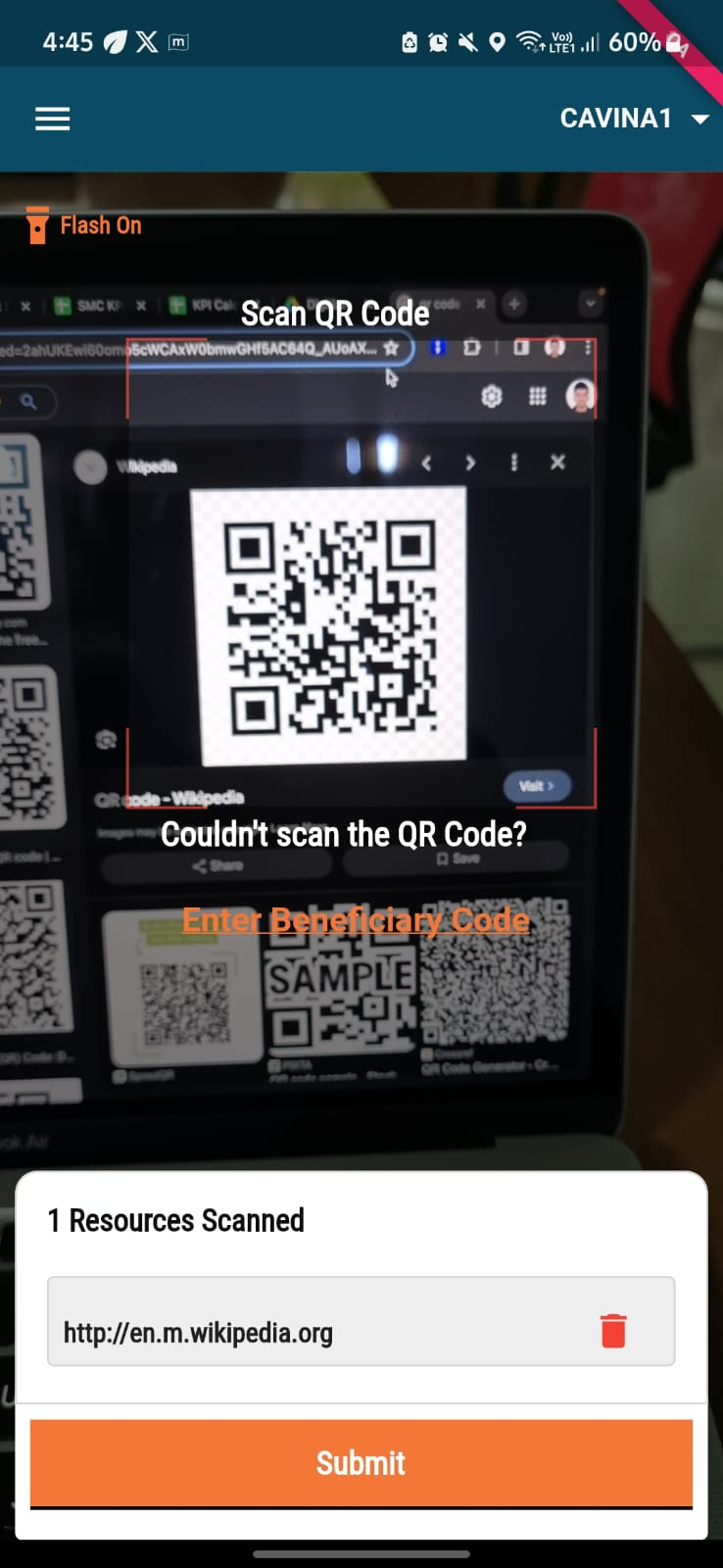
* Use the QR Code scanner to scan the voucher shown by the beneficiary and click on **Submit**.
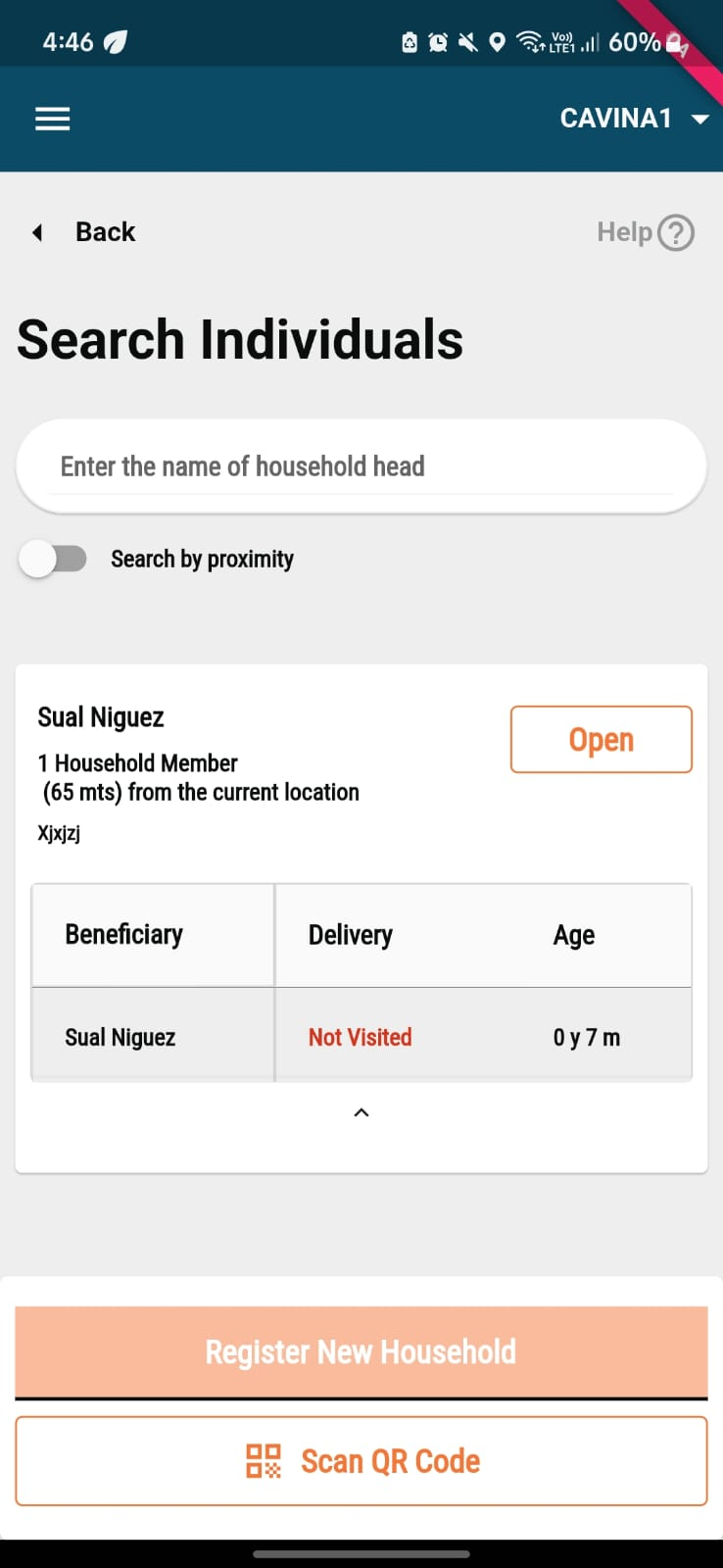
* If there is a user linked to the voucher scanned by the distributor, the details of the beneficiaries will appear on the **Individual Details** page. If not, a message will be shown stating **Match Not Found**.&#x20;

<div align="left"><figure><img src="https://content.gitbook.com/content/ugLvZh3s3IGcc8JYqNN7/blobs/5hAeckKhTnkpTeYYMe1l/image.png" alt="" width="185"><figcaption></figcaption></figure></div>

* If the beneficiary is found after scanning, you can open the record of the beneficiary and add the drug administration as per the regular flow.


---

# Agent Instructions
This documentation is published with GitBook. GitBook is the documentation platform designed so that both humans and AI agents can read, navigate, and reason over technical content effectively. Learn more at gitbook.com.

## Querying This Documentation
If you need additional information that is not directly available in this page, you can query the documentation dynamically by asking a question.

Perform an HTTP GET request on the current page URL with the `ask` query parameter, and the optional `goal` query parameter:

```
GET https://docs.digit.org/health/ph-v1.7/access/public-health-product-suite/health-campaign-management-hcm/user-manual/common-functions/registration-and-distribution-voucher-based.md?ask=<question>&goal=<endgoal>
```

`ask` is the immediate question: it should be specific, self-contained, and written in natural language.
`goal` is optional and describes the broader end goal you are ultimately trying to accomplish on behalf of the user. GitBook uses it to tailor the answer towards what is most useful for that goal.

The response will contain a direct answer to the question and relevant excerpts and sources from the documentation.

Use this mechanism when the answer is not explicitly present in the current page, you need clarification or additional context, or you want to retrieve related documentation sections.