> For the complete documentation index, see [llms.txt](https://docs.digit.org/llms.txt). Markdown versions of documentation pages are available by appending `.md` to page URLs; this page is available as [Markdown](https://docs.digit.org/health/ph-v1.7/access/public-health-product-suite/health-campaign-management-hcm/user-manual/common-functions/scan-2d-voucher.md).
# Scan 2D Voucher
An illustrative guide to using the Voucher Scanning feature
## Overview
The 2D voucher scanning feature supports voucher scanning for Beneficiary Registration, Service Delivery and Bed Net verification use cases.
## Key Features
* Enables actors to execute the registration and delivery process efficiently through the use of scanners.
* Code scanning capability provides a better user experience by auto-populating the data, thus reducing the time and effort.
* Allows manual entry of codes to ensure maximum data collection, with defined validations.
* Prevents duplication of records and monitors resources by linking beneficiaries to their respective codes and reusing them while registering a new beneficiary or distributing resources. One can also monitor the quantity of stock distributed by scanning the code available on the stock.
* Allows multiple scanning of resources at once.
## User Roles
| User Role | Scope of Action | Role Description |
| ----------------------- | ------------------------------------------------------------------------------------------------------------------------------------------------------------------------------------------------------------------------------------- | ------------------------------------------------------------------------------------------------------------------------------------------------------- |
| Registrars/Distributors |
Scan and link vouchers to households during registration
Enter the voucher code manually
Scan and retrieve household details to deliver intervention
Scan the resource code during delivery
| Provide direct healthcare services, communicate SBCC information, and support to communities. Usually operate in teams and within a specified boundary. |
| Warehouse Managers |
Scan the stock resource cards while receiving (Can be used for other transactions but is not preferred)
Scan multiple resources at once.
Enter the code manually
| A warehouse manager is responsible to manage the stock and record all the transactions that take place within the assigned warehouse/facility. |
## Steps
{% hint style="info" %}
**Note:** After logging into the application, the user lands on this screen, which displays the daily performance (number of households registered). The progress bar must reset daily at 00:00 hours and start from 0 registrations. The action buttons related to the beneficiary include:
* Beneficiaries
* View Reports
* Sync Data
* Call Supervisor
* File Complaint
At the bottom, there is a card that shows how many records are unsynced for the user’s convenience to sync data. If all the records are synced, then the card must say: “All records are synced”.
{% endhint %}
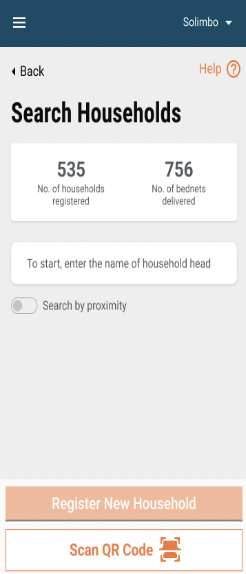
* Click on the **Scan QR code** button on the **Search Households** screen.
{% columns %}
{% column %}
{% endcolumn %}
{% column %}
{% endcolumn %}
{% endcolumns %}
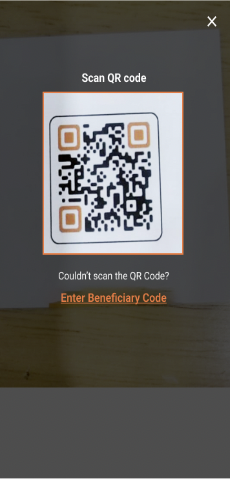
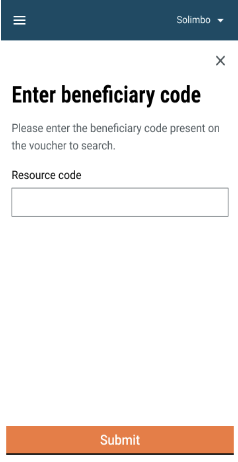
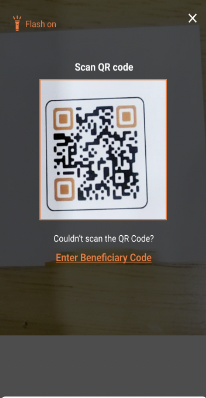
* Scan the **Voucher Code** provided to the beneficiary during registration. Alternatively, users can click on the **Enter Beneficiary Code** button to manually enter the voucher code.
* This opens the beneficiary card with a set of actions for the scanned beneficiary.
* Click on the close button to close the scanner if needed.
### Link Voucher To Individual
To link the beneficiary -
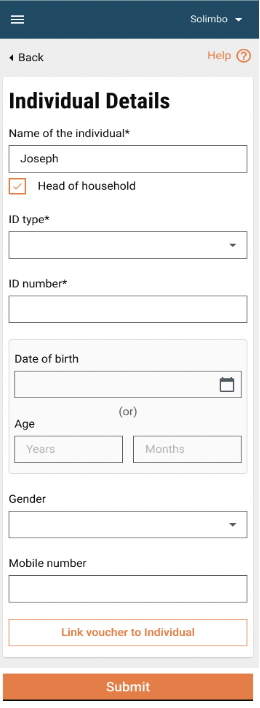
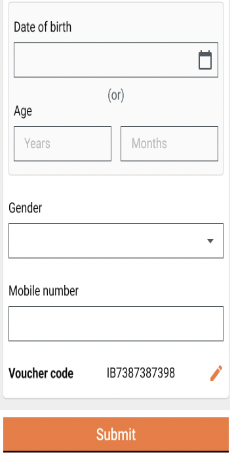
* Click on the **Link Voucher to Individual** button to link the beneficiary to the voucher card provided during registration.
* The voucher is linked successfully, and the voucher code is displayed on the screen.
{% columns %}
{% column %}
{% endcolumn %}
{% column %}
{% endcolumn %}
{% endcolumns %}
### Track Delivery Resource
While delivering any resource to the beneficiary, the user must scan the code provided on the resource package.
To track a delivery resource -
* Scan the code available on the resource package.
{% hint style="info" %}
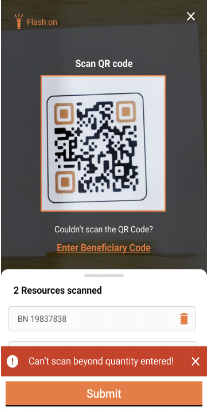
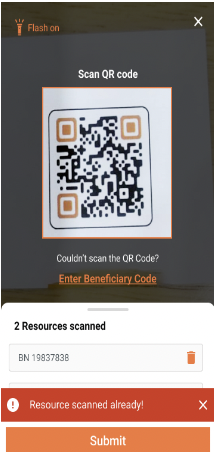
**Note:** The user can perform multiple scans at a time, but the number must not exceed the value provided by the user in the “Quantity Distributed” field.
{% endhint %}
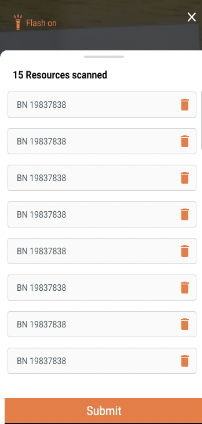
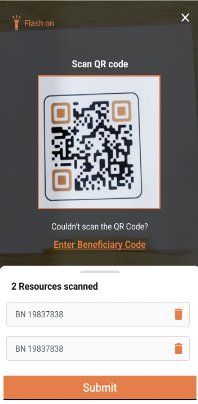
* The scanner screen has an expandable card that provides the list of resources scanned. The card displays the count of resources scanned along with the identification number for each scanned resource.
{% columns %}
{% column %}
{% endcolumn %}
{% column %}
{% endcolumn %}
{% endcolumns %}
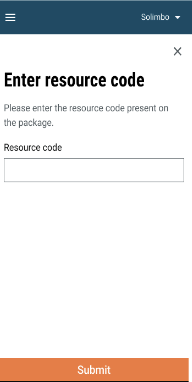
* In case one is unable to scan, the user can enter the codes manually, but after every code, they have to click on the **Enter Beneficiary Code** again and repeat the process.
{% columns %}
{% column %}
{% endcolumn %}
{% column %}
{% endcolumn %}
{% endcolumns %}
* Click on the **Delete** button to remove any resource.
{% columns %}
{% column %}
{% endcolumn %}
{% column %}
{% endcolumn %}
{% endcolumns %}
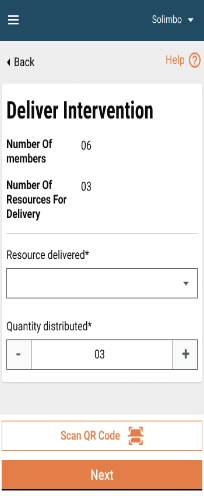
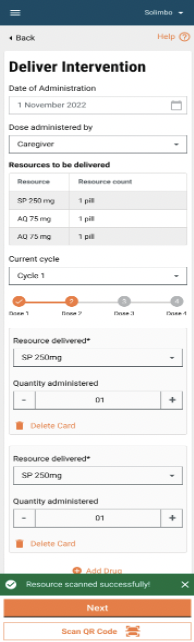
* Click on the **Submit** button to navigate back to the **Deliver Intervention** screen.
* The toast message for a successful scan is displayed on the screen.
---
# Agent Instructions
This documentation is published with GitBook. GitBook is the documentation platform designed so that both humans and AI agents can read, navigate, and reason over technical content effectively. Learn more at gitbook.com.
## Querying This Documentation
If you need additional information that is not directly available in this page, you can query the documentation dynamically by asking a question.
Perform an HTTP GET request on the current page URL with the `ask` query parameter, and the optional `goal` query parameter:
```
GET https://docs.digit.org/health/ph-v1.7/access/public-health-product-suite/health-campaign-management-hcm/user-manual/common-functions/scan-2d-voucher.md?ask=&goal=
```
`ask` is the immediate question: it should be specific, self-contained, and written in natural language.
`goal` is optional and describes the broader end goal you are ultimately trying to accomplish on behalf of the user. GitBook uses it to tailor the answer towards what is most useful for that goal.
The response will contain a direct answer to the question and relevant excerpts and sources from the documentation.
Use this mechanism when the answer is not explicitly present in the current page, you need clarification or additional context, or you want to retrieve related documentation sections.