For the complete documentation index, see llms.txt. This page is also available as Markdown.

Product Requirements Document

Background

Health campaign microplanning is a detailed planning approach used to ensure that health interventions, such as immunisations or disease prevention campaigns, are effectively delivered to target populations.

What assumptions are considered?

Updated registry: Assume that the registry data required for microplanning is accurate and up-to-date. This includes boundary data for countries, provinces, districts, and villages, as well as the location of health facilities and other points of interest. The user can update the registry while setting up the microplan.

User Roles and Access: Assume that users will be assigned specific roles (e.g., system administrator, data collector, reviewer) with corresponding access levels and permissions to ensure data integrity and security.

Data Collection Methodology: Assume that data collection methods are standardized and that data collectors are trained to ensure the consistency and accuracy of the data entered into the system.

Connectivity: Assume that users will have access to the internet or a mobile network to use the platform, although there should be provisions for offline data collection and synchronization when connectivity is limited for certain use cases.

Localization: Assume that the platform will be localized to support multiple languages and adapt to the cultural and linguistic diversity of the target communities. For the first release, the platform will be localised for English, French, and Portuguese languages.

Scalability: Assume that the platform will be scalable to accommodate additional users, data, and campaigns without significant performance degradation.

User Training and Support: Assume that users will receive adequate training on how to use the platform and that support will be available to address any issues or questions that arise.

Sustainability: Assume that the platform will be designed with sustainability in mind, considering the long-term maintenance and updates required to keep the system operational and relevant.

No registry changes: Assume that no new boundary registry or facility registry will be created or updated once the microplan setup is completed.

What are the user personas involved in the microplanning process?

Below are the users involved in the microplanning process -

a. System administrator - This user is responsible for setting up the microplanning platform such as selecting campaign boundaries, setting up the data, configuring the microplan assumptions, etc. This user will belong to the national/country-level administrative hierarchy.

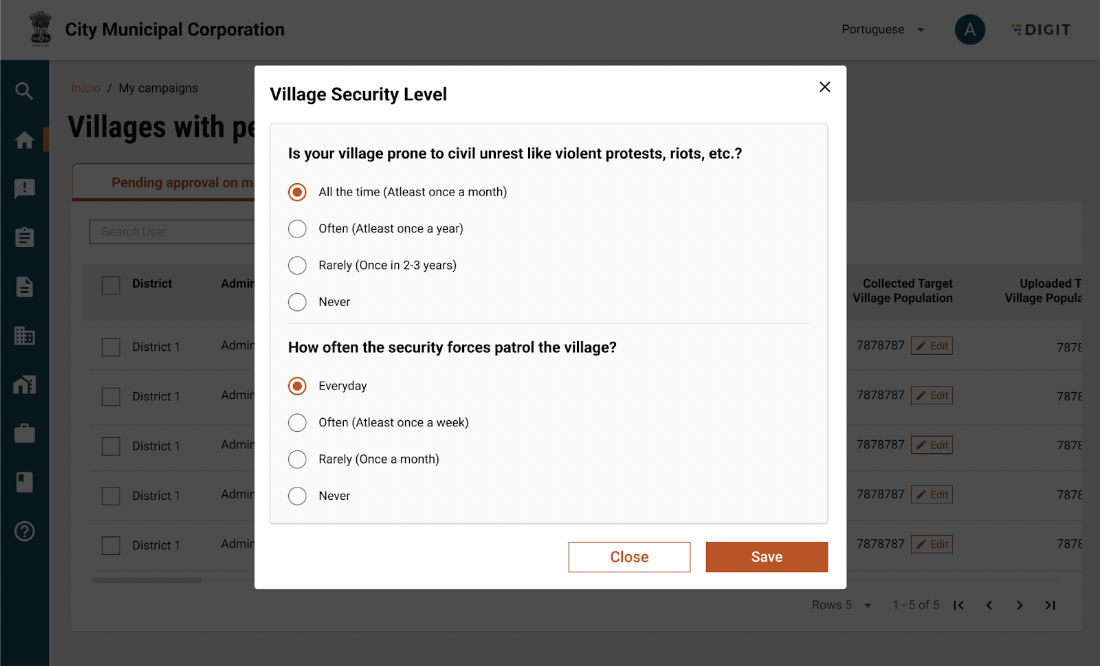
b. Data collector - This user is responsible for collecting and validating the population data from every village assigned to him/her. He will also capture the geographical features of the assigned villages such as the accessibility level of the village, the security level of the village, etc.

c. Supervisors - This is a user role that can be defined for multiple users across different administrative hierarchies. Every supervisor will have its action mapping such as supervisors with only data approver access, supervisors with microplan approval access, etc. The different type of supervisors involved are

  1. Population data approver - This user will have access to the microplan module to view, validate, and approve the population of the assigned boundaries. The approved population will be used for the estimation of resources of the microplan.

  2. Facility catchment mapper - This user will have access to the microplan module to map the facilities to their catchment boundaries w.r.t the user’s assigned boundaries.

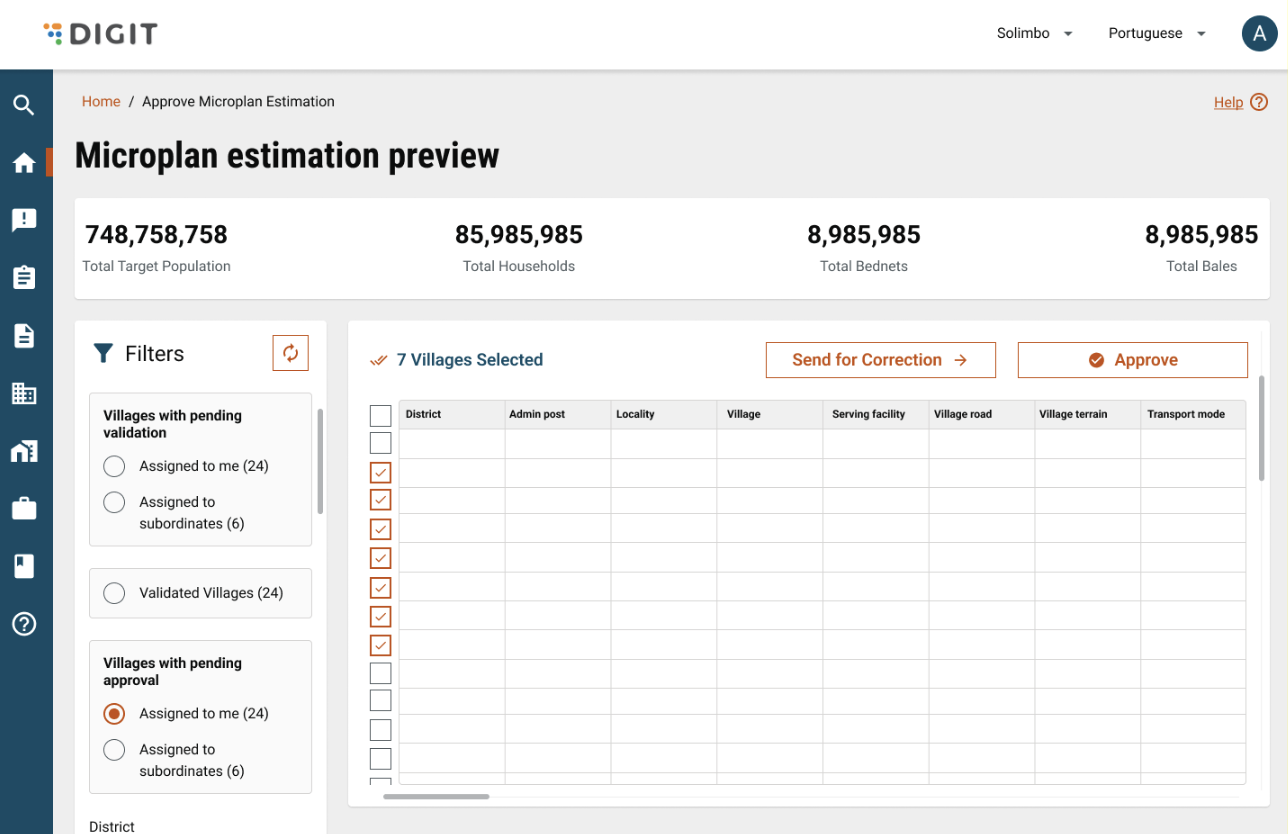
  3. Microplan approver - This user will have access to the microplan module to view, edit, and approve the microplanning estimation concerning the user’s assigned boundaries.

  4. Microplan viewer - This user will have access to the microplan module to only view the microplanning estimation concerning the user’s assigned boundaries.

Actor-Noun-Verb mapping:

Click here to view the actor-noun-verb mapping.

What are the prerequisites for microplanning?

  1. The boundary registry is configured and updated during the instance creation for the country.

  2. For defining the campaign facilities, the ‘Facility type’ should be configured in the MDMS during the instance creation for the country.

  3. The facility or point of service capacity must be defined for the campaign type during instance creation. For the bednets campaign, the capacity should be ‘Bales’ ideally, for the SMC campaign, the capacity should be ‘Blisters’ ideally. It may change depending on the user’s requirements.

  4. While managing the facility registry, the ‘Facility status’ needs to be configured in the MDMS during the instance creation of the country.

  5. In the facility upload template, the column ‘Is fixed post?’ column options as ‘Yes’ or ‘No’ need to be configured in the MDMS

  6. In the facility upload template, the column ‘Facility usage’ column options as ‘Active’ or ‘Inactive’ need to be configured in the MDMS

  7. The capacity of the vehicle needs to be configured in the MDMS during instance setup. For the bednets campaign, the capacity should be ‘Bales’ ideally, for the SMC campaign, the capacity should be ‘Blisters’ ideally. It may change depending on the user’s requirements.

Managing registry data:

There will be 3 different registry data that will be used in this version of the microplan:

  1. Boundary registry - The boundary registry is defined in the MDMS and the same registry can be used in the microplanning module. The boundary registry will later be created & managed by the admin console in the next version of the admin console.

  2. Facility registry - The facility registry is defined in the MDMS and the same registry can be used in the microplanning module. The facility registry will later be created & managed by the admin console in the next version of the admin console.

  3. Vehicle registry - The vehicle registry is defined in the MDMS and the same registry can be used in the microplanning module. The vehicle registry will later be created & managed by the admin console in the next version of the admin console.

Microplanning roadmap & value bundle:

Click here to view the detailed roadmap and value bundle

User journey workflow:

Click here to view in Miro board

Functional specifications:

System admin’s flow:

  1. Capturing campaign details -

Actor: System administrator/Program manager

Administrative boundary: National/Country

Capturing campaign details

Using this screen, the user will be able to capture the campaign details for which the microplanning needs to be done. The components of this screen are -

a. Disease identified for the campaign - By default ‘Malaria’ will be chosen as we are creating the microplanning for the assumptions of malaria. As and when new diseases come into picture and we will have a better understanding of the assumptions and estimation, we will add those diseases in the dropdown.

b. Type of campaign - Upon choosing the disease, the user will be asked to choose the campaign type, which is either ‘Bednet’ or ‘SMC’. New campaign types can be included as and when understanding of the assumptions and estimation for them can be captured.

c. Resource distribution strategy - Upon choosing the campaign type, the user will be asked to choose the distribution strategy, which is either ‘Fixed post’ or ‘House-to-House’ or ‘Fixed post & House-to-House’. Depending on the strategy chosen, the assumptions and resource calculations will be configured by the platform.

d. Next - On click of ‘Next’, the campaign details will be saved and the user will be redirected to the next screen for naming the microplan.

e. Back - On click of ‘Back’, the user will be redirected to the homepage to either create a new microplan or to open a saved microplan.

  1. Capture microplan name -

Actor: System administrator/Program manager

Administrative boundary: National/Country

Naming of microplan

Using this screen, the user can view the details of the campaign for which the microplanning needs to be done, and the user will be able to name the microplan accordingly for further use. The components of this screen are -

a. Campaign details - The campaign basic details chosen in the previous screen such as campaign disease, campaign type and resource distribution strategy will be shown here.

b. Naming of microplan - The microplan name will be auto suggested by the system. The structure of microplan name is ‘Country-Disease-CampaignType-MonthLast2digitsOfYear’. The name is a suggested name and the user can edit the microplan name if required. It’s a mandatory field.

Validation: The microplan name must be unique and can’t be the same as any previous created microplan name. If the user tries to enter a name that has been used already, show the error message ‘The name you have entered, has already been used. Please try a different name.’

c. Microplan naming format - This segment talks about the criteria for creating a microplan name, if the user wants to self create a microplan name. The naming convention are:

i. The name should be a minimum of 3 characters in length

ii. Only numeric values are not allowed

iii. Special characters -, _, (, ) are only allowed

Validation: If a user tries to enter a name that doesn’t match with the naming convention, show an error message ‘The name you have entered doesn’t match with the naming convention. Please try a different name.’

The max length of the microplan name is 100 characters.

d. Next - On click of ‘Next’, the microplan name will be saved and unedited. At this stage, the microplan will move to ‘Drafted setup’ status for being re-used or worked upon later.

e. Back - On click of ‘Back’, the user will be redirected to the previous step of capturing campaign details, but the microplan status will not change.

  1. Selection of campaign boundary -

Actor: System administrator/Program manager

Administrative boundary: National/Country

Selection of campaign boundary

This screen will be used for choosing the campaign boundary where the microplanning estimation needs to be done. The below administrative hierarchy is configured for Mozambique, and the same administrative hierarchies will be different for different countries. The administrative hierarchy is defined during the instance setup of a country. The components of this screen are -

a. Selected boundaries count label - There will be a label on top of the screen where user will be able to see count of boundaries chosen as:

  1. # of country chosen

  2. # of province chosen

  3. # of district chosen

  4. # of admin post chosen

  5. # of locality chosen

  6. # of the village chosen.

b. Country - Here the user will choose the country where the campaign needs to be executed. It’s a mandatory field.

c. Province - Here the user will choose the province where the campaign needs to be executed. There can be multiple provinces to choose from depending on the country chosen. It will be a multi-select search-enabled dropdown for the user to choose the province(s). It’s a mandatory field.

d. District - Here the user will choose the district(s) where the campaign needs to be executed. There can be multiple districts to choose from depending on the provinces chosen. It will be a multi-select search-enabled dropdown for the user to choose the district(s). It’s a mandatory field.

e. Administrative post - Here the user will choose the admin post(s) where the campaign needs to be executed. There can be multiple admin post(s) to choose from depending on the districts chosen. It will be a multi-select search-enabled dropdown for the user to choose the admin post(s). It’s a mandatory field.

f. Locality - Here the user will choose the locality(s) where the campaign needs to be executed. There can be multiple locality(s) to choose from depending on the admin posts chosen. It will be a multi-select search-enabled dropdown for the user to choose the locality(s). It’s a mandatory field.

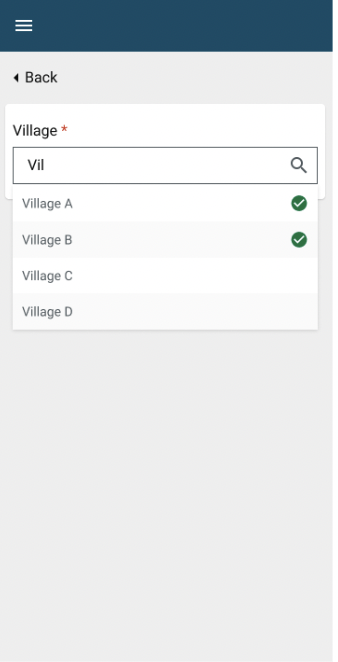
g. Village - Here the user will choose the village(s) where the campaign needs to be executed. There can be multiple village(s) to choose from depending on the localities chosen. It will be a multi-select search-enabled dropdown for the user to choose the village(s). It’s a mandatory field.

h. Next - On click of ‘Next’, the campaign boundaries will be chosen for microplanning. The same set of boundaries will be further used for data upload in the next part. All the fields are mandatory for moving to the next screen.

i. Back - On click of ‘Back’, the user will be redirected to the previous screen for naming microplan.

Validation: Once the microplan name is chosen and the user moves to the next screen, the microplan name can’t be changed.

View when the user clicks on ‘+7 selected’ for a specific boundary

Users can view all the selected boundaries as an array of lists and clear the selected boundaries if required. The user will be able to see the list of chosen boundaries for the parent boundary in the content box. For example, if the user chooses to see the list of districts chosen, then it will show in the content box with the province name and the list of districts attached to the province, if there are multiple provinces, there will be multiple content boxes.

  1. Data management process (Population upload) -

Actor: System administrator/Program manager

Administrative boundary: National/Country

This screen will be used for uploading the population data for the boundaries chosen for microplanning. When the user chooses the campaign boundaries in the previous step, the user in this step will have to upload the total and target population of the villages chosen in the campaign boundaries. The components of this screen are -

a. Download population template - This component will be used when the user has to download the boundary template to enter the population details for microplan estimation. The template will be separately downloaded & maintained for both bednets and SMC (As of now).

Download population template pop-up screen
  • This screen will appear for the user to download the population template to be filled and upload

  • The user may skip it if he/she wants to move ahead without downloading the population template

The template for bednets is here.

The content of the downloadable bednet template is as follows -

  • Country: This shows the country where the campaign needs to run. This will be pre-defined in the downloaded template as per boundary selection in the previous step.

  • Province: This shows the province(s) where the campaign needs to run. This will be pre-defined in the downloaded template as per boundary selection in the previous step.

  • District: This shows the district(s) where the campaign needs to run. This will be pre-defined in the downloaded template as per boundary selection in the previous step.

  • Administrative post: This shows the admin post(s) where the campaign needs to run. This will be pre-defined in the downloaded template as per boundary selection in the previous step.

  • Locality: This shows the locality(s) where the campaign needs to run. This will be pre-defined in the downloaded template as per boundary selection in the previous step.

  • Village: This shows the village(s) where the campaign needs to run. This will be pre-defined in the downloaded template as per boundary selection in the previous step.

  • Total population: Here the user will be asked to enter the total village population.

  • Target population: Here the user will be asked to enter the target population who will be benefiting from the campaign.

  • Latitude & longitude: Here the user will be asked to enter the latitude & longitude of the village to be shown on the map.

For every campaign district, there will be a sheet in the downloadable report that the user needs to fill out and upload.

Note: The template should be configurable depending on the program. For Mozambique, the population template Excel has each sheet for the district. If the program wants to configure and collect data for each administrative post or locality level, the Excel sheets should be configured accordingly to collect population information in the administrative post or locality level.

Validation check:

  1. The columns from ‘Country’ or highest administrative boundary to ‘Village’ or lowest administrative boundary should be fixed in the Excel and non-editable

  2. The target population column is mandatory & can’t be empty

  3. The total population column is mandatory & can’t be empty

  4. The population data must only accept a whole number (Eg: 1234 and not 123.4)

  5. The population data must be greater than 0

  6. The Latitude & Longitude fields should have data in Degree Decimal and Degree Minute Seconds

The template for SMC is here.

The content of downloadable SMC template is as follows -

  • Country: This shows the country where the campaign needs to run. This will be pre-defined in the downloaded template as per boundary selection in the previous step.

  • Province: This shows the province(s) where the campaign needs to run. This will be pre-defined in the downloaded template as per boundary selection in the previous step.

  • District: This shows the district(s) where the campaign needs to run. This will be pre-defined in the downloaded template as per boundary selection in the previous step.

  • Administrative post: This shows the admin post(s) where the campaign needs to run. This will be pre-defined in the downloaded template as per boundary selection in the previous step.

  • Locality: This shows the locality(s) where the campaign needs to run. This will be pre-defined in the downloaded template as per boundary selection in the previous step.

  • Village: This shows the village(s) where the campaign needs to run. This will be pre-defined in the downloaded template as per boundary selection in the previous step.

  • Total population: Here the user will be asked to enter the total village population.

  • Target population (Age 3 - 11 months): Here the user will be asked to enter the target population count of the children between 3 - 11 months in the village.

  • Target population (Age 12 - 59 months): Here the user will be asked to enter the target population count of the children between 12 - 59 months in the village.

  • Latitude & longitude: Here the user will be asked to enter the latitude & longitude of the village to be shown on the map.

For every campaign district, there will be a sheet in the downloadable report that the user needs to fill out and upload.

Note: The template should be configurable depending on the program. For Mozambique, the population template Excel has each sheet for the district. If the program wants to configure and collect data for each administrative post or locality level, the Excel sheets should be configured accordingly to collect population information at the administrative post or locality level.

Validation check:

  1. The columns from ‘Country’ or highest administrative boundary to ‘Village’ or lowest administrative boundary should be fixed in the Excel and non-editable

  2. The target population columns (Age 3-11 months and age 12-59 months) are mandatory & can’t be empty

  3. The total population column is mandatory & can’t be empty

  4. The population data must only accept a whole number (Eg: 1234 and not 123.4)

  5. The population data must be greater than 0

  6. The Latitude & Longitude fields should have data in Degree Decimal and Degree Minute Seconds

b. Upload population template - This component will be used when the downloaded population excel file is filled and needs to be uploaded for estimating the campaign resource estimation.

Upload population template to capture population data for the boundaries

Uploaded file shown to the user for preview, re-upload, delete or download
  • The user can preview the uploaded file by clicking on the file name and it will open up the Excel preview

  • The user can re-upload the file using the ‘Re-upload’ button

  • The user can download the already uploaded file using the ‘Download’ button

  • The user can delete the uploaded file using the ‘X’ button, and once deleted, the user will be moved back to the Excel upload screen

View when the uploaded file has errors
  • The user will be able to view the number of errors captured in the uploaded file

  • The ‘View errors’ button will let the user view the list of errors in a tabular format

Error validation:

  1. For bednet and SMC template upload - If the total population data uploaded is empty for any village, then show the error message ‘Total population data can’t be empty, please update the data and re-upload’.

  2. For bednet and SMC template upload - If the total population data uploaded is not a whole number, then show the error message ‘Total population data must be a whole number, please update the data and re-upload’.

  3. For bednet template upload - If the target population data uploaded is empty for any village, then show the error message ‘Target population data can’t be empty, please update the data and re-upload’.

  4. For bednet template upload - If the target population data uploaded is not a whole number, then show the error message ‘Target population data must be a whole number, please update the data and re-upload’.

  5. For SMC template upload - If the target population data (Age 3-11 months or Age 12-59 months) uploaded is empty for any village, then show the error message ‘Target population data can’t be empty, please update the data and re-upload’.

  6. For SMC template upload - If the target population data (Age 3-11 months or Age 12-59 months) uploaded is not a whole number, then show the error message ‘Target population data must be a whole number, please update the data and re-upload’.

  7. For bednet and SMC template upload - if the lat & long data uploaded does not adhere to the guideline, then show the error message ‘The latitude and longitude data does not comply with the guideline structure, please update the data and re-upload’.

  8. The uploaded Excel file must have ‘Readme’ and ‘District sheets chosen in the boundary selection’, or the microplanning system will not validate and approve the file. Error message to be shown ‘One or more data sheets is absent, please update the data and re-upload the file’.

c. Error list view - This component will be shown when the upload file has one or more errors. The user can view the list of errors on the screen as well as download the errors as an Excel to view the error details in each row of Excel sheet.

View when the user clicks on ‘View errors’
  • The user will be able to navigate through the different errors using the ‘Previous’ or ‘Next’ buttons highlighted during data upload on the error view screen

  • All the errors will be highlighted in red color

  • On top of the preview screen, the user will be able to view the error details, for example, here the error mentioned that ‘Row 24 is empty!’

  • The user can download the Excel file with the detailed error mentioned. There should be an added column called ‘Error details’ that should show the errors in comma-separated format in case a single row has multiple errors

  • On click of ‘Back’ the user should be exited from the error preview screen

d. Excel upload guideline - The guideline directs the user on what to keep in mind while entering the population data and uploading it for the microplanning estimation. The guidelines are below for population data upload -

  • The mandatory fields such as total population and target population data must be a whole number (For example, population can be 1234 and not 123.5)

  • The Latitude & Longitude fields should have data in Degree Decimal and Degree Minute Seconds ( Value should be 12.3455 & not 12° 20' 43.7994")

e. Data management process (Facility upload) -

Actor: System administrator/Program manager

Administrative boundary: National/Country

This screen will be used to set up the facilities that are required for the campaign execution and microplanning estimation. Every facility to be used in the campaign needs to be added using this screen. The competent of this screen are -

a. Download facility template - This component will be used when the user needs to see the list of facilities available for the instance. The user can download the facility template and check out the facility list accordingly for campaign execution.

Download facilities template pop-up screen
  • This screen will appear for the user to download the facility template to be updated and upload

  • The user may skip it if he/she wants to move ahead without downloading the facility template

The template for the facility is here

The facility template will have 2 different Excel sheets:

Facility sheet content:

  • Facility Name: If the instance already has facilities defined, then the user will be able to see the name of the facilities that are existing.

  • Facility Type: If the instance already has facilities defined, then the user will be able to see the type of facilities that are linked to each facility. The facility type for an instance will be defined in the MDMS during instance creation. This will be a dropdown option.

  • Facility Status: If the instance already has facilities defined, then the user will be able to see the status of the facilities that are existing. The facility status for an instance will be defined in the MDMS during instance creation. This will be a dropdown option.

  • Capacity: If the instance already has facilities defined, then the user will be able to see the capacity of the facilities that are existing. The definition of capacity of the facility is defined in the MDMS during instance creation.

  • Facility usage: If the instance already has facilities defined, then the user will be able to see the usage status of the facilities that are existing. ‘Active’ usage status means the facility is operational for the campaign and ‘Inactive’ usage status means the facility is non-operational for the campaign. The usage status is defined in the MDMS during instance creation. This will be a dropdown option.

  • Is fixed post?: If the instance already has facilities defined, then the user will be able to see if the facilities will be catered as a fixed post. The fixed post tag will only be functional when the resource distribution strategy is either Fixed post or House-to-House & Fixed post (Both). For instance, the fixed post tag will be defined for a facility unless it is manually changed by the user. This will be a dropdown option.

  • Residing boundary code: The residing boundary code defines where (Which village) exactly the facility resides. The user will be able to tag the boundary where the facility resides using the residing boundary sheet. The residing boundary of the facilities will be saved for the instance and it can be changed as per the user’s requirement during the facility configuration. This will be a dropdown option.

  • Latitude & Longitude: Here the user will be asked to enter the latitude & longitude of the village to be shown on the map.

Residing boundary sheet content:

  • Country: This shows the country where the campaign needs to run. This will be pre-defined in the downloaded template as per boundary selection in the previous step.

  • Province: This shows the province(s) where the campaign needs to run. This will be pre-defined in the downloaded template as per boundary selection in the previous step.

  • District: This shows the district(s) where the campaign needs to run. This will be pre-defined in the downloaded template as per boundary selection in the previous step.

  • Administrative post: This shows the admin post(s) where the campaign needs to run. This will be pre-defined in the downloaded template as per boundary selection in the previous step.

  • Locality: This shows the locality(s) where the campaign needs to run. This will be pre-defined in the downloaded template as per boundary selection in the previous step.

  • Village: This shows the village(s) where the campaign needs to run. This will be pre-defined in the downloaded template as per boundary selection in the previous step.

  • Boundary code: This shows the boundary code of the village where the campaign needs to run. The boundary code will be pre-defined for every village during the boundary registry configuration at the instance creation.

b. Upload facility template - This component will be used to upload the facility template to configure the facilities to be used in the campaign. The user can fill the template with the required details and upload the file accordingly. The user can add a new facility as well as deactivate the existing facilities to be used in the campaign.

Upload facility template to create the campaign facilities

Uploaded file shown to the user for preview, re-upload, delete or download
  • The user can preview the uploaded file by clicking on the file name and it will open up the excel preview

  • The user can re-upload the file using the ‘Re-upload’ button

  • The user can download the already uploaded file using the ‘Download’ button

  • The user can delete the uploaded file using the ‘X’ button, and once deleted, the user will be moved back to the Excel upload screen

View when the uploaded file has errors
  • The user will be able to view the number of errors captured in the uploaded file

  • The ‘View errors’ button will let the user view the list of errors in a tabular format

Error validation:

  1. In the facility sheet, the ‘Facility Name’ is a mandatory field. The user needs to enter the facility name before uploading the file into the system. Error message when there is no facility name defined ‘The facility name doesn’t exist in the uploaded file, please update and re-upload’.

  2. In the facility sheet, the ‘Facility Type is a mandatory field. The user needs to enter the facility type before uploading the file into the system. Error message when there is no facility type defined ‘The facility type doesn’t exist for the facility in the uploaded file, please update and re-upload’.

  3. In the facility sheet, the ‘Facility Status’ is a mandatory field. The user needs to enter the facility status before uploading the file into the system. Error message when there is no facility status defined ‘The facility status doesn’t exist for the facility in the uploaded file, please update and re-upload’.

  4. In the facility sheet, the ‘Capacity’ is a mandatory field. The user needs to enter the facility capacity before uploading the file into the system. The unit of facility capacity needs to be defined in the MDMS during instance creation. Error message when there is no facility capacity defined ‘The facility capacity doesn’t exist for the facility in the uploaded file, please update and re-upload’.

  5. In the facility sheet, the ‘Facility usage’ is a mandatory field. The user needs to enter the facility usage before uploading the file into the system. Error message when there is no facility usage defined ‘The facility usage information doesn’t exist for the facility in the uploaded file, please update and re-upload’.

  6. In the facility sheet, the ‘Is fixed post?’ is a mandatory field. The user needs to enter the facility-fixed post tag before uploading the file into the system. Error message when there is no fixed post tag defined ‘The facility doesn’t have a fixed post tag defined in the uploaded file, please update and re-upload’.

Validation: This validation will be available only when the resource distribution strategy is either Fixed post or Fixed post & H2H.

  1. In the facility sheet, the ‘Residing boundary code’ is a mandatory field. The user needs to enter the facility’s residing boundary code before uploading the file into the system. Error message when there is no facility’s residing boundary code defined ‘The facility’ residing boundary code doesn’t exist for the facility in the uploaded file, please update and re-upload’.

  2. If the lat & long data uploaded do not adhere to the guideline, then show the error message ‘The latitude and longitude data does not comply with the guideline structure, please update the data and re-upload’.

  3. The uploaded Excel file must have ‘Readme’, ‘Facility’, and ‘Residing boundary’ sheets. The residing boundary sheet will have boundaries chosen for the campaign, else the file will not be validated and approved by the microplanning system. Error message to be shown ‘One or more data sheets are absent in the uploaded file, please update the data and re-upload the file’.

c. Error list view - This component will be shown when the upload file has one or more errors. The user can view the list of errors on the screen as well as download the errors as an Excel to view the error details in each row of the Excel sheet.

View when the user clicks on ‘View errors’
  • The user will be able to navigate through the different errors using the ‘Previous’ or ‘Next’ buttons highlighted during data upload on the error view screen

  • All the errors will be highlighted in red color

  • On top of the preview screen, the user will be able to view the error details, for example, here the error mentioned that ‘Row 24 is empty!’

  • The user will be able to download the Excel file with the detailed error mentioned. There should be an added column called ‘Error details’ that should show the errors in comma-separated format in case a single row has multiple errors

  • On click of ‘Back’ the user should be exited from the error preview screen

d. Excel upload guideline - The guideline directs the user on what to keep in mind while entering the facility data and uploading it for the microplanning estimation. The guidelines are below for population data upload -

  • All the fields are mandatory and can't be empty, except the Latitude and Longitude fields

  • The Latitude & Longitude fields should have data in Degree Decimal and Degree Minute Seconds ( Value should be 12.3455 & not 12° 20' 43.7994")

  1. Data management process (Vehicle management) -

Actor: System administrator/Program manager

Administrative boundary: National/Country

Managing campaign vehicles

This screen will be used to set up the vehicles that are required for the campaign execution and microplanning estimation. Every vehicle to be used in the campaign needs to be added or chosen using this screen. The competent of this screen are -

a. Choosing vehicle type - The user will be asked to select the vehicle type to show the list of vehicles that belong to the vehicle type. Choosing of vehicle type is a multi-select dropdown and upon showing the vehicle list for the chosen vehicle type, the user can choose different vehicles that will be used for campaign execution. The user can choose multiple vehicles at a time.

Validation: It is mandatory to choose at least 1 vehicle for the campaign

b. Showing vehicle details - Once the vehicle lists is shown to the user, the user can check-out the vehicle details and then choose which vehicles to be used for the campaign. The basic vehicle details that will be shown to the users per vehicle are:

  1. Vehicle type

  2. Manufacture

  3. Model

  4. Vehicle capacity - ‘Bales’ for bednets/ ‘Blisters’ for SMC

c. Adding new vehicle details - If the user doesn’t find the vehicle details, he will be asked to add new vehicle details for the campaign. All the fields are mandatory here for adding a new vehicle.

Adding a new vehicle

The fields that the user can configure while adding new vehicle information are -

a. Vehicle type - If there is no vehicle type registered for the instance, then the user will get only one option to choose ‘Others’ to add the vehicle type.

b. Enter vehicle type - If the vehicle type is chosen as ‘Others’, the user will be asked to enter the vehicle type. It’s a mandatory field.

c. Enter vehicle manufacturer - The user will be asked to enter the vehicle manufacturer details. It’s a mandatory field.

d. Enter vehicle model - The user will be asked to enter the vehicle model details here. It’s a mandatory field.

e. Enter vehicle capacity (Bales/Blisters) - The vehicle capacity will be defined as ‘Bales’ for bednets and ‘Blisters’ for SPAQ/SMC. It’s a mandatory field.

Validation: The capacity input value must be numerical. Error message if the capacity is invalid ‘The value must be numerical’.

f. Submit - Once the vehicle details are entered here, the user will be directed to submit the details and the vehicle details will be saved in the MDMS for the instance.

  1. Microplan hypothesis and formula configuration -

Actor: System administrator/Program manager

Administrative boundary: National/Country

Case A: When the resource distribution strategy is ‘House-to-House’ and the campaign type is either ‘Bednets’ or ‘SMC’

Sub-Case 1:

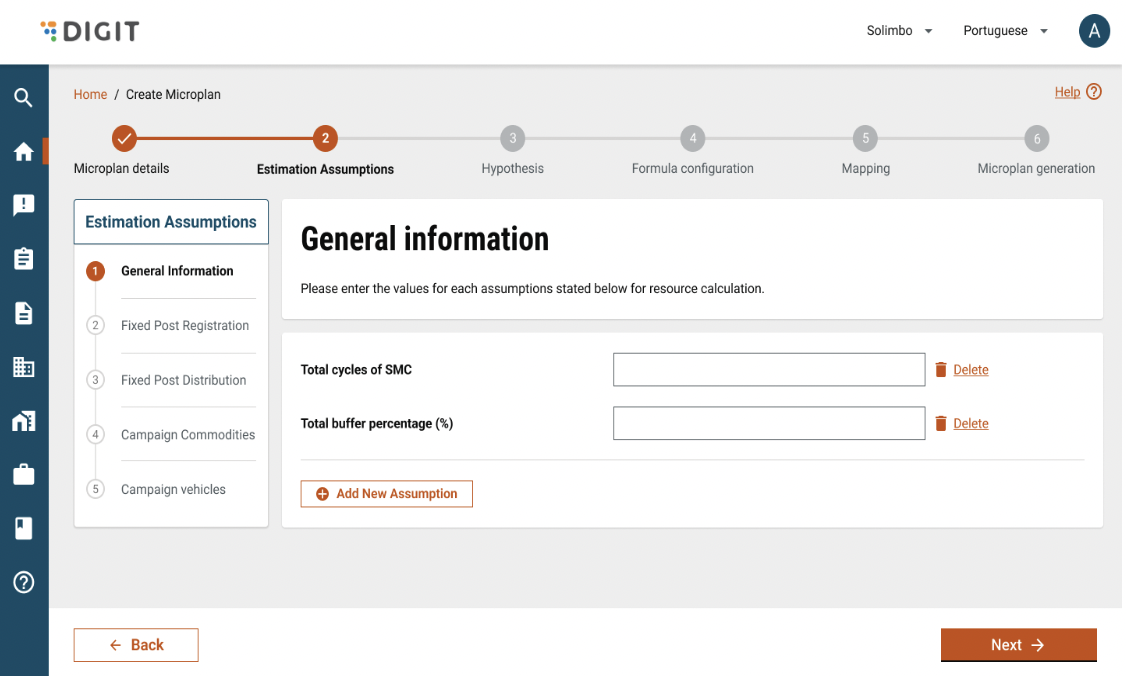
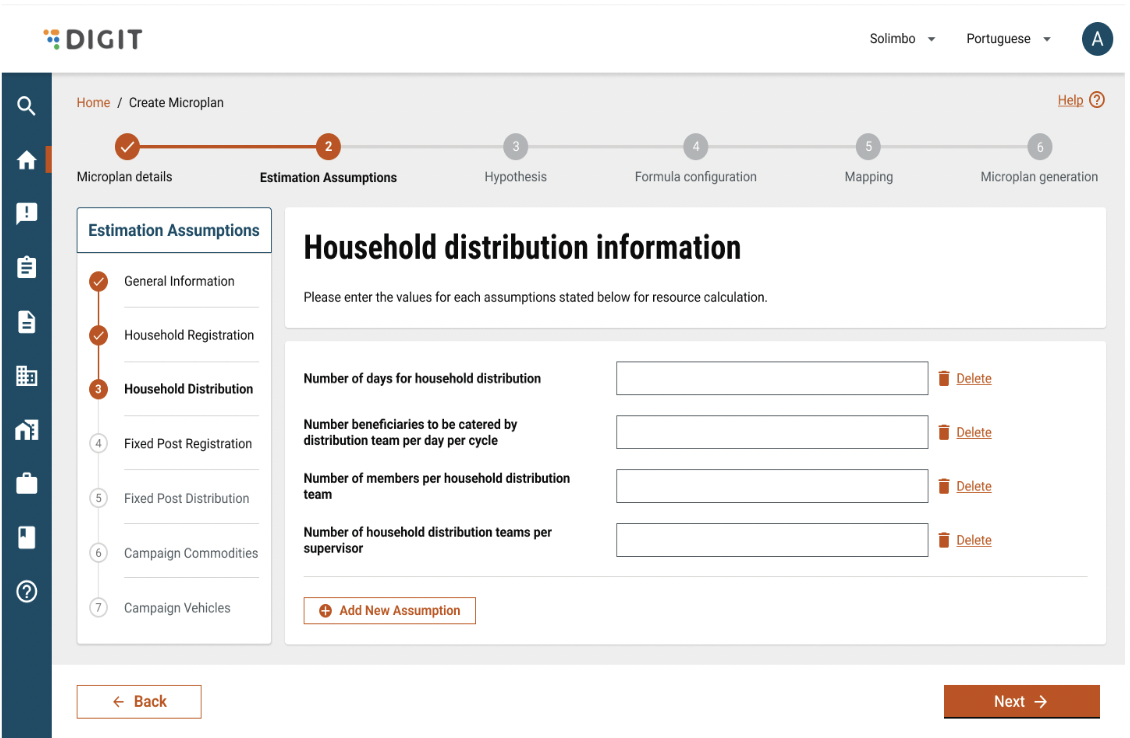
Preliminary questions for configuring microplan hypothesis

Figma sample for choosing preliminary questions (Resource distribution strategy = House-to-House):

Q1. How is the campaign registration process happening?

  • The user will have only one option to choose from the dropdown ‘House-to-House’

Q2. How is the campaign distribution process happening?

  • The user will have only one option to choose from the dropdown ‘House-to-House’

Q3. Is the registration and distribution process happening together or separately?

  • The user will have one of the two options to choose from the dropdown either ‘Together’ or ‘Separately’. Here, the user will choose ‘Together’.

Customised ‘BEDNET’ microplan hypothesis depending on the questions answered above

Figma sample for assumption config 1 (Bednets):

Figma sample for assumption config 2 (Bednets):

Figma sample for assumption config 3 (Bednets):

Figma sample for assumption config 4 (Bednets):

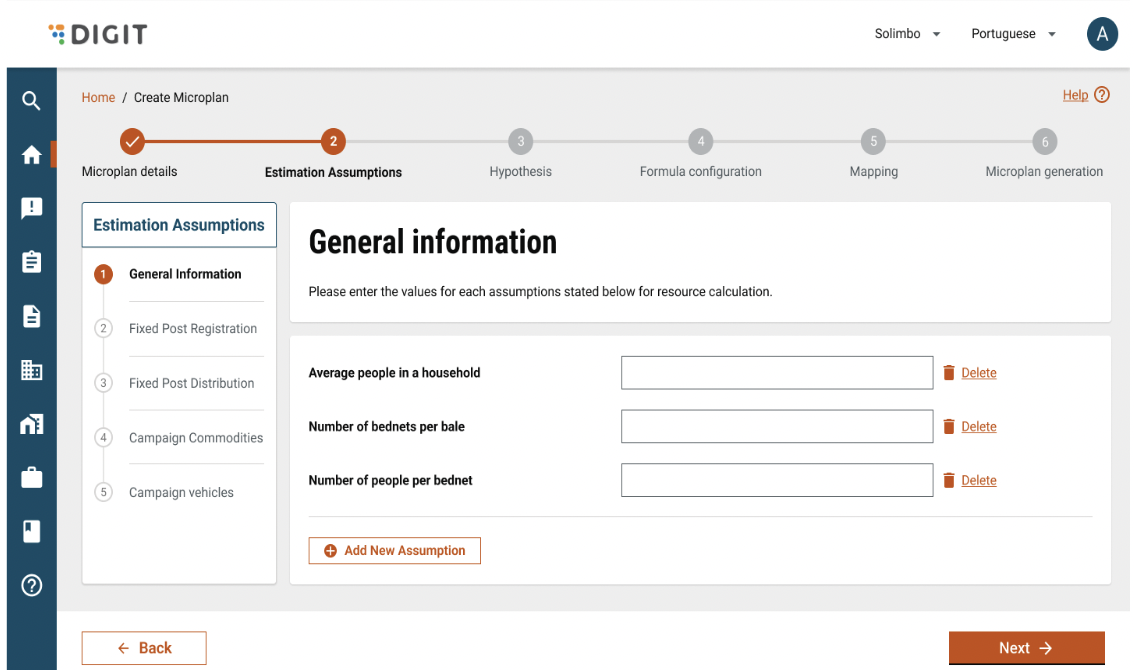
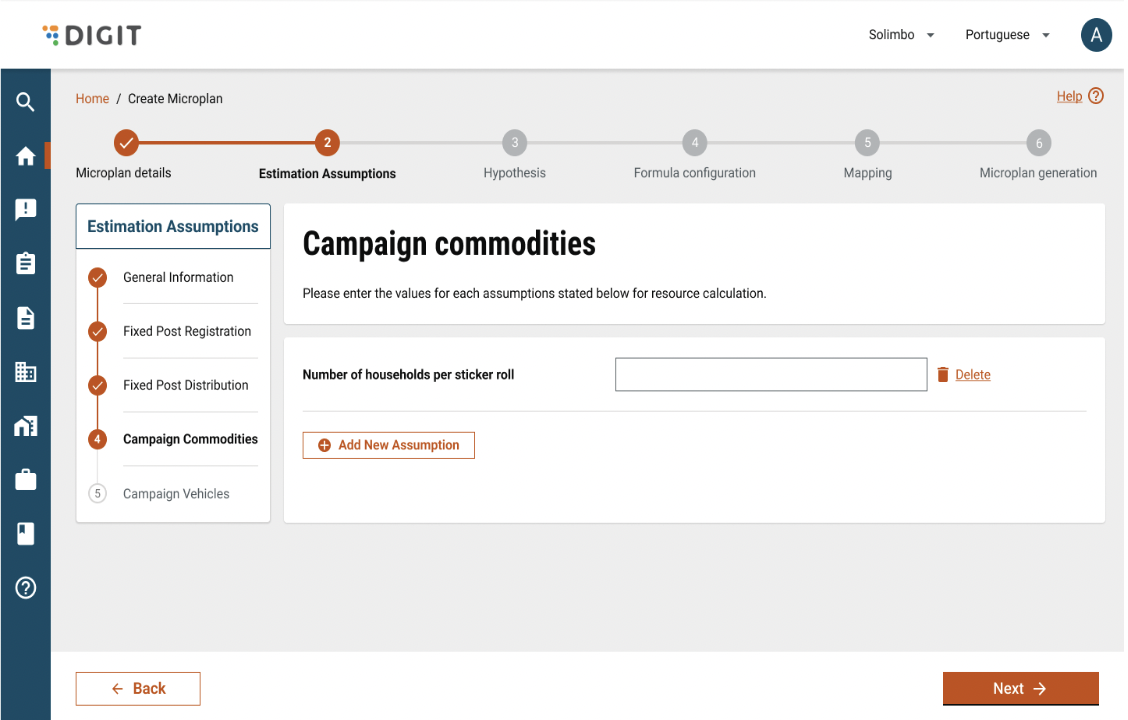
Validation: The input value of an assumption must be numerical and mandatory

Error message in case of invalid input “Please enter a numeric value”

Customised ‘SMC’ microplan hypothesis depending on the questions answered above

Figma sample for assumption config 1 (SMC):

Figma sample for assumption config 2 (SMC):

Figma sample for assumption config 3 (SMC):

Figma sample for assumption config 4 (SMC):

Validation: The input value of an assumption must be numerical and mandatory

Error message in case of invalid input “Please enter a numeric value”

In the above images, all the microplan hypotheses are pre-configured in the MDMS.

The user can add new microplan assumptions or delete an old assumption according to the campaign needs. All the microplan assumptions are configured for the village or lowest boundary level.

Upon adding a new microplan assumption, the user will be asked to enter the assumption and attach a value to it. The same assumption will be used in the microplan resource estimation formula.

If an assumption is deleted, upon adding a new assumption the user will be asked choose to either the deleted assumption or create a new assumption.

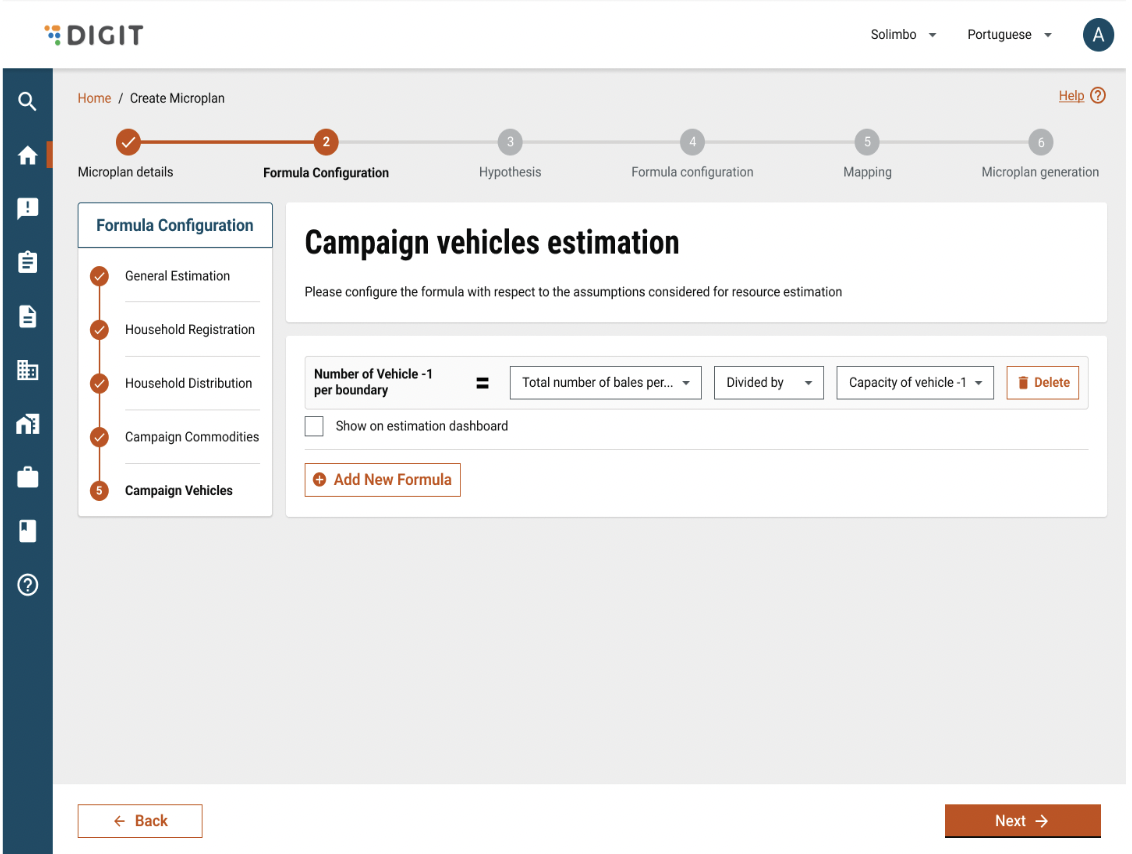
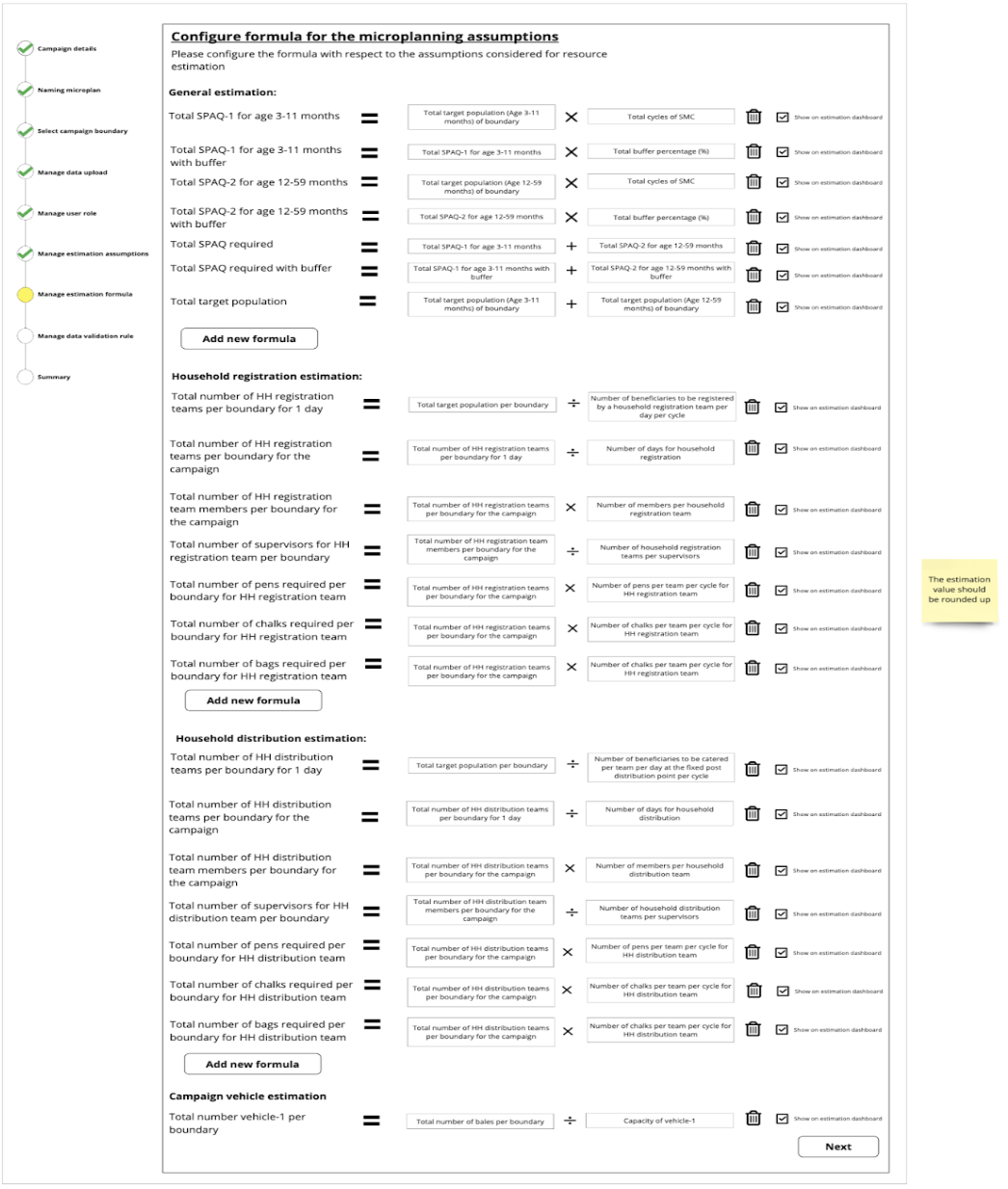
Depending on the microplan hypothesis configured, the user will be able to check-out the resource estimation formula and then make changes in the formula configuration accordingly.

Customised microplan resource estimation formula (For BEDNET)

Figma sample for formula config 1 (Bednets):

Figma sample for formula config 2 (Bednets):

Figma sample for formula config 3 (Bednets):

Figma sample for formula config 4 (Bednets):

Customised microplan resource estimation formula (For SMC)

Figma sample for formula config 1 (SMC):

Figma sample for formula config 2 (SMC):

Figma sample for formula config 3 (SMC):

Figma sample for formula config 4 (SMC):

In the above images, all the microplan resource estimation formulas are pre-configured in the MDMS.

The user can add a new estimation formula or delete an old formula according to the campaign needs. All the microplan estimation formulas are configured on the village or lowest boundary level. All the values shown will be auto reflected in the microplan estimation dashboard, unless the user wants to disable the ‘Show on estimation dashboard’ checkbox.

If a pre-defined formula is deleted, upon adding a new formula, the user should get an option either to add the deleted formula or add a completely new formula.

Upon adding a completely new estimation formula, the user will be asked to -

  1. Enter the parameter of the resource estimation

  2. Formula inputs

  3. Operator (*,-,+,/)

Eg: Number of bednets (Resource estimation parameter) = Target population (Input) / Number of people per bednet (Input)

Sub-Case 2:

Preliminary questions for configuring microplan hypothesis

Figma sample for choosing preliminary questions (Resource distribution strategy = House-to-House):

Q1. How is the campaign registration process happening?

  • The user will have only one option to choose from the dropdown ‘House-to-House’

Q2. How is the campaign distribution process happening?

  • The user will have only one option to choose from the dropdown ‘House-to-House’

Q3. Is the registration and distribution process happening together or separately?

  • The user will have one of the two options to choose from the dropdown either ‘Together’ or ‘Separately’. Here, the user will choose ‘Separately’.

Customised ‘BEDNET’ microplan hypothesis depending on the questions answered above

Figma sample for assumption config 1 (Bednets):

Figma sample for assumption config 2 (Bednets):

Figma sample for assumption config 3 (Bednets):

Figma sample for assumption config 4 (Bednets):

Figma sample for assumption config 5 (Bednets):

Validation: The input value of an assumption must be numerical and mandatory

Error message in case of invalid input “Please enter a numeric value”

Customised ‘SMC’ microplan hypothesis depending on the questions answered above

Figma sample for assumption config 1 (SMC):

Figma sample for assumption config 2 (SMC):

Figma sample for assumption config 3 (SMC):

Figma sample for assumption config 4 (SMC):

Figma sample for assumption config 5 (SMC):

Validation: The input value of an assumption must be numerical and mandatory

Error message in case of invalid input “Please enter a numeric value”

In the above images, all the microplan hypotheses are pre-configured in the MDMS.

The user can add new microplan assumptions or delete an old assumption according to the campaign needs. All the microplan assumptions are configured on the village or lowest boundary level.

Upon adding a new microplan assumption, the user will be asked to enter the assumption and attach a value to it. The same assumption will be used in the microplan resource estimation formula. If an assumption is deleted, upon adding a new assumption the user will be asked to choose to either the deleted assumption or create a new assumption.

Depending on the microplan hypothesis configured, the user will be able to check-out the resource estimation formula and then make changes in the formula configuration accordingly.

Customized microplan resource estimation formula (For Bednets)

Figma sample for formula config 1 (Bednets):

Figma sample for formula config 2 (Bednets):

Figma sample for formula config 3 (Bednets):

Figma sample for formula config 4 (Bednets):

Figma sample for formula config 5 (Bednets):

Customised microplan resource estimation formula (For SMC)

Figma sample for formula config 1 (SMC):

Figma sample for formula config 2 (SMC):

Figma sample for formula config 3 (SMC):

Figma sample for formula config 4 (SMC):

Figma sample for formula config 5 (SMC):

In the above images, all the microplan resource estimation formulas are pre-configured in the MDMS.

The user can add a new estimation formula or delete an old formula according to the campaign's needs. All the microplan estimation formulas are configured on the village or lowest boundary level. All the values shown will be auto-reflected in the microplan estimation dashboard unless the user wants to disable the "Show on estimation dashboard" checkbox.

If a pre-defined formula is deleted, upon adding a new formula, the user should get an option either to add the deleted formula or add a completely new formula.

Upon adding a new estimation formula, the user will be asked to -

  1. Enter the parameter of the resource estimation

  2. Formula inputs

  3. Operator (*,-,+,/)

Example: Number of bednets (Resource estimation parameter) = Target population (Input) / Number of people per bednet (Input)

Case B: When the resource distribution strategy is ‘Fixed post’ and the campaign type is either ‘Bednets’ or ‘SMC’

Sub-case 1:

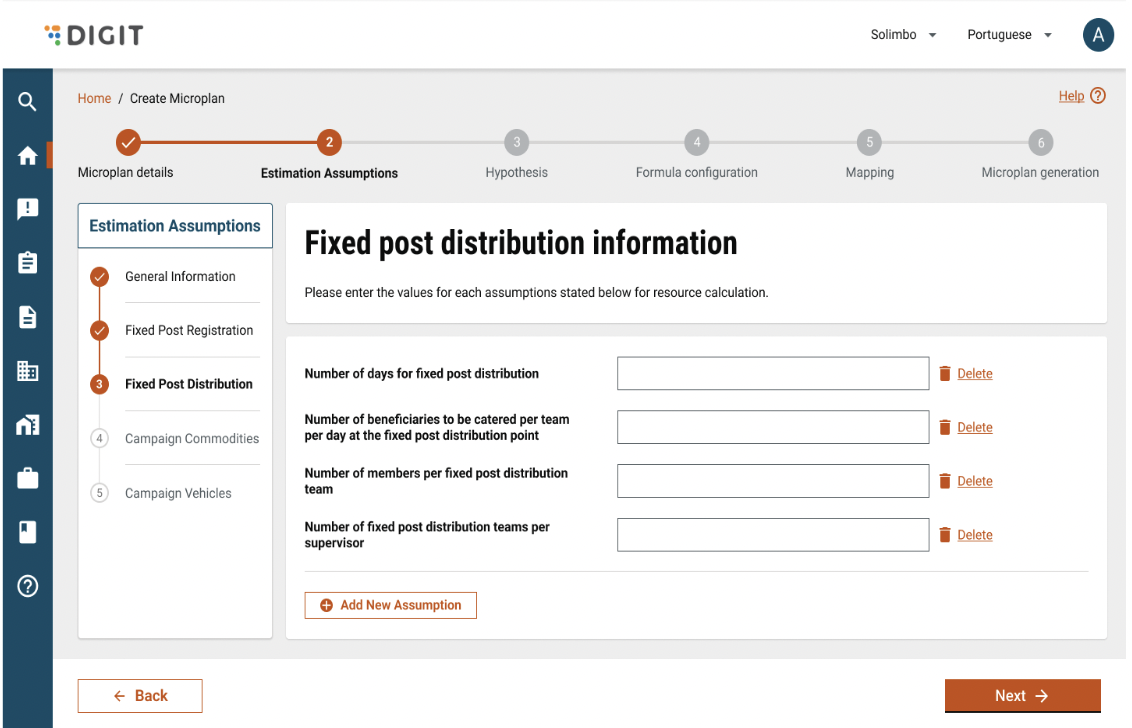
Preliminary questions for configuring microplan hypothesis

Figma sample for choosing preliminary questions (Resource distribution strategy = Fixed post):

Q1. How is the campaign registration process happening?

  • The user will have only one option to choose from the dropdown ‘Fixed post’

Q2. How is the campaign distribution process happening?

  • The user will have only one option to choose from the dropdown ‘Fixed post’

Q3. Is the registration and distribution process happening together or separately?

  • The user will have one of the two options to choose from the dropdown either ‘Together’ or ‘Separately’. Here, the user will choose ‘Together’.

Customised ‘BEDNET’ microplan hypothesis depending on the questions answered above
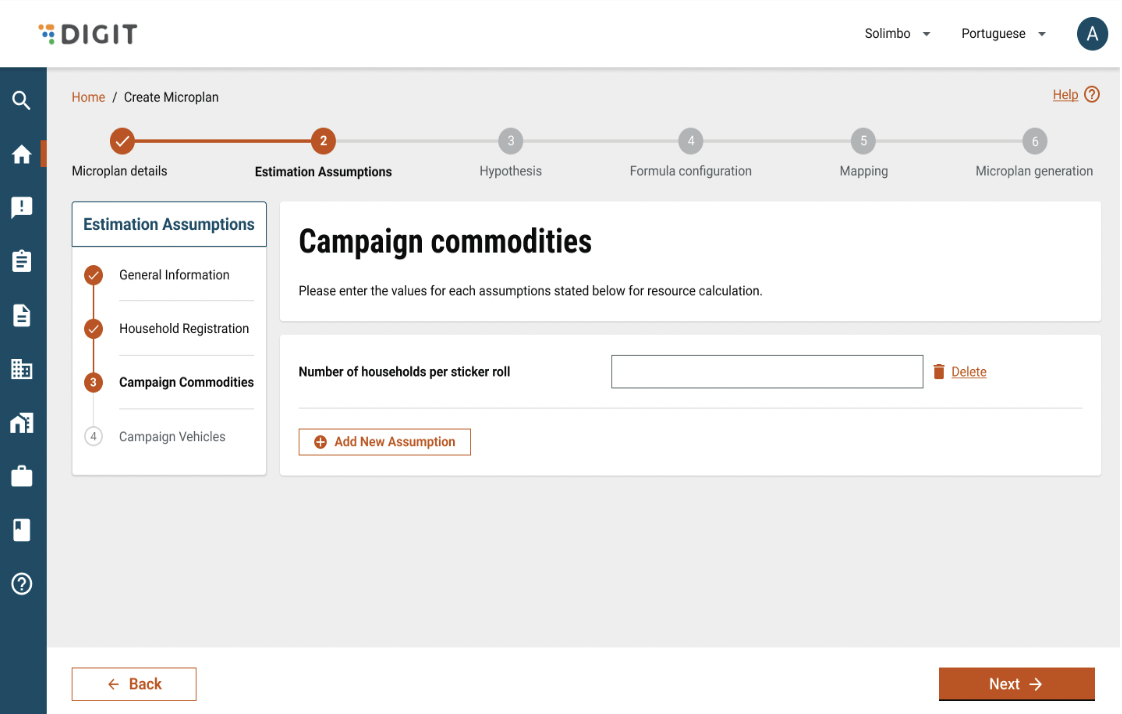
Figma sample for assumption config 1 (Bednets):

Figma sample for assumption config 2 (Bednets):

Figma sample for assumption config 3 (Bednets):

Figma sample for assumption config 4 (Bednets):

Validation: The input value of an assumption must be numerical and mandatory

Error message in case of invalid input “Please enter a numeric value”

Customised ‘SMC’ microplan hypothesis depending on the questions answered above

Figma sample for assumption config 1 (SMC):

Figma sample for assumption config 2 (SMC):

Figma sample for assumption config 3 (SMC):

Figma sample for assumption config 4 (SMC):

Validation: The input value of an assumption must be numerical and mandatory

Error message in case of invalid input “Please enter a numeric value”

In the above images, all the microplan hypotheses are pre-configured in the MDMS.

The user can add new microplan assumptions or delete an old assumption according to the campaign needs. All the microplan assumptions are configured on the village or lowest boundary level.

Upon adding a new microplan assumption, the user will be asked to enter the assumption and attach a value to it. The same assumption will be used in the microplan resource estimation formula.

If an assumption is deleted, upon adding a new assumption the user will be asked to choose to either delete the assumption or create a new assumption.

Depending on the microplan hypothesis configured, the user will be able to check the resource estimation formula and then make changes in the formula configuration accordingly.

Customised microplan resource estimation formula (For Bednet)

Figma sample for formula config 1 (Bednets):

Figma sample for formula config 2 (Bednets):

Figma sample for formula config 3 (Bednets):

Figma sample for formula config 4 (Bednets):

Customised microplan resource estimation formula (For SMC)

Figma sample for formula config 1 (SMC):

Figma sample for formula config 2 (SMC):

Figma sample for formula config 3 (SMC):

Figma sample for formula config 4 (SMC):

In the above images, all the microplan resource estimation formula are pre-configured in the MDMS.

The user can add a new estimation formula or delete an old formula according to the campaign's needs. All the microplan estimation formulas are configured on the village or lowest boundary level. All the values shown will be auto-reflected in the microplan estimation dashboard unless the user wants to disable the "Show on estimation dashboard" checkbox.

If a pre-defined formula is deleted, upon adding a new formula, the user should get an option either to add the deleted formula or add a completely new formula.

Upon adding a new estimation formula, the user will be asked to -

  1. Enter the parameter of the resource estimation

  2. Formula inputs

  3. Operator (*,-,+,/)

Example: Number of bednets (Resource estimation parameter) = Target population (Input) / Number of people per bednet (Input)

Sub-case 2:

Preliminary questions for configuring microplan hypothesis

Figma sample for choosing preliminary questions (Resource distribution strategy = Fixed post):

Q1. How is the campaign registration process happening?

  • The user will have only one option to choose from the dropdown ‘Fixed post’

Q2. How is the campaign distribution process happening?

  • The user will have only one option to choose from the dropdown ‘Fixed post’

Q3. Is the registration and distribution process happening together or separately?

  • The user will have one of the two options to choose from the dropdown either ‘Together’ or ‘Separately’. Here, the user will choose ‘Separately’.

Customised ‘BEDNET’ microplan hypothesis depending on the questions answered above

Figma sample for assumption config 1 (Bednet):

Figma sample for assumption config 2 (Bednet):

Figma sample for assumption config 3 (Bednet):

Figma sample for assumption config 4 (Bednet):

Figma sample for assumption config 5 (Bednet):

Validation: The input value of an assumption must be numerical and mandatory

Error message in case of invalid input “Please enter a numeric value”

Customised ‘SMC’ microplan hypothesis depending on the questions answered above

Figma sample for assumption config 1 (SMC):

Figma sample for assumption config 2 (SMC):

Figma sample for assumption config 3 (SMC):

Figma sample for assumption config 4 (SMC):

Figma sample for assumption config 5 (SMC):

Validation: The input value of an assumption must be numerical and mandatory

Error message in case of invalid input “Please enter a numeric value”

In the above images, all the microplan hypotheses are pre-configured in the MDMS.

The user can add new microplan assumptions or delete an old assumption according to the campaign needs. All the microplan assumptions are configured on the village or lowest boundary level.

Upon adding a new microplan assumption, the user will be asked to enter the assumption and attach a value to it. The same assumption will be used in the microplan resource estimation formula.

If an assumption is deleted, upon adding a new assumption the user will be asked to choose to either the deleted assumption or create a new assumption.

Depending on the microplan hypothesis configured, the user will be able to check the resource estimation formula and then make changes in the formula configuration accordingly.

Customised microplan resource estimation formula (For Bednets)

Figma sample for formula config 1 (Bednets):

Figma sample for formula config 2 (Bednets):

Figma sample for formula config 3 (Bednets):

Figma sample for formula config 4 (Bednets):

Figma sample for formula config 5 (Bednets):

Customised microplan resource estimation formula (For SMC)

Figma sample for formula config 1 (SMC):

Figma sample for formula config 2 (SMC):

Figma sample for formula config 3 (SMC):

Figma sample for formula config 4 (SMC):

Figma sample for formula config 5 (SMC):

In the above images, all the microplan resource estimation formulas are pre-configured in the MDMS.

The user can add a new estimation formula or delete an old formula according to the campaign's needs. All the microplan estimation formulas are configured on the village or lowest boundary level. All the values shown will be auto-reflected in the microplan estimation dashboard unless the user wants to disable the "Show on estimation dashboard" checkbox.

If a pre-defined formula is deleted, upon adding a new formula, the user should get an option either to add the deleted formula or add a completely new formula.

Upon adding a new estimation formula, the user will be asked to -

  1. Enter the parameters of the resource estimation

  2. Formula inputs

  3. Operator (*,-,+,/)

Example: Number of bednets (Resource estimation parameter) = Target population (Input) / Number of people per bednet (Input)

Case C: When the resource distribution strategy is ‘Fixed post & House-to-House’ and the campaign type is either ‘Bednets’ or ‘SMC’

Preliminary questions for configuring microplan hypothesis

Figma sample for choosing preliminary questions (Resource distribution strategy = House-to-House & Fixed post):

Q1. How is the campaign registration process happening?

  • The user can choose either ‘Fixed post’ or ‘House-to-House’ or both

Q2. How is the campaign distribution process happening?

  • The user can choose either ‘Fixed post’ or ‘House-to-House’ or both

Depending on the registration and distribution process chosen, the microplan assumption will be shown to the user for configuration.

Customised ‘BEDNET’ microplan hypothesis depending on the questions answered above

Figma sample for assumption config 1 (Bednets):

Figma sample for assumption config 2 (Bednets):

Figma sample for assumption config 3 (Bednets):

Figma sample for assumption config 4 (Bednets):

Figma sample for assumption config 5 (Bednets):

Figma sample for assumption config 6 (Bednets):

Figma sample for assumption config 7 (Bednets):

Validation: The input value of an assumption must be numerical and mandatory

Error message in case of invalid input “Please enter a numeric value”

Customised ‘SMC’ microplan hypothesis depending on the questions answered above

Figma sample for assumption config 1 (SMC):

Figma sample for assumption config 2 (SMC):

Figma sample for assumption config 3 (SMC):

Figma sample for assumption config 4 (SMC):

Figma sample for assumption config 5 (SMC):

Figma sample for assumption config 6 (SMC):

Figma sample for assumption config 7 (SMC):

Validation: The input value of an assumption must be numerical and mandatory

Error message in case of invalid input “Please enter a numeric value”

In the above images, all the microplan hypotheses are pre-configured in the MDMS.

The user can add new microplan assumptions or delete an old assumption according to the campaign needs. All the microplan assumptions are configured on the village or lowest boundary level.

Upon adding a new microplan assumption, the user will be asked to enter the assumption and attach a value to it. The same assumption will be used in the microplan resource estimation formula.

If an assumption is deleted, upon adding a new assumption the user will be asked choose to either the deleted assumption or create a new assumption.

Depending on the microplan hypothesis configured, the user will be able to check the resource estimation formula and then make changes in the formula configuration accordingly.

Customised microplan resource estimation formula (For Bednets)

Customised microplan resource estimation formula (For SMC)

In the above images, all the microplan resource estimation formulas are pre-configured in the MDMS.

The user can add a new estimation formula or delete an old formula according to the campaign's needs. All the microplan estimation formulas are configured on the village or lowest boundary level. All the values shown will be auto-reflected in the microplan estimation dashboard unless the user wants to disable the ‘Show on estimation dashboard’ checkbox.

If a pre-defined formula is deleted, upon adding a new formula, the user should get an option either to add the deleted formula or add a completely new formula.

Upon adding a new estimation formula, the user will be asked to -

  1. Enter the parameter of the resource estimation

  2. Formula inputs

  3. Operator (+,-,*,/)

Example: Number of bednets (Resource estimation parameter) = Target population (Input 1) / Number of people per bednet (Input 2)

  1. Manage data validation -

Actor: System administrator/Program manager

Administrative boundary: National/Country

Managing the data validation rule to highlight data discrepancies

This screen will be used to set up the data validation rule to highlight the population data discrepancies submitted by the ‘Data collector’ from the ground.

This process will help specifically in identifying if the population data collected and validated by the data collector for certain villages is correct or not. For example, the central team called out that a village has a total population of 2,000. However, while validating the data, the data collector at the village level mentioned that the total population of the village is 5000, which is more than 100% of what was earlier uploaded by the central team. With such cases, it becomes important for the data approver to have a second look at the data and make necessary adjustments in the village population data that can be used for microplan resource estimation.

The content of this screen are -

a. Minimum population of a village in Mozambique: In this field, the user needs to enter the minimum possible population of a village within the campaign region. This ensures that if the ‘Data collector’ validates and collects the total and target population for a village, which is less than the minimum village population configured, it should right away be highlighted to the assigned ‘Population data approver’ role. Here, the country name can be different for different countries, so it has to be configurable depending on the instance created for the country.

Validation: The field must accept a whole number value. Throw the error “Please enter a whole number” if an invalid value is entered.

b. The maximum population of a village in Mozambique: In this field, the user needs to enter the maximum possible population of a village within the campaign region. This ensures that if the ‘Data collector’ validates and collects the total and target population for a village, which is more than the maximum village population configured, it should right away be highlighted to the assigned ‘Population data approver’ role. Here, the country name can be different for different countries, so it has to be configurable depending on the instance created for the country.

Validation: The field must accept a whole number value. Throw the error “Please enter a whole number” if an invalid value is entered.

c. Acceptable change percentage (%) concerning population data uploaded for the villages: In this field, the user needs to enter the acceptable buffer % w.r.t to which the system will not highlight the data discrepancies. For example, if the acceptable change percentage is 10%, and the central team uploaded the total village population of Village-1 as 1000, then the acceptable population range is between 900 to 1100. So, if the ‘Data collector’ validates and collects the village-1 population as 1050, the system will not highlight the data discrepancies to the ‘Population data approver’ user, but if the ‘Data collector’ validates and collects the village-1 population as 1200, the system will highlight the data discrepancies to the ‘Population data approver’ user.

Validation: The field must accept a numeric value. Throw error “Please enter a numeric value” if invalid value entered.

d. Next: The user can move to the next screen to configure the role-action mapping

e. Back: The user can choose to go back to the previous screen of the estimation formula configuration by clicking ‘Back’

Note: The data validation rule configuration isn’t mandatory and the user can move to the next screen without configuration by clicking the ‘Next’ button

  1. Configure access control -

Actor: System administrator/Program manager

Administrative boundary: National/Country

Role configuration - National microplan approver

This role will have access to edit microplan assumptions and approve and finalise microplan estimation for the country.

Screen showing ‘National Microplan Estimation Approver’ role users assigned for the current microplan

This screen will be used to configure the ‘National Microplan Estimation Approver’ user role. The assigned user will be able to validate and approve the population data from each village uploaded by the system administrator. The user will only be able to act on the population data of the villages that are assigned to his administrative boundary, i.e., country.

During the configuration of the microplan, there will be no users belonging to the ‘National microplan estimation approver’ role assigned to the ongoing microplan at first. The system administrator will have to click on the button ‘Assign National Microplan Estimation Approvers’ to start assigning the required users to the ongoing microplan.

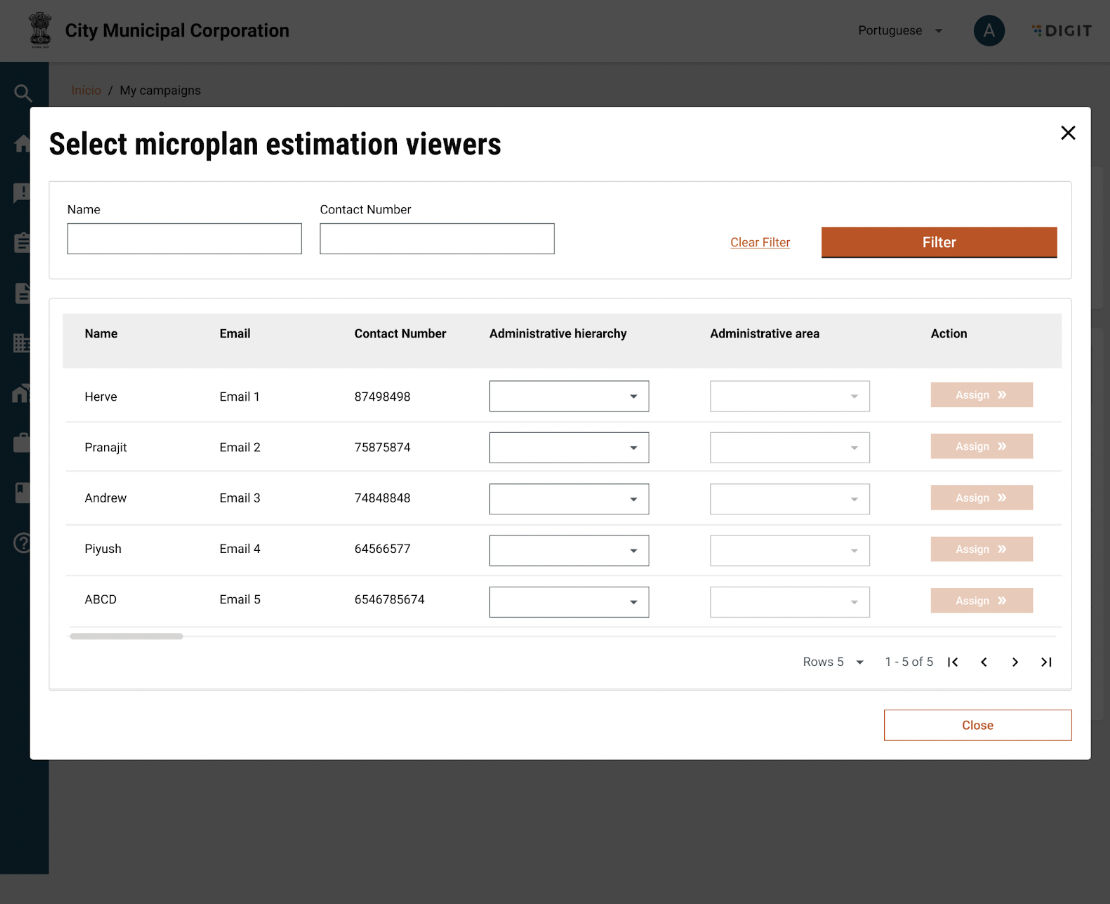
Once the system administrator clicks on the ‘Assign National Microplan Estimation Approvers’ button, he/she will be prompted a pop-up to assign the users with ‘National Microplan Estimation Approver’ role to the ongoing microplan.

Pop-up for assigning the national microplan estimation approvers to the microplan

Here, the system admin will be able to assign/deassign a user to the ongoing microplan. The content of the pop-up are -

  • Search filters - The system admin can search a user using the ‘User’s name’ and ‘User’s contact number’.

Validation: Partial string search should be allowed

  • Name of the user - This will be fetched from the user management module for the chosen role.

  • Contact number of the user - This will be fetched from the user management module for the chosen role.

  • Email ID of the user - This will be fetched from the user management module for the chosen role.

  • Administrative hierarchy - This will be auto chosen as ‘Country’ as this user role belongs to the national level. The system administrator shouldn’t get any other administrative hierarchies to choose from.

  • Administrative area - This will be automatically chosen as the country where the microplan is being configured. The system administrator shouldn’t get any other administrative area to choose from.

  • Action - This capability will let the system administrator to assign/deassign users of the chosen role to the ongoing microplan. The system administrator can add at least one or more ‘National microplan estimation approver’ users to the ongoing microplan.

Pop-up for assigning/deassigning the users of the chosen role to the microplan

This pop-up shows the actions that the user can take. The ‘Assign’ button should only be enabled if the system administrator has chosen the administrative hierarchy and the administrative area for a particular user belonging to the role chosen.

Screen showing assigned users to the ongoing microplan

Once the system administrator has assigned all the required users to the microplan, the list of assigned users and their details will be displayed on the screen. Content of the screen are -

  • Search assigned users - The system admin will be able to search a user using the ‘User’s name’.

Validation: Partial string search should be allowed

  • Assign users - This action will let the system administrator to assign/deassign users to the microplan.

  • Name of the user - This will be fetched from the user management module for the chosen role.

  • Contact number of the user - This will be fetched from the user management module for the chosen role.

  • Email ID of the user - This will be fetched from the user management module for the chosen role.

  • Administrative hierarchy - This will be fetched from the user data that will be used while assigning the user to the microplan.

  • Administrative area - This will be fetched from the user data that will be used while assigning the user to the microplan.

Once all the required users are added to the microplan, the system administrator will click on the ‘Save And Proceed’ button to go to the next role assignment screen.

Note: It’s mandatory to assign at least 1 ‘National microplan estimation approver’ user to the microplan.

Role configuration - National facility catchment assigner

This role will have access to assign & finalize the facility to the catchment areas of the assigned administrative boundary.

Screen showing ‘National Facility Catchment Assigner’ role users assigned for the current microplan

This screen will be used to configure the ‘National facility catchment assigner’ user role. The assigned facility catchment assigner will be allowed to map the campaign facilities or point of services to the catchment areas and to finalize the facility-to-catchment area mapping (Eg: Villages) of the assigned boundaries.

During the configuration of the microplan, there will be no users belonging to the ‘National facility catchment assigner’ role assigned to the ongoing microplan at first. The system administrator will have to click on the button ‘Assign National Facility Catchment Assigner’ to start assigning the required users to the ongoing microplan.

Once the system administrator clicks on the ‘Assign National Facility Catchment Assigner’ button, he/she will be prompted a pop-up to assign the users with the ‘National Facility Catchment Assigner’ role to the ongoing microplan.

Pop-up for assigning the national facility catchment assigner to the microplan

Here, the system admin will be able to assign/deassign a user to the ongoing microplan. The content of the pop-up are -

  • Search filters - The system admin can search a user using the ‘User’s name’ and ‘User’s contact number’.

Validation: Partial string search should be allowed

  • Name of the user - This will be fetched from the user management module for the chosen role.

  • Contact number of the user - This will be fetched from the user management module for the chosen role.

  • Email ID of the user - This will be fetched from the user management module for the chosen role.

  • Administrative hierarchy - This will be auto chosen as ‘Country’ as this user role belongs to the national level. The system administrator shouldn’t get any other administrative hierarchies to choose from.

  • Administrative area - This will be automatically chosen as the country where the microplan is being configured. The system administrator shouldn’t get any other administrative area to choose from.

  • Action - This capability will let the system administrator assign/deassign users of the chosen role to the ongoing microplan. The system administrator can add at least one or more ‘National facility catchment assigner’ users to the ongoing microplan.

Pop-up for assigning/deassigning the users of the chosen role to the microplan

This pop-up shows the actions that the user can take. The ‘Assign’ button should only be enabled if the system administrator has chosen the administrative hierarchy and the administrative area for a particular user belonging to the role chosen.

Screen showing assigned users to the ongoing microplan

Once the system administrator has assigned all the required users to the microplan, the list of assigned users and their details will be displayed on the screen. The content of the screen are -

  • Search assigned users - The system admin can search a user using the ‘User’s name’.

Validation: Partial string search should be allowed

  • Assign users - This action will let the system administrator assign/deassign users to the microplan.

  • Name of the user - This will be fetched from the user management module for the chosen role.

  • Contact number of the user - This will be fetched from the user management module for the chosen role.

  • Email ID of the user - This will be fetched from the user management module for the chosen role.

  • Administrative hierarchy - This will be fetched from the user data that will be used while assigning the user to the microplan.

  • Administrative area - This will be fetched from the user data that will be used while assigning the user to the microplan.

Once all the required users are added to the microplan, the system administrator will click on the ‘Save And Proceed’ button to go to the next role assignment screen.

Note: It’s mandatory to assign at least 1 ‘National facility catchment assigner’ user to the microplan.

Role configuration - National population data approver

This role will have access to validate, approve, and finalise the population data for the villages of the assigned administrative boundary.

Screen showing ‘National Population Data Approver’ role users assigned for the current microplan

This screen will be used to configure the ‘National population data approver’ user role. The assigned user will be able to validate, update, and approve the population data of each village uploaded by the system administrator. The user will only be able to act on the population data of the villages that are assigned to his administrative boundary.

During the configuration of the microplan, there will be no users belonging to the ‘National population data approver’ role assigned to the ongoing microplan at first. The system administrator will have to click on the button ‘Assign National Population Data Approver’ to start assigning the required users to the ongoing microplan.

Once the system administrator clicks on the ‘Assign National Population Data Approver’ button, he/she will be prompted a pop-up to assign the users with the ‘National Population Data Approver’ role to the ongoing microplan.

Pop-up for assigning the national population data approver to the microplan

Here, the system admin will be able to assign/deassign a user to the ongoing microplan. The content of the pop-up are -

  • Search filters - The system admin can search a user using the ‘User’s name’ and ‘User’s contact number’.

Validation: Partial string search should be allowed

  • Name of the user - This will be fetched from the user management module for the chosen role.

  • The contact number of the user - This will be fetched from the user management module for the chosen role.

  • Email ID of the user - This will be fetched from the user management module for the chosen role.

  • Administrative hierarchy - This will be auto-chosen as ‘Country’ as this user role belongs to the national level. The system administrator shouldn’t get any other administrative hierarchies to choose from.

  • Administrative area - This will be automatically chosen as the country where the microplan is being configured. The system administrator shouldn’t get any other administrative area to choose from.

  • Action - This capability will let the system administrator assign/deassign users of the chosen role to the ongoing microplan. The system administrator can add at least one or more ‘National population data approver’ users to the ongoing microplan.\

Pop-up for assigning/deassigning the users of the chosen role to the microplan

This pop-up shows the actions that the user can take. The ‘Assign’ button should only be enabled if the system administrator has chosen the administrative hierarchy and the administrative area for a particular user belonging to the role chosen.

Screen showing assigned users to the ongoing microplan

Once the system administrator has assigned all the required users to the microplan, the list of assigned users and their details will be displayed on the screen. The content of the screen are -

  • Search assigned users - The system admin can search a user using the ‘User’s name’.

Validation: Partial string search should be allowed

  • Assign users - This action will let the system administrator assign/deassign users to the microplan.

  • Name of the user - This will be fetched from the user management module for the chosen role.

  • Contact number of the user - This will be fetched from the user management module for the chosen role.

  • Email ID of the user - This will be fetched from the user management module for the chosen role.

  • Administrative hierarchy - This will be fetched from the user data that will be used while assigning the user to the microplan.

  • Administrative area - This will be fetched from the user data that will be used while assigning the user to the microplan.

Once all the required users are added to the microplan, the system administrator will click on the ‘Save And Proceed’ button to go to the next role assignment screen.

Note: It’s mandatory to assign at least 1 ‘National population data approver’ user to the microplan.

Role configuration - Microplan estimation approver

This role will have access to edit microplan assumptions and approve microplan estimation of assigned administrative boundaries.

Screen showing ‘Microplan estimation approver’ role users assigned for the current microplan

This screen will be used to configure the ‘Microplan estimation approver’ user role. The assigned Microplan estimation approver will be allowed to edit the microplan hypothesis, and validate and approve the microplan for the assigned administrative boundaries.

During the configuration of the microplan, there will be no users belonging to the ‘Microplan estimation approver’ role assigned to the ongoing microplan at first. The system administrator will have to click on the button ‘Assign Microplan Estimation Approvers’ to start assigning the required users to the ongoing microplan.

Once the system administrator clicks on the ‘Assign Microplan Estimation Approvers’ button, he/she will be prompted a pop-up to assign the users with ‘Microplan Estimation Approvers’ role to the ongoing microplan.

Pop-up for assigning the microplan estimation approver to the microplan

Here, the system admin will be able to assign/deassign a user to the ongoing microplan. The content of the pop-up are -

  • Search filters - The system admin can search a user using the ‘User’s name’ and ‘User’s contact number’.

Validation: Partial string search should be allowed

  • Name of the user - This will be fetched from the user management module for the chosen role.

  • The contact number of the user - This will be fetched from the user management module for the chosen role.

  • Email ID of the user - This will be fetched from the user management module for the chosen role.

  • Administrative hierarchy - The system administrator will be able to choose the administrative hierarchy from the dropdown. The system admin can choose one administrative hierarchy at a time. The system admin can’t choose the highest administrative hierarchy (Eg: Country) and the lowest administrative hierarchy (Eg: Village/Settlement) from the dropdown.

  • Administrative area - Upon choosing the administrative hierarchy, the system administrator will be able to choose the administrative areas for the chosen administrative hierarchy. The system administrator will be able to choose one or multiple administrative areas at a time. The list of administrative areas should be shown along with their respective parent boundaries.

  • Action - This capability will let the system administrator assign/deassign users of the chosen role to the ongoing microplan.

Pop-up for assigning/deassigning the users of the chosen role to the microplan

This pop-up shows the actions that the user can take. The ‘Assign’ button should only be enabled if the system administrator has chosen the administrative hierarchy and the administrative area for a particular user in the selected role.

Screen showing assigned users to the ongoing microplan

Once the system administrator has assigned all the required users to the microplan, the list of assigned users and their details will be displayed on the screen. The content of the screen are -

  • Search assigned users - The system admin can search a user using the ‘User’s name’.

Validation: Partial string search should be allowed

  • Assign users - This action will let the system administrator assign/deassign users to the microplan.

  • Name of the user - This will be fetched from the user management module for the chosen role.

  • The contact number of the user - This will be fetched from the user management module for the chosen role.

  • Email ID of the user - This will be fetched from the user management module for the chosen role.

  • Administrative hierarchy - This will be fetched from the user data that will be used while assigning the user to the microplan.

  • Administrative area - This will be fetched from the user data that will be used while assigning the user to the microplan.

Once all the required users are added to the microplan, the system administrator will click on the ‘Save And Proceed’ button to go to the next role assignment screen.

Validations for the ‘Microplan estimation approver’ role:

Role

User mapped?

Administrative hierarchy

Administrative areas assigned?

Warning message

Action on warning

Microplan estimation approver

No

-

-

There is no ‘Microplan estimation approver’ assigned to the microplan. Are you sure to continue without assigning ‘Microplan estimation approver’?

Choice A (Highlighted button) - No, I don’t want to continue

Choice B - Yes, I want to continue

Microplan estimation approver

Yes

Province/district/Admin post/Locality

All province/district/Admin post/Locality

Microplan estimation approver

Yes

Province/district/Admin post/Locality

Some province/district/Admin post/Locality

‘Microplan estimation approver' role is assigned to only a few 'province/district/Admin post/Locality', would you like to proceed without assigning 'Microplan estimation approver' role to remaining 'province/district/Admin post/Locality'?

Choice A (Highlighted button) - No, I don’t want to proceed