> For the complete documentation index, see [llms.txt](https://docs.digit.org/llms.txt). Markdown versions of documentation pages are available by appending `.md` to page URLs; this page is available as [Markdown](https://docs.digit.org/health/ph-v1.8/access/public-health-product-suite/health-campaign-management-hcm/microplanning/validate-and-approve-estimates.md).
# Validate & Approve Estimates
Step 4 - How will the microplan estimations be validated and approved?
System role involved: Microplan estimation approver, National microplan estimation approver
1. You must first select the language before you can log in. Currently, 3 languages are supported for the HCM Microplanning platform. They are:
* English
* Portuguese
* French
Select the preferred language and click on 'Continue' to go to the login page.
(Note: Getting an account on the HCM Microplanning platform: The microplanning users with different roles will have their account created by the system admin and will be provided with a username and password to log in to the account).
2. On the login page, enter the 'Username', 'Password', and the 'City' you are working in to log in to the HCM Microplanning platform. Use the login credentials belonging to the "Microplan estimation approver" or "National microplan estimation approver" roles.
Once you log in, you will be landing on the homepage to take the next action.
3. Once you are on the home page, you will be able to see the "My Microplan" segment.
This is the view of the ‘My Microplans’ segment.
By clicking on the ‘My Microplan’ segment, you can see the list of Microplans that you are part of.
This is the dashboard that will show you the list of microplans assigned to you.
4. Once you choose the microplan on which you want to act, you will be redirected to an activity selection screen.
This is the view for the activity selection screen.
Once here, if you are logged in as a ‘Microplan estimation approver’ role, click on the "Validate & Approve Microplan Estimations" tab.
This is the third and final step where the microplan estimation for all the villages under your jurisdiction needs to be validated and finalized for executing the microplan.
5. Once you click on "Validate & Approve Microplan Estimations", you will be redirected to the dashboard to validate the microplan estimations for the administrative areas under your jurisdiction.
This is the dashboard for validating & approving the microplan estimation for the administrative areas under your jurisdiction.
In this dashboard you will be able to see:
* Administrative hierarchy and administrative are filters to filter out administrative areas under a specific administrative hierarchy.
* ‘Assign to me’ or ‘Assign to all’ filters will show you the list of villages that are yet to be validated by either you, or your subordinates, or your supervisors.
* Status filter to filter out the administrative areas or villages as per their status. The filters are:
* Pending for validation: This status shows the list of villages under your jurisdiction and has not been validated yet.
* Validated: This status shows the list of villages under your jurisdiction and has been validated either by you or your subordinates or by your supervisors.
* In the tabular view of the data, you will be able to see the microplan estimation data for all the villages under your jurisdiction. The columns shown in the dashboard will change depending on the campaign type and distribution strategy chosen.
The tabular data will have the list of microplan estimations, for the villages, that need to be validated by either you, or your supervisor, or your subordinate.
6. Once you have checked the microplan estimations for all the villages under your jurisdiction and if you are fine with the estimation numbers, you can click on the villages that you want to validate and then click on the ‘Validate’ button.
Once you click on the ‘Validate’ button, the selected villages will move away from the ‘Pending for validation’ bucket to the ‘Validated’ bucket.
Any action that you take in the dashboard for a village will be recorded and can be seen by anyone using the "Status logs" button.
This is the view of the dashboard to validate the microplan estimation for the concerned villages.
This pop-up will be shown to you when you click on the ‘Validate’ button. You, as a microplan estimation approver, can enter any comment or reason for validating the microplan estimation for the villages chosen. Entering any comment or reason is non-mandatory.
This is the status logs pop-up showing the status of the village, who made the status change and when was the change recorded.
7. Once the villages are validated, you can see the list of villages in the ‘Validated’ bucket.
If you log in as a superior administrative hierarchy "Microplan estimation approver" or "National microplan estimation approver" role, you can validate if the villages validated by your subordinates are correct.
If you are not aligned with the validation done by your subordinates, you can always send back the village data for correction to the person who had validated the villages. This can be done using the button called ‘Send back for correction’.
Any action that you take in the dashboard for a village will be recorded and can be seen by anyone using the ‘Status logs’ button.
This is the view of the dashboard for checking the data and sending back the data for correction.
This pop-up will be shown to you when you click on the "Send back for correction" button. You, as a microplan estimation approver, can enter any comment or reason for sending back the village data for correction for the villages chosen. Entering any comment or reason is non-mandatory.
8. Once all the villages under the approver’s jurisdiction are validated, then, if you are logged in as a "National microplan estimation approver", you will be able to see a button called ‘Proceed To Finalise Microplan Estimation’.
This is the button you will see as a ‘National microplan estimation approver’ once all the villages under the campaign boundary are validated.
9. If you are logged in as a "National microplan estimation approver", you will be able to see and click on the "Proceed To Finalise Microplan Estimation" to finalise the microplan estimation for all the villages under the campaign boundary.
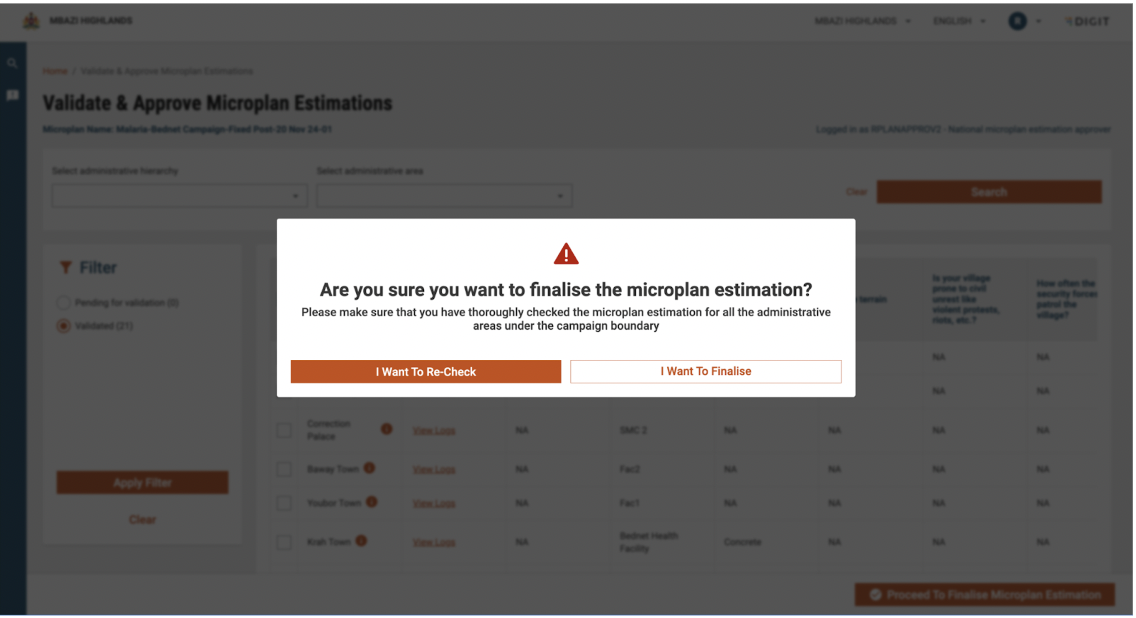
Here, once you click on this button, you will be shown a pop-up asking you to validate the estimation before you finalise the microplan estimations.
This is the warning pop-up you will see when you try to click on the "Proceed To Finalise Facility Assignment" button.
10. Once you click on the button shown in the pop-up called "I Want To Finalise", you will see the activity completion screen showing the microplan estimation is completed successfully.
This is the screen you will see when the microplan estimation is finalised.
You can now click on the "Go back to home" button to go back to the "My Microplans" dashboard, as your assigned activity has been completed.
11. Once the microplan is finalised, you will be able to download the microplan estimations in an Excel spreadsheet.
This is the view where you will see the microplans that are finalised and you will be able to download the microplan estimations using the "Download Estimation" button.
---
# Agent Instructions
This documentation is published with GitBook. GitBook is the documentation platform designed so that both humans and AI agents can read, navigate, and reason over technical content effectively. Learn more at gitbook.com.
## Querying This Documentation
If you need additional information that is not directly available in this page, you can query the documentation by asking a question.
Perform an HTTP GET request on the following URL with the `ask` and `goal` query parameters:
```
GET https://docs.digit.org/health/ph-v1.8/access/public-health-product-suite/health-campaign-management-hcm/microplanning/validate-and-approve-estimates.md?ask=&goal=
```
`ask` is the immediate question: it should be specific, self-contained, and written in natural language.
`goal` is what the user is ultimately trying to achieve, the reason they need the answer. Sharing it helps GitBook give you a better, more relevant answer. A goal is most helpful when it describes the outcome the user wants rather than restating the question. For example, with `ask=how do I create an API token`, a goal like `automate deployments from our CI pipeline` lets GitBook tailor the answer to that use case.
The response will contain a direct answer to the question and relevant excerpts and sources from the documentation.
Use this mechanism when the answer is not explicitly present in the current page, you need clarification or additional context, or you want to retrieve related documentation sections.