> For the complete documentation index, see [llms.txt](https://docs.digit.org/llms.txt). Markdown versions of documentation pages are available by appending `.md` to page URLs; this page is available as [Markdown](https://docs.digit.org/health/v1.5/hcm-product-suite/health-products/digit-hcm-app/user-manual/common-functions/inventory-management.md).
# Inventory Management
An illustrative guide to using the Inventory Management module
In health campaigns, it is crucial to keep track of the resources delivered to prevent stock mis-handlings and maximise coverage. This helps to track the resource till the last mile delivery, that is, it captures the stock till it reaches the distributor, and the distributor can record the quantity of stock received along with other stock transactions.
Users can do the following:
1. Track stock till the last mile.
2. Capture stock details till the end user to keep track of the transactions that take place.
3. Record the stock transactions during a campaign.
4. Ensure the safety of stock.
5. Keep track of the stock count and verify from both ends (received versus issued) to prevent the misuse of stocks.
## Using Inventory Management: Last Mile Delivery
### HCM Home Screen
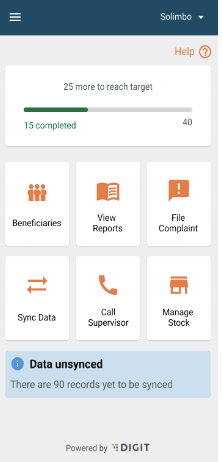
After logging into the application, the user lands on this screen which displays daily performance (number of households registered). The progress bar must reset daily at 00:00 hours, and start from 0 registrations. The action buttons related to the beneficiary are present which include:
* Beneficiaries
* View Reports
* Sync Data
* Call Supervisor
* File Complaint
* Manage Stock
On the bottom, there is a card that shows how many records are unsynced for the user’s convenience to sync data. If all the records are synced, then the card must say “All records are synced”.
The help button is on every screen of the application, and by clicking on it, a user can get a walkthrough of the elements on that screen.
On the top right, the administrative area assigned to the user is displayed which will be based on the level of hierarchy.
The hamburger button on the top left corner covers some other actions mentioned further.
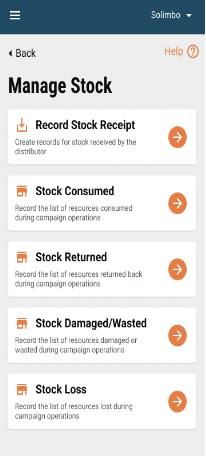
### Manage Stock
This includes all the stock transactions that can be captured by the distributor.
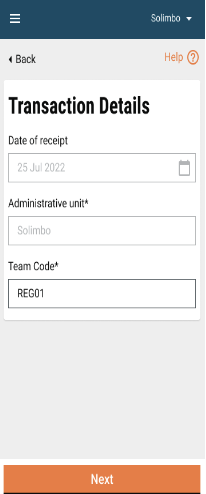
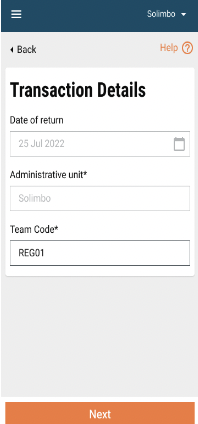
### Transaction Details
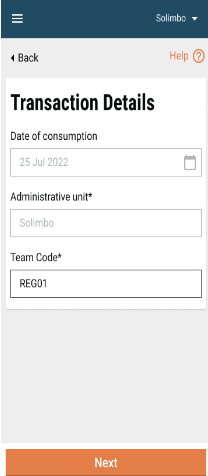
The transaction details are captured on this screen. The date and administrative unit fields are auto-captured by the system and are non-editable. The team code/identifier is captured from the user profile and it must be editable.
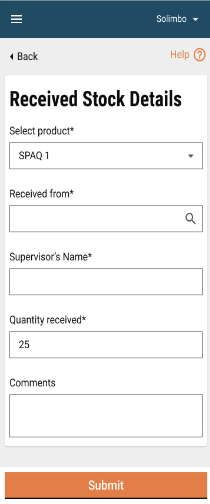
### Received Stock Details
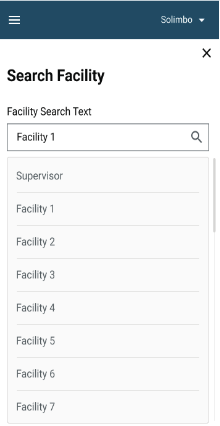
The stock-related details are captured on this screen. “Select product” is a dropdown field that includes the resource that has been received. “Received from” is a search-based dropdown field, clicking on which navigates the user to the search facility screen that includes the facilities along with ‘Supervisor’ as the value. If the user selects ‘Supervisor’ then he/she must enter the supervisor’s name. The user must enter the quantity received, and if any additional comments are needed, they can be added.
### Acknowledgement Screen
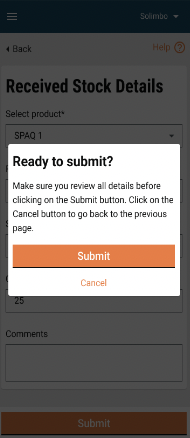
Once the user clicks on ‘Submit’, the confirmation pop-up appears. If the user clicks on the ‘Submit’ button, the acknowledgement screen appears, and ‘Cancel’ takes the user back to the previous screen.
### Transaction Details (Stock Consumed)
### Consumed Stock Details
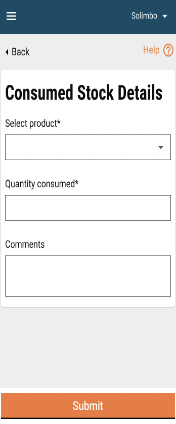
This screen includes all the fields except for the facility field.
This screen includes all the fields except for the facility field.
### Transaction Details (Stock Returned)
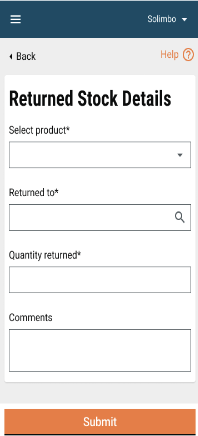
### Returned Stock Details
---
# Agent Instructions
This documentation is published with GitBook. GitBook is the documentation platform designed so that both humans and AI agents can read, navigate, and reason over technical content effectively. Learn more at gitbook.com.
## Querying This Documentation
If you need additional information that is not directly available in this page, you can query the documentation by asking a question.
Perform an HTTP GET request on the following URL with the `ask` and `goal` query parameters:
```
GET https://docs.digit.org/health/v1.5/hcm-product-suite/health-products/digit-hcm-app/user-manual/common-functions/inventory-management.md?ask=&goal=
```
`ask` is the immediate question: it should be specific, self-contained, and written in natural language.
`goal` is what the user is ultimately trying to achieve, the reason they need the answer. Sharing it helps GitBook give you a better, more relevant answer. A goal is most helpful when it describes the outcome the user wants rather than restating the question. For example, with `ask=how do I create an API token`, a goal like `automate deployments from our CI pipeline` lets GitBook tailor the answer to that use case.
The response will contain a direct answer to the question and relevant excerpts and sources from the documentation.
Use this mechanism when the answer is not explicitly present in the current page, you need clarification or additional context, or you want to retrieve related documentation sections.