> For the complete documentation index, see [llms.txt](https://docs.digit.org/llms.txt). Markdown versions of documentation pages are available by appending `.md` to page URLs; this page is available as [Markdown](https://docs.digit.org/health/v2.0/deploy/configuration/hcm-console-configuration/console-ui-configuration/hcm-console-web-ui/campaign-setup/my-campaign.md).

# My Campaign

## Overview

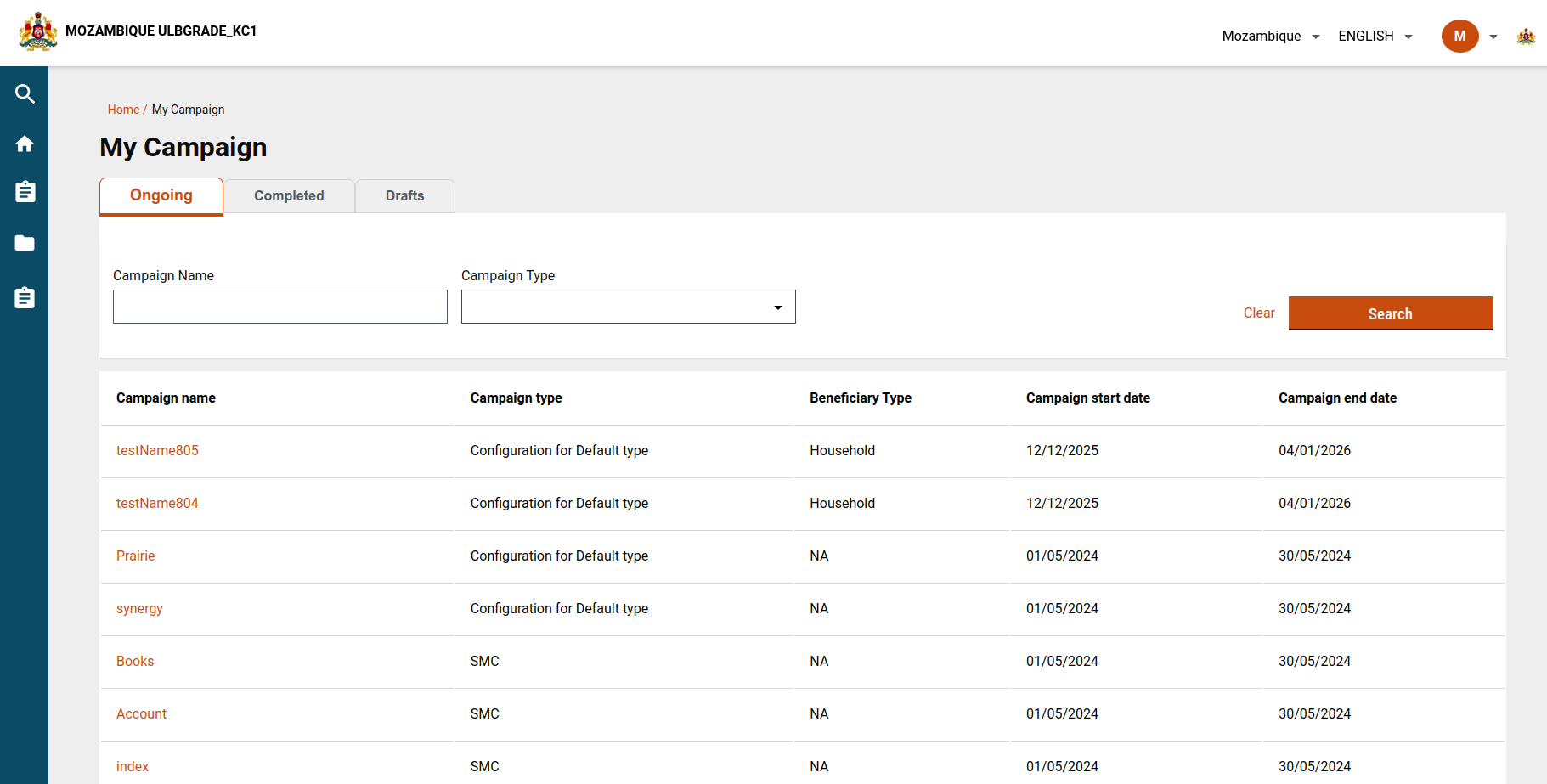
The **My Campaign** screen provides users with a consolidated view of all campaigns they have access to. Campaigns are grouped by status, allowing users to track progress, review details, and continue campaign creation where applicable.

The screen supports:

* Viewing campaigns by status
* Searching campaigns by name or type
* Accessing campaign summaries
* Completing draft campaigns

## Steps

### Step 1: Access the My Campaign Screen

**User Action**

* From the **HCM Campaign** module card, click **My Campaign**.

**Outcome**

* The user lands on the My Campaign screen.
* Campaigns are displayed under separate tabs based on status.

**Implementation Reference**

* Screen file: `MyCampaign.js`

<figure><img src="https://content.gitbook.com/content/mb5VUHEnO0msarLMPz6q/blobs/tKouNL0MpZwHt3hCxvd9/image.png" alt=""><figcaption></figcaption></figure>

### Step 2: Display Campaign Status Tabs

The following status tabs are shown on the My Campaign screen:

* **Ongoing**
* **Completed**
* **Upcoming**
* **Drafts**
* **Failed**

Each tab displays campaigns filtered using predefined logic.

* [File Path](https://github.com/egovernments/DIGIT-Frontend/blob/campaign/micro-ui/web/micro-ui-internals/packages/modules/campaign-manager/src/pages/employee/MyCampaign.js) to access MyCampaign.js

<figure><img src="https://3976166735-files.gitbook.io/~/files/v0/b/gitbook-x-prod.appspot.com/o/spaces%2Fmb5VUHEnO0msarLMPz6q%2Fuploads%2FYW7WqJRuv0QJ5jElI7Ae%2Fimage.png?alt=media&amp;token=3c383ceb-219a-4d45-b53f-3402d2f28f5f" alt=""><figcaption></figcaption></figure>

### Step 3: Apply Campaign Status Logic

Campaign status is determined using campaign metadata such as **start date**, **end date**, and **campaign status**.

**UI Logic Reference**

* `UICustomizations.js`&#x20;
* [File path ](https://github.com/egovernments/DIGIT-Frontend/blob/campaign/micro-ui/web/micro-ui-internals/packages/modules/campaign-manager/src/configs/UICustomizations.js)for UI customisations

#### Status Rules

* **Completed**
  * The campaign end date is before the current date.
* **Ongoing**
  * Campaign status is `Started`
  * End date is in the future or not defined.
* **Upcoming**
  * The campaign start date is in the future.
* **Draft**
  * Campaign status is `drafted`.
* **Failed**
  * Campaign status is `failed`.

### Step 4: Configure Ongoing Campaign Filtering

**Purpose:** Show campaigns that are active today.

#### Filter Parameters

* `campaignsIncludeDates`: `true`
* `startDate`: Today’s date (epoch)
* `endDate`: Today’s date (epoch)
* `status`: `created`, `creating`

#### Sample Payload

```
{ 
   "campaignsIncludeDates": true, 
   "startDate": "", // Use the current epoch date dynamically 
   "endDate": "2024-05-23", // Use the current epoch date dynamically 
   "status": ["created", "creating"] 
}
```

#### Logic

* campaignsIncludeDates = true: This activates the date range filtering feature.&#x20;
* startDate and endDate = today: By setting both the start and end dates to today's date, the filter will capture any campaigns that are active today.&#x20;
* status = \["created", "creating"]: Filters the campaigns to only include those that are currently in the created or creating status.

### Step 5: Configure Completed Campaign Filtering

**Purpose:** Show campaigns that have already ended.

[File Path](https://github.com/egovernments/DIGIT-Frontend/blob/campaign/micro-ui/web/micro-ui-internals/packages/modules/campaign-manager/src/components/CampaignSummary.js) for Campaign Summary

#### Filter Parameters

* `endDate`: Yesterday’s date (epoch)
* `status`: `created`, `creating`

#### Sample Payload

```
{
   "endDate": "", // Use the yesterday epoch date dynamically 
   "status": ["created", "creating"] 
}
```

#### Logic

* **endDate = yesterday**: By setting the end date to yesterday's date, the filter will capture any campaigns that have ended by the end of the previous day.
* **status = \["created", "creating"]**: Filters the campaigns to include only those that were in the `created` or `creating` status when they ended.

**User Action**

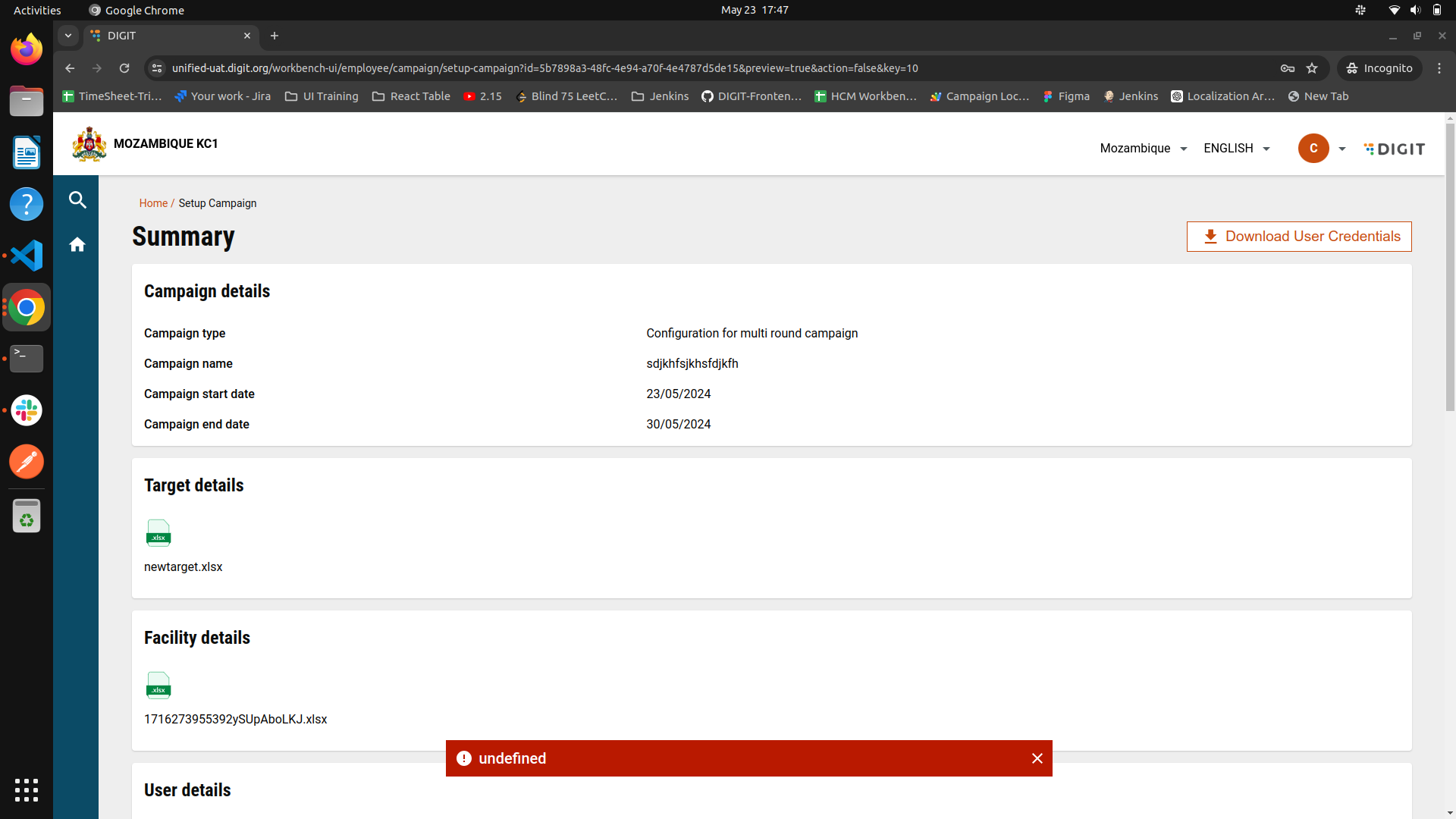
* Clicking a completed campaign opens the **Campaign Summary** page.
* If user credential generation succeeds, a success toast is shown.
* Users can view or download credentials from the summary page.

### Step 6: Configure Upcoming Campaign Filtering

**Purpose:** Show campaigns scheduled to start in the future.

#### Filter Parameters

* `campaignsIncludeDates`: `false`
* `startDate`: Tomorrow’s date (epoch)
* `status`: `created`, `creating`

#### Sample Payload

```
{
  "campaignsIncludeDates": false,
  "startDate": 1716748800,  // Use tomorrow's epoch date dynamically
  "status": ["created", "creating"]
}
```

#### Logic

* **campaignsIncludeDates = false**: This deactivates the date range filtering feature, focusing the filter on a specific start date.
* **startDate = tomorrow (epoch date)**: By setting the start date to tomorrow's date in epoch format, the filter will capture any campaigns scheduled to start tomorrow.
* **status = \["created", "creating"]**: Filters the campaigns to include only those that are in the `created` or `creating` status and is scheduled to start tomorrow.

**User Action**

* Clicking an upcoming campaign opens the **Campaign Summary** page.

### Step 7: Configure Draft Campaign Filtering

**Purpose:** Show campaigns that are not yet completed.

#### Filter Parameters

* `status`: `drafted`

#### Outcome

* All campaigns in draft state are listed.
* Users can continue campaign setup from where they left off.

### Step 8: Configure Failed Campaign Filtering

**Purpose:** Show campaigns that failed during creation or processing.

#### Filter Parameters

* `status`: `failed`

#### User Experience

* Clicking a failed campaign opens the **Campaign Summary** page.
* An error toast is displayed with the failure reason.

<figure><img src="https://content.gitbook.com/content/mb5VUHEnO0msarLMPz6q/blobs/NRq1FX4UJ6sRzcZMfbcT/image.png" alt=""><figcaption></figcaption></figure>

### Configuration & Reference Data

#### MDMS

* Project type configuration:
  * `project-types.json`
  * [MDMS File Link](https://github.com/egovernments/egov-mdms-data/blob/UNIFIED-DEV/data/mz/health/project-types.json)

#### API Details

<table><thead><tr><th width="220">End Point</th><th>Payload</th></tr></thead><tbody><tr><td>/project-factory/v1/project-type/search</td><td>{ "RequestInfo": { }, "CampaignDetails": { "tenantId": "mz", "status": [ "failed" ], "createdBy": "ff98f9f6-192b-4e12-8e90-7b73dcd0ad4d", "pagination": { "sortBy": "createdTime", "sortOrder": "desc", "limit": 10, "offset": 0 } } }</td></tr></tbody></table>


---

# Agent Instructions
This documentation is published with GitBook. GitBook is the documentation platform designed so that both humans and AI agents can read, navigate, and reason over technical content effectively. Learn more at gitbook.com.

## Querying This Documentation
If you need additional information that is not directly available in this page, you can query the documentation dynamically by asking a question.

Perform an HTTP GET request on the current page URL with the `ask` query parameter, and the optional `goal` query parameter:

```
GET https://docs.digit.org/health/v2.0/deploy/configuration/hcm-console-configuration/console-ui-configuration/hcm-console-web-ui/campaign-setup/my-campaign.md?ask=<question>&goal=<endgoal>
```

`ask` is the immediate question: it should be specific, self-contained, and written in natural language.
`goal` is optional and describes the broader end goal you are ultimately trying to accomplish on behalf of the user. GitBook uses it to tailor the answer towards what is most useful for that goal.

The response will contain a direct answer to the question and relevant excerpts and sources from the documentation.

Use this mechanism when the answer is not explicitly present in the current page, you need clarification or additional context, or you want to retrieve related documentation sections.
