> For the complete documentation index, see [llms.txt](https://docs.digit.org/llms.txt). Markdown versions of documentation pages are available by appending `.md` to page URLs; this page is available as [Markdown](https://docs.digit.org/health/v2.0/deploy/configuration/hcm-console-configuration/console-ui-configuration/hcm-console-web-ui/campaign-setup/my-campaign/update-campaign-boundary-and-data.md).

# Update Campaign Boundary & Data

## Overview

The **Update Campaign** flow allows users to modify **campaign boundaries, facilities, users, and targets** after a campaign has been created.

⚠️ **Important rules**

* Campaign updates are allowed **only for Ongoing and Upcoming campaigns**.
* Updates are initiated from the **My Campaign** screen using the **Actions** menu.

## Steps

### Step 1: Start the Update Campaign Flow

**User Action**

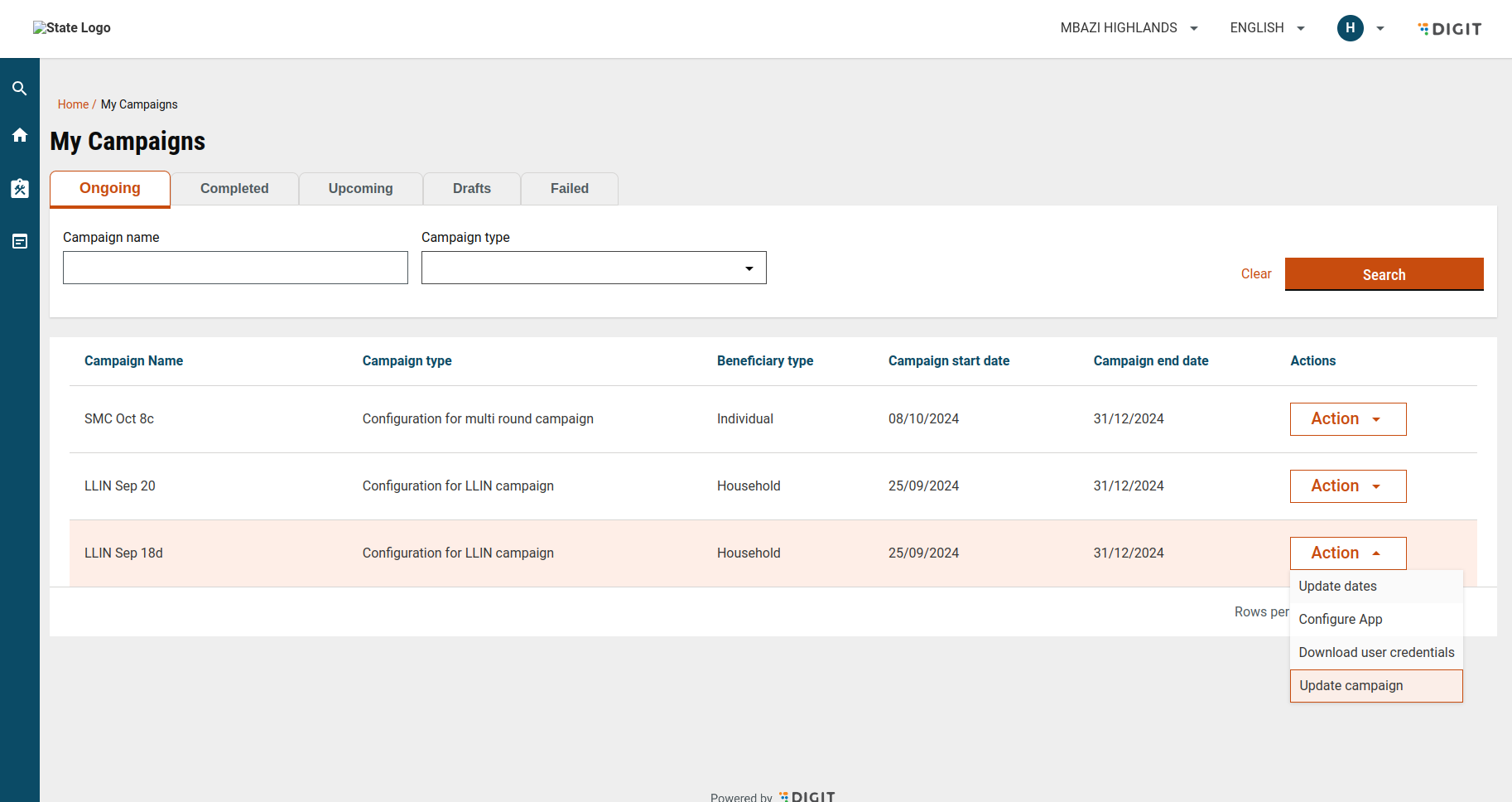
* Go to **My Campaign**.
* Click the **Action** button for an ongoing or upcoming campaign.
* Select **Update Campaign**.

**Outcome**

* The user is redirected to the update flow.
* The campaign’s existing data is loaded for editing.

<figure><img src="https://content.gitbook.com/content/mb5VUHEnO0msarLMPz6q/blobs/oUkZfWBN8oGfF1kCIwCQ/image.png" alt=""><figcaption><p>My campaign</p></figcaption></figure>

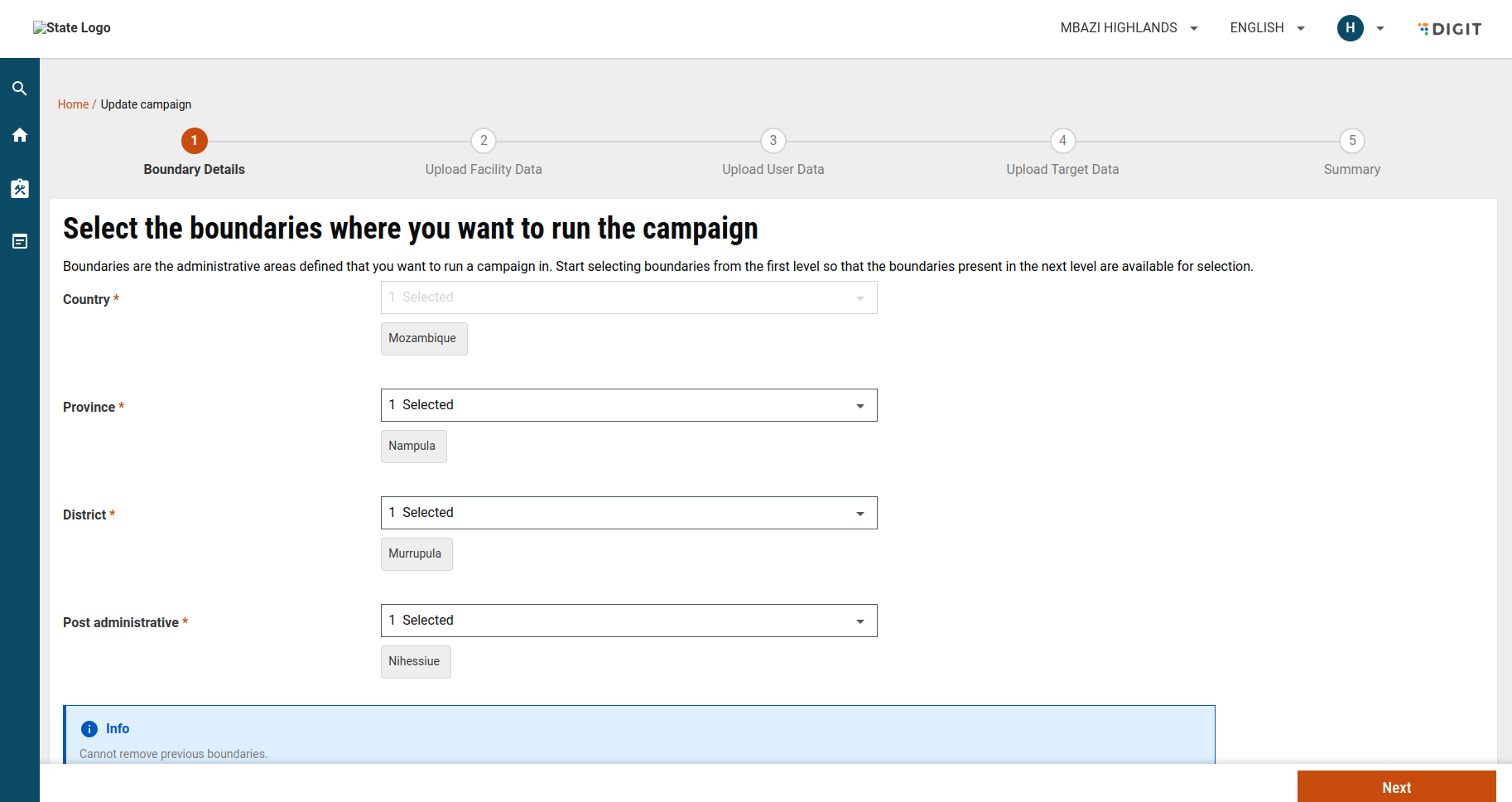
### Step 2: Select or Add Campaign Boundaries

**Screen:** Select Boundary

**Purpose:** Review and extend campaign coverage.

#### Behaviour

* Previously selected boundaries are **pre-filled**.
* Existing boundaries **cannot be removed**.
* Users may **add new boundaries** if required.

**File Reference**

* `UpdateBoundaryWrapper.js`&#x20;
* [File Path](https://github.com/egovernments/DIGIT-Frontend/blob/console/health/micro-ui/web/micro-ui-internals/packages/modules/campaign-manager/src/components/UpdateBoundaryWrapper.js)

<figure><img src="https://content.gitbook.com/content/mb5VUHEnO0msarLMPz6q/blobs/NfVZykfQwMlf96lIjeAH/image.png" alt=""><figcaption><p>Boundary details</p></figcaption></figure>

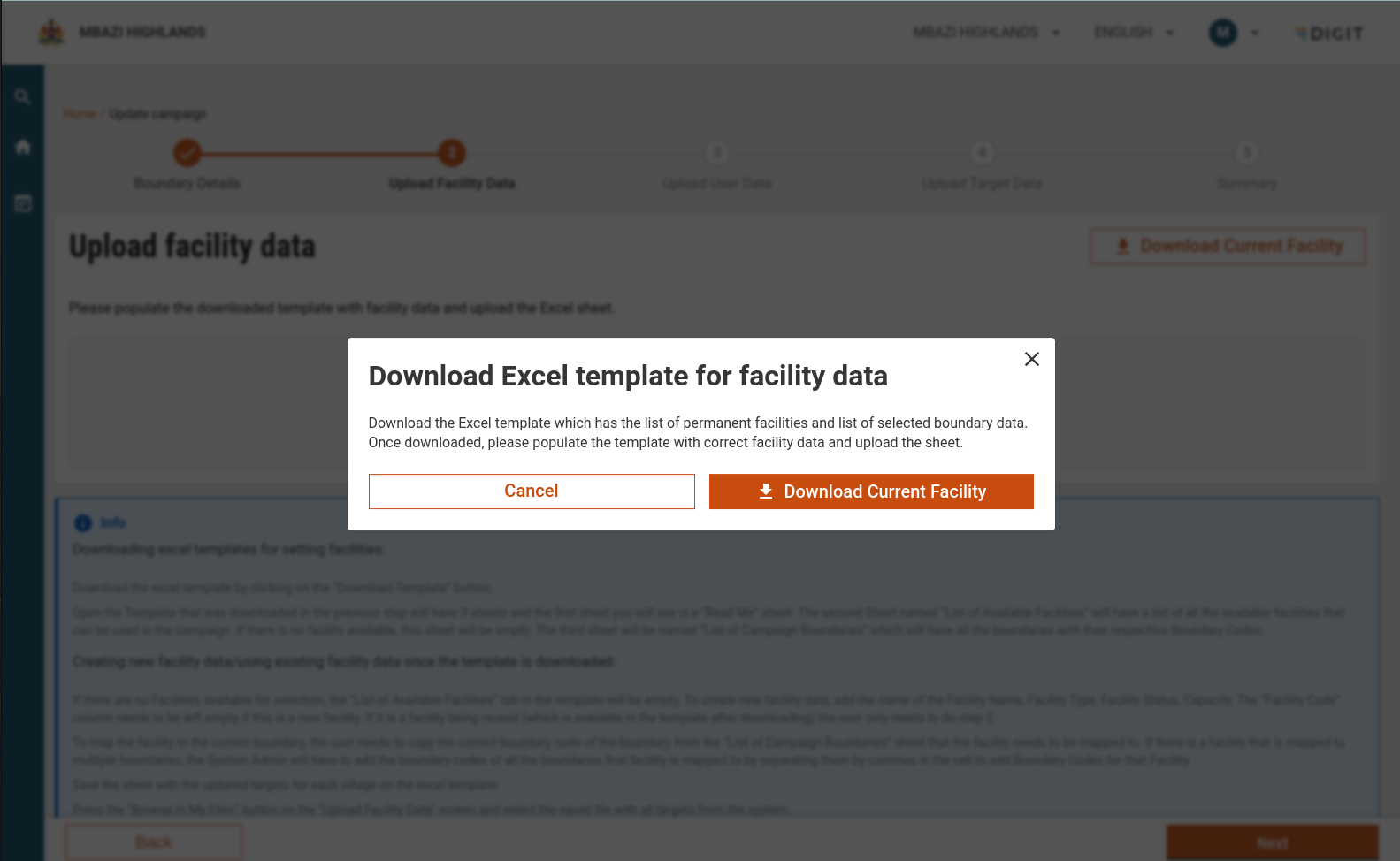
### Step 3: Update Facility Details

**Purpose:** Modify or add facilities linked to the campaign.

#### Actions

1. Download the **current Facility template**.
   * The file is pre-filled with existing facility data.
2. Update the template:
   * Add new facilities if required.
3. Upload the updated file for validation.

<figure><img src="https://content.gitbook.com/content/mb5VUHEnO0msarLMPz6q/blobs/Y4TqtLjWQNeun0NEjbIT/image.png" alt=""><figcaption><p>Update Facility Data</p></figcaption></figure>

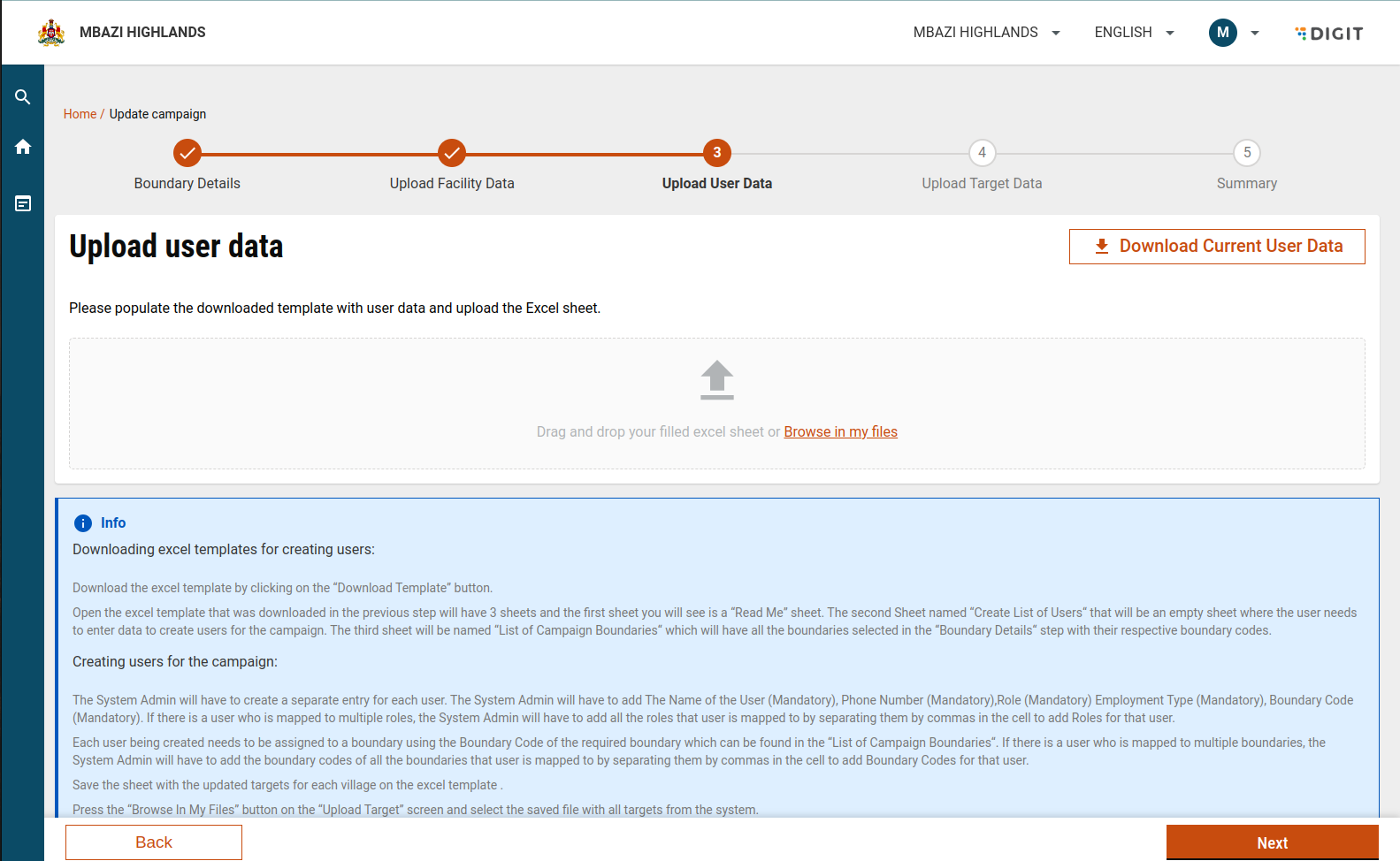
### Step 4: Update User Details

**Purpose:** Modify or add users assigned to the campaign.

#### Actions

1. Download the **current User template**.
   * The file is pre-filled with existing user data.
2. Update the template:
   * Add new users if required.
3. Upload the updated file for validation.

<figure><img src="https://content.gitbook.com/content/mb5VUHEnO0msarLMPz6q/blobs/VyOhihvvAFLNEQIPSjZe/image.png" alt=""><figcaption><p>Update user details</p></figcaption></figure>

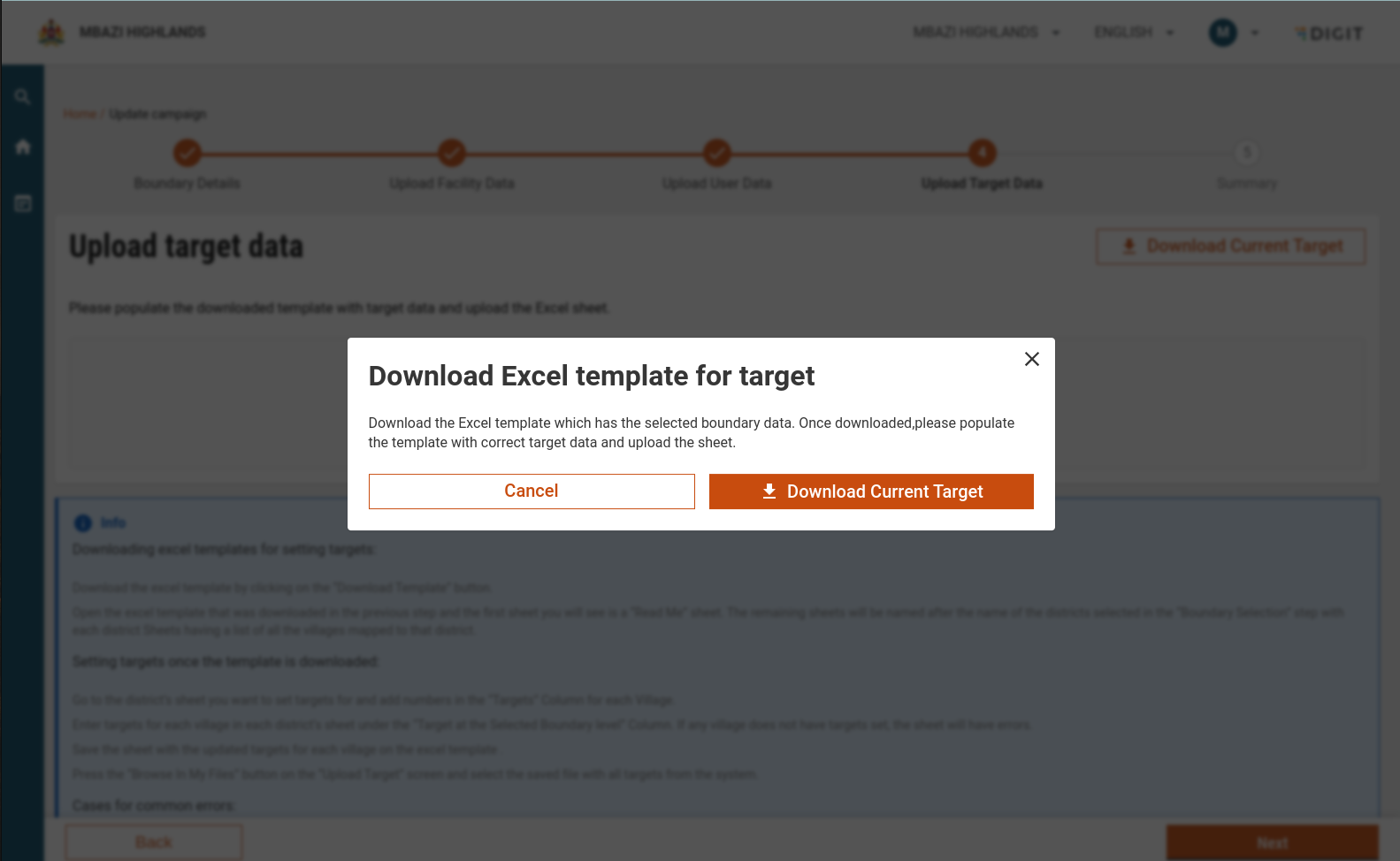
### Step 5: Update Target Details

**Purpose:** Modify or add campaign targets.

#### Actions

1. Download the **current Target template**.
   * The file is pre-filled with existing target values.
2. Update the template:
   * Add new targets or modify existing ones.
3. Upload the updated file for validation.

**Common Upload Component**

* All data upload screens use:
  * `UploadData.js`&#x20;
  * [File Path](https://github.com/egovernments/DIGIT-Frontend/blob/console/health/micro-ui/web/micro-ui-internals/packages/modules/campaign-manager/src/components/UploadData.js)

<figure><img src="https://content.gitbook.com/content/mb5VUHEnO0msarLMPz6q/blobs/VHe70oIWHO5GqiXNcWsJ/image.png" alt=""><figcaption><p>Update target details</p></figcaption></figure>

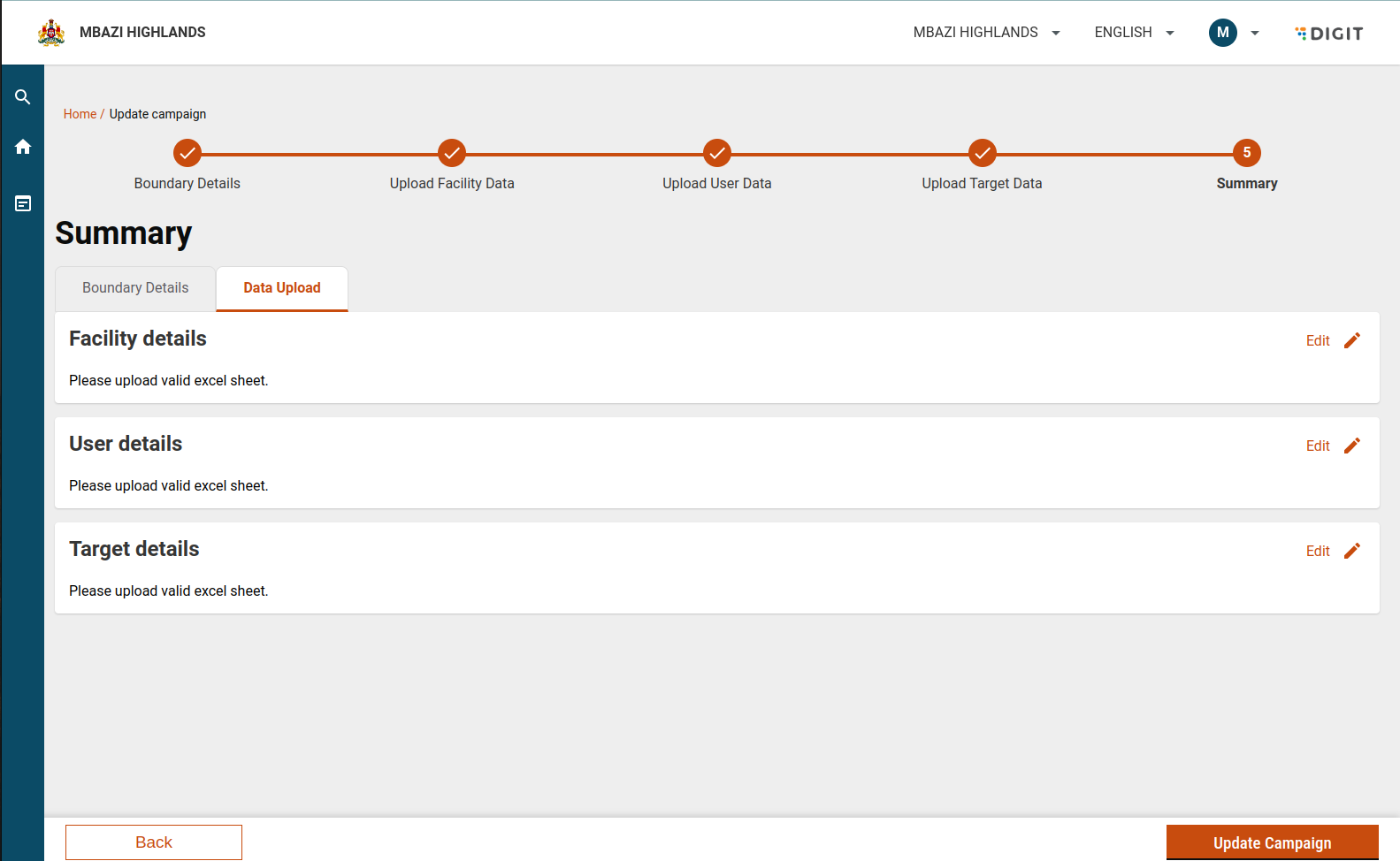
### Step 6: Review Update Summary

**Purpose:** Verify all updates before final submission.

#### Summary Screen

* Displays:
  * Updated boundaries
  * Facility changes
  * User changes
  * Target changes

**File Reference**

* `CampaignUpdateSummary.js`&#x20;
* [File path](https://github.com/egovernments/DIGIT-Frontend/blob/console/health/micro-ui/web/micro-ui-internals/packages/modules/campaign-manager/src/components/CampaignUpdateSummary.js)&#x20;

<figure><img src="https://content.gitbook.com/content/mb5VUHEnO0msarLMPz6q/blobs/bNuPCOkVgcwWbgB8zKTC/image.png" alt=""><figcaption><p>Summary</p></figcaption></figure>

### Step 7: Submit Campaign Updates

**Flow Logic**

* The update flow closely follows the setup campaign flow with key differences:

#### API Behaviour

1. **After Boundary Selection**
   * `create` API is called with:
     * `parentId` (original campaign ID)
     * `action = draft`
2. **During Facility/User/Target Updates**
   * `update` API is used.
3. **On Summary Submission**
   * `create` API is called again with:
     * `action = create`
   * The campaign is updated successfully.

**File Reference**

* `UpdateCampaign.js`&#x20;
* [File Path](https://github.com/egovernments/DIGIT-Frontend/blob/console/health/micro-ui/web/micro-ui-internals/packages/modules/campaign-manager/src/pages/employee/UpdateCampaign.js)

### Step 8: Validate Update Rules

#### Validation Scenarios

**No New Boundaries Added**

* At least **one data upload** (facility, user, or target) is mandatory.

**New Boundaries Added**

* **All three uploads** are mandatory:
  * Facility
  * User
  * Target

If validation fails, the user is prompted to complete the required steps.

## API Details

<table><thead><tr><th width="248.703125">Action</th><th width="213.140625">Role</th><th>Payload</th></tr></thead><tbody><tr><td>/project-factory/v1/project-type/create</td><td>CAMPAIGN_MANAGER</td><td>"action": "draft", <br>"action": "create", to update the campaign</td></tr><tr><td>/project-factory/v1/project-type/search</td><td>CAMPAIGN_MANAGER</td><td>only id is required in params</td></tr><tr><td>/project-factory/v1/project-type/update</td><td>CAMPAIGN_MANAGER</td><td></td></tr><tr><td>/project-factory/v1/data/_download</td><td>CAMPAIGN_MANAGER</td><td><p>Params will be different for different types-<br><br>1) boundary<br>tenantId:mz</p><p>type:boundary</p><p>hierarchyType:ADMIN</p><p>id:987eadc3-55a0-4553-925d-bf8087f57e5a<br><br>2) facilityWithBoundary<br>tenantId:mz</p><p>type:facilityWithBoundary</p><p>hierarchyType:ADMIN</p><p>id:052f59fc-18a7-4e07-816a-f5d8062b56b5<br><br>3) userWithBoundary<br>tenantId:mz</p><p>type:userWithBoundary</p><p>hierarchyType:ADMIN</p><p>id:fbfbd393-d053-4f51-9e12-1068b97da292</p></td></tr><tr><td></td><td></td><td></td></tr></tbody></table>


---

# Agent Instructions
This documentation is published with GitBook. GitBook is the documentation platform designed so that both humans and AI agents can read, navigate, and reason over technical content effectively. Learn more at gitbook.com.

## Querying This Documentation
If you need additional information that is not directly available in this page, you can query the documentation dynamically by asking a question.

Perform an HTTP GET request on the current page URL with the `ask` query parameter, and the optional `goal` query parameter:

```
GET https://docs.digit.org/health/v2.0/deploy/configuration/hcm-console-configuration/console-ui-configuration/hcm-console-web-ui/campaign-setup/my-campaign/update-campaign-boundary-and-data.md?ask=<question>&goal=<endgoal>
```

`ask` is the immediate question: it should be specific, self-contained, and written in natural language.
`goal` is optional and describes the broader end goal you are ultimately trying to accomplish on behalf of the user. GitBook uses it to tailor the answer towards what is most useful for that goal.

The response will contain a direct answer to the question and relevant excerpts and sources from the documentation.

Use this mechanism when the answer is not explicitly present in the current page, you need clarification or additional context, or you want to retrieve related documentation sections.