> For the complete documentation index, see [llms.txt](https://docs.digit.org/llms.txt). Markdown versions of documentation pages are available by appending `.md` to page URLs; this page is available as [Markdown](https://docs.digit.org/health/v2.0/deploy/configuration/microplan-service-configuration/microplan-web-service-configuration/supervisor-workflows/my-microplan.md).

# My Microplan

## **Overview**

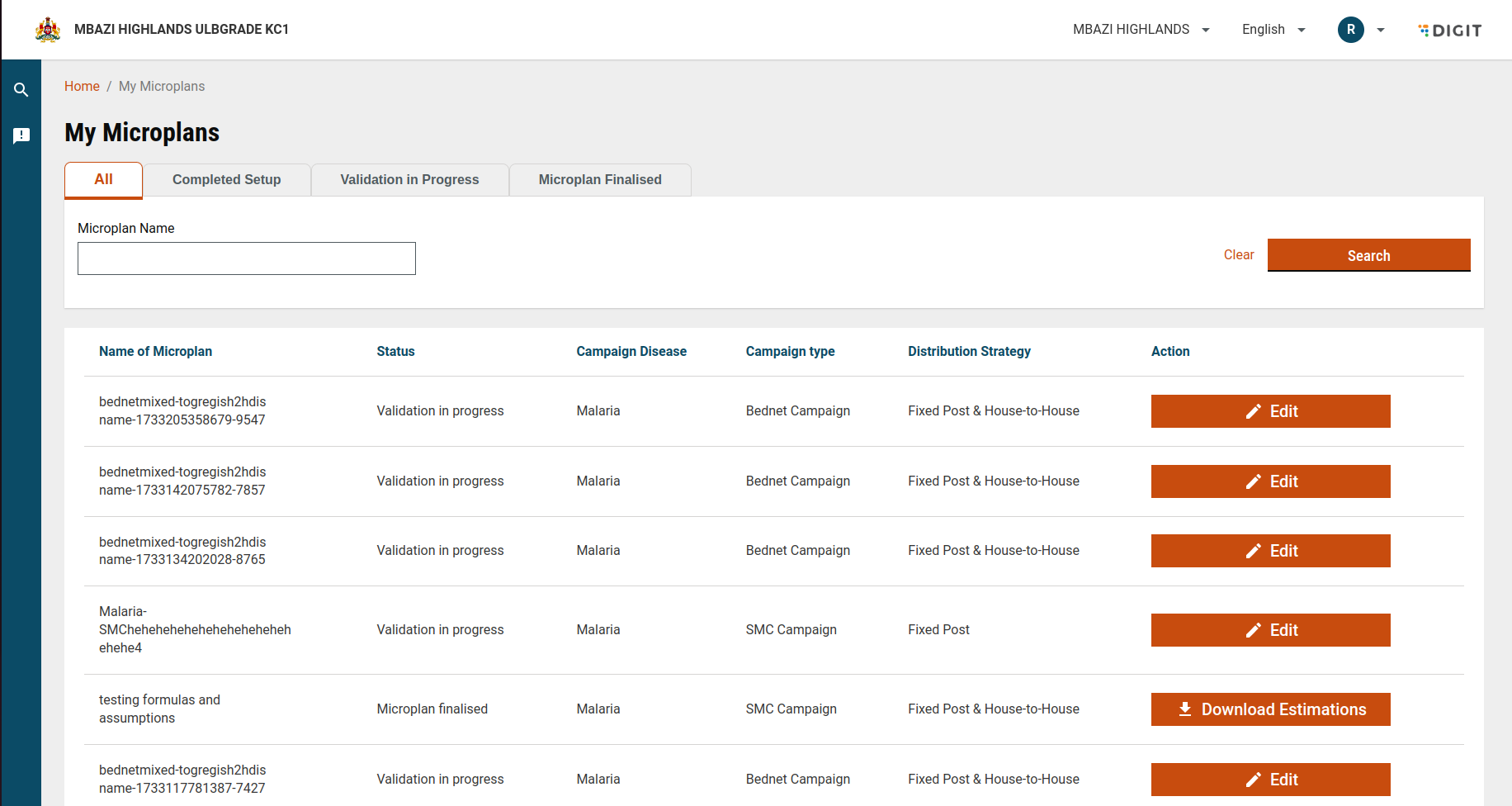
This page displays a tailored list of microplans that the logged-in supervisor is tagged to. Supervisors can manage these microplans within their jurisdiction, ensuring campaign activities are effectively tracked and validated.

#### **Key Features**

* **Microplans Access**: Supervisors will see a list of microplans they are tagged to. This ensures that supervisors can only view and manage the microplans relevant to their role and responsibilities.
* **filterUniqueByPlanConfig Parameter**: The `filterUniqueByPlanConfig` parameter is used here to return all the microplans associated with the logged-in supervisor. This guarantees that only relevant data is displayed.
* **Jurisdiction-Based Access**: Supervisors have jurisdiction based on the hierarchy they belong to. For example, a district-level supervisor can access microplans for their district, while a province-level supervisor can access microplans specific to their province.

#### **Sample Hierarchy**

<table><thead><tr><th width="210.5625">Administrative Boundary</th><th>Hierarchy</th></tr></thead><tbody><tr><td>Highest Boundary</td><td>Country</td></tr><tr><td>Lower Levels</td><td>Province, District, Admin Post, Locality ( Lower  Level Boundaries)</td></tr></tbody></table>

## **Interface Elements**

**Header Section**

* **Title**: *My Microplans* represents the section for managing microplans.
* **Tabs**:
  1. **All**: Displays all microplans.
  2. **Completed Setup**: Lists microplans with finalised setup.
  3. **Validation in Progress**: Microplans undergoing validation.
  4. **Microplan Finalised**: Displays finalised microplans.

**Search Functionality**

* **Search Bar**: Allows filtering microplans by name.
* **Clear Button**: Resets the name search to display all microplans.

<figure><img src="https://3976166735-files.gitbook.io/~/files/v0/b/gitbook-x-prod.appspot.com/o/spaces%2Fmb5VUHEnO0msarLMPz6q%2Fuploads%2FCdaGadFv0G52Lji0zavP%2Fimage.png?alt=media&amp;token=bf3c61a1-2f08-4845-89c5-808659d31712" alt=""><figcaption></figcaption></figure>

## **Microplan Table**

The table lists the microplans in a tabular format. Each row represents a microplan, and the columns provide detailed information:

<table><thead><tr><th width="180.140625">Column Name</th><th>Description</th></tr></thead><tbody><tr><td>Name of Microplan</td><td>The unique identifier or descriptive name of the microplan.</td></tr><tr><td>Status</td><td>Indicates the current stage of the microplan (e.g., "Completed Setup," "Validation in Progress").</td></tr><tr><td>Campaign Disease</td><td>Specifies the target disease for the campaign (e.g., Malaria).</td></tr><tr><td>Campaign Type</td><td>Describes the nature of the campaign (e.g., "Bednet Campaign," "SMC Campaign").</td></tr><tr><td>Distribution Strategy</td><td>Outlines the delivery strategy (e.g., "Fixed Post &#x26; House-to-House," "Fixed Post").</td></tr><tr><td>Action</td><td>Provides actionable options, such as starting validation, editing, or downloading estimations.</td></tr></tbody></table>

#### **Actions for Each Microplan**

<table><thead><tr><th width="170.77734375">Status</th><th width="136.8046875">Action</th><th>Description</th></tr></thead><tbody><tr><td>Completed Setup</td><td>Start Validation</td><td>Initiates the validation process for the selected microplan.</td></tr><tr><td>Validation in Progress</td><td>Edit</td><td>Opens the microplan for modifications.</td></tr><tr><td>Microplan Finalised</td><td>Download Estimations</td><td>Allows downloading estimated data related to the finalised microplan.</td></tr></tbody></table>

## **Process Steps**

**Step 1: Access My Microplans**

* **Objective**: View and manage microplans.
* **Process**: Navigate to the *My Microplans* section.
* **Outcome**: A list of all microplans is displayed, with tabs for status-based filtering.

**Step 2: Search for a Microplan**

* **Objective**: Locate a specific microplan.
* **Process**: Use the search bar to input the microplan name. Click **Clear** to reset the search.
* **Outcome**: Filtered results display matching microplans.

**Step 3: Perform Actions**

* Based on the status, perform the following actions:
  * **Completed Setup**: Click **Start Validation** to begin validating the microplan.
  * **Validation in Progress**: Click **Edit** to modify the microplan details.
  * **Microplan Finalised**: Click **Download Estimations** to save related data.

## **Endpoints**

<table data-full-width="true"><thead><tr><th width="158.640625">Endpoint</th><th width="283.1640625">Description</th><th>Role</th></tr></thead><tbody><tr><td><code>/plan-service/employee/_search</code></td><td>Searches for employee assignments related to microplans.<br>The <code>filterUniqueByPlanConfig</code> parameter is used here to return all the microplans associated with the logged-in supervisor. This guarantees that only relevant data is displayed.</td><td>MICROPLAN_ADMIN, ROOT_POPULATION_DATA_APPROVER, <br>POPULATION_DATA_APPROVER, <br>ROOT_PLAN_ESTIMATION_APPROVER,<br>PLAN_ESTIMATION_APPROVER,<br>ROOT_FACILITY_CATCHMENT_MAPPER,<br>FACILITY_CATCHMENT_MAPPER,<br>MICROPLAN_VIEWER</td></tr><tr><td><code>/plan-service/config/_search</code></td><td>Fetches plan configurations based on the provided IDs.</td><td>SUPERUSER,<br>MICROPLAN_ADMIN,<br>MICROPLAN_CAMPAIGN_INTEGRATOR,<br>ROOT_POPULATION_DATA_APPROVER, <br>POPULATION_DATA_APPROVER, <br>ROOT_PLAN_ESTIMATION_APPROVER,<br>PLAN_ESTIMATION_APPROVER,<br>ROOT_FACILITY_CATCHMENT_MAPPER,<br>FACILITY_CATCHMENT_MAPPER,<br>MICROPLAN_VIEWER<br></td></tr><tr><td><code>/project-factory/v1/project-type/search</code></td><td>Retrieves campaign details for specific project types based on their IDs.</td><td>MICROPLAN_ADMIN,<br>ROOT_POPULATION_DATA_APPROVER, <br>POPULATION_DATA_APPROVER, <br>ROOT_PLAN_ESTIMATION_APPROVER,<br>PLAN_ESTIMATION_APPROVER,<br>ROOT_FACILITY_CATCHMENT_MAPPER,<br>FACILITY_CATCHMENT_MAPPER,<br>MICROPLAN_VIEWER<br></td></tr></tbody></table>


---

# Agent Instructions
This documentation is published with GitBook. GitBook is the documentation platform designed so that both humans and AI agents can read, navigate, and reason over technical content effectively. Learn more at gitbook.com.

## Querying This Documentation
If you need additional information that is not directly available in this page, you can query the documentation dynamically by asking a question.

Perform an HTTP GET request on the current page URL with the `ask` query parameter, and the optional `goal` query parameter:

```
GET https://docs.digit.org/health/v2.0/deploy/configuration/microplan-service-configuration/microplan-web-service-configuration/supervisor-workflows/my-microplan.md?ask=<question>&goal=<endgoal>
```

`ask` is the immediate question: it should be specific, self-contained, and written in natural language.
`goal` is optional and describes the broader end goal you are ultimately trying to accomplish on behalf of the user. GitBook uses it to tailor the answer towards what is most useful for that goal.

The response will contain a direct answer to the question and relevant excerpts and sources from the documentation.

Use this mechanism when the answer is not explicitly present in the current page, you need clarification or additional context, or you want to retrieve related documentation sections.
