> For the complete documentation index, see [llms.txt](https://docs.digit.org/llms.txt). Markdown versions of documentation pages are available by appending `.md` to page URLs; this page is available as [Markdown](https://docs.digit.org/health/v2.0/deploy/configuration/microplan-service-configuration/microplan-web-service-configuration/supervisor-workflows/validate-and-approve-microplan-estimation.md).

# Validate & Approve Microplan Estimation

## **Overview**

The **Microplan Estimation Approver** screen allows supervisors to validate and approve microplan estimations within their assigned administrative boundaries. This screen enables approvers to validate, correct, and approve data, ensuring the integrity of the data used for resource planning.

## **User Roles**

<table><thead><tr><th width="159.7734375">Roles</th><th width="319.18359375">Description</th><th>Role Code</th></tr></thead><tbody><tr><td>Plan Estimation Approver</td><td>Responsible for validating the estimation data, ensuring its accuracy, including the ability to edit data, approve, or send data back for correction.</td><td><code>PLAN_ESTIMATION_APPROVER</code></td></tr><tr><td>Root Plan Estimation Approver</td><td>Responsible for validating the estimation data, ensuring its accuracy, including the ability to edit data, approve, or send data back for correction. Has additional permissions, including the ability to finalise microplan estimation data.</td><td><code>ROOT_PLAN_ESTIMATION_APPROVER</code></td></tr></tbody></table>

## **Interface Elements**

<figure><img src="https://3976166735-files.gitbook.io/~/files/v0/b/gitbook-x-prod.appspot.com/o/spaces%2Fmb5VUHEnO0msarLMPz6q%2Fuploads%2F1c38wHFfa3ttY4l4qtF9%2Fimage.png?alt=media&amp;token=91a12e8c-13a3-4fd0-899d-51e05be67725" alt=""><figcaption></figcaption></figure>

**Header Section**

* **Microplan Name:**\
  Displays the name of the current microplan being reviewed.
* **Logged-in User:**\
  Indicates the user role and account.

#### **Plan Estimation Data Summary (KPIs)**

* All values are dynamically updated based on the real-time plan data.
* These values are sourced directly from microplan-specific KPIs, which reflect any actions taken by data approvers.
* The values will change accordingly as the plan estimation data is reviewed, corrected, or approved.

**Search and Filters:**

**Search**

* **Administrative Hierarchy and Area Selection:**\
  Dropdown menus for selecting specific administrative areas (e.g., district and village).

**Filters**

* **Filter Options:**

  * **Workflow Status Filters:**
    * *Pending validation*
    * *Validated*&#x20;
    * **Assigned to Filters:**
      * *Assigned to me*&#x20;
      * *Assigned to all*&#x20;
  * **Road Condition Filters:**
    * Filter based on the condition of the road (no road, gravel, dirt)
  * **Terrain Filters:**
    * Filter based on terrain (forest, mountain, plain, desert)
  * **Security Questions:**
    * Based on the security level, filters can be applied
  * **Facility Filters:**
    * Filters village based on the  facility, when applied, gives all the villages assigned to that facility

  #### Options for Filters

  * **Accessibility Filters**:
    * Options are retrieved from MDMS v2 using the `useCustomMdms` hook.
    * The MDMS v2 returns a JSON object containing accessibility and other related information.
    * The schema code used is `['hcm-microplanning']` with the masters, including `onRoadCondition`, `terrain`, and `securityQuestions`.
  * **Facility Options**:
    * Retrieved from `plan-service/plan/facility/_search`
    * &#x20;Buttons: **Apply Filter**, **Clear**

<table><thead><tr><th width="192">Purpose</th><th width="148">Endpoint</th><th width="102">Method</th><th>Payload</th></tr></thead><tbody><tr><td>Options for Facility Filters</td><td>/plan-service/plan/facility/_search</td><td>POST</td><td>{PlanFacilitySearchCriteria: { tenantId: tenantId, planConfigurationId: microplanId, }<br>}</td></tr><tr><td><strong>Filter for Accessibility and Facility</strong>: Includes Road Condition, Terrain, Security Questions</td><td>/plan-serivce/plan/_search</td><td></td><td>{ "PlanSearchCriteria": { "tenantId": "mz", "active": true, "assignee": "29681317-e282-44da-8d0a-233cc74a3d6d", "<strong>facilityId</strong>": "F-2024-11-12-068806", "jurisdiction": ["MICROPLAN_MO_13_GRAND_GEDEH"], "<strong>onRoadCondition</strong>": "HCM_MICROPLAN_CONCRETE", "planConfigurationId": "eb5998fc-024f-4623-a969-3763ec5a8840", "<strong>securityQ1</strong>": "OFTEN", "<strong>securityQ2</strong>": "EVERYDAY1", "<strong>status</strong>": "PENDING_FOR_VALIDATION", "<strong>terrain</strong>": "HCM_MICROPLAN_FOREST" } }</td></tr></tbody></table>

**Plan Estimation Data Table**

The table on the Microplan estimation validation page displays key data for each village involved in the campaign, including the village name, status logs, assignee details, and facility name. It also includes important information such as road conditions, terrain, and security factors, which help assess the village’s readiness for planned activities. Additionally, the table presents validated population data, the number of households(based on the selected campaign), and other critical metrics related to the plan data, ensuring that approvers have a comprehensive view of the plan estimation details before approval.

**Action Buttons**

* **View Logs:** Displays historical changes and logs related to a specific plan estimation's data.

<figure><img src="https://3976166735-files.gitbook.io/~/files/v0/b/gitbook-x-prod.appspot.com/o/spaces%2Fmb5VUHEnO0msarLMPz6q%2Fuploads%2FLUML1AJJ4lyWzaoCZXax%2Fimage.png?alt=media&amp;token=201a411a-0ce4-4bd7-a012-b95efe636eb2" alt=""><figcaption></figcaption></figure>

***

## **Steps**

**Role-Based Permissions and Actions**

**Plan Estimation Approver**&#x20;

The Estimation Data Approver is responsible for validating plan data. Their responsibilities include:

**Validating Data:**

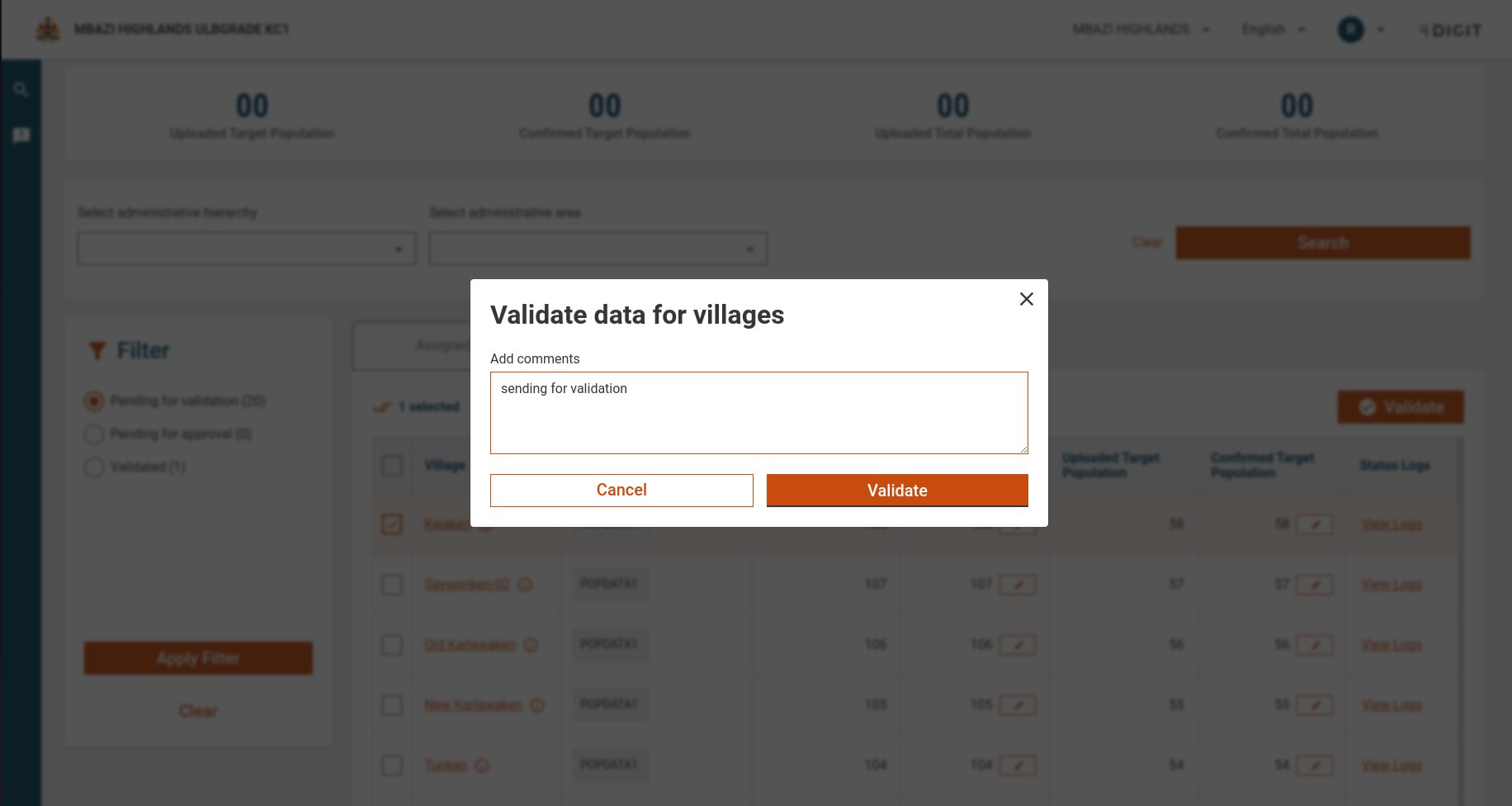
* Cross-check the uploaded data with the confirmed population to ensure accuracy.

<figure><img src="https://3976166735-files.gitbook.io/~/files/v0/b/gitbook-x-prod.appspot.com/o/spaces%2Fmb5VUHEnO0msarLMPz6q%2Fuploads%2FM6eJgsLxOXxaJ5Ae0Jea%2Fimage.png?alt=media&amp;token=325cc0ce-efc0-4107-84da-0c637171379d" alt=""><figcaption></figcaption></figure>

**Identifying Discrepancies:**

* If discrepancies are found, the PEA can flag the data for revision.

**Approval Workflow:**

* The PDA at the appropriate level will see the application as pending approval. In such cases, the PDA can validate and approve the data.

**When No Data Is Assigned:**

* If no data is assigned to the PEA or all data assigned to him is validated, a 'Back' button is shown, allowing them to return to the previous screen.

***

**Root Plan Estimation Approver (RPEA)**

The Root Plan Estimation Approver has all the functionalities of a Plan Estimation Approver and additional capabilities, such as finalising the microplan. Their responsibilities include:

**Approving or Sending Data for Correction:**

* Once the plan data is validated, the RPEA can either approve it or send it back for correction if further issues are identified.

**Approval Workflow:**

* If someone from the hierarchy below modifies and sends the data for approval, the RPEA can approve it. For example, if a province-level user sends the data back to a district-level user, who updates and sends it back for approval, the province-level RPEA will receive the application for approval.

**Finalising Actions:**

* If all the villages within the selected microplan have been validated and no further changes are required, the RPDA will see a "Finalise Actions" button at the footer of the page.

<figure><img src="https://3976166735-files.gitbook.io/~/files/v0/b/gitbook-x-prod.appspot.com/o/spaces%2Fmb5VUHEnO0msarLMPz6q%2Fuploads%2FB8XzYCvyzJ36tlms2xrH%2Fimage.png?alt=media&amp;token=be4b36c9-da44-4791-aa5c-c42b12d3485d" alt=""><figcaption></figcaption></figure>

* After finalising the plan data, a success screen will be shown, indicating that the microplan is finalised.

<figure><img src="https://3976166735-files.gitbook.io/~/files/v0/b/gitbook-x-prod.appspot.com/o/spaces%2Fmb5VUHEnO0msarLMPz6q%2Fuploads%2FG3MS0HrBFuDPbflKBgIT%2Fimage.png?alt=media&amp;token=7401cd8a-0faa-4efc-9fc5-550dbbfc6e7c" alt=""><figcaption></figcaption></figure>

* The "Finalise Actions" button will lock the data and prevent further modifications once clicked, marking the end of the validation process for the selected microplan or district.

{% hint style="info" %}
**Additional Notes**

* Once the plan estimation data reaches the national-level data approver and the validation is finalised, the system will disable all action buttons. The status will be set to "ESTIMATION\_APPROVED" and no further changes can be made. At this point, you can download the microplan estimation.
* Estimation supervisors will only see the boundaries in their inbox that fall under their jurisdiction.
  {% endhint %}

## API Endpoints

<table><thead><tr><th width="148">Purpose</th><th width="143">Endpoint</th><th width="110.05859375">Method</th><th>Payload</th></tr></thead><tbody><tr><td>Fetch plan configuration details</td><td><code>/plan-service/config/_search</code></td><td><code>POST</code></td><td><code>{"PlanConfigurationSearchCriteria":{"tenantId":"mz","id":"0dfe322d-727c-489f-a5a8-e8b7a0a43cc4"}}</code></td></tr><tr><td>Fetch project types for a campaign</td><td><code>/project-factory/v1/project-type/search</code></td><td><code>POST</code></td><td><code>{"CampaignDetails":{"tenantId":"mz","ids":["fede1b71-464d-48be-a2ab-c27147df42c4"]}}</code></td></tr><tr><td>Search for assigned employees</td><td><code>/plan-service/employee/_search</code></td><td><code>POST</code></td><td><code>{"PlanEmployeeAssignmentSearchCriteria":{"tenantId":"mz","active":true,"planConfigurationId":"0dfe322d-727c-489f-a5a8-e8b7a0a43cc4","role":["PLAN_ESTIMATION_APPROVER","ROOT_PLAN_ESTIMATION_APPROVER"],"employeeId":["d3b6f2fb-97b7-4103-aa47-e03f0ba47b18"],"limit":5,"offset":0}}</code></td></tr><tr><td>Fetch workflow process details</td><td><code>/egov-workflow-v2/egov-wf/process/_search</code></td><td><code>POST</code></td><td><p><code>SearchParams{</code></p><p><code>tenantId=mz,</code></p><p><code>history=true,</code></p><p><code>businessIds=275135ab-2c22-48aa-8325-88f42c4d29ce</code></p><p><code>}</code></p></td></tr><tr><td>Search for plans by configuration</td><td><code>/plan-service/plan/_search</code></td><td><code>POST</code></td><td><code>{"PlanSearchCriteria":{"tenantId":"mz","planConfigurationId":"0dfe322d-727c-489f-a5a8-e8b7a0a43cc4"}}</code></td></tr></tbody></table>


---

# Agent Instructions
This documentation is published with GitBook. GitBook is the documentation platform designed so that both humans and AI agents can read, navigate, and reason over technical content effectively. Learn more at gitbook.com.

## Querying This Documentation
If you need additional information that is not directly available in this page, you can query the documentation dynamically by asking a question.

Perform an HTTP GET request on the current page URL with the `ask` query parameter, and the optional `goal` query parameter:

```
GET https://docs.digit.org/health/v2.0/deploy/configuration/microplan-service-configuration/microplan-web-service-configuration/supervisor-workflows/validate-and-approve-microplan-estimation.md?ask=<question>&goal=<endgoal>
```

`ask` is the immediate question: it should be specific, self-contained, and written in natural language.
`goal` is optional and describes the broader end goal you are ultimately trying to accomplish on behalf of the user. GitBook uses it to tailor the answer towards what is most useful for that goal.

The response will contain a direct answer to the question and relevant excerpts and sources from the documentation.

Use this mechanism when the answer is not explicitly present in the current page, you need clarification or additional context, or you want to retrieve related documentation sections.