> For the complete documentation index, see [llms.txt](https://docs.digit.org/llms.txt). Markdown versions of documentation pages are available by appending `.md` to page URLs; this page is available as [Markdown](https://docs.digit.org/health/v2.0/design/architecture/low-level-design/services/admin-console/create-campaign-using-console.md).
# Create Campaign Using Console
## Overview
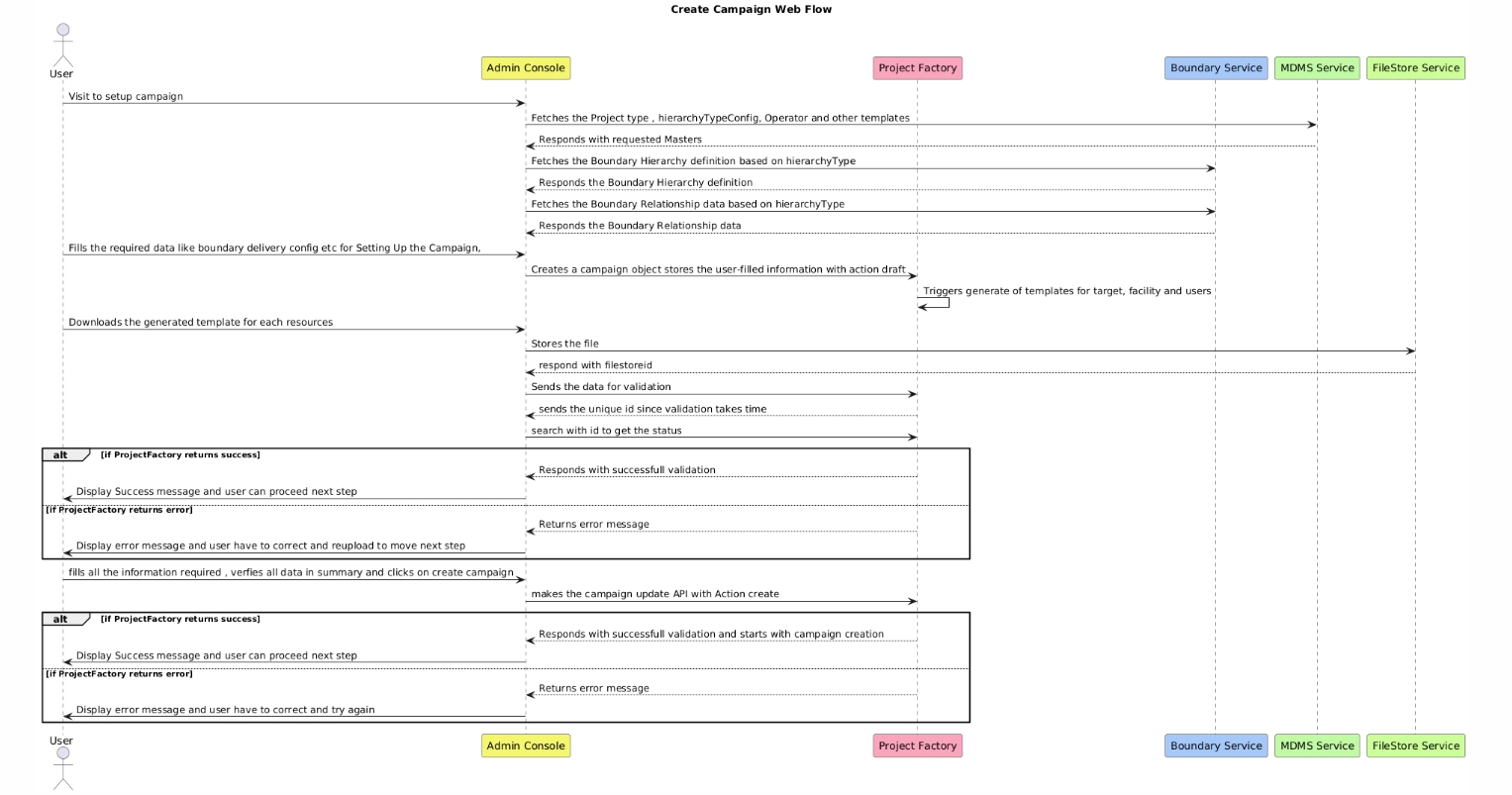
This document details the web flow for creating a new campaign using the Admin Console. The process involves interactions between various services, including the Project Factory, Boundary Service, MDMS Service, FileStore Service, and the Admin Console. This flow ensures that all necessary data is collected, validated, and processed to create a successful campaign.
## Actors and Participants
* **User**: The person interacting with the Admin Console to set up and create a campaign.
* **CampaignManager (Admin Console)**: The main interface that the user interacts with to manage campaign creation.
* **ProjectFactory**: Handles the creation and management of campaign objects and validation processes.
* **BoundaryService**: Provides information about boundary hierarchy and relationships.
* **MDMSService**: Supplies master data such as project types, hierarchy configurations, and operator details.
* **FileStoreService**: Manages the storage and retrieval of files related to the campaign.
## Sequence Flow
**1. Campaign Setup Initialisation**
* **User**: Initiates the process by visiting the Admin Console to set up a new campaign.
* **CampaignManager**: Receives the request to set up a campaign and starts interacting with various services to gather necessary information.
**2. Fetch Master Data**
* **CampaignManager** sends a request to **MDMSService** to fetch required master data, including:
* Project types
* Hierarchy type configuration
* Operator templates
* Other necessary templates
* **MDMSService** responds with the requested master data, which is used to configure the campaign.
**3. Fetch Boundary Information**
* **CampaignManager** requests **BoundaryService** to fetch boundary hierarchy definitions based on the selected hierarchy type.
* **BoundaryService** responds with the boundary hierarchy definition.
* **CampaignManager** requests **BoundaryService** to fetch boundary relationship data based on the selected hierarchy type.
* **BoundaryService** responds with the boundary relationship data.
**4. User Data Input & template Download**
* **User**: Fills in the required data, such as boundary delivery configuration and other campaign-specific details within the Admin Console.
* **CampaignManager**: Sends the user-filled information to **ProjectFactory** to create a campaign object and stores it with an initial action status of "draft".
* **Unified Mode (isUnifiedCampaign = true)**
* The system calls /excel-ingestion/v1/data/generate/\_search with the campaign ID as reference to fetch a single combined template
* Request body: { GenerationSearchCriteria: { tenantId: tenantId, referenceIds: \[campaignId], statuses: \["completed"], referenceTypes: \["campaign"], locale: "\" } }
* User downloads one Excel file (named {campaignName}\_Unified\_Template) containing sheets for targets, facilities, and users
* User fills in all data in the single file
* **Non-Unified Mode (isUnifiedCampaign = false)**
* The system calls /project-factory/v1/data/\_download separately for each type (boundary, facility, user)
* Request params: { tenantId: tenantId, type: "boundary" | "facility" | "user", campaignId: id, status: "completed" }
* User downloads three separate Excel files
* User fills in each file independently
**5. Template Generation**
* **ProjectFactory**: Automatically triggers the generation of templates for different resources, including:
* Target templates
* Facility templates
* User templates
**6. Template Download and Storage**
* **User**: Downloads the generated templates for each resource type through the Admin Console.
* **CampaignManager**: Sends a request to **FileStoreService** to store the downloaded files.
* **FileStoreService** responds with a `filestoreid` that uniquely identifies the stored file.
**7. Data Validation**
* **CampaignManager**: Sends the data and the `filestoreid` to **ProjectFactory** for validation.
* **ProjectFactory** responds with a unique validation ID, as the validation process may take some time.
* **CampaignManager**: Periodically checks the status of the validation using the unique validation ID.
**8. Validation Outcome**
* **ProjectFactory**:
* If validation is successful:
* Responds with a success message.
* **CampaignManager**: Displays a success message to the user, indicating that they can proceed to the next step.
* If validation fails:
* Responds with an error message detailing the validation failure.
* **CampaignManager**: Displays the error message to the user, prompting them to correct the errors and re-upload the files.
**9. Final Campaign Creation**
* **User**: Once all required data is filled in and validated, the user reviews the summary of the campaign data and clicks on the "Create Campaign" button.
* **CampaignManager**: Sends a final request to **ProjectFactory** with the campaign creation API, marking the action as "create".
**10. Campaign Creation Outcome**
* **ProjectFactory**:
* If the creation is successful:
* Responds with a success message indicating that the campaign creation has started.
* **CampaignManager**: Displays a success message to the user, confirming the campaign creation.
* If the creation fails:
* Responds with an error message detailing the failure.
* **CampaignManager**: Displays the error message to the user, prompting them to correct any issues and try again.
## Error Handling
* **Validation Failures**: If validation fails at any stage (e.g., during file validation or input data checks), the **CampaignManager** will notify the user of the specific issues. The user must resolve these issues and re-upload the necessary data to proceed.
* **Service Errors**: If any of the services (e.g., BoundaryService, MDMSService, ProjectFactory) encounter an error during processing, the **CampaignManager** will display an error message, detailing the problem and suggesting corrective actions.
## Web Sequence Diagram
## Conclusion
This document outlines the end-to-end flow for creating a new campaign using the Admin Console. It ensures that the user provides all required information and that data is validated and processed correctly to create the campaign. This structured approach minimises errors and ensures that all campaigns are set up with the required accuracy and completeness.
---
# Agent Instructions
This documentation is published with GitBook. GitBook is the documentation platform designed so that both humans and AI agents can read, navigate, and reason over technical content effectively. Learn more at gitbook.com.
## Querying This Documentation
If you need additional information that is not directly available in this page, you can query the documentation dynamically by asking a question.
Perform an HTTP GET request on the current page URL with the `ask` query parameter, and the optional `goal` query parameter:
```
GET https://docs.digit.org/health/v2.0/design/architecture/low-level-design/services/admin-console/create-campaign-using-console.md?ask=&goal=
```
`ask` is the immediate question: it should be specific, self-contained, and written in natural language.
`goal` is optional and describes the broader end goal you are ultimately trying to accomplish on behalf of the user. GitBook uses it to tailor the answer towards what is most useful for that goal.
The response will contain a direct answer to the question and relevant excerpts and sources from the documentation.
Use this mechanism when the answer is not explicitly present in the current page, you need clarification or additional context, or you want to retrieve related documentation sections.