> For the complete documentation index, see [llms.txt](https://docs.digit.org/llms.txt). Markdown versions of documentation pages are available by appending `.md` to page URLs; this page is available as [Markdown](https://docs.digit.org/health/v2.0/design/architecture/low-level-design/services/admin-console/manage-checklists-using-console.md).
# Manage Checklists Using Console
## Overview
This document details the low-level design for managing checklists in a campaign via a web-based UI. The flow includes viewing, creating, enabling/disabling, and localising checklists, with coordinated backend integrations for robust and extensible checklist management.
***
## Key Actors & Services
* **User**: The individual interacting with the checklist management UI to view, create, and modify checklists.
* **Checklist View UI (CurrentScreen)**: This is the user interface for viewing existing checklists and initiating the creation of new ones.
* **Checklist Create UI (CurrentScreen)**: The user interface for creating and configuring checklists.
* **Service Request Service (ServiceRequestService)**: Manages service requests and updates related to checklists.
* **MDMS Service (MDMSAPI)**: Provides master data management services for roles, checklist types, and other configurations.
* **Localisation Service (LOCAPI)**: Manages the localisation of checklist questions.
***
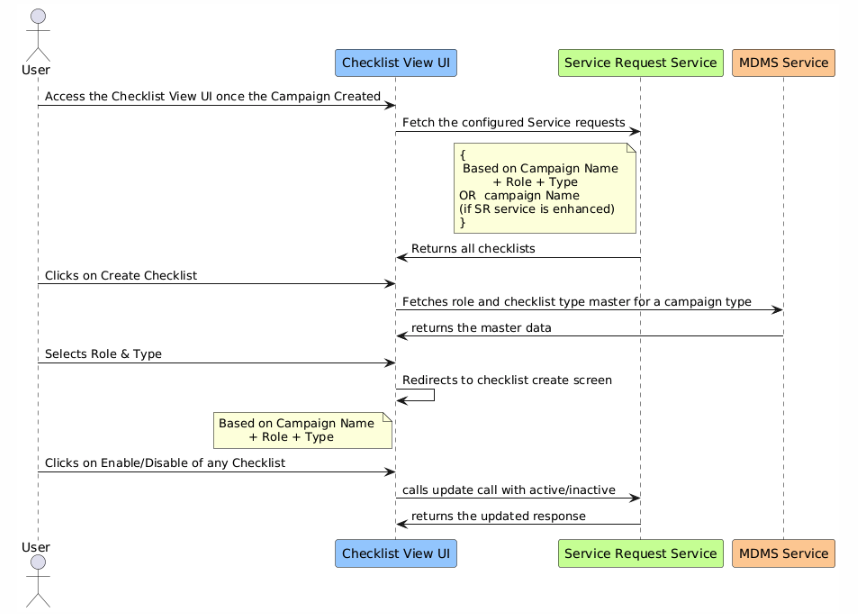
## Sequence Flow
#### Checklist Viewing Flow
1. **Access Checklist View UI**
* **The user** accesses the Checklist View UI after a campaign has been created.
2. **Fetching Configured Service Requests**
* **CurrentScreen** sends a request to **ServiceRequestService** to fetch configured service requests.
* **ServiceRequestService** filters and returns checklists using the campaign name, role, and type, or just the campaign name (if the service is enhanced).
* **ServiceRequestService** returns the relevant checklists to **CurrentScreen**.
3. **Display Checklists**
* **CurrentScreen** displays the checklists received from **ServiceRequestService** to the **User**.
4. **Creating a New Checklist**
* **The user** clicks on "Create Checklist" in the Checklist View UI.
* **CurrentScreen** sends a request to **MDMSAPI** to fetch role and checklist type master data relevant to the campaign type.
* **MDMSAPI** returns the master data to **CurrentScreen**.
* **The user** selects the desired role and checklist type.
* **CurrentScreen** redirects to the checklist creation screen based on the selected campaign name, role, and type.
5. **Enable/Disable Checklist**
* **The user** clicks on the enable/disable option for any checklist.
* **CurrentScreen** sends an update call to **ServiceRequestService** to toggle the active/inactive status of the checklist.
* **ServiceRequestService** returns the updated response.
* **CurrentScreen** updates the checklist status based on the response.
#### Checklist Creation Flow
1. **Access Checklist Create UI**
* **The user** accesses the Checklist Create UI.
* **CurrentScreen** parses URL query parameters to determine the campaign name, role, and checklist type.
2. **Fetching Draft Service Requests**
* **CurrentScreen** sends a request to **MDMSAPI** to fetch draft service requests based on the role and type.
* **MDMSAPI** returns the configured draft service requests.
3. **Loading Default Checklist Questions**
* **CurrentScreen** checks if there is a template available for the checklist and loads default checklist questions.
4. **User Interaction for Checklist Questions**
* **Users** can add, delete, or modify any checklist questions in the UI.
* **The user** clicks on "Create" to finalise the checklist.
5. **Generating Unique Codes and Creating Service Requests**
* **CurrentScreen** generates a unique code for every checklist question.
* **CurrentScreen** sends a create service request with the list of all questions to **ServiceRequestService**.
* **ServiceRequestService** returns a successful response indicating that the checklist has been created.
6. **Localisation of Checklist Questions**
* **CurrentScreen** sends a request to **LOCAPI** to create localisation for all checklist questions.
* Each question is assigned a generated code, a user-entered message, and is associated with the `hcm-checklist` module.
* **LOCAPI** processes the localisation request and returns a response.
7. **Completion and Feedback**
* **CurrentScreen** displays a toast notification to the **User** indicating the successful creation of the checklist.
* **User** is redirected back to the Checklist View screen, where they can see the newly created checklist.
***
## Error Handling
* **Service Request Failures**: If a service request fails at any point, the **CurrentScreen** will display an error message to the **User**. Users must resolve the issues and retry the operation.
* **Validation Errors**: During checklist creation, if validation errors are detected, the **CurrentScreen** will notify the **User** with specific details, and the user must correct the issues before proceeding.
***
## Sequence Diagram
{% tabs %}
{% tab title="View Checklist UI" %}
{% endtab %}
{% tab title="Create Checklist UI" %}
{% endtab %}
{% endtabs %}
## Conclusion
This documentation provides a comprehensive overview of the checklist management process within a campaign. The structured sequence ensures that all checklist-related activities are handled correctly, from viewing existing checklists to creating and localising new ones. By adhering to this flow, users can manage checklists efficiently, ensuring consistency and accuracy in their campaign management activities.
---
# Agent Instructions
This documentation is published with GitBook. GitBook is the documentation platform designed so that both humans and AI agents can read, navigate, and reason over technical content effectively. Learn more at gitbook.com.
## Querying This Documentation
If you need additional information that is not directly available in this page, you can query the documentation dynamically by asking a question.
Perform an HTTP GET request on the current page URL with the `ask` query parameter, and the optional `goal` query parameter:
```
GET https://docs.digit.org/health/v2.0/design/architecture/low-level-design/services/admin-console/manage-checklists-using-console.md?ask=&goal=
```
`ask` is the immediate question: it should be specific, self-contained, and written in natural language.
`goal` is optional and describes the broader end goal you are ultimately trying to accomplish on behalf of the user. GitBook uses it to tailor the answer towards what is most useful for that goal.
The response will contain a direct answer to the question and relevant excerpts and sources from the documentation.
Use this mechanism when the answer is not explicitly present in the current page, you need clarification or additional context, or you want to retrieve related documentation sections.