> For the complete documentation index, see [llms.txt](https://docs.digit.org/llms.txt). Markdown versions of documentation pages are available by appending `.md` to page URLs; this page is available as [Markdown](https://docs.digit.org/local-governance/access/local-governance-stack/mcollect-mcs/mcollect-user-manual/mcs-employee-user-manual.md).
# MCS Employee User Manual
This section illustrates the steps for different employee user roles at the ULB level
## **CE And FE**
The counter employees or field employees collect and process the miscellaneous payments on behalf of the citizens.

**The CE or FE role can -**
* Collect payment
* Search payment receipts
* Print receipts
* Download payment receipts
### **Collect Payment**
CE can process and collect payments for miscellaneous services through the DIGIT web portal or the DIGIT mobile app. To process a new payment navigate to the **Universal Collections** option in the sidebar main menu.
Click on the **New Collection** button on the screen. This will open a new collection form page.
Enter the **Mobile No.** and the **Consumer Name** of the payee.
Select the applicable **Service Category.**
The system will prompt the input of Tax amount, CGST, SGST, Field Fee, or any other details depending on the selected Service Category.
Enter the **From Date** and **To Date** to identify the applicable payment period. **\*\*Enter any additional information in the** Comments\*\* field.
Click on the **Next** button to move to the payment section. The **Payment Collection Details** page displays the fee details and captures the payment form. The **Fee Details** panel displays the fee breakup and **Total Amount** details.
The **Capture Payment** panel displays the available payment methods. Click on the preferred payment tab. The available payment tabs are **Cash, Cheque, and Credit/Debit Card.**
Enter the **Paid By** and the **Payee Name** details.
Enter the **Payer Mobile No.**
Enter the **Cheque No., Cheque Date, IFSC, Bank Name,** and **Bank Branch** details in case of payment by cheque. Enter your credit card or debit card **Last 4 digits, Transaction No.**, and **Re-enter Transaction No.** details if you have selected the Credit/Debit Card payment option.
Enter the **Gen/G8 Receipt No**. issued at the payment counter in case payments are made offline. Enter **Gen/G8 Receipt Issue Date** mentioned on the receipt.
Click on the **Generate Receipt** button once the payment is collected or processed. The system will display the payment success acknowledgement message.
Click on the **Download** button to download/view the receipt. Click on the **Print** button to print the receipt.
### **Search Receipts**
To search for payment receipts navigate to the Universal Collections page in the sidebar main menu.
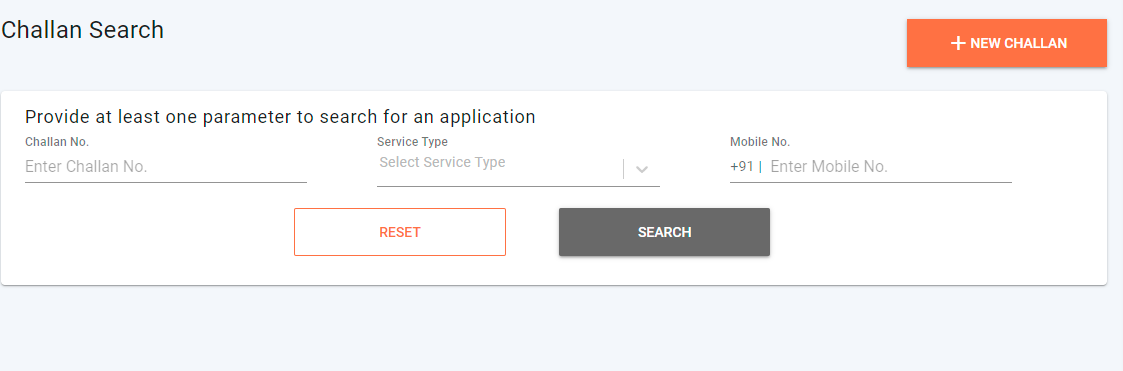
Enter the relevant search parameter. The system enables you to search using payment **Receipt No**. or **Service Category**, or payee **Mobile No.** Click on the **Search** button.
The system will display the relevant search results in the panel below. Click on the relevant record to view the payment receipt. The system will generate a pdf format of the payment receipt.
Click on the download icon on the pdf page to download the receipt. Click on the Print icon on the pdf page to print the receipt.
Click on the **Reset** button to renew your search with different parameters.[ ](https://docs.digit.org/v/v2.1/modules-features/user-guides/guide-mcollect/citizen-user-manual)
[](http://creativecommons.org/licenses/by/4.0/)All content on this page by [eGov Foundation ](https://egov.org.in/)is licensed under a [Creative Commons Attribution 4.0 International License](http://creativecommons.org/licenses/by/4.0/).
---
# Agent Instructions
This documentation is published with GitBook. GitBook is the documentation platform designed so that both humans and AI agents can read, navigate, and reason over technical content effectively. Learn more at gitbook.com.
## Querying This Documentation
If you need additional information that is not directly available in this page, you can query the documentation dynamically by asking a question.
Perform an HTTP GET request on the current page URL with the `ask` query parameter, and the optional `goal` query parameter:
```
GET https://docs.digit.org/local-governance/access/local-governance-stack/mcollect-mcs/mcollect-user-manual/mcs-employee-user-manual.md?ask=&goal=
```
`ask` is the immediate question: it should be specific, self-contained, and written in natural language.
`goal` is optional and describes the broader end goal you are ultimately trying to accomplish on behalf of the user. GitBook uses it to tailor the answer towards what is most useful for that goal.
The response will contain a direct answer to the question and relevant excerpts and sources from the documentation.
Use this mechanism when the answer is not explicitly present in the current page, you need clarification or additional context, or you want to retrieve related documentation sections.