> For the complete documentation index, see [llms.txt](https://docs.digit.org/llms.txt). Markdown versions of documentation pages are available by appending `.md` to page URLs; this page is available as [Markdown](https://docs.digit.org/local-governance/access/local-governance-stack/trade-license-tl/tl-user-manual/citizen-user-manual/apply-for-new-trade-licence.md).
# Apply For New Trade Licence
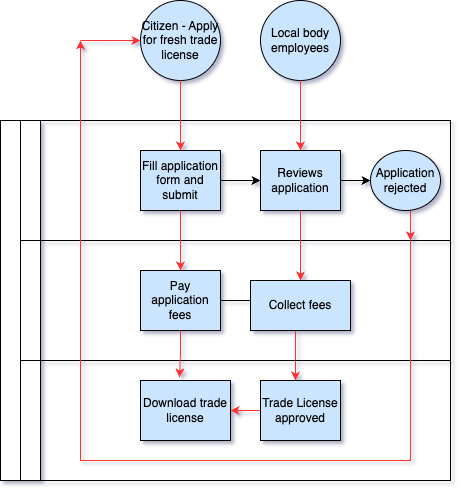
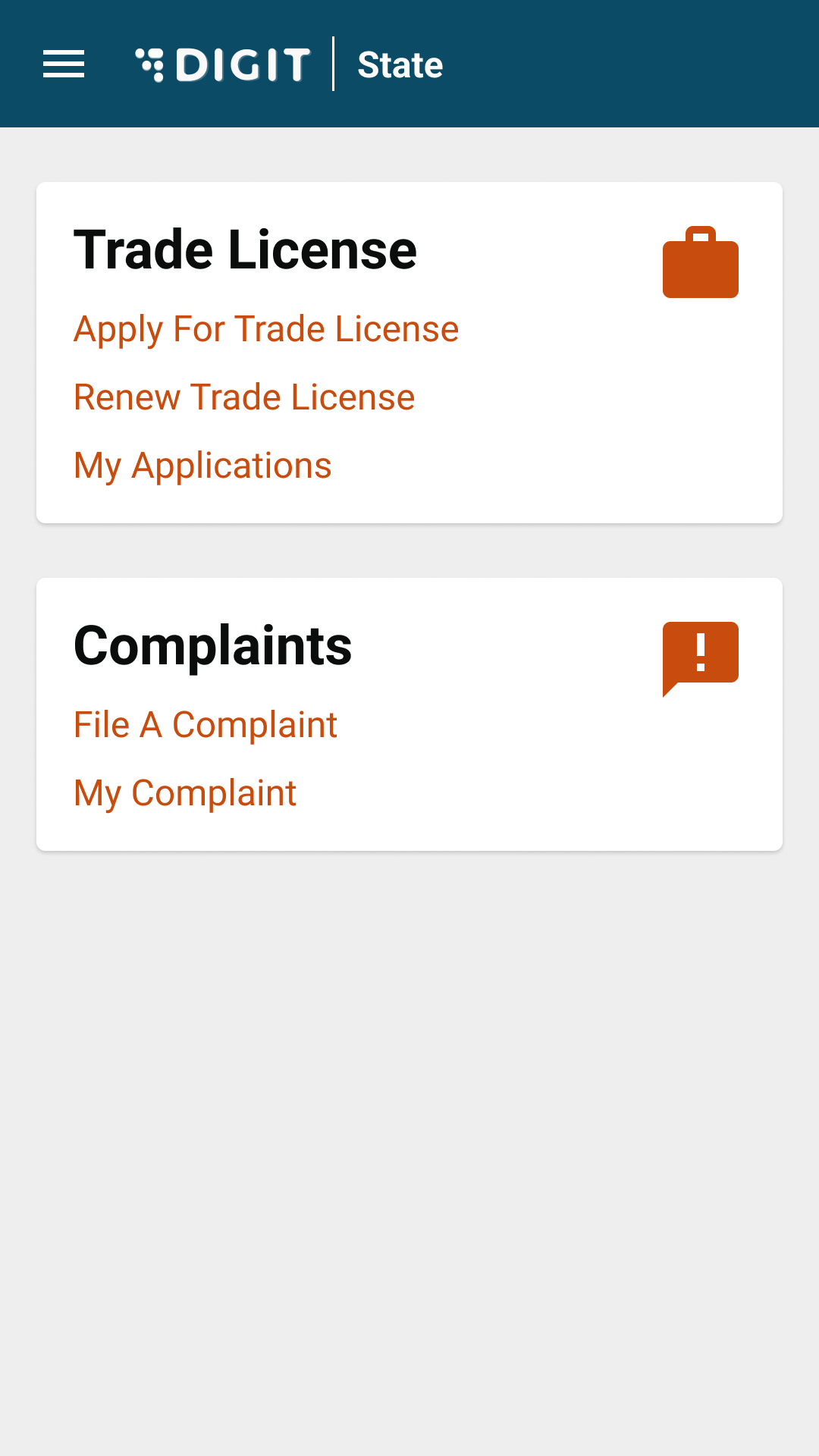
Citizens or CEs can apply for a new trade licence through the DIGIT web portal or the DIGIT mobile app. To apply for a new trade licence click on the **Trade Licence** card available in the **Citizen Services** section of the DIGIT home page.
| | |
| ----------------------------------------------------------------------------------------------------------------------------------------------------------------------------------------- | ----------------------------------------------------------------------------------------------------------------------------------------------------------------------------------------------------------------------------------------------------------------------------------------------------------------------------------------------------------------------------------- |
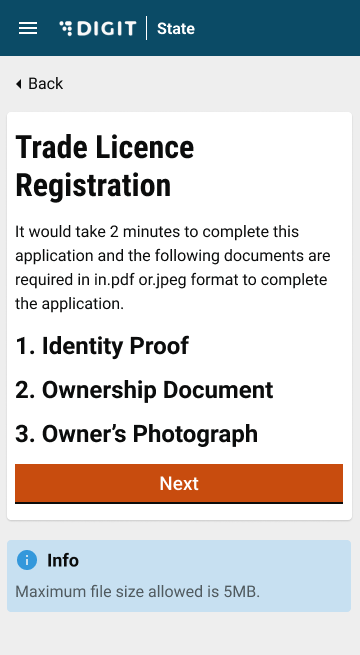
| Click on **Apply for Trade License.** | The initial application screen displays the list of documents that have to be submitted for trade license registration. Scroll through the list and make sure the required documents are scanned and ready for submission online. |
| | |
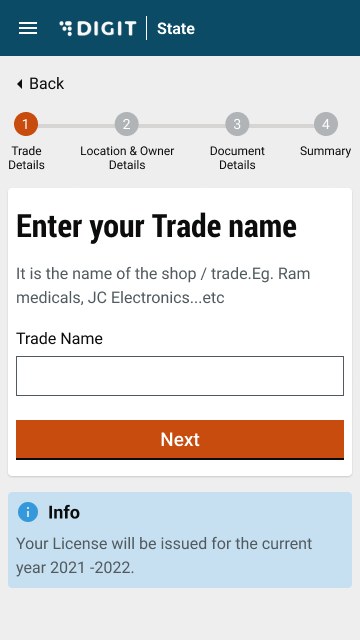
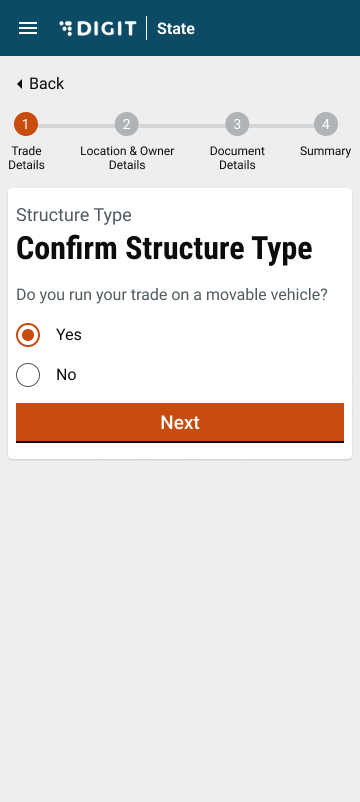
| Enter the **Trade Name**. Click on the **Next** button. | Click on the **Yes** or **No** option to indicate the **Structure Type** of the trading premises. **Yes** to indicate the trade will run on an immovable structure. And, **No** to indicate the trade will run on a movable structure. |
| | |
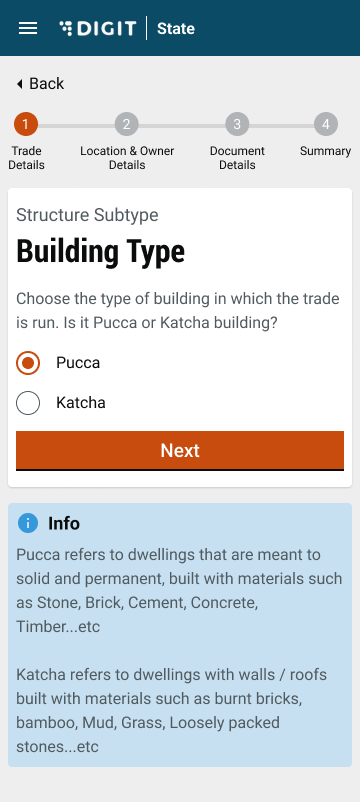
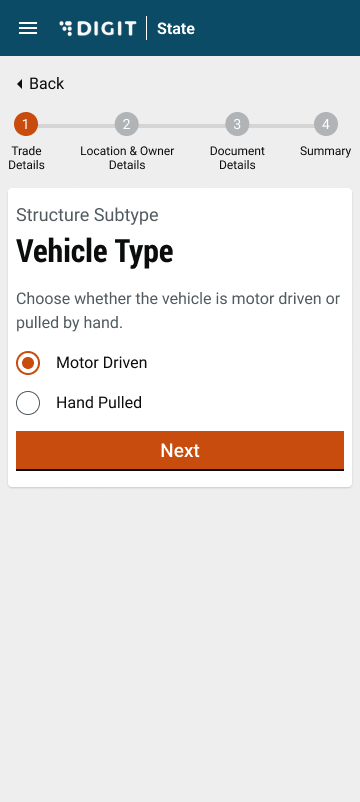
| Select **Pucca** or **Kutcha** option to indicate the **Building Type**. The **Building Type** option appears if the selected **Structure Type** in the previous screen is **Immovable**. | In the case of **Movable** structures, the system displays the **Structure Sub Type** as **Vehicle Type**. Select **Hand Driven Vehicle** or **Motor-Driven Vehicle** option depending on the trading plans. |
| | |
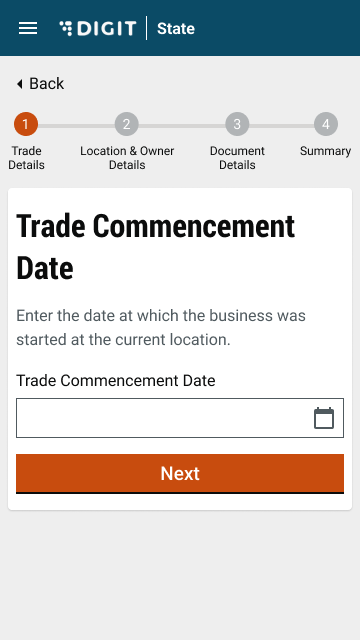
| Enter the **Trade Commencement Date**. This date indicates the inception or starting date of the trade. | Select the **Trade Category** as either **Goods** or **Services** in the **Trade Units** screen. Next, select the appropriate **Trade Type** and **Trade Sub Type** from the available drop-down list. Click on **Add More Trade Units** button to append multiple trading units. |
| | |
| Select **Yes** or **No** to indicate if you have any trade accessories. | If **Yes**, select the applicable **Accessory** from the drop-down list. Enter the **Count** for the selected **Accessory** to provide details on the number of accessories required. The system auto-populates the applicable **UOM**, if any, for the selected accessory. Enter the **UOM value**. Click on **Add More Trade Accessories** button to append multiple accessories. |
| | |
| Enable the **Location** Finder to allow GPS to track the current location. Or, move the pin to the location manually. Alternatively, you can also enter the location in the Search bar. | The **Pincode** field gets auto-populated if the location is selected on the map. Else, enter the **Pincode** of the location details manually. Click on **Skip and Continue** in case you are unable to provide the Pincode details. |
| | |
| **City** and **Locality/Mohalla** fields are auto-populated once the **Pincode** is entered. Else, select the **City** and applicable **Locality/Mohalla** from the drop-down list. | Enter the **Street Name** and **Door No.** details. |
| | |
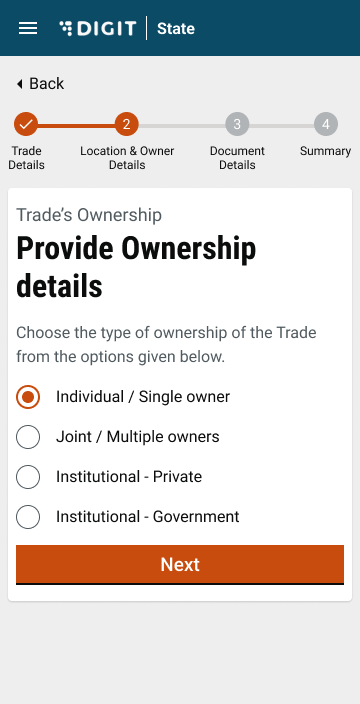
| Provide a **Landmark** to locate the trading premise. | Select either the **Single Owner** or **Multiple Owners** option to indicate the type of ownership in the **Ownership Details** screen. |
| | |
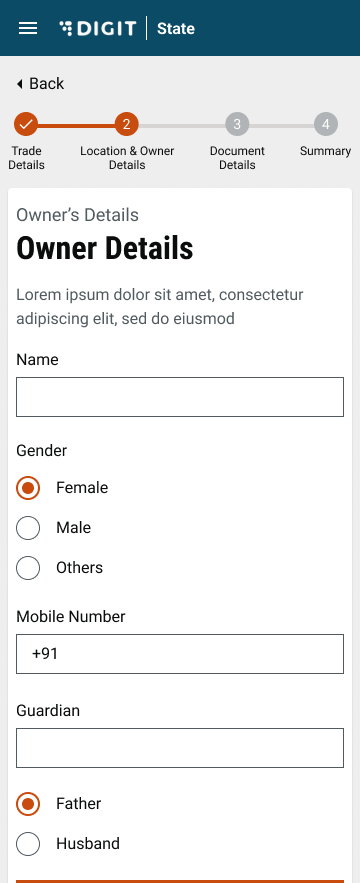
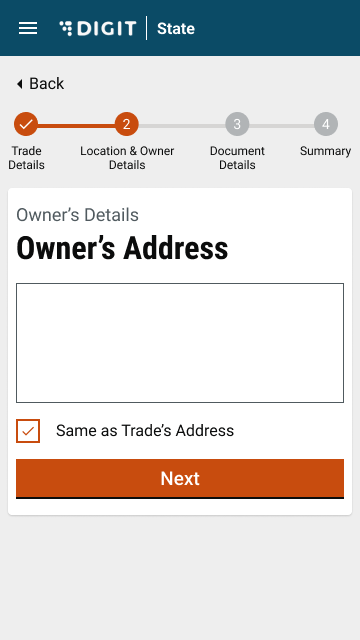
| Enter the **Owner Name**. Select the applicable **Gender** and enter the owner’s **Mobile Number**. | Enter the **Owner’s Address**. Check the **Same as Trade Address** box if the owner’s address and trading address are the same. This will auto-populate the trading address provided earlier. |
| | |
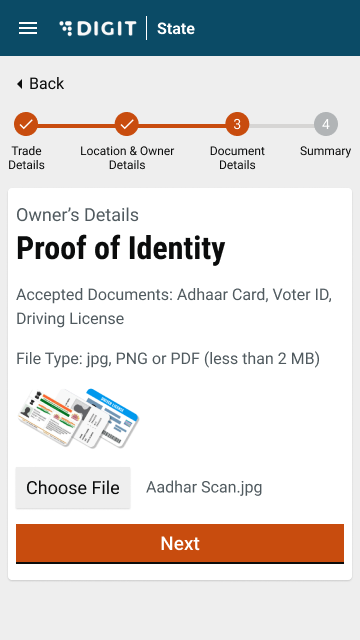
| Select **Choose File** and upload the relevant identity proof document. | Upload the **Ownership Document.** The supported file formats are jpg, PNG or PDF |
| | |
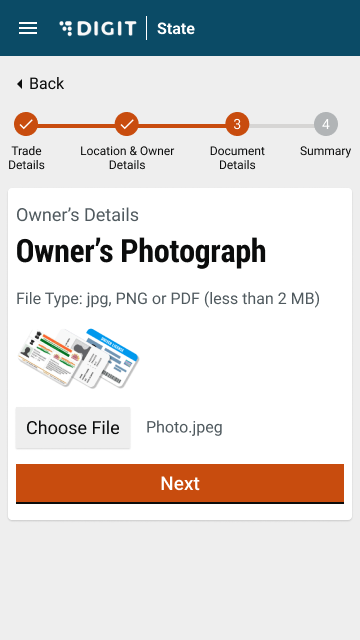
| Upload the **Owner's Photograph**. | Validate the information entered in the application summary screen. Click on **Change** to modify the information if required. Click on the **Submit** button once the filled-in details are found correct and complete. |
| | |
| The system generates a unique application reference number. Click on the **Download Acknowledgement Form** to download and print the acknowledgement. | |
---
# Agent Instructions
This documentation is published with GitBook. GitBook is the documentation platform designed so that both humans and AI agents can read, navigate, and reason over technical content effectively. Learn more at gitbook.com.
## Querying This Documentation
If you need additional information that is not directly available in this page, you can query the documentation by asking a question.
Perform an HTTP GET request on the following URL with the `ask` and `goal` query parameters:
```
GET https://docs.digit.org/local-governance/access/local-governance-stack/trade-license-tl/tl-user-manual/citizen-user-manual/apply-for-new-trade-licence.md?ask=&goal=
```
`ask` is the immediate question: it should be specific, self-contained, and written in natural language.
`goal` is what the user is ultimately trying to achieve, the reason they need the answer. Sharing it helps GitBook give you a better, more relevant answer. A goal is most helpful when it describes the outcome the user wants rather than restating the question. For example, with `ask=how do I create an API token`, a goal like `automate deployments from our CI pipeline` lets GitBook tailor the answer to that use case.
The response will contain a direct answer to the question and relevant excerpts and sources from the documentation.
Use this mechanism when the answer is not explicitly present in the current page, you need clarification or additional context, or you want to retrieve related documentation sections.
 |
|  |
| ----------------------------------------------------------------------------------------------------------------------------------------------------------------------------------------- | ----------------------------------------------------------------------------------------------------------------------------------------------------------------------------------------------------------------------------------------------------------------------------------------------------------------------------------------------------------------------------------- |
| Click on **Apply for Trade License.** | The initial application screen displays the list of documents that have to be submitted for trade license registration. Scroll through the list and make sure the required documents are scanned and ready for submission online. |
|
|
| ----------------------------------------------------------------------------------------------------------------------------------------------------------------------------------------- | ----------------------------------------------------------------------------------------------------------------------------------------------------------------------------------------------------------------------------------------------------------------------------------------------------------------------------------------------------------------------------------- |
| Click on **Apply for Trade License.** | The initial application screen displays the list of documents that have to be submitted for trade license registration. Scroll through the list and make sure the required documents are scanned and ready for submission online. |
|  |
|  |
| Enter the **Trade Name**. Click on the **Next** button. | Click on the **Yes** or **No** option to indicate the **Structure Type** of the trading premises. **Yes** to indicate the trade will run on an immovable structure. And, **No** to indicate the trade will run on a movable structure. |
|
|
| Enter the **Trade Name**. Click on the **Next** button. | Click on the **Yes** or **No** option to indicate the **Structure Type** of the trading premises. **Yes** to indicate the trade will run on an immovable structure. And, **No** to indicate the trade will run on a movable structure. |
|  |
|  |
| Select **Pucca** or **Kutcha** option to indicate the **Building Type**. The **Building Type** option appears if the selected **Structure Type** in the previous screen is **Immovable**. | In the case of **Movable** structures, the system displays the **Structure Sub Type** as **Vehicle Type**. Select **Hand Driven Vehicle** or **Motor-Driven Vehicle** option depending on the trading plans. |
|
|
| Select **Pucca** or **Kutcha** option to indicate the **Building Type**. The **Building Type** option appears if the selected **Structure Type** in the previous screen is **Immovable**. | In the case of **Movable** structures, the system displays the **Structure Sub Type** as **Vehicle Type**. Select **Hand Driven Vehicle** or **Motor-Driven Vehicle** option depending on the trading plans. |
|  |
| 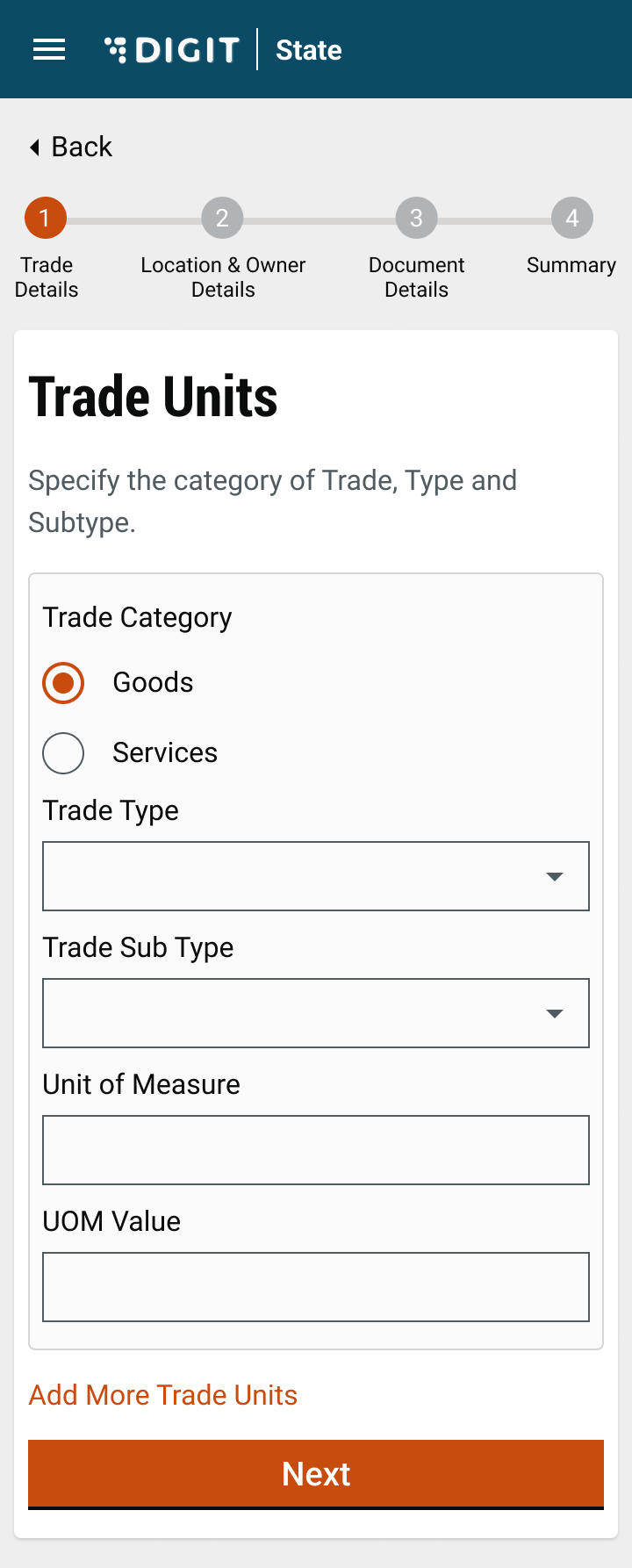 |
| Enter the **Trade Commencement Date**. This date indicates the inception or starting date of the trade. | Select the **Trade Category** as either **Goods** or **Services** in the **Trade Units** screen. Next, select the appropriate **Trade Type** and **Trade Sub Type** from the available drop-down list. Click on **Add More Trade Units** button to append multiple trading units. |
|
|
| Enter the **Trade Commencement Date**. This date indicates the inception or starting date of the trade. | Select the **Trade Category** as either **Goods** or **Services** in the **Trade Units** screen. Next, select the appropriate **Trade Type** and **Trade Sub Type** from the available drop-down list. Click on **Add More Trade Units** button to append multiple trading units. |
|  |
| 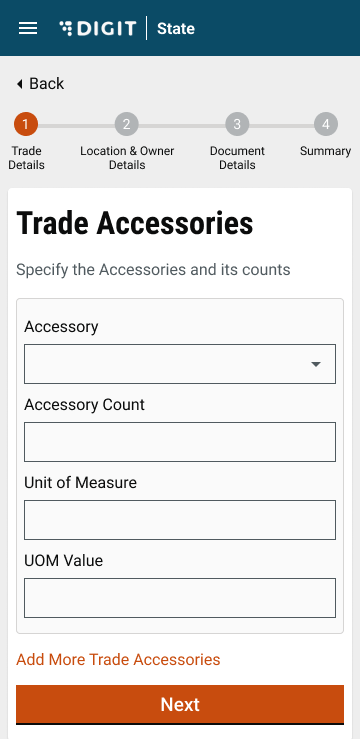 |
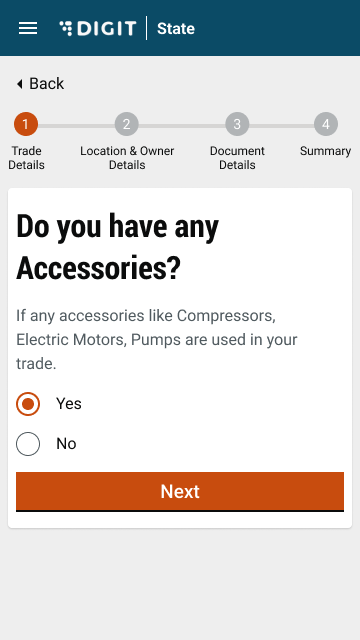
| Select **Yes** or **No** to indicate if you have any trade accessories. | If **Yes**, select the applicable **Accessory** from the drop-down list. Enter the **Count** for the selected **Accessory** to provide details on the number of accessories required. The system auto-populates the applicable **UOM**, if any, for the selected accessory. Enter the **UOM value**. Click on **Add More Trade Accessories** button to append multiple accessories. |
|
|
| Select **Yes** or **No** to indicate if you have any trade accessories. | If **Yes**, select the applicable **Accessory** from the drop-down list. Enter the **Count** for the selected **Accessory** to provide details on the number of accessories required. The system auto-populates the applicable **UOM**, if any, for the selected accessory. Enter the **UOM value**. Click on **Add More Trade Accessories** button to append multiple accessories. |
|  |
| 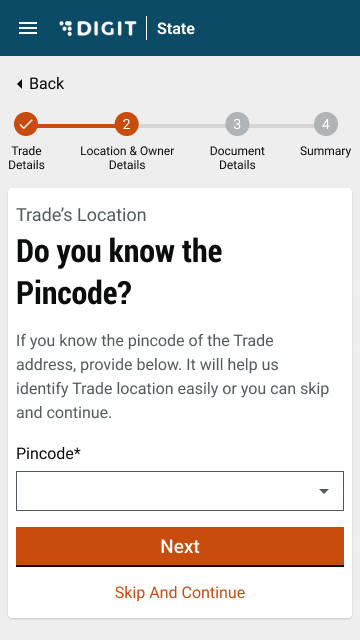 |
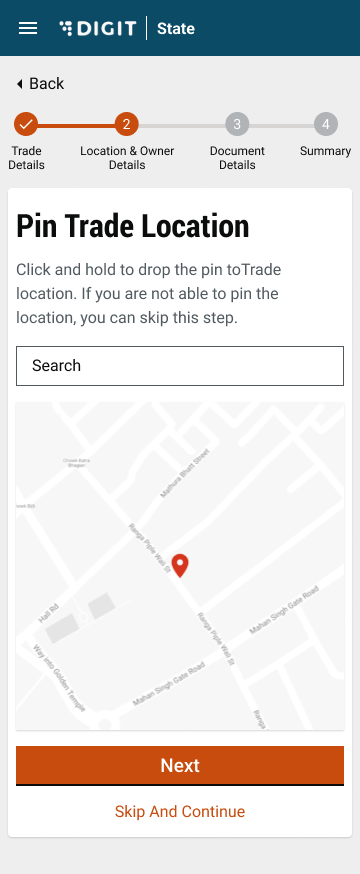
| Enable the **Location** Finder to allow GPS to track the current location. Or, move the pin to the location manually. Alternatively, you can also enter the location in the Search bar. | The **Pincode** field gets auto-populated if the location is selected on the map. Else, enter the **Pincode** of the location details manually. Click on **Skip and Continue** in case you are unable to provide the Pincode details. |
|
|
| Enable the **Location** Finder to allow GPS to track the current location. Or, move the pin to the location manually. Alternatively, you can also enter the location in the Search bar. | The **Pincode** field gets auto-populated if the location is selected on the map. Else, enter the **Pincode** of the location details manually. Click on **Skip and Continue** in case you are unable to provide the Pincode details. |
|  |
| 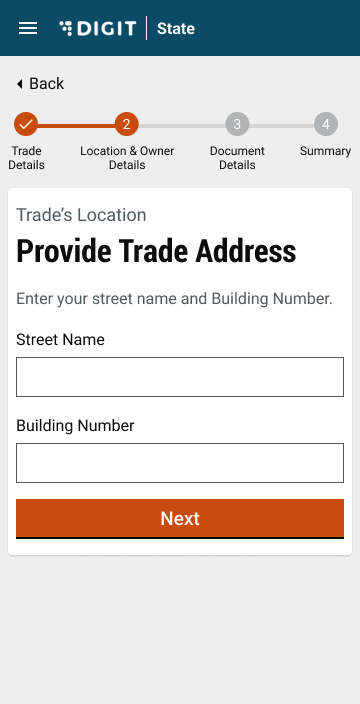 |
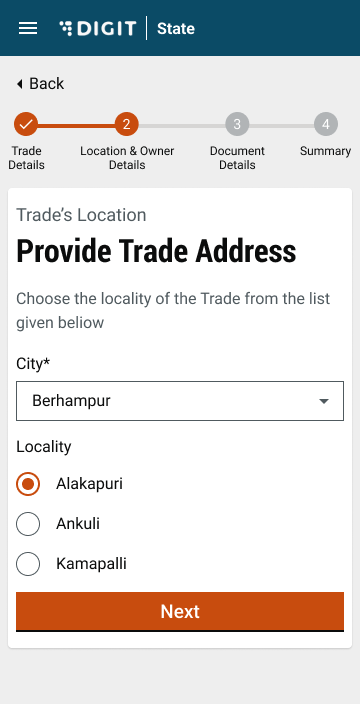
| **City** and **Locality/Mohalla** fields are auto-populated once the **Pincode** is entered. Else, select the **City** and applicable **Locality/Mohalla** from the drop-down list. | Enter the **Street Name** and **Door No.** details. |
|
|
| **City** and **Locality/Mohalla** fields are auto-populated once the **Pincode** is entered. Else, select the **City** and applicable **Locality/Mohalla** from the drop-down list. | Enter the **Street Name** and **Door No.** details. |
|  |
|  |
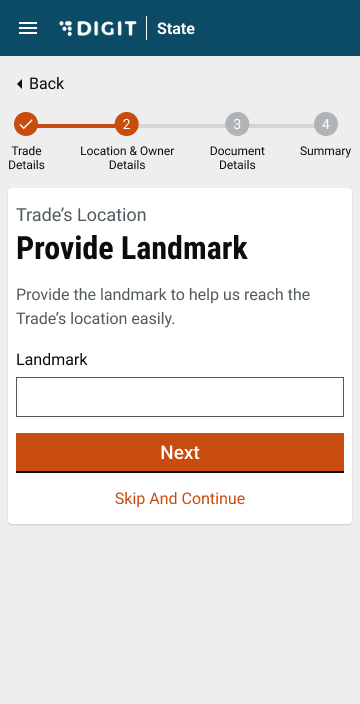
| Provide a **Landmark** to locate the trading premise. | Select either the **Single Owner** or **Multiple Owners** option to indicate the type of ownership in the **Ownership Details** screen. |
|
|
| Provide a **Landmark** to locate the trading premise. | Select either the **Single Owner** or **Multiple Owners** option to indicate the type of ownership in the **Ownership Details** screen. |
|  |
|  |
| Enter the **Owner Name**. Select the applicable **Gender** and enter the owner’s **Mobile Number**. | Enter the **Owner’s Address**. Check the **Same as Trade Address** box if the owner’s address and trading address are the same. This will auto-populate the trading address provided earlier. |
|
|
| Enter the **Owner Name**. Select the applicable **Gender** and enter the owner’s **Mobile Number**. | Enter the **Owner’s Address**. Check the **Same as Trade Address** box if the owner’s address and trading address are the same. This will auto-populate the trading address provided earlier. |
|  |
| 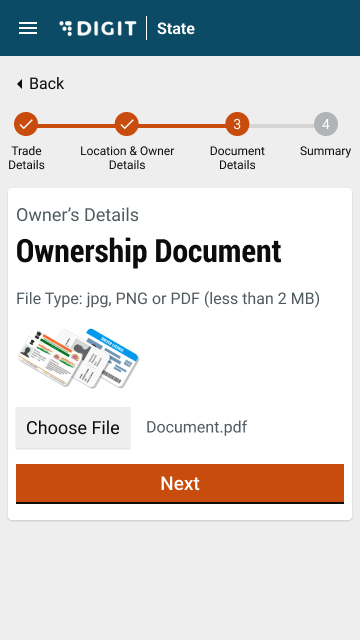 |
| Select **Choose File** and upload the relevant identity proof document. | Upload the **Ownership Document.** The supported file formats are jpg, PNG or PDF |
|
|
| Select **Choose File** and upload the relevant identity proof document. | Upload the **Ownership Document.** The supported file formats are jpg, PNG or PDF |
|  |
| 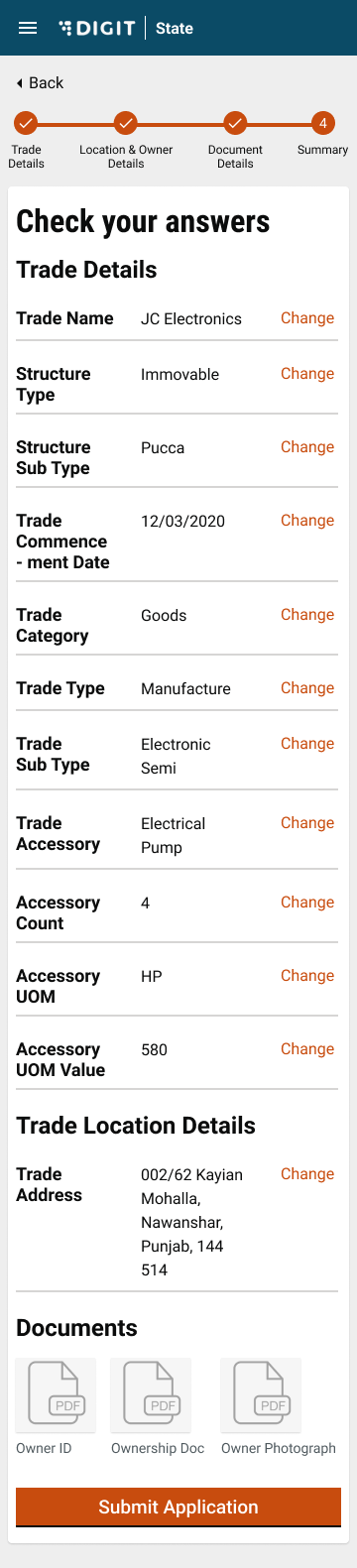 |
| Upload the **Owner's Photograph**. | Validate the information entered in the application summary screen. Click on **Change** to modify the information if required. Click on the **Submit** button once the filled-in details are found correct and complete. |
|
|
| Upload the **Owner's Photograph**. | Validate the information entered in the application summary screen. Click on **Change** to modify the information if required. Click on the **Submit** button once the filled-in details are found correct and complete. |
| 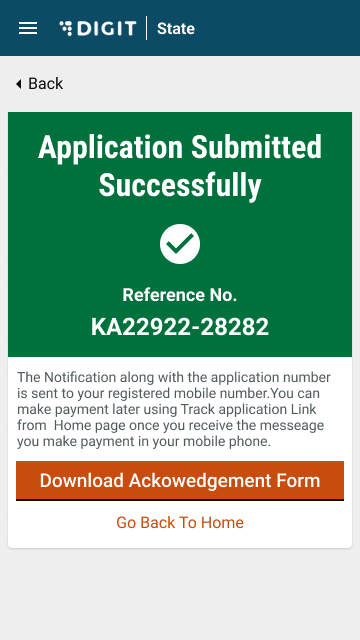 | |
| The system generates a unique application reference number. Click on the **Download Acknowledgement Form** to download and print the acknowledgement. | |
---
# Agent Instructions
This documentation is published with GitBook. GitBook is the documentation platform designed so that both humans and AI agents can read, navigate, and reason over technical content effectively. Learn more at gitbook.com.
## Querying This Documentation
If you need additional information that is not directly available in this page, you can query the documentation by asking a question.
Perform an HTTP GET request on the following URL with the `ask` and `goal` query parameters:
```
GET https://docs.digit.org/local-governance/access/local-governance-stack/trade-license-tl/tl-user-manual/citizen-user-manual/apply-for-new-trade-licence.md?ask=
| |
| The system generates a unique application reference number. Click on the **Download Acknowledgement Form** to download and print the acknowledgement. | |
---
# Agent Instructions
This documentation is published with GitBook. GitBook is the documentation platform designed so that both humans and AI agents can read, navigate, and reason over technical content effectively. Learn more at gitbook.com.
## Querying This Documentation
If you need additional information that is not directly available in this page, you can query the documentation by asking a question.
Perform an HTTP GET request on the following URL with the `ask` and `goal` query parameters:
```
GET https://docs.digit.org/local-governance/access/local-governance-stack/trade-license-tl/tl-user-manual/citizen-user-manual/apply-for-new-trade-licence.md?ask=