# Panel

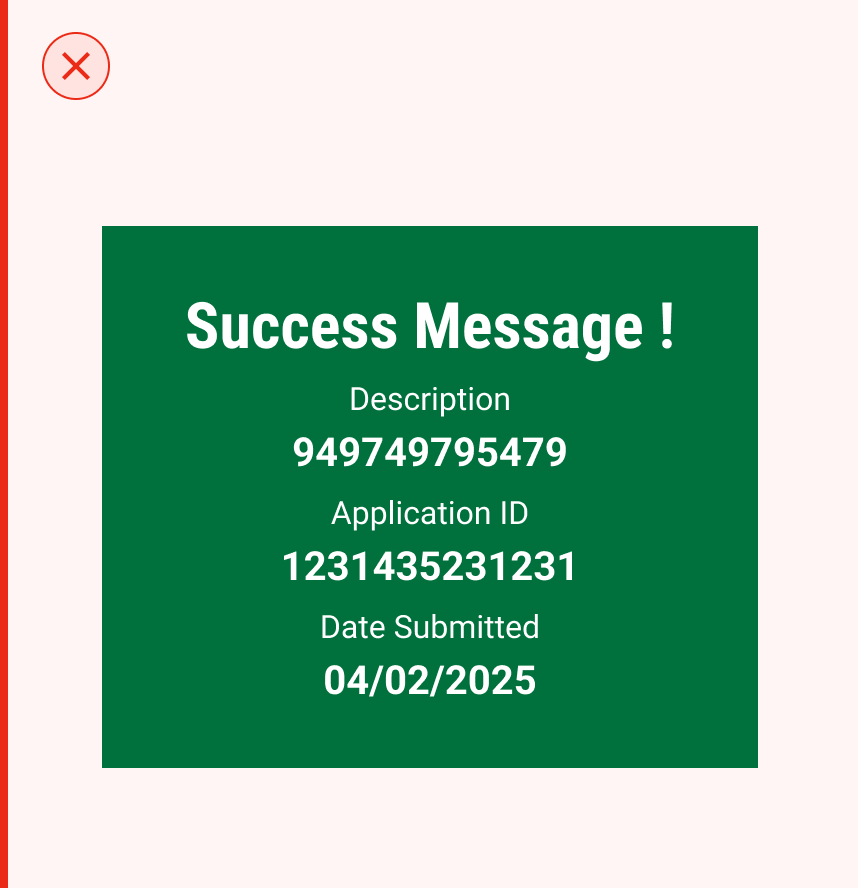
The Panel component is a responsive and accessible UI element used to convey important system feedback to users. Aligned with principles of clarity, consistency, and user-first communication, it ensures users receive timely success or error notifications in an unobtrusive yet prominent manner.

<figure><img src="https://3868804918-files.gitbook.io/~/files/v0/b/gitbook-x-prod.appspot.com/o/spaces%2FegsIWleSdyH9rMLJ8ShI%2Fuploads%2F9Aj0OmvMNHsLt7EtnFZp%2Fimage.png?alt=media&#x26;token=ba878ea0-f067-4588-9693-05bdb93b9701" alt=""><figcaption></figcaption></figure>

{% tabs %}
{% tab title="Component React" %}

```
// Sample code

<Panels
  animationProps={{
    height: 100,
    loop: true,
    noAutoplay: false,
    width: 100
  }}
  className=""
  customIcon=""
  iconFill=""
  info="Ref ID "
  message="Success Message!"
  multipleResponses={[]}
  response="949749795479"
  style={{}}
/>
```

{% endtab %}

{% tab title="Component Flutter" %}

```
// Sample code

Panel(
                type: PanelType.success,
                title: 'Success Message',
                animate: true,
              ),
```

{% endtab %}

{% tab title="Component Design" %}

{% endtab %}
{% endtabs %}

## Anatomy

***

<figure><img src="https://3868804918-files.gitbook.io/~/files/v0/b/gitbook-x-prod.appspot.com/o/spaces%2FegsIWleSdyH9rMLJ8ShI%2Fuploads%2FQhjuXMgJYTjetvGyreIg%2Fimage.png?alt=media&#x26;token=e6e8214e-4dde-43a0-a3b5-b598d5677ca3" alt=""><figcaption></figcaption></figure>

## Variants

***

<table data-header-hidden><thead><tr><th width="321"></th><th></th></tr></thead><tbody><tr><td><div><figure><img src="https://3868804918-files.gitbook.io/~/files/v0/b/gitbook-x-prod.appspot.com/o/spaces%2FegsIWleSdyH9rMLJ8ShI%2Fuploads%2FspdHx4Lo2ilBDvnKNQSy%2Fimage.png?alt=media&#x26;token=75c6f8f8-ef0e-402a-904d-c26c504d0f5c" alt=""><figcaption></figcaption></figure></div></td><td><p><strong>Success Panel</strong></p><p>Displays a positive outcome using a green background and a check icon. Used to confirm actions such as form submissions or successful operations.</p></td></tr><tr><td><div><figure><img src="https://3868804918-files.gitbook.io/~/files/v0/b/gitbook-x-prod.appspot.com/o/spaces%2FegsIWleSdyH9rMLJ8ShI%2Fuploads%2Fqtr2G9fnAP24Tia8QQJn%2Fimage.png?alt=media&#x26;token=58023c7e-4ccf-40a5-8860-fd7c5e20f8ad" alt=""><figcaption></figcaption></figure></div></td><td><strong>Error Panel</strong><br>Indicates failure with a red background and alert icon. Helps users identify and resolve problems quickly.</td></tr></tbody></table>

## Properties

<table data-header-hidden data-full-width="false"><thead><tr><th></th><th></th></tr></thead><tbody><tr><td><strong>Animation</strong><br>The panel’s success or failure animation plays smoothly.<br></td><td><div><figure><img src="https://3868804918-files.gitbook.io/~/files/v0/b/gitbook-x-prod.appspot.com/o/spaces%2FegsIWleSdyH9rMLJ8ShI%2Fuploads%2FyihGNSyvZAjGRGJDGCpt%2Fimage.png?alt=media&#x26;token=2cb3b579-3307-4cdf-a09b-95991a87d823" alt=""><figcaption></figcaption></figure></div></td></tr><tr><td><strong>Description</strong><br>Each panel contains a clear description with optional supporting information (e.g., reference ID or code).</td><td><div><figure><img src="https://3868804918-files.gitbook.io/~/files/v0/b/gitbook-x-prod.appspot.com/o/spaces%2FegsIWleSdyH9rMLJ8ShI%2Fuploads%2F3FATVYAHi9VsEztbaY53%2Fimage.png?alt=media&#x26;token=131bd46a-85c9-4a68-8dcf-5518efb08080" alt=""><figcaption></figcaption></figure></div></td></tr></tbody></table>

## Property Configuration Table

Each design component offers a range of configurable options. These options are intentionally platform-agnostic, allowing implementations to adapt and tailor them to align with the specific requirements of the chosen framework.

{% tabs %}
{% tab title="React" %}

<table><thead><tr><th width="257">Property</th><th>Value</th><th>Default</th></tr></thead><tbody><tr><td>className</td><td>text</td><td>-</td></tr><tr><td>message</td><td>text</td><td>no</td></tr><tr><td>type</td><td>yes/no</td><td>no</td></tr><tr><td>info</td><td>yes/no</td><td>-</td></tr><tr><td>response</td><td>number</td><td>-</td></tr><tr><td>customIcon</td><td>yes/no</td><td>-</td></tr><tr><td>iconFill</td><td>yes/no</td><td>no</td></tr><tr><td>style</td><td>yes/no</td><td>no</td></tr><tr><td>multipleResponses</td><td>yes/no</td><td>no</td></tr><tr><td>animationProps</td><td>number</td><td>no</td></tr><tr><td>showAsSvg</td><td>yes/no</td><td>no</td></tr></tbody></table>
{% endtab %}

{% tab title="Flutter" %}

<table><thead><tr><th>Property</th><th width="209">Value</th><th>Default</th></tr></thead><tbody><tr><td>type</td><td>PanelType</td><td>required</td></tr><tr><td>title</td><td>String</td><td>required</td></tr><tr><td>description</td><td>List&#x3C;String></td><td>-</td></tr><tr><td>animate</td><td>bool</td><td>false</td></tr><tr><td>repeat</td><td>bool</td><td>false</td></tr><tr><td>panelThemeData</td><td>PanelThemeData</td><td>-</td></tr></tbody></table>
{% endtab %}
{% endtabs %}

## Interaction State

***

<table data-header-hidden data-full-width="false"><thead><tr><th></th><th></th></tr></thead><tbody><tr><td><strong>Mousedown State</strong><br>When a user presses down on the input field to begin entering text, the field responds by slightly darkening its background colour. This immediate visual feedback reinforces the interactivity of the component, signalling to the user that the input field is active and ready to receive input.<br></td><td><div><figure><img src="https://3868804918-files.gitbook.io/~/files/v0/b/gitbook-x-prod.appspot.com/o/spaces%2FegsIWleSdyH9rMLJ8ShI%2Fuploads%2FbqR84ufArKsIIh2VxUck%2Fimage.png?alt=media&#x26;token=1e9d2c9c-bad0-49bc-a691-9e998f56670c" alt=""><figcaption></figcaption></figure></div></td></tr></tbody></table>

## Behaviours

|                                                                                                                                                                                                                                                                                            |                                                                                                                                                                                                  |
| ------------------------------------------------------------------------------------------------------------------------------------------------------------------------------------------------------------------------------------------------------------------------------------------ | ------------------------------------------------------------------------------------------------------------------------------------------------------------------------------------------------ |
| <div><figure><img src="https://3868804918-files.gitbook.io/~/files/v0/b/gitbook-x-prod.appspot.com/o/spaces%2FegsIWleSdyH9rMLJ8ShI%2Fuploads%2FQ6pa1HZ8I8bkF58cOwV4%2Fimage.png?alt=media&#x26;token=d61065f6-6e30-4e58-a714-d38a1de41346" alt=""><figcaption></figcaption></figure></div> | <p><strong>Dynamic Positioning</strong></p><p>The Panel can adapt its position dynamically based on the device or screen size, ensuring visibility without obstructing critical UI elements.</p> |
***

## Usage Guide

***

| <div><figure><img src="https://3868804918-files.gitbook.io/~/files/v0/b/gitbook-x-prod.appspot.com/o/spaces%2FegsIWleSdyH9rMLJ8ShI%2Fuploads%2FAMaI2l4JrS9F8RhTNJC1%2Fimage.png?alt=media&#x26;token=71893e4a-c1e1-4ec5-980c-a861f8c2a567" alt=""><figcaption></figcaption></figure></div> | <p><strong>Use clear text and an icon to show the state</strong></p><p>Use clear, concise text with relevant icons to indicate success or error states, ensuring users quickly understand the message.  Avoid using excessive or unnecessary information that clutters the panel, making it harder to read at a glance.</p> |
| ------------------------------------------------------------------------------------------------------------------------------------------------------------------------------------------------------------------------------------------------------------------------------------------ | --------------------------------------------------------------------------------------------------------------------------------------------------------------------------------------------------------------------------------------------------------------------------------------------------------------------------- |
| <div><figure><img src="https://3868804918-files.gitbook.io/~/files/v0/b/gitbook-x-prod.appspot.com/o/spaces%2FegsIWleSdyH9rMLJ8ShI%2Fuploads%2FitHGLuRfgeQNsIbyAOpO%2Fimage.png?alt=media&#x26;token=cc900a67-9852-4ae5-8129-b1f4d6868ba0" alt=""><figcaption></figcaption></figure></div> |                                                                                                                                                                                                                                                                                                                             |

## Changelog

***

| Date         | Number  | Notes                                                                                           |
| ------------ | ------- | ----------------------------------------------------------------------------------------------- |
| Dec 15, 2024 | v-0.0.2 | <p>This component is added to the website.<br>This component is now individually versioned.</p> |

## Design Checklist

***

<table data-header-hidden><thead><tr><th width="129" data-type="checkbox"></th><th></th></tr></thead><tbody><tr><td>true</td><td><strong>All interactive states</strong> - Includes all interactive states that are applicable (hover, down, focus, keyboard focus, disabled).</td></tr><tr><td>true</td><td><strong>Accessible use of colours</strong> - Colour is not used as the only visual means of conveying information (WCAG 2.1 1.4.1)</td></tr><tr><td>true</td><td><strong>Accessible contrast for text</strong> - Text has a contrast ratio of at least 4.5:1 for small text and at least 3:1 for large text (WCAG 2.0 1.4.3).</td></tr><tr><td>true</td><td><strong>Accessible contrast for UI components</strong> - Visual information required to identify components and states (except inactive components) has a contrast ratio of at least 3:1 (WCAG 2.1 1.4.11).</td></tr><tr><td>true</td><td><strong>Keyboard interactions</strong> - Includes all interactive states that are applicable (hover, down, focus, keyboard focus, disabled).</td></tr><tr><td>false</td><td><strong>Screen reader accessible</strong> - All content, including headings, labels, and descriptions, is meaningful, concise, contextual and accessible by screen readers.</td></tr><tr><td>true</td><td><strong>Responsive for all breakpoints</strong> - Responsiveness for 3 breakpoints - Mobile, Tablet and Desktop</td></tr><tr><td>true</td><td><strong>Usage guidelines</strong> - Includes a list of dos and don'ts that highlight best practices and common mistakes.</td></tr><tr><td>false</td><td><strong>Content guidelines</strong> - Content standards and usage guidelines for writing and formatting in-product content for the component.</td></tr><tr><td>true</td><td><strong>Defined variants and properties</strong> - Includes relevant variants and properties (style, size, orientation, optional iconography, decorative elements, selection states, error states, etc.)</td></tr><tr><td>true</td><td><strong>Defined behaviours</strong> - Guidelines for keyboard navigation and focus, layout management (including wrapping, truncation, and overflow), animations, and user interactions.</td></tr><tr><td>true</td><td><strong>Design Kit</strong> - Access to the design file for the component in Figma, multiple options, states, colour themes, and platform scales.</td></tr></tbody></table>