# Kibana Dashboard User Manual

## Overview <a href="#u2j6hyvdcfkc" id="u2j6hyvdcfkc"></a>

Welcome to the Dashboard User Manual. This manual provides an overview of the features and functionalities of the dashboard interface to help you navigate effectively.

## Access Dashboard <a href="#id-1h179thi67qc" id="id-1h179thi67qc"></a>

To access the dashboard, open your web browser and enter the URL provided. Once on the homepage, navigate to the dashboard section and select the specific dashboard you wish to view.

## Dashboard Layout <a href="#os5w8vh3ard1" id="os5w8vh3ard1"></a>

The dashboard is organized into several sections:

### ULB Filter <a href="#octytb2ir7a7" id="octytb2ir7a7"></a>

Positioned below the header, the filter bar allows you to apply the ULB filters to the data displayed on the dashboard. Filters help you narrow down the data according to specific ULBs.

![](/files/pfANPDhJ0J0XsZgldGvn) ![](/files/1SSgXh7niGjiEcLjaVdV) ![](/files/1Gym7vAXOLEzF66HsTM0)

### Date Filter <a href="#id-1jextbipd9dl" id="id-1jextbipd9dl"></a>

The date filter bar allows you to apply the date filters to the data displayed on the dashboard. Filters help you narrow down the data according to a specific time based on seconds, minutes, hours, days, weeks, months, and years.

![](/files/XpTCZkADP4FN5GyoLbEI) ![](/files/lAWTLMfEhlJDrCThcDqZ)

### Overview Tab <a href="#id-9zp01msgv5z4" id="id-9zp01msgv5z4"></a>

In the Overview tab, you can find numeric figures representing various metrics or data points. These figures provide a quick summary of key information without the need to delve into detailed charts or graphs. They offer a snapshot of the most important aspects of the data at a glance, allowing users to quickly assess the current status or performance of the system, project, or process being monitored.

![](/files/KYMbXOQpXpjoBAj3C4H0)

![](/files/aYT0gi8B2s6T3G8wB03S)

#### KPIs <a href="#n0wv36a4ak6l" id="n0wv36a4ak6l"></a>

<table><thead><tr><th width="263">KPI Name</th><th>Description</th></tr></thead><tbody><tr><td>Urban Local Bodies</td><td>Numbers of ULBs boarded into MUKTASoft</td></tr><tr><td>CBOs Registered</td><td>Numbers of CBOs on boarded into MUKTASoft</td></tr><tr><td>CBOs Benefited</td><td>Number of Community-Based Organizations that have received at least one work order</td></tr><tr><td>Wage Seekers Registered</td><td>Total numbers of wage seekers registered</td></tr><tr><td>Wage Seekers Benefited</td><td>Number of registered wage seekers who have benefited from the MUKTASoft</td></tr><tr><td>Onboarded Projects</td><td>Total number of projects got created into the MUKTASoft</td></tr><tr><td>Estimate Submitted</td><td>Total number of project estimates submitted for approval under the MUKTASoft</td></tr><tr><td>Estimate Technical Sanctioned</td><td>Number of project estimates that have received technical sanction under the MUKTASoft</td></tr><tr><td>Estimate Administrative Approved</td><td>Number of project estimates that have received administrative approval under MUKTASoft</td></tr><tr><td>Work Order Issued</td><td>Total number of work orders issued under the MUKTASoft</td></tr><tr><td>Work Order Accepted</td><td>Number of work orders that have been accepted by CBOs into the MUKTASoft</td></tr><tr><td>Projects Yet to Start</td><td>Number of projects that have been approved but not yet started under the MUKTASoft</td></tr><tr><td>Projects Started</td><td>Number of projects where the first muster roll got created</td></tr><tr><td>Work Order Value (Issued)</td><td>The total monetary value of the work orders issued under the MUKTASoft</td></tr><tr><td>Fund Utilized</td><td>Total amount of funds utilized</td></tr><tr><td>Wage Amount</td><td>Total wage amount paid</td></tr><tr><td>Purchase Amount</td><td>Total amount paid on purchasing materials and equipment</td></tr><tr><td>Supervision Amount</td><td>Total supervision amount paid</td></tr></tbody></table>

### Performance Tab <a href="#id-6gmcxir2chx8" id="id-6gmcxir2chx8"></a>

The Performance tab offers several Key Performance Indicators (KPIs) designed to gauge the performance of Urban Local Bodies (ULBs). These KPIs serve as benchmarks to assess various aspects of ULB operations and effectiveness. Additionally, it enables users to rank ULBs based on specific parameters, allowing for comparisons and the identification of top performers. This feature enables stakeholders to evaluate the performance of ULBs and identify areas for improvement or recognition.<br>

![](/files/rScwSXSIxIhp9RSjgY0Y)

#### KPIs <a href="#id-5nurh57xu607" id="id-5nurh57xu607"></a>

<table><thead><tr><th width="300">KPI Name</th><th>Description</th></tr></thead><tbody><tr><td>Work order conversion rate</td><td>Percentage of onboarded projects with approved work orders (Projects work order approved/ Onboarded Projects*100)</td></tr><tr><td>Project execution rate</td><td>Percentage of approved work order value paid to beneficiaries (Total amount paid/ Value of work orders approved * 100)</td></tr><tr><td>Payment success rate</td><td>Percentage of successful payments out of the total payments processed (Number of successful payments/Total number of payments * 100)</td></tr><tr><td>Muster roll approval average time (in days)</td><td>Average time in days taken to approve a muster roll (Total time taken to approve the muster rolls / Total muster rolls approved)</td></tr><tr><td>Payment Disbursal Average time</td><td>Average time taken to disburse payments to beneficiaries from bill approval (Total time taken for all disbursals / Total number of disbursals)</td></tr></tbody></table>

#### Performance Metrics <a href="#id-9hm37kmzo6zk" id="id-9hm37kmzo6zk"></a>

In the Performance tab, users can rank Urban Local Bodies (ULBs) based on specific parameters. These parameters facilitate comparisons among ULBs and help identify top performers. The parameters include:

1. Number of onboarded Projects
2. Number of work orders issued
3. Value of work orders issued
4. Total amount paid
5. Conversion rate of projects into work orders
6. Project execution rate
7. Muster roll approval, average time
8. Payment success rate

By analyzing ULBs based on these parameters, stakeholders can gain insights into their performance and efficiency across various operational dimensions.

### Workflow Tab <a href="#s6x0f0z29dpi" id="s6x0f0z29dpi"></a>

This tab provides a comprehensive overview of the current status of various elements involved in the project cycle. By leveraging pie charts, users can quickly grasp the proportion of work items in different statuses (e.g., Pending, In Progress, Completed).

#### Estimates <a href="#id-4x159z3o0ooj" id="id-4x159z3o0ooj"></a>

<table><thead><tr><th width="152">KPI Name</th><th>Description</th></tr></thead><tbody><tr><td>In Process</td><td>This represents the percentage of estimates that are in process (i.e., to be verified, technically sanctioned, and to be approved) and yet to be approved.</td></tr><tr><td>Approved</td><td>Indicates the estimates that have been reviewed and approved.</td></tr><tr><td>Rejected</td><td>This shows the estimates that have been rejected.</td></tr></tbody></table>

#### Work Orders <a href="#ymdki3fgygja" id="ymdki3fgygja"></a>

<table><thead><tr><th width="172">KPI Name</th><th>Description</th></tr></thead><tbody><tr><td>In Process</td><td>Work orders currently that are in process (i.e., to be verified or approved)</td></tr><tr><td>Accepted</td><td>Work orders that have been accepted by the respective CBO</td></tr><tr><td>Rejected</td><td>Work orders that have been rejected by the approving authority</td></tr></tbody></table>

![](/files/oIgKvpYPqOCl7cDozYw7)

#### Measurement Books <a href="#id-40pcmompc32j" id="id-40pcmompc32j"></a>

<table><thead><tr><th width="159">KPI Name</th><th>Description</th></tr></thead><tbody><tr><td>In Process</td><td>Measurement books are waiting for verification or approval.</td></tr><tr><td>Approved</td><td>Measurement books that have been reviewed and approved.</td></tr></tbody></table>

#### Muster Rolls <a href="#ktrkhom7dzuc" id="ktrkhom7dzuc"></a>

<table><thead><tr><th width="178">KPI Name</th><th>Description</th></tr></thead><tbody><tr><td>In Process</td><td>Muster rolls that are yet to be verified and approved.</td></tr><tr><td>Approved</td><td>Muster rolls that have been approved by the concerned JE.</td></tr></tbody></table>

![](/files/uceLx1bIFZ6b8g3uWBQD)

#### Bills <a href="#j2o9z78pqrr2" id="j2o9z78pqrr2"></a>

<table><thead><tr><th width="153">KPI Name</th><th>Description</th></tr></thead><tbody><tr><td>In Process</td><td>Bills that have been submitted for verification and approval.</td></tr><tr><td>Approved</td><td>Bills that have received approval and are pushed to JIT for payment.</td></tr></tbody></table>

#### Payments <a href="#b3nwm3mtdy7d" id="b3nwm3mtdy7d"></a>

<table><thead><tr><th width="150">KPI Name</th><th>Description</th></tr></thead><tbody><tr><td>In Process</td><td>Payments that are awaiting processing in JIT-FS.</td></tr><tr><td>Successful</td><td>Payments that have been processed successfully.</td></tr><tr><td>Failed</td><td>Payments that encountered errors (technical errors, errors related to the wrong account &#x26; IFSC number, insufficient funds, blocked bank accounts, etc.) during processing.</td></tr></tbody></table>

![](/files/j4i6f4P37rKjFoM0sxqD)

### Payments Tab <a href="#koyiq7clqvzt" id="koyiq7clqvzt"></a>

The Payments tab on the dashboard is designed to provide detailed insights into fund utilization and payment distribution. This explains the various components and visualizations available on this tab.

#### KPIs <a href="#ejt9j93xnzm0" id="ejt9j93xnzm0"></a>

<table><thead><tr><th width="199">KPI Name</th><th>Description</th></tr></thead><tbody><tr><td>Fund Utilized</td><td>Shows the total fund utilized.</td></tr><tr><td>Wage Amount</td><td>Displays the total amount spent on wages bills.</td></tr><tr><td>Purchase Amount</td><td>Displays the total amount spent on purchases.</td></tr><tr><td>Supervision Amount</td><td>Displays the total amount spent on supervision charges.</td></tr></tbody></table>

![](/files/nojbgjrW1jVo0lAYeqv4)

**Head-wise Payments and Payment Success Rate**

1. **Description:** These line charts display the payments made and the success rate of payments over time.
2. **Frequency:**
   * **Monthly Basis**
   * **Weekly Basis**

![](/files/7ap28myeiJF9Aki9t6M6)

![](/files/LKyHwgDV3aBuAAjPW7ad)

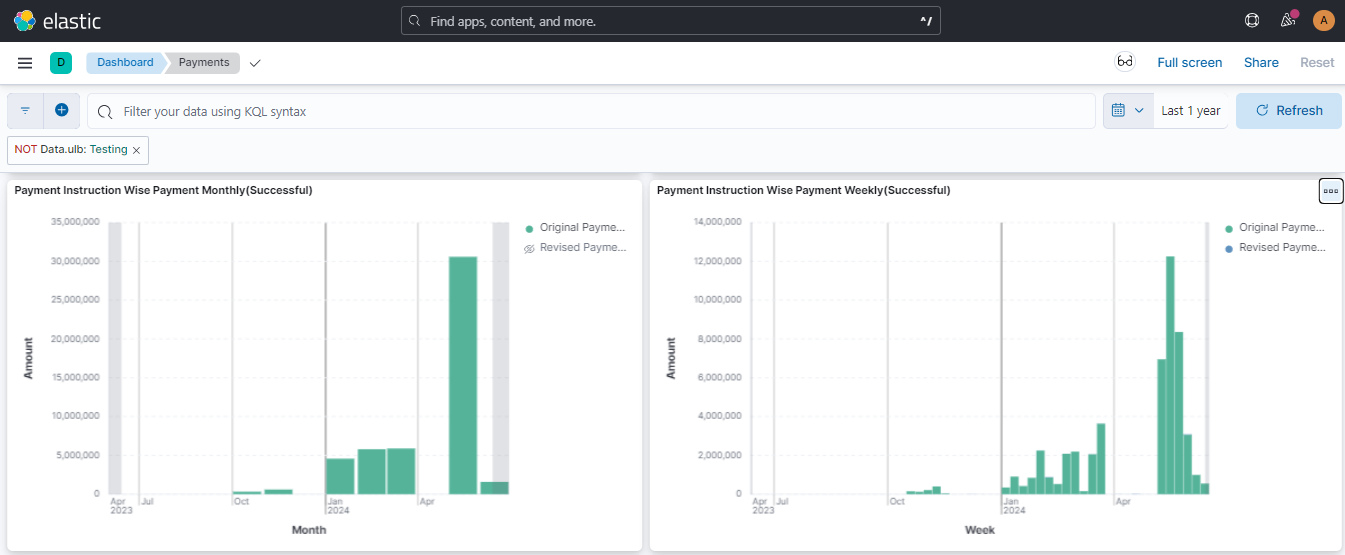
**Payment Instruction-wise Payments**

1. **Description:** This bar chart shows the payments made according to the type of Payment Instruction.
2. **Types:**
   * **Original Payment Instruction**
   * **Revised Payment Instruction**
3. **Frequency:**
   * **Monthly Basis**
   * **Weekly Basis**

<figure><img src="/files/8WJ9NRLPAtprcAKqUjqO" alt=""><figcaption></figcaption></figure>

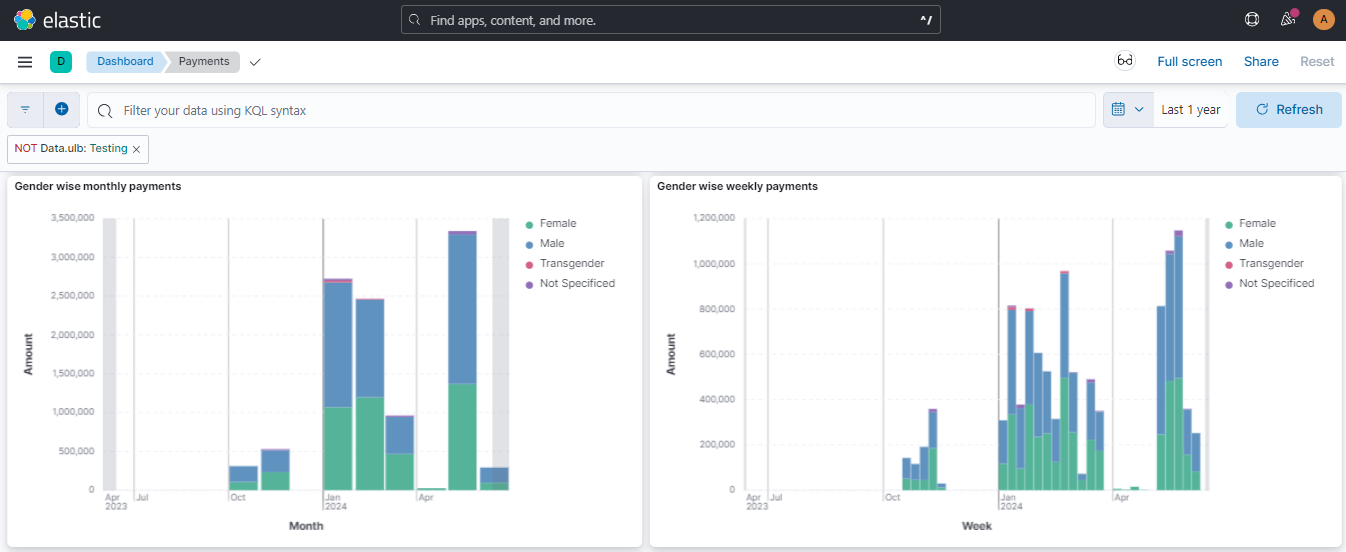
**Gender-wise Monthly Payments**

1. **Description:** This stacked bar chart displays the payments made to different gender categories.
2. **Categories:**
   * **Male**
   * **Female**
   * **Transgender**
   * **Not Specified**
3. **Frequency:**
   * **Monthly Basis**
   * **Weekly Basis**

<figure><img src="/files/P11qTTH9tHaBmCZM3KYL" alt=""><figcaption></figcaption></figure>

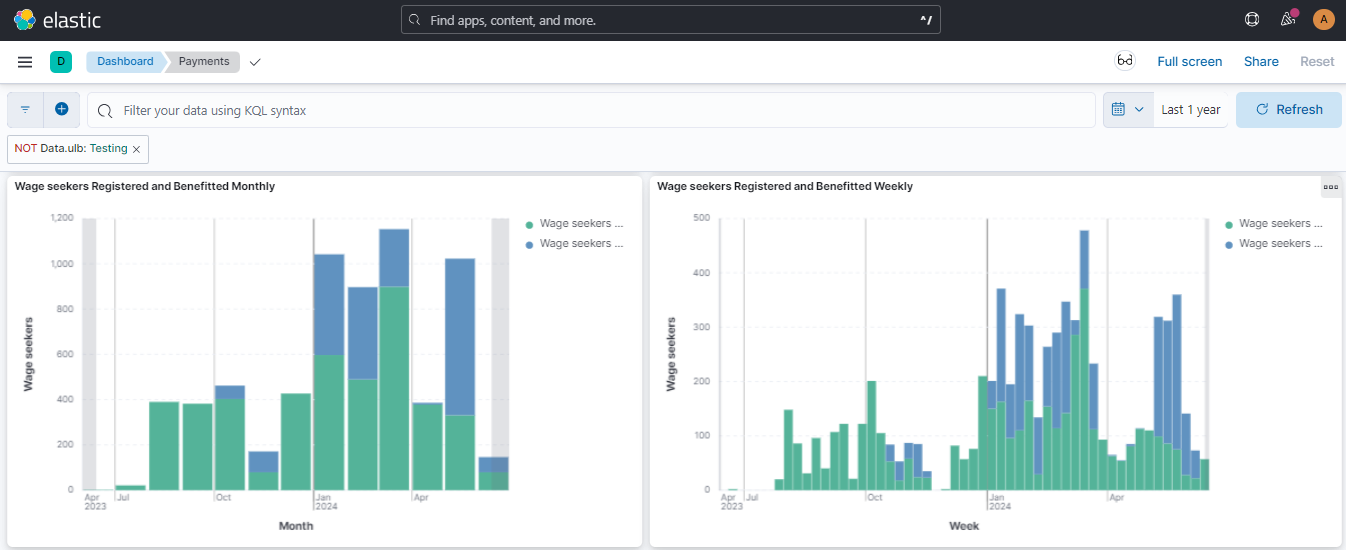
**Wage Seekers Registered and Benefited**

1. **Description:** This stacked bar chart shows the number of wage seekers registered in the system and those who have received payments.
2. **Categories:**
   * **Wage Seekers Registered**
   * **Wage Seekers Benefited**
3. **Frequency:**
   * **Monthly Basis**
   * **Weekly Basis**

<figure><img src="/files/r9Kp8Kdf1dYtxqRy9zKR" alt=""><figcaption></figcaption></figure>

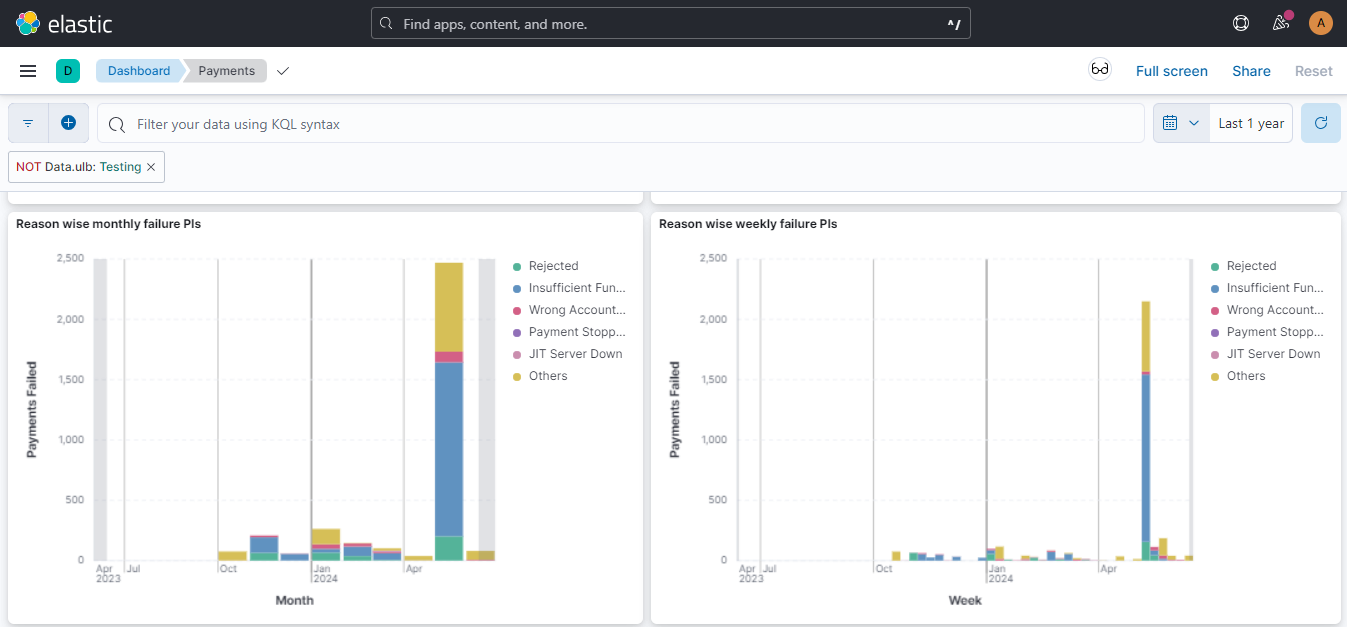
**Payment Instruction (PI) Failure Reasons**

1. **Description:** This stacked bar chart categorizes the reasons for payment instruction failures.
2. **Frequency:**
   * **Monthly Basis**
   * **Weekly Basis**

<figure><img src="/files/p64ZVRmOTH14BslRYpu0" alt=""><figcaption></figcaption></figure>


---

# Agent Instructions: Querying This Documentation

If you need additional information that is not directly available in this page, you can query the documentation dynamically by asking a question.

Perform an HTTP GET request on the current page URL with the `ask` query parameter:

```
GET https://docs.digit.org/works/reference-implementations/muktasoft-v2.2/implementation/training-resources/user-manual/kibana-dashboard-user-manual.md?ask=<question>
```

The question should be specific, self-contained, and written in natural language.
The response will contain a direct answer to the question and relevant excerpts and sources from the documentation.

Use this mechanism when the answer is not explicitly present in the current page, you need clarification or additional context, or you want to retrieve related documentation sections.