# Organisation

## Overview

This section gives information related to Organisation Services. An organisation can be any contractor/vendor/business unit that works with the government and helps in citizen service delivery.

## Features & Scope

1. A contractor/vendor is someone who does projects with the government. Every Project, after estimation approval and tendering, will have to be assigned to a contractor/vendor for it to be executed.
2. Works contractors bid for or are assigned works' contracts depending on the mode of entrustment for specific projects
3. Process of registering a contractor.
   * A contractor will apply for registration with any of the government departments. The contractor will be assigned a class and ID upon registration. A contractor will be issued projects that will fall into that class.
   * A contractor can have multiple staff that manage contractor organisation with permissions
   * List of things done by contractors for a project -
     1. (Offline) Bid for contracts
     2. (Offline)Negotiate contracts
     3. (Offline)Accept Letter of Intent
     4. (Offline) Issue Letter of Acceptance
     5. (System) Accept/Reject Contract
     6. (System) Track Work Measurements
        1. (System) Track Attendance Measurements
     7. (System) Create Running/Final Bills
     8. (System) Download and upload relevant documents

## Masters

### Contractor Class

1. Each contractor organisation is given a contractor class/grade depending on the screening/validation process.
2. Following are the fields required to grade contractors. This constitutes the MDMS data.

<table><thead><tr><th width="153">Field</th><th width="143">Data Type</th><th width="102">Required (Y/N)</th><th>Comments</th></tr></thead><tbody><tr><td>Grade</td><td>Alphanumeric</td><td>Y</td><td>Unique field</td></tr><tr><td>Description</td><td>Alphanumeric</td><td>Y</td><td>Description of the grade</td></tr><tr><td>Minimum Amount</td><td>Numeric</td><td>Y</td><td>Minimum value of work that can be assigned to the contractor of the grade</td></tr><tr><td>Maximum Amount</td><td>Numeric</td><td>Y</td><td>Maximum value of work that can be assigned to the contractor of the grade</td></tr></tbody></table>

### Contractor Organisation

A contractor organisation has a class associated with at least one department; type and subtype based on what the organisation supplies to the government, staff details to know who is managing the organisation and financial details to make payments.

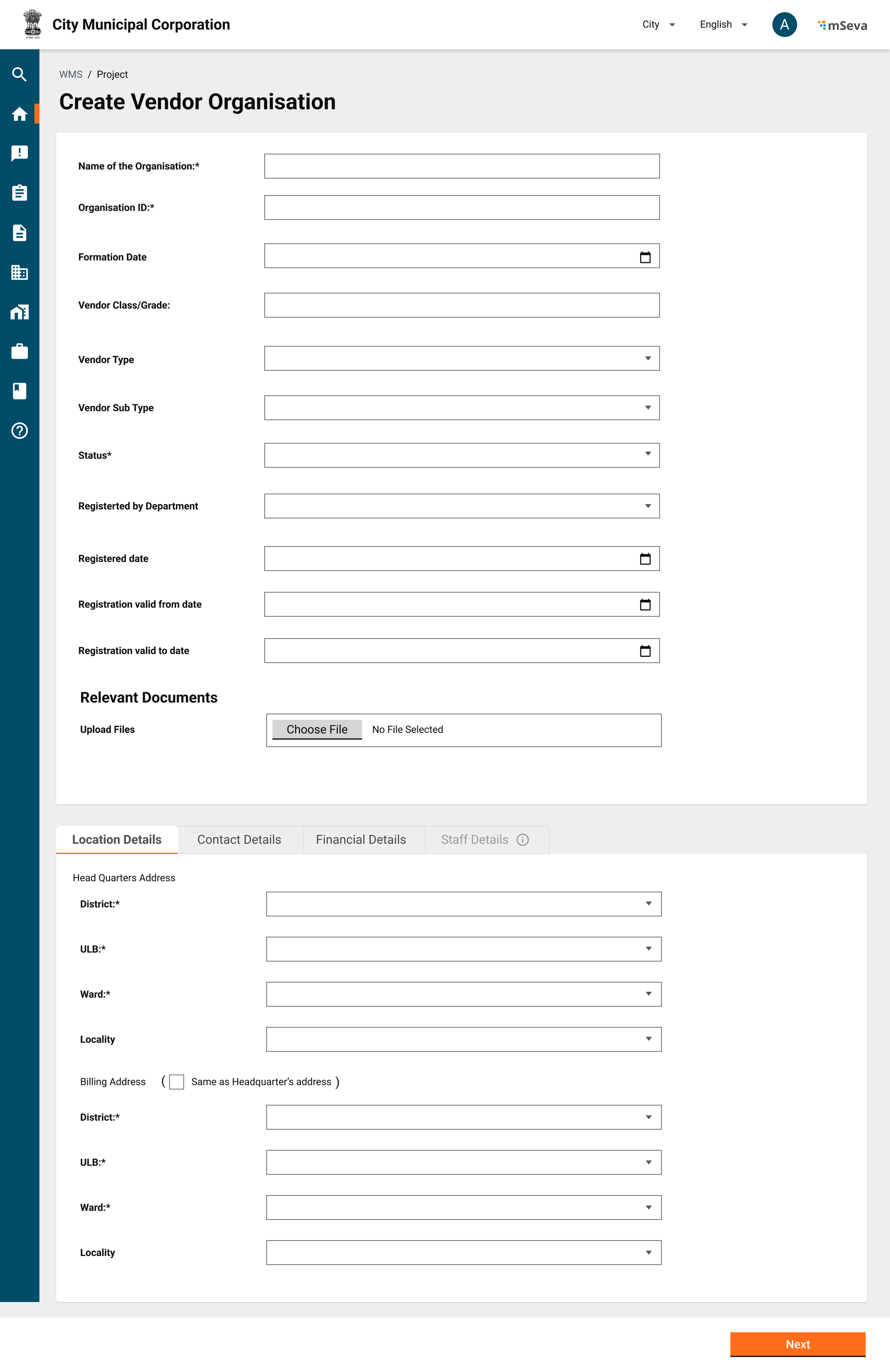
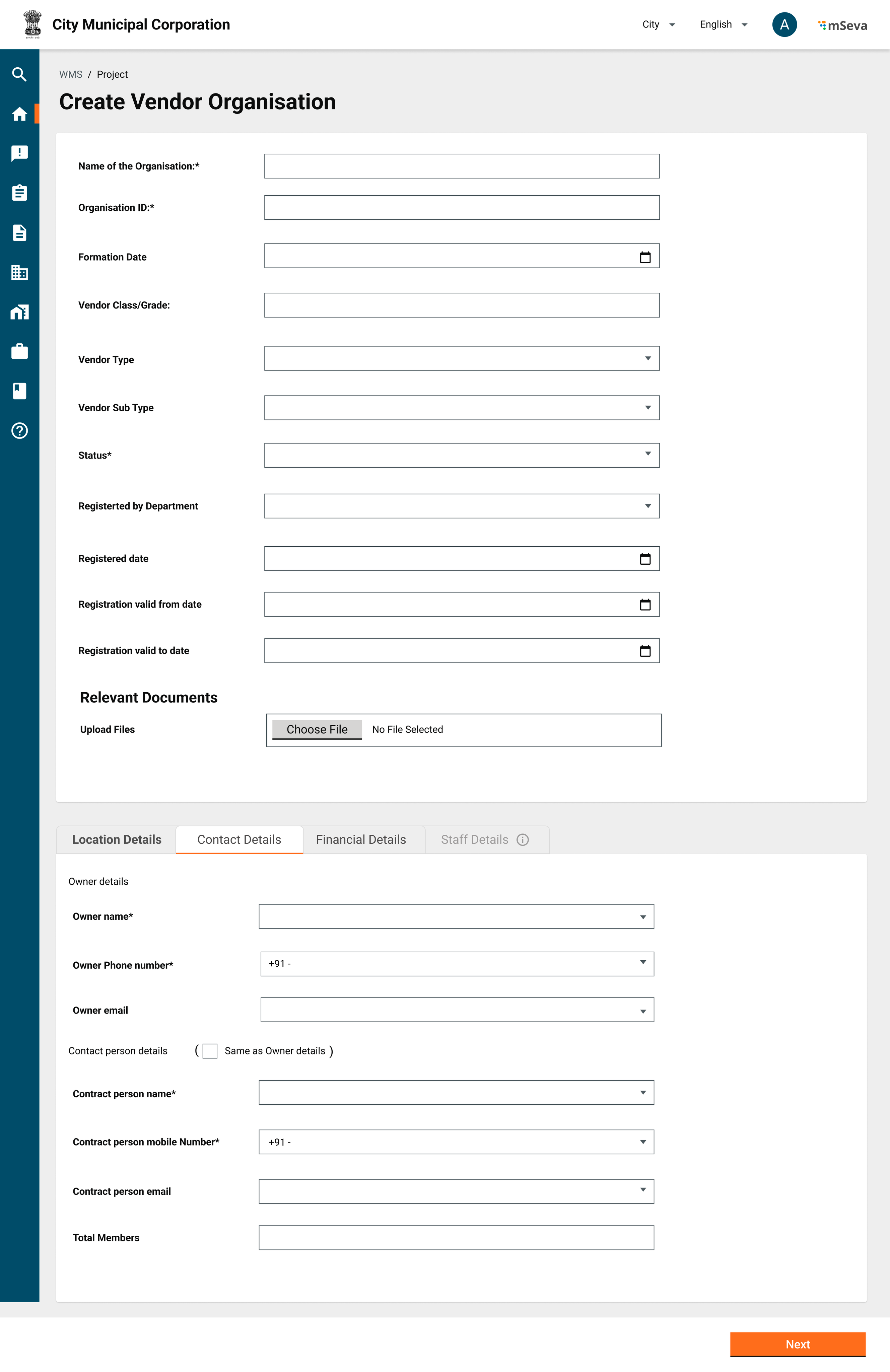
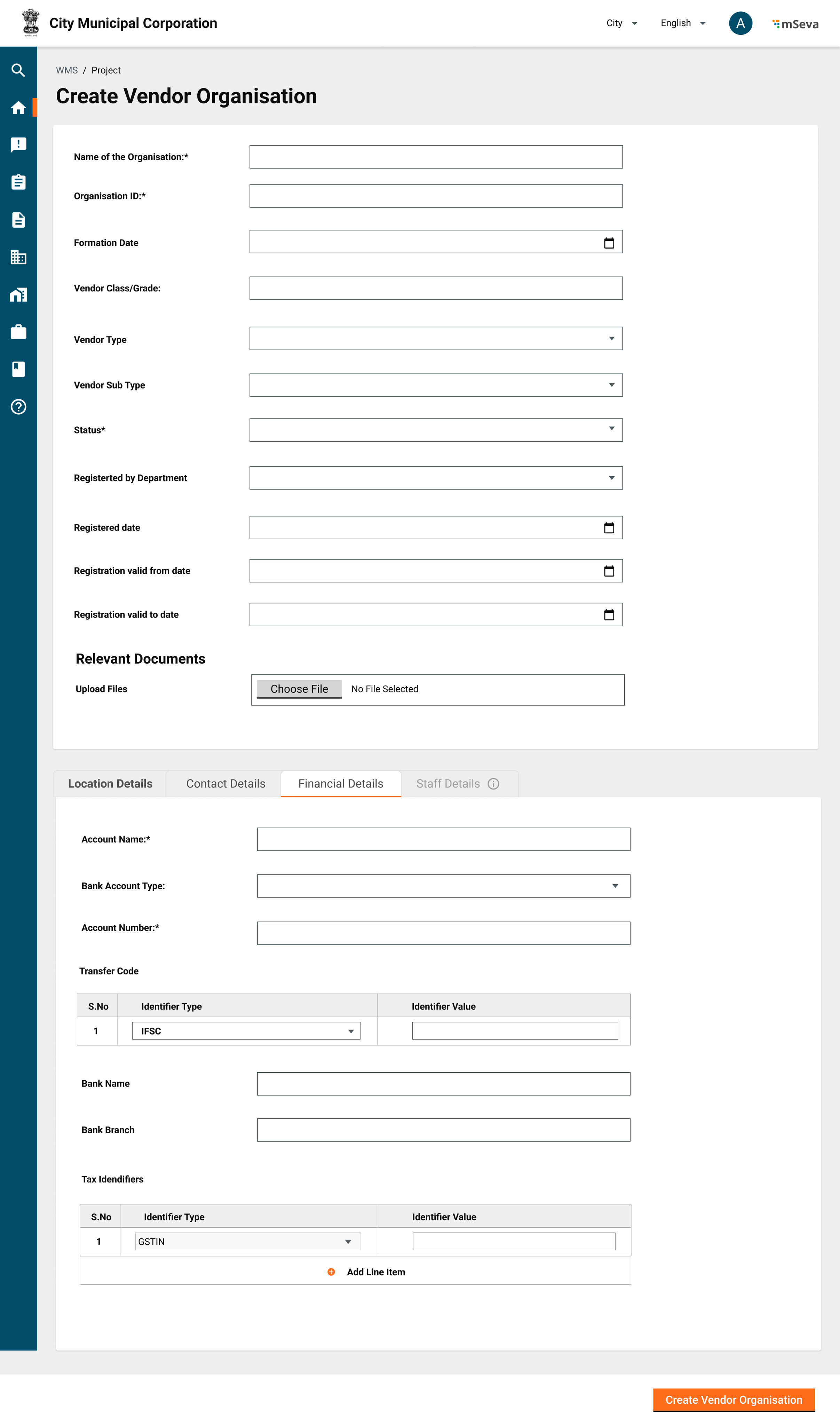
<table><thead><tr><th width="148">Field</th><th width="152">Data Type</th><th width="132">Required (Y/N)</th><th>Comments</th></tr></thead><tbody><tr><td><em>Organisation Details</em></td><td></td><td></td><td></td></tr><tr><td>Vendor ID</td><td>NA</td><td>NA</td><td><p>System Generated unique code assigned to the contractor</p><p>Format: VO-&#x3C;FY>-&#x3C;6 digit running sequence number> - VO-2022-23-000001</p></td></tr><tr><td>Organisation Name</td><td>Alphanumeric</td><td>Y</td><td>Name of the Organisation</td></tr><tr><td>Organisation ID</td><td>Alphanumeric</td><td>N</td><td>Offline reference of Organisation ID given by govt</td></tr><tr><td>Formation Date</td><td>Date</td><td>N</td><td>Date of Formation of Organisation</td></tr><tr><td>Contractor Class</td><td>Drop down</td><td>N</td><td>Options will be list of contractor grades from the contractor grades master</td></tr><tr><td>Organisation Type</td><td>Multi Select Dropdown</td><td>Y</td><td><p>Contracts should be awarded to organisations who are of certain type. A Contractor registered as Vendor(material suppier) can only be awarded material contract</p><p>Ex - Contractor, Materials Supplier, Mixed</p></td></tr><tr><td>Organisation Sub Type</td><td>Multi Select Dropdown</td><td>N</td><td><p>Subset of type of organisation</p><p>Ex -<br>Vendor - Sand, cement, concrete, paint etc<br>Contractor - NA<br>Mixed - NA</p></td></tr><tr><td>Status</td><td>Drop down</td><td>Y</td><td><p>Options will be the list of Contractor status maintained by the ULB</p><ul><li>Active</li><li>Inactive</li><li>Black listed</li><li>Debarred</li></ul></td></tr><tr><td>Registered by department</td><td>Drop down</td><td>N</td><td><p>Options will be list of the departments of the ULB defined in the department master</p><p>Public Works Department, Water Department, Education Department</p></td></tr><tr><td>Registered date</td><td>Date</td><td>N</td><td>Date of registration with the department</td></tr><tr><td>Valid From Date</td><td>Date</td><td>N</td><td>The date from which the specified status is applicable to the contractor</td></tr><tr><td>Valid To Date</td><td>Date</td><td>N</td><td>The date until which the specified status is applicable to the contractor</td></tr><tr><td>Documents</td><td>Attachment</td><td>N</td><td>Upto 3 files max of 2 MB each</td></tr><tr><td><em>Location Details</em></td><td></td><td></td><td></td></tr><tr><td>Address</td><td>Alphanumeric</td><td>N</td><td>Contractor address using boundary hierarchy - Locality, Ward, ULB, District etc</td></tr><tr><td>Billing Address</td><td>Alphanumeric</td><td>N</td><td>Contractor address using boundary hierarchy - Locality, Ward, ULB, District etc</td></tr><tr><td><em>Contact Details</em></td><td></td><td></td><td></td></tr><tr><td>Owner Name</td><td>Alphanumeric</td><td>Y</td><td>Name of the owner</td></tr><tr><td>Owner Mobile number</td><td>Numeric</td><td>Y</td><td>Mobile Number of the owner</td></tr><tr><td>Owner e-mail address</td><td>Alphanumeric with special chars</td><td>N</td><td>Email of the owner</td></tr><tr><td>Contact person Name</td><td>Alphanumeric</td><td>Y</td><td>Name of the contact person</td></tr><tr><td>Contact person mobile number</td><td>Numeric</td><td>Y</td><td>Mobile Number of the contact person</td></tr><tr><td>Contact person email address</td><td>Alphanumeric with special chars</td><td>N</td><td>Email of the contact person</td></tr><tr><td>Total Members</td><td>Numeric</td><td>N</td><td>Number of members in the organisation</td></tr><tr><td><em>Financial Details</em></td><td></td><td></td><td></td></tr><tr><td>Account Name</td><td>Alphabet</td><td>Y</td><td>Name of the Bank Account</td></tr><tr><td>Account Type</td><td>Drop down</td><td>N</td><td>Savings, Current, Loan, Credit</td></tr><tr><td>Account Number</td><td>Alphanumeric</td><td>Y</td><td>Account number of the contractor against which payments will be made</td></tr><tr><td>Transfer Code</td><td>Drop down</td><td>Y</td><td><p>MDMS Data for selection of type of unique transfer code per bank account</p><p>Ex. IFSC Code</p></td></tr><tr><td>Bank Name</td><td>Drop down</td><td>N</td><td>Options will be a list of banks specified in the banks master. Used to select the bank where contractor’s account is maintained for direct bank payment</td></tr><tr><td>Bank Branch</td><td>Drop down</td><td>N</td><td></td></tr><tr><td>Tax Identifiers</td><td>Table Select Dropdown</td><td>N</td><td><p>Table with multiple identifier types<br>List</p><ul><li>GSTIN</li><li>PAN</li><li>TIN</li></ul><p>User to enter identfier values for each identifier type</p></td></tr><tr><td><em>[Array] Staff Details</em></td><td></td><td></td><td></td></tr><tr><td>Staff ID</td><td>NA</td><td>NA</td><td>System generated ID of the staff that is prepopulated because of search by phone number</td></tr><tr><td>Staff Name</td><td></td><td></td><td>Name of staff</td></tr><tr><td>Staff Role</td><td>Dropdown</td><td>Y</td><td>Role Assigned to Staff<strong>Admin</strong> - Role that allows all actions within the organisation including adding new members to organisation<strong>Manager</strong> - Role allows only functional activities like accepting contracts, creating bills etc</td></tr><tr><td>Staff Designation</td><td>Dropdown</td><td>N</td><td><p>Designaton of the staff</p><p>Owner, President, Secretary, member etc</p></td></tr><tr><td>Employement start date</td><td>Date</td><td>N</td><td>Start date of the employement</td></tr><tr><td>Employement end date</td><td>Date</td><td>N</td><td>End date of the employement</td></tr><tr><td>Employment status</td><td>Dropdown</td><td>Y</td><td>Active, Inactive status of the employee</td></tr></tbody></table>

## **Mockups**

### **Create Contractor/Vendor**

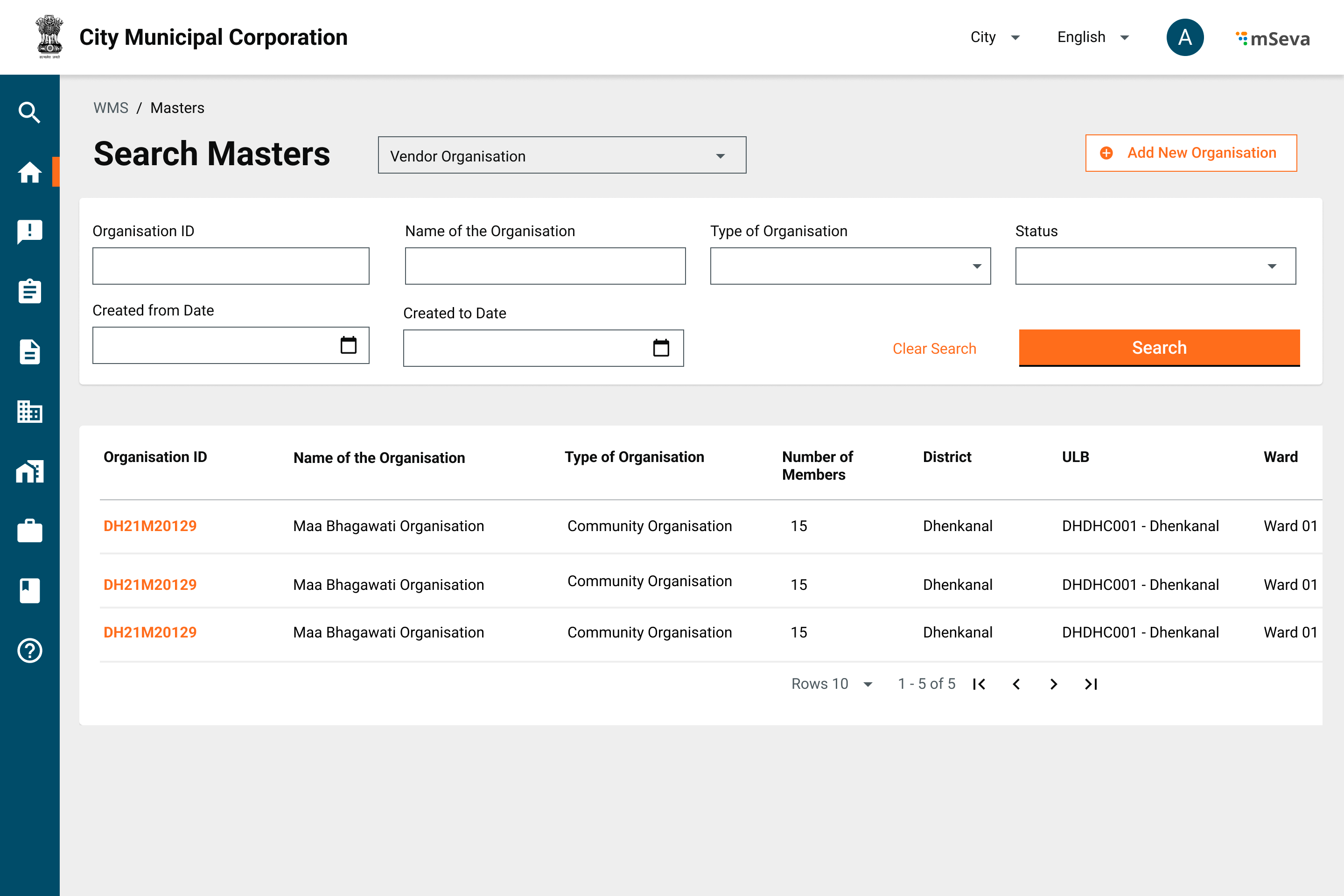
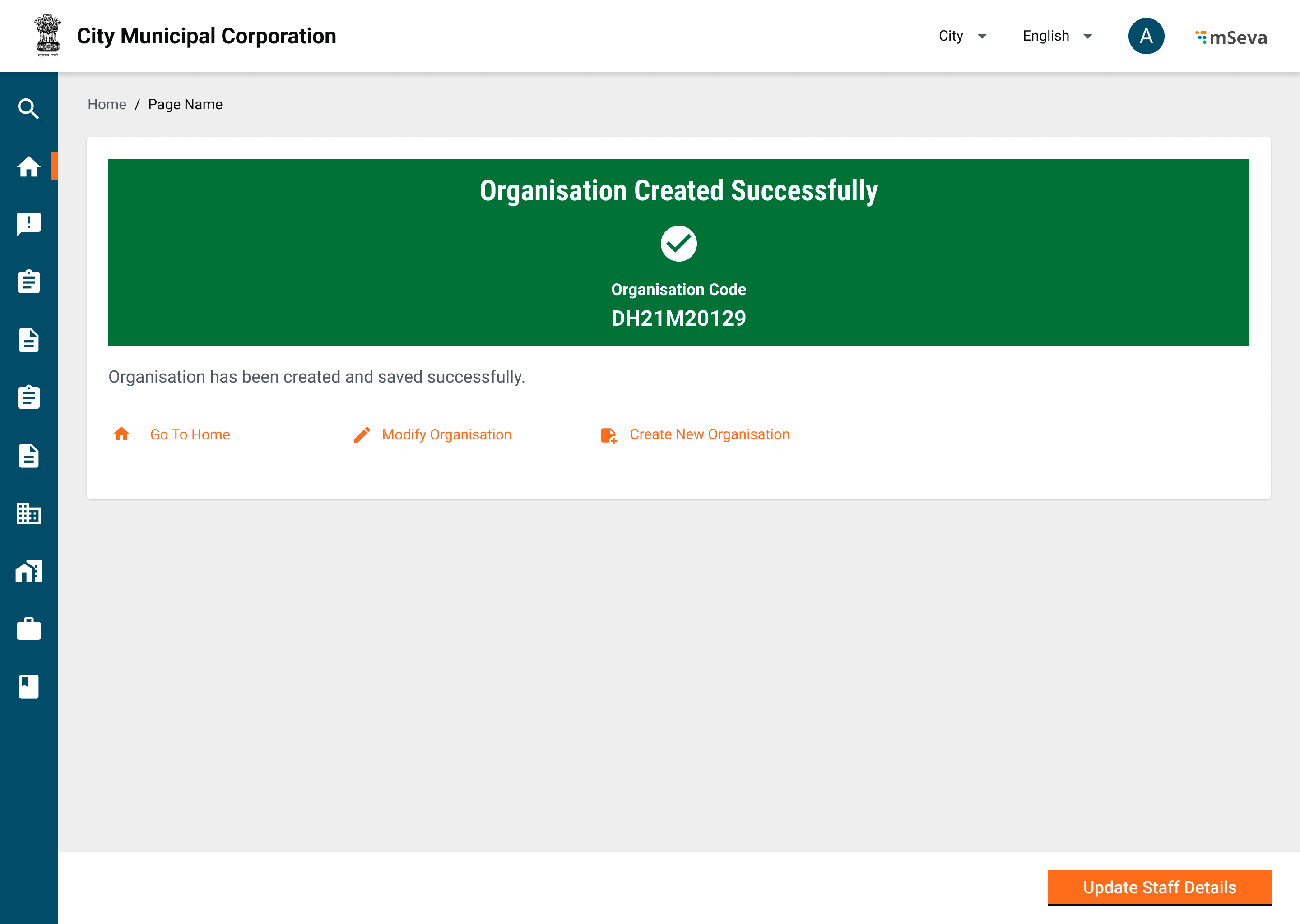
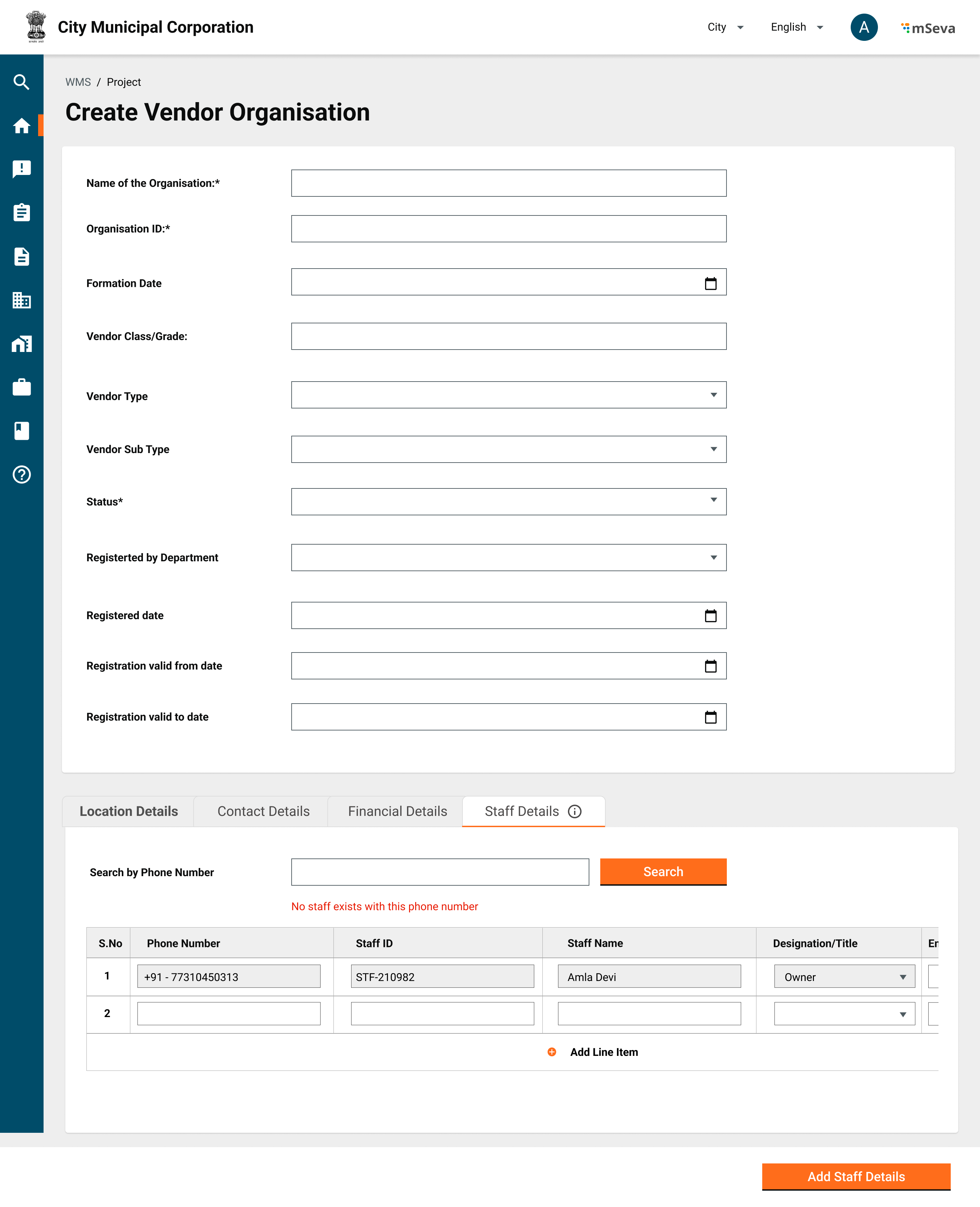
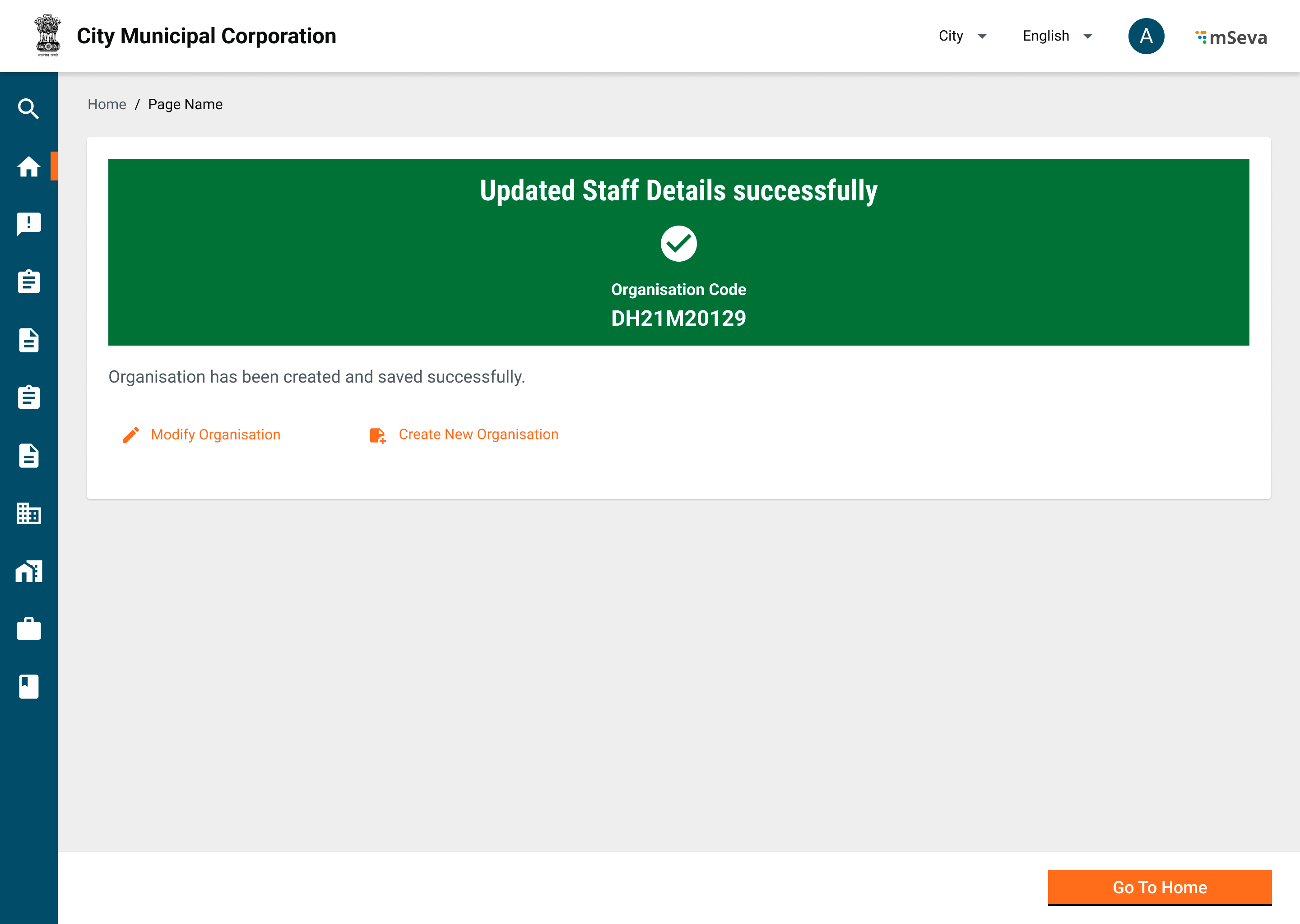
<table><thead><tr><th width="377">Description</th><th>Mockup</th></tr></thead><tbody><tr><td><ol><li>Users with permission to Create Master records have to click on Masters on the home page to navigate to the Masters landing page.</li><li>On this page, the user has to select Vendor Organisation in the drop-down (one of the few registries that are available to edit/add from UI) and click on Search.</li><li>Users are shown records of existing vendors and the option to add new Vendor Organisation.</li><li>Clicking on Add New Organisation redirects users to Create New Organisation page.</li></ol></td><td><img src="https://content.gitbook.com/content/Oahp3xBKoPsr1r1NAaNj/blobs/yzDethzam3sNJ9ouulIH/image.png" alt=""></td></tr><tr><td><ol><li><p>Create Organisation page has 4 Tabs along with header details.</p><ul><li>Attributes and explanations for each are mentioned in the attribute table above.</li></ul></li><li><p>Vendor ID is the unique ID generated by the system with a specific format.</p><ul><li>Organisation ID is the ID given to each vendor during offline registration.</li><li>The system checks the <strong>organisation ID</strong> to ensure that no existing record is present and avoid de-duplicating. This check can be performed by clicking on the Next button on the first screen.</li></ul></li><li><p>Location Details have HQ address and Billing Address.</p><ul><li>The selection of location details in the hierarchy limits the results to that selected boundary in the next hierarchy.</li></ul></li><li>The check box copies the details of the HQ address to the Billing address and makes the fields non-editable.</li><li>The staff details tab is not accessible until the vendor organisation is created. The Show Info icon alongside staff states “Organisation needs to be created to add staff and staff details”</li></ol></td><td><img src="https://content.gitbook.com/content/Oahp3xBKoPsr1r1NAaNj/blobs/HkeVE4H92Gq5xJXAguNi/image.png" alt=""></td></tr><tr><td><ol><li>Contact Details have owner info and contact person info.</li><li>Name and Phone number of both are made mandatory.</li><li><p>System should check if user with this phone number is present already in user registry and if not create a new user.</p><ul><li>Designation for Owner is auto-assigned in the staff details as the owner</li><li>The role of the owner defaults to admin and manager.</li><li>The designation and role of the contact person are kept open.</li></ul></li><li>The checkbox shows the default details of the contact person same as the details of the owner and creates a single user.</li></ol></td><td><img src="https://content.gitbook.com/content/Oahp3xBKoPsr1r1NAaNj/blobs/TFa1wNwc4aN28F6pDGBP/image.png" alt=""></td></tr><tr><td><ol><li>Financial details of the organisation captures bank account details where payments are to be made.</li><li>Transfer code has single identifier type per bank account. List will have only IFSC code for now. User has to input IFSC code against it.</li><li><p>Tax identifiers are array of attributes which are financial/accounting related objects of the vendor like PAN, GSTIN, TIN etc. This list will be defined in MDMS and user can select/add any number of identifiers that are listed in the master.</p><ul><li>As per Indian context, default the first row to GSTIN and allow user to add from second row.</li><li>Any identifier that is mandatory can be shown already with a row instead of user adding that row.</li></ul></li><li>After adding financial details, user can create a vendor organisation by clicking on <strong>create vendor organisation</strong></li></ol></td><td><img src="https://content.gitbook.com/content/Oahp3xBKoPsr1r1NAaNj/blobs/dP8RMplMKxScStvZpz79/image.png" alt=""></td></tr><tr><td><ol><li>Vendor organisation is created successfully and ID is displayed.</li></ol></td><td><img src="https://content.gitbook.com/content/Oahp3xBKoPsr1r1NAaNj/blobs/1YKmzjy69COYoRnVzVNy/image.png" alt=""></td></tr><tr><td><ol><li>The user is prompted to add staff to the created vendor organisation.</li><li>By default the first/first two rows are auto-filled with the owner and contact person details inputted while creating the organisation.</li><li>Users can add the remaining attributes of these two users like employment start and end dates.</li><li><p>To add new/other users - Search by Phone number to see if the user already exists in the user registry</p><ul><li><p>If a user exists -</p><ol><li>The default phone number will be displayed on the new row along with the name. Allow the user to add other details like designation, start and end dates, and status.</li><li>Staff ID is not editable and is auto-generated once the Add Staff Details button is clicked.</li></ol></li><li><p>If the user does not exist -</p><ol><li>Display a message stating that “No staff exists with this phone number”</li><li>Capture phone numbers on UI using auto-fill. Allow the user to enter all other details including name designation, start and end dates and employment status.</li></ol></li></ul></li><li>Both these flows will ensure duplicate staff entries are not created in the user registry.</li></ol></td><td><img src="https://content.gitbook.com/content/Oahp3xBKoPsr1r1NAaNj/blobs/4TQZqCMdUJw04e8j13CC/image.png" alt=""></td></tr><tr><td><ol><li>Once the Staff Details are added, a success message is displayed stating that the staff has been added successfully to that organisation.</li></ol></td><td><img src="https://content.gitbook.com/content/Oahp3xBKoPsr1r1NAaNj/blobs/3UuATpo1u4Ranl3XUKea/image.png" alt=""></td></tr></tbody></table>

### **Search Vendor**

| Description                                                                                                                                                                                                                                                                                                                                                                                                                          | Mockup                                                                                             |
| ------------------------------------------------------------------------------------------------------------------------------------------------------------------------------------------------------------------------------------------------------------------------------------------------------------------------------------------------------------------------------------------------------------------------------------ | -------------------------------------------------------------------------------------------------- |
| <ol><li>Clicking on Masters on the home page redirects users to an empty screen where he/she will have to select the master/registry they want to create/view.</li><li>Selecting that registry from the dropdown displays the relevant records with pagination on the first screen.</li><li>Users can click on any data record to view that record or click on add new organisation that appears on selecting that master.</li></ol> | ![](https://content.gitbook.com/content/Oahp3xBKoPsr1r1NAaNj/blobs/uMNTmQKmLD1Ia1yqM31q/image.png) |
| <p>Filters for the master</p><ol><li>Organisation ID</li><li>Name of the Organisation</li><li>Type of the organisation</li><li>Status</li><li>Create between start and end dates</li></ol><p>Using this filters user should be able to shortlist/pinpoint to that organisation.</p><p>Show default no results found illustration screen along with text “No results found” when filter returns empty.</p>                            | ![](https://content.gitbook.com/content/Oahp3xBKoPsr1r1NAaNj/blobs/a6JHLR1aEMb8dxMHUUuq/image.png) |

### **View Vendor**

| Description                                                                                                  | Mockup                                                                                             |
| ------------------------------------------------------------------------------------------------------------ | -------------------------------------------------------------------------------------------------- |
| View Vendor screen has the same details as Create Vendors with 1 additional attribute which is the Vendor ID | ![](https://content.gitbook.com/content/Oahp3xBKoPsr1r1NAaNj/blobs/k8KUO75NCMKZYU6uDSny/image.png) |