
Loading...
Loading...
Loading...
Loading...
Loading...
Loading...
Loading...
Loading...
Loading...
Loading...
Loading...
Loading...
Loading...
Loading...
Loading...
Loading...
Loading...
Loading...
Loading...
Loading...
Loading...
Loading...
Loading...
Loading...
Loading...
Loading...
Loading...
Loading...
Loading...
Loading...
Loading...
Loading...
Loading...
Loading...
Loading...
Loading...
Loading...
Loading...
Loading...
Loading...
Loading...
Loading...
Loading...
Loading...
Loading...
Loading...
Loading...
Loading...
Loading...
Loading...
Loading...
Loading...
Loading...
Loading...
Loading...
Loading...
Loading...
Loading...
Loading...
Loading...
Loading...
Loading...
Loading...
Loading...
Loading...
Loading...
Loading...
Loading...
Loading...
Loading...
Loading...
Loading...
Loading...
Loading...
Loading...
Loading...
Loading...
Loading...
Loading...
Loading...
Loading...
Loading...
Loading...
Loading...
Loading...
Loading...
Loading...
Loading...
Loading...
Loading...
Loading...
Loading...
Loading...
Loading...
Loading...
Loading...
Loading...
Loading...
Loading...
Loading...
MuktaSoft functional specifications details
Works platform design principles, approach and rationale
The Works platform design approach is based on the principles of interoperability, open, standards-based, real-time, inclusivity, a single source of truth, security and privacy. The principles define the framework for a scalable and reliable platform that adapts to evolving needs. Read more about the platform .
Works aim to expedite payments for public works projects undertaken by different departments. The platform registries and APIs ensure units have instant access to trusted information that improves coordination between the various departments. The seamless flow of information ensures payments are fast-tracked, projects are managed better, and departments can execute more work.
Click on the page link below to learn about the platform installation.
The Works platform hosts the below registries:
- contains a detailed description of a citizen/individual who may/may not interact directly with the DIGIT platform but is a beneficiary.
- contains the organisation details.
- contains tenant/organisation bank account details.
Works v1.0 API Test cases
To verify the ids of the individuals, the attendance service depends on Individual Registry. It is an optional dependency. If the no individual registry is linked with the attendance service, then the ids would not be checked for validity and assumed to be correct.
Attendance Service manages the following:
Attendance-Register: It maintains a list of individuals enrolled for a given register.
Staff: Staff members manage the register. Staff can be created or deleted from a register.
Attendee: Attendees are the individuals participating in the register. Attendees can be created or deleted from the register.
Attendance-Log: The log entries of the attendance. It will have events of entry and exit.
Muster-Roll is a report built upon the attendance logs. It has computed attendance values. It will pass through an approval workflow.
Feature 1
Feature 2
The platform design provides the capability to integrate smart payments with iFIX. The integration enables departments to track project milestones and simplify vendor payments. The multi-layer architecture design ensures transparency, visibility and fast decisions all of which translate to an accelerated pace of development. The registries and APIs ensure information flows seamlessly across channels removing the challenges of siloed data structures and facilitating interoperability.
Click on the page link below to learn more about our platform architecture.
/bankaccount-service/bankaccounts/The API specification is available here. To view it in the Swagger editor, click below.
TBD
No indexer has been configured for this service.
Raw API spec resides here.
Click below to view the specs in the Swagger editor.
To be added.
Help countries achieve infrastructure SDGs by building digital public goods that make cities and human settlements inclusive, safe, resilient and sustainable
The DIGIT Works platform is being built as an open source Digital Public Good to expand capabilities in public infrastructure. It is designed to work across boundaries at varying levels of capacity and complexity.
As per a recent article in Economic Times (2022), “Capital investment outlay is being increased steeply by 33% to Rs 10 lakh crore. This will be 3.3% of GDP. Will be almost three times the outlay made in 2019”
The majority of this capital investment (capital expenditure) which is on civil works is managed by offline or independent systems lying within the executing agencies. This is a massive problem as information is not exchanged between planning, executing, owning, financing, auditing and other authorities which leads to payment delays, poor quality of execution, poor financing and auditing amongst many other issues.
Works Management Systems are massive and complex. While many agencies are building their products and solutions, these are independent systems that do not exchange data. This leads to inefficiencies in carrying out projects that are closely linked by nature, type, location, citizens etc.
The goal of this works platform is to allow a seamless exchange of works-related information (such as projects, vendors, assets, attendance, estimate, contracts, bills etc.) between
1. Works and finance systems to accelerate payments
2. Different agencies for better project coordination
3. Share open data & registries to avoid duplication and misuse of resources
The Works Platform on DIGIT can be used by any agency (National, Sub National, Urban/Rural local bodies, para-statal agencies and others to create any kind of civil projects
The platform will become a “shared source of truth” that all stakeholders can use to align resources and decisions to achieve operational and financial efficiency. The platform will therefore greatly improve the transparency and competency of agencies executing Works.
A Works Management System (WMS) is typically used by various departments in the government to track end to end lifecycle of a project (scope and finances).
The input to Works could be a decision that is taken in the legislature for the construction of new capital works or demand that is generated from within society or officers, for maintenance of existing projects.
Examples:
Construction of new metro rail is of nature capital works (New Works)
Repair of existing roads is of nature operations and maintenance (O&M)
Once the project is identified, the next step is estimating project costs. This is followed by tendering, contracting, sharing the work order with the contractor, tracking milestones, payments and closure.
The platform design provides the capability to integrate smart payments with. The integration enables departments to track project milestones and simplify vendor payments. The multi-layer architecture design ensures transparency, visibility and fast decisions all of which translate to an accelerated pace of development. The registries and APIs ensure information flows seamlessly across channels removing the challenges of siloed data structures and facilitating interoperability.
Read more about our multi-layered platform
The DIGIT Works Platform is designed to enable delivery at scale, across various aspects of public Works, and multiple agencies. Using the platform approach, we will create an end-to-end flexible, open, configurable, and reusable platform to plan, manage and close any public works projects such as new constructions or existing works maintenance so there is timely project completion and payments.
Offers key capabilities required by state/dept/ULB/other entities to manage Works (new and old)
Interoperable with other applications such as engineering estimation, measurement, attendance tracking, and billing apps.
Can make use of its own registries or existing shared registries for projects, assets, beneficiaries, contractors etc.
Work related contracts
The Contracts service allows users to enter, update, search and store functional details linked to works contracts.
Base path:/contracts
API spec Click below to view it in Swagger Editor.
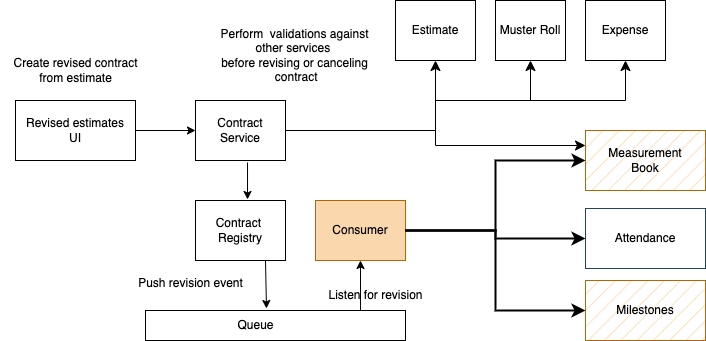
Below are the sequence diagrams for the creation and consumption of revision contracts.
- for MuktaSoft
The Expense service allows users to capture the details for expense bills and payments.
Base path: /expense/bill/
The API specification is available . To view it in the Swagger editor, click below.
TBD
Persister configuration:
Indexer configuration:
Index Name: expense-bill-index
Expense UI configuration - for MuktaSoft
Expense user manual
The contract service captures work orders or purchase orders. It validates the work order against the estimate(s). Line items from one estimate can be put in a contract. Line items from multiple estimates can be aggregated into one work order as well. The contract service validates the line items from each estimate as part of Create and Update.
Estimate service
IDGen
MDMS
Workflow
Models a real-world work order/contract
All line items of a single estimate can be put in a contract.
Line items from multiple estimates can also be grouped into a contract.
The service validates the estimate line items and ensures no duplication happens in including estimate line items in a contract.
Code -
Contract Type - defines different contract types
OIC Roles - defines Officer-in-charge roles
CBO Roles - defines the capacities in which an organisation can accept the contract.
Base path:
/contracts
API
The expense module implements the functionality of bills and payments. A bill or a group of bills can be aggregated together as payments. Payments advice can be submitted through integration with IFMS (Integrated Financial Management Systems) or any other third party payments provider. The expense module always works in combination with a calculator service. The calculator service is implementation specific and provides business logic to compute bills. The calculator calls into the expense service to create bills. In general, the expense create/update APIs are not called by any other module other than the calculator. For more information on the sample calculator provided with the Works platform, please navigate here.
DIGIT backbone services
Persister
Indexer
IDGen
Create/update/search functionality for bills
Ability to create different bill types according to configuration.
Workflow is integrated and needs to be configured for usage.
Works with an expense calculator that contains the business logic to compute bills.
HeadCodes
Postman TBD
The Measurement Registry captures measurement data according to the estimate and contract. Line items from estimate are validated and measurement data are added as part of the create and update API.
DIGIT backbone services
Persister
Indexer
MDMS
This service is an addendum to the measurement book registry.
The service validates if the data is according to the estimate and contract line items.
It also captures the workflow of a given measurement.
The service sends sms notification to the concerned person with the project id.
API
Programmes launched on Works platform
MUKTA (Mukhyamantri Karma Tatpara Abhiyan) - is a government scheme in Odisha with the goal of providing employment opportunities to urban residents and thereby boosting the state's employment rate.
The scheme involves the development and deployment of a digital solution called MUKTASoft, built on the DIGIT Works platform. The implementation of MUKTASoft will occur in three distinct phases, each covering specific, well-defined functionalities. This phased approach ensures the systematic development and roll-out of MUKTASoft to effectively address the scheme's objectives.
Click on the links below to understand the key tenets of using and deploying the MUKTASoft application.
Specifications - the functional details that provide an in-depth understanding of the MUKTASoft application.
- the technical details of deploying the application including configuration and customisation.
- the programme roll-out plans and training resources meant to guide end users.
Check out the to access new features and enhancements details.
The Measurement Registry captures measurement data according. It was designed as a reusable registry by validating just documents.
DIGIT backbone services
Persister
Indexer
IDGen
Models real-world measurement book to keep a record of measurements
Measurements like length, breadth, height and number of units are taken as input and stored.
Quantity can be directly or can be calculated by giving measurement data of length, breadth, height and number of units.
Documents given are validated against the fileStore service and stored in the registry
API
The bank accounts registry houses the financial account details of individual and organisational entities. The registry stores the account name, type, bank branch identifier (IFSC code) and other optional information. The bank branch identifier can be configured as master data. This makes it easy to extend this registry for use in countries outside India. The registry encrypts all PII and stores it in a secure fashion.
DIGIT backbone services
Persister
Encryption
Stores bank account details of entities in a secure fashion.
All PII data is encrypted securely.
for deployment
BankBranchIdentifier
Base path: /bankaccount-service/bankaccount
A time extension request is created and sent for approval. There should be an option to view all the requests that have been raised so far and the option to edit if a request is sent to CBO for correction.
Time Extension Request
CBO
Role: CBO ADMIN
To view the requests, the My Requests feature is provided.
My Requests lists all the requests (Closure/ Time Extension) created for the works assigned to logged-in CBO users, and segregated by In Progress and Approved requests.
An approved request can not be edited.
In Progress closure, the request can be edited only when the request is sent back for correction.
Field level validations.
Not applicable.
Edit and Submit.
Not applicable.
The same as create time extension request.
After changing the extension period, on submit request is again placed to the verifier.
The attendance module allows creation of an attendance register, enrolment of staff and attendees and capture of attendance records with entry/exit times. To compute attendance based on the logs, a calculator service should be built with specific business logic.
DIGIT backbone services
IDGen
Persister
Allows creation/updation/search of an attendance register
Allows mapping of staff and attendees to a register and enforces permissions.
Logs entry and exit timestamps in epoch time for a referenced entity
/attendance/
MuktaSoft is an exemplar built on the Works platform
Mukhyamantri Karma Tatpara Abhiyan Yojana (MUKTA Yojana) is a government scheme aimed towards providing employment to the urban poor and consequently improving the employment rate of the state.
MUKTASoft aims to improve the overall scheme efficiency of MUKTA by identifying & providing equal job opportunities to the urban poor, constructing environment-friendly projects, developing local communities and slums & planning better in the upcoming years.
High level design document
The project service provides APIs to create, update and manage a generic project. A project can have one or more of the following constructs: staff, tasks, beneficiaries and facilities. Currently, this service is shared across the Health and Works platforms. All Works projects start with a project construct. The Works platform uses only 3 primary APIs: project create, update and search. For low-level design and other information on this service, click .
The edit time extension request form allows users to change the extra days required for completion of the project and then submit again.
DIGIT backbone services
Persister
Indexer
IDGen
Individual
Provides create/update/search operations for organisation entities.
Captures organisation details, contact details and classifications.
Links organisations to functional areas they are operational in.
OrgType - Defines types of organisations
OrgFunctionCategory - The functional area where an organisation works
OrgFunctionClass - The class (rating) of an organisation in a specific functional area.
OrgTaxIdentifier - The list of tax identifiers that can be entered.
OrgTransferCode - The bank account transfer code (IFSC etc..). This is usually the only one defined in the master data. Can be customised for other countries.
Idgen
Persister
Indexer
Workflow
User
Attendance
Base path: /muster-roll
Steps to run the postman collection:
1. Import the postman collection for Muster Roll.
2. Import the environment variables required for running the postman collection which will create an environment ‘Muster Environment’.
3. MusterRoll requires the below services from Attendance Service API to be run prior to creating muster. So run the below services before running the musterRoll postman collection.
a) create Attendance register - https://<server>/attendance/v1/_create
b) Attendee enroll - https://<server>/attendance/attendee/v1/_create
c) Attendance log create - https://<server>/attendance/log/v1/_create
4. Update the current value of the variable ‘registerId’ in the ‘Muster Environment’ with the id returned by the response of the create attendance register ( in step 3 a)
5. Run the ‘Muster Roll Service’ postman collection as ‘Run Collection’ . It will run the /_estimate, /_create, /_update and /_search APIs success and validation error scenarios.
6. Muster will be created for the attendees enrolled in the attendance register (in step 3 b) using the attendance logs created (in step 3 c).
The current value of environment variables ‘musterRollId’ and ‘musterRollNumber’ will be set from the response of the /_create muster roll which will be used by /_update and /_search APIs.
User
HRMS
Organisation
Terms and conditions, milestones and payment calendar are WIP
MDMS
Workflow
Notification
Measurement Book Registry
Estimate
Contract
Project
HRMS
Localization
Workflow
MDMS
FileStore
Project module UI configuration - for MuktaSoft
Project user stories - for MuktaSoft
Employee user manual on using the Project module - for MuktaSoft
Reports & dashboards with real-time data to monitor progress and make decisions
Uses a template-based approach for creating & issuing new documents to save time and avoid mistakes
Contracts user stories - for MuktaSoft


Added revision of estimate in estimate service
Added SOR and Non-SOR in estimate service
Added revision contract in contract service
Added measurement service validation while revision estimate and contract
Added SOR and Rate master using MDMS-v2
Non-functional changes
Added contact details encryption in organisation service
Removed Tenant ID splitting from all the services and added modules in master-config.json
Expense service & calculator to read effectiveFrom and effectiveTo dates from master data and pick rates accordingly
Updated attendance service query while the changing CBO
Estimate
Ability to add details like length, width, height, etc in an estimate details.
Estimate
Ability to create revision of an estimate.
Contract
Ability to revise contracts
Measurement Service
Create, modify, view & search Measurements in workflow
Measurement Registry
Create, modify, view & search Measurements without workflow
The list below are known issues that need to be addressed as part of the platform roadmap:
Multiple measurements can not be created at the same time for one contract.
Integrated error queue implementation for all services along with the necessary measures for addressing issues, is required. In situations of unrecoverable failures, this setup will provide a means to trigger prompt alerts and implement corrective actions.
Establishing alert mechanisms for critical errors, particularly in the context of billing, is required.
Managing offline & low connectivity use cases as a best practice.
Improved logging across services to help troubleshoot.
The expense service should include the workflow as part of the payload and push it into the Kafka topic for persistence.
Separate SMS-related localization from all services and migrate it to a dedicated service.
Performance testing and benchmarking of services.
Security audit.
Multiple mdms-v2 calls in services, because mdms-v2 was returning only one master's response.
Code refactoring of works-services like
Remove unused models
Change package names
Remove duplicate validation logic
MUKTASoft is a customisation of the basic Works platform. Not all base Works platform features need to be utilised as a part of this solution. The configuration is MUKTA-specific. UI screens will also be MUKTA-specific. Refer to the UI and service configuration sections for details.
MUKTASoft is a work in progress currently with a release targeted in H1 of 2023. Here's a sneak preview of the product demonstrating how daily wage seeker payments are made faster and more efficiently through the use of MUKTA. The demos also show wage seekers receiving SMS notifications on receipt of payment in their bank account.
Browse the explainer video (long version) showing payments made to wage seekers and receipt of SMS notifications by wage seekers on the credit of wages.
Find the important Mukta-specific program resources below:
Creating, updating, and searching for a project
Adding staff, tasks, resources and facilities to a project
Base path: /project/
Documentation for this service is available here.
Click here to access the Postman collection used to test APIs. Import the link into Postman and follow the instructions to run the collection.
The following primary masters are defined by this module and used for validations. Other common masters such as department, tenant etc..are also used by this module.
works
ProjectType
Description of the attendance service
Attendance service allows users to maintain attendance registers, enrol individuals, create, update or search attendance logs and manage staff permissions.
Base Path: /attendance/
- for MuktaSoft
- for MuktaSoft
Describes a calculator service for computing attendance
The Muster Roll service aggregates attendance logs from the attendance service based on some rules and presents an attendance aggregate for a specified duration (week or month) per individual. This can then be used to compute payments or other semantics.
Base Path: /muster-roll
- for MuktaSoft
DIGIT backbone services
Persister
Indexer
IDGen
MDMS
FileStore
This service provides APIs to create, update and search for measurement registries. Refer to the functional specifications here.
The below variables should be configured for the measurement registry in the Helm environment file before deployment. The Helm environment file will be located under:
https://github.com/{{ORG}}/DIGIT-DevOps/deploy-as-code/helm/environments/{{EnvironmentFile}}.yaml
Refer to the sample here.
Add db-host,db-name,db-url,domain and all the digit core platform services configurations (Idgen, workflow,user etc.) in the YAML file.
Add the ‘egov-mdms-service’ related configuration to the respective environment YAML file. Change the gitsync.branch name.
Check the measurement-registry persister file is added to the egov-persister.perister-yml-path variable. If not, add the way it's done here.
Make sure to add the DB (Postgres and flyway) username & password in the respective environment secret yaml file. Follow the steps .
Make sure to add the DIGIT core services-related secrets configured in the respective environment secret file. Follow the steps .
Ensure the id format is configured in the ‘IdFormat.json’ file of the ‘common-masters’ module. The sample is available here.
Make sure that the file measurement-registry-persister.yml is present in the configs repository in the below location.
In case it is not available, make sure to add the persister YML file.
It is important to restart MDMS and the persister service after adding the file to the above location.
Role: CBO ADMIN
My Works lists all the work orders assigned to logged-in CBO and are segregated by In Progress and Completed works.
Time extension requests can be created only for Work Orders for which at least one muster roll is created and approved.
Time extension requests can be created only for those Work Orders for which a Project Closure request is not created.
The action menu Request Time Extension option is available only when the above-mentioned conditions are met.
Each work order card will have the below attributes displayed:
Work order number
Project description
Role of CBO
Officer-in-charge
Issue Date
Due Date
Work order amount
Status
View Details - Link to view the complete details of the work order.
Request Time Extension - Action button [This action is shown only when at least one muster roll is submitted and approved].
On Create Time Extension Request,
A window to capture the requested extension for the completion period in days is displayed.
CBO enters the details below and submits the request.
Extension Period (in days) - Mandatory
Reason for Extension - Mandatory
On Request Time Extension - In case the first muster roll is pending to submit for approval.
Not even a single muster roll has been approved for the project. Ensure that the first muster roll is submitted for approval.
Not applicable.
On submit,
A time extension request is created and sent for verification/ approval.
The Request ID is generated as per the specified format. ID: TE/2022-23/000021.
Not applicable.
On successful submission, the success page is displayed.
On failure, a common failure page is displayed.
The request ID is generated as per the specified format.
Inbox page for employees to be developed duly taking care of the MUKTA branding aspect.
The inbox of employees is divided into 4 sections.
Menu Title
Product Name
Menu Links
Create Work Order - It will take the user to the search estimate page.
Search Work Order - It will take the user to search work order.
Search Parameters
Work order number
Project ID
Project type
Filters
Assigned to me - It displays the work orders in the inbox which are assigned to the logged-in user.
Assigned to all - Selected by default, It displays the work orders in the inbox which are pending for action of role(s) logged-in users have.
Ward - Multi-select
Locality - Multi-select
Workflow state - state of the workflow of the work order.
Result Display Area
Work order number
Project name
CBO name
Assignee
Workflow state
Work Order Amount
SLA days remaining
It should be a DIGIT standard Inbox that allows to configure based on a request from the implementation.
Not applicable.
Not applicable.
Menu links and Search, Filter apply and Numbers h.yperlinks.
Not applicable.
1
It should be a service-wise inbox for all the employee users.
2
Following the DIGIT standard inbox design.


Project
Estimate
Contract
Attendance
Muster Roll
Expense
Bank Account
Organisation
Individual
This service models estimates for Works projects
Estimate Service allows users to create estimates and forward them for approval to higher authorities across departments for technical, financial, and admin sanctions. For more technical information on this service, please refer to the GitHub module README and the docs folder. The detailed estimate allows users to select a SOR (schedule of rates) item to add to the estimate and enter detailed measurements for the SOR item (if applicable).
Base Path: /estimates/
The diagram below shows the interaction between the estimate service and the persister indexer. This does not follow the default pattern. Instead, enrichment of the payload for the indexer happens via a separate consumer and then the enriched payload is pushed to a topic. The indexer listens to this topic and sends it to ElasticSearch.
Estimate inbox uses the Inbox V2 service (from DIGIT core) that queries ES to retrieve details for the inbox. For more information on Inbox V2, please refer .
The proposed sequence diagram is below.
TBD
- for MuktaSoft
- for MuktaSoft
Organisation registry to store vendors, contractors, CBOs and other org types.
The organisation service is a generic registry to store all types of organisations. This includes vendors, contractors, and community-based organisations in the Works domain. This registry stores information about an organisation including their contact details, tax identifiers, work areas and other relevant information.
The below services need to be running in the environment for the organisation registry to function as expected:
Persister
Indexer
User
Individual
Provides APIs to create, update and search an organisation's details. As part of organisation creation, it also creates a system user who can log into the DIGIT system and perform actions on behalf of the organisation. The contact person details are used to create the user with a CITIZEN role and an OTP-based login.
The Helm chart for this service is .
Configure roles, actions and role-actions per the table below by following the steps .
Make sure is present in the configs repo under the egov-persister directory.
Make sure that the file is present in the configs repo under the egov-indexer directory.
The following ID formats are configured for the Organisation service under the common-masters directory, IDFormat.json file. Make sure these are present in the file.
SMS templates have to be configured with the service provider to send notifications to users. Current SMS template configurations are as follows:
Download the for this service and test the APIs against a DIGIT server.
Hence for Work Order Creator, the On Submit pop-up window is opened to capture the below-given details.
Assignee name- Drop-down - Non Mandatory - The next user in the workflow i.e. work order verifier hence the employees having the role Work_Order_Verifier are displayed in drop-down with the Name and Designation. E.g. Suresh K working as Junior Assistant Executive Engineer and having the role of work order verifier will be displayed ‘Suresh K - Assistant Executive Engineer’.
Comments - Text area - Non-Mandatory - In case any comments to be added.
Forward - Action Button
Cancel - Action Button
On Forward,
The pop-up window is closed, a toast success message is displayed and the view work order page is refreshed.
The action menu is loaded according to the role-action mapping of the currently logged-in user.
The work order is forwarded to the next user in the workflow and shown in its inbox.
On cancel, a pop-up window is closed, toast cancel message is displayed on the view work order page.
Not applicable.
Not applicable.
A closure request is created and send for approval, there should be an option to view all the request which are raised so far and a option to edit if a closure request is sent to creator for the same.
Closure Requests/ Time Extension Request
CBO
Role: CBO ADMIN
To be view the closure requests Closure Requests feature is provided.
Closure Requests lists all the closure requests which are created for the works assigned to logged-in CBO user and are segregated by In Progress and Approved closure requests.
Each closure request card will have below attributes displayed
Closure Request No.
Work Order No.
Work Description
Location - Locality + Ward
On View Details, the details of closure request is displayed with the attributes as given below.
Project Details
Closure Request No.
Project ID
Project Sanction Date
On View Details, the details of time extension request is displayed with the attributes as given below.
Request ID
Work Order No.
Project ID
Work Description
Not applicable
Not applicable
View Details - To view the closure request details.
Edit - In case closure request is sent back for correction.
Not applicable.
My service requests to list all the request raised for project assigned to him.
Details in the card view is displayed as provided.
Details for detailed view is displayed as provided.
CBO can edit the closure request when it is sent back to CBO.
Send the work order back to the previous user in the workflow.
Employees
Send Back action is provided with the below details to be captured.
Comments - Text area - Non-mandatory - It is provided to add any remarks/instructions to be passed on to the previous user in the workflow.
Attach Supporting Document - Document upload - Non-mandatory - In case any documents are to be attached.
On cancel, the toast cancel message is displayed on top of the view work order page.
Not applicable.
Verify and forward the work order to the next workflow user.
Employees
The Verify and Forward action is provided with a pop-up window to capture the below-given details.
Assignee name- Drop-down - Non Mandatory - The next user in the workflow i.e. Approver, hence the employees having the role Work_Order_Approver are displayed in drop-down with the name and the designation. E.g. Mahesh K working as EO and having the role of Work_Order_Approver will be displayed as ‘Mahesh K - Executive Officer’.
Comments - Text area - Non-Mandatory - In case any comments to be added.
Attach Supporting Document - Non-Mandatory - Any document to be uploaded as a supporting document.
Not applicable.
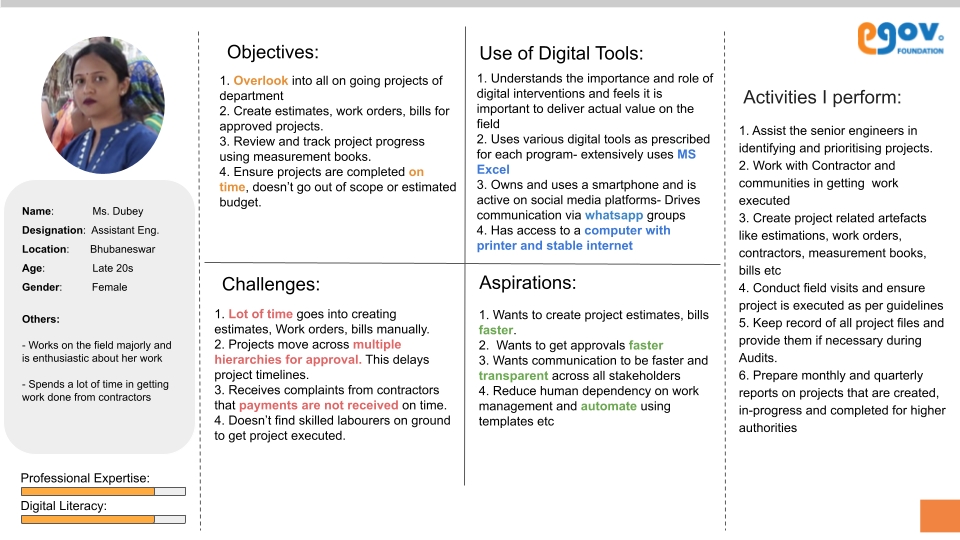
The platform architecture illustration below provides a visual representation of the key components and layers that facilitate a seamless flow of information across multiple departments.
The high-level design of the Works System is divided into three main parts, the details of which are available below.


MDMS
Access Control
Notification
IDGen
Filestore
WORK_ORDER_CREATOR
MUKTA_ADMIN
/org-services/organisation/v1/_search
MUKTA_ADMIN
/org-services/organisation/v1/_create
MUKTA_ADMIN
/org-services/organisation/v1/_update
{
"format": "ORG-[SEQ_ORG_NUM]",
"idname": "org.number"
},
{
"format": "SR/ORG/[cy:dd-MM-yyyy]/[SEQ_ORG_APP_NUM]",
"idname": "org.application.number"
},
{
"format": "SR/FUNC/[cy:dd-MM-yyyy]/[SEQ_FUNC_APP_NUM]",
"idname": "function.application.number"
} {
"code": "ORGANISATION_NOTIFICATION_ON_CREATE",
"message": "Dear {individualName}, You have been registered as the contact person of {organisationName} on MuktaSoft, Organisation ID {ID}. To login please click on {cbo_portal_url}. Contact Mukta Coordinator for more details.",
"module": "rainmaker-common-masters",
"locale": "en_IN"
},
{
"code": "ORGANISATION_NOTIFICATION_ON_UPDATE",
"message": "Dear {contactpersonname}, The organization details has been updated on your request. Please contact the MUKTA Coordinator if you have not made this request. To login please click on {cbo_portal_url}.",
"module": "rainmaker-common-masters",
"locale": "en_IN"
}
{
"format": "MB/[fy:yyyy-yy]/[SEQ_MEASUREMENT_NUM]",
"idname": "mb.reference.number"
}Employee user manual on using the Estimates module - for MuktaSoft


The workflow state changes accordingly and timelines show the current state of the estimate.
Work order is removed from the currently logged-in user’s inbox.
Re-submitted
Submit/ Forward
Work Order Creator
Pending for verification
Submitted
Re-submit/ Forward
Work Order Creator
Pending for correction
1
On submission, the application is forwarded to the next user in the flow.
2
The pop-up window gets closed and the application page is refreshed. A toast success message is displayed.
3
On cancel pop-up window is closed. A toast cancel message is displayed.
4
Workflow states change and based on the role the existing user has view work order page refreshes.
Pending for verification
Work Start Date
Work End Date
Work Amount
Status [Submitted, Sent Back, Verified, Approved]
View Details/ Edit - Action button to see the muster roll details./ Edit action is enabled when service request is send back for correction.
Project Type
Project Name
Project Description
Location
Completion Days
Work Start Date
Work End Date
Extension required in days
Extended End Date
Extension Reason
Status
Send Back - Action Button
Cancel - Action Button
On Send Back,
The pop-up window is closed, and a toast success message is displayed.
The view work order page is refreshed and the action menu is loaded according to the role of the logged-in user.
The work order is sent back to the previous user’s inbox.
Workflow states change as per the flow.
Work Order Verifier
Pending for verification
Pending for correction
Sent Back
Work Order Approver
Pending for approval
Pending for verification
Sent Back
1
On send back, the pop-up window is closed and a toast success message is displayed. The view work order page is refreshed.
2
The work order is sent back to the previous user in the workflow and the workflow timeline gets updated.
3
Workflow state changes based on the role as mentioned in the story above.
4
On cancel, the pop-up window is closed and a toast cancel message is displayed.
Verify and Forward - Action Button
Cancel - Action Button
The pop-up window is closed, toast cancel message is displayed on the view work order page
On Verify and Forward,
A pop-up window is closed, the toast success message is displayed and the view work order page is refreshed.
The action menu is loaded according to the role-action mapping of the currently logged-in user.
The work order is forwarded to the next user in the workflow and shown in its inbox.
The workflow state changes accordingly and timelines show the current state of the work order.
Work order is removed from the currently logged-in user’s inbox.
Work Order Verifier
Pending for verification
Pending for approval
Verified
1
Verify and forward pushes the work order to the next user in the flow.
2
The pop-up window is closed and the view work order page is refreshed. A toast success message is displayed.
3
Workflow states change, and based on the existing role the user can view the work order page on refresh.
4
On cancel pop-up window is closed. A toast cancel message is displayed.
This part includes various classifications of master data used in the Works platform. Some examples of this master data include:
Organisation Class
Organisation Functional Area
Organisation Type
Department
Nature of Work
Wage Seeker Skills
Labour Charges
Overheads
Headcodes
Applicable Charges
Mode of Entrustment
Beneficiary Type
Designations
Hierarchical Masters like Type of Work, Sub-type of Work
Location (which is the same as DIGIT)
This part comprises various registries that store information related to the Works platform. Some of the key registries are:
Individual Registry: Stores details of individual citizens, whether or not they are DIGIT system users. In cases where login access is required, user accounts are created and stored separately in the User registry. This allows for a clear distinction between citizen data and user management within the system.
Organisation Registry: Holds details of different types of organisations, their functional areas, and classes.
Bank Accounts Registry: Stores bank account details securely for online payments.
This part includes domain-specific services (listed below) developed or planned for the Works platform.
JIT Adapter (on the roadmap)
Milestones (on the roadmap)
Payment Calendar (on the roadmap)
(on the roadmap)
This part lists the core services from DIGIT that are reused or enhanced in the Works Project. Some of these as-is reused DIGIT core services include:
Inbox Service
This architectural design ensures seamless data flow across multiple departments and provides a foundation for efficient and integrated operations within the Works Management System.
A Works Management System (WMS) typically is used by various departments in the government to track end to end lifecycle of a project (scope and finances).
The input to Works could be a decision that is taken in the legislature for the construction of new capital works or demand that is generated from within society or officers, for maintenance of existing projects.
Common steps to configure platform services


Revision Estimate Search
Estimate Service
Search Bill WMS
IFMS Adaptor
Measurement serarch
Measurement Service
MDMS Splitting
ALL Services
Revision Estimate IDGEN
Estimate Service
Organisation Encryption Changes
Organisation
Detailed estimate
Estimate Service
Revision Estimate Persister
Estimate Service
Revision Estimate Indexer
Detailed Estimate
Estimate Service
Revision Estimate
Estimate Service
Revised Contract
SOR and Rates
MDMS Service
Repair of existing roads is of nature operations and maintenance (O&M)
Read on to learn more about the features and capabilities supported by Works.
Work Packages created from Estimates/Sub Estimates, essentially comprise the scope & bill of quantities that provide contractors with enough information to bid for the contract.
Authorities Draft Tender Papers (DTP) using Work Packages.
Bids are invited from contractors between set dates. There is also a negotiation process that happens on the bid amount. The contractor with the lowest bid is selected.
The Authority issues a Letter of Intent (LOI) to enter into a contract with the contractor.
The contractor issues a Letter of Acceptance in response to the LOI.
A Work Order is then created and shared with the contractor.
A work order is a detailed document that contains Scope, Bill of Quantities, Timelines, Terms and Conditions, Details of Contractor, Liability Periods, Other Documents etc.
A Work order also goes through the approval process.
Before the measurement starts, there are certain offline checks required. For example, acceptance letter issued to date, letter acknowledgement date, work order acknowledgement, signed site handover date, work commenced date etc.
Measurement is essentially of two types.
Tracking Milestones:
Milestones are set up during the contracting phase and before the project starts. These milestones describe the timeline for each phase and the percentage of work that will be completed in various stages.
As a milestone is reached, the completion status can be tracked on the WMS.
All milestones should be in the completed stage to process the final contractor bill.
Tracking Measurement Book:
MBook is also set up for detailed project tracking. MBook measurements are derived from abstract estimates and track the day-day progress of completed work.
MBook measurements can be entered by the vendor and verified by employees or can be entered by ground inspectors/ field staff on a regular basis.
As the project progresses, the contractor raises the invoice for which bills are created by the employee in the system under specific budget heads and sent for approval
Approved bills are sent to the finance department for disbursement.
Advance Bill:
Bill that is raised before the commencement of work. For example, to buy construction materials or to procure labour.
Part Bill:
Bills that are raised during the course of work.
In an ideal scenario, these bills are tightly coupled with the amount of work that is done (MBook measurements)
Final Bill:
The last bill that is raised before completing the project.
Closing the project is a set of activities/checklists (prospective list given below) that are run to ensure all requirements are fulfilled.
Assetisation request raised
Final bill approved
Site inspection done
Site handover done
Contractor feedback submitted etc
Reports and Dashboards give employees views and ways to analyze project performance within their jurisdiction. This also includes timelines, delays, risks, projections etc.
Some of the reports are
Work progress register
Estimate appropriation register
Estimate abstract report by the department
Contractor bill report
Works utilisation report
Retention money recovery register
Each report will be made available to be downloaded in PDF as well as Excel.
DSS dashboard will also be included.
Many master records are required for the smooth functioning of WMS.
Some of these are listed below:
Contractor Class Master
Bank Master
Department Master
Department Category Master
Contractor Master
Election Ward Master
Location Master
Work Category Master
Beneficiary Master
Nature of Work Master
Type of Work Master
Sub-Type of Work Master
Recommended Mode of Entrustment Master
Fund Master Master
Function Master
Budget Head Master
Scheme Master
Sub-Scheme Master
Designations Master
User Master
Find the detailed process flow illustrating the steps in Works within various value bundles is given below. Refer to the colour legend on top of the attached diagram for a better understanding.
Deploying a service encompasses three key aspects:
Service Image Deployment: This entails deploying a published Docker image of the service within the DIGIT environment.
Helm Charts Requirement: Helm charts play a crucial role in service deployment as they configure environment variables tailored to the specific Kubernetes cluster. You can deploy a service either through CI/CD pipelines or directly by utilizing Helm commands from your system. All helm charts for MUKTA services are available in this repository.
Service Configuration: To ensure the service functions seamlessly, it is essential to configure it correctly. This includes setting up MDMS, IDGen, Workflow, and other masters as necessary, all of which can be done on GitHub.
In summary, deploying a service involves these three fundamental steps, each contributing to the successful deployment and operation of the service within the DIGIT environment.
Click here to find detailed information on MDMS configuration.
Each module offers specific actions (APIs), roles (actors), and role-action mappings (defining access permissions). Role-action mappings control the access and permissions for each role. Each service documentation contains the role-action table that specifies the actors authorized to access particular resources. Adhere to the structure below, substituting specific actions and roles as required for each module.
Actions, roles, and role-action mappings are organised within the master tenant and corresponding folders. These folders are conveniently named after the module, making it easy for users to identify.
Example:
In the image above, "pg" represents the state-level tenant. The highlighted orange folders contain the masters for actions, role actions, and roles.
Add all the APIs exposed by the service (refer to service for actual APIs) to the actions.json file in MDMS.
Keep appending new entries to the bottom of the file.
Make sure the id field is unique. The best practice is to increment the ID by one when adding a new entry. This id field will be used in the role-action mapping.
Module name: ACCESSCONTROL-ACTIONS-TEST
Master name: actions-test
Example: A sample entry is given below:
Configure roles based on the details given in the roles column (refer to service documentation) in the roles.json file. Make sure the role does not exist already. Append new roles to the bottom of the file.
Module name: ACCESSCONTROL-ROLES
Master name: roles
Example: A sample entry is given below:
Role-action mapping should be configured as per the role-action table defined. Add new entries to the bottom of the roleactions.json file.
Identify the action ID (from the actions.json file) and map roles to that ID. If multiple roles are mapped to an API, then each of them becomes a unique entry in the roleactions.json file.
Module name: ACCESSCONTROL-ROLEACTIONS
Master name: roleactions.json
Example: A sample set of role-action entries is shown in the code block below. Each of the actionid fields should match a corresponding API in the actions.json file.
In the example below, the ESTIMATE_CREATOR is given access to API actionid 9. This maps to the estimate created API in our repository.
Note that the actionid and tenantId might differ from implementation to implementation.
Each service has a persister.yaml file which needs to be stored in the configs repository. The actual file will be mentioned in the service documentation.
Add this YAML file to the configs repository if not present already.
Make sure to restart MDMS and the persister service after adding the file in the above location.

Fund Allocation Register
Reports → Fund Allocation Register
Employee
Role: Fund Allocation View
Virtual Allotment Details (VA) is the API to fetch the fund allocation details.
MUKTA as a scheme has multiple HOAs for which fund is sanctioned and allocated.
Fund Allocation Register has to be developed to see and download the details.
For Request/ Response parameters, please refer to the integration approach document.
This data is stored and maintained at MUKTASoft for every financial year and used for reporting and reference purposes.
APIs will be triggered daily at 10 PM.
1
Financial Year
Financial year, by default current financial year is selected.
2
Head of Account
HOAs from the configuration.
3
Transaction Type
Allotment types are, 1) Initial Allotment 2) Additional Allotment 3) Withdrawal 4) Expense 5) Expense Reversed
1
HOA
Head of accounts of MUKTA
2
Transaction Number
Transaction number of the transactions fetched from JIT or created in MUKTASoft.
3
Transaction Date
Date of transaction received from JIT-FS in a response of API call or the MUKTASoft PI creation date. Date to be taken care when calling the API again.
While fetching the details, from date should be taken care of properly.
The records/transactions are sorted in chronological order.
The master data that needs to be configured.
Special Spending Unit
SSU ID
SSU Name
Grantee Code
DDO Code
Tenant ID
Head of Accounts
Code
Name
221705789358641045908 (MUKTA - SC Component)
221705800358641045908 (MUKTA - General Component)
221705796358641045908 (MUKTA - ST Component)
Not applicable.
Not applicable.
Search - Fetch and display the records based on the search parameters.
Clear - Clear the search parameters.
Download - The option to download the report into PDF format is provided as per the attached format.
Not applicable
Data fetched is stored for reporting and reference purposes.
The report is developed with the option to download it into PDF.
Payment Instruction
Search Payment Instruction to Generate Revised PI
Employee
Role: Accountant
Home Page > Payment Instructions > Search Payment Instruction
Search Payment Instruction to be provided to list all the PIs which have the failed transaction and the revised PI to be generated for them.
Two types of searched to provided with 2 different tabs.
Pending for Action
Open Search
Below are the search parameters to search such payment instructions.
#
Parameters
Description
1
Ward
Drop-down, with the ward name as values.
2
Project Type
Project Types
3
Project Name
Name of project
4
“Pending for Action” tab is displayed by default with the search result of PIs which are pending for action. It means.
The payment instructions which have the status Completed, Declined, and Pending.
Additional condition for Completed PI, It should have at least one beneficiary payment status as Payment Failed .
Open Search, it will allow users to search any payment instruction and view the details.
In this case, at least one parameter is must to search.
For name, fuzzy search is enabled.
Created from and To are considered as one parameters as date range.
#
Parameter
Description
1
Payment Instruction ID
Original/ Revised Payment Instruction ID. It is a hyperlink which opens the payment instruction to view the complete details.
2
Payment Instruction Date
Original/ Revised Payment Instruction Date.
3
No. of beneficiaries
Total number of beneficiaries for which payment is getting processed.
4
Not applicable
Not applicable.
Not applicable.
Not applicable.
Not applicable.
Not applicable
Search enables users to see the pending correction PI by default.
Search for any PI is also provided to search and view the details.
Search Project action has to be configurable and allow mapping with a role on demand.
Search Project is provided to allow the users to search Work and view its details/ create estimates.
#
Field Name
Data Type
Description
1
Ward
Drop-down
List of ward boundaries for logged-in user ULB with search by entering name.
2
Project Type
Drop-down
Values of work type from MDMS configuration.
3
The search result is shown as given below.
Pagination is displayed to handle the big result set. 10 records are displayed per page.
The option to download the result set in Excel/ PDF is provided.
#
Field
Data Type
Comments
1
Project ID
Display Only
A hyperlink to open the project details in view mode.
2
Project Name
Display Only
Name of project having project description displayed as tool-tip on mouseover.
4
All the actions are displayed based on role action mapping and the user role assignment.
Search - It will perform the search based on the values supplied for search parameters and the logic defined.
Clear Search - It will clear the values filled for searched parameters.
Project ID - It will take the user to the View Project Details Page.
Not applicable.
1
Search Parameters/ Search Logic should be as stated in the story above.
2
Search result is shown as described in the story.
3
Pagination is provided to handle more results and 10 records per page is displayed.
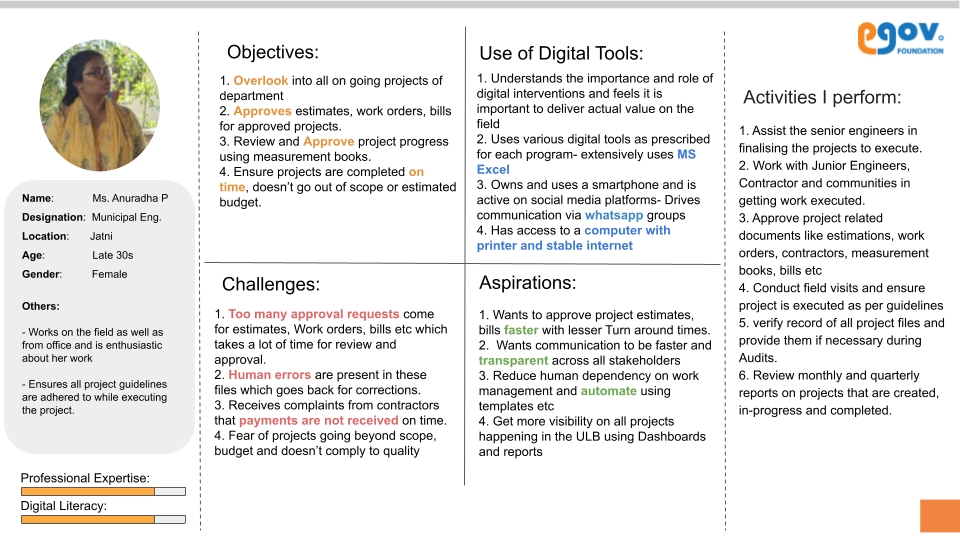
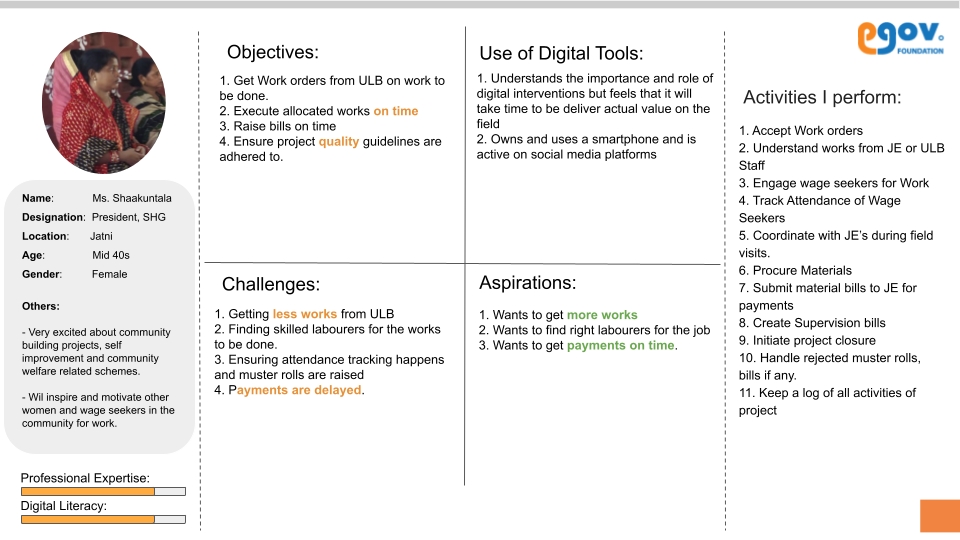
Organisation Service: Implemented encryption on Organisation user details
Build for migration: organisation-db:PFM-4468_Organisation_Encryption_Migration-7903f8ed-104
Run the following query: CREATE TABLE IF NOT EXISTS encryption_migration(uuid VARCHAR(100), is_migrated boolean);
To migrate data follow the steps given below:
Use the Specific Branch:
Access the with the mentioned changes.
to access the branch and change details.
Estimate Service allows users to create estimates and forward them for Workflow approval to higher authorities across departments for technical, financial, and admin sanctions. A prepared estimate can then be tendered out for contracting.
Project
MDMS
Workflow
Notification
Create/update/search for Work estimates for a project.
Allows upload of offline documents related to estimate creation as part of Create.
Workflow and inbox integration
Create/update/search for Work Revised Estimate for an existing approved estimate.
Base Path: /estimates/
Postman collection for this service is .
The attendance service provides generic attendance logging functionality for recording "in" and "out" timestamps for individuals. These timestamps are logged on a per-individual basis. The muster roll service takes on the responsibility of aggregating and calculating attendance based on these recorded timestamps. It processes and computes attendance data using these individual "in" and "out" timestamps to provide a comprehensive view of attendance records.
A running DIGIT platform is needed to deploy the attendance service. Specifically, the following dependencies are needed:
Individual
MDMS
Idgen
Persister
Provides APIs to:
Create an attendance register
Map staff to the register
Map attendees to the register
Log attendance
/attendance/v1/Below are the variables that should be configured for the contract service in the Helm environment file before deployment. The Helm environment file is located under:
https://github.com/{{ORG}}/DIGIT-DevOps/deploy-as-code/helm/environments/{{EnvironmentFile}}.yaml
Refer to the .
Add these ‘db-host’,’db-name’,’db-url’, ’domain’ and all the digit core platform services configurations (Idgen, workflow, user etc.) in respective environments YAML file.
Add attendance-service related environment variables’ value like the way it's done in the’ environment YAML file.
Add all the APIs exposed by the attendance service (refer to the table below for actual APIs) to the actions.json file in MDMS
Module name: ACCESSCONTROL-ACTIONS-TEST
Master name: actions-test
Configure roles based on the roles column below in roles.json file.
Module name: ACCESSCONTROL-ROLES
Master name: roles
Role-action mapping is configured in MDMS per the table below .
Module name: ACCESSCONTROL-ROLEACTIONS
Master name: roleactions.json
Make sure the id format is configured in the file of the common-masters module in MDMS.
Make sure that the file is present in the MDMS repository of the organisation: https://github.com/{{ORG}}/works-configs/tree/<BRANCH>/egov-persister
Sample are here to demonstrate integration with the attendance service.
Muster roll is a record of attendance and quantity of work done by wage seekers.
A muster roll serves as a record of attendance, indicating the hours worked, wages owed, and the amount of work completed by labourers during a specified time frame.
The attendance service supplies raw attendance logs, while the muster roll service collects these logs and calculates attendance according to specific business rules. For instance, determining whether attendance is measured in hours or days and defining what constitutes a half-day or a full day of attendance are decisions that depend on the specific implementation. These configurations can be adjusted within the service, and attendance calculations will be carried out based on these settings.
Attendance
Individual
Persister
MDMS
The functionality includes the following APIs:
Estimate Wages: This API calculates the wages for a wage seeker based on their attendance logs.
Create Muster Roll: It allows you to create a muster roll, which is essentially a list of wage seekers.
Update Muster Roll: You can use this API to update a muster roll with modified aggregate attendance data.
Here is a list of variables that need to be configured in the Helm environment file before deploying the muster roll service. This file can typically be found under a specific directory or location as given below:
https://github.com/{{ORG}}/DIGIT-DevOps/deploy-as-code/helm/environments/{{EnvironmentFile}}.yaml
Refer to the .
Add these ‘db-host’,’db-name’,’db-url’, ’domain’ and all the digit core platform services configurations (Idgen, workflow, user etc.) in respective environments yaml file.
Add muster-roll-service related environment variables’ value like the way it's done in the’ environment yaml file.
Add all the APIs exposed (refer to the table below for actual APIs) to the actions.json file in MDMS
Module name: ACCESSCONTROL-ACTIONS-TEST
Master name: actions-test
Configure roles based on the roles column below in roles.json file.
Module name: ACCESSCONTROL-ROLES
Master name: roles
Role-action mapping is configured in MDMS per the table below.
Module name: ACCESSCONTROL-ROLEACTIONS
Master name: roleactions.json
Other muster roll masters are configured in the common-masters folder:
1. Import the postman collection for muster roll service into the Postman application.
2. Import the environment variables required for running the Postman collection. This will create an environment ‘Muster Environment’.
3. MusterRoll requires the below services from the Attendance Service API to be run. So run the below services before running the muster roll postman collection.
a) Create Attendance register -
b) Enroll attendees to the register -
c) Attendance log create -
4. Update the current value of the variable ‘registerId’ in ‘Muster Environment’ with the id returned by the response in the create attendance register ( in step 3 a)
5. Run the ‘Muster Roll Service’ postman collection as ‘Run Collection’. It will run the /_estimate, /_create, /_update and /_search API’s success and validation error scenarios.
6. Muster will be created for the attendees enrolled in the attendance register (in step 3 b) using the attendance logs created (in step 3 c).
The current value of environment variables ‘musterRollId’ and ‘musterRollNumber’ will be set from the response of the /_create muster roll which will be used by /_update and /_search APIs.
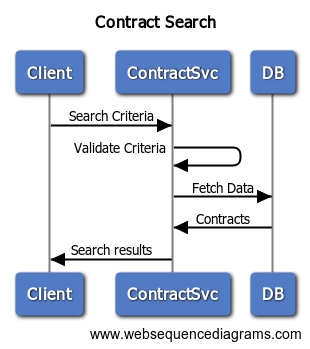
{
"id": {unique ID},
"name": "Create Estimate",
"url": "/estimate-service/estimate/v1/_create",
"parentModule": "estimate-service",
"displayName": "Create Estimate",
"orderNumber": 0,
"enabled": false,
"serviceCode": "estimate-service",
"code": "null",
"path": ""
},
{
"id": {unique ID},
"name": "Search Estimate",
"url": "/estimate-service/estimate/v1/_search",
"parentModule": "estimate-service",
"displayName": "Search Estimate",
"orderNumber": 0,
"enabled": false,
"serviceCode": "estimate-service",
"code": "null",
"path": ""
},
{
"id": {unique ID},
"name": "Update Estimate",
"url": "/estimate-service/estimate/v1/_update",
"parentModule": "estimate-service",
"displayName": "Update Estimate",
"orderNumber": 0,
"enabled": false,
"serviceCode": "estimate-service",
"code": "null",
"path": ""
},{
"code": "ESTIMATE_CREATOR",
"name": "ESTIMATE CREATOR",
"description": "Estimate Creator"
},
{
"code": "ESTIMATE_VIEWER",
"name": "ESTIMATE VIEWER",
"description": "Estimate VIEWER having search api access"
}, {
"rolecode": "ESTIMATE_CREATOR",
"actionid": 9,
"actioncode": "",
"tenantId": "pg"
},
{
"rolecode": "ESTIMATE_VERIFIER",
"actionid": 11,
"actioncode": "",
"tenantId": "pg"
},
{
"rolecode": "TECHNICAL_SANCTIONER",
"actionid": 11,
"actioncode": "",
"tenantId": "pg"
}Workflow
Idgen
Notification
Add the egov-mdms-service related configuration to the respective environment YAML file. Make sure you change the gitsync.branch name.
Check the muster-roll-service persister file is added to the egov-persister.perister-yml-path variable. If not, follow the steps outlined here.
Make sure to add the DB(Postgres and flyway) username & password in the respective environment secret YAML file as per the steps outlined here.
Make sure to add the digit core services-related secrets that are configured in the respective environment secret file as per the steps outlined here.
ORG_ADMIN
ORG_STAFF
/muster-roll/v1/_estimate
ORG_ADMIN
ORG_STAFF
/muster-roll/v1/_create
ORG_ADMIN
ORG_STAFF
MUSTER_ROLL_VERIFIER
MUSTER_ROLL_APPROVER
/muster-roll/v1/_update
ORG_ADMIN
ORG_STAFF
MUSTER_ROLL_VERIFIER
MUSTER_ROLL_APPROVER
BILL_CREATOR
BILL_VIEWER
/muster-roll/v1/_search
Estimate Service
Measurement Document Change
Measurement Service
Estimate Number Inbox
Estimate Service
Contract Service
Measurement service helm chart
Measurement service
Measurement service persister, indexer config
Measurement Service
MDMS search endpoints
MDMS Service
Detailed Estimate MDMS
Estimate Service
Organisation Encryption Changes
4
Transaction Type
A transaction type would be anything from the options given below.
Initial Allotment
Additional Allotment
Withdrawal
Expense
Expense (Reversed) First 3 are received from JIT-FS system through API call while the last one is from MUKTASoft when a PI is pushed. A reverse entry of the Expense is made in the case PI is canceled or failed to create.
5
Transaction Amount
It is transaction amount.
6
Sanctioned Balance
It is the balance remaining from the sanctioned amount and calculated as given below. Sanctioned Balance = Total Sanctioned Amount - Sum of all the allotments.
7
Fund Available
It the fund available for the expenditure and calculated as given below. Fund Available = Sum of all the allotments - (Sum of all the expenditure + Sum of all the withdrawal)

Bill Number
Bill number
5
Status
Status of payment instructions. This parameter is not applicable for “Payment Instruction Pending for Correction”
6
Created from date
Payment instruction created date. This parameter is not applicable for “Payment Instruction Pending for Correction”
7
Created to date
Payment instruction created date. This parameter is not applicable for “Payment Instruction Pending for Correction”
No. of successful Payments
Total number of successful payments.
5
No. of failed Payments
Total number of failed payments
6
Total Amount
Total amount of payment instruction which is to be paid.
7
Status
Status of payment instruction


Project Name
Textbox
Project Name
4
Project ID
Textbox
Work identification no. generated for a work in works proposal
6
From Date
Date Picker
Proposal creation date, entered by user while creating works proposal.
7
To Date
Date Picker
Proposal creation date, entered by user while creating works proposal.
Location
Display Only
Locality name along with ward name.
5
Estimated Cost
Display Only
The project cost from the project details

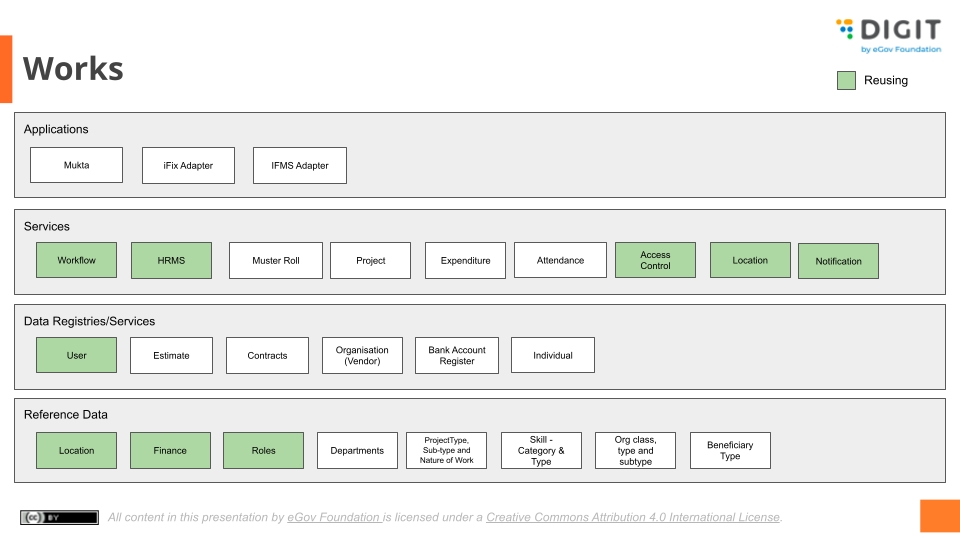
Indexer
Edit attendance registers, staff, attendees and attendance.
Add the ‘egov-mdms-service’ related configuration to the respective environment YAML file. Make sure you change the gitsync.branch name.
Check the attendance-service persister file is added in the egov-persister.perister-yml-path variable. If not, follow the steps outlined here.
Make sure to add the DB(Postgres and flyway) username & password in the respective environment secret YAML file as per the steps given here.
Make sure to add the DIGIT core services-related secrets that are configured in the respective environment secret file the way it's done here.
/attendance/attendee/v1/_create
ORG_ADMIN
ORG_STAFF
/attendance/attendee/v1/_delete
ORG_ADMIN
ORG_STAFF
/attendance/log/v1/_create
ORG_ADMIN
ORG_STAFF
/attendance/log/v1/_search
ORG_ADMIN
ORG_STAFF
/attendance/log/v1/_update
ORG_ADMIN
JUNIOR_ENGINEER
MUNICIPAL_ENGINEER
/attendance/v1/_create
ORG_ADMIN
JUNIOR_ENGINEER
MUNICIPAL_ENGINEER
/attendance/v1/_update
ORG_ADMIN
JUNIOR_ENGINEER
MUNICIPAL_ENGINEER
/attendance/v1/_search
ORG_ADMIN
ORG_STAFF
/attendance/staff/v1/_create
ORG_ADMIN
ORG_STAFF
/attendance/staff/v1/_delete
{
"format": "WR/[fy:yyyy-yy]/[cy:MM]/[cy:dd]/[SEQ_ATTENDANCE_REGISTER_NUM]",
"idname": "attendance.register.number"
}
ORG_ADMIN
ORG_STAFF
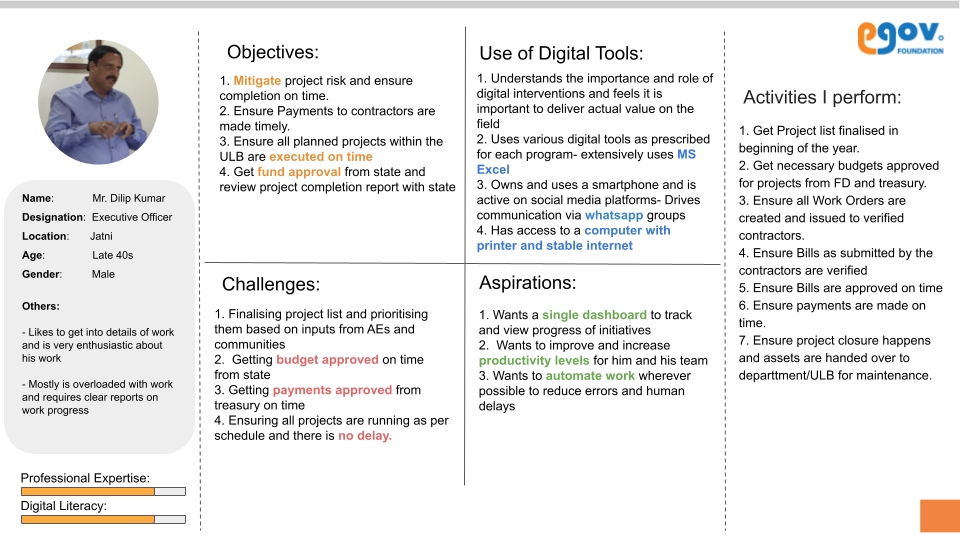
Clone or download the code from the specific branch.
Run the following query: CREATE TABLE IF NOT EXISTS encryption_migration(uuid VARCHAR(100), is_migrated boolean);
Use the curl below to migrate the data.
curl --location 'http://localhost:8035/org-services/organisation/v1/_migrate' \
--header 'authority: works-uat.digit.org' \
--header 'accept: application/json, text/plain, */*' \
--header 'accept-language: en-US,en;q=0.9' \
--header 'content-type: application/json' \
--header 'cookie: intercom-id-xp1951jv=72181a5e-32d1-4d97-8e85-5e9574ee7ede; intercom-device-id-xp1951jv=9586a950-3d1e-4818-bae2-c9673e615146; _ga=GA1.1.1354941045.1656251739; _ga_H9YC8FEN6F=GS1.1.1684744433.6.1.1684744462.31.0.0; amp_fef1e8=7b52e48b-c09e-406a-aedb-0c7c474c5f69R...1h119fs43.1h11aomp6.95.18.ad; _ga_XBQP06FR8V=GS1.1.1684745770.1.0.1684745773.0.0.0; __cuid=626a55cb986f4721b4761ce8d267d319' \
--header 'dnt: 1' \
--header 'origin: https://works-uat.digit.org' \
--header 'referer: https://works-uat.digit.org/works-ui/employee/masters/view-organization?tenantId=statea.cityone&orgId=ORG-000071' \
--header 'sec-ch-ua: "Google Chrome";v="113", "Chromium";v="113", "Not-A.Brand";v="24"' \
--header 'sec-ch-ua-mobile: ?0' \
--header 'sec-ch-ua-platform: "macOS"' \
--header 'sec-fetch-dest: empty' \
--header 'sec-fetch-mode: cors' \
--header 'sec-fetch-site: same-origin' \
--header 'user-agent: Mozilla/5.0 (Macintosh; Intel Mac OS X 10_15_7) AppleWebKit/537.36 (KHTML, like Gecko) Chrome/113.0.0.0 Safari/537.36' \
--data '{
"RequestInfo": {
"apiId": "Rainmaker",
"authToken": "c60cda91-a143-4311-9c76-6ff91926c23d",
"userInfo": {
"id": 922,
"uuid": "45614d29-9a50-4970-aba5-81b380745f48",
"userName": "ANSH-001",
"name": "Ansh",
"mobileNumber": "9876543210",
"emailId": null,
"type": "EMPLOYEE",
"roles": [
{
"name": "HRMS Admin",
"code": "HRMS_ADMIN",
"tenantId": "pg.citya"
},
{
"name": "WORK ORDER CREATOR",
"code": "WORK_ORDER_CREATOR",
"tenantId": "pg.citya"
},
{
"name": "ESTIMATE VERIFIER",
"code": "ESTIMATE_VERIFIER",
"tenantId": "pg.citya"
},
{
"name": "ESTIMATE APPROVER",
"code": "ESTIMATE_APPROVER",
"tenantId": "pg.citya"
},
{
"name": "MB_VERIFIER",
"code": "MB_VERIFIER",
"tenantId": "pg.citya"
},
{
"name": "WORK ORDER VERIFIER",
"code": "WORK_ORDER_VERIFIER",
"tenantId": "pg.citya"
},
{
"name": "PROJECT VIEWER",
"code": "PROJECT_VIEWER",
"tenantId": "pg.citya"
},
{
"name": "MB_CREATOR",
"code": "MB_CREATOR",
"tenantId": "pg.citya"
},
{
"name": "MUSTER ROLL VERIFIER",
"code": "MUSTER_ROLL_VERIFIER",
"tenantId": "pg.citya"
},
{
"name": "OFFICER IN CHARGE",
"code": "OFFICER_IN_CHARGE",
"tenantId": "pg.citya"
},
{
"name": "PROJECT CREATOR",
"code": "PROJECT_CREATOR",
"tenantId": "pg.citya"
},
{
"name": "Employee Common",
"code": "EMPLOYEE_COMMON",
"tenantId": "pg.citya"
},
{
"name": "BILL_VIEWER",
"code": "BILL_VIEWER",
"tenantId": "pg.citya"
},
{
"name": "TECHNICAL SANCTIONER",
"code": "TECHNICAL_SANCTIONER",
"tenantId": "pg.citya"
},
{
"name": "BILL_CREATOR",
"code": "BILL_CREATOR",
"tenantId": "pg.citya"
},
{
"name": "MUSTER ROLL APPROVER",
"code": "MUSTER_ROLL_APPROVER",
"tenantId": "pg.citya"
},
{
"name": "ESTIMATE VIEWER",
"code": "ESTIMATE_VIEWER",
"tenantId": "pg.citya"
},
{
"name": "WORK ORDER APPROVER",
"code": "WORK_ORDER_APPROVER",
"tenantId": "pg.citya"
},
{
"name": "MB_APPROVER",
"code": "MB_APPROVER",
"tenantId": "pg.citya"
},
{
"name": "ESTIMATE CREATOR",
"code": "ESTIMATE_CREATOR",
"tenantId": "pg.citya"
},
{
"name": "MB_VIEWER",
"code": "MB_VIEWER",
"tenantId": "pg.citya"
},
{
"name": "MUKTA Admin",
"code": "MUKTA_ADMIN",
"tenantId": "pg.citya"
}
],
"tenantId": "pg.citya"
},
"msgId": "1687176345894|en_IN",
"plainAccessRequest": {}
}
}'// For first contract
UPDATE eg_wms_contract_line_items
SET contract_line_item_ref = eg_wms_contract_line_items.id
FROM eg_wms_contract
WHERE eg_wms_contract_line_items.contract_id = eg_wms_contract.id
AND (eg_wms_contract.business_service IS NULL OR eg_wms_contract.business_service = 'CONTRACT');
// For revised contracts
UPDATE eg_wms_contract_line_items AS t1
SET contract_line_item_ref = (
SELECT contract_line_item_ref
FROM eg_wms_contract_line_items AS t2
WHERE t2.estimate_id = t1.estimate_id
AND t2.estimate_line_item_id = t1.estimate_line_item_id
AND t2.contract_line_item_ref IS NOT NULL
LIMIT 1
)
WHERE t1.contract_line_item_ref IS NULL;
UPDATE eg_wms_contract SET version_number=version_number+1 WHERE business_service='CONTRACT-REVISION';
UPDATE eg_wms_contract SET business_service='CONTRACT' WHERE business_service is null;
UPDATE eg_wms_contract SET version_number=1 WHERE business_service ='CONTRACT';Access Control
User
IDGen
mdmsV2
Contract Service
Measurement Service
Contains the category of all items. - SOR - NON-SOR - OVERHEAD
UOM
Contains the unit of measurement for all categories.
Overheads
Contains the overhead charges applicable on an estimate.
SOR
- Sample data for SOR
Contains a comprehensive list of items and rates defined by the department. To be used in preparation of an estimate.
SOR Rates
- Sample data for Rates
Contains a comprehensive list of items and rates defined by the department. To be used in preparation of an estimate.
Category
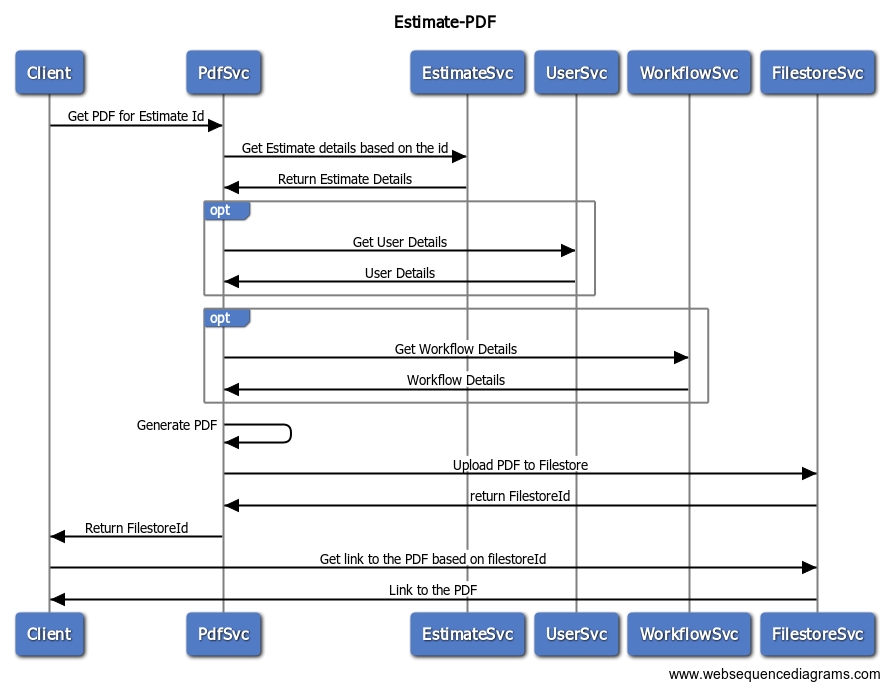
Payment Instruction
View Payment Instruction
Employee
Role: Accountant
View Payment Instruction to be provided to view the detail and track the status of Original/ Revised Payment Instructions.
Below is the details which is displayed for a payment instruction.
Not applicable.
Not applicable.
Not applicable.
Not applicable.
For Pending and Declined Payment Instruction.
Re-submit - Payment instruction is re-push again.
A success toast message is displayed on successful submission and the status of PI changes to Initiated. [*The payment instruction is submitted successfully.*]
In case, the PI is decline again, the toast message is displayed with the error message and the status of PI remain Declined. [*Submission failed, <error message>*]
2. For Completed Payment Instruction which has at least one failed payment.
Generate Revised PI - A revised PI is generated and push to JIT after clearing all the errors.
A success toast message is displayed on successful submission with the PI ID displayed in message. [*Revised payment instruction <PIID> generated and submitted successfully.*]
In case revised PI is declined, a failure toast message is displayed with the PI ID generated for revised PI. [*Revised payment instruction <PIID> generated successfully, but failed to submit.*]
Not applicable
Payment instruction details is displayed as described in the story.
Actions are enabled based on the status of current payment instruction.
Payment instruction id is generated according to format defined in case revise PI is generated.
Appropriate messages are displayed with each action.
The time extension feature allows users to search for time extension requests and view their details.
The same Search Work Order feature is used to search for revised work orders.
Clicking to view the details of a revised work order will open the "View Revised Work Order Page," showing the following information:
Not applicable.
In Workflow Time Extension - Workflow actions based on roles logged in user has.
For Workflow Completed Time Extension - No Actions
Revised work details are displayed as per the details provided in the story.

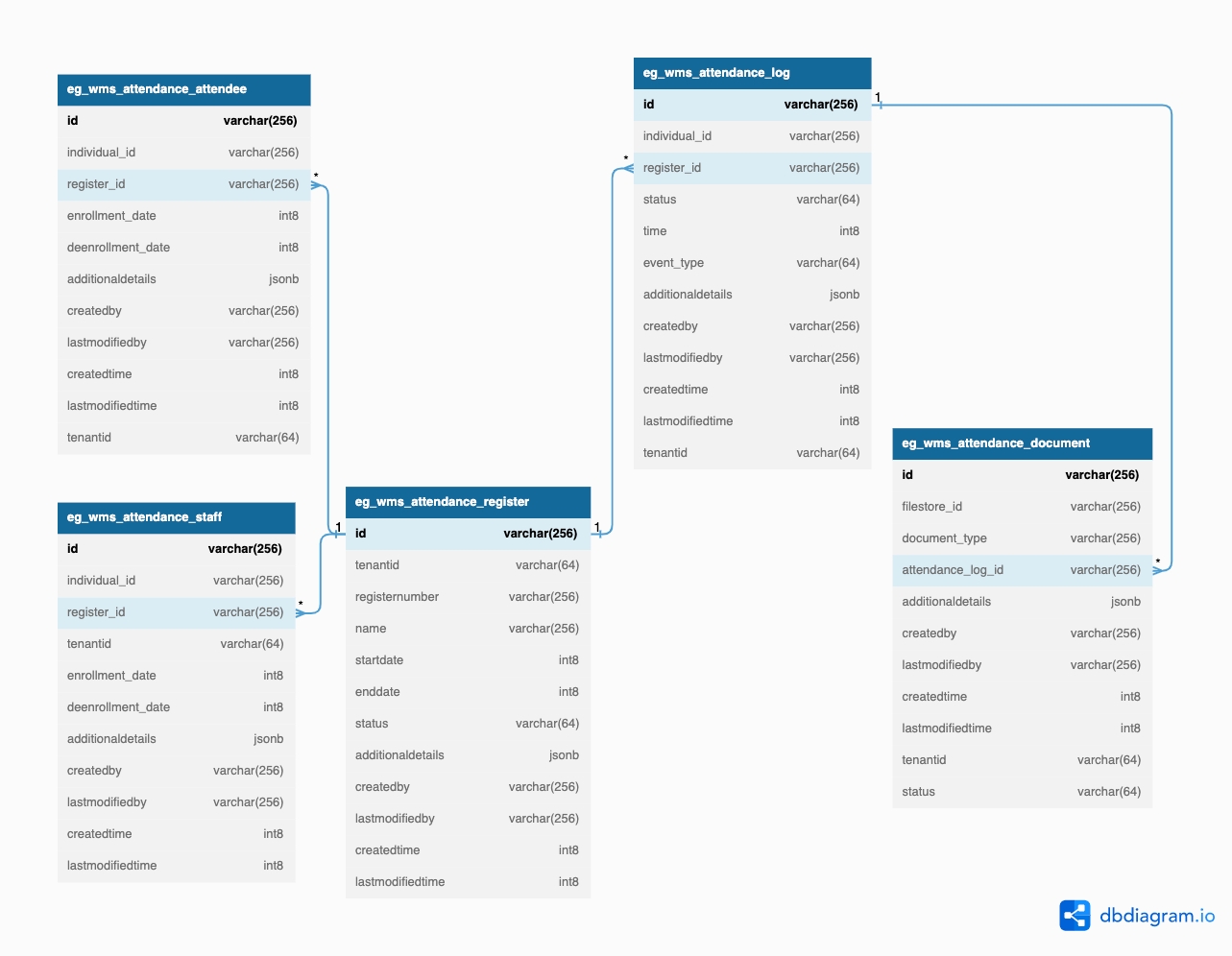
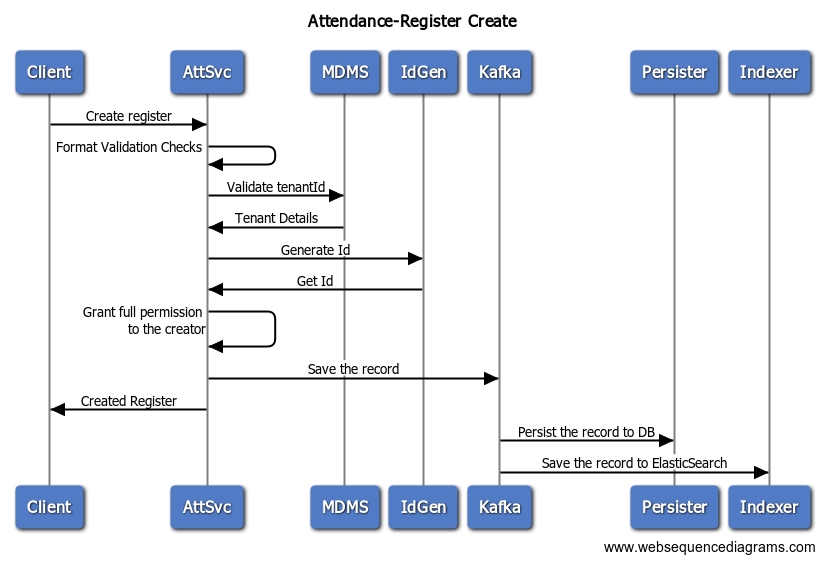
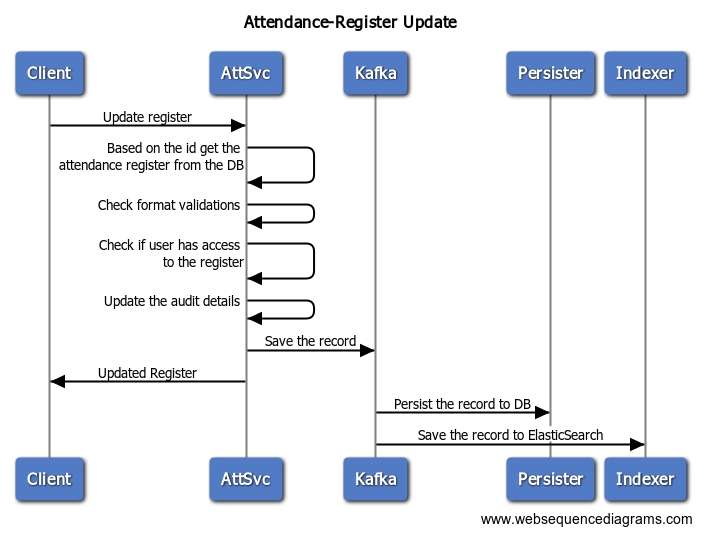
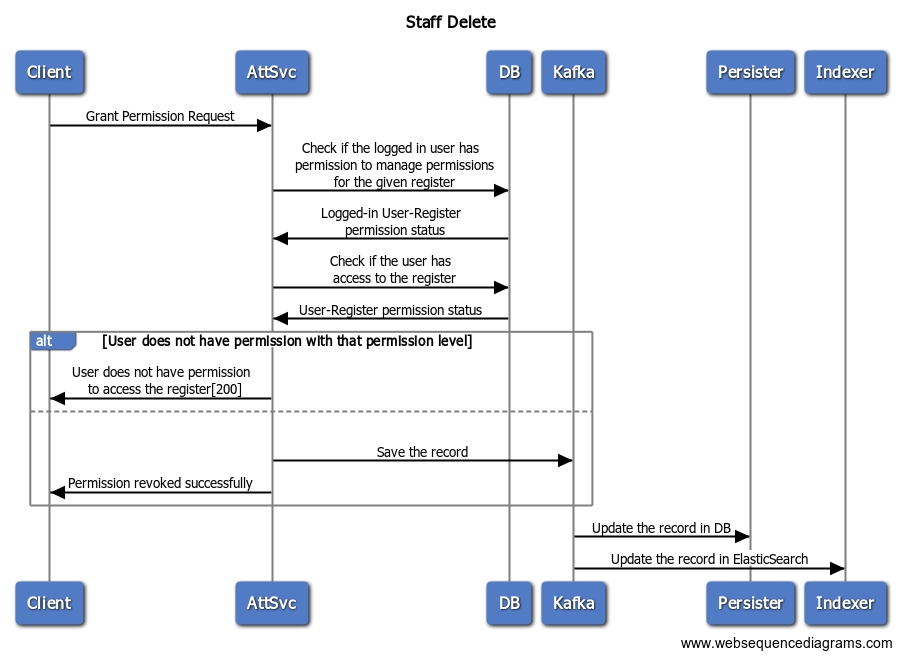
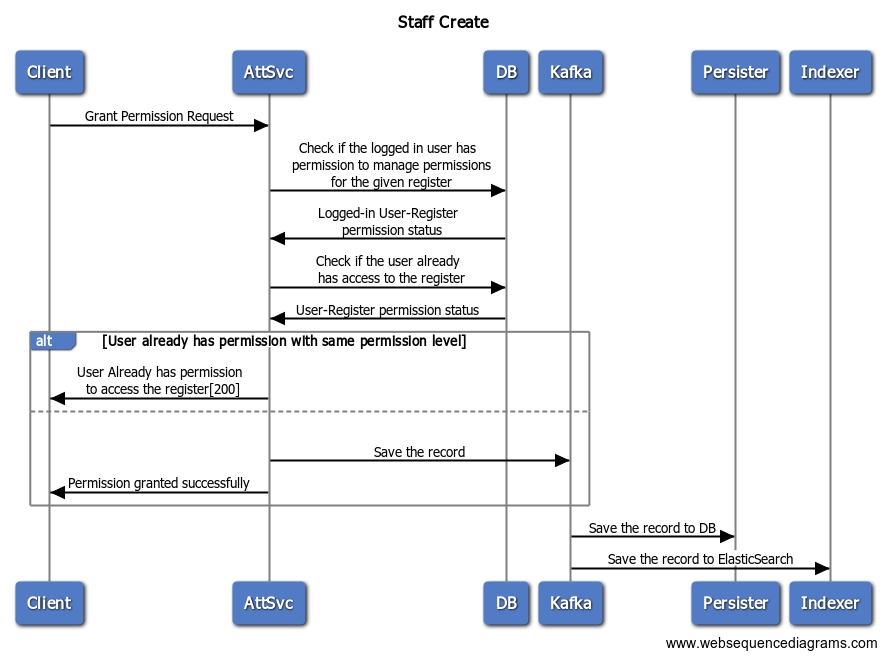
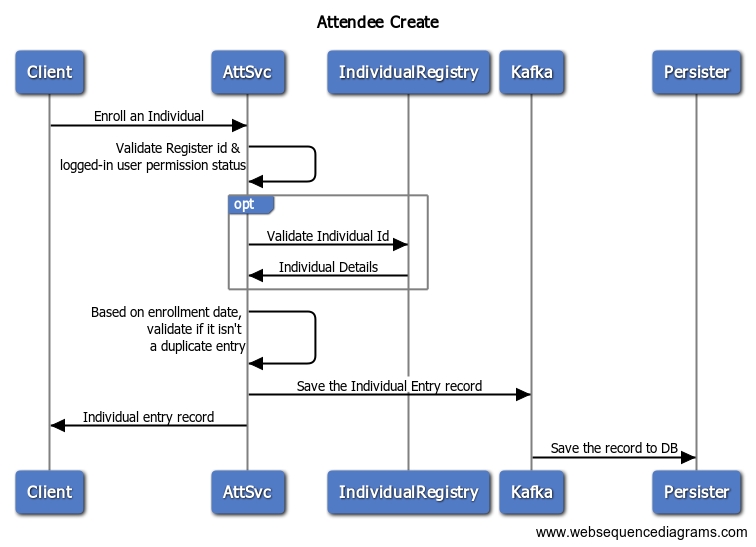
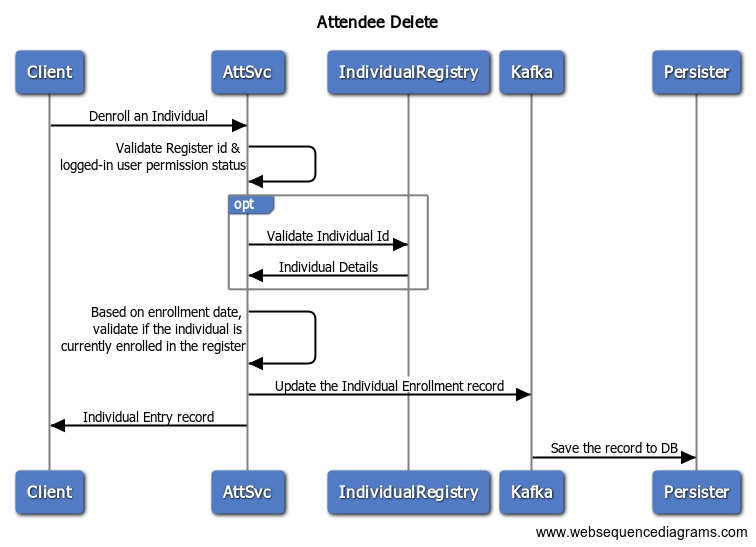
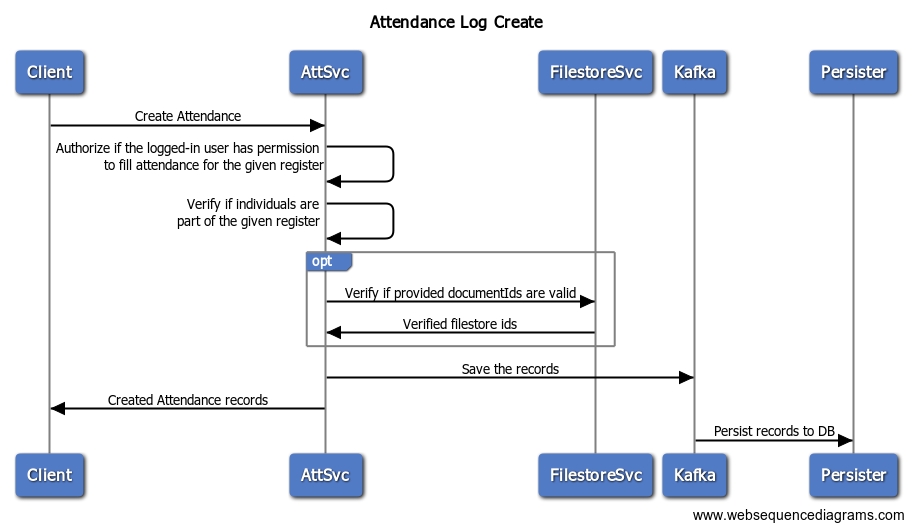
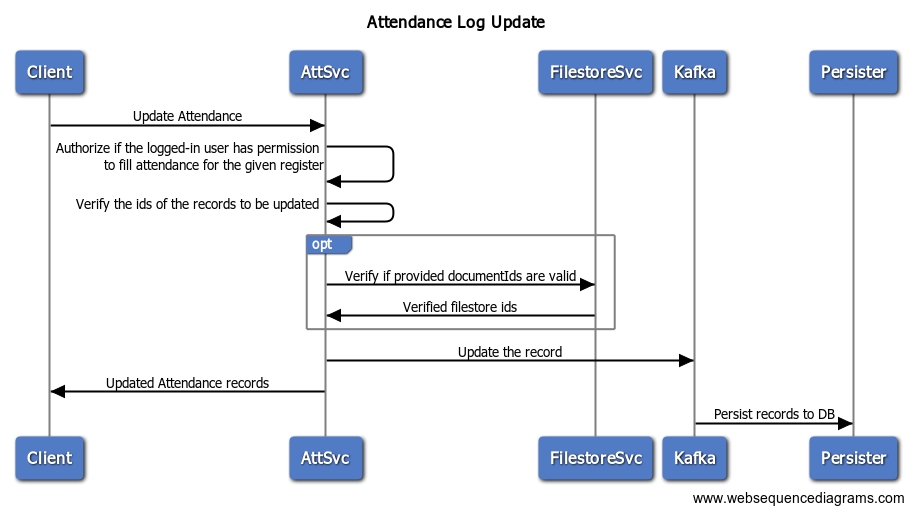
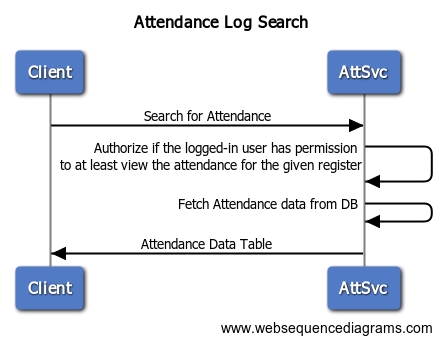
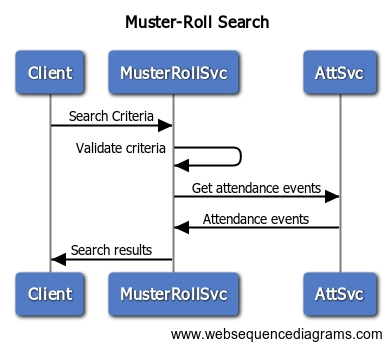
Steps to configure the project service
The project service provides APIs to create, update and manage a generic project. A project can have one or more of the following constructs: staff, tasks, beneficiaries and facilities. This service is shared across multiple eGov missions.
The source code for this service is available . Refer to the below docs for a deeper understanding of this service.
Creating a time extension request by employee
A work order is created for an approved estimate in order to award the work to CBO. CBO starts the work to complete it within a given time period.
In case the organization comes to know that they are not in a position to complete the work within the given time frame due to various reasons, they need to inform the same to officer-in-charge of the project and apply for a time extension which is then subject to approval/ cancelling of work order based on the analysis done by the ULB.
{
"id": "1",
"code": "SC",
"description": "Supervision Charge",
"active": true,
"isAutoCalculated":true,
"isWorkOrderValue":true,
"type": "percentage",
"value": "7.5",
"effectiveFrom": 1682164954037,
"effectiveTo": null
}{
"id": "SOR_000188",
"uom": "Nos",
"sorType": "W",
"quantity": 1000,
"sorSubType": "NA",
"sorVariant": "NA",
"description": "1000 Bricks for constructing any wall of length 10*10*10"
}{
"rate": 989,
"sorId": "SOR_000152",
"validTo": "1697846400000",
"validFrom": "1697587200000",
"amountDetails": [
{
"type": "fixed",
"heads": "MH.2",
"amount": 979
}
]
}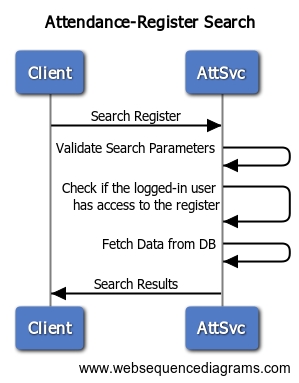
Payment Instruction ID.
5
Payment Instruction Date
Payment Instruction Date.
6
Head of Account
Head of account from which amount to be paid
7
Master Allotment ID
Master allotment ID from which amount to be paid
8
Status
Status of payment instruction. A tool-tip is displayed to display the error message for declined and rejected PIs.
9
Payment Advice Details
10
Payment Advice ID
Payment advice ID generated for the original/ revised PI.
11
Payment Advice Date
Payment advice generation date.
12
Token Number
Token no. generated for the payment instruction
13
Token Date
Token no. generated for the payment instruction
14
Online Bill Number
Online bill number for the online bill generated for the payment advice.
Error/ Info Section
A information display band to display the error message/ info messages
Beneficiary Details
Tabular form
15
Beneficiary ID
It is individual ID of wage seeker/ organization ID for CBOs and vendors, and displayed as hyperlink to view details.
16
Payment ID
Unique beneficiary ID for the payment through JIT. It remain same though the process until the payment becomes successful.
17
Beneficiary Name
Name of the beneficiary.
18
Account Number
Account number of beneficiary, only last 4 digits are displayed. Remaining initial digits of A/C are masked.
19
IFSC
IFSC code of the bank/ branch of beneficiary accounts.
20
Payment Status
The payment status, as per the definition. A tooltip is shown to display the error message for failed payments.
21
Payment Amount
The payment amount of beneficiary.
Info
In case of there are failed payments, an information is displayed. “Please make sure all the necessary corrections are made before generating the revised payment instruction for JIT” .
#
Parameter
Description
1
Bill Number
Hyperlink to view the bill details.
2
Payment Instruction Type
Payment instruction type, Original or Revised.
3
Parent Payment Instruction ID
Parent payment instruction id, i.e. original PI ID. It is a hyperlink to view the Original Payment Instruction Details.
4

Payment Instruction ID
Work order no.
3
Project ID
Display Only
NA
Project ID of the project.
4
Project sanctioned date
Display Only
NA
Date of the proposal from the project.
5
Project name
Display Only
NA
Project name
6
Project description
Display Only
NA
Project description
7
Work Order Details
Tab
8
Name of CBO
Display Only
NA
The name of the CBO
9
CBO ID
Display Only
NA
The CBO ID
10
Role of CBO
Display Only
NA
The role of the CBO IA/ IP.
11
Name of the officer in-charge
Display Only
NA
Name of the officer in-charge as provided in original WO.
12
Designation of officer in-charge
Display Only
NA
Designation of the officer in-charge as provided in original WO.
13
Project completion period
Display Only
NA
Number of days work to be completed as provided in original WO.
14
Work Start Date
Display Only
NA
Work start date as provided in original WO.
15
Work End Date
Display Only
NA
Revised work end date as provided in original WO.
16
Work order amount
Display Only
NA
Total estimated cost as provided in original WO.
17
Extension requested
Display Only
NA
Time requested to extend in days.
18
Revised End Date
Display Only
NA
The revised End Date as per the time requested as extension.
19
Reason for Extension
Display Only
NA
Reason for time extension provided entered by CBO.
20
Terms and Conditions
Tab
As provided in original WO.
21
Workflow Timelines
Section
As per the the workflow of revised work order.
1
Revised work order number
Display Only
NA
Revised work order number
2
Work order number
Display Only
NA


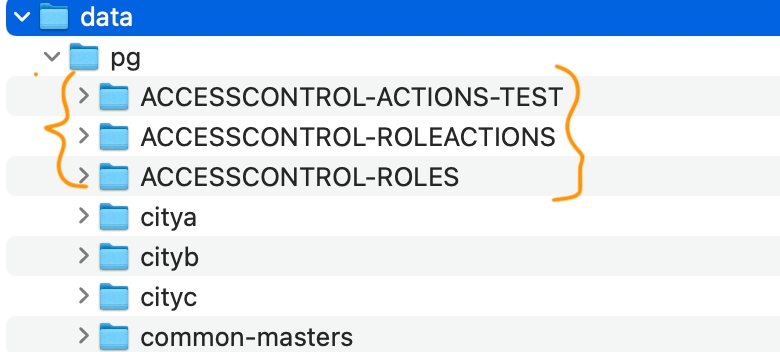
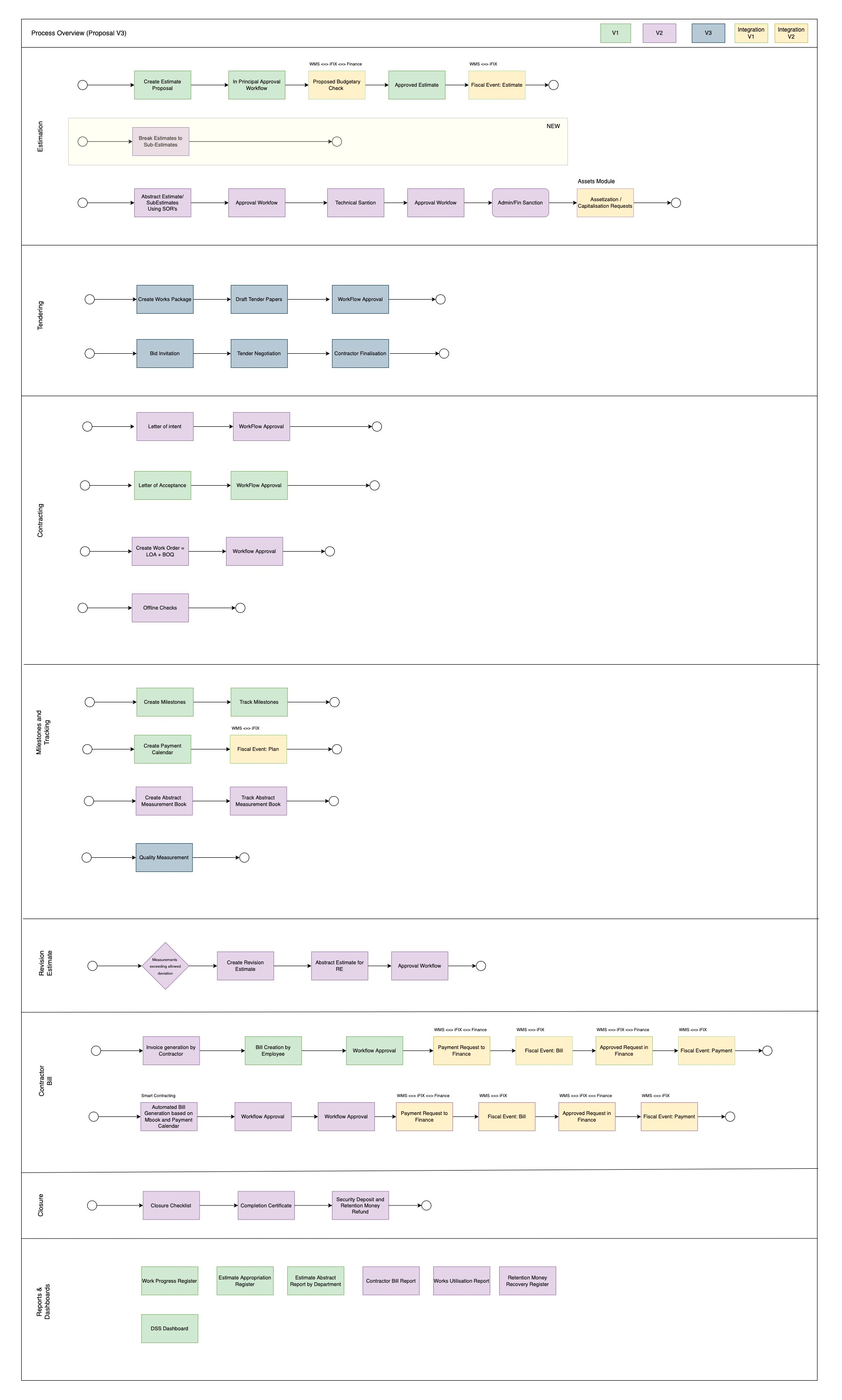

"Category": [
{
"name": "Overhead",
"code": "OVERHEAD",
"active": true
},
{
"name": "SOR",
"code": "SOR",
"active": true
},
{
"name": "non-SOR",
"code": "NON-SOR",
"active": true
}
]{
"code":"KG",
"description":"Kilogram",
"active":true,
"effectiveFrom":1677044852,
"effectiveTo":null
},Below are the actions or APIs exposed by the Project service used by the Works platform. Note that the "id" in the attributes needs to be unique and may be different in the implementation environment. It need not be the same as shown below.
The table below shows the mapping between the APIs and the roles:
PROJECT_CREATOR
Project Creator
/project/v1/_create
/project/v1/_update
/project/v1/_search
The following role-action mappings derived from the above table are configured for the Project Service in the roleactions.json in MDMS. A sample is provided below. Make sure the action ID is correct and corresponds to actions.json.
Add Id Format as configured in the ‘IdFormat.json’ file of the ‘common-masters’ module here. This format is used to generate the unique ID of the project.
Add the persister file project-management-system-persister.yml as defined here.
Add indexer file projectmanagementsystem-indexer.yml as defined here.
1. ProjectType
2. Department
The image name of the service is available in the release charts in the DevOps repository. The service can be deployed using Helm commands.
Environment variables to be configured in the Helm chart for the service are:
Add the ‘db-host’,’db-name’,’db-url’,’domain’ and all the digit core platform services configurations (Idgen, workflow, user etc.) in respective environments yaml file.
Add project-management-system related environment variables values. A sample from a ‘dev’ environment yaml file is provided below:
Add the ‘’ related configuration to the respective environment yaml file. Make sure to change the git-sync branch name to one that applies to the environment.
Verify whether the project management system persister file is added in the egov-persister.persister-yml-path variable. If not, follow the process outlined .
Verify whether the project management system indexer file is added to the egov-indexer.egov-indexer-yaml-repo-path variable. If not, follow the process outlined .
Verify whether the project management system persister file is added to the audit-service.persist-yml-path variable. If not, follow the process outlined .
Make sure to add the DB (Postgres and flyway) username & password in the respective environment secrets yaml file the way it's done.
Make sure to add the DIGIT core service-related secrets that are configured in the respective environment secret file the way it's done.
NOTE: Restart egov-mdms-service, egov-accesscontrol, egov-persister, audit-service, egov-indexer and zuul after the above changes are performed.
Refer to the API spec for a description of the APIs. Find the Postman scripts here to understand the request payloads.
Request for time extension can be directly raised by CBO using the mobile application and by the officer-in-charge of the project on behalf of CBO using a web application. Once a request is raised it goes for verification and approval.
Home > Work Orders > Inbox > Search Work Order > View Work Order > Request Time Extension (From Action Menu)
Work order to be revised to extend the completion period.
The request to revise the work order for the extension of time can be created by the CBO/officer-in-charge.
1
Work order number
Display Only
NA
Work order no.
2
Project ID
Display Only
On Request Time Extension
In case the first muster roll is pending to submit for approval.
Time extension request can not be created. Please ensure that no muster roll is pending for submission.
2. In case the first muster roll itself is not created.
Time extension request can not be created. Please ensure that the first muster roll is submitted for approval.
3. In case a project closure request is already created.
Time extension request can not be created. A closure request has already been created for the selected project.
Not applicable.
On submit, create and forward workflow pop-up window is displayed.
On Create and Forward,
The success page is displayed.
The time Extension request number is generated as per the specified format. TE/2022-23/000021.
The time extension request is forwarded to the verifier in the workflow.
Modification of work order is allowed to extend the time.
A time extension request number is generated to identify the request.
The link between original and revised work orders is maintained.
Work order preparation for a work by the Work Order Creator and then its verification and approval by other users (actors) in the workflow.
1
WORK ORDER CREATOR
Create
Search
View
Edit/ Re-submit
Junior Engineer/ Assistant Engineer
2
WORK ORDER VERIFIER
Search
View
Verify and Forward
Send Back
Executive Officer
3
1
Submit
Work Order Creator
Pending for verification
Submitted
2
Work Order
Edit/ Re-submit
Pending for correction
1
Edit/ Re-submit
Pending for re-assignment
1
UI design is going to be the same as the estimate workflow. Only the workflow states will be displayed as per the table given above.
1
Actions are configured based on role-action mapping.
2
Workflow states are defined as provided and the state transition is done accordingly.
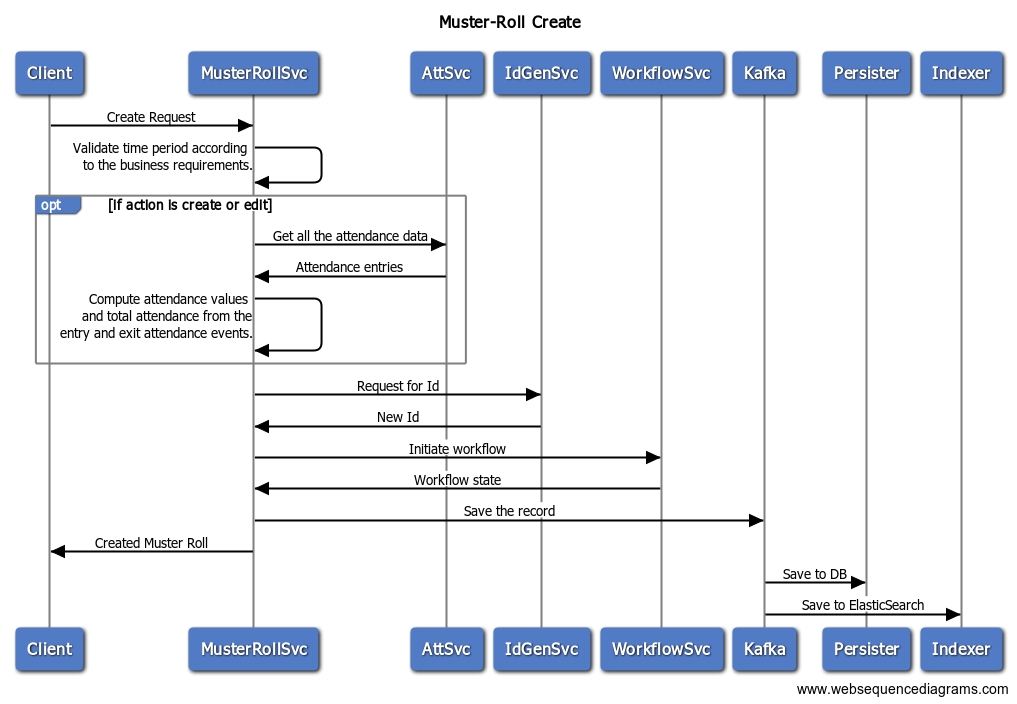
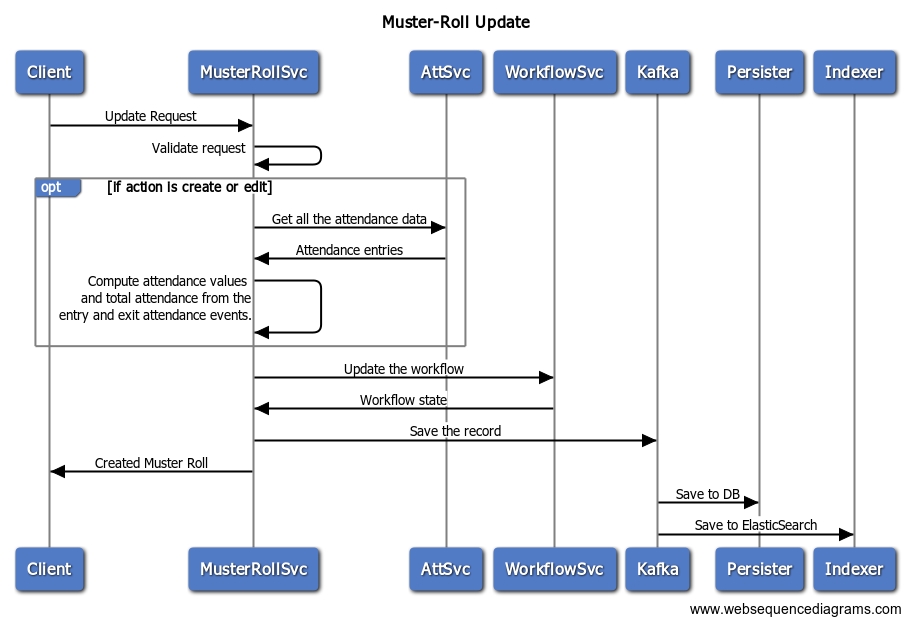
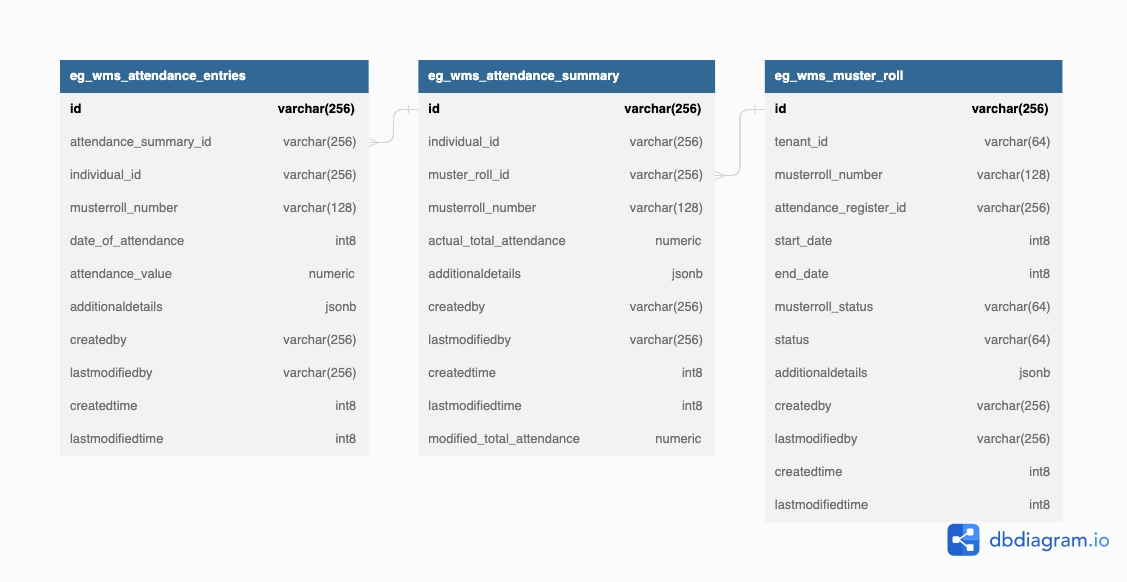

The workflow to process the time extension request
A work order is created for an approved estimate in order to award the work to CBO. CBO starts the work to complete it within a given time period.
In case the organization come to know that they are not in a position to complete the work within the given time frame due to various reasons, they need to inform the same to officer-in-charge of the project and apply for a time extension which is then subject to approval/ cancelling of work order based on the analysis done by the ULB.
Request for time extension can be directly raised by CBO using the mobile application and by the officer-in-charge of the project on behalf of CBO using a web application. Once a request is raised it goes for verification and approval.
The work order inbox is used to complete the revised work order workflow.
Workflow is exactly the same as the workflow of the original work order with the same workflow levels (except/ decline are excluded) and actions.
The revised work order is forwarded to the approver.
A revised work order is sent back to the previous user in the workflow.
The revised work order is sent back to CBO for correction.
The revised work order is edited and re-submitted. It goes to the verifier for verification.
The revised work order is approved.
The time extension comes into effect and the CBO user is allowed to track the attendance of wage seekers for an extended period.
The revised work order is rejected.
UI design is going to be the same as the work order workflow. Only the workflow states will be displayed as per the table given above.
The workflow pop-up windows for each and every action are going to be the same as for the work order workflow.
The same work order inbox is used.
The workflow pop-up windows are used as per the standard.
Actions are configured based on role-action mapping.
Workflow states are defined as provided and the state transition is done accordingly.
Payment Instruction
Status Update for Payment Advice
Employee
Role: System
Payment Advice Status (PAG) is the API to fetch the payment advice status from JIT.
Once a PI is accepted at JIT, it is then approved with a digital sign by SSU in JIT.
For approved PI then payment advice is generated.
For Request/ Response parameters, please refer the .
Error message displayed on View Payment Instruction Page. [Message: On call of PAG API: No response is received.]
PI status at MUKTASoft remain unchanged to Approved.
All beneficiaries payment status remain unchanged to Payment Initiated.
Option to refresh the status is provided. It triggers call of PAG.
Error message is stored at MUKTASoft.
Error message displayed on View Payment Instruction Page. [Message: On call of PAG API: <JIT error message>]
PI status at MUKTASoft remain unchanged to Approved.
All beneficiaries payment status remain unchanged to Payment Initiated.
Success message is received and same is stored at MUKTASoft.
Info message displayed on View Payment Instruction Page. [Message: On call of PAG API: Response is received and updated successfully]
PI status at the MUKTASoft changes to In Process.
All beneficiaries payment status remain unchanged to Payment In Process.
Not applicable.
Not applicable.
Not applicable.
Not applicable.
Not applicable.
Not applicable
View Payment Instruction
Status is fetched and update in MUKTASoft for both PI and Beneficiary.
The response is captured in MUKTASoft for debugging and error reporting.
Technical glitched in the integration are defined as error and captured.
System keep trying until a response is received. The latest response is recorded in the log.
DIGIT - Projects functional details
Projects are the first work entity defined by the State/Department/ULB or any executing authority. This consists of basic details like IDs, descriptions, addresses, sub-project details, project types, start and end dates etc.
Projects may not focus on just construction or civil works. A health campaign, an office decoration, a pre-contractual phase with an IT vendor for new software, new service delivery initiatives etc are examples of projects.
Users: Junior Engineer or Assistant Engineer who creates Works Projects for the ULB/Department
Description
JE creates projects with the below-mentioned attributes.
A project can have sub-projects as well depending on the way of executing the project.
When a project is divided into sub-projects, each will have the same attributes to be captured as the main project.
A project can be sent for approval depending on the need.
The table below provides the list of project attributes.
A project can be divided into multiple sub-projects, each with its own workflows/business requirements defined.
- for MuktaSoft
- for MuktaSoft

The release chart for this version here.
{
"code": "PROJECT_CREATOR",
"name": "PROJECT CREATOR",
"description": "Project Creator"
},
{
"code": "PROJECT_VIEWER",
"name": "PROJECT VIEWER",
"description": "Project Viewer"
},{
"id": 51,
"name": "Create Project",
"url": "/pms/project/v1/_create",
"parentModule": "project-management-system",
"displayName": "Create Project",
"orderNumber": 0,
"enabled": false,
"serviceCode": "project-management-system",
"code": "null",
"path": ""
},
{
"id": 52,
"name": "Search Project",
"url": "/pms/project/v1/_search",
"parentModule": "project-management-system",
"displayName": "Search Project",
"orderNumber": 0,
"enabled": false,
"serviceCode": "project-management-system",
"code": "null",
"path": ""
},
{
"id": 53,
"name": "Update Project",
"url": "/pms/project/v1/_update",
"parentModule": "project-management-system",
"displayName": "Update Project",
"orderNumber": 0,
"enabled": false,
"serviceCode": "project-management-system",
"code": "null",
"path": ""
},{
"id": 51,
"name": "Create Project",
"url": "/project/v1/_create",
"parentModule": "project-management-system",
"displayName": "Create Project",
"orderNumber": 0,
"enabled": false,
"serviceCode": "project-management-system",
"code": "null",
"path": ""
},
{
"id": 52,
"name": "Search Project",
"url": "/project/v1/_search",
"parentModule": "project-management-system",
"displayName": "Search Project",
"orderNumber": 0,
"enabled": false,
"serviceCode": "project-management-system",
"code": "null",
"path": ""
},
{
"id": 53,
"name": "Update Project",
"url": "/project/v1/_update",
"parentModule": "project-management-system",
"displayName": "Update Project",
"orderNumber": 0,
"enabled": false,
"serviceCode": "project-management-system",
"code": "null",
"path": ""
},{
"format": "PJ/[fy:yyyy-yy]/[cy:MM]/[SEQ_PROJECT_NUM]",
"idname": "project.number"
}Submit
Reject
WORK ORDER APPROVER
Search
View
Approve
Send Back
Send Back To Originator
Reject
Municipal Engineer
4
CBO ADMIN
Accept
Decline
Community based organization contact person (President/ Secretary)
Verify and Forward
Work Order Verifier
Pending for verification
Pending for approval
Verified
3
Send Back
Work Order Verifier
Pending for verification
Pending for correction
Sent Back
4
Send Back
Work Order Approver
Pending for approval
Pending for verification
Sent Back
5
Send Back To Originator
<any roles having access>
<Current Status>
Pending for correction
Sent Back
6
Edit/ Re-submit
Work Order Creator
Pending for correction
Pending for verification
Re-submitted
7
Approve
Work Order Approver
Pending for approval
Approved
Approved
8
Reject
<any roles having access>
<Current Status>
Rejected
Rejected
9
Accept
CBO Admin
Approved
Accepted
Accepted
10
Decline
CBO Admin
Approved
Pending for re-assignment
Declined
11
Edit/ Re-submit
Work Order Creator
Pending for re-assignment
Pending for verification
Re-submitted
Verify and Forward
Pending for verification
2
Approve
Pending for approval
1
Accept
Approved
7
PROJECT_VIEWER
Project Viewer
/project/v1/_search
EMPLOYEE_COMMON
Employee Common
/inbox/v2/_search
NA
Project ID of the project.
3
Project sanction date
Display Only
NA
Date of the proposal from the project.
4
Project name
Display Only
NA
Project name
5
Project description
Display Only
NA
Project description
8
Work Order Details
Tab
9
Name of CBO
Display Only
NA
The name of the CBO as per original WO.
10
CBO ID
Display Only
NA
The CBO ID as per original WO.
11
Role of CBO
Display Only
NA
The role of the CBO IA/IP as per original WO.
12
Name of the officer in-charge
Display Only
NA
Name of officer in-charge as per original WO.
13
Designation of officer in-charge
Display Only
NA
Designation of officer in-charge as per original WO.
14
Project completion period
Display Only
NA
Number of days work to be completed as per original WO.
15
Work Start Date
Display Only
NA
Work start date as per original WO.
16
Work End Date
Display Only
NA
Work end date as per original WO.
17
Work order amount
Display Only
NA
Total estimated cost as per original WO.
18
Extension requested
Numeric
Y
Time requested to extend in days.
19
Reason for Extension
Text-area
Y
The reason of time extension to be captured here, it should not be more than 250 characters.
20
Terms and Conditions
Display Only/ Tab
NA
Terms and conditions as per original WO.

The response data is stored and maintained at MUKTASoft for every PAG call.
The API call to be scheduled once in a day at 10:15 PM every day for the Approved payment instructions.
Payment Instruction date of the payment instruction created in MUKTASoft and then pushed to JIT.
5
ssuIaId
Special spending unit ID. A master value maintained in JIT-FS.
Unique Id generated after successfully submission of Advice for payment in JIT.
6
adviceDate
Advice date of payment advice generated in JIT.
7
onlineBillRefNo
Auto generated online bill Reference number in JIT.
8
tokenNumber
Token number generated automatically after auto submitted bill to treasury
9
tokenDate
Token date of the token generated automatically.
Beneficiary List
10
benfName
Beneficiary name
11
benfAccountNo
Beneficiary account number
12
benfBankIfscCode
Beneficiary’s IFSC which was pushed through PI.
13
amount
Amount to be paid to the beneficiary.
14
benfId
Beneficiary unique ID which was generated for PI.
Option to refresh the status is provided. It triggers call of PAG.
Option to refresh the status is provided. It triggers call of PD.
Response With Error
Approved
Approved
Payment Initiated
Refresh
PAG
3
Response Without Error
Approved
In Process
Payment In Process
Refresh
PD
#
Parameter
Description
1
pmtInstId
Payment instruction ID of the payment instruction generated at JIT
2
pmtInstDate
Payment instruction date of the payment instruction generated at JIT
3
billNo
Payment Instruction ID of the payment instruction created in MUKTASoft and then pushed to JIT.
4
#
Parameter
Description
2
billNo
Bill number of the bill created in MUKTASoft and then pushed to JIT-FS as payment instruction.
3
ssuIaId
Special spending unit ID. A master value maintained in JIT-FS.
4
finYear
The financial year for which bill was created.
5
#
Response
PI Status (From)
PI Status (To)
Payment Status
User Action
API Call
1
No Response
Approved
Approved
Payment Initiated
Refresh
PAG
billDate
adviceId
2
Search
View
Approve
Send Back
Executive Officer
Work Order Verifier
Pending for verification
Pending for approval
Verified
3
Send Back
Work Order Verifier
Pending for verification
Pending for correction
Sent Back
4
Send Back
Work Order Approver
Pending for approval
Pending for verification
Sent Back
5
Send Back To CBO
<any roles having access of action>
<Current Status>
Pending for correction
Sent Back
6
Edit/ Re-submit
Work Order Creator
Pending for correction
Pending for verification
Re-submitted
7
Approve
Work Order Approver
Pending for approval
Approved
Approved
8
Reject
<any roles having access>
<Current Status>
Rejected
Rejected
Pending for verification
2
Approve
Pending for approval
1
Officer In-charge
Time extension request {timeextensionrequestid}
for the project
{projectid} is rejected. Login to MUKTASoft for detail. MUKTA - Govt. of Odisha.
Approve
Officer In-charge
Time extension request {timeextensionrequestid} for project {projectid} has been approved. Login to MUKTASoft for detail. MUKTA - Govt. of Odisha.
SMS notifications are sent.
1
WORK ORDER CREATOR/ CBO Admin
Create
Search
View
Edit/ Re-submit
Submit
Junior Engineer/ Assistant Engineer/ CBO User
2
WORK ORDER VERIFIER
Search
View
Verify and Forward
Send Back
Municipal Engineer
3
1
Submit
Work Order Creator/ CBO Admin
Pending for verification
Submitted
2
Work Order
Edit/Re-submit
Pending for correction
1
Edit/ Re-submit
Pending for re-assignment
1
Send Back To CBO
CBO
Time extension request {timeextensionrequestid} is sent back to you for correction. Login to MUKTASoft for details. MUKTA - Govt. of Odisha.
Reject
CBO
Time extension request {timeextensionrequestid} for the project {projectid}
is rejected. Login to MUKTASoft for detail. MUKTA - Govt. of Odisha.
Approve
CBO
Time extension request {timeextensionrequestid}
for project
{projectid}
is approved. Login to MUKTASoft for detail. MUKTA - Govt. of Odisha.
WORK ORDER APPROVER
Verify and Forward
Verify and Forward
Reject
Usually, the administrative sanction is done on projects by EO. Post approval, detailed and abstract estimates are done.
Once the admin sanctions the project, the fund is also blocked for the respective heads of accounts.
Project status -
Created
In progress
Approved
Rejected
Cancelled
Once a project is created on the UI, the system generates a unique ID for each project/sub-project.
ID: PROJ/<ULB/Department Code>/<Year>/<month>/<Date>/<running sequence number>
The project details capture the financial details such as the funding source for the project. These details, however, are not part of the Project Service but are captured as part of the Program Service.
Y
Should be pre-defined master data Ex - Building
Project Sub Type
MDMS Data
N
Should be pre-defined master data. Estimate templates are linked to a project subtype Ex - School Building
Project Group
MDMS Data
Y
Should be pre-defined master data. Contract & Assetisation terms are defined based on this value. Ex - Capital Works
Address
Y
Address of the main project.
Proposed Start date
Date
N
Proposed End date
Date
N
Parent
ID
N
Parent Project ID
Status
MDMS Data
Y
Created, Rejected, Cancelled, In-progress, Completed
Owning Department
MDMS Data
Y
Reference No
Alphanumeric
N
MinChar 2 - Max Char - NA Reference No to Offline File if any
Description
Alphanumeric
N
MinChar 2 - Max Char - NA Description of the Project
Documents
Attachments
N
Upto 5 Documents each of 5 MB Document Attachments
Inbox Table
Employee user manual on using the Project module - for MuktaSoft
Id
NA
Y
System generated UUID
Name
Alphanumeric
Y
MinChar 2 - Max Char - NA Ex - Construction of School Building
Project Type
Create Project with no sub projects
Create Project with Sub projects
Capturing Financial details of project (Part of Program service)
Capturing Sub Project Details
Project Created Successfully
View Project
MDMS Data
Projects Inbox
Not changed
Access Control
egov-accesscontrol:v1.1.3-72f8a8f87b-24
Not changed
Encryption
egov-enc-service:v1.1.3-44558a0-3
Not changed
File store
egov-filestore:v1.2.4-72f8a8f87b-10
Not changed
Hrms
egov-hrms:v1.2.5-1715164454-6
Not changed
ID Gen
egov-idgen:v1.2.3-72f8a8f87b-7
Not changed
Indexer
egov-indexer:v1.1.7-f52184e6ba-25
Not changed
Localization
egov-localization:v1.1.3-72f8a8f87b-6
Not changed
Location
egov-location:v1.1.4-72f8a8f87b-6
Not changed
MDMS
egov-mdms-service:v1.3.2-72f8a8f87b-12
Not changed
MDMS-V2
egovio/mdms-v2:mdms-v2-ref-fix-761cd136b7-31
SMS Notification
egov-notification-sms:v1.1.3-48a03ad7bb-10
Not changed
User OTP
egov-otp:v1.2.3-e30d33c5ee-13
Not changed
pdf-service
pdf-service:v1.2.1-5ad7ffbc29-42
Not changed
Persister
egov-persister:v1.1.5-6cfa52c1f9-3
Not changed
URL Shortening
egov-url-shortening:v1.1.3-6cfa52c1f9-1
Not changed
User
egov-user:v1.2.7-cb9eb30-5
Not changed
Workflow
egov-workflow-v2:v1.2.2-cae8f24502-3
Not changed
inbox
inbox:v1.3.0-32c61b6-11
Not changed
Ingress Controller
nginx-ingress-controller:0.26.1
Not changed
Oauth2
quay.io/pusher/oauth2_proxy:v5.1.0
Not changed
User OTP
user-otp:v1.1.6-e30d33c5ee-8
Not changed
Zuul - API Gateway
zuul:v1.3.1-96b24b0d72-39
Not changed
Works builds
Attendance
attendance:v1.0.0-743b0814-46
Removed tenant id splitting
Bank Account
bankaccounts:v0.1.3-a0bebdb3-30
No change
Contract
contracts:v1.0.0-743b0814-86
Revision contract
Estimate
estimates:v1.0.0-743b0814-86
Revision Estimate and detailed estimate
Muster Roll
muster-roll:v1.0.0-743b0814-41
Removed tenant id splitting and effective from and to validation
Project Management
project:v1.0.1-8d350429f4-79
Not changed
Organization
organisation:v0.2.0-ccbd4695-91
Not changed
Individual Service
individual:v1.1.1-6c6afa0a83-155
Not changed
Expense
expense:v1.0.0-743b0814-108
Removed tenant id splitting and effective from and to validation
Expense-Calculator
expense-calculator:v2.0.0-743b0814-117
Removed tenant id splitting and effective from and to validation
Measurement Registry
measurement-registry:v1.0.0-743b0814-15
Measurement Service
measurement-service:v1.0.0-743b0814-44
Works-Pdf
works-pdf:v1.0.2-227a4c3f-48
Not changed
Works MDMS
MDMS changes is linked
Works Config
Config Changes is linked
Works Devops
Devops Changes is linked
Core Services
Dashboard
dashboard-analytics:works-ce24e33829-11
Signed Audit
audit-service-db:v1.0.0-24873ba-4
Payment Instruction
Status Update API Call
Employee
Role: System
Payment instruction status (PIS) is the API to fetch the PI status from JIT.
Once a PI is accepted at JIT, it is then approved with a digital sign by SSU in JIT.
The approved ones only has the Payment Instruction ID and Date available in response.
For Request/ Response parameters, please refer the integration approach document.
The response data is stored and maintained at MUKTASoft for every PIS call.
The API call to be scheduled once in a day at 10:00PM every day for the Payment Instructions Initiated, and the Payment Instructions Declined having error “Duplicate Payment Information Id”.
#
Parameter
Is Mandatory?
Description
1
jitBillNo
Yes
Payment Instruction ID of the payment instruction created in MUKTASoft and then pushed to JIT.
2
jitBillDate
Yes
Payment Instruction date of the payment instruction created in MUKTASoft and then pushed to JIT.
3
#
Parameter
Description
1
pmtInstId
The unique id of payment instruction that’s been generated at JIT.
2
payInstDate
The date of payment instruction created.
3
jitBillNumber
Payment Instruction ID of the payment instruction created in MUKTASoft and then pushed to JIT.
4
Error message displayed on View Payment Instruction Page. [Message: On call of PIS API: No response is received.]
PI status at MUKTASoft remain unchanged to Initiated.
All beneficiaries payment status remain unchanged to Payment Initiated.
Option is given to user to refresh the status. On refresh API call is triggered.
Error message is stored at MUKTASoft.
Error message displayed on View Payment Instruction Page. [Message: On call of PIS API: <JIT error message>]
PI status at MUKTASoft remain unchanged to Initiated.
All beneficiaries payment status remain unchanged to Payment Initiated.
Option is given to user to refresh the status. On refresh API call is triggered.
If the PI is rejected by SSU user, the same is received in error message.
Error message displayed on View Payment Instruction Page. [Message: On call of PIS API: <JIT error message>]
PI status at MUKTASoft changes to Rejected.
All beneficiaries payment status changes to NA.
A reverse expense transaction is recorded under Fund Allocation Register.
Option to generate new PI is provided from View Payment Instruction Page.
Success message is received and same is stored at MUKTASoft.
Info message displayed on View Payment Instruction Page. [Message: On call of PIS API: Response is received and updated successfully]
PI status at the MUKTASoft changes to Approved.
All beneficiaries payment status remain unchanged to Payment Initiated.
Option to refresh the status is provided. It triggers call of PAG.
#
Response
PI Status (From)
PI Status (To)
Payment Status
User Action
API Call
1
No Response
Initiated
Initiated
Payment Initiated
Refresh
PIS
Not applicable.
Not applicable.
Not applicable.
Not applicable.
Not applicable.
Not applicable
View Payment Advice
There is scheduler running to fetch the PI status and updated at MUKTASoft.
Status is updated based on response received.
Both the statuses are reflected in View Payment Instruction.
Option to Generate Revised PI is given to user through View Payment Instruction Page.
The response is captured in MUKTASoft for debugging and error reporting.
Technical glitched in the integration are defined as error and captured.
System keep trying based on schedule until a response is received. The latest response is recorded in the log.

Payment Instruction
Status Update for Payment Status
Employee
Role: System
Payment Details (PD) is the API to fetch the payment details from JIT.
For Request/ Response parameters, please refer the .
The response data is stored and maintained at MUKTASoft for every PD call.
The API call to be scheduled once in a day at 10 PM for In Process payment instruction.
Error message displayed on View Payment Instruction Page. [Message: On call of PD API: No response is received.]
PI status at MUKTASoft remain unchanged to In Process.
All beneficiaries payment status remain unchanged to Payment In Process.
Option to refresh the status is provided. It triggers call of PD.
Error message is stored at MUKTASoft.
Error message displayed on View Payment Instruction Page. [Message: On call of PD API: <JIT error message>]
PI status at MUKTASoft remain unchanged to In Process.
All beneficiaries payment status remain unchanged to Payment In Process.
Success message is received and same is stored at MUKTASoft.
Info message displayed on View Payment Instruction Page. [Message: On call of PD API: Response is received and updated successfully]
PI status at the MUKTASoft changes to Completed.
The beneficiaries payment status is changed to “Payment Successful”.
Not applicable.
Not applicable.
Not applicable.
Not applicable.
Not applicable.
To all the beneficiaries:
Payment of Rs. {amount} for MUKTA, transaction <UTRNO> is made to your registered bank account. Contact your bank if not credited within 72 hours. MUKTA - Govt. of Odisha.
View Payment Instruction
API is called and status is fetched and updated for both PI and Beneficiary.
SMS notification is sent to all the beneficiaries.
Status is reflected in View Payment Instruction Page.
The response is captured in MUKTASoft for debugging and error reporting.
Payment Instruction
Re-push revised PI for failed transactions
Employee
Role: Accountant
Home Page → Billing → Search Bills → Open Bill → Generate Revised PI
Failed Transaction Correction (COR) is the API to push revised PI to JIT.
A new PI is generated at MUKTASoft to push it as revised PI.
MUKTA accountant login in MUKTASoft open the bill screen and initiate revised PI.
For Request/ Response parameters, please refer the .
PI is created and saved at MUKTASoft.
Error message displayed on View Payment Instruction Page. [Message: On call of COR API: No response is received.]
PI status at MUKTASoft updated to Pending.
Beneficiary payment status changes to “Payment Pending”.
Error message is stored at MUKTASoft.
Error message displayed on View Payment Instruction Page. [Message: On call of COR API: <JIT error message>]
PI status at MUKTASoft is updated to Declined.
Beneficiary’s payment status will change to “Payment Pending”.
Success message is received and same is stored at MUKTASoft.
Info message displayed on View Payment Instruction Page. [Message: On call of COR API: Response is received and updated successfully]
PI status at the MUKTASoft changes to In Process.
Beneficiary’s payment status will change to Payment In Process.
Note: PIS and PAG calls are skipped for revised PI.
Make sure the payment instruction ID is unique and no PI has already been pushed with same PI ID. [Message: Duplicate payment instruction ID.]
Make sure PI doesn’t have duplicate beneficiary. i.e. same a/c and ifsc cannot be repeated. [Message: There are 2 or more than 2 beneficiaries having same account number and IFSC.]
Beneficiaries original account no /IFSC/Bifid is not matching with correction file – Make sure parameter values passed are correct. [Message: The beneficiary <paymentid> was not present in the original payment instruction.]
Not applicable.
Not applicable.
Not applicable.
Not applicable.
Not applicable
The format used for Original Payment instruction is followed.
View Payment Instruction
Revised PI is generated and pushed to JIT.
All the validations are taken care which are applicable to Original PI.
PI ID is generated as per the format defined or original PI.
If the PI is declined, the same one can be modified and re-pushed.
Edit Work Order action is to be mapped with Work Order Creator.
It is configurable and can to mapped with other roles too on demand.
The work order which is in the workflow can only be edited.
Rejected, Approved, and Accepted work orders can not be edited.
Edit work orders allows the user to edit the below-given work order detail.
Once the work order is edited, it is re-submitted for approval using the Submit action button.
Not applicable.
Based on the logged-in user role, a workflow pop-up window is displayed on submit.
On respective workflow action, changes get saved and the work order is forwarded to the next user in the workflow.
On Cancel, the pop-up window gets closed and the action gets cancelled.
Accordingly, the messages are shown.
<To be updated>
Payment Instruction
Status Update for Successful Payment Details of Revised PIs
Employee
Role: System
Success Payment Details (FTPS) is the API to fetch the payment details of revised PI from JIT.
For Request/ Response parameters, please refer the .
The response data is stored and maintained at MUKTASoft for every FTPS call.
The API call to be scheduled once in a day at 10 PM for In Process payment instruction.
Error message displayed on View Payment Instruction Page. [Message: On call of FTPS API: No response is received.]
PI status at MUKTASoft remain unchanged to In Process.
All beneficiaries payment status remain unchanged to Payment In Process.
Option to refresh the status is provided. It triggers call of FTPS.
Error message is stored at MUKTASoft.
Error message displayed on View Payment Instruction Page. [Message: On call of FTPS API: <JIT error message>]
PI status at MUKTASoft remain unchanged to In Process
All beneficiaries payment status remain unchanged to Payment In Process
Success message is received and same is stored at MUKTASoft.
Info message displayed on View Payment Instruction Page. [Message: On call of FTPS API: Response is received and updated successfully]
PI status at the MUKTASoft changes to Completed.
The beneficiaries payment status is changed to Payment Successful.
Not applicable.
Not applicable.
Not applicable.
Not applicable.
Not applicable.
To all the beneficiaries:
Payment of Rs. {amount} for MUKTA, transaction <UTRNO> is made to your registered bank account. Contact your bank if not credited within 72 hours. MUKTA - Govt. of Odisha.
View Payment Instruction
API is called and status is fetched and updated for both PI and Beneficiary.
SMS notification is sent to all the beneficiaries.
Status is reflected in View Payment Instruction Page.
The response is captured in MUKTASoft for debugging and error reporting.
Update failed payment status.
Payment Instruction
Status Update for Payment Failed Status
Employee
Role: System
Failed Details (FD) is the API to fetch the failed payment details from JIT.
For Request/ Response parameters, please refer the .
The response data is stored and maintained at MUKTASoft for every FD call.
The API call will be scheduled once a day at 10 PM for Completed payment instructions.
Error message displayed on View Payment Instruction Page. [Message: On call of FD API: No response is received.]
PI status at MUKTASoft remains unchanged to Completed.
Beneficiaries' payment status remains unchanged to Payment Successful.
No action is enabled.
The error message is stored at MUKTASoft.
Error message displayed on View Payment Instruction Page. [Message: On call of FD API: <JIT error message>]
PI status at MUKTASoft remains unchanged to Completed.
Beneficiaries' payment status remains unchanged to Payment Successful.
Success message is received and same is stored at MUKTASoft.
Info message displayed on View Payment Instruction Page. [Message: On call of FD API: Response is received and updated successfully]
PI status at the MUKTASoft remains unchanged to Completed.
The beneficiaries for which details are received in response, the payment status changes to Payment Failed.
Not applicable.
Not applicable.
Not applicable.
Not applicable.
Not applicable.
To beneficiary for which failure details are received:
Payment of Rs. {amount} for MUKTA, transaction <UTRNO> is failed. Contact MUKTA Cell at ULB for more detail. MUKTA - Govt. of Odisha.
Same as .
API is called and status is fetched and updated for beneficiaries.
SMS notification is sent to the beneficiary for a failed transaction.
Status is reflected in the View Payment Instruction Page.
The response is captured in MUKTASoft for debugging and error reporting.
Payment Instruction
Status Update for Payment Failed Status from revised PI
Employee
Role: System
Failed transaction failed payment (FTFPS) is the API to fetch the failed payment details from JIT.
For Request/ Response parameters, please refer the .
The response data is stored and maintained at MUKTASoft for every FTFPS call.
The API call to be scheduled once in a day at 10 PM for Completed payment instructions.
Error message displayed on View Payment Instruction Page. [Message: On call of FTFPS API: No response is received.]
PI status at MUKTASoft remain unchanged to Completed.
Beneficiaries payment status remain unchanged to Payment Successful.
No action is enabled.
Error message is stored at MUKTASoft.
Error message displayed on View Payment Instruction Page. [Message: On call of FTFPS API: <JIT error message>]
PI status at MUKTASoft remain unchanged to Completed.
Beneficiaries payment status remain unchanged to Payment Successful.
Success message is received and same is stored at MUKTASoft.
Info message displayed on View Payment Instruction Page. [Message: On call of FTFPS API: Response is received and updated successfully]
PI status at the MUKTASoft remain unchanged to Completed.
The beneficiaries for which details is received in response, the payment status changes to Payment Failed.
Not applicable.
Not applicable.
Not applicable.
Not applicable.
Not applicable.
To beneficiary for which failure details is received:
Payment of Rs. {amount} for MUKTA, transaction <UTRNO> is failed. Contact MUKTA Cell at ULB for more detail. MUKTA - Govt. of Odisha.
View Payment Instruction
API is called and payment status is fetched and updated for the beneficiaries.
SMS notification is sent to beneficiary for failed transaction.
Status is reflected in View Payment Instruction Page.
The response is captured in MUKTASoft for debugging and error reporting.
Send Back To CBO
Reject
ssuIaId
Yes
Special spending unit ID. A master value maintained in JIT-FS.
jitBillDate
Payment Instruction date of the payment instruction created in MUKTASoft and then pushed to JIT.
5
ssuIaId
Special spending unit ID. A master value maintained in JIT-FS.
6
billNetAmount
Net bill amount sent in the PI
7
billGrossAmount
Gross bill amount sent in the PI
8
schemeCode
Scheme code under which PI is created
9
totalNumberOfBeneficiary
Total beneficiary count
2
Response with Error Others
Initiated
Initiated
Payment Initiated
Refresh
PIS
3
Response with Error Rejected
Initiated
Rejected
Payment Initiated
Generate New PI
PI
4
Response Without Error
Initiated
Approved
Payment Initiated
Refresh
PAG
Token number received in the APIs response of PAG.
6
tokenDate
Token date received in the APIs response of PAG.
The voucher creation date of the voucher created in JIT-FS for payment.
5
billRefNo
Online bill reference number generated in JIT and received in PAG response.
6
paymentStatus
Payment status Message Received from RBI at the time of Debit Scroll.
7
tokenNumber
Token number generated in JIT and received in PAG response.
8
tokenDate
Token date of the token generated in JIT and received in PAG response.
Debit Scroll Details
9
benfAcctNo
Beneficiary’s account number.
10
benfBankIfscCode
Beneficiary’s bank / branch IFSC.
11
utrNo
Unique transaction number used by banks to reconcile the transaction.
12
utrDate
The date of transaction which is used by bank.
13
endToEndId
End to end id generated to identify a particular beneficiary for a transaction while it is pushed to CPC for payment clearance.
14
benfId
Beneficiary unique ID, unique to transaction.
Option to refresh the status is provided. It triggers call of PD.
No action is enabled.
SMS notification is sent to all the beneficiaries.
Response With Error
In Process
In Process
Payment In Process
Refresh
PD
3
Response Without Error
In Process
Completed
Payment Successful
No Action
Technical glitched in the integration are defined as error and captured.
System keep trying until a response is received. The latest response is recorded in the log.
#
Parameter
Description
1
finYear
Financial year received in the APIs response of PAG.
2
ExtAppName
The name of the application from which the call is being made.
3
billRefNo
Online bill reference number received in the APIs response of PAG.
4
#
Parameter
Description
1
billNumber
Payment Instruction ID of the payment instruction created in MUKTASoft and then pushed to JIT.
2
billDate
Payment Instruction date of the payment instruction created in MUKTASoft and then pushed to JIT.
3
voucherNumber
Voucher number of the voucher created in JIT to maintain the accounting.
4
#
Response
PI Status (From)
PI Status (To)
Payment Status
User Action
API Call
1
No Response
In Process
In Process
Payment In Process
Refresh
PD
tokenNumber
voucherDate
2
The response data is stored and maintained at MUKTASoft for every COR call.
API is called with an action is triggered by user from View Payment Instruction Page.
Original viz. first (parent) bill reference no. of online bill which was received in the PAG response.
6
jitOrgBillNo
Original viz. first (parent) MUKTASoft PI ID.
7
jitOrgBillDate
Original viz. first (parent) MUKTASoft PI date.
Beneficiaries Details
8
benefId
Beneficiary ID, Beneficiary id of the failed transaction.
9
jitCurBillRefNo
Latest failed transaction bill reference number viz. The PI for which failure is reported (Original/ Revised)
10
orgAccountNo
Original Account Number, The one which was pushed in first PI.
11
orgIfsc
Original IFSC, , The one which was pushed in first PI.
12
correctedAccountNo
Corrected account number, recent corrected account number corrected for this revised PI.
13
correctedIfsc
Corrected IFSC, recent corrected IFSC corrected for this revised PI.
14
curAccountNo
Current account number which was pushed in just previous PI for which failure is reported.
15
curIfsc
Current IFSC which was pushed in just previous PI for which failure is reported.
JIT Correction Bill is received successfully ,Forwarded to Treasury officer to generate Return adjust Bill
Option to re-push the PI is provided, and the same time system will try to push all such PI once in a day at 9PM every day.
Option to re-push the PI after clear the error is provided from View Payment Instruction Page.
Response With Error
Pending
Declined
Payment Pending
Resubmit
COR
3
Response Without Error
Pending/ Decline
In Process
Payment In Process
No Action
The response is captured in MUKTASoft for debugging and error reporting.
Technical glitched in the integration are defined as error and captured.
System keep trying until a response is received. The latest response is recorded in the log.
#
Parameter
Description
2
jitCorBillNo
Revised PI ID of the PI generated at MUKTASoft to re-push failed transactions into JIT
3
jitCorBillDate
Revised PI date of the PI generated in MUKTASoft to re-push failed transactions into JIT
4
jitCorBillDeptCode
Application code, e.g. MUKTA.
5
#
Parameter
Description
2
jitCorBillNo
Revised PI ID, created in MUKTASoft and then pushed to JIT
3
jitCorBillDate
Revised PI date, created in MUKTASoft and then pushed to JIT
4
successCode
0 - Success
5
#
Response
PI Status (From)
PI Status (To)
Payment Status
User Action
API Call
1
No Response
Pending
Payment Pending
Resubmit
COR
jitOrgBillRefNo
sucessDescrp
2
Project ID of the project.
3
Date of proposal
Display Only
NA
Date of the proposal from the project.
4
Project name
Display Only
NA
Project name
5
Project description
Display Only
NA
Project description
6
Project Details
Tab
Displayed as per view project details.
7
Estimate Details
Tab
Displayed as per view estimate details.
8
Work Order Details
Tab
9
Name of CBO
Drop-down
Y
The name of the CBO from the organization master maintained at the ULB level. The name is searchable in the drop-down.
10
CBO ID
Display
Y
The CBO ID from the organization registry.
11
Role of CBO
Drop-down
(Auto- selected)
Y
The role of the CBO is decided based on the estimated amount. It is configurable in the system.
IP (Implementation Partner) - If the estimated cost of the works is more than Rs.15 Lakhs
IA (Implementation Agency) - If the estimated cost of the works is up to Rs.15 Lakhs
12
Name of the officer in-charge
Drop-down
Y
The drop-down values are population based on the role assigned. The name is searchable in the drop-down. Name + Designation
13
Designation of officer in-charge
Display
Y
Displayed from the EIS/User’s record saved in the system.
14
Project completion period
Numeric
Y
Number of days work to be completed.
15
Work order amount
Read Only
Y
Total estimated cost of the selected work.
Relevant Documents
Sections
16
BOQ
File Attachment
Y
Allows single file, not greater than 5 MB. Files can be of type doc, xls, pdf, jpg.
17
Labour Analysis
File Attachment
Y
Allows single file, not greater than 5 MB. Files can be of type doc, xls, pdf, jpg.
18
Material Analysis
File Attachment
Y
Allows single file, not greater than 5 MB. Files can be of type doc, xls, pdf, jpg.
19
Terms and conditions
File Attachment
Y
Allows single file, not greater than 5 MB. Files can be of type doc, xls, pdf, jpg.
20
Others
Textbox
N
To capture the file name
21
File Attachment
N
To attach the file file the name entered above in the textbox.
1
Work order number
Display Only
NA
Work order no.
2
Project ID
Display Only
Work Order Creator
Submit pop-up window
Work Order Verifier
Verify and Forward pop-up window
Approver
Approval pop-up window
1
Role-based access based on configuration.
2
The work order which is in the workflow can only be edited.
3
The work order is opened in editable mode.
4
The details given in the table can be edited by the user.
5
On Submit, the work order is again forwarded to the next user for approval.
NA
Original online bill reference no. in JIT while payment failed first time.
5
jitOrgBillNo
Original Payment Instruction ID in MUKTASoft while payment failed first time.
6
jitOrgBillDate
Original Payment Instruction Date in MUKTASoft while payment failed first time.
The voucher number of voucher generated in JIT to maintain the accounting.
5
voucherDate
The voucher creation date for the voucher created in JIT for payment.
6
billRefNo
Online bill reference number for revised PI/ Current PI.
7
paymentStatus
Payment status, message received from RBI at the time of Debit Scroll.
8
tokenNumber
Token number generated in JIT.
9
tokenDate
Token date generated in JIT.
Beneficiary Details
10
benfAcctNo
Beneficiary’s account number.
11
benfBankIfscCode
Beneficiary’s bank / branch IFSC.
12
utrNo
Unique transaction reference number used by banks to reconcile the transaction.
13
utrDate
UTR date.
14
endToEndId
It is generated to identify a beneficiary for a transaction while it is pushed to CPC for payment clearance.
15
benfId
Beneficiary unique ID, unique to transaction.
Option to refresh the status is provided. It triggers call of FTPS.
No action is enabled.
Response With Error
In Process
In Process
Payment In Process
Refresh
FTPS
3
Response Without Error
In Process
Completed
Payment Successful
No Action
Technical glitched in the integration are defined as error and captured.
System keep trying until a response is received. The latest response is recorded in the log.
#
Parameter
Description
1
jitCorBillNo
PI ID of revised PI generated in MUKTASoft to re-push failed transactions into JIT
2
jitCorBillDate
PI date of revised PI generated in MUKTASoft to re-push failed transactions into JIT
3
jitCorBillDeptCode
Application code.
4
#
Parameter
Description
1
jitCorBillNo
Revised PI ID generated in MUKTASoft and push failed transactions into JIT
2
jitCorBillDate
Revised PI date generated in MUKTASoft and push failed transactions into JIT
3
jitOrgBillRefNo
Original, the first online bill reference number generated in JIT.
4
#
Response
PI Status (From)
PI Status (To)
Payment Status
User Action
API Call
1
No Response
In Process
In Process
Payment In Process
Refresh
FTPS
jitOrgBillRefNo
voucherNumber
2
onlineBillRefNo
Online bill reference no. generated at JIT and received with PAG response.
6
tokenNo
Token number, generated at JIT-FS
7
tokenDate
Token number, generated at JIT-FS
voucherDate
Voucher date.
6
billRefNo
Online bill reference number generated at JIT and received with PAG response.
7
tokenNumber
Token number generated at JIT-FS
8
tokenDate
Token generation date
benfDtls
10
benfAcctNo
Beneficiary’s account number.
11
benfBankIfscCode
Beneficiary’s bank / branch IFSC.
12
utrNo
Unique transaction number used by banks to reconcile the transaction.
13
utrDate
UTR date.
14
endToEndId
End to end id generated to identify a particular beneficiary for a transaction while it is pushed to CPC for payment clearance.
15
orgBillRefNumber
Original online bill reference number, In first failure case billRefNo and orgBillRefNumber are same.
16
challanNumber
Challan number of the challan created to put the amount into suspense account
17
challanDate
Challan generation date
18
failedReason
Reason for failure
19
benfId
Beneficiary unique ID, unique to transaction.
No action is enabled.
SMS notification is sent to all the beneficiaries.
The option to generate a revised PI is enabled. It triggered the COR API call.
2
Response With Error
Completed
Completed
Payment Successful
No Action
3
Response Without Error
Completed
Completed
Payment Failed
Generate Revised PI
COR
Technical glitches in the integration are defined as errors and captured.
The system keeps trying until a response is received. The latest response is recorded in the log.
2
billno
Payment Instruction ID of the payment instruction created in MUKTASoft and then pushed to JIT.
3
billDate
Payment Instruction date of the payment instruction created in MUKTASoft and then pushed to JIT.
4
adviceId
Payment advice ID, generated at JIT-FS
2
billNumber
Bill number of the bill created in MUKTASoft and then pushed to JIT-FS as payment instruction.
3
billDate
Bill date of the bill created in MUKTASoft and then pushed to JIT-FS as payment instruction.
4
voucherNo
Voucher generated at JIT-FS for maintaining the accounting.
1
No Response
Completed
Completed
Payment Successful
No Action
5
5
Token number generated in JIT.
5
tokenDate
Token date generated in JIT.
Token number generated in JIT.
5
tokenDate
Token date generated in JIT.
Beneficiary Details
7
benfAcctNo
Beneficiary’s account number.
8
benfBankIfscCode
Beneficiary’s bank / branch IFSC.
9
utrNo
Unique transaction reference number used by banks to reconcile the transaction.
10
utrDate
UTR date.
11
endToEndId
It is generated to identify a beneficiary for a transaction while it is pushed to CPC for payment clearance.
12
orgBillRefNumber
Original online bill reference no.
13
challanNumber
Challan number
14
challanDate
Challan date
15
failedReason
Account related errors, Like account that doesn't exist.
16
benfId
Beneficiary unique ID, unique to transaction.
No action is enabled.
Option to generate revised PI is enabled. It triggered the COR API call.
Response With Error
Completed
Completed
Payment Successful
No Action
3
Response Without Error
Completed
Completed
Payment Failed
Generate Revised PI
COR
Technical glitched in the integration are defined as error and captured.
System keep trying until a response is received. The latest response is recorded in the log.
#
Parameter
Description
1
jitCorBillNo
Revised PI ID generated in MUKTASoft and pushed for failed transactions into JIT
2
jitCorBillDate
Revised PI date generated in MUKTASoft and pushed for failed transactions into JIT
3
billRefNo
Online bill reference number for revised/current PI
4
#
Parameter
Description
1
jitCorBillNo
Revised PI ID generated in MUKTASoft and pushed for failed transactions into JIT
2
jitCorBillDate
Revised PI date generated in MUKTASoft and pushed for failed transactions into JIT
3
billRefNo
Online bill reference number for the current revised PI.
4
#
Response
PI Status (From)
PI Status (To)
Payment Status
User Action
API Call
1
No Response
Completed
Completed
Payment Successful
No Action
tokenNumber
tokenNumber
2
A contract document is a legal & financial obligation between any two parties entering into the contract. After the estimates are created and approved, they are grouped or individually tendered/directly assigned to vendors to execute the work.
A works package is typically not seen in all Works Management Products. it is used only where high-complexity projects are executed where packaging is needed to form smaller or larger chunks to increase operational efficiency.
The current contract service includes Line items of estimates, Works packaging, Negotiation, Contract Terms, and Milestones.
The Junior Engineer/Assistant Engineer creates the contracts and the Municipal Engineer/Executing Officer approves the contract depending on its value. (Workflow configurations based on amount subject to platform capability in v1).
Story Detail
Once an estimate is prepared and approved, the next step is to award the work to a contractor, to decide the various methods used like Tendering, Quotation and Nomination. Once a contractor is decided a work order is created in the favor of the contractor.
In MUKTA, it is a nomination method to decide a CBO (community-based organization) and then the work order is created in the name of that organization.
A huge project(estimate) can be broken down into multiple work packages by the line items approved within the estimate. The value of the work packages in this case will be proportional to the costs of the line items. (This breakdown is already achieved by dividing projects into sub-projects and hence might not be needed during estimations)
Work Details
The Work Details section shows the list of estimates and estimates for the line items from the selection made before coming to the contract screen.
Estimate line items that are already selected and part of other created contracts should show up as non-selectable line items in this table UI.
Users can select line items from different estimates and the final amount of selected line items will show up in the Contract Amount under header details
Negotiation Details
Negotiation is of two types
Percentage-tender (Lumpsum)
Item rate negotiation
Milestones Creation
Milestones are tagged to a certain percentage of completion of the project.
There will be milestone templates(v2) based on project type and subtype. Users will only have to fill in start and end dates then.
A contract can have any number of milestones.
Terms and Conditions
Terms and conditions are an array of upto 100 strings in V1.
Estimates go through revision and also need a revised contract to be issued
A revised contract can be a change in line items (scope) or a change in the amount.
A revised contract can also be an extension in end date of the contact.
Contract Inbox
Clicking on the Contracts link on the home screen navigates users to a default contract inbox screen.
Default inbox items will be empty for a contract creator.
Users can filter and search using the following options
Contract ID
Estimate ID - Show a list of all contracts by each row when a particular estimate falls in all those contracts.
Contractor ID
Contract Type
Contract Created from date
Contract Created To date
Status
Columns in the Table
Contract ID
Estimate ID(s) - If a contract is formed with multiple estimates show an array of estimates.
Contractor
Search Estimates to Create Contract
Click on Create Contract in the contract inbox to search for approved Estimates.
Users can multi-select approved estimates to create contracts.
Search parameters
Estimate ID
Project ID
Department
Status
Estimate created from date
Estimate Created to Date
Table Columns
Estimate ID
Project ID
Department
Select the estimates using checkboxes - a counter shows at bottom of the page.
it should be allowed to search/re-search using the filters while the selection is frozen.
Refreshing the page might lose the selections from UI.
Clicking on create contract will add selected estimates to the respective contract UI to be further actionable(on the next page)
Create Contract - Header & Contractor Details
Users can click on Contract ID in their inboxes to come to view the contract screen.
The View Contract attributes is the same as Create Contract attributes from a UI perspective. All the fields are standard view-only components.
The View Contract screen will additionally have the Contract ID displayed in the header details
Depending on the user and path selected View Contract will have the call to action options.
For users in the workflow
Approve
Reject
Search Contract
Search contract flow helps in searching any contract in the system (Currently in progress or old contracts or rejected contracts)
Users have the option on the contract Inbox to search for contracts. Clicking on that link will get users to the contract search page
Default is an empty page with a set of search options
Modify Contract
Before the contract is finally approved, all fields should be editable. System-generated Contract ID is non-editable.
By the time contract becomes editable, some of the estimates/estimate line items could possibly be added to other contracts.
The system should ensure the same line items are not part of 2 different created contracts
Base Contracts once issued and accepted cannot be modified
Contract creation UI displays the headers and multiple tabs.
Attribute details are added separately in the story
Contract Amount is a display-only field.
Revised Contracts (v2)
Create Work Order
Search Estimate → View Estimate → Create Work Order.
Employee
Role: Work Order Creator
CBO to whom the work is awarded is decided offline and then the work order is created in the name of CBO.
Create Work Order form is developed as per the UI design provided and the attributes listed below.
To create the work order estimate is searched and opened to view the details. From the action menu Create Work Order is selected.
#
Field
Data Type
Required
Description
1
Project ID
Display Only
NA
Project ID of the project.
2
Date of proposal
Display Only
NA
Field-level validations as mentioned in the attribute tables.
Organization-type community-based organizations from the organization master maintained at the ULB level are only allowed.
Only Active and Valid To >= Work Order Created Date, organization are listed under drop-down or allowed to search. The organization with the status “Inactive” and “Debarred” are not listed irrespective of valid to date.
The minimum value for the work completion period should not be less than 1 day.
The Role of CBO drop-down is selected automatically by the system based on the configuration provided.
IF the total estimated amount <=15 lakhs THEN the Role of CBO = IA AND the role can be changed by the user.
IF the total estimated amount is >15 lakhs THEN the Role of CBO = IP AND the role can not be changed by the user.
The amount limit deciding the role of CBO should be configurable. At present it is 15 lakh.
The stories for configuring the workflow are given separately.
On Submit
Submit workflow opens a pop-up window with the Forward option.
The work order record is saved into the system and the workflow state changes to Pending for verification.
The Work Order No. is generated in a specified format, if it is a direct submission.
Format for Work Order No. is WO/FY/<6digitrunningno.>. Example: WO/2022-23/000051
6 DIGIT running sequence number is reset to 1 with the start of the new FY.
The work order is available to download in PDF as per the given format. There will be a separate ticket for PDF download.
On cancel, the action is cancelled.
On successful forward the Success Page is displayed else the Failure Page is displayed.
Not applicable.
1
The role of CBO is decided based on the logic provided.
2
On Forward, the work order is forwarded to the next user.
3
The work order number is generated as per the specified format.
4
On successful forward Success Page is displayed else Failure Page is displayed.
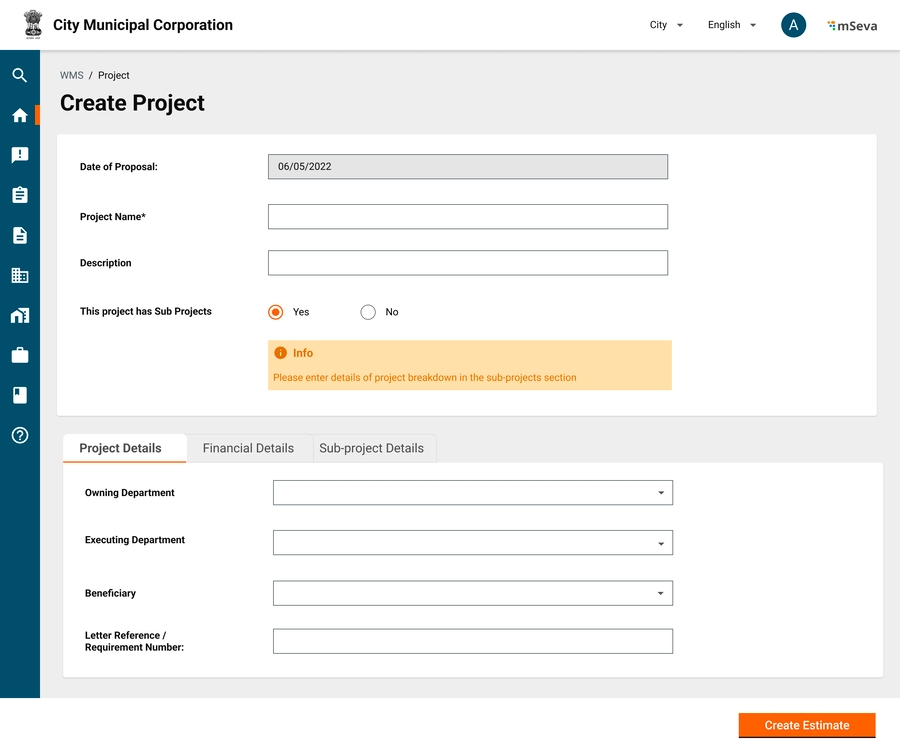
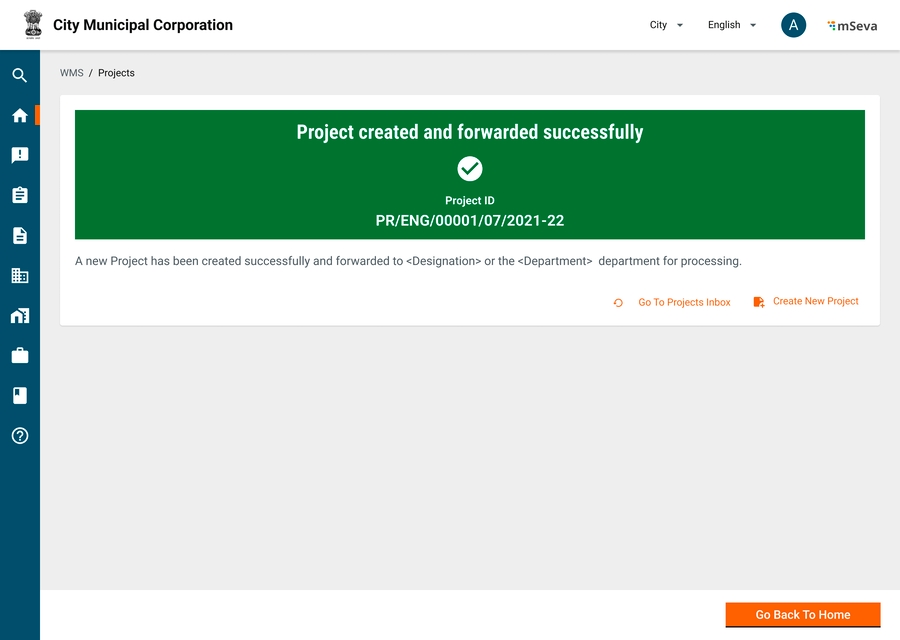
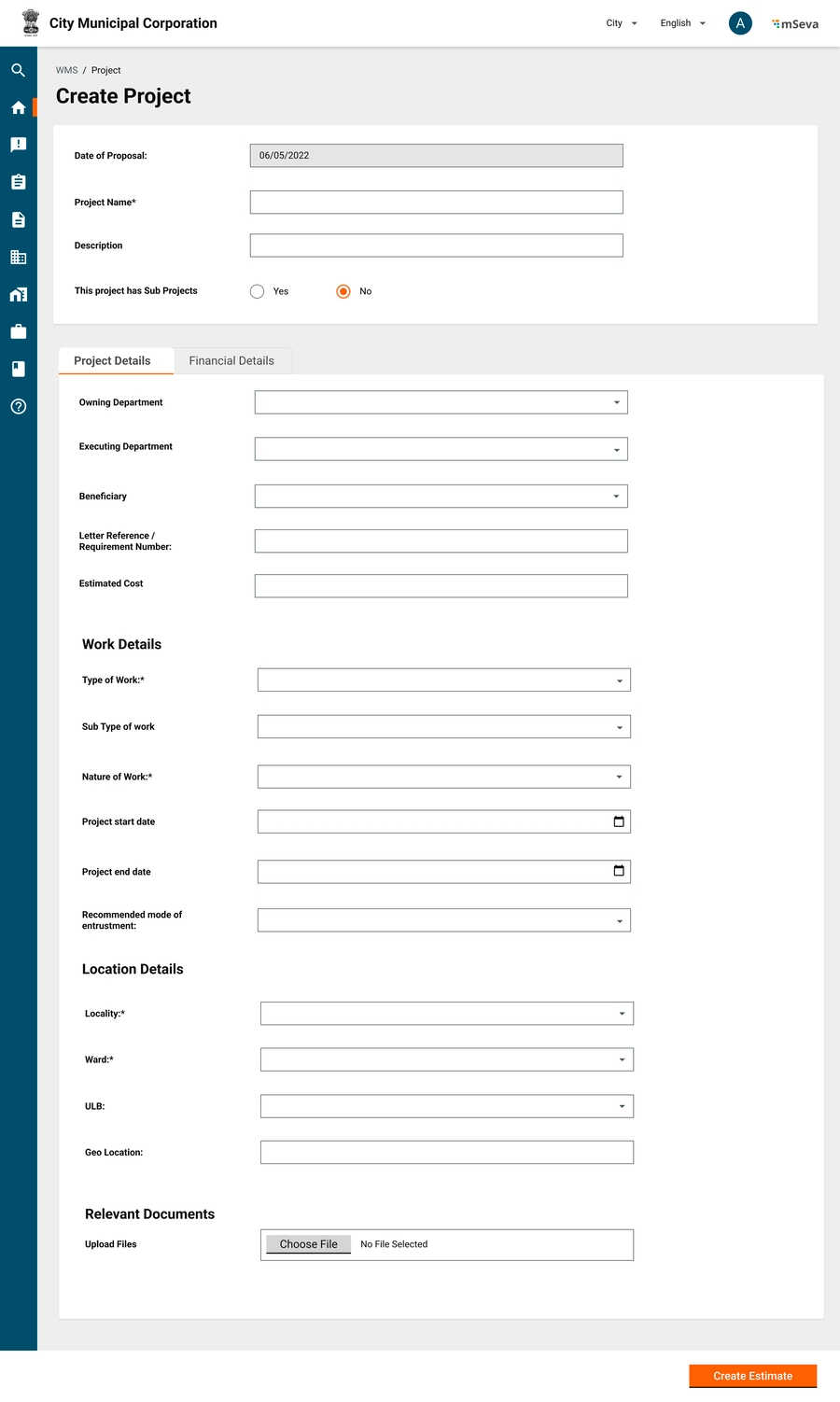
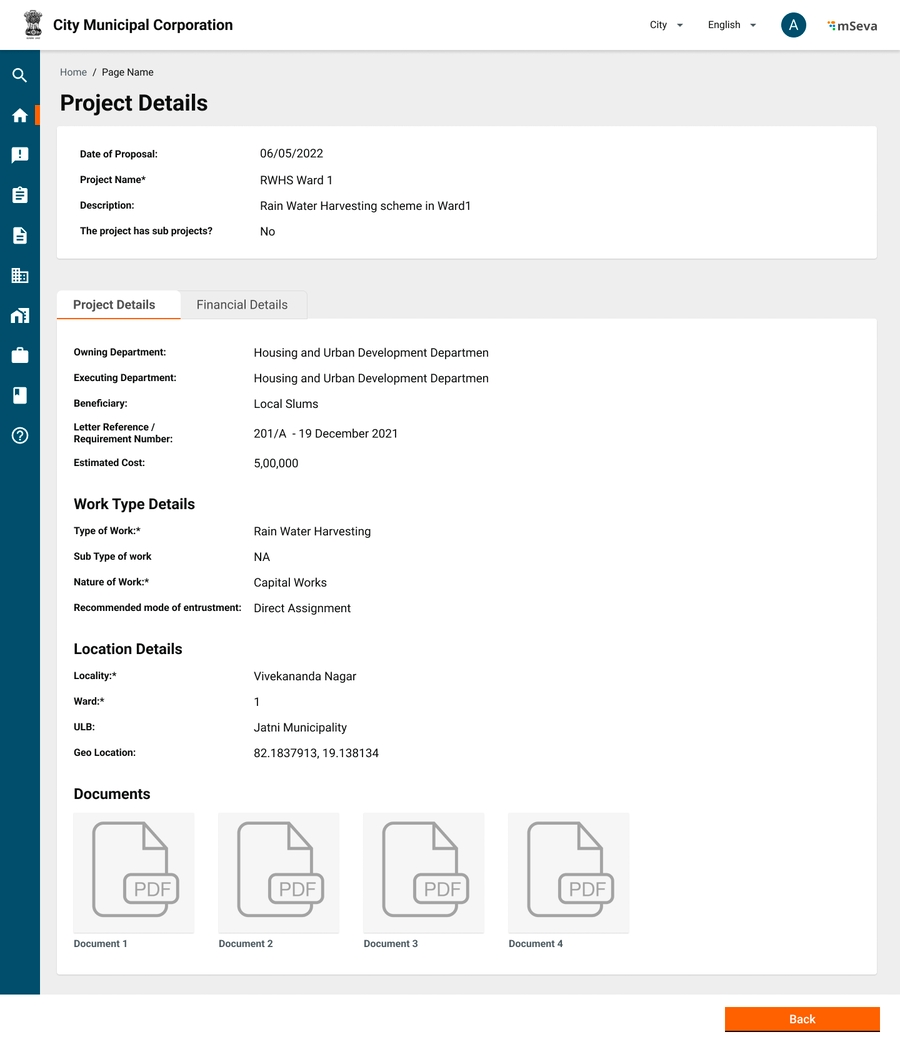
Provides an overview of the configuration of the estimate service
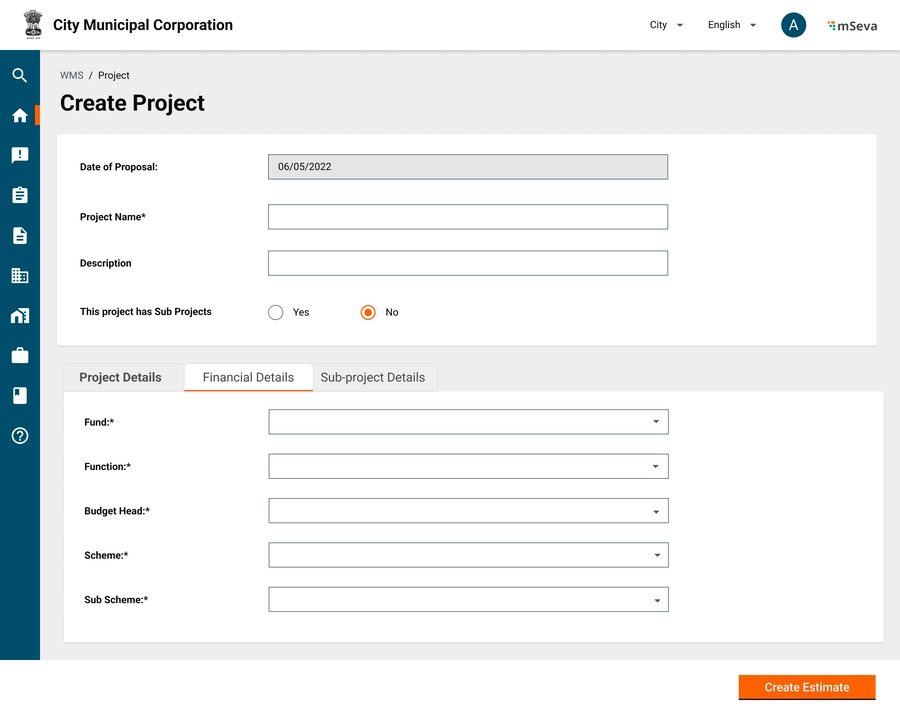
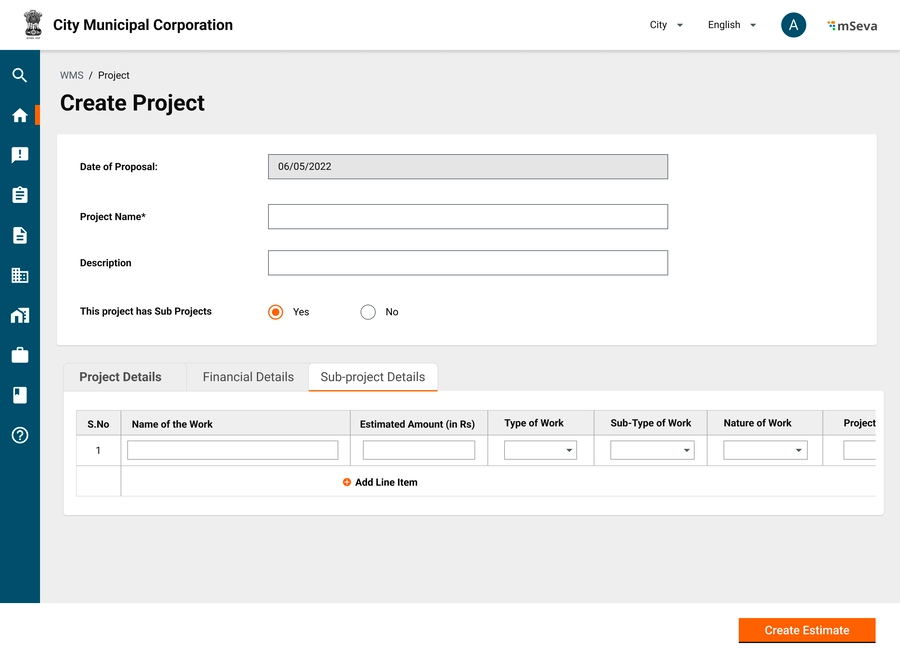
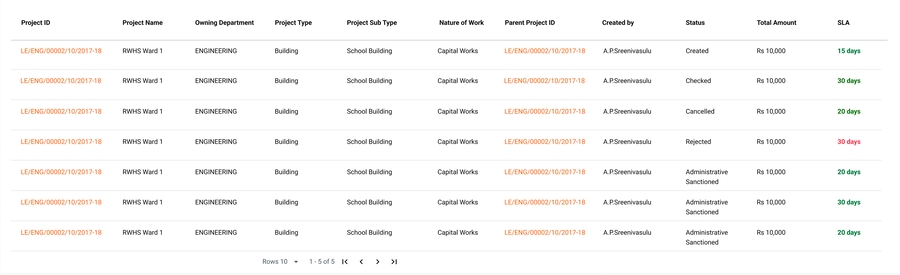
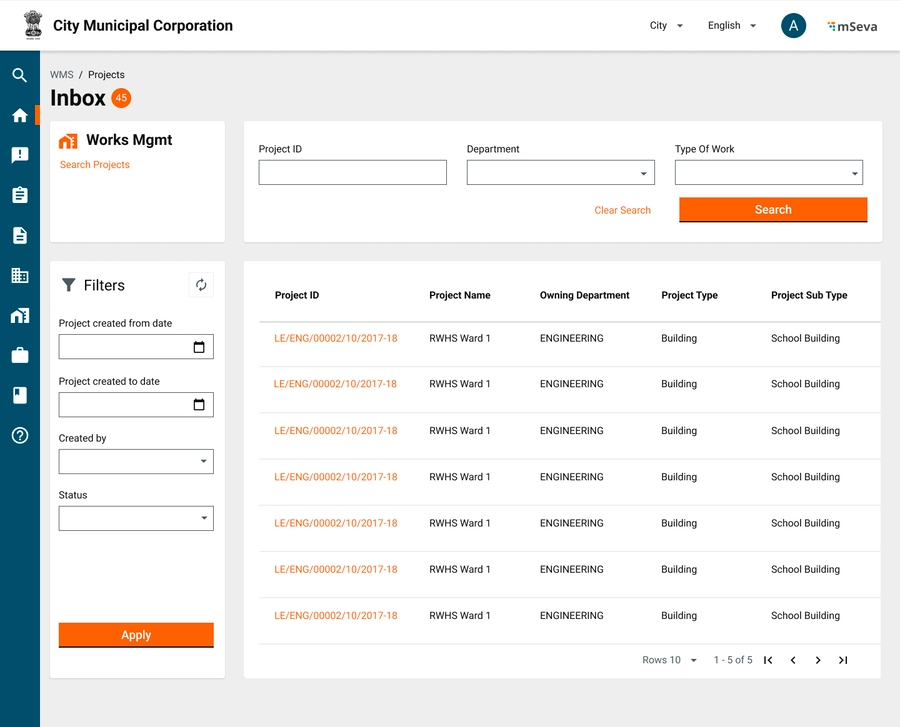
Contract Type
Status
Contract Amount
SLA
Status (of the estimate)
Estimated Amount
For final users
Approve
Reject
Initially, the contract amount is the sum of selected estimates
But, if in the work details, certain line items are removed from the estimates, then only the remaining amount needs to be displayed in the Contract Amount
In the negotiation tab, only line items that are fixed from the work details tab are shown. These will have negotiated percentage/amount values for each line item.
Only the finalised sum of negotiated values is to be shown as the Contract Amount
Contractor ID is a display-only field. It is shown on searching and selecting a contractor from the contractor select drop-down.
Clicking on next will take the user to the Negotiation tab.
On the UI, we will capture by percentage and calculate the final amount of the contract.
The same will be displayed on Contract Amount in the Header details
For the Item rate negotiation type, line items selected in the Work Details tab only will be shown in a table.
This table will have a column for the users to input either amount or percentage of the line item that is negotiated.
Finalised amount, the sum of all negotiated values is the contract amount.
Contract ID
Estimate ID - Searching for project ID should list all contracts that are part of that project
Contract Type
Contractor ID
Contract Created from Date
Contract Created to Date
Contract search results table -
Contract ID
Estimate ID
Contractor
Contract Type
Status
Contract Amount
Clicking on any Contract ID will take the user to the View Contract screen
The following services need to be running for the Estimate service to function:
DIGIT backbone services (PostgreSQL, Elastic Search, Zuul)
Project
MDMS
Persister
Indexer
Workflow
User
MDMS V2
Contract Service
Measurement Service
Refer to the functional specifications for details on the capabilities supported by this service.
Configure roles, actions and role-action mappings as per the table below by referring to this document:
ESTIMATE_CREATOR
/estimate-service/estimate/v1/_create
/estimate-service/estimate/v1/_search
/wms/estimate/_search
ESTIMATE_VERIFIER
/estimate-service/estimate/v1/_update
/estimate-service/estimate/v1/_search
Refer to the sample here.
The persister file for the service is called estimate-service.yml.
Follow the steps here for configuring this.
Ensure the below files are present in https://github.com/egovernments/configs/blob/UNIFIED-DEV/works/egov-indexer/estimateservices-indexer.yml
In case the above files are not present, add them in the given location and restart the egov-indexer service in the respective environment. Before restarting the service ensure the below configurations are done.
In the common-masters folder of MDMS, locate the IDFormat.json file. ID formats should be configured for the Estimate number as well as Estimate Detail objects. Make sure the following lines are added and the format modified per implementation:
The following masters need to be configured for the Estimate Service. Make sure to use the same master name and module names:
The workflow configuration for Estimate is given below. This payload needs to be called against businessService _create API for workflow configuration:
Inbox should be configured if Workflow is configured for the Estimate Service. If there is no workflow involved, this can be skipped.
Add the inbox-v2 configuration in a respective environment in MDMS as it has been done here. Below is the inbox configuration for the Estimate service:
The below variables should be configured well before the deployment of the estimate service build image. These are configured in the DevOps repository:
Add these ‘db-host’,’db-name’,’db-url’, ’domain’ and all the DIGIT core platform services configurations (Idgen, workflow, user etc.) in respective environments YAML file.
Add estimate-service related environment variables’ value like the way it's done in ‘dev’ environment YAML file.
Add the ‘egov-mdms-service’ related configuration to the respective environment YAML file. Make sure to change the gitsync.branch name.
Check the estimate-service persister file is added in the egov-persister.perister-yml-path variable. If not, follow the steps outlined .
Make sure to add the DB (Postgres and flyway) username & password in the respective environment secret YAML file. Follow the steps given .
Ensure that the DIGIT core services-related secrets are added to the respective environment secret file. Follow the steps given .
Postman scripts for Estimate are available here.
DIGIT backbone services
Persister
Indexer
MDMS
Measurement Book Registry
Estimate
Contract
Project
HRMS
Localization
Workflow
This service provides APIs to create, update and search for measurement service. Refer to the functional specifications here.
The below variables should be configured for the measurement registry in the Helm environment file prior to deployment. The Helm environment file will be located under:
https://github.com/{{ORG}}/DIGIT-DevOps/deploy-as-code/helm/environments/{{EnvironmentFile}}.yaml
Refer to the sample here.
Add db-host,db-name,db-url,domain and all the digit core platform services configurations (Idgen, workflow,user etc.) in the YAML file.
Add the ‘egov-mdms-service’ related configuration to the respective environment YAML file. Make sure you change the gitsync.branch name.
Check the measurement-registry persister file is added to the egov-persister.perister-yml-path variable. If not, please add the way it's done here.
Make sure to add the DB(Postgres and flyway) username & password in the respective environment secret yaml file. Follow the steps .
Make sure to add the DIGIT core services-related secrets configured in the respective environment secret file. Follow the steps .
Configure actions, roles and role-action mappings from the table below. Follow the steps here.
MB_CREATOR
/measurement-service/v1/_create
/measurement-service/v1/_update
/measurement-service/v1/_search
/wms/measurement-service/_search
MB_VERIFIER
/measurement-service/v1/_update
These must be translated into JSON in the role-action mapping module in MDMS.
Example - available here.
The following workflow JSON needs to be put in the request body of the /egov-workflow-v2/egov-wf/businessservice/_create API.
Make sure that the file measurement-service-persister.yml is present in the configs repository in the below location.
Please make sure that the file measurement-service-indexer.yml is present in the configs repository in the below location.
In the MDMS repository, locate the inbox configuration file. Make sure the following JSON is added to the inbox configuration:
Date of the proposal from the project.
3
Project name
Display Only
NA
Project name
4
Project description
Display Only
NA
Project description
5
Work Order Details
Tab
6
Name of CBO
Drop-down
Y
Organization type community based organization from the organization master maintained at the ULB level are only allowed.
Only Active organizations and the organization valid to date is above work order created date are listed under drop-down or allowed to search.
The name is searchable in the drop-down and search is start with min 3 characters has to be entered.
Search is performed for the CBOs registered within the ULB.
7
CBO ID
Display
Y
The CBO ID from the organization registry.
8
Role of CBO
Drop-down
(Auto- selected)
Y
The role of the CBO is decided based on the estimated amount. It is configurable in the system.
IP (Implementation Partner) - If the estimated cost of the works is more than Rs.15 Lakhs
IA (Implementation Agency) - If the estimated cost of the works is up to Rs.15 Lakhs
9
Name of the officer in-charge
Drop-down
Y
The drop-down values are population based on the role assigned.
The name is searchable in the drop-down with min 3 characters entered. Name + Designation;
Search is performed within the employees having the role OFFICER_IN_CHARGE.
10
Designation of officer in-charge
Display
Y
Displayed from the EIS/User’s record saved in the system.
11
Project completion period (in days)
Numeric
Y
Number of days work to be completed.
Min Value: 1 day.
12
Work order amount
Read Only
Y
Total estimated Amount - Overhead Amount (Sum of all which are not a work value)
13
Labour and Material Analysis
14
Labour Analysis
View Document
Y
The labour analysis file attached to estimate to be displayed here.
15
Material Analysis
View Document
Y
The material analysis file attached to estimate to be displayed here.
16
Relevant Documents
Sections
17
BOQs
File Attachment
Y
Allows single file, not greater than 5 MB. Files can be of type doc,docx, xls,xlsx pdf, jpg.
18
Terms and conditions
File Attachment
N
Allows single file, not greater than 5 MB. Files can be of type doc,docx, xls,xlsx pdf, jpg.
19
Others
Textbox
N
To capture the file name
20
File Attachment
N
To attach the file file the name entered above in the textbox.Allows single file, not greater than 5 MB. Files can be of type doc,docx, xls,xlsx pdf, jpg.
21
Terms and Conditions
Tab
22
Description
Alphanumeric
N
Grid of textbox to enter the terms and conditions as bulleted list.
{
"tenantId": "pg",
"moduleName": "common-masters",
"IdFormat": [
{
"format": "ES/[fy:yyyy-yy]/[SEQ_ESTIMATE_NUM]",
"idname": "estimate.number"
},
{
"format": "RE/[fy:yyyy-yy]/[SEQ_ESTIMATE_REVISION_NUM]",
"idname": "estimate.revision.number"
}]
}"BusinessServices": [
{
"tenantId": "statea",
"businessService": "ESTIMATE",
"business": "estimate-service",
"businessServiceSla": 432000000,
"states": [
{
"sla": null,
"state": null,
"applicationStatus": "SUBMITTED",
"docUploadRequired": false,
"isStartState": true,
"isTerminateState": false,
"isStateUpdatable": true,
"actions": [
{
"action": "SUBMIT",
"nextState": "PENDINGFORVERIFICATION",
"roles": [
"ESTIMATE_CREATOR"
]
}
]
},
{
"sla": 172800000,
"state": "PENDINGFORVERIFICATION",
"applicationStatus": "VERIFIED",
"docUploadRequired": false,
"isStartState": true,
"isTerminateState": false,
"isStateUpdatable": true,
"actions": [
{
"action": "VERIFYANDFORWARD",
"nextState": "PENDINGFORTECHNICALSANCTION",
"roles": [
"ESTIMATE_VERIFIER"
]
},
{
"action": "SENDBACK",
"nextState": "PENDINGFORCORRECTION",
"roles": [
"ESTIMATE_VERIFIER"
]
},
{
"action": "REJECT",
"nextState": "REJECTED",
"roles": [
"ESTIMATE_VERIFIER"
]
}
]
},
{
"sla": 86400000,
"state": "PENDINGFORTECHNICALSANCTION",
"applicationStatus": "TECHNICALLY SANCTIONED",
"docUploadRequired": false,
"isStartState": false,
"isTerminateState": false,
"isStateUpdatable": true,
"actions": [
{
"action": "TECHNICALSANCTION",
"nextState": "PENDINGFORAPPROVAL",
"roles": [
"TECHNICAL_SANCTIONER"
]
},
{
"action": "SENDBACK",
"nextState": "PENDINGFORVERIFICATION",
"roles": [
"TECHNICAL_SANCTIONER"
]
},
{
"action": "SENDBACKTOORIGINATOR",
"nextState": "PENDINGFORCORRECTION",
"roles": [
"TECHNICAL_SANCTIONER"
]
},
{
"action": "REJECT",
"nextState": "REJECTED",
"roles": [
"TECHNICAL_SANCTIONER"
]
}
]
},
{
"sla": 86400000,
"state": "PENDINGFORAPPROVAL",
"applicationStatus": "SENT BACK",
"docUploadRequired": false,
"isStartState": false,
"isTerminateState": false,
"isStateUpdatable": true,
"actions": [
{
"action": "SENDBACK",
"nextState": "PENDINGFORTECHNICALSANCTION",
"roles": [
"ESTIMATE_APPROVER"
]
},
{
"action": "SENDBACKTOORIGINATOR",
"nextState": "PENDINGFORCORRECTION",
"roles": [
"ESTIMATE_APPROVER"
]
},
{
"action": "APPROVE",
"nextState": "APPROVED",
"roles": [
"ESTIMATE_APPROVER"
]
},
{
"action": "REJECT",
"nextState": "REJECTED",
"roles": [
"ESTIMATE_APPROVER"
]
}
]
},
{
"sla": 86400000,
"state": "PENDINGFORCORRECTION",
"applicationStatus": "RE-SUBMITTED",
"docUploadRequired": false,
"isStartState": false,
"isTerminateState": false,
"isStateUpdatable": true,
"actions": [
{
"action": "RE-SUBMITTED",
"nextState": "PENDINGFORVERIFICATION",
"roles": [
"ESTIMATE_CREATOR"
]
},
{
"action": "SENDBACKTOORIGINATOR",
"nextState": "PENDINGFORCORRECTION",
"roles": [
"ESTIMATE_CREATOR"
]
},
{
"action": "REJECT",
"nextState": "REJECTED",
"roles": [
"ESTIMATE_CREATOR"
]
}
]
},
{
"sla": null,
"state": "APPROVED",
"applicationStatus": "APPROVED",
"docUploadRequired": false,
"isStartState": false,
"isTerminateState": true,
"isStateUpdatable": false,
"actions": null
},
{
"sla": null,
"state": "REJECTED",
"applicationStatus": "REJECTED",
"docUploadRequired": false,
"isStartState": false,
"isTerminateState": true,
"isStateUpdatable": false,
"actions": null
}
]
}
]{
"module": "estimate-service",
"index": "estimate-inbox-v2",
"allowedSearchCriteria": [
{
"name": "tenantId",
"path": "Data.tenantId.keyword",
"isMandatory": true,
"operator": "EQUAL"
},
{
"name": "status",
"path": "Data.currentProcessInstance.state.uuid.keyword",
"isMandatory": false
},
{
"name": "estimateId",
"path": "Data.estimateNumber.keyword",
"isMandatory": false
},
{
"name": "department",
"path": "Data.executingDepartment.keyword",
"isMandatory": false
},
{
"name": "typeOfWork",
"path": "Data.project.projectType.keyword",
"isMandatory": false
},
{
"name": "projectId",
"path": "Data.project.projectNumber.keyword",
"isMandatory": false
},
{
"name": "fromProposalDate",
"path": "Data.proposalDate",
"isMandatory": false,
"operator": "GTE"
},
{
"name": "toProposalDate",
"path": "Data.proposalDate",
"isMandatory": false,
"operator": "LTE"
},
{
"name": "createdBy",
"path": "Data.auditDetails.createdBy.keyword",
"isMandatory": false
}
],
"sortBy": {
"path": "Data.auditDetails.createdTime",
"defaultOrder": "ASC"
},
"sourceFilterPathList": ["Data.currentProcessInstance", "Data.auditDetails", "Data.additionalDetails"]
}"BusinessServices": [
{
"tenantId": "pg",
"businessService": "MB",
"business": "measurement-book-service",
"businessServiceSla": 432000000,
"states": [
{
"sla": null,
"state": null,
"applicationStatus": null,
"docUploadRequired": true,
"isStartState": true,
"isTerminateState": false,
"isStateUpdatable": true,
"actions": [
{
"action": "SAVE_AS_DRAFT",
"nextState": "DRAFTED",
"roles": [
"MB_CREATOR"
]
}
]
},
{
"sla": null,
"state": "DRAFTED",
"applicationStatus": "DRAFTED",
"docUploadRequired": false,
"isStartState": false,
"isTerminateState": false,
"isStateUpdatable": false,
"actions": [
{
"action": "SUBMIT",
"nextState": "PENDING_FOR_VERIFICATION",
"roles": [
"MB_CREATOR"
]
},
{
"action": "REJECT",
"nextState": "REJECTED",
"roles": [
"MB_CREATOR"
]
}
]
},
{
"sla": 172800000,
"state": "PENDING_FOR_VERIFICATION",
"applicationStatus": "SUBMITTED",
"docUploadRequired": false,
"isStartState": false,
"isTerminateState": false,
"isStateUpdatable": false,
"actions": [
{
"action": "VERIFY_AND_FORWARD",
"nextState": "PENDING_FOR_APPROVAL",
"roles": [
"MB_VERIFIER"
]
},
{
"action": "SENT_BACK",
"nextState": "PENDING_FOR_CORRECTION",
"roles": [
"MB_VERIFIER"
]
},
{
"action": "REJECT",
"nextState": "REJECTED",
"roles": [
"MB_VERIFIER"
]
}
]
},
{
"sla": 86400000,
"state": "PENDING_FOR_APPROVAL",
"applicationStatus": "VERIFIED",
"docUploadRequired": false,
"isStartState": false,
"isTerminateState": false,
"isStateUpdatable": false,
"actions": [
{
"action": "SENT_BACK",
"nextState": "PENDING_FOR_VERIFICATION",
"roles": [
"MB_APPROVER"
]
},
{
"action": "APPROVE",
"nextState": "APPROVED",
"roles": [
"MB_APPROVER"
]
},
{
"action": "REJECT",
"nextState": "REJECTED",
"roles": [
"MB_APPROVER"
]
},
{
"action": "SEND_BACK_TO_ORIGINATOR",
"nextState": "PENDING_FOR_VERIFICATION",
"roles": [
"MB_APPROVER"
]
}
]
},
{
"sla": 86400000,
"state": "PENDING_FOR_CORRECTION",
"applicationStatus": "SENT_BACK",
"docUploadRequired": false,
"isStartState": false,
"isTerminateState": false,
"isStateUpdatable": false,
"actions": [
{
"action": "EDIT/RE-SUBMIT",
"nextState": "PENDING_FOR_VERIFICATION",
"roles": [
"MB_CREATOR"
]
},
{
"action": "REJECT",
"nextState": "REJECTED",
"roles": [
"MB_CREATOR"
]
},
{
"action": "SEND_BACK_TO_ORIGINATOR",
"nextState": "PENDING_FOR_VERIFICATION",
"roles": [
"MB_CREATOR"
]
}
]
},
{
"sla": null,
"state": "REJECTED",
"applicationStatus": "REJECTED",
"docUploadRequired": false,
"isStartState": false,
"isTerminateState": true,
"isStateUpdatable": false,
"actions": null
},
{
"sla": null,
"state": "APPROVED",
"applicationStatus": "APPROVED",
"docUploadRequired": false,
"isStartState": false,
"isTerminateState": true,
"isStateUpdatable": false,
"actions": null
}
]
}
]{
"module": "measurement-service",
"index": "measurement-service-index",
"allowedSearchCriteria": [
{
"name": "tenantId",
"path": "Data.tenantId.keyword",
"isMandatory": true,
"operator": "EQUAL"
},
{
"name": "status",
"path": "Data.currentProcessInstance.state.uuid.keyword",
"isMandatory": false
},
{
"name": "measurementNumber",
"path": "Data.measurementNumber.keyword",
"isMandatory": false,
"operator": "EQUAL"
},
{
"name": "projectId",
"path": "Data.contract.additionalDetails.projectId.keyword",
"isMandatory": false,
"operator": "EQUAL"
},
{
"name": "ward",
"path": "Data.contract.additionalDetails.ward.keyword",
"isMandatory": false,
"operator": "EQUAL"
},
{
"name": "assignee",
"path": "Data.currentProcessInstance.assignes.uuid.keyword",
"isMandatory": false
},
{
"name": "projectType",
"path": "Data.contract.additionalDetails.projectType.keyword",
"isMandatory": false,
"operator": "EQUAL"
}
],
"sortBy": {
"path": "Data.auditDetails.createdTime",
"defaultOrder": "DESC"
},
"sourceFilterPathList": [
"Data.referenceId",
"Data.id",
"Data.measurementNumber",
"Data.measures",
"Data.auditDetails",
"Data.history",
"Data.currentProcessInstance",
"Data.additionalDetails",
"Data.workflow",
"Data.wfStatus",
"Data.contract.additionalDetails",
"Data.contract.id",
"Data.contract.contractNumber",
"Data.contract.additionalDetails"
]
}/wms/estimate/_search
TECHNICAL_SANCTIONER
/estimate-service/estimate/v1/_update
/estimate-service/estimate/v1/_search
/wms/estimate/_search
ESTIMATE_APPROVER
/estimate-service/estimate/v1/_update
/estimate-service/estimate/v1/_search
/wms/estimate/_search
ESTIMATE_VIEWER
/estimate-service/estimate/v1/_search
/wms/estimate/_search
EMPLOYEE_COMMON
/inbox/v2/_search
/measurement-service/v1/_search
/wms/measurement-service/_search
MB_APPROVER
/measurement-service/v1/_update
/measurement-service/v1/_search
MB_VIEWER
/measurement-service/v1/_search
/wms/measurement-service/_search
EMPLOYEE_COMMON
/inbox/v2/_search
Payment Instruction
Auto Generated Payment Instruction
Employee
Role: System
Payment instruction (PI) is the API to push the PI details into JIT.
For failed transactions, revised PI is generated and then pushed into JIT.
For each bill one PI is prepared and pushed into JIT.
PI is prepared and pushed with approval of Bill (Wage Bill, Purchase Bill, Supervision Bill).
To generate a PI, selection of HOA logic is given under configuration section.
For Request/ Response parameters, please refer the .
The response data is stored and maintained at MUKTASoft for each PI and revised PI.
Once a PI is generated can be searched and viewed using search and view PI feature.
System performs a check to decide on the HOA, It picks a HOA first out of three HOAs and check for the fund available for all the sanction orders one by one and when found sufficient fund is available, create PI.
HOAs are scanned in the sequence given below. Sequence of HOA to be selected should be configurable.
SC Head
ST Head
General Head
2
jitBillNo
Yes
Payment Instruction ID of the payment instruction created in MUKTASoft and then pushed to JIT.
3
jitBillDate
Yes
Payment Instruction date of the payment instruction created in MUKTASoft and then pushed to JIT.
4
1
jitBillNo
Payment Instruction ID of the payment instruction created in MUKTASoft and then pushed to JIT.
2
jitBillDate
Payment Instruction date of the payment instruction created in MUKTASoft and then pushed to JIT.
3
ssuIaId
Special spending unit ID. A master value maintained in JIT-FS.
PI is created and saved at MUKTASoft
Error message displayed on View Payment Instruction Page. [Message: On call of PI API: No response is received]
PI status at MUKTASoft changes to Pending
Beneficiary payment status update to “Payment Pending”
Option to re-push the PI is provided, and the same time system will try to push all such PI once in a day at 9PM every day
Error message is stored at MUKTASoft
Error message displayed on View Payment Instruction Page. [Message: On call of PI API: <JIT error message>]
PI status at MUKTASoft updated/changes to Declined
Beneficiary payment status updated to “Payment Pending”
Option to re-push the PI is provided, necessary correction is made to encounter the error and PI is re-pushed
Success response is received and same is stored at MUKTASoft.
Info message displayed on View Payment Instruction Page. [Message: On call of PI API: Response is received and updated successfully]
PI status at the MUKTASoft changes to Initiated.
Beneficiary payment status changes to “Payment Initiated”.
An expense transaction is recorded under Fund Allocation Register.
1
No Response
Pending
Payment Pending
Resubmit
Make sure DDO Code and SSUID are passed into requests as per the configuration. In case configuration is missing. [Message: DDO and SSUID configuration is missing.]
Make sure Net or Gross amount of Payment Instruction is not more than the total allotted amount for SSU a HOA and Sanctioned ID. [Message: Insufficient fund.]
Make sure the payment instruction ID is unique and no PI has already been pushed with same PI ID. [Message: Duplicate payment instruction ID.]
Make sure number of beneficiaries mentioned in the header should not mismatch with the actual details. [Message: Number of beneficiaries provided in header doesn’t match with the details.]
Make sure amount mentioned in the net amount should not mismatch with the total of all the beneficiaries amount. [Message: The total net amount provided in hear doesn’t match with total of all the beneficiaries.]
Make sure Gorss amount is either equal to or more than Net Amount and none of them can be zero. [Message: Gross amount can not be less than the net amount.]
Make sure at least one beneficiary is included in PI. [Message: Beneficiary detail is missing.]
Make sure total net amount is equal to sum of all the beneficiaries’ payment amount. [Message: The total net amount provided in header doesn’t match with total of all the beneficiaries.]
Make sure PI doesn’t have duplicate beneficiary. i.e. same a/c and ifsc cannot be repeated. [Message: There are 2 or more than 2 beneficiaries account number and IFSC are same.]
Beneficiaries original account no /IFSC/Bifid is not matching with correction file – Make sure parameter values passed are correct. [Message: The beneficiary <paymentid> was not present in the original payment instruction.]
Status is configured as per the master data.
PI Status
Pending
Declined
Initiated
Rejected
Approved
In Process
Completed
Payment Status - Beneficiary’s payment status
Payment Pending
Payment Initiated
Payment In Process
Payment Successful
Payment Failed
Not applicable.
Not applicable.
Resubmit (*On View Payment Instruction)*
PI is re-constructed, availability of fund is checked and push and the response is updated back.
Scheduler: Same time a scheduler running every day at 10PM will try to push such PIs which are created with status Pending.
Not applicable
PI ID is generated following the format given below.
PI-<ULBCODE>/FY/<6 digit running sequence number>. E.g. PI-DK/2022-23/000023.
The Six digit running sequence no. should be running for ULB wise.
It has to be reset to 1 with start of every financial year. i.e. on 01/04 00:00AM
Payment transaction ID is generated for each beneficiary, which is unique for the every transaction. There is not specific format.
View Payment Instruction.
Make sure the the availability of fund is checked before pushing the payment instruction into JIT.
PI is generated for each and every bill and pushed to JIT with the approval of bill.
All the validations are taken care.
PI ID is generated as per the format defined.
If the PI is declined, the same PI can be modified and re-pushed.
The response is captured in MUKTASoft for debugging and error reporting.
Technical glitches in the integration are defined as error and captured.
System keeps trying until it receives a response. The latest response is recorded in the log.
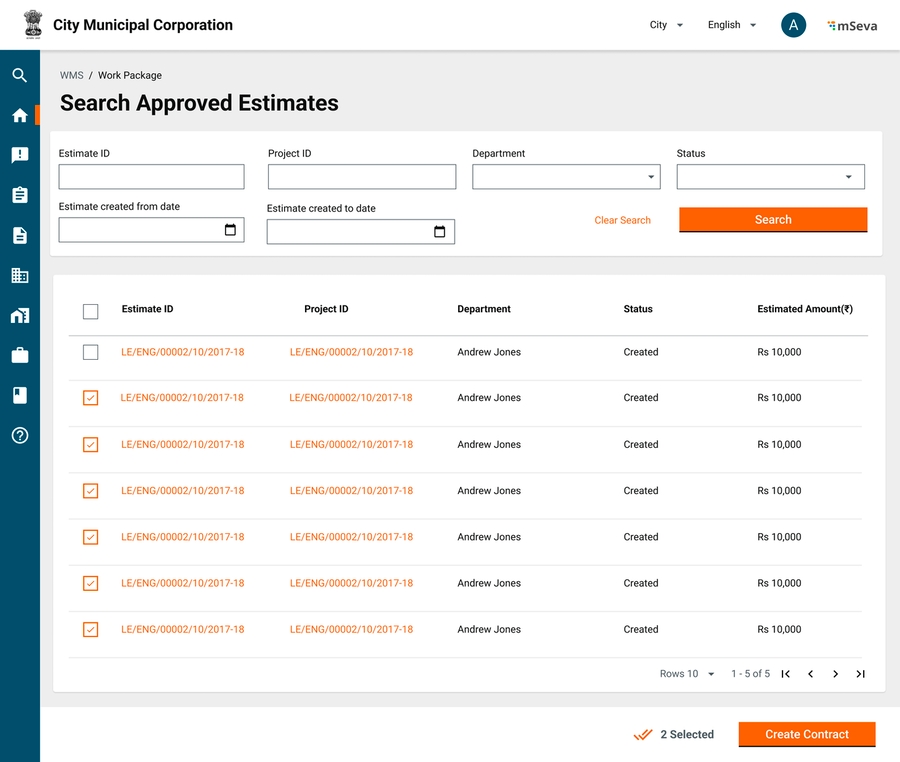
jitBillDdoCode
Yes
The code of DDO from the configuration.
5
granteeAgCode
Yes
Grantee code from the configuration.
6
schemeCode
Yes
MUKTA scheme code
7
hoa
Yes
Head of account from which payment to be made.
8
ssuIaId
Yes
Special spending unit id from the configuration.
9
mstAllotmentDistId
Yes
Virtual allotment parent ID/sanction ID from which payment to be made.
10
billNetAmount
Yes
PI net amount of the payment instruction created in MUKTASoft and then pushed to JIT.
11
billGrossAmount
Yes
PI gross amount of the payment instruction created in MUKTASoft and then pushed to JIT.
12
billNumberOfBenf
Yes
The count of beneficiaries in the payment instruction.
13
purpose
Yes
Purpose is the reference text. E.g. Muster Roll ID etc. for which the payment instruction is created.
Beneficiary Details
Array
In a single request multiple beneficiaries can be added.
14
benefId
Yes
The beneficiary's Payment ID, unique for each beneficiary for its payment. Payment of the beneficiary is tracked by this throughout the payment processing. It is generated with the PI generation.
15
benefName
Yes
Beneficiary name maintained in MUKTASoft.
16
benfAcctNo
Yes
Beneficiary’s bank account number maintained in MUKTASoft.
17
ifscCode
Yes
IFSC of bank branch from beneficiary’s accounts details.
18
benfMobileNo
Yes
Beneficiary's mobile number maintained in MUKTASoft.
19
benfAddress
Yes
Beneficiary’s address maintained in MUKTASoft.
20
accountType
Yes
Account type of beneficiary’s account maintained in MUKTASoft
21
paymentAmount
Yes
Amount payable to beneficiary.
22
panNo
No
PAN of beneficiary
23
adhaarNumber
No
Aadhaar of beneficiary
24
purpose
Yes
Purpose is the reference text. E.g. Muster Roll ID etc. for which the bill is created.
4
successCode
0 - for successfully accepting the PI.
7
sucessDescrp
Jit Bill is received successfully ,Payment Instruction will be generated after Bill is submitted by SSU in JIT-FS
PI
2
Response with Error
Pending
Declined
Payment Pending
Resubmit
PI
3
Response Without Error
Pending/ Decline
Initiated
Payment Initiated
No Action
A running DIGIT platform is needed to deploy the contract service. Specifically, the following dependencies are needed:
Estimate
Organisation
User
Workflow
IDGen
HRMS
Notification
Persister
Indexer
MDMS
This service provides APIs to create, update and search for contracts. Refer to the functional specifications here for detailed scope and functionality. Low-level technical design is available here.
The below variables should be configured for the contract service in the Helm environment file before deployment. The Helm environment file will be located under:
https://github.com/{{ORG}}/DIGIT-DevOps/deploy-as-code/helm/environments/{{EnvironmentFile}}.yaml
Refer to the sample here.
Add db-host,db-name,db-url,domain and all the digit core platform services configurations (Idgen, workflow,user etc.) in the YAML file.
Add contract-service related environment variables’ value like the way it's done in ‘dev’ environment YAML file. Search for "contract-service" in the file.
Add the ‘egov-mdms-service’ related configuration to the respective environment YAML file. Make sure you change the gitsync.branch name.
Check the contract-service persister file is added to the egov-persister.perister-yml-path variable. If not, please add the way it's done .
Make sure to add the DB(Postgres and flyway) username & password in the respective environment secret yaml file. Follow the steps .
Make sure to add the DIGIT core services-related secrets configured in the respective environment secret file. Follow the steps .
Configure actions, roles and role-action mappings from the table below. Follow the steps here.
WORK_ORDER_CREATOR
/contract/v1/_create
/contract/v1/_update
/contract/v1/_search
/wms/contract/_search
WORK_ORDER_VERIFIER
/contract/v1/_update
These must be translated into JSON in the role-action mapping module in MDMS.
Example - available here.
The following masters are to be added as per the table below:
CBO Roles
OCI Roles
ContractType
Overheads
Make sure the id format is configured in the ‘IdFormat.json’ file of the ‘common-masters’ module. The sample is available here.
{
"format": "WO/[fy:yyyy-yy]/[SEQ_CONTRACT_NUM]",
"idname": "contract.number"
} {
"format": "RW/[fy:yyyy-yy]/[SEQ_CONT_SUPPLEMENT_NUM]",
"idname": "contract.supplement.number"
}
The following workflow JSON needs to be put in the request body of the /egov-workflow-v2/egov-wf/businessservice/_create API.
Please make sure that the file contract-service-persister.yml is present in the configs repository in the below location.
If not present, please make sure to add the persister YML file.
Make sure to restart MDMS and the persister service after adding the file at the above location.
Please make sure that the file contractservices-indexer.yml is present in the configs repository in the below location.
In the MDMS repository, locate the inbox configuration file. Make sure the following JSON is added to the inbox configuration:
Restart the Inbox service after updating the above configuration
The API specifications for this service are located here. Postman scripts are available here for reference to understand the request payloads.
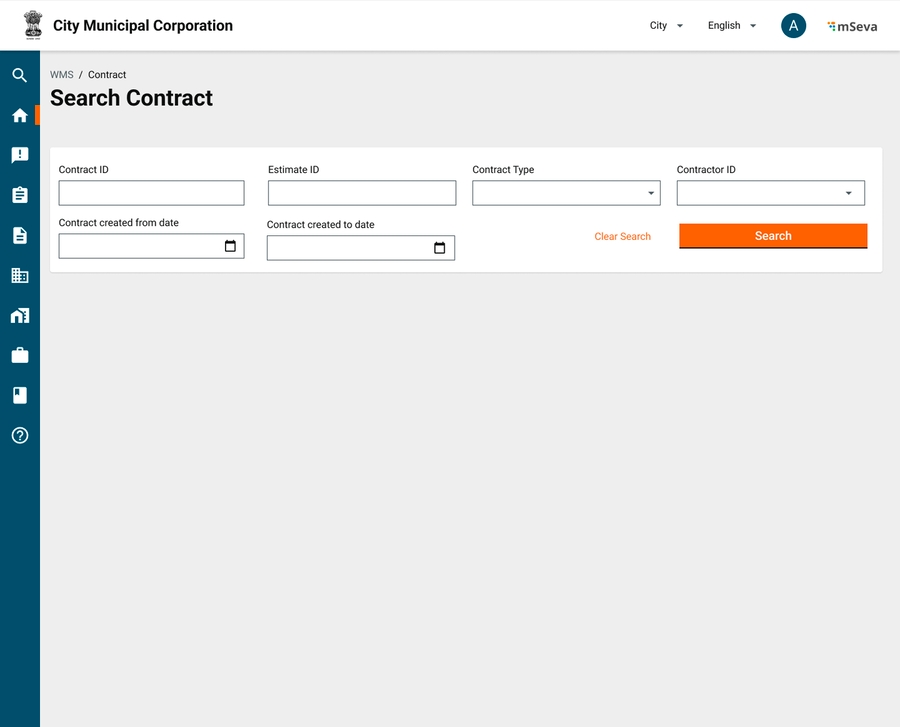
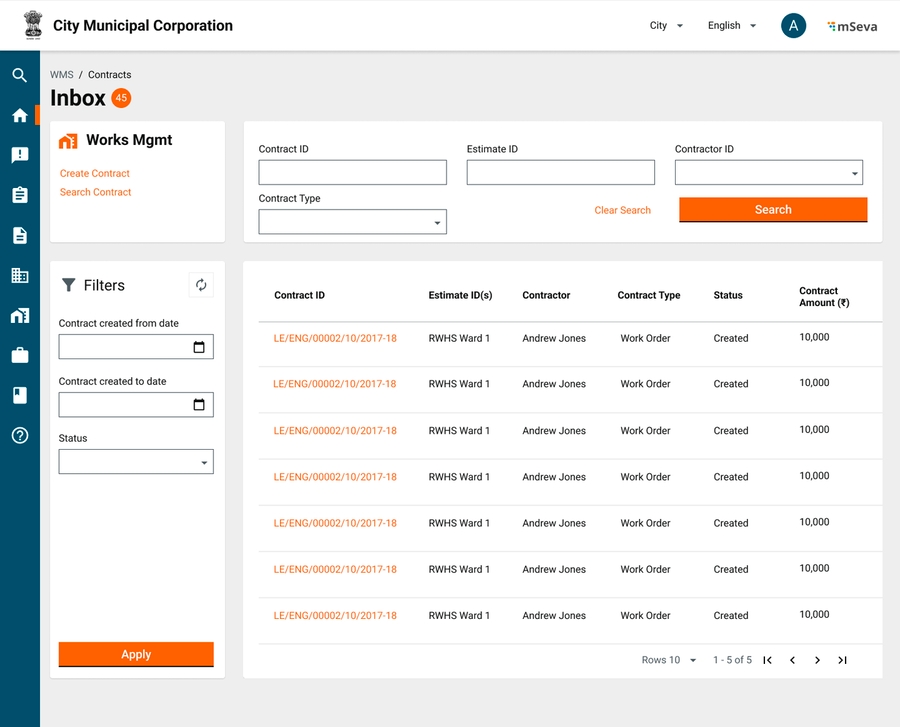
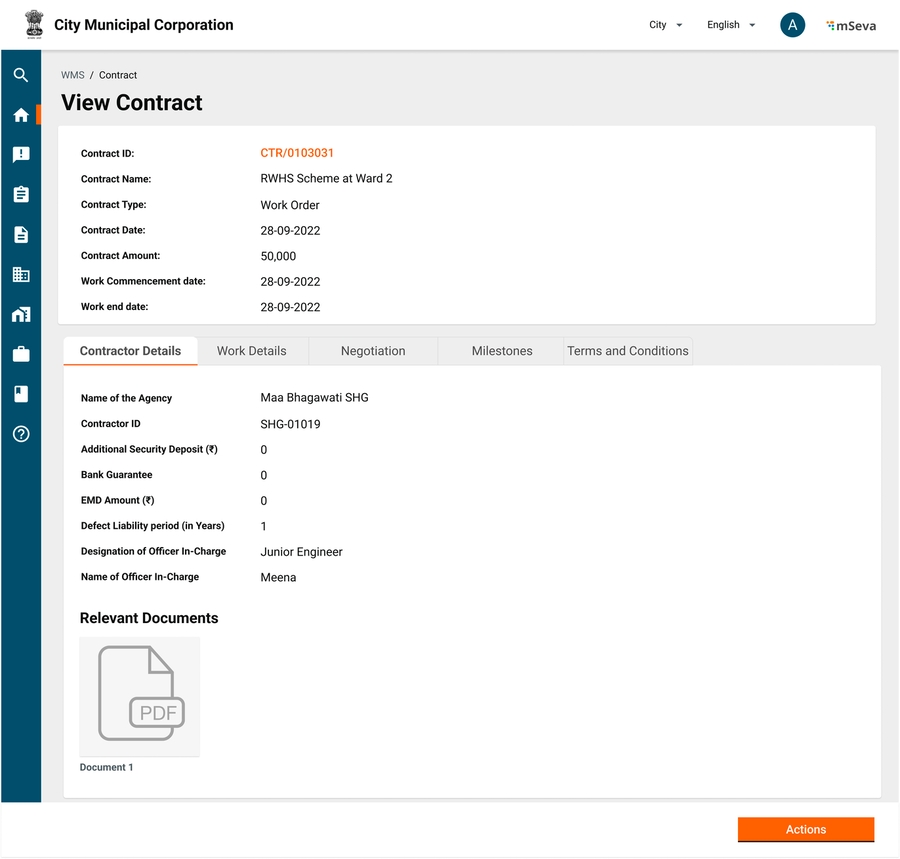
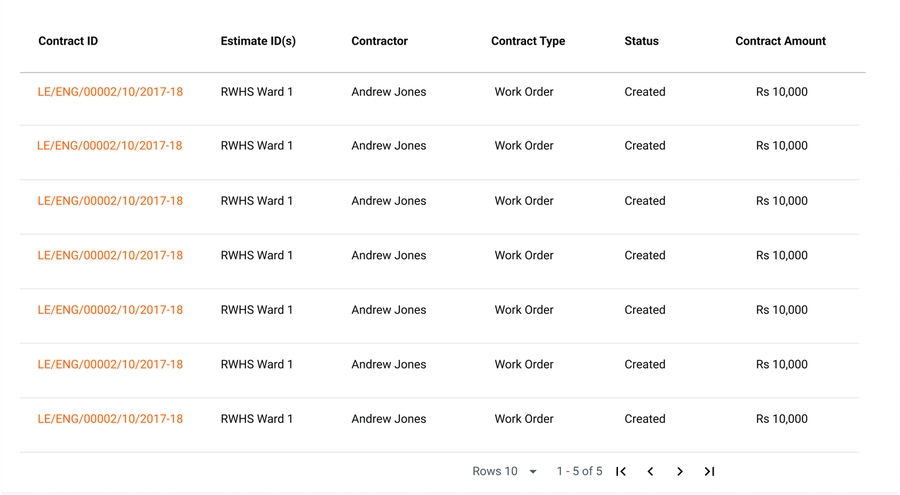
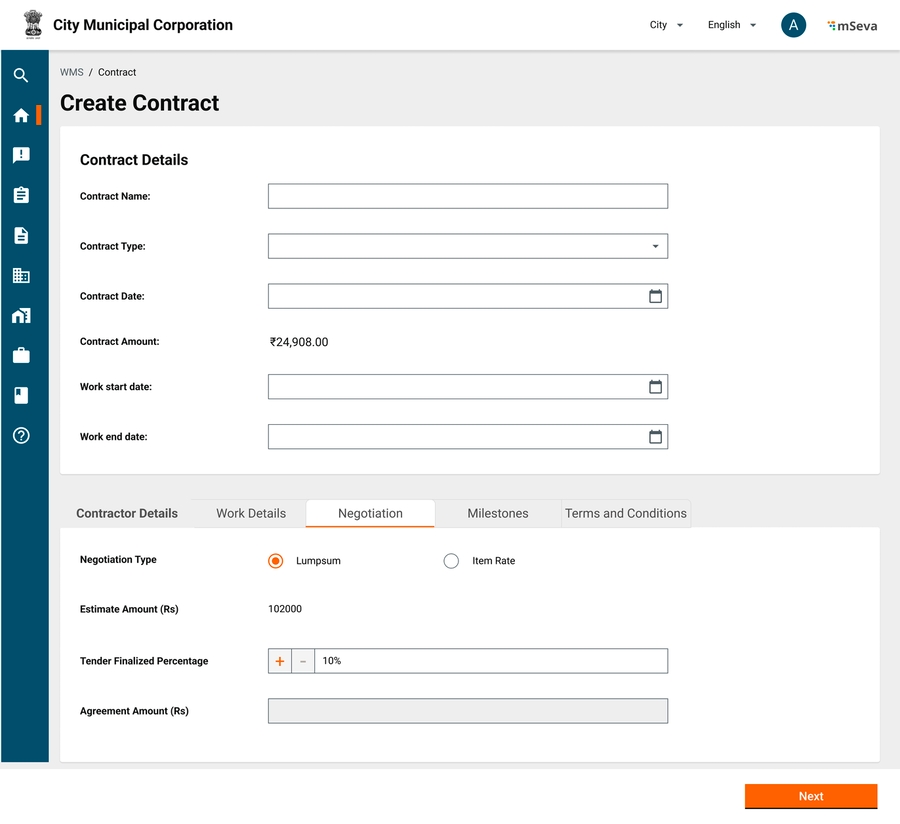
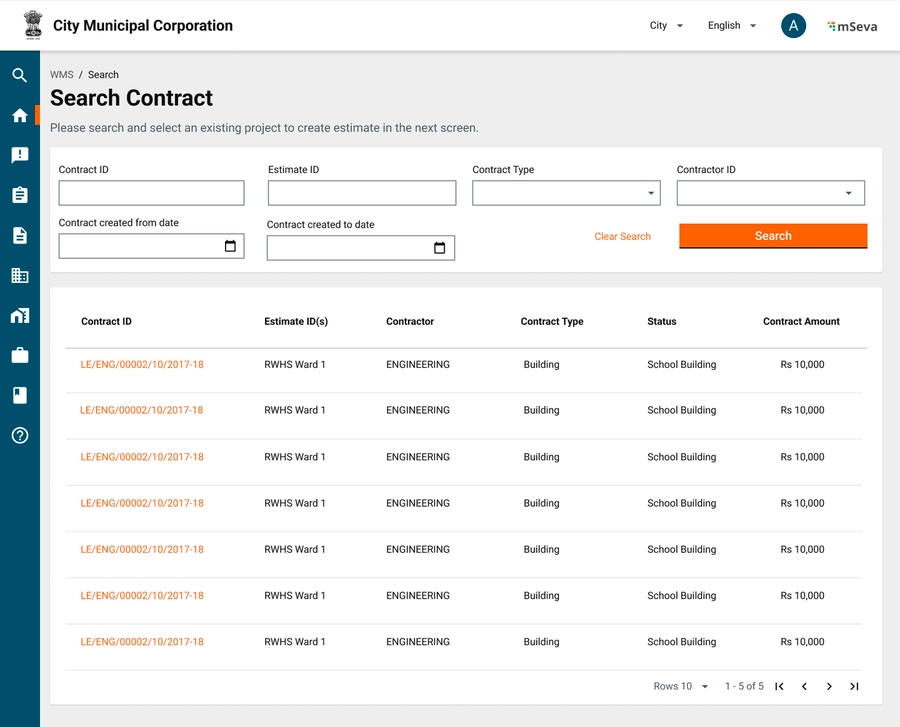
"BusinessServices": [
{
"tenantId": "pg",
"businessService": "CONTRACT",
"business": "contract-service",
"businessServiceSla": 604800000,
"states": [
{
"sla": null,
"state": null,
"applicationStatus": null,
"docUploadRequired": false,
"isStartState": true,
"isTerminateState": false,
"isStateUpdatable": true,
"actions": [
{
"action": "CREATE",
"nextState": "PENDING_FOR_VERIFICATION",
"roles": [
"WORK_ORDER_CREATOR"
]
}
]
},
{
"sla": 172800000,
"state": "PENDING_FOR_VERIFICATION",
"applicationStatus": "SUBMITTED",
"docUploadRequired": false,
"isStartState": false,
"isTerminateState": false,
"isStateUpdatable": true,
"actions": [
{
"action": "VERIFY_AND_FORWARD",
"nextState": "PENDING_FOR_APPROVAL",
"roles": [
"WORK_ORDER_VERIFIER"
]
},
{
"action": "SEND_BACK",
"nextState": "PENDING_FOR_CORRECTION",
"roles": [
"WORK_ORDER_VERIFIER"
]
},
{
"action": "REJECT",
"nextState": "REJECTED",
"roles": [
"WORK_ORDER_VERIFIER"
]
}
]
},
{
"sla": 86400000,
"state": "PENDING_FOR_APPROVAL",
"applicationStatus": "VERIFIED",
"docUploadRequired": false,
"isStartState": false,
"isTerminateState": false,
"isStateUpdatable": true,
"actions": [
{
"action": "APPROVE",
"nextState": "APPROVED",
"roles": [
"WORK_ORDER_APPROVER"
]
},
{
"action": "SEND_BACK",
"nextState": "PENDING_FOR_VERIFICATION",
"roles": [
"WORK_ORDER_APPROVER"
]
},
{
"action": "REJECT",
"nextState": "REJECTED",
"roles": [
"WORK_ORDER_APPROVER"
]
},
{
"action": "SEND_BACK_TO_ORIGINATOR",
"nextState": "PENDING_FOR_CORRECTION",
"roles": [
"WORK_ORDER_APPROVER"
]
}
]
},
{
"sla": 604800000,
"state": "APPROVED",
"applicationStatus": "APPROVED",
"docUploadRequired": false,
"isStartState": false,
"isTerminateState": false,
"isStateUpdatable": true,
"actions": [
{
"action": "ACCEPT",
"nextState": "ACCEPTED",
"roles": [
"ORG_ADMIN"
]
},
{
"action": "DECLINE",
"nextState": "PENDING_FOR_REASSIGNMENT",
"roles": [
"ORG_ADMIN"
]
},
{
"action": "REJECT",
"nextState": "REJECTED",
"roles": [
"ORG_ADMIN"
]
}
]
},
{
"sla": 86400000,
"state": "PENDING_FOR_CORRECTION",
"applicationStatus": "SENT_BACK",
"docUploadRequired": false,
"isStartState": true,
"isTerminateState": false,
"isStateUpdatable": true,
"actions": [
{
"action": "EDIT",
"nextState": "PENDING_FOR_VERIFICATION",
"roles": [
"WORK_ORDER_CREATOR"
]
},
{
"action": "REJECT",
"nextState": "REJECTED",
"roles": [
"WORK_ORDER_CREATOR"
]
}
]
},
{
"sla": 86400000,
"state": "PENDING_FOR_REASSIGNMENT",
"applicationStatus": "DECLINED",
"docUploadRequired": false,
"isStartState": true,
"isTerminateState": false,
"isStateUpdatable": true,
"actions": [
{
"action": "EDIT",
"nextState": "PENDING_FOR_VERIFICATION",
"roles": [
"WORK_ORDER_CREATOR"
]
},
{
"action": "REJECT",
"nextState": "REJECTED",
"roles": [
"WORK_ORDER_CREATOR"
]
}
]
},
{
"sla": null,
"state": "ACCEPTED",
"applicationStatus": "ACCEPTED",
"docUploadRequired": false,
"isStartState": false,
"isTerminateState": true,
"isStateUpdatable": false,
"actions": [
]
},
{
"sla": null,
"state": "REJECTED",
"applicationStatus": "REJECTED",
"docUploadRequired": false,
"isStartState": false,
"isTerminateState": true,
"isStateUpdatable": false,
"actions": [
]
}
]
}
]{
"module": "contract-service",
"index": "contract-inbox",
"allowedSearchCriteria": [
{
"name": "tenantId",
"path": "Data.tenantId.keyword",
"isMandatory": true,
"operator": "EQUAL"
},
{
"name": "workOrderNumber",
"path": "Data.contractNumber.keyword",
"isMandatory": false,
"operator": "EQUAL"
},
{
"name": "revisedWorkOrderNumber",
"path": "Data.supplementNumber.keyword",
"isMandatory": false,
"operator": "EQUAL"
},
{
"name": "status",
"path": "Data.currentProcessInstance.state.uuid.keyword",
"isMandatory": false
},
{
"name": "projectId",
"path": "Data.additionalDetails.projectId.keyword",
"isMandatory": false,
"operator": "EQUAL"
},
{
"name": "projectType",
"path": "Data.additionalDetails.projectType.keyword",
"isMandatory": false,
"operator": "EQUAL"
},
{
"name": "ward",
"path": "Data.additionalDetails.ward.keyword",
"isMandatory": false,
"operator": "EQUAL"
},
{
"name": "locality",
"path": "Data.additionalDetails.locality.keyword",
"isMandatory": false,
"operator": "EQUAL"
},
{
"name": "wfStatus",
"path": "Data.contractStatus.keyword",
"isMandatory": false
},
{
"name": "assignee",
"path": "Data.currentProcessInstance.assignes.uuid.keyword",
"isMandatory": false
}
],
"sortBy": {
"path": "Data.auditDetails.createdTime",
"defaultOrder": "DESC"
},
"sourceFilterPathList": [
"Data.contractNumber",
"Data.businessService",
"Data.additionalDetails.projectName",
"Data.additionalDetails.projectId",
"Data.additionalDetails.orgName",
"Data.currentProcessInstance",
"Data.totalContractedAmount",
"Data.auditDetails"
]
}/contract/v1/_search
/wms/contract/_search
WORK_ORDER_APPROVER
/contract/v1/_update
/contract/v1/_search
WORK_ORDER_VIEWER
/contract/v1/_search
/wms/contract/_search
EMPLOYEE_COMMON
/inbox/v2/_search
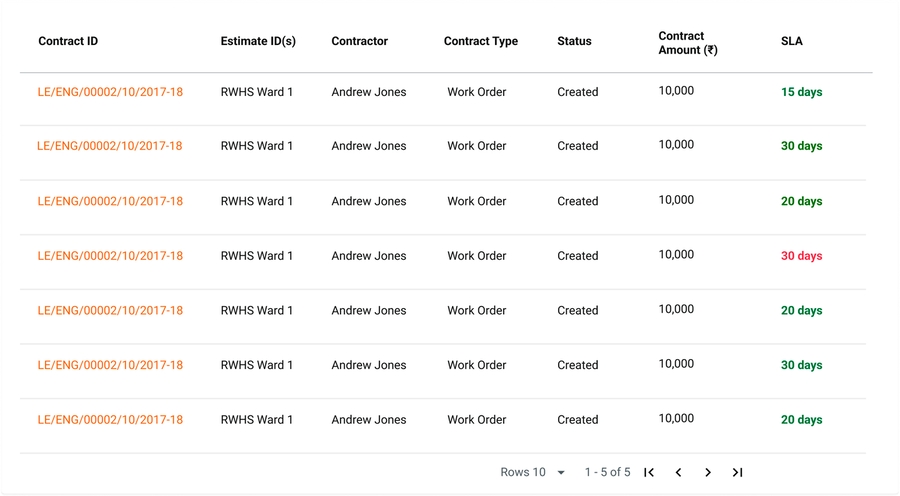

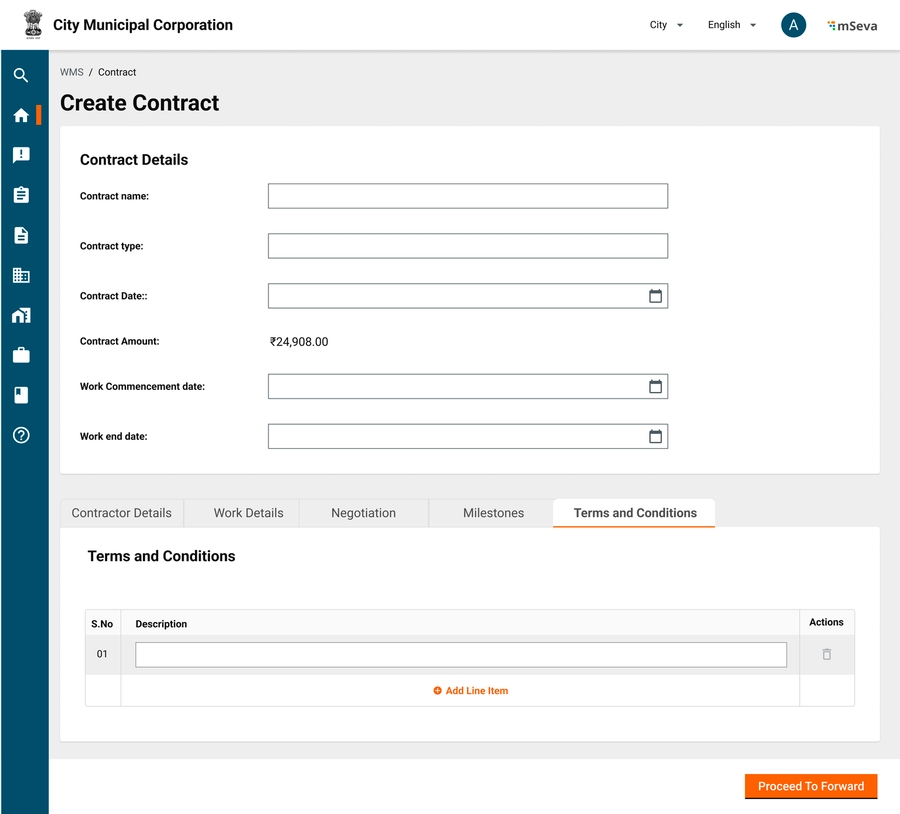
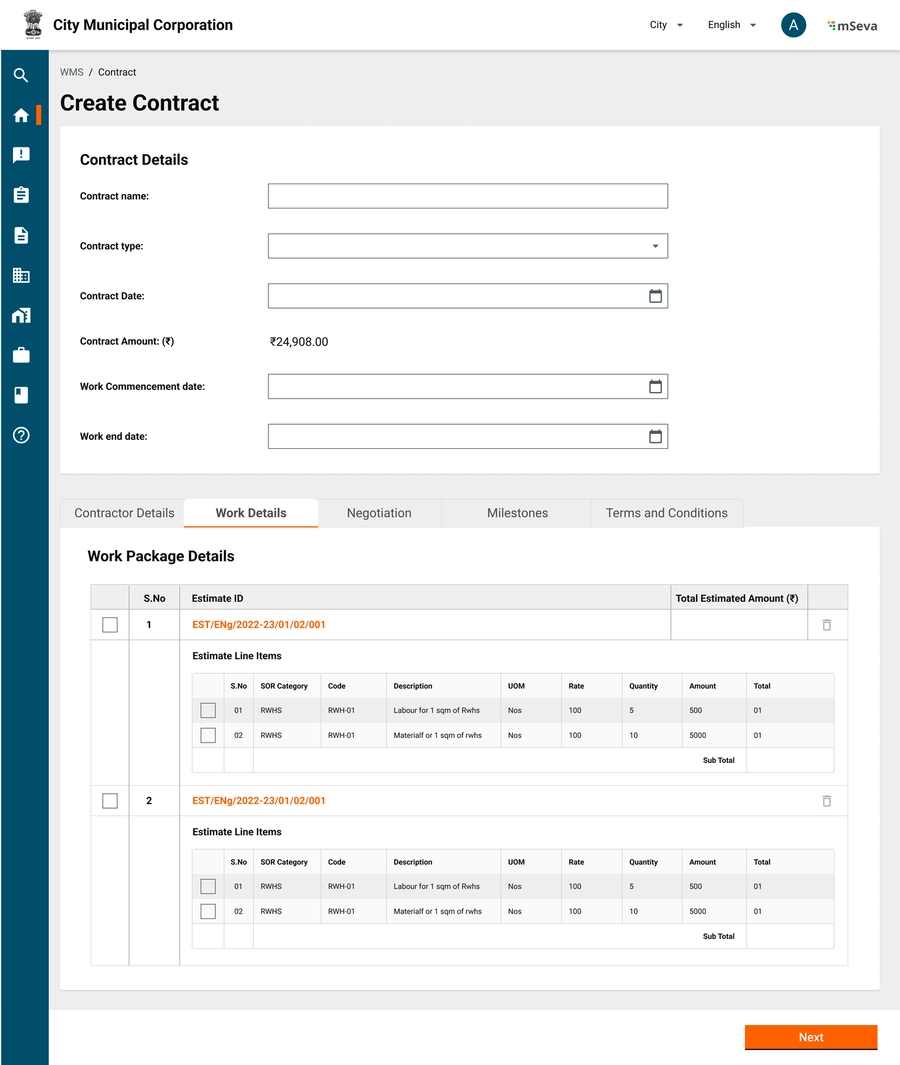
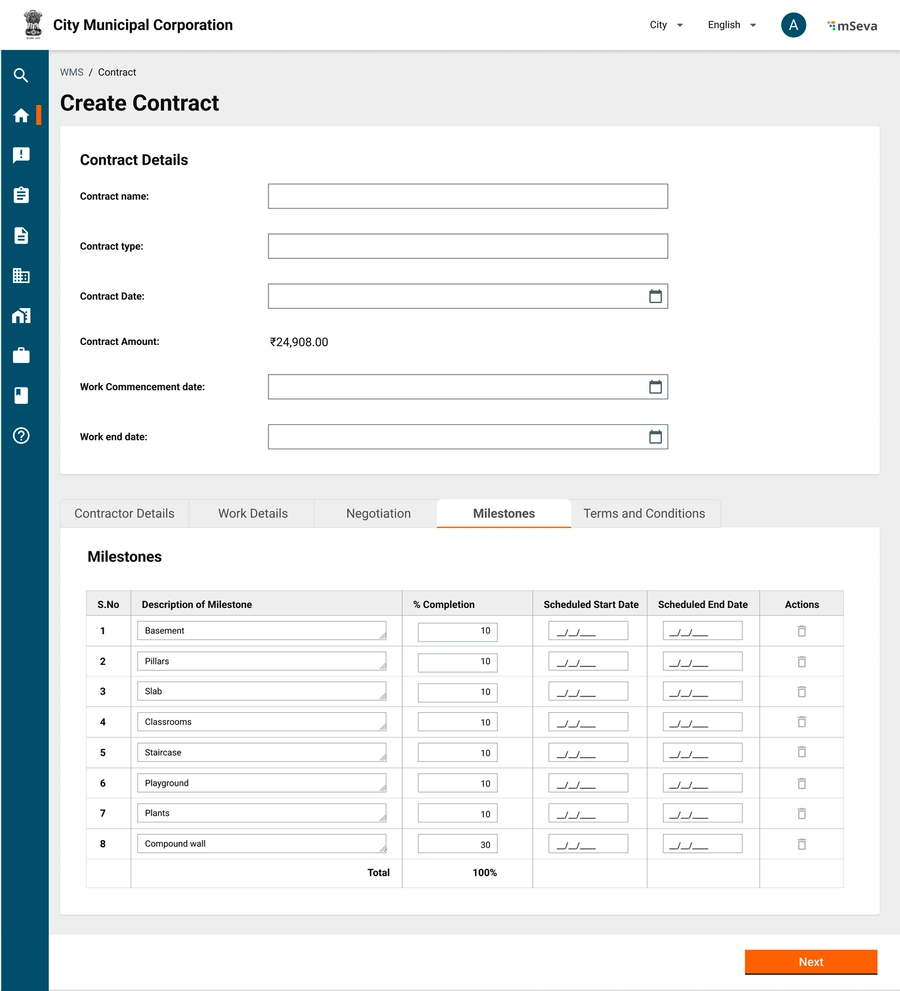
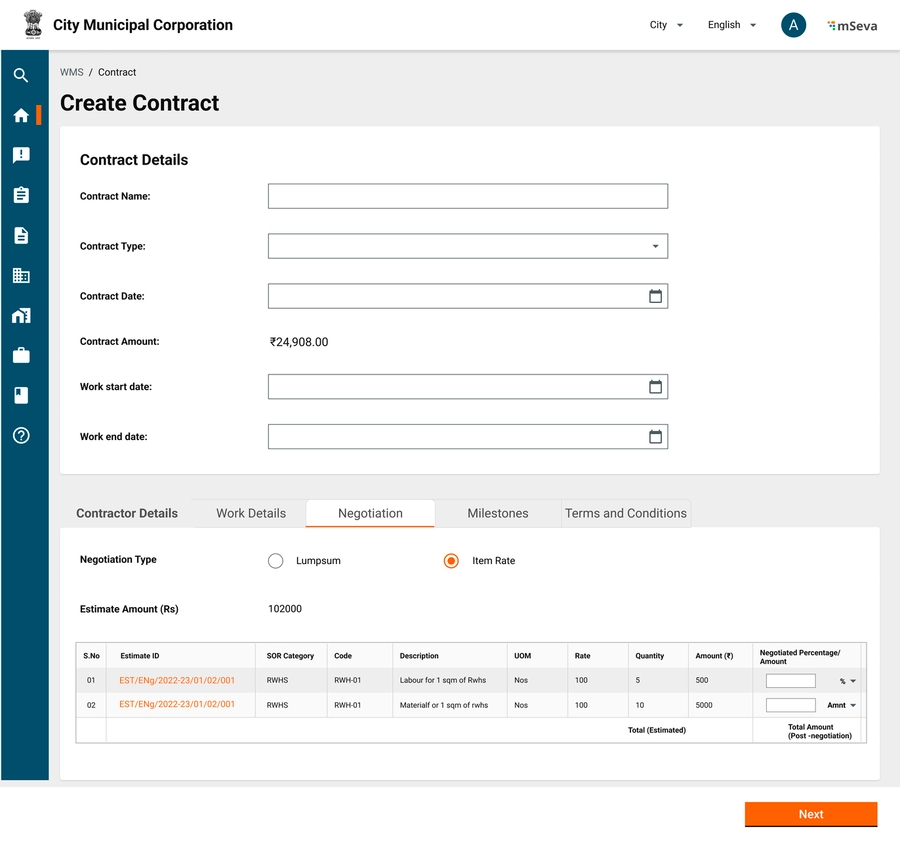
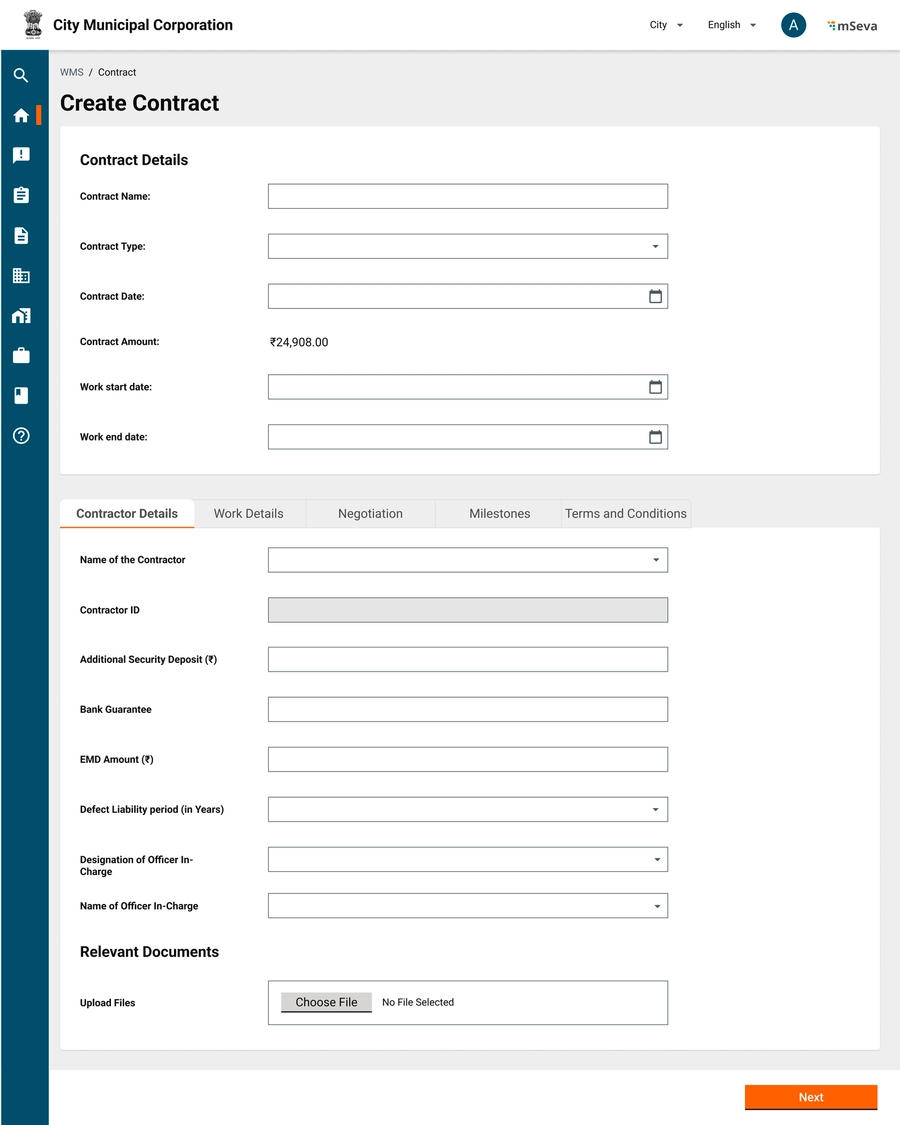
A contractor/vendor is someone who does projects with the government. Every Project, after estimation approval and tendering, will have to be assigned to a contractor/vendor for it to be executed.
Works contractors bid for or are assigned works' contracts depending on the mode of entrustment for specific projects.
Process of registering a contractor.
A contractor will apply for registration with any of the government departments. The contractor will be assigned a class and ID upon registration. A contractor will be issued projects that will fall into that class.
A contractor can have multiple staff that manage contractor organisation with permissions
List of things done by contractors for a project -
(Offline) Bid for contracts
(Offline) Negotiate contracts
(Offline) Accept Letter of Intent
Each contractor organisation is given a contractor class/grade depending on the screening/validation process.
Following are the fields required to grade contractors. This constitutes the MDMS data.
Grade
Alphanumeric
Y
Unique field
Description
Alphanumeric
Y
Description of the grade
Minimum Amount
A contractor organisation has a class associated with at least one department; type and subtype based on what the organisation supplies to the government, staff details so as to know who is managing the organisation and financial details so as to make payments.
Organisation Details
Vendor ID
NA
NA
System Generated unique code assigned to the contractor
Format: VO-<FY>-<6 digit running sequence number> - VO-2022-23-000001
Organisation Name
Users with permission to Create Master records have to click on Masters on the home page to navigate to the Masters landing page.
On this page, the user has to select Vendor Organisation in the drop-down (one of the few registries that are available to edit/add from UI) and click on Search.
Users are shown records of existing vendors and the option to add new Vendor Organisation.
Create Organisation page has 4 Tabs along with header details.
Attributes and explanations for each are mentioned in the attribute table above.
Vendor ID is the unique ID generated by the system with a specific format.
Contact Details have owner info and contact person info.
Name and Phone number of both are made mandatory.
System should check if user with this phone number is present already in user registry and if not create a new user.
Financial details of the organisation captures bank account details where payments are to be made.
Transfer code has single identifier type per bank account. List will have only IFSC code for now. User has to input IFSC code against it.
Tax identifiers are array of attributes which are financial/accounting related objects of the vendor like PAN, GSTIN, TIN etc. This list will be defined in MDMS and user can select/add any number of identifiers that are listed in the master.
Vendor organisation is created successfully and ID is displayed.
Clicking on Masters on the home page redirects users to an empty screen where he/she will have to select the master/registry they want to create/view.
Selecting that registry from the dropdown displays the relevant records with pagination on the first screen.
Users can click on any data record to view that record or click on add new organisation that appears on selecting that master.
Filters for the master
Organisation ID
Name of the Organisation
Type of the organisation
View Vendor screen has the same details as Create Vendors with 1 additional attribute which is the Vendor ID
Organisation module UI configuration - for MuktaSoft
Project user stories - for MuktaSoft
POST /measurement/v1/_search HTTP/1.1
Host:
Content-Type: application/json
Accept: */*
Content-Length: 291
{
"requestInfo": {
"apiId": "text",
"ver": "text",
"ts": 1,
"action": "text",
"did": "text",
"key": "text",
"msgId": "text",
"requesterId": "text",
"authToken": "text"
},
"criteria": {
"referenceId": [
"text"
],
"measurementNumber": "text",
"ids": [
"text"
]
},
"pagination": {
"limit": 10,
"offSet": 0,
"sortBy": "text",
"order": {}
}
}{
"responseInfo": {
"apiId": "text",
"ver": "text",
"ts": 1,
"resMsgId": "text",
"msgId": "text",
"status": "SUCCESSFUL"
},
"measurements": [
{
"id": "251c51eb-e970-4e01-a99a-70136c47a934",
"tenantId": "pb.jalandhar,dwss",
"measurementNumber": "text",
"physicalRefNumber": "text",
"referenceId": "Contract number",
"entryDate": 1,
"measures": [
{
"id": "251c51eb-e970-4e01-a99a-70136c47a934",
"referenceId": "measurementId",
"targetId": "contractlineitemid",
"length": 200,
"breadth": 200,
"height": 200,
"numItems": 1,
"currentValue": 1,
"cumulativeValue": 1,
"isActive": true,
"comments": "text",
"documents": [
{
"id": "text",
"documentType": "text",
"fileStore": "text",
"documentUid": "text",
"additionalDetails": {}
}
],
"auditDetails": {
"createdBy": "text",
"lastModifiedBy": "text",
"createdTime": 1,
"lastModifiedTime": 1
},
"additionalDetails": {}
}
],
"isActive": true,
"documents": [
{
"id": "text",
"documentType": "text",
"fileStore": "text",
"documentUid": "text",
"additionalDetails": {}
}
],
"auditDetails": {
"createdBy": "text",
"lastModifiedBy": "text",
"createdTime": 1,
"lastModifiedTime": 1
},
"additionalDetails": {}
}
]
}POST /measurementservice/v1/_search HTTP/1.1
Host:
Content-Type: application/json
Accept: */*
Content-Length: 291
{
"requestInfo": {
"apiId": "text",
"ver": "text",
"ts": 1,
"action": "text",
"did": "text",
"key": "text",
"msgId": "text",
"requesterId": "text",
"authToken": "text"
},
"criteria": {
"referenceId": [
"text"
],
"measurementNumber": "text",
"ids": [
"text"
]
},
"pagination": {
"limit": 10,
"offSet": 0,
"sortBy": "text",
"order": {}
}
}{
"responseInfo": {
"apiId": "text",
"ver": "text",
"ts": 1,
"resMsgId": "text",
"msgId": "text",
"status": "SUCCESSFUL"
},
"measurements": [
{
"id": "251c51eb-e970-4e01-a99a-70136c47a934",
"tenantId": "pb.jalandhar,dwss",
"measurementNumber": "text",
"physicalRefNumber": "text",
"referenceId": "Contract number",
"entryDate": 1,
"measures": [
{
"id": "251c51eb-e970-4e01-a99a-70136c47a934",
"referenceId": "measurementId",
"targetId": "contractlineitemid",
"length": 200,
"breadth": 200,
"height": 200,
"numItems": 1,
"currentValue": 1,
"cumulativeValue": 1,
"isActive": true,
"comments": "text",
"documents": [
{
"id": "text",
"documentType": "text",
"fileStore": "text",
"documentUid": "text",
"additionalDetails": {}
}
],
"auditDetails": {
"createdBy": "text",
"lastModifiedBy": "text",
"createdTime": 1,
"lastModifiedTime": 1
},
"additionalDetails": {}
}
],
"isActive": true,
"documents": [
{
"id": "text",
"documentType": "text",
"fileStore": "text",
"documentUid": "text",
"additionalDetails": {}
}
],
"auditDetails": {
"createdBy": "text",
"lastModifiedBy": "text",
"createdTime": 1,
"lastModifiedTime": 1
},
"additionalDetails": {}
}
]
}(Offline) Issue Letter of Acceptance
(System) Accept/Reject Contract
(System) Track Work Measurements
(System) Track Attendance Measurements
(System) Create Running/Final Bills
(System) Download and upload relevant documents
Organisation ID is the ID given to each vendor during offline registration.
The system checks the organisation ID to ensure that no existing record is present and avoid de-duplicating. This check can be performed by clicking on the Next button on the first screen.
Location Details have HQ address and Billing Address.
The selection of location details in the hierarchy limits the results to that selected boundary in the next hierarchy.
The check box copies the details of the HQ address to the Billing address and makes the fields non-editable.
The staff details tab is not accessible until the vendor organisation is created. The Show Info icon alongside staff states “Organisation needs to be created to add staff and staff details”
The role of the owner defaults to admin and manager.
The designation and role of the contact person are kept open.
The checkbox shows the default details of the contact person same as the details of the owner and creates a single user.
As per Indian context, default the first row to GSTIN and allow user to add from second row.
Any identifier that is mandatory can be shown already with a row instead of user adding that row.
After adding financial details, user can create a vendor organisation by clicking on create vendor organisation
Create between start and end dates
Using this filters user should be able to shortlist/pinpoint to that organisation.
Show default no results found illustration screen along with text “No results found” when filter returns empty.
Numeric
Y
Minimum value of work that can be assigned to the contractor of the grade
Maximum Amount
Numeric
Y
Maximum value of work that can be assigned to the contractor of the grade
Alphanumeric
Y
Name of the Organisation
Organisation ID
Alphanumeric
N
Offline reference of Organisation ID given by govt
Formation Date
Date
N
Date of Formation of Organisation
Contractor Class
Drop down
N
Options will be list of contractor grades from the contractor grades master
Organisation Type
Multi Select Dropdown
Y
Contracts should be awarded to organisations who are of certain type. A Contractor registered as Vendor(material suppier) can only be awarded material contract
Ex - Contractor, Materials Supplier, Mixed
Organisation Sub Type
Multi Select Dropdown
N
Subset of type of organisation
Ex - Vendor - Sand, cement, concrete, paint etc Contractor - NA Mixed - NA
Status
Drop down
Y
Options will be the list of Contractor status maintained by the ULB
Active
Inactive
Black listed
Debarred
Registered by department
Drop down
N
Options will be list of the departments of the ULB defined in the department master
Public Works Department, Water Department, Education Department
Registered date
Date
N
Date of registration with the department
Valid From Date
Date
N
The date from which the specified status is applicable to the contractor
Valid To Date
Date
N
The date until which the specified status is applicable to the contractor
Documents
Attachment
N
Upto 3 files max of 2 MB each
Location Details
Address
Alphanumeric
N
Contractor address using boundary hierarchy - Locality, Ward, ULB, District etc
Billing Address
Alphanumeric
N
Contractor address using boundary hierarchy - Locality, Ward, ULB, District etc
Contact Details
Owner Name
Alphanumeric
Y
Name of the owner
Owner Mobile number
Numeric
Y
Mobile Number of the owner
Owner e-mail address
Alphanumeric with special chars
N
Email of the owner
Contact person Name
Alphanumeric
Y
Name of the contact person
Contact person mobile number
Numeric
Y
Mobile Number of the contact person
Contact person email address
Alphanumeric with special chars
N
Email of the contact person
Total Members
Numeric
N
Number of members in the organisation
Financial Details
Account Name
Alphabet
Y
Name of the Bank Account
Account Type
Drop down
N
Savings, Current, Loan, Credit
Account Number
Alphanumeric
Y
Account number of the contractor against which payments will be made
Transfer Code
Drop down
Y
MDMS Data for selection of type of unique transfer code per bank account
Ex. IFSC Code
Bank Name
Drop down
N
Options will be a list of banks specified in the banks master. Used to select the bank where contractor’s account is maintained for direct bank payment
Bank Branch
Drop down
N
Tax Identifiers
Table Select Dropdown
N
Table with multiple identifier types List
GSTIN
PAN
TIN
User to enter identfier values for each identifier type
[Array] Staff Details
Staff ID
NA
NA
System generated ID of the staff that is prepopulated because of search by phone number
Staff Name
Name of staff
Staff Role
Dropdown
Y
Role Assigned to StaffAdmin - Role that allows all actions within the organisation including adding new members to organisationManager - Role allows only functional activities like accepting contracts, creating bills etc
Staff Designation
Dropdown
N
Designaton of the staff
Owner, President, Secretary, member etc
Employement start date
Date
N
Start date of the employement
Employement end date
Date
N
End date of the employement
Employment status
Dropdown
Y
Active, Inactive status of the employee
The user is prompted to add staff to the created vendor organisation.
By default the first/first two rows are auto-filled with the owner and contact person details inputted while creating the organisation.
Users can add the remaining attributes of these two users like employment start and end dates.
To add new/other users - Search by Phone number to see if the user already exists in the user registry
If a user exists -
The default phone number will be displayed on the new row along with the name. Allow the user to add other details like designation, start and end dates, and status.
Staff ID is not editable and is auto-generated once the Add Staff Details button is clicked.
Both these flows will ensure duplicate staff entries are not created in the user registry.
Once the Staff Details are added, a success message is displayed stating that the staff has been added successfully to that organisation.
Digitising offline measurement books offers several advantages, including:
Faster Measurement Capture: Digital tools allow for quicker and more efficient recording of measurements, reducing the time required for data entry.
Timely Data Capture: Real-time or near-real-time data capture ensures that measurements are recorded promptly, eliminating delays in processing.
Error-Free Calculation: Automated calculations reduce the risk of human errors in measurement calculations, leading to more accurate results.
Automation of Billing: Digital systems can automate the billing process, generating invoices and reports based on the captured measurements, further streamlining operations.
Overall, digitisation enhances efficiency, accuracy, and the overall effectiveness of measurement and billing processes.
Measurement Books are legal copies signed and issued by contract_creator to the contractor noting down the Book ID, Number of Pages, and Title (as per project title).
In offline methods, measurements can be filled daily, weekly, monthly or as per demand (usually before the time of bill creation) to raise a bill and attach a copy of the book as a reference document validating the bill information.
Measurement Books are initially empty. The M-Books will be filled with the estimated line items only. Once all the estimated line items are filled/counted in the MBook, they can be submitted along with the final Bill.
The Book is also sent as an attachment to the accountant for bill approval.
The system creates the M-Book automatically while the contract is accepted.
Contractor/MBook-tracker will track M-Book readings
MBook-Checker will check the measurements
MBook-Approver will approve the measurements
While creating an estimate, the estimate creator can add measurement rows for each SOR /Non-SOR line item. It is not mandatory to fill in these measurements unless the user clicks the "+" icon in the Quantity section of the SOR line item row.
Upon selecting the measurement box, an expansion slide-down will appear. Here he/she can enter the measurement details
The user can delete or add multiple measurement items.
The measurement box will contain fields for quantity, length, width, and height/depth and the product of these three values will be automatically calculated and populated in the Quantity box.
In cases where an object's area is not measured using length, width, and height, the user can directly enter the area in the Quantity field. The fields for length, width, and size should be greyed out and not editable in such cases.
The summation of all the measurement quantities will be automatically populated in the SOR/Non-SOR Quantity row. This quantity will then be multiplied by the rate to calculate the final amount.
Measurement Book will be created only when the contract is accepted.
Mbook line items will be SOR line items if while creating an estimate, a sub-line item under SOR is not created.
If SOR sub-line items are created, the M-Book will have to be tracked at the SOR sub-line items level.
There should be an option to capture images of physical MBook and site photos along with MBook readings for each date.
Each MBook entry will go for approval workflow
ID
NA
NA
UUID
MBook ID
Alphanumeric
Y
Mbook ID
MB<Year>/<Mo>/<Running Sequence>
Contract ID
Create an M-Book when the contract is accepted with the start and end dates as per the contract
Measurements can be taken both on the web and mobile (Mobile First).
Measurement books initially will have line items from estimates with zero quantities. These will get filled as the project progresses and cannot go beyond what is estimated.
Measurement Book readings can be sent for approval for any duration/marked period, from the last marked period.
Once approved, that corresponding amount will be allowed for payment to the contractor.
Tracking of MBook will be required to know the project progress and subsequently pay to contractor based on work done
Mbook-Tracker
Mbook tracking can be done only against the line items that are captured in the estimate.
This can be done at the estimate SOR line item level or sub line item level.
At least one measurement needs to be filled in to submit an MBook for approval.
Each submission of the measurement book can use the same ID of the MBook with a running sequence number appended at the end.
To add another measurement reading for the same project, users can click on Actions > Add New Measurements, which opens another tab.
The overall measurements cannot exceed the estimated quantities.
A project can have any number of measurement entries.
M Book tracking can only be done until the last date of Mbook.
Each mBook recording will have approval workflow.
MBook is created by contractor/mbooktracker,
Checked by m-book checker,
Approved by m-book approver.
An Mbook should be able to tell using analysis of rates, how much labor, material and other heads as bifurcated in the estimate under SOR item detail 1.
Upon each mBook entry creation a labour consumption log and material consumption log should also be generated as to how much material from the last entry till this entry is consumed.
Only based on material consumed, the material supplier is eligible to get paid.
Cancelling of Mbook is only possible with the cancellation of the contract
Contract_Canceller
If a contract gets cancelled Mbook will also get cancel status.
MBook reading entry if is in the approval workflow, will be moved to cancel status as well.
Whatever approvals done so far on Mbook workflows are eligible for payments.
Since we do automatic payments, a bill would have already been created for such mbook entries.
Track Measurement
Detailed measurement input screen
Measurements successfullly submitted
Measurement Inbox
Measurement Book Search
Encapsulates a measurement entry request
Accepted create measurement request.
Invalid input.
Accepted update measurement request.
Invalid input.
Encapsulates a measurement book service request. Takes a singleton along with workflow.
Accepted create measurement book request.
Invalid input.
Accepted update measurement book request.
Invalid input.
POST /measurement/v1/_create HTTP/1.1
Host:
Content-Type: application/json
Accept: */*
Content-Length: 587
{
"requestInfo": {
"apiId": "text",
"ver": "text",
"ts": 1,
"action": "text",
"did": "text",
"key": "text",
"msgId": "text",
"requesterId": "text",
"authToken": "text"
},
"measurements": [
{
"physicalRefNumber": "text",
"referenceId": "Contract number",
"entryDate": 1,
"measures": [
{
"targetId": "contractlineitemid",
"length": 200,
"breadth": 200,
"height": 200,
"numItems": 1,
"currentValue": 1,
"cumulativeValue": 1,
"isActive": true,
"comments": "text",
"documents": [
{
"id": "text",
"documentType": "text",
"fileStore": "text",
"documentUid": "text",
"additionalDetails": {}
}
],
"additionalDetails": {}
}
],
"isActive": true,
"additionalDetails": {}
}
]
}POST /measurement/v1/_update HTTP/1.1
Host:
Content-Type: application/json
Accept: */*
Content-Length: 587
{
"requestInfo": {
"apiId": "text",
"ver": "text",
"ts": 1,
"action": "text",
"did": "text",
"key": "text",
"msgId": "text",
"requesterId": "text",
"authToken": "text"
},
"measurements": [
{
"physicalRefNumber": "text",
"referenceId": "Contract number",
"entryDate": 1,
"measures": [
{
"targetId": "contractlineitemid",
"length": 200,
"breadth": 200,
"height": 200,
"numItems": 1,
"currentValue": 1,
"cumulativeValue": 1,
"isActive": true,
"comments": "text",
"documents": [
{
"id": "text",
"documentType": "text",
"fileStore": "text",
"documentUid": "text",
"additionalDetails": {}
}
],
"additionalDetails": {}
}
],
"isActive": true,
"additionalDetails": {}
}
]
}POST /measurementservice/v1/_create HTTP/1.1
Host:
Content-Type: application/json
Accept: */*
Content-Length: 664
{
"requestInfo": {
"apiId": "text",
"ver": "text",
"ts": 1,
"action": "text",
"did": "text",
"key": "text",
"msgId": "text",
"requesterId": "text",
"authToken": "text"
},
"measurements": [
{
"allOf": {
"physicalRefNumber": "text",
"referenceId": "Contract number",
"entryDate": 1,
"measures": [
{
"targetId": "contractlineitemid",
"length": 200,
"breadth": 200,
"height": 200,
"numItems": 1,
"currentValue": 1,
"cumulativeValue": 1,
"isActive": true,
"comments": "text",
"documents": [
{
"id": "text",
"documentType": "text",
"fileStore": "text",
"documentUid": "text",
"additionalDetails": {}
}
],
"additionalDetails": {}
}
],
"isActive": true,
"additionalDetails": {}
},
"workflow": {
"action": "text",
"comment": "text",
"assignees": [
"text"
]
}
}
]
}POST /measurementservice/v1/_update HTTP/1.1
Host:
Content-Type: application/json
Accept: */*
Content-Length: 664
{
"requestInfo": {
"apiId": "text",
"ver": "text",
"ts": 1,
"action": "text",
"did": "text",
"key": "text",
"msgId": "text",
"requesterId": "text",
"authToken": "text"
},
"measurements": [
{
"allOf": {
"physicalRefNumber": "text",
"referenceId": "Contract number",
"entryDate": 1,
"measures": [
{
"targetId": "contractlineitemid",
"length": 200,
"breadth": 200,
"height": 200,
"numItems": 1,
"currentValue": 1,
"cumulativeValue": 1,
"isActive": true,
"comments": "text",
"documents": [
{
"id": "text",
"documentType": "text",
"fileStore": "text",
"documentUid": "text",
"additionalDetails": {}
}
],
"additionalDetails": {}
}
],
"isActive": true,
"additionalDetails": {}
},
"workflow": {
"action": "text",
"comment": "text",
"assignees": [
"text"
]
}
}
]
}{
"responseInfo": {
"apiId": "text",
"ver": "text",
"ts": 1,
"resMsgId": "text",
"msgId": "text",
"status": "SUCCESSFUL"
},
"measurements": [
{
"id": "251c51eb-e970-4e01-a99a-70136c47a934",
"measurementNumber": "text",
"physicalRefNumber": "text",
"referenceId": "Contract number",
"entryDate": 1,
"measures": [
{
"targetId": "contractlineitemid",
"length": 200,
"breadth": 200,
"height": 200,
"numItems": 1,
"currentValue": 1,
"cumulativeValue": 1,
"isActive": true,
"comments": "text",
"documents": [
{
"id": "text",
"documentType": "text",
"fileStore": "text",
"documentUid": "text",
"additionalDetails": {}
}
],
"auditDetails": {
"createdBy": "text",
"lastModifiedBy": "text",
"createdTime": 1,
"lastModifiedTime": 1
},
"additionalDetails": {}
}
],
"isActive": true,
"auditDetails": {
"createdBy": "text",
"lastModifiedBy": "text",
"createdTime": 1,
"lastModifiedTime": 1
},
"additionalDetails": {}
}
]
}{
"responseInfo": {
"apiId": "text",
"ver": "text",
"ts": 1,
"resMsgId": "text",
"msgId": "text",
"status": "SUCCESSFUL"
},
"measurements": [
{
"id": "251c51eb-e970-4e01-a99a-70136c47a934",
"measurementNumber": "text",
"physicalRefNumber": "text",
"referenceId": "Contract number",
"entryDate": 1,
"measures": [
{
"targetId": "contractlineitemid",
"length": 200,
"breadth": 200,
"height": 200,
"numItems": 1,
"currentValue": 1,
"cumulativeValue": 1,
"isActive": true,
"comments": "text",
"documents": [
{
"id": "text",
"documentType": "text",
"fileStore": "text",
"documentUid": "text",
"additionalDetails": {}
}
],
"auditDetails": {
"createdBy": "text",
"lastModifiedBy": "text",
"createdTime": 1,
"lastModifiedTime": 1
},
"additionalDetails": {}
}
],
"isActive": true,
"auditDetails": {
"createdBy": "text",
"lastModifiedBy": "text",
"createdTime": 1,
"lastModifiedTime": 1
},
"additionalDetails": {}
}
]
}{
"responseInfo": {
"apiId": "text",
"ver": "text",
"ts": 1,
"resMsgId": "text",
"msgId": "text",
"status": "SUCCESSFUL"
},
"measurements": [
{
"allOf": {
"id": "251c51eb-e970-4e01-a99a-70136c47a934",
"measurementNumber": "text",
"physicalRefNumber": "text",
"referenceId": "Contract number",
"entryDate": 1,
"measures": [
{
"targetId": "contractlineitemid",
"length": 200,
"breadth": 200,
"height": 200,
"numItems": 1,
"currentValue": 1,
"cumulativeValue": 1,
"isActive": true,
"comments": "text",
"documents": [
{
"id": "text",
"documentType": "text",
"fileStore": "text",
"documentUid": "text",
"additionalDetails": {}
}
],
"auditDetails": {
"createdBy": "text",
"lastModifiedBy": "text",
"createdTime": 1,
"lastModifiedTime": 1
},
"additionalDetails": {}
}
],
"isActive": true,
"auditDetails": {
"createdBy": "text",
"lastModifiedBy": "text",
"createdTime": 1,
"lastModifiedTime": 1
},
"additionalDetails": {}
},
"workflow": {
"action": "text",
"comment": "text",
"assignees": [
"text"
]
}
}
]
}{
"responseInfo": {
"apiId": "text",
"ver": "text",
"ts": 1,
"resMsgId": "text",
"msgId": "text",
"status": "SUCCESSFUL"
},
"measurements": [
{
"allOf": {
"id": "251c51eb-e970-4e01-a99a-70136c47a934",
"measurementNumber": "text",
"physicalRefNumber": "text",
"referenceId": "Contract number",
"entryDate": 1,
"measures": [
{
"targetId": "contractlineitemid",
"length": 200,
"breadth": 200,
"height": 200,
"numItems": 1,
"currentValue": 1,
"cumulativeValue": 1,
"isActive": true,
"comments": "text",
"documents": [
{
"id": "text",
"documentType": "text",
"fileStore": "text",
"documentUid": "text",
"additionalDetails": {}
}
],
"auditDetails": {
"createdBy": "text",
"lastModifiedBy": "text",
"createdTime": 1,
"lastModifiedTime": 1
},
"additionalDetails": {}
}
],
"isActive": true,
"auditDetails": {
"createdBy": "text",
"lastModifiedBy": "text",
"createdTime": 1,
"lastModifiedTime": 1
},
"additionalDetails": {}
},
"workflow": {
"action": "text",
"comment": "text",
"assignees": [
"text"
]
}
}
]
}Display a message stating that “No staff exists with this phone number”
Capture phone numbers on UI using auto-fill. Allow the user to enter all other details including name designation, start and end dates and employment status.
Autofill
Y
Every Mbook is linked to a contract
MBook Created Date
Date it is created in the system.
Typically date of acceptance of Contract
MBook start Date
Date
Y
Start date of Measurement Book - From this date onwards readings can be taken
MBook end date
Date
Y
End date of Measurement Book - On this date onwards readings capture should stop
[Array for each dated entry]
Mbook reference number
Text
Y
Offline reference number of Mbook, Since this may change after few weeks due to limit in number of pages in each mbook, readings this could be captured with each date
MB Entry Date
Alphanumeric
Y
Default to today's date. Can take dates between mbook start date and today's date. Cannot be future date
MB from page
Alphanumeric
Y
Offline reference of Page numbers in mbook hard copy.
Mb To Page
Date
Y
Offline reference of Page numbers in mbook hard copy.
Attachments
Attachments
N
Photos of site, photos of physical mbook
[Array for each SOR/NON SOR Line Item]
SOR ID
View Only
N
Only for Line items that have SOR ID
Description
View Only
Y
From Estimate
UOM
View Only
Y
From Estimate
Approved Quantity
View Only
Y
From Estimate
Approved Rate
View Only
Y
From Estimate
Current MB Entry
Numeric
Y
Entry from last reading till current reading
Remarks
Alphanumeric
N
Comments if any against that particular reading.
[Array for each Sub Line Item if defined during estimation]
Is Deduction?
Binary
Y
Yes/No.
This is used to measure if any Sub line item has to be measured fully and removed a certain piece. Since payment is done on overall quantity and not based on individual sub line item level measurements this will not affect billing
Description
Alphanumeric
Y
Number
Numeric
Y
Quantity of construction mentioned in the description
Length
Numeric
Y
Length of construction mentioned in the description
Width
Numeric
Y
Width of construction mentioned in the description
Depth/height
Numeric
Y
Depth of construction mentioned in the description


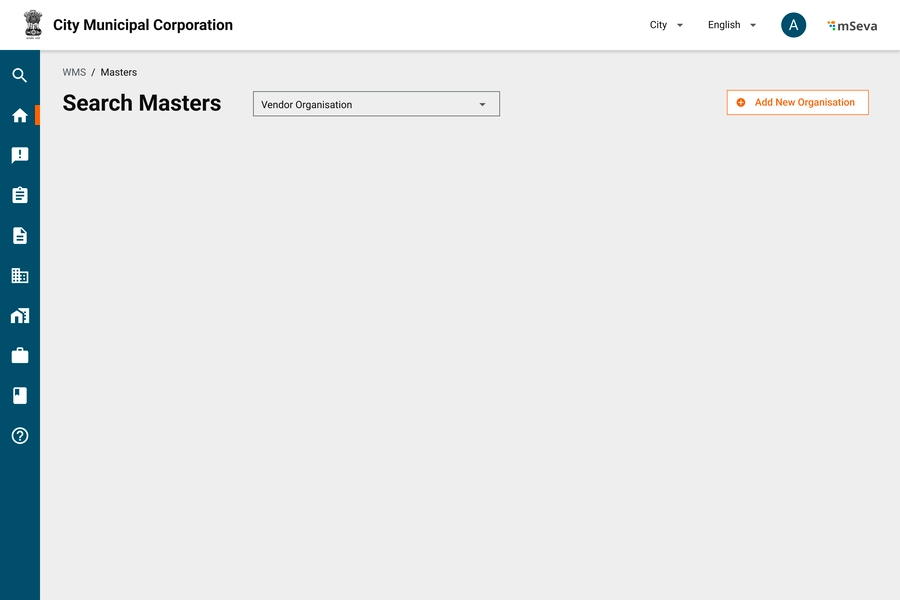
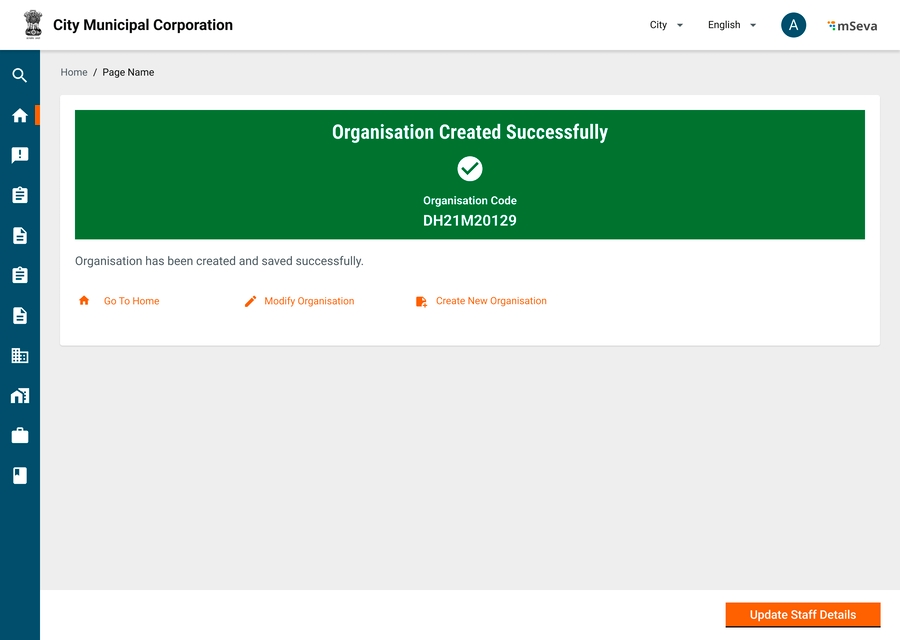
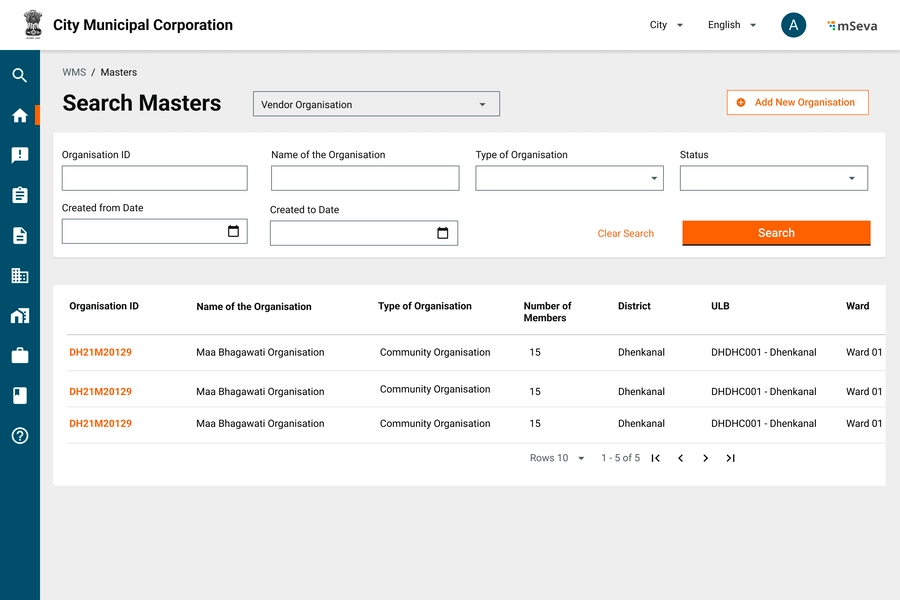
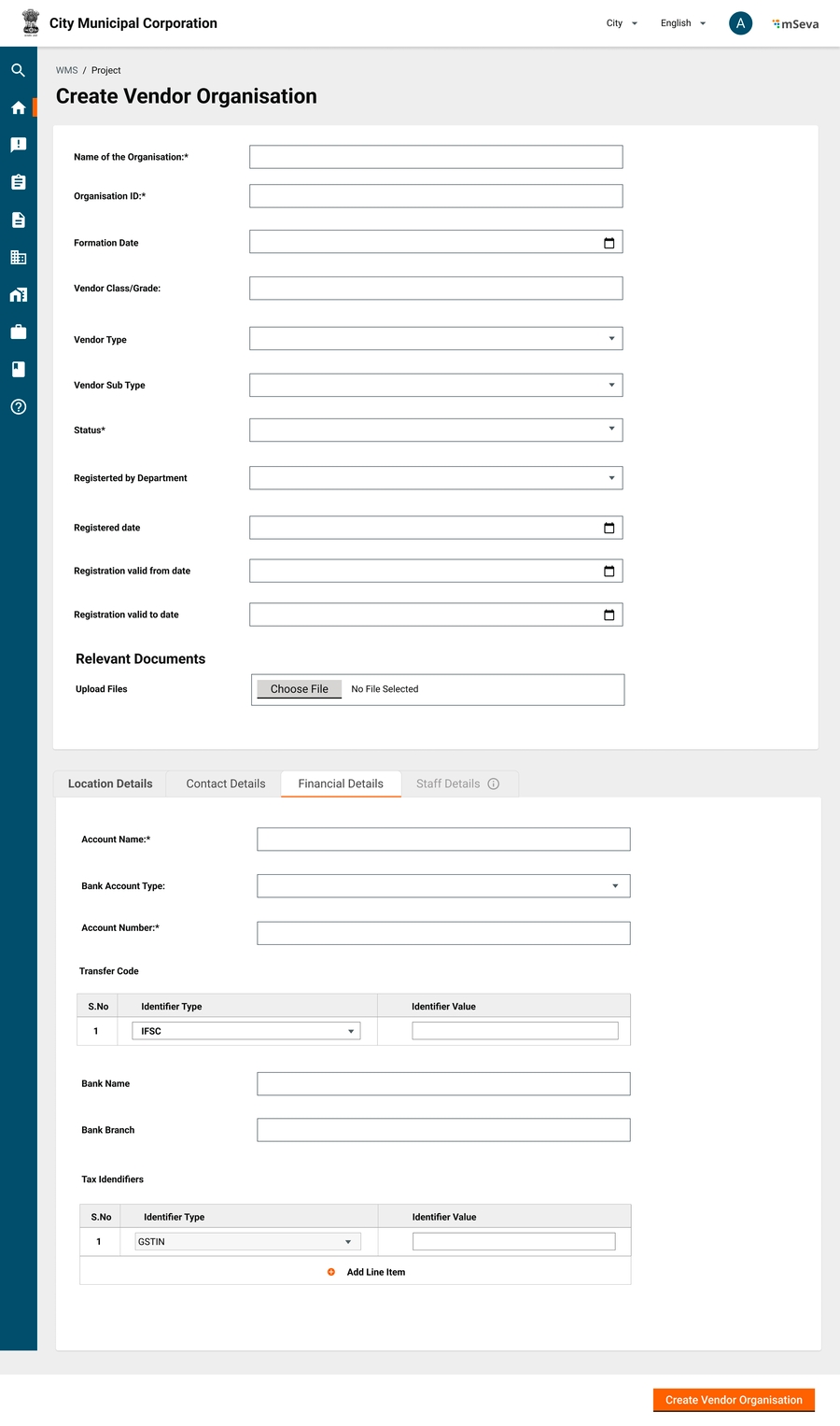
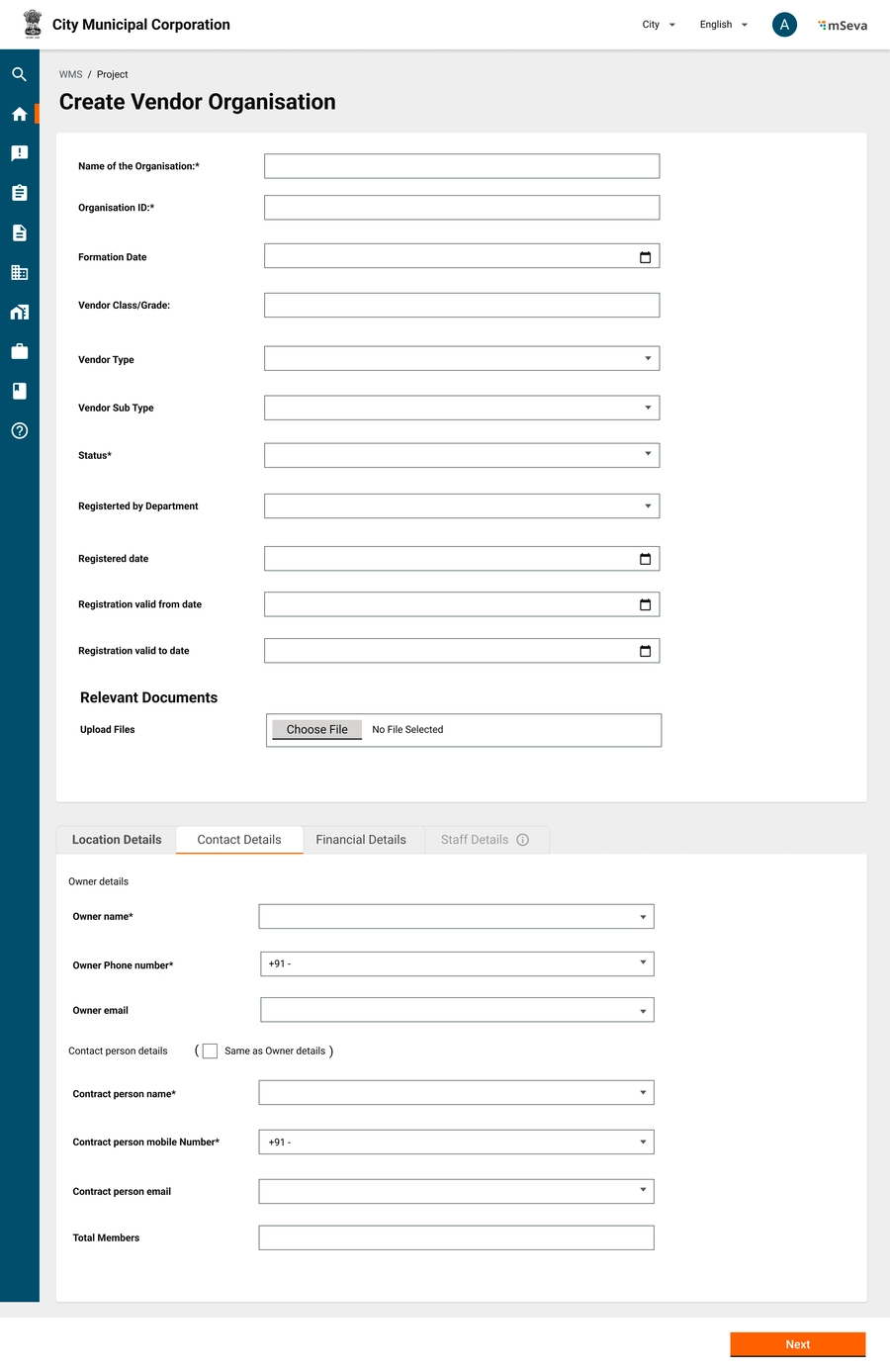
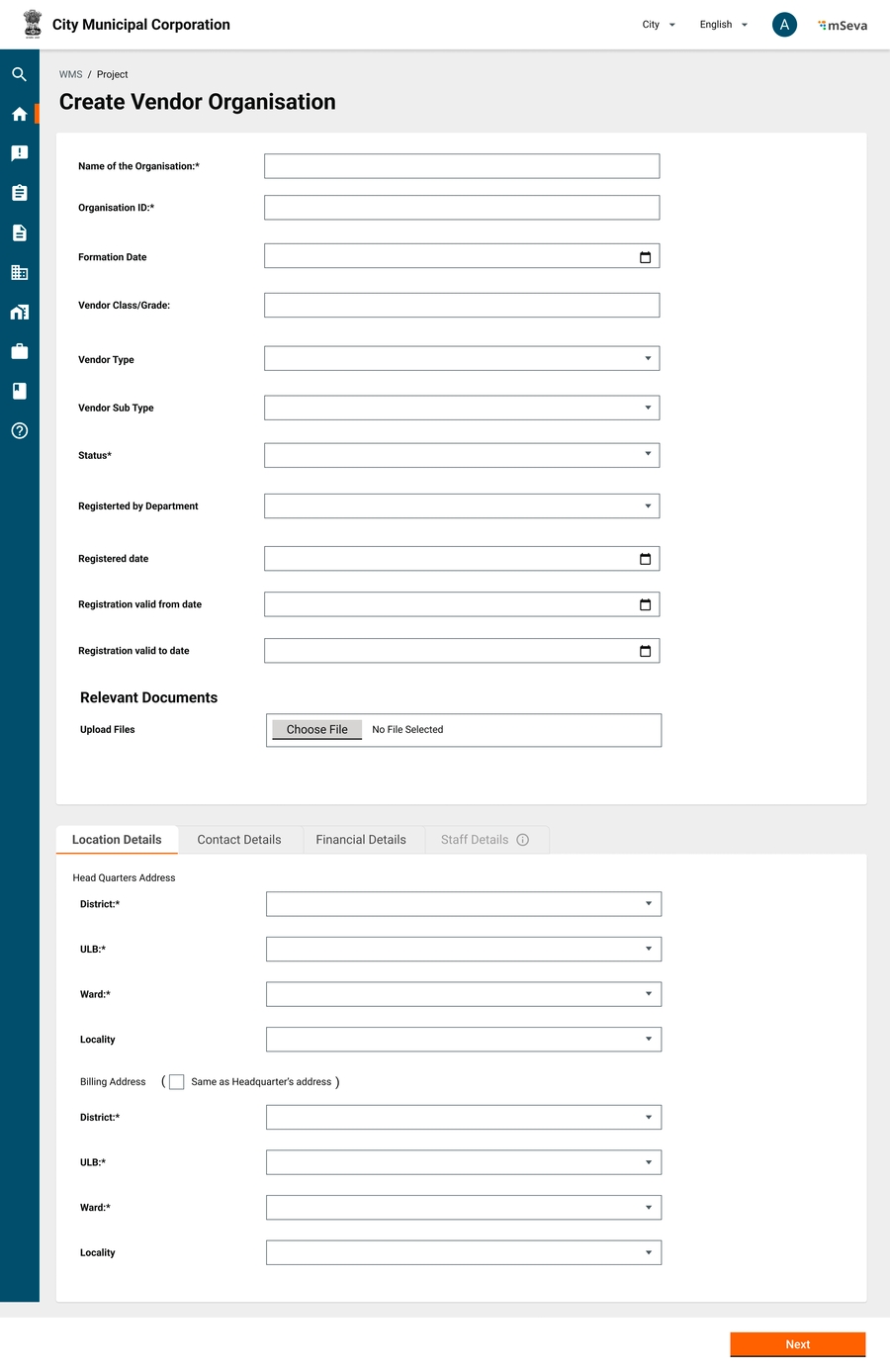
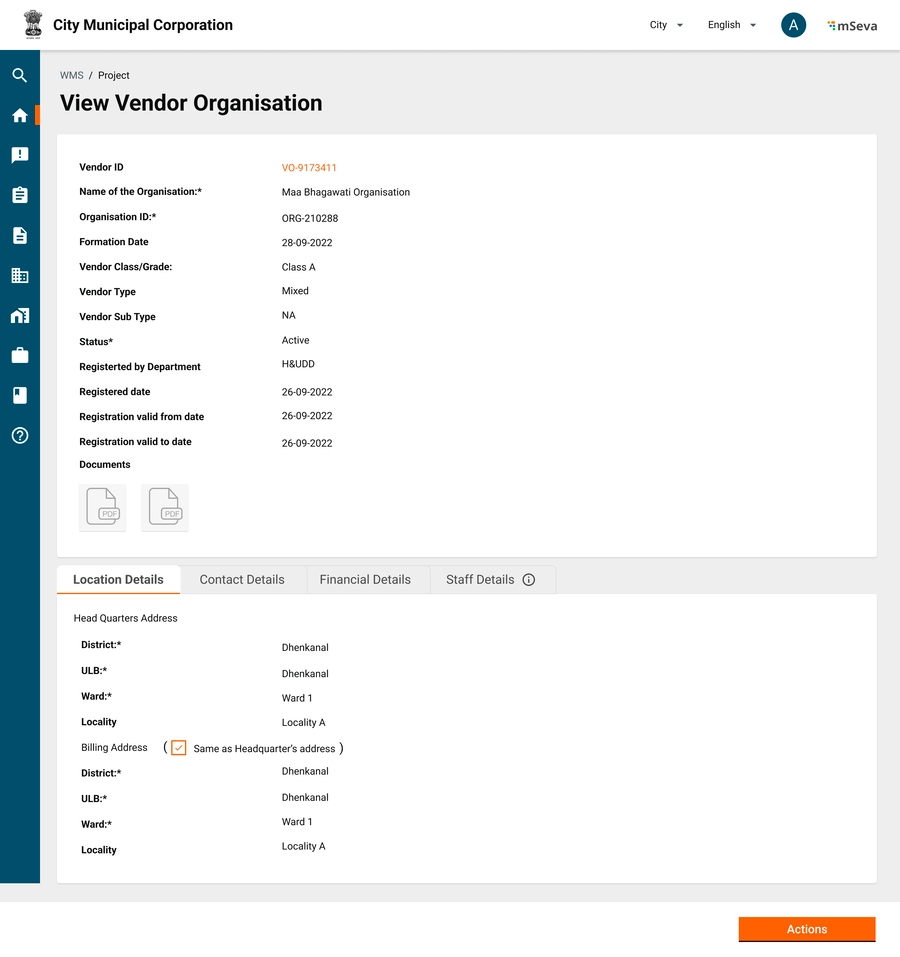
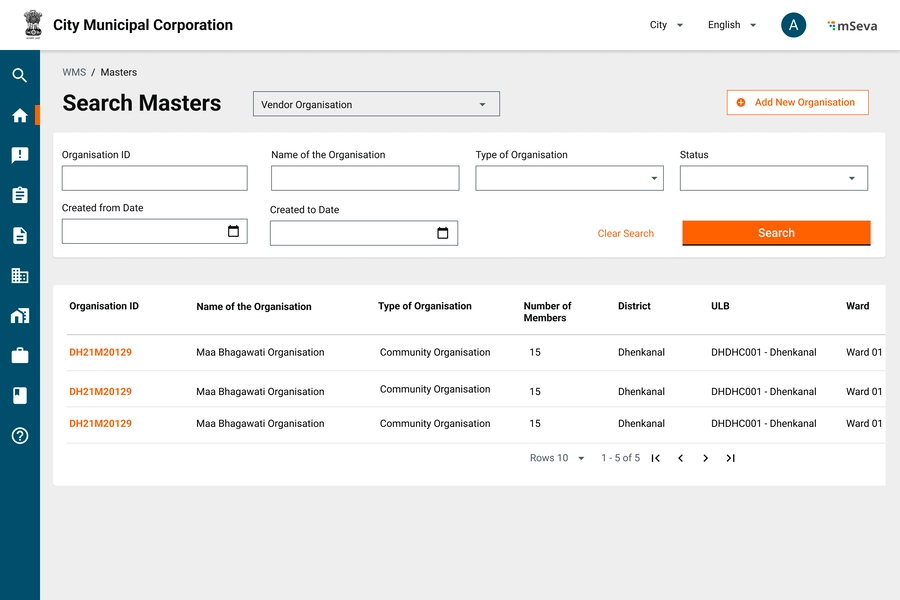
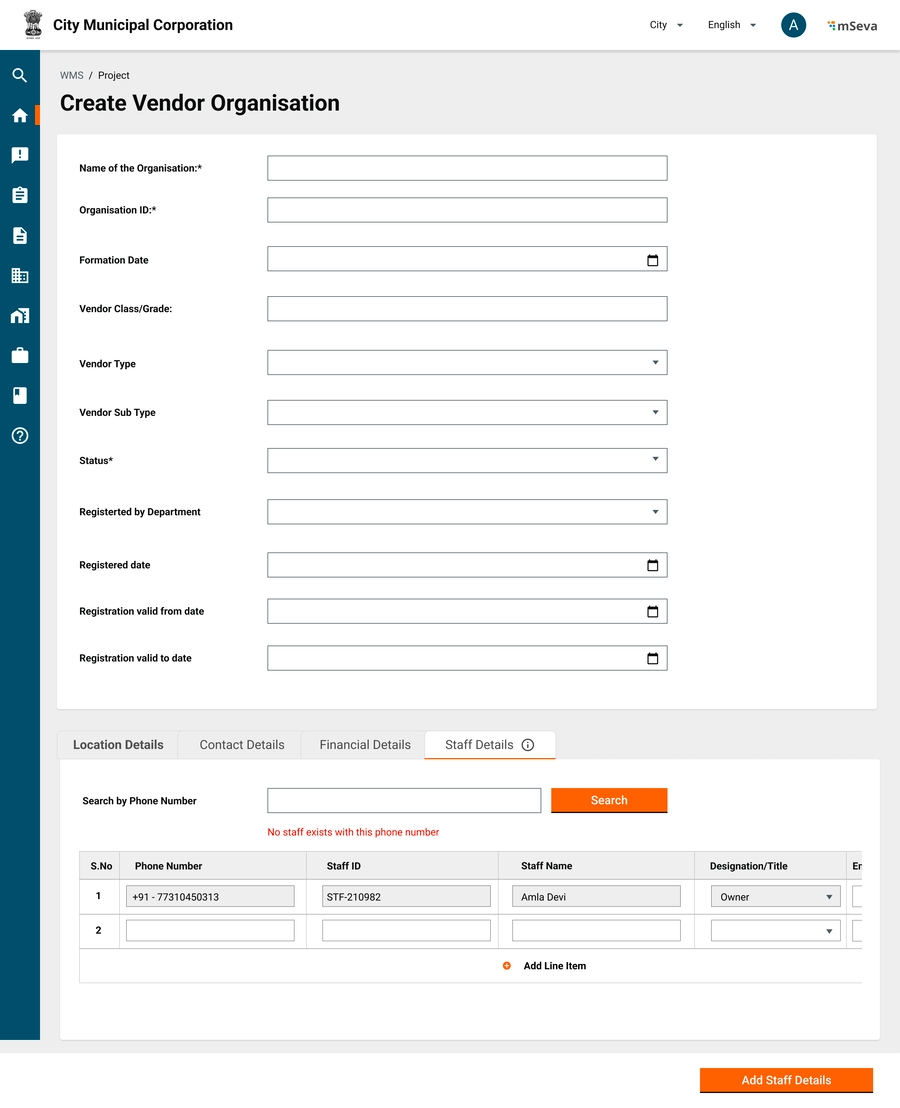
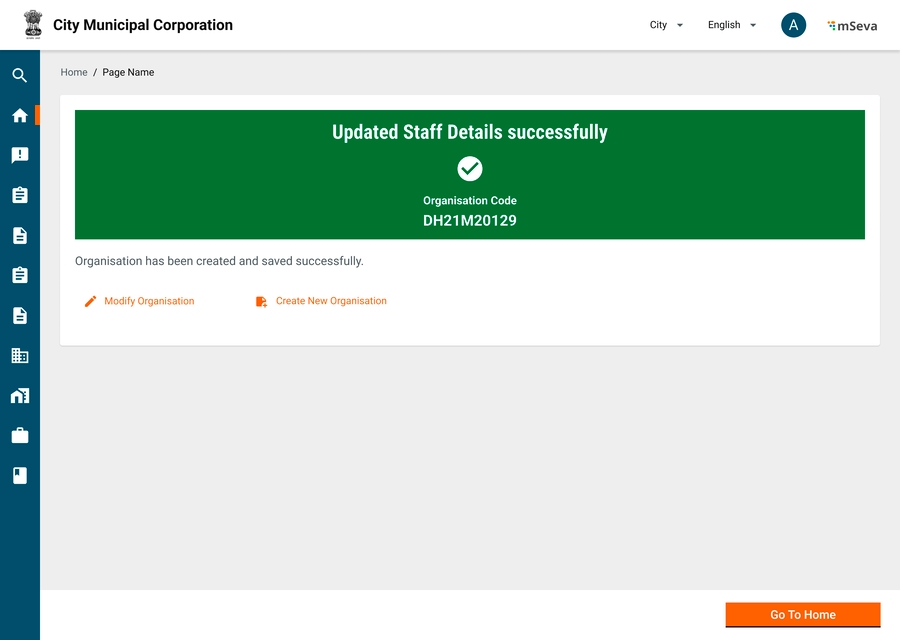
Estimates are created for each project/sub-project entity.
Need and Background
An estimate is prepared for each Works project so as to get technically sanctioned and proceed with tendering/contract.
Estimates are created for each project/sub-project entity.
There are multiple estimate types for each project prepared with different levels of abstraction.
After creating the project (and getting it approved if it is in the workflow) the Junior Engineer estimates the project.
To create an estimate following details are required.
Line Items from SOR
Schedule of Rates (SOR)
SOR is a line item that represents the rate for a single unit of work. SOR is defined by the Central PWD or state PWD and is revised based on the market needs from time to time. In general, there are about 3000+ SOR line items.
Each executing authority ULB/Department may modify the rates of these SORs by applying lead charges.
Lead Masters varies for each project as the project site is different for each.
Analysis of Rates
Each line item of a SOR master/SOR variant will further be divided into Sub line items that come from a set of category Masters like Labour Master, Material Master, Royalty Master, Carriage Master etc.
A group of sub line items together will form an estimate line item.
Each sub-line item will have Item detail 1, item detail 2, quantity, UOM, rate, and estimated amount.
Basic Rates of Materials Master
Note: There are roughly about 200 materials some of whose rates change quarterly.
Labour Rate Master
There are about 80 types of labour.
Lead Master
The Lead Master will have the carriage and royalty details of each item that goes into the individual SOR items.
When a lead master is set on a particular material in a particular ULB, all SOR line items that contain this item will take the amount from the lead master and not from the basic rate master
Non-Schedule of Rates (SOR)
CPWD does not define non-SOR items and based on project requirements will get added to the estimate.
They will have the same attributes as the SOR item but not a defined SOR ID or SOR category. Example: Purchasing fancy benches & themed dustbins at the Park. The rate, in this case, is fixed by JE upon discussion with potential vendors.
Overheads
Overheads can be of two types.
In-Line Overheads - Defined within the SOR line items
Estimate Level Overheads -
These are defined on top of estimates. Each overhead will be defined within a time range with either a percentage or lump sum value of the entire estimated cost
We should be able to abstract out similar overheads from multiple SOR line items and groups to form a single overall overhead for the estimate.
Revised Estimates
Estimate revision can happen before the final bill is submitted and the project is closed. For a revised estimate, the user can come onto the existing estimate and click actions → Revise estimate. This goes for a similar approval cycle as the main estimate.
For a revised estimate -
New line items can be added.
Schedule Category
A schedule category is a grouping of SORs for easy identification and filtering. There are a total of about 3000 SOR items divided into 15-20 SOR groups
Examples - Earth Work, Masonry, Brick Work, Painting, etc
Estimate Template
Templates are created for specific types and sub-types of work so they can be reused for future use.
Templates are groupings of SOR items that combine to complete a similar kind of work.
On the UI, the Estimates inbox will have an Estimate Template section and users can see a list of templates create a new template from there, and modify the existing template.
Examples - Template to build 100 mt of 20 ft road, Template to build 8*10 sq ft standard room.
A user should be able to -
Create an estimate using templates
Add SOR items from the SOR Master
Change values as required for current work
Add/auto-populate overheads
- for MuktaSoft
- for MuktaSoft
Spill Over
For a multi-year project, an estimate is financially broken down into pieces and budget allocation is done for each year instead of allocating the entire budget in the first year.
Overheads
There are 3 ways how estimates can be added.
Manually adding from the SOR master list
Using estimate template
Copying the format of existing similar projects and changing the values
To select line items for SOR, select the SOR category, search for the SOR line item by SOR code or SOR description and select the SOR.
To the SOR line item, add the quantity that is required for this project.
SOR standard amount multiplied by this quantity gives the line item-wise cost.
Measurements can be captured at the SOR line item level directly by the specified UOM or length, breadth, height, quantity can be captured and stored in an empty measurement book. The measurement book recordings can be used later.
Multiplication of Length, Breadth, Height, and Quantity will give the required quantity of the line item for the estimate.
A non-SOR line item will not be defined in MDMS and hence will not be searchable using the SOR category or Code.
Rate, Quantity and Description have to be entered manually.
Just like SOR, Length, Breadth, Height, and Quantity can be captured instead of quantity directly.
All SOR and Non-SOR items in the way captured in the estimates will be created as empty records in the Measurement Book to capture readings later.
Overheads are predefined masters.
The cost of the project becomes the cost of SOR and non-SOR items plus overheads.
Overheads are either added on top of SOR and Non-SoR separately or can be derived from SOR Sub Line items.
Overhead amounts will not be going to the contractor but to specific heads defined in the Master for respective overheads. (GST 12% to GST department, Cess 1% to labour department etc). This means Contracts will selectively capture only a few overheads for contractors.
Each estimate will have a unique ID that is generated
ID: EST/<ULB/Department Code>/<Year>/<month>/<Date>/<running sequence number>
Status of an estimate
Created
In progress
Approved
Rejected
Cancelled
Each SOR Item may have multiple variants with slight changes in description and amounts.
Example: The estimate of tiling for the ground floor and the estimate of tiling for the first floor will change by 15 Rs to capture the carriage charges. These should be captured with .serial_number (Parent.Child).
Y
Item description of the selected Item
Unit of Measurement
Y
Options will be the list from Unit of measurement master
[Array] for specific date ranges
Item Rate
Numeric
Y
Multiple entries can be specified for each Item, but there cannot be an overlap in the rates for a range of dates
Item rate Applicable From
Date
Y
To be entered in the format dd/mm/yyyy
Item rate Applicable To
Date
N
To be entered in the format dd/mm/yyyy
Item detail 1 will capture whether it is material/labour/carriage/overhead/royalty etc
Item detail 2 will capture the exact details of the item from the respective item master. rates need to be auto-populated.
With this when extracted, we should be able to produce labour analysis, material analysis and other standard reports, coming from the estimates.
Y
brick and tile, stone and road, metal and iron etc
Description of Material
Alphanumeric
Y
Second Class Table Moulded Chamber Burnt Bricks 9" x 41 /2" x 3"
Quantity
Numeric
Y
Quantity for which base rate is defined. Default to 1
Unit
Dropdown
Y
Nos, Ton, etc
[Array] for specific date ranges
Item Rate
Numeric
Y
Multiple entries can be specified for each Item, but there cannot be an overlap in the rates for a range of dates
Item rate Applicable From
Date
Y
To be entered in the format dd/mm/yyyy
Item rate Applicable To
Date
N
To be entered in the format dd/mm/yyyy
Y
Highly Skilled, Semi Skilled Unskilled etc
Description of Labour
Alphanumeric
Y
Technical Assistant, Stone Polisher, Smith etc
Quantity
Numeric
Y
Quantity for which base rate is defined. Default to 1
Unit
Dropdown
Y
Day/Week/Month
[Array] for specific date ranges
Rate
Numeric
Y
Rate of Labour for specified (Quantity units)
From Date
Date
Y
Date from which these rates are applicable
To Date
Date
Y
Date to which these rates are applicable
Y
Item for which Lead SOR is present
Name of Quarry
Dropdown
N
For Materials. Doesnt appy for labour
Unit
Dropdown
Y
Unit of Measurement
Lead (Km.)
Numeric
N
Distance from quarry
Basic Cost
Autofill
Y
Basic cost pulled from material rate master or labour rate master
Conveyance Cost
Numeric
N
Royalty
Numeric
N
Royalty on applicable material, abstracted, will go into specific head defined during estimation
Total
Calculation
Y
Total new cost of line item
N
Description
Account head
Dropdown
Y
Account head to which overheads should be credited
[Array] for specific date ranges
From Date
Date
Y
Date from which these rates are applicable
To Date
Date
Y
Percentage/ Lumpsum
Numeric
Y
Percentage or Lumpsum amount of estimate including value
Quantities in existing estimates can be modified.
A contract that is created from this estimate also needs to be revised and sent to the contractor for approval.
Measurement books accordingly will be changed as per the new estimate.
If some part of the estimate is already measured and the bill has been created/approved, a revised estimate for that line item cannot go under that approved bill quantity for that line item.
Y
Description of the template
Status
Dropdown
Y
Status of the template
Active
Inactive
Work Type
Dropdown
Y
Select the Type of work. All the work types defined in the system should be shown
Work Sub Type
Dropdown
Y
Select the Sub type of work. All the work sub types defined in the system should be shown here
[Array] for each line item
Schedule Category
Dropdown
Y
Options are the list of SOR categories from the SOR category master.
SOR
Alphanumeric
Y
Enter the template code and search for it
Non_SOR Code
Alphanumeric
N
Non_SOR Description
Alphanumeric
N
Non_SOR UOM
Dropdown
N
lenght--KM; Area--SQM
Non_SOR Unit Rate
Numeric
N
Able to generate material analysis and labour analysis
Download PDFs of labour analysis, material analysis, and overall estimate
Employee user manual on using the Estimate module - for MuktaSoft
Proposal
A single line item has the overall project cost against the project title. This requires in-principal Admin sanction. Once approved detailed estimate for the same is created.
Detailed
A detailed estimate contains engineering drawings done on AutoCAD & other drawing tools. Modern tools also abstract out many measurements and materials from drawings created by these tools.
Abstract
An abstract estimate is prepared using standard SOR & Non-SOR Items defined by PWD (mostly ULBs customise SOR and have their own copies). SOR items are created internally using item rates.
Revised
When a project's finances are increasing then to what is initially estimated, revision estimates are created and approved. revision estimates may or may not have the same SORs as initial estimates. Revised estimate line items added to initial line items will give overall project cost.
Deviation
A deviation statement is a type of estimation when the scope of the project changes but the project cost is meant to remain the same. The deviation statement and revised estimate are the same as far as the estimation process is concerned. The approving authority changes only.
SOR Category ID
Drop down
Y
Options will be the list of Category Code from the SOR category type master
The combination of category Code and Item code is unique
Item ID
Alphanumeric
Y
System generated
Item Description
ID
NA
Na
System generated ID
Department
Dropdown
Y
Labour rates may vary by each department
Material Category
ID
NA
Na
System generated ID
Department
Dropdown
Y
Labour rates may vary by each department
Skill Category
ID
NA
NA
System Generated
Item ID
Dropdown
Item for which Lead SOR is present
Item Name
ID
NA
NA
ID generated for each overhead type
Name
Alphanumeric
Y
Name of the overhead
Ex. Labour Cess, GST, Royalty etc
Description
Category Code
Alphanumeric
Y
Unique Code Assigned to the Schedule Category
Category Name
Alphanumeric
Y
Name Assigned to the Schedule Category
Template Code
Alphanumeric
Y
Define the template code
Name
Alphanumeric
Y
Name for template
Description
Create Estimate
Estimate Successfully Created
Estimates Inbox
Inbox Table
SOR Data entry screen
Dropdown
Dropdown
Autofill/Dropdown
Alphanumeric
Alphanumeric
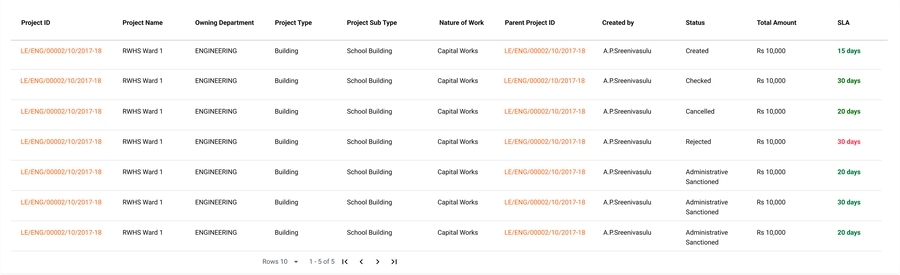
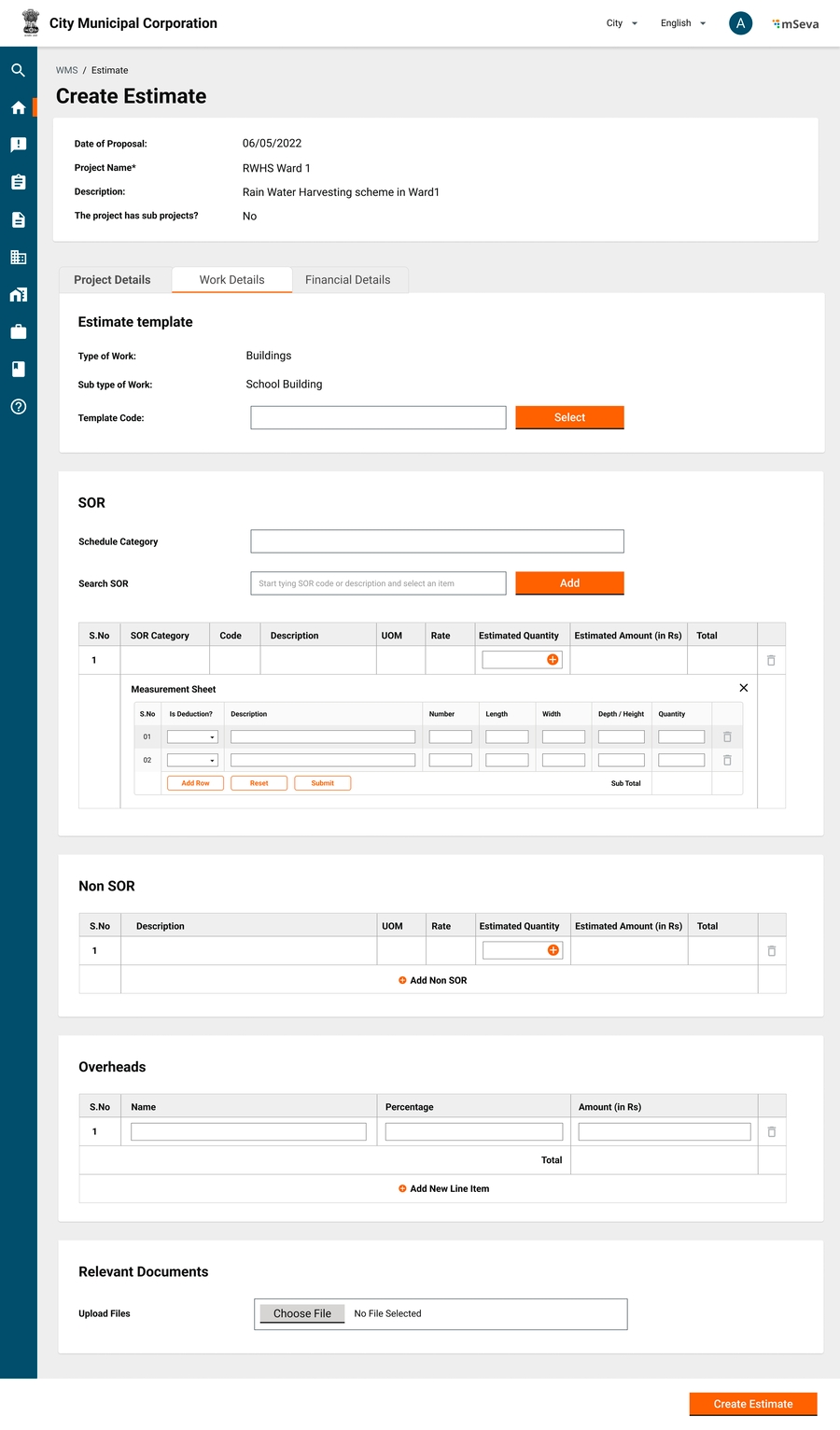
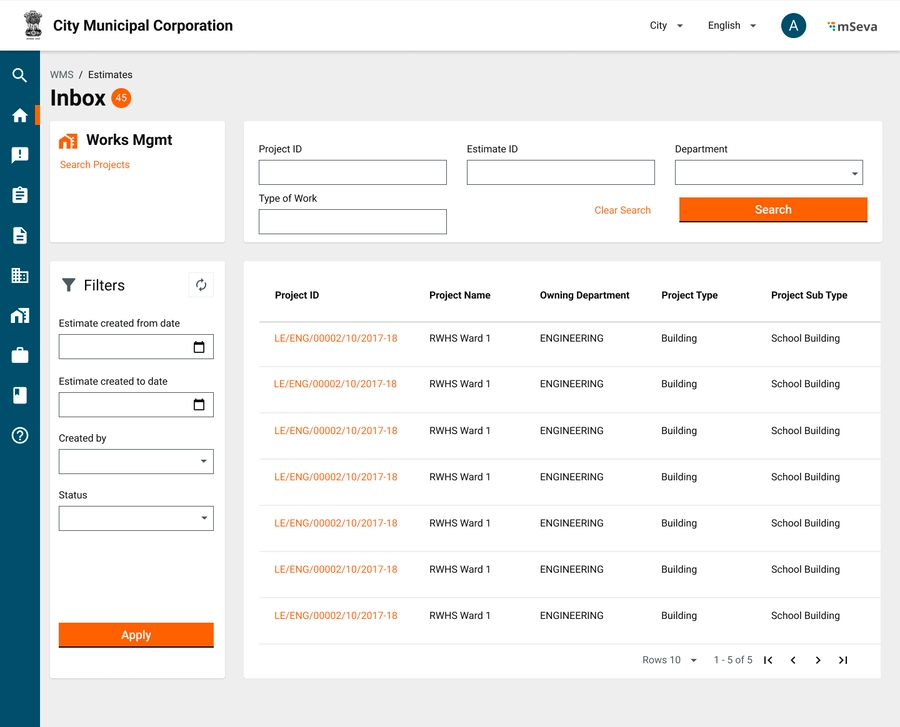
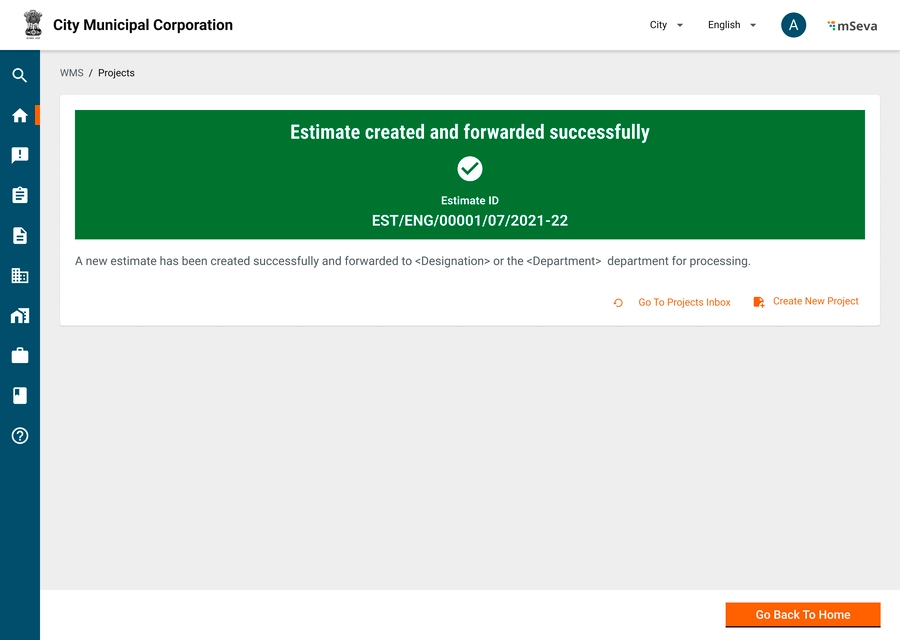
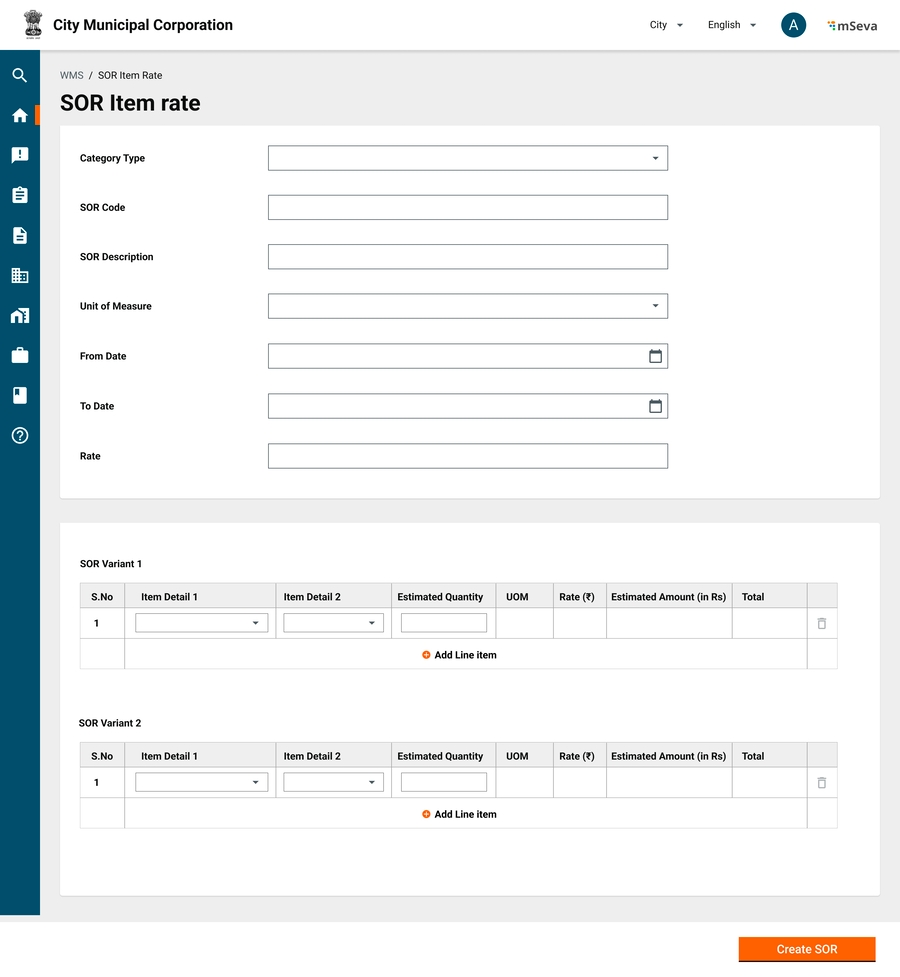
On this page -
The detailed product roadmap is as below:
2
User Authorisation
V1
V1.0
Done
HRMS
3
User Login
V1
V1.0
Done
HRMS
4
User Credentials Recovery
V1
V1.0
Done
HRMS
5
User Transfer
V1
V1.2
In Progress
HRMS
6
Scheme Monitoring
V1, V2, V3
7
Fund Allocation Register
V1, V2
V1.2
In Progress
Dashboard
8
Scheme Dashboard
V2, V3
Dashboard
9
Registers and Databases
V1, V3
10
Admin Units (ULB's Ward)
V1
V1.0
In Progress
MDMS Configuration
11
Community Organizations
V1
V1.0
In Progress
12
Change Request from Community Organisation
V3
13
Database of Wage-seekers
V1
V1.0
In Progress
14
Change Request from Wage-seeker
V3
15
SMS Request from Wage-Seeker
V3
16
Database of Community Assets
V3
Database of Vendors
V1
V1.0
Aadhaar Integration
V1
V1.2
In Progress
17
Vendor's Empanelment &
Rate Contract
V2, V3
18
Items Master
V3
19
Schedule of Rates for Districts
V2
20
Rate of Lead Charges for Items Groups
V3
21
Lead Distance Master for Items Groups for ULB
V3
22
Schedule of Rate for ULBs
V2
23
Vendor Registration
V3
24
Annual Vendor Empanelment
V3
25
Finalization of
Identified Public Works
V3
26
Wishlist of Works
V3
27
Feasibility Study and Observation Recording
V3
28
Final Worklist
V3
29
Works Estimation and Planning
V1, V2
30
Template Designer & Library
V2
31
Works Estimate
V1
V1.0
In Progress
Detailed Estimate (With SOR/ Non-SOR)
V2
32
Work Order &
Wage Seeker Engagement
V1, V2, V3
33
EoI Format Definition
NA
34
EoI Invitation
NA
35
EoI Submission
NA
36
Rank List of Community Organization
V3
37
Issue of Work Order
V1
V1.0
In Progress
Acceptance/ Declination of Work Order
V1
V1.0
In Progress
38
Revision of Work Order (Time Extension)
V1
Revision of Work Order (Work Value)
V2
Cancellation of Work Order
V2
39
Attendance of Wage Seeker
V1
V1.0
40
Wage Seeker Engagement/ Disengagement
V1
V1.0
In Progress
41
Attendance Record (e-Muster-Roll)
V1
V1.0
In Progress
42
Record Attendance (m-Muster)
NA
43
Work Execution
V1, V2
44
Commencement of Work
V2
45
Record Progress (e-MB)
V2
46
Record Progress (m-MB)
V2
Labour Utilization Log
V2
Material Utilization Log
V2
47
Works Review and Closure
V1
V1.1
In Progress
48
Purchase of Materials/
Hiring of Equipment
V3
49
Issue of Purchase Order
V3
50
Acknowledgement of Material/
Equipment Receipt from Vendor
V3
51
Vendor Invoicing
V3
52
Penalty for Vendor
V3
53
Cancellation of PO
V3
54
Billing & Payment Disbursement
V1
55
Bill Preparation/ Excel for Payment
V1
V1.0
In Progress
JIT-FS Integration/ Payments
V1
V1.1
In Progress
56
Training & Knowledge Sharing
V3
57
Training Content Cataloguing and Repository
V3
58
Training Scheduler
V3
59
Assessment & Feedback
V3
60
Grievance Redress & Chatbot
V3
61
Grievance Registration
V3
62
Grievance Assignment and Resolution
V3
63
Grievance Feedback and Closure
V3
64
Chatbot
V3
65
Social Audit and Compliance
V3
66
Social Audit Planner
V3
67
Social Audit Agency Engagement
V3
68
Audit Register
V3
69
Audit Compliance and Report
V3
1
User Authorisation &
Authentication
V1
In a government setting -
Payments are generally made TO and BY the government. In this document, we will refer to payments made by the government as expenses and payments received by the end party as receipts.
Payments made TO the government, ie. Receipt/Revenue to the government can be of two types
Demand-based collection
First, a demand is generated by the government
Examples: Demand for Property Tax, Trade license, Water tax etc
Second, An invoice is issued by the government with these demand details for what is owed to the government either as taxes/charges/levies etc.
There is also another type where collections are made without any demand being generated.
DIGIT has this demand and billing service to accommodate payments made to governments.
For payments made BY the governments. Examples - Salaries, Wages, Payments to beneficiaries, Contractors, Ad hoc payments
For any transaction to happen, there is a payer, payee, amount and entity details.
Payer and Payee can be individuals or organizations.
Entity details contain other information which are important for a bill to be generated but not mandatory for payment advice
Examples: Invoice ID, Invoice date, Verification details etc
Every transaction will ideally start with an invoice equivalent that is generated by the supplier/contractor/muster/contract/payroll etc against which a payee will generate a bill in the name of the payer.
A Bill can have single or multiple beneficiaries. It should depend on the source of verifiable information.
Examples: If a muster roll has 20 beneficiaries, Bill also can have 20 beneficiaries. It is not needed to create 20 individual bills.
At the same time, A single invoice should not be divided into multiple bills.
Examples: Even though the material is supplied in tranches, a single PO can lead to multiple invoices and only after the consumption of the entire material as per individual invoice and associated measurement book, a Bill for that invoiced amount can be created and paid.
A Payment advice is required to be generated to enable beneficiary payments, module is to be integrated with a payment gateway
Hence payment advice will contain minimal information that is required for the bank/gateway to make the payment.
Limits on the number of beneficiaries and amounts etc to be configurable as needed by the integration.
Expenses are created by the JE and approved by ME, EE/ EO depending on the amount and associated approval authority.
This module should have the following components -
Header Details
Bill ID
Bill Date
Party Bill ID
Actions to resolve:
Input to expenditure service is when a project is created and an estimate is to be approved.
Expenditure will query the program service to get the status of fund availability.
In case funds are available, the expenditure service can also ask the program service to block respective funds (from estimation) for this project.
The budget hence is blocked and won’t be available for the next projects to consume.
The expenditure module should also have a provision to release the pre-blocked budget. So this can be used for other projects. Or the existing project for which the budget has been blocked is deferred.
Expense Planning
The expenditure service will also have a planning module which will give timelines of expenses and respective amounts to funding agencies.
The blocking module also feeds into the planning module to block funds promptly.
Bills are created under contracts (projects)
A contract is issued by the Payer to Payee.
The contract can be materials, labour, services, supervision etc
A payee in turn issues invoices against the contract on the supply of material/services.
A contract can have multiple invoices raised by the payee before the contract is deemed closed.
An invoice can be a material invoice, labour invoice (Muster roll), or invoice for supervision charges.
PS: Not every time an invoice is required to generate a bill.
Third, the Citizen acknowledges and pays the respective amount.
Fourth, a receipt is issued against the paid amount.
Non-Demand-based Collection
Party Bill Date
Bill Type
Salary/Pension Bill
Based on Payroll, leaves, PF, GPF, other allowances
Advance Bill
Unlike other bills which are post-work/service completion and measurement, an advance bill is raised prior and adjusted later.
Advance bill is horizontal and be applicable on top of all other bill types
Works/Contractor Bill
A contractor bill is created and measured against the measurement books and contract(work order) objects for verification.
When a user selects to pay a contractor bill, the user can select against which measurement books of the contract this bill is being raised, and accordingly bill amount will be calculated.
Muster/Labour Bill -
A labour bill is created from a muster roll and usually has multiple beneficiaries within the same bill.
When a user selects to pay a wages bill, the user can select which muster rolls to process as part of this bill, and accordingly bill amount and array of beneficiaries will be processed.
Supplier/Vendor Bill
A vendor bill is similar to a contractor bill where as here instead of a measurement book and work order, an invoice and material receipt register or purchase order are used for verification.
A vendor bill should ideally be against each invoice as submitted by the supplier.
Contingency/Expense Bill
Ad Hoc expenses
Supervision Bill
This type of Bill is calculated as a percentage on top of other types of approved bills.
Others (need more use cases)
Debit Details
{Account Code, Account head, Debit Amount}
Treasury Payments - {Major, Sub Major, Minor, Sub Minor, Detail, Object head, Debit Amount}
ULB Payments - {Fund, Functionary, Budget head, Scheme, Sub Scheme, Debit Amount}
This should be configurable at the tenant level to choose what type of accounting system is followed.
Debit details should ideally be captured at the time of project creation. This helps in budget checks being done.
Each Project will be associated with a set of account codes and percentage amounts of the entire project, from where debit will happen.
Similarly, respective amounts (lumpsum/percentage) should be chosen from these account codes for each bill that is created.
Service should not allow debit more than the initial quoted amount under respective heads against the sum of all the bills created for the project.
Deductions - The amount that is deducted from the gross value of the bill as these are already included in the work line items. Deductions are classified into many types.
Internal transfer - Example: SOR line items already include cess 1%. Hence it is deducted here and transferred to labour welfare account head. SOR line items also include royalty on the material. That needs to be deducted from here and transferred to Tahsildar.
Advance recoveries - Amount paid earlier for mobilization advancement or material procurement etc are deducted while creating a new bill
Retention Money - Money is withheld for payments and paid at a later date after the defect liability period. Deductions are always done against a beneficiary. If a bill contains multiple beneficiaries, it needs to be specified against which beneficiary the deductions are made.
Credit Details
A bill can have multiple beneficiaries. However, the nature of payments or beneficiary types should be the same for all beneficiaries in one bill.
Wage seekers bill should contain only beneficiaries for wages
Materials bills should contain only vendors and be verified against their invoices.
Once the bill of any type is created, this will go for approval and have wfstatus.
Every bill will also have a beneficiary payment status.
In the absence of intergrations with Banks/IFMS, this status can be updated manually to mark beneficiary payments.
In the presence of integration, systems should show the status of payment.
Once a bill is approved, payment advice needs to be created and sent to the integrated system. This system will send back the success/failure status along with the reasons.
Todays Date
2
Party Bill Date
Date
N
Date on which Invoice is given by third party
3
Party Bill Number
Alphanumeric
N
Reference number on Invoice given by third party
4
Bill Type
Dropdown
Y
Salary, Pension, Works, Advance, Others etc
Financial Details (For ULB Payments)
5
Fund
Dropdown
Y
Capital Fund, Municipal Fund, Grant Fund
6
Function
Dropdown
Y
202107 - Roads and Building Maintenance
202406 - Street Lighting Maintenance
202500 - Storm Water Drains
7
Department
Dropdown
Y
Road and highways
Streetlights
Storm water drains
8
Scheme
Dropdown
N
Scheme is tied to a fund
Muncipal Fund, funds schemes such as Housing, employment, Capital fund, funds scheme like buildings & highways
9
Sub Scheme
Dropdown
N
Sub Scheme is tied to scheme.
10
Fund Source
Dropdown
N
Loans, Own sources, Grants, etc
Financial Details (For State Department Payments)
11
Chart of Accounts
Dropdown
Y
Length varies from state to state. Punjab has 16 digits. Odisha has 27 Digit Codes.
Odisha has following format
Demand Number(2)-Major(4) –
SubMajor(2) – MinorHead(3)-
Sub(4)-Detail(5)-Object(3) –
PlanStatus(2) – ChargedVoted(1) – SectorCode(1)
Example - 11(Demand Number) –
2225 (Major Head) – 02 (Sub
Major Head) - 277 (Minor Head) –
2367 (Sub Head) – 40004 (Detail
Head) – 544 (Object Head) – 21
Beneficiary Details (Array)
12
Beneficiary ID
Searchable dropdown
Y
Registration ID of the beneficiary in the system
13
Beneficiary Name
Y
Name of the beneficiary
14
Beneficiary Type
Contractor, Employee, Tahsildar, Wage seeker, Asha Worker, Student etc
15
Phone Number
Phone Number
16
Aadhar Number
Aadhar Number
17
Account Number
Y
Account Number
Bank Account Name
Y
Name on bank account
18
Account Type
Savings, Current, Loan etcRequired in IFMS while processing payments
19
IFSC
Y
IFSC
20
Amount
Numeric
Y
Debit Details
21
Account Code
Y
2723000 ,2101001
22
Account Head
Roads and Bridges-Roads & Bridges
Salaries, Wages and Bonus-Basic Pay
23
Debit Amount
Y
Deduction Details
24
Account Code
N
3502017,
25
Account Head
Recoveries payable-LCCS, Creditors-Contractors
26
Deduction Amount
N
Net Payables
27
Account Code
Y
3501002
28
Payable Amount
Y
Debit Amount should be equal to sum of deduction detail plus credit amount.
DDO Details
29
DDO Code
N
30
DDO Login ID
N
DDO Login id is mandatory if multiple DDO exists for the same DDO code.
Summary Details
Y
31
Gross Amount
Y
32
Net Amount
33
Number of beneficiaries
Y
34
PreviousBillReferenceNumber
N
Needed if re-submitting previously objected to the bill.
35
Payment Date
Y
36
Payment Mode
Y
Users click on create Bill in the billing management inbox and search for existing contracts to create Bills
Search parameters to create Bills
Contract Name
Clicking on Contract ID in first tab should show contact view screen exactly as it would open from contracts flow on home screen.
Primary CTA here will be same as what Actions menu shows on the previous screen.
Create Bill (If Billed Amount < Contract Amount)
Choosing Bill Type
Clicking on create bill should ask the user to select a particular bill type, next screen will be displayed accordingly.
Expenditure service may have many bill types like Salary/Pension Bill, Contractor Bill, Wage Bill, Vendor Bill, Supervision Bill, Advance Bill etc
Works Product will only show
Contractor Bill
Header details will capture
Bill Date - Default to todays, but allow to change to previous date
Agency/ Firm Bill Number
In the second Tab, account details to be selected
Deductions
Deductions will be predefined master
Completion Checklist
Only for final bills -
Along with the bill certain checklists and attachments need to be added to it can trigger project closure.
Wage Bill
Header information is same for all types of Bills
Unlike a contractor Bill, Wage bill is verified against Muster rolls.
All Muster rolls that are created and approved under that contract are shown here for user to select which muster rolls can become part of this bill.
Vendor Bill
A vendor bill should be verified against Purchase order that is given to the supplier.
A purchase order can contain n*m (line items *quantity) and each invoice can be a subset of these items only.
Since in V1, we do not have complete Purchase Order detailed out.
Advance Bill
Advance Bill is just an amount that is given to the vendor/contractor/individual to commence the work.
Advance bill can be given at any time of the contract.
Advance bill will not have to be verified against any other document
Supervision Bill
A supervision bill is a special type of bill that will be processed as percentage on top of existing bills.
User can select bills under that contract and select percentage to be given as commission. This will be created as new bill in the system
Deductions, Retention money, Advance adjustment and net payables act same as contractor bill.
3
EX0007
Digital Certificate found to be Revoked
Technical
4
EX0008
Digital Certificate found to be Expired
Technical
5
EX0009
Certificate Serial Mismatch
Technical
6
EX0010
Signature Verification Failed
Technical
7
EX0030
Invalid Zip File
Technical
8
EX0033
Invalid File Naming Convention
Technical
9
EX0034
Public key not available for Signature verification
Technical
10
EX0903
XSD Validation Failure
Technical
11
FV0004
Duplicate File / Message
Technical
12
FV0005
Number of Transaction mentioned in the Header mismatch with the actual transaction
Technical
13
FV0006
Amount mentioned in the net amount mismatch with the actual transaction amount
How is this possible?
14
FV0007
ePayments Subscription not done for the Initiating Party
What is ePayments Subscription?
15
FV0008
Mismatch in Department Code or Service Code
Technical / Mapping
16
FV0058
Invalid File Name
Technical
17
FV0059
File Creation Date is greater than CBD
Technical
18
PV0007
Debtor Account Closed
Modify and Resubmit the Bill
19
PV0008
Debtor Account Freezed
Modify and Resubmit the Bill
20
PV0009
Debtor Account In-Operative
Modify and Resubmit the Bill
21
PV0010
Debtor Account Dormant
Modify and Resubmit the Bill
22
PV0014
Invalid Debtor IFSC
Modify and Resubmit the Bill
23
PV0070
Debtor IFSC and Creditor IFSC should not be same
Modify and Resubmit the Bill
24
PV0072
Invalid Payment Information ID Format
25
PV0073
Duplicate Payment Information Id
26
TV0002
Invalid Currency
27
TV0003
Invalid Creditor IFSC
Modify and Resubmit the Bill
28
TV0004
Duplicate End to End ID
29
TV0121
Creditor Account Closed
Modify and Resubmit the Bill
30
TV0122
Creditor Account Freezed
Modify and Resubmit the Bill
31
TV0123
Creditor Account In-operative
Modify and Resubmit the Bill
32
TV0124
Creditor Account Dormant
Modify and Resubmit the Bill
33
TV0130
Creditor Account Invalid
Modify and Resubmit the Bill
34
TV0133
Creditor Account Type Invalid
Modify and Resubmit the Bill
35
TV0161
Invalid IIN
What is IIN?
36
TV0162
Invalid Aadhaar format
Not required
37
TV0163
Invalid User Number
Not required
38
TR0001
Previous financial year bill not allowed
Modify and Resubmit the Bill
39
TR0002
Wrong bill head of account
Modify and Resubmit the Bill
40
TR0003
Duplicate bill number
Bill Number is generated Automatically by the system. It should ensure that this doesnt happen. if so, create another bill with new bill number
41
TR0004
Wrong object breakup head of account
Modify and Resubmit the Bill
42
TR0005
Wrong by transfer head of account
Modify and Resubmit the Bill
43
TR0006
Bill objected
Why?
44
TR0007
Payment failed
Why?
45
TR9999
Internal system error
Technical
46
0
Processed successfully
After successful verification of supplies and invoices, the payer adds bills into the finance system
A voucher is created in the accounting system for auditing purposes.
Payment advice is sent to the bank for making financial transactions.
The voucher and bill statutes are updated once the payments are made.
An invoice can have multiple line items.
In the case of a restaurant bill - The restaurant captures an additional GST amount on the net amount. All line items are paid immediately by the service seeker. They pay the taxes collected from all invoices to respective government bodies at set intervals.
In the case of a salary bill - All line items are not immediately paid to the service provider (Employee). Instead, the employer deducts TDS and only pays part amount to the employee. Employer remits this amount to the government body. Even the employee remits his part of the tax at regular intervals.
An invoice can also have multiple beneficiaries and a head-wise breakup for each beneficiary.
An invoice when entered into the system creates a Bill. A billing entity internally will have multiple line items each by payer, beneficiary, amount and head combination.
So a muster roll with 1 payer, 3 payees, each payee having 500 rs payable and 50 rs deduction on ESI can be on 1 bill with 6 line items.
This bill when processed will create a voucher in the accounting system
A payment voucher however can be a combination of multiple payers and payees by line items. From above example
There can be a minimum of 2 payment advices one for all payables of 450 rs to each individual
Other for all ESI deductions directed to the ESI department.
This will help payments go faster to respective departments.
Once the payments are made, respective bill line items will be updated with statuses. Once all bill line items are updated, the overall bill will be updated with status.
Inbox
Contract Selection and Bill type Selection
Contractor Bill Creation
Wage Bill Creation
Vendor Bill Creation
Bill Details
1
Bill Date
Date
Works Home Screen
Users having access to billing management can come to the billing inbox by clicking on billing management on the home screen.
Billing Management Inbox
Billing management inbox will have links to create new bill, search for existing bill and filter bills using
Bill ID
Contract ID
Bill Status
Bill created from date
Bill created to date
Initially inbox will be empty as no bills are created.
When bills are created and assigned to other users for approval, inbox table is filled as shown.
Table columns are
Bill ID
Bill date
Bill Type
Search Contracts to Create Bills
1
EX0005
Could not find the XML in the Zip File
Technical
2
EX0006
Digital Signature File Missing in the Zip File
Supervision bill creation
Y
Technical
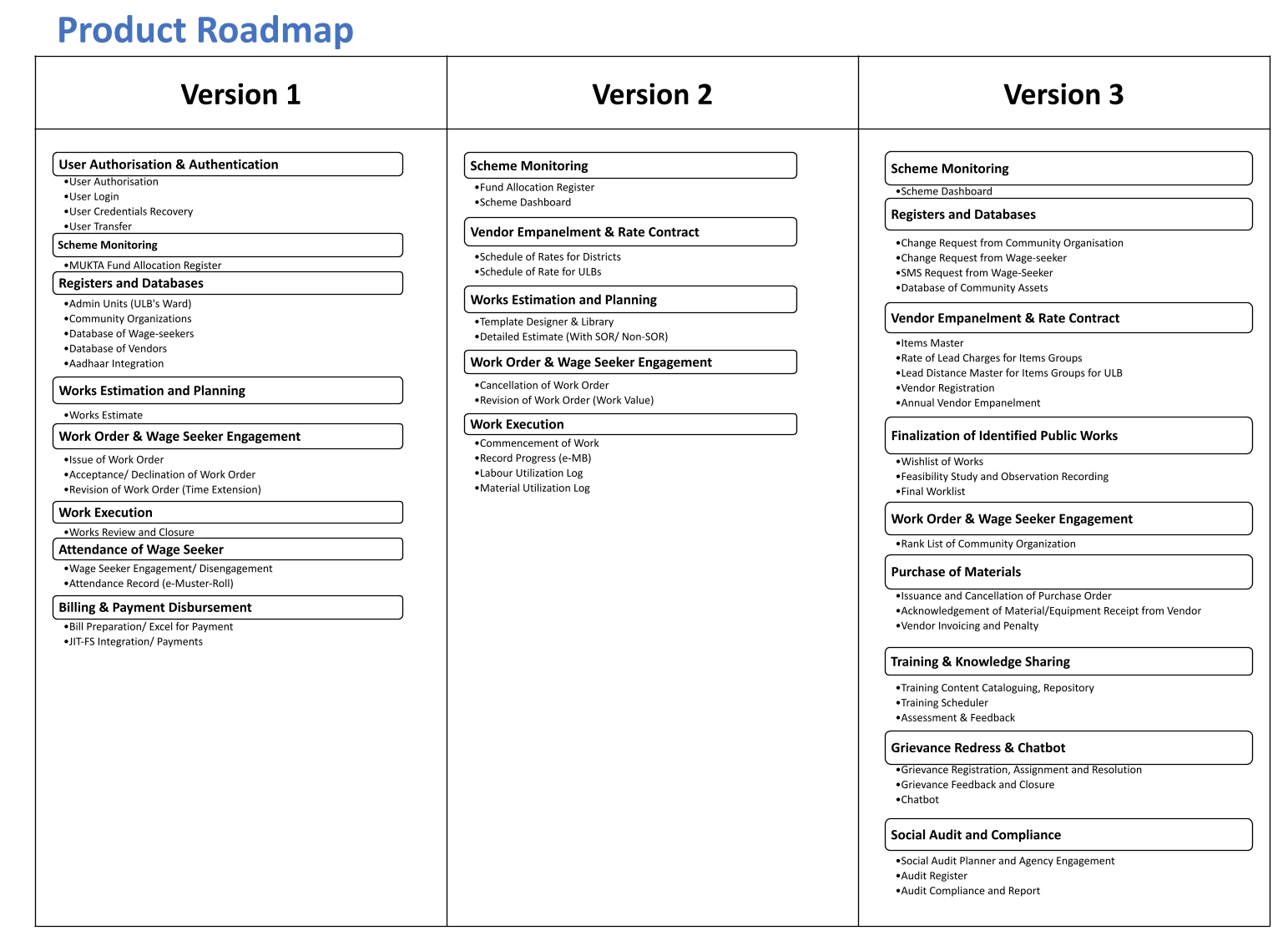
Contract ID
Contractor Name
Status
Total Amount
SLA
Will be represented as
112225022772367400045442111.
Organization
Contract Type
Contract Created from Date
Contract Created to Date
Search results in the table to show
Contract ID
Estimate ID(s)
Contractor
Contract Type
Status
Contract Amount
Billed Amount
Actions
Validations
Show only contracts whose project closure is not done
Show contracts for which billed amount is equal to contract amount. But do not give option to create a new bill in Actions
Create a New Bill in actions will only be present for contracts whose bill amount is less than contract amount.
Advance Bill
Contractor Bill
Vendor Bill
In specific implementations such as Mukta, this can extend to
Contractor Bill
Vendor Bill
Wage Bill
Supervision Bill
Validations
Mapping of Contract Type to Bill Type
WO.Work_Items
Contractor Bill
WO.Labour_and_Material
Vendor Bill
Wage Bill
Supervision Bill
PO
Vendor Bill
Mixed (ex. Mukta// Custom implementation)
Wage Bill (But has validations of contractor Bill)
Vendor Bill (But choose to pay to contractor or vendor depending on internal validations)
Supervision Bill
To create any type of bill under a contract, current billed amount shouldn’t have crossed the contract amount.
Contractor Bill is completely based on measurement book
If a contract is formed by combining multiple estimates it will have 1 Mbook for each estimate.
All the readings from multiple Mbooks under this contract, that are recorded and approved, but not yet paid will show in measurement details
User can select upto what date of the mbook reading payments can be made.
It is not mandatory to pay for entire approved readings.
Upon selection of days of readings, final calculation of gross amount payables is calculated and displayed.
Amount is either percentage of Bill or Lumpsum
User can add comments
Deductions cannot be more than gross bill amount.
Deduction Name
Account Code and head
350200207
350200207 - CGST - Revenue
350200102
350200102 -Incometax receoveries - Revenue
Retention Money
Retention money is the amount retained within the source as part of every bill.
Retention money account heads will be defined in master.
Amount should be entered from UI
Retention money cannot be more than current bill amount - deductions
Advance Adjustment
Total Advance Paid - Sum of all the advances paid to this contractor under this contract.
Total Advance pending - Advance given - Advance Paid
Current Bill Deductions - Deductions that will be written off against balance amount.
Net Payables
Net payables is the account code from which payment has to be made.
If we are capturing this at the time of project creation, make this a default view-only screen.
Otherwise, if a user is entering it first time while bill creation, make this an inputtable field from UI with selectable dropdowns.
Bill will have the following statuses
Created
Checked
Approved
Deductions on each beneficiary
Similar to Contractor Deductions, each individual also can attract deductions.
User can choose to add deductions by each individual by clicking on edit icon.
A popup shows asking for deduction details.
User can also select to apply same deduction calculationf for all wage seekers from all musters that are selected.
Gross amount is calculated accordingly
Hence deductions in Account details(next tab) is view only field, a sum of all deductions by each deduction head.
Similar columns should be present for Retention money and Advance Adjustment where details against each individual will be captured in a popup and choosent to be applied to all individuals if needed.
Hence, Retention money and advance adjustment are also view only fields in next screen.
Functionality of net payables is same as contractor bill.
It will have
Vendor ID (Ideally comes from contract details if it is PO. Incase of Mixed, or Material and Labour contract this should be captured from UI at the time of Bill creation)
Bill Amount
File Attachment
Deductions, Retention Money, Advance Adjustment and net payables are same as contractor Bill
< contract value - Billed Amount - Advance Adjustment
There should be provision to adjust Advance Amount in each bill
Current Bill deductions cannot be more than gross Bill Amount - Deductions - Retention money
Rejected
Re-submitted
Cancelled
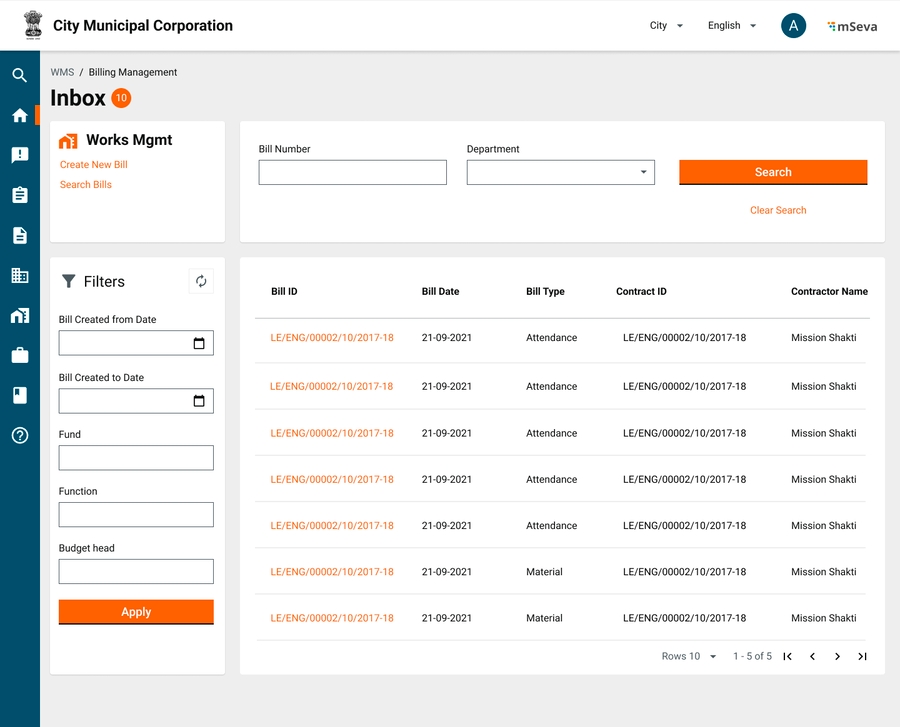
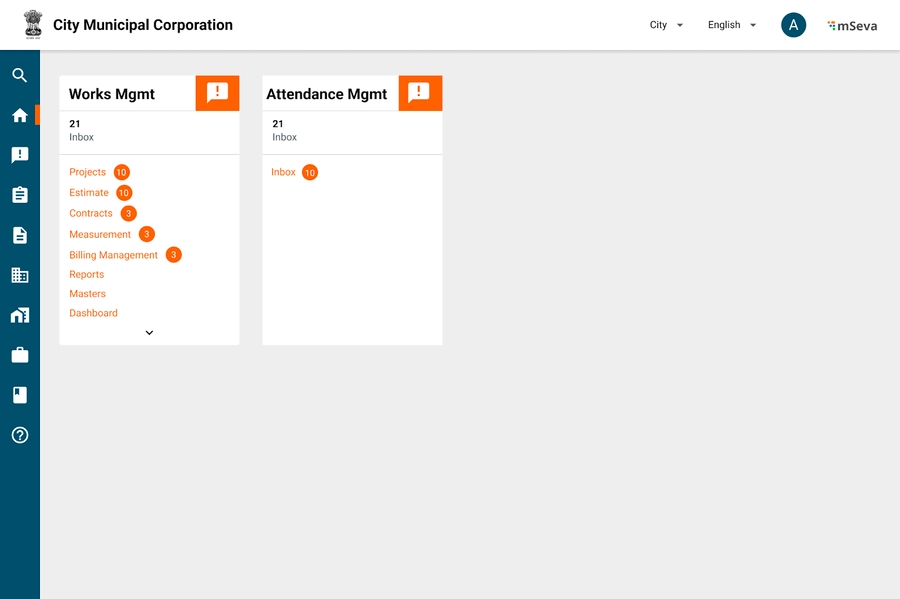
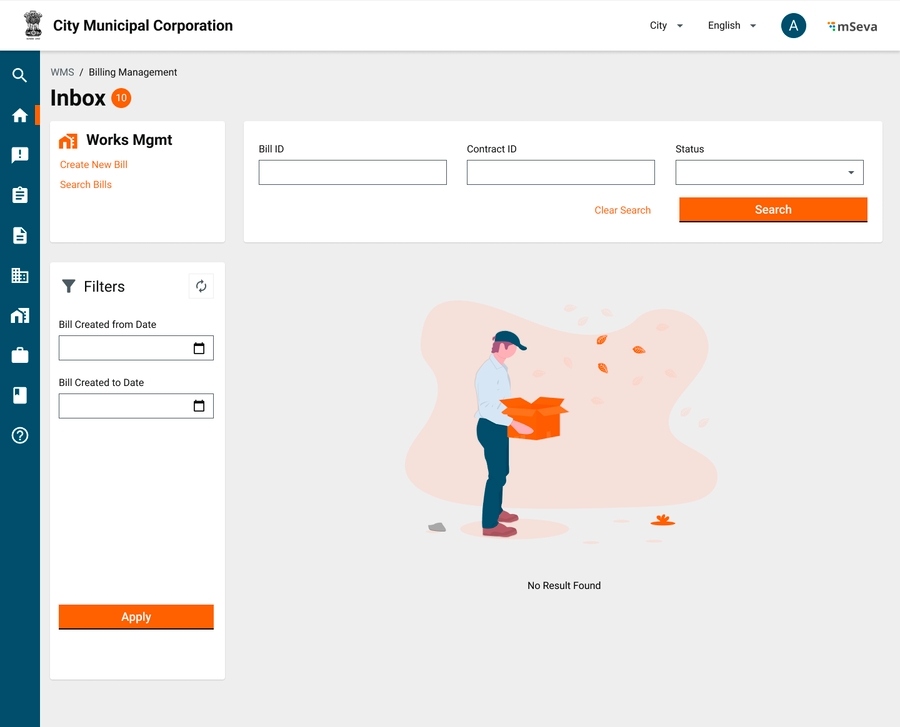
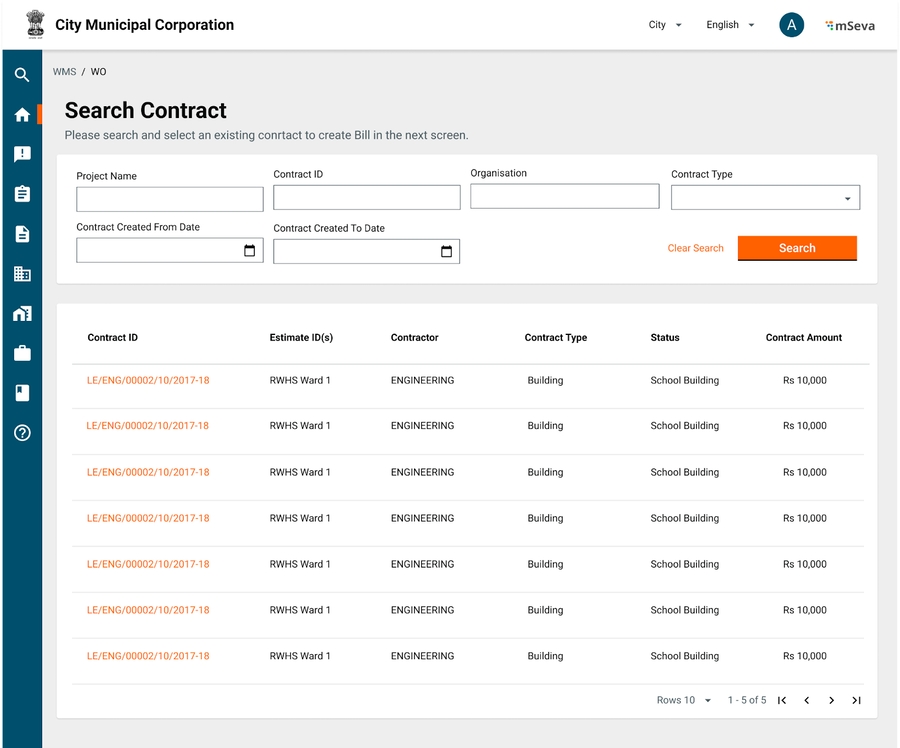
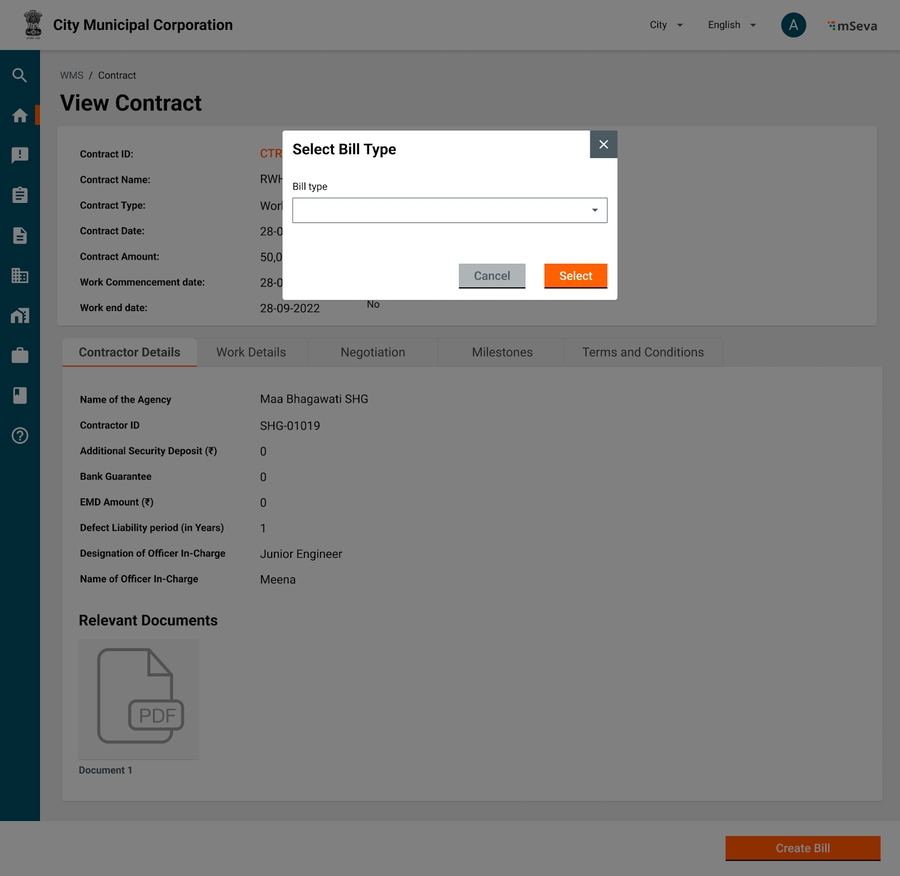
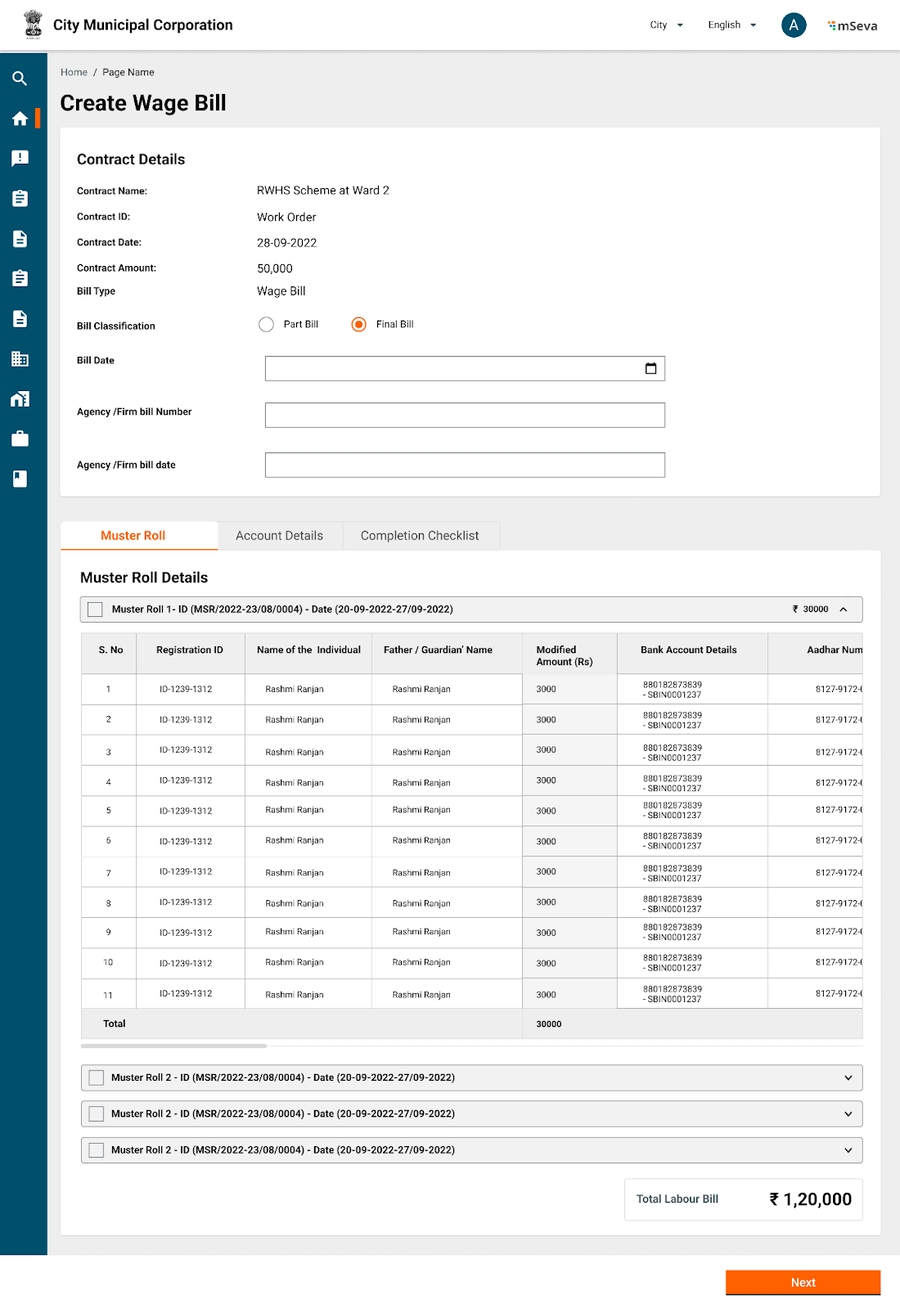
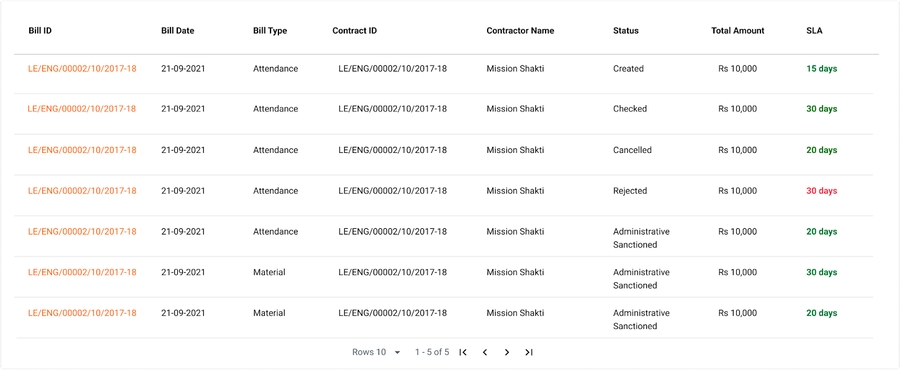
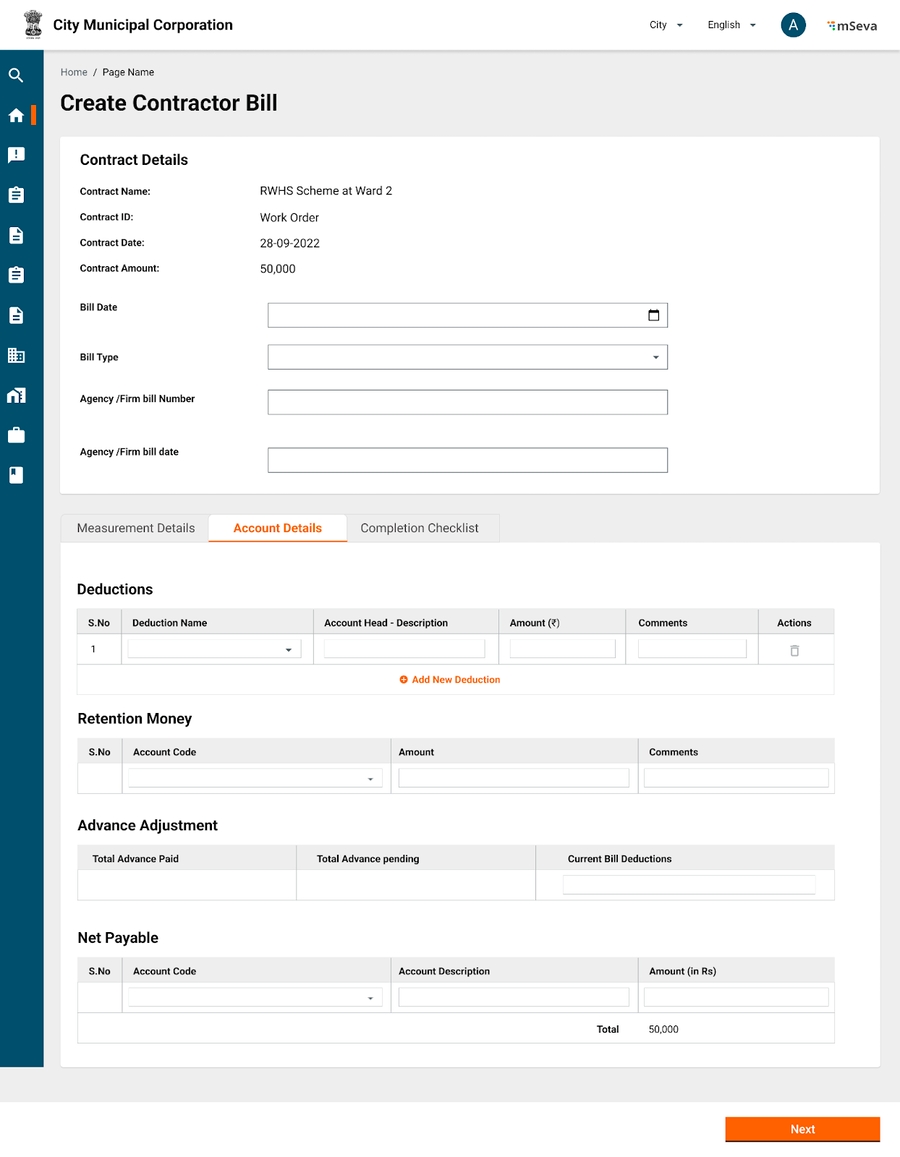
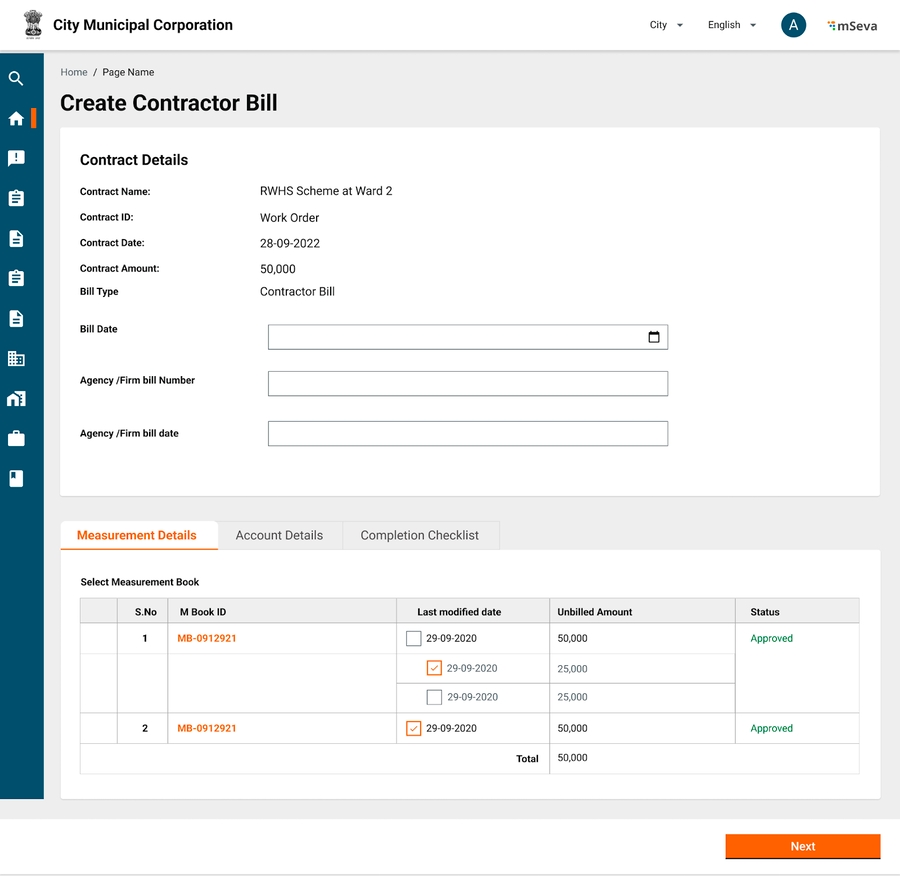
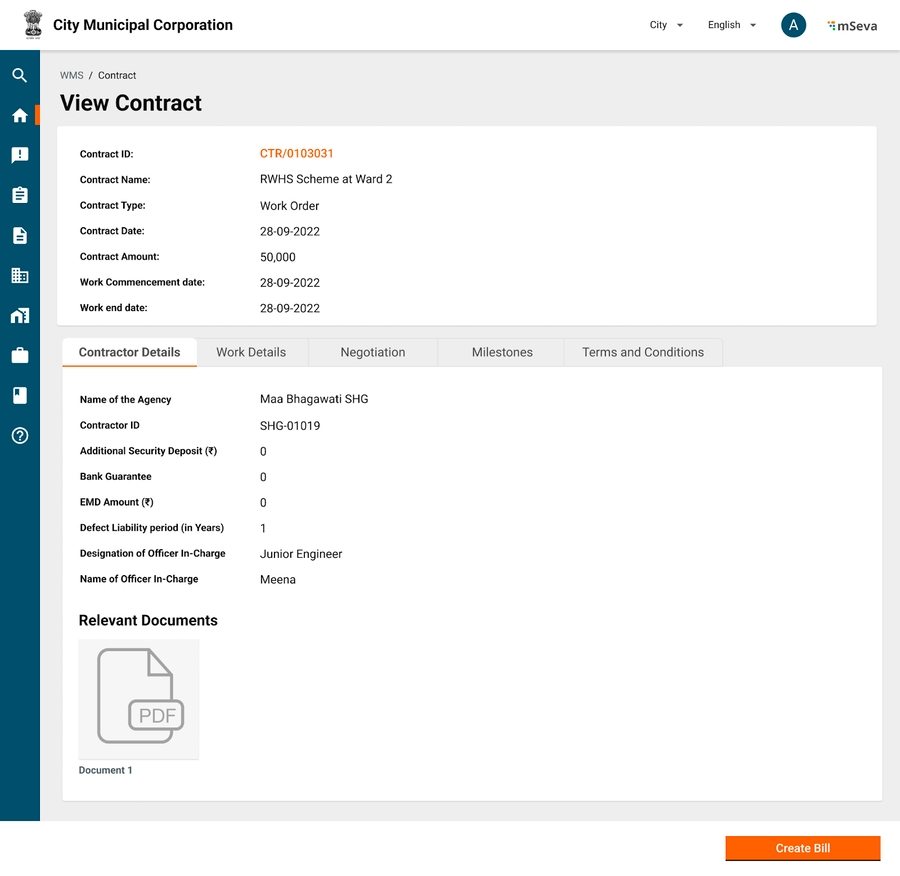
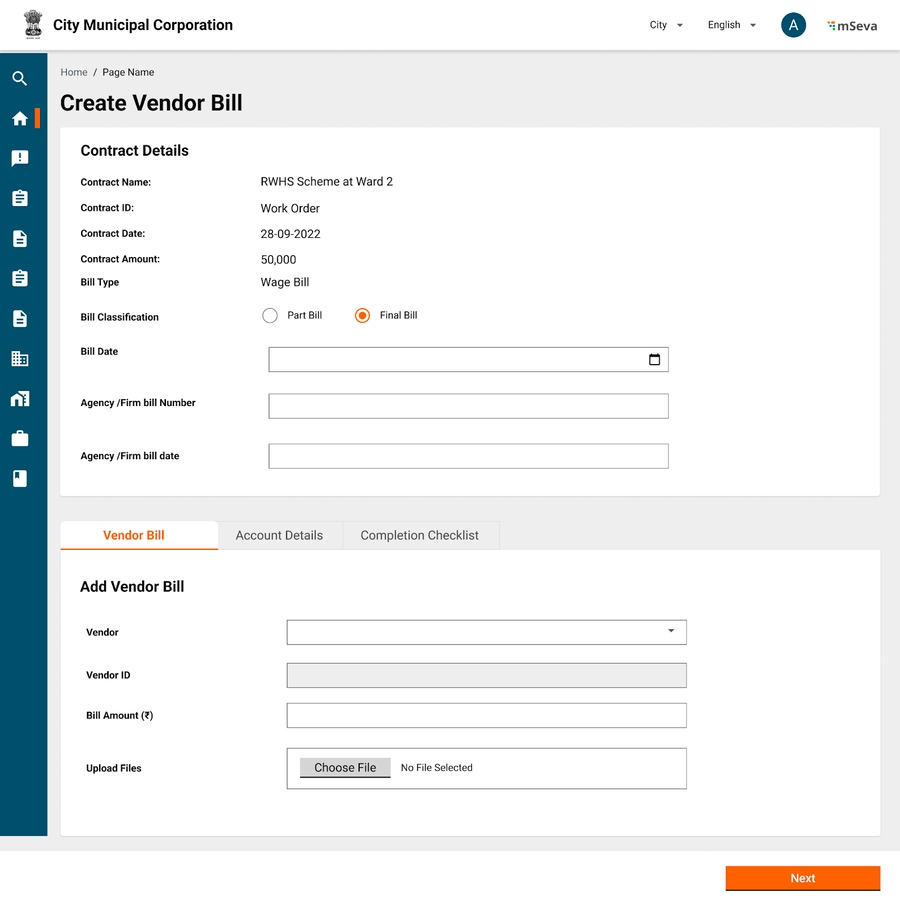
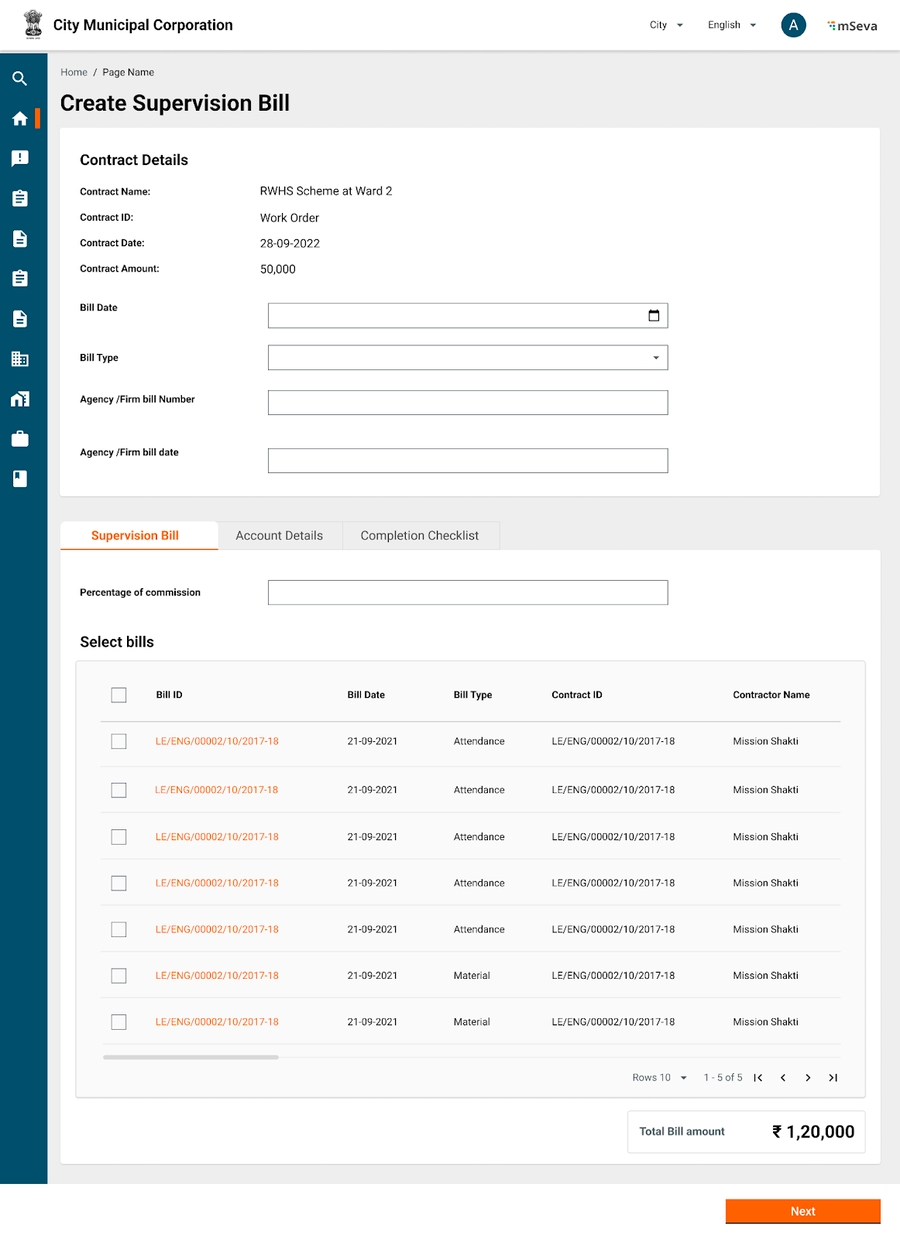
Mukhyamantri Karma Tatpara Abhiyan Yojana ( MUKTA Yojana) is a government scheme and This scheme is helpful for the poor urban people, which leads to the rising of the employment rate of the state. This document is prepared to detail out the specification MUKTASoft v2.0.
MUKTASoft aims to improve the overall scheme efficiency of MUKTA by identifying & providing equal job opportunities to the urban poor, construct environment-friendly projects, develop local communities and slums & plan better for upcoming years.
The purpose of this document is to give a detailed description of the requirements for the MUKTASoft v2.0. It will illustrate the purpose and complete declaration for the development of the system. It will also explain system constraints, interface and interactions with other external applications. This document is primarily intended to define the scope of the version v2.0 and propose to the stakeholders for its approval and as a reference for developing the next version of the system for the development team.
1. MUKTA
2. Field Visit to Dhenkanal and Jatni ULBs [21st & 22nd June 2023]
Schedule of Rates
Material
Machinery
Labour
Rate Analysis
Estimate Template
Analysis Statements
Labour Analysis
The basic rate of material, labour, and machinery is decided by the state public works department which would be the same for a group of ULBs and then the final cost of SORs would vary from ULB to ULB based on the Conveyance and Royalty Charges applicable for the ULB.
CUM - Cubic Meter
QNTL - Quintal
MT - Metric Ton
NOs - Numbers
Material Basic Rate
Labour Basic Rate
Machinery Basic Rate
Exploration Mineral Fund
There are a total of 4 types of SOR.
The SOR of type works are grouped into various sub-types as given below.
The scheduled items for which the works department publishes the rates are known as the schedule of rates. There are mainly 4 types of items for which schedules of rates are published.
Material - These are the material items which are required to accomplish a work.
Labour - The skilled and unskilled labourers who are required to accomplish the work.
Machinery - These are the equipment which are required to accomplish the work.
Works - The composition of material, labour, and machinery together form a building block for a work.
Create
In MUKTA only a limited set of SORs are being used to estimate a work and initially, only the relevant SOR items are created. The option to create an SOR is provided to help the user take any missing or new SOR into the system as and when needed.
Attributes
Mockups
Search SOR
Search SOR provides the option to the user to search an SOR to see the details and modify it to bring the new rates into effect from a well-defined effective date.
Search Criteria
Search Result
The search result always displays the currently effective rates unless the search is for a different effective period.
Mock-ups
View SOR
It enables users to display the details of a SOR and then take the required action from there. E.g. Create Rate Analysis, View Rate Analysis, Modify SOR.
Attributes
Mockups
Modify SOR
Modifying SOR enables the user to make the necessary corrections in the details and add the new rate effective from a future date.
Attributes
Mockups
The screen to modify SOR is almost the same as creating SOR with the limitation mentioned in the above table.
Add/ Modify Rate
Add Rate enables the user to add the new rate effective from a future date.
Attributes
Mockups
The screen to modify SOR is almost the same as creating SOR with the limitation mentioned in the above table.
Following administrative approval of the pre-estimation, a comprehensive detailed estimate is meticulously crafted. This detailed breakdown categorizes the estimate into Schedule of Rates (SOR), Non-SOR, and Other Expenses, with individual quantities calculated through precise measurements for each activity. The detailed estimate provides a heightened level of accuracy in forecasting costs, materials, labor, and machinery necessary for project completion. Moreover, it serves as a crucial tool for tendering and contracting purposes.
Create Estimate
The 'Create Estimate' feature empowers users to generate a comprehensive estimate by utilizing measurements gathered on-site. This functionality includes convenient options such as searching for pre-existing templates and adding Schedule of Rates (SOR) through a dedicated SOR search interface directly on the create estimate page.
Search SOR
SOR Type - Drop-down to select a value for SOR type.
SOR Sub Type - Drop-down to select a value for the SOR sub type.
SOR Variant - Drop-down to select a value.
SOR - Drop-down with incremental/ fuzzy search on code/ description.
Plus Measurements
These are the measurements which are added to the measurement to calculate the quantity of a particular SOR.
Minus Measurements
These are the measurements which are subtracted from the measurement to calculate the quantity of a particular SOR.
Attributes
Mockups
One additional step to be added in the existing estimate workflow to save the estimate as a draft with the creator of the estimate is incorporated.
When the amount of work exceeds up to 10% more from originally estimated amount either due to rates being found insufficient or due to some other reasons, a revised estimate is prepared.
A comparative statement is attached on the last page. It includes reasons for increase in cost in case of each item.
The revised estimate should show the variation of each item of work, its quantity, rate and cost under original and revised.
Once a revised estimate is created, both the estimates can be searched and viewed for details. The original estimate will remain unchanged and reflects the original items and its measurements.
Create
It empowers users to modify measurements for existing Schedule of Rates (SOR) and Non-SOR items, consequently adjusting quantities. Additionally, users can seamlessly incorporate new SOR or Non-SOR items into the estimate. These changes collectively result in the creation of a revised estimate, which undergoes a subsequent approval process."
Workflow
A revised estimate follows the same workflow steps of the original estimate and on approval the changes come into effect.
Search
The same search estimate feature is used to search an revised estimate. Hence there is no change in the search screen.
View
It enables users to view the details of the revised estimate. The view screen is the same as the original estimate screen.
A deviation statement is generated for each revised estimate in the PDF form. It is generated with a comparison of the original estimate. The format of the deviation statement is given below.
Attribute
Mockups
The measurement book is the most important record. It is the basis of all accounts of quantities of work done, and purchase made and it must contain such a complete record of facts as to be conclusive evidence in the court of law.
It is the basis of all accounts of quantities whether of works done by Contractors or by labourers employed departmentally, or materials received. It is so written the transactions are readily traceable.
All the measurements for the work completed are measured and recorded in the measurement book against each and every BOQ provided in the estimate. Once the complete quantity of the item mentioned in the estimate is consumed in MB the item is considered completed.
It enables users to capture the measurement of the completed works item (SOR/ Non-SOR) and create a record which becomes the basis of payment for the wage seekers, suppliers and supervisors (CBOs).
Attributes
Mockups
The table below illustrates the steps of workflow followed to approve the revised work order.
It enables users to search and MB recordings which are captured for a period and then sent for verification/ approval.
Search Criteria
Search Result
Mockups
It enables the users to view the details and workflow status of the measurement book.
Attributes
View measurement book displays all the details related to it as given below.
MB Reference Number
MB Number
Work Order Number
Project ID
Mockups
Work Order
PO
Purchase Order
MB
Measurement Book
Works (Includes Material, Machinery, Labour)
Detailed Estimate
Revise Estimate
Detailed Measurement Book
Muster roll and purchase bill validations
Material Analysis
Machinery Analysis
Cancel Work Order
Utilization Statements
Labour Utilization Statement (Quantity of Work Completed)
Material Utilization Statement
Machinery Utilization Statement
Project Closure
Dashboard Enhancements
Yes
No
Add/Modify Rate
No
Yes
KG - Kilogram
LTR - Liter
SQM - Square Meter
HOUR - Hour
MTR - Meter
KL - Kilo Liter
District Mineral Fund
Conveyance
Royalty
Labour Cess
W
Works
MB
MASONRY BRICK WORK
5
MS
MASONRY STONE WORK
6
PL
PLASTERING
7
WC
WHITE & COLOUR WASHING
8
FL
FLOORING
9
PA
PAINTING
10
RD
ROAD WORK
11
WD
WOOD WORK
12
RF
ROOFING
13
DI
DISMANTLING
14
PB
PAVER BLOCK
15
SC
SITE CLEARANCE
16
PF
PILE FOUNDATION
17
IW
IRON WORK
18
BI
OTHER BUILDING ITEMS
TF
Third Floor
5
PL
Foundation and Plinth
6
SG
Super Structure (GF)
7
SS
Super Structure (SF)
8
ST
Super Structure (TF)
9
BS
Basic
No
Applicable for SOR type Works only.
4
Unit of Measurement
Yes
Unit of measurement for the item.
5
Rate Defined for Quantity
Yes
Quantity of items for which basic rate is defined.
6
Description
Yes
Name of item as per the standard definition of OPWD
Rate Details
Optional
7
Effective From
Yes
The date given rate will become effective, it can be a past and future date.
Heads
Grid
To select a head whichever is applicable.
8
Basic Rate
Yes
The basic rate of the item defined by the OPWD
9
Conveyance
No
The conveyance charges applicable based on the distance item is carried.
10
Royalty
No
The royalty amount on the items as per the state mining department.
11
Labour Cess
No
It is applicable for works items only and calculated on Basic + Conveyance + Royalty.
12
Rate
Display
A calculated value.
Drop-down
SOR subtypes, the values from SOR Sub Type Master
4
SOR Variant
Drop-down
SOR variants, the values from Variant master
5
Status
Drop-down
Active/ Inactive
6
Effective From
Date
The rate effective from date
7
Effective To
Date
The rate effective from date
SOR Sub Type
SOR sub types, the values from SOR Sub Type Master.
5
Status
The status of SOR, Active/ Inactive.
6
Rate
The current effective rate of the SOR.
SOR Variant
SOR variant, the values from the SOR Variant Master.
5
Unit of Measurement
The unit of measurement.
6
Rate Defined for Quantity
The quantity of SOR for which rate is provided.
7
SOR Description
It is the description of SOR to describe the SOR.
8
Status
The status of SOR Active/ Inactive. Active means active for usage.
Rate
The rate section of SOR.
9
Effective From
The date from which the rate is effective.
Heads
10
Basic Rate
Basic rate of the SOR, provided by the state PWD.
11
Conveyance
Conveyance cost defined for the unit of quantity given in SOR.
12
Royalty
Royalty defined for the unit of quantity given in SOR.
13
Labour Cess
The amount of labour cess
14
Total Rate
The final rate of SOR.
Rate History
History of rates which were effective in the past.
15
Serial No.
Serial number of the record.
16
Effective From
The rate effective from date.
17
Rate
The net effective rate.
18
View Details
Button to view the break-up of rate.
19
Actions
Modify SOR/ Add Rate - Applicable to all types of SOR.
Create Rate Analysis - Applicable to Works type of SOR.
View Rate Analysis - Applicable to Works type of SOR.
Display
SOR sub types, the values from SOR Sub Type Master.
4
SOR Variant
Display
SOR variant, the values from the SOR Variant Master.
5
Unit of Measurement
Display
The unit of measurement.
6
Defined for Quantity
Display
The quantity of SOR for which rate is provided.
7
SOR Description
Text
It is the description of SOR to describe the SOR.
8
Status
Drop-down
The status of SOR Active/ Inactive.
Display
SOR sub types, the values from SOR Sub Type Master.
4
SOR Variant
Display
SOR variant, the values from the SOR Variant Master.
5
Unit of Measurement
Display
The unit of measurement.
6
Defined for Quantity
Display
The quantity of SOR for which rate is provided.
7
SOR Description
Display
It is the description of SOR to describe the SOR.
8
Status
Display
The status of SOR Active/ Inactive.
Rate Details
9
Effective From
Date
The date from which the rate is effective. A future date.
Heads
Grid
It will enable the user to select and add a head applicable.
10
Basic Rate
Text
Basic rate of the SOR, provided by the state PWD.
11
Conveyance
Text
Conveyance cost defined for the unit of quantity given in SOR.
12
Royalty
Text
Royalty defined for the unit of quantity given in SOR.
13
Labour Cess
Display
The amount of labour cess, non editable.
14
Total Rate
Display
The final rate of SOR.
Project ID
3
Project Sanction Date
Display
Yes
Project sanction date
4
Project Name
Display
Yes
Project name
5
Project Description
Display
Yes
Project description
Search SOR - It provides the option to search a SOR and add to the estimate.
SORs
1
Code
Display
Yes
SOR code, unique identifier for each SOR.
2
SOR Description
Display
Yes
SOR description from the SOR master for the selected SOR.
3
Unit
Display
Yes
Unit of measurement
4
Rate
Display
Yes
The rate defined and effective currently.
5
Quantity
Display
Yes
Calculated value out of measurements.
6
Amount
Display
Yes
Calculated value and equal to Qty*Amount.
Measurements
1.1
Sr. No.
Display
Auto
Measurement serial number.
1.2
Type
Drop-down
Yes
Plus/ Minus measurements.
1.3
Name
Text
Yes
The name of the measurement.
1.4
Number (Nos)
Numeric
(6,2)
Yes
No. of items.
1.5
Length (L)
Numeric
(6,2)
Yes
Length measured
1.6
Breadth (B)
Numeric
(6,2)
Yes
Width measured
1.7
Height/ Depth
Numeric
(6,2)
Yes
Depth measured
1.8
Quantity
Display
Yes
Qty = N* L*B*D;
1.9
Total
Display
Yes
Grid total for the quantities of measurements
Analysis
1
Material Cost
Display
Yes
Cost of material out of SORs.
2
Labour Cost
Display
Yes
Cost of labours out of SORs.
3
Machinery Cost
Display
Yes
Cost of machinery out of SORs.
Action
1
Save
Button
Yes
Save the estimate as a draft.
2
Generate Analysis
Button
Yes
Generates the analysis and populates the figures.
3
Submit
Button
Yes
Submit the estimate for verification.
Estimate Creator
Saved as draft
Pending for verification
Submitted
3
Verify and Forward
Estimate Verifier
Pending for verification
Pending for technical sanction
Verified
4
Technical Sanction
Technical Sanctioner
Pending for technical sanction
Pending for approval
Technically Sanctioned
5
Send Back
Estimate Verifier
Pending for verification
Pending for correction
Sent Back
6
Send Back
Technical Sanctioner
Pending for technical sanction
Pending for verification
Sent Back
7
Send Back
Estimate Approver
Pending for approval
Pending for technical sanction
Sent Back
8
Send Back To Originator
<roles having access>
<Current Status>
Pending for correction
Sent Back
9
Edit/ Re-submit
Estimate Creator
Pending for correction
Pending for verification
Re-submitted
10
Approve
Estimate Approver
Pending for approval
Approved
Approved
11
Reject
<any roles having access>
<Current Status>
Rejected
Rejected
Rate per unit
5
Quantity (Original)
Total quantity required for the given SOR item.
6
Amount (Original)
Amount calculated rate*quantity.
7
Quantity (Revised)
Total quantity required for the given SOR item.
8
Amount (Revised)
Amount calculated rate*quantity.
9
Deviation
Deviation, Less/ Excess/ Nil
10
Total
Total of Amounts for both original and revised.
Project ID
3
Project sanction date
Display
NA
Project sanction date
4
Project Location
Display
NA
Project location
5
Project Name
Display
NA
Project name
6
Project Description
Display
NA
Project description
7
View MB History
Link
NA
To show the measurement history in the format given below.
Measurement History
1
Sr. No
Display
NA
Serial number
2
MB Reference Number
Display
NA
Measurement reference number
3
MB Date
Display
NA
Measurement date
4
MB Period
Display
NA
Measurement period
5
MB Amount
Display
NA
Measurement amount
6
Status
Display
NA
Status of the measurement.
Measurement Period - It has to be the same as muster roll period.
1
From Date
Date
Yes
Muster roll start date.
2
To Date
Date
Yes
Muster roll end date.
SORs
1
Category
Display
Yes
SOR Sub type
2
Code
Display
Yes
SOR Code
3
SOR Description
Display
Yes
SOR description from the SOR master for the selected SOR.
4
Unit
Display
Yes
Unit of measurement
5
Rate
Display
Yes
Rate per unit
6
Quantity
Display
Yes
Quantity calculated from measurement captured.
7
Amount
Display
Yes
Calculated from Rate*Quantity.
Measurements
1.1
Sr. No.
Display
Auto
Serial number of measurement
1.2
Type
Display
Auto
Plus/ Minus from estimate.
1.3
Name
Display
Auto
The name of the measurement from the estimate.
1.4
Number (Nos)
Numeric
(6,2)
Yes
No. of items if the unit of measurement is number.
1.5
Length (L)
Numeric
(6,2)
Yes
Length measured for completed work.
1.6
Breadth (B)
Numeric
(6,2)
Yes
Width measured for completed work.
1.7
Height/ Depth (D)
Numeric
(6,2)
Yes
Depth measured for completed work, allowed up-to 2 decimal places.
1.8
Quantity
Display
Yes
Qty = N*L*B*D; rounded up-to 2 decimal places.
1.9
Total
Display
Yes
Grid total for the quantities of measurements, rounded up-to 2 decimal places.
Non SORs - The above is repeated for Non SORs also.
View Utilization Statements - A link to view the utilization statements in HTML view.
Worksite Photos
Tab
7
Worksite Photo
Upload File
Yes
5 photos JPG and PNG images are supported.
Actions
1
Save as Draft
Button
Yes
Action to save the measurement record as draft.
2
Generate Utilization
Button
Yes
Action to generate measurement statements out of measurements taken.
3
Submit
Button
Yes
Action to submit the measurement book for verification
MB Creator
Drafted
Pending for verification
Submitted
3
Verify and Forward
MB Verifier
Pending for verification
Pending for approval
Verified
4
Send Back
MB Verifier
Pending for verification
Pending for correction
Sent Back
5
Send Back
MB Approver
Pending for approval
Pending for verification
Sent Back
6
Send Back To Originator
<any roles having access of action>
<Current Status>
Pending for correction
Sent Back
7
Edit/ Re-submit
MB Creator
Pending for correction
Pending for verification
Re-submitted
8
Approve
MB Approver
Pending for approval
Approved
Approved
9
Reject
<any roles having access>
<Current Status>
Rejected
Rejected
Text
MB number
4
MB Reference Number
Text
MB reference number
5
Status
Drop-down
Active/ Inactive.
6
Created From
Date
MB created date
7
Created To
Date
MB created date
CBO Name
Name of CBO to whom work order is awarded.
5
Status
Status of MB.
6
MB Amount
MB amount.
Project Sanction Date
Project Location
Project Name
Project Description
Measurement History
Sr. No
MB Reference Number
MB Date
MB Period
MB Amount
Status
Measurement Period
From Date
To Date
SORs/ Non SORs
SOR Category
SOR Code
SOR Description
Unit
Rate
Quantity
Amount
Measurements
Sr. No.
Type
Name
Utilization
Material Utilized(₹)
Labour Utilized (₹)
Machinery Utilized (₹)
Workflow Timelines
JE
Junior Engineer
ME
Municipal Engineer
EO
Executive Officer
MC
Municipal Corporation
DDO
Drawing and Disbursing Officer
SOR
Schedule of Rates
Create SOR
Yes
No
Search SOR
Yes
Yes
View SOR
Yes
Yes
1
M
Material
2
L
Labour
3
E
Machinery
1
EW
EARTH WORK
2
CC
CEMENT CONCRETE
3
RC
RCC WORK
1
FN
Excavation in Foundation
2
GF
Ground Floor
3
SF
Second Floor
1
SOR Type
Yes
Material, Labour, Machinery, Works.
2
SOR Sub Type
Yes
Applicable for SOR type Works only.
3
1
SOR Code
Text
It is system system-generated unique code to identify the SOR uniquely
2
SOR Type
Drop-down
SOR types, the values from SOR Type Master.
3
1
SOR Code
It is system generated unique code to identify the SOR uniquely.
2
SOR Description
It is the description of SOR to describe the SOR.
3
SOR Type
SOR types, the values from SOR Type Master.
1
SOR Code
It is system generated unique code to identify the SOR uniquely.
2
SOR Type
SOR types, the values from SOR Type Master.
3
SOR Sub Type
SOR sub types, the values from SOR Sub Type Master.
1
SOR Code
Display
It is system generated unique code to identify the SOR uniquely.
2
SOR Type
Display
SOR types, the values from SOR Type Master.
3
1
SOR Code
Display
It is system generated unique code to identify the SOR uniquely.
2
SOR Type
Display
SOR types, the values from SOR Type Master.
3
1
Estimate Type
Display
Yes
Estimate type, Original/ Revised.
2
Project ID
Display
1
Save as Draft
Estimate Creator
Saved as draft
Drafted
2
Sr. No.
Field Name
Description
1
SOR Code
SOR Code.
2
SOR Description
SOR item from the estimate.
3
Unit
The unit of measurement
4
1
Work order number
Display
NA
Work order number
2
Project ID
Display
1
Save
MB Creator
Drafted
Drafted
2
1
Ward
Drop-down
Ward name from the configured data.
2
Project Name
Text
Project name
3
1
MB Reference Number
MB reference number.
2
MB Number
MB number
3
Project Name
Project name


WO
Modify SOR
4
4
4
SOR Variant
SOR Sub Type
4
4
SOR Sub Type
SOR Sub Type
Yes
Submit
Rate
NA
Submit
MB Number
4
Number (No)
Length (L)
Breadth (B)
Height/ Depth (D)
Quantity
Total

Our product roadmap is where you can learn about what features we're working on, what stage they're in, and when we expect to bring them to you. Please share your feedback on [email protected]
The current product roadmap for Works is divided into 3 versions based on the importance of each value bundle, interdependencies between various features and services and needs on the ground.
1
Estimate Creation and Approval Workflow
User will be able to create estimate and forward for approval to higher authorities across departments for technical, financial and admin sanctions
Estimation
Create Estimate
V1
View Estimate's Inbox
V1
View Estimate
V1
Cancel Estimate
V1
Download Estimate PDF
V1
Duplicate Estimate
Vn
Estimate Templates
Vn
Estimation Workflow
Forward Estimate
V1
Modify Estimate
Vn
Reject Estimate
V1
Approve Estimate
V1
Workflow History
V1
Proposed Budgetary Check
Check with Finance through iFIX
V1
Fiscal Event : Estimate
V1
Sub Estimates
Break Estimates to Sub Estimates
V2
Abstract Estimate
Create Abstract Estimate
V2
View Abstract Estimate
V2
Forward Abstract Estimate
V2
Modify Abstract Estimate
V2
Reject Abstract Estimate
V2
Approve Technical Sanction for Abstract Estimate
V2
Approve Financial Sanction for Abstract Estimate
V2
Revision Estimate
Create Revision Estimate
V2
View Revision Estimate
V2
Forward Revision Estimate
V2
Modify Revision Estimate
V2
Reject Revision Estimate
V2
Approve Admin Sanction for Revision Estimate
V2
Abstract Estimate for RE
Create Abstract Estimate for RE
Vn
View Abstract Estimate for RE
Vn
Forward Abstract Estimate for RE
Vn
Modify Abstract Estimate for RE
Vn
Reject Abstract Estimate for RE
Vn
Approve Technical Sanction for Abstract Estimate for RE
Vn
Approve Financial Sanction for Abstract Estimate for RE
Vn
Assetization / Capitalization Request
Linkage to Asset Module
V2
2
Tendering process and Contractor finalization
User will be able to create tender documents, call for tendering and invite bids, do tender negotiation and finalize contractor
Create Works Package
Vn
Draft Tender Papers
Vn
Workflow Approvals
Vn
Tender announcement
Vn
Bid Invitation
Vn
Tender Negotiation
Vn
Contractor Finalization
Vn
3
Contract Set-up, Terms and Conditions
User will be able to create Letter of Acceptance, attach Milestones & payment plan so as to start the work
Letter Of Intent
Letter of Acceptance
Create letter of Acceptance
V1
Modify Letter of Acceptance
V1
Cancel Letter of Acceptance
V1
View LOA Inbox and View LOA
V1
LOA Workflow
V1
PDF for LOA
V1
Agreement Signing
Vn
Work Order With Terms and Conditions
LOA with BOQ
V2
Offline Checks
Acceptance letter issued Acceptance letter acknowledged Agreement order signed Work order acknowledged Site handed over Work commenced
V2
Milestones
Create Milestones
V1
Modify Milestones
V1
Delete Milestones
V1
Track Milestones
V1
View Milestone inbox and View Milestones
v1
Milestones Templates
Create Milestone Template
V2
Modify Milestone Template
V2
Delete Milestone Template
V2
View Milestone Template Inbox
V2
Attach Milestone Template to LOA
V2
Payment Calendar
Add payment calendar
V1
Modify payment calendar
V1
Delete Payment calendar
V1
View Inbox and View payment calendar
V1
Fiscal Event : Estimate
V1
Setting up Quality Goals
Vn
4
Measurement during work
User will be able to track & measure progress or work
Templates for MBook & Milestones
Creation of MBook Template
V2
Modification of MBook Template
V2
Delete MBook Template
V2
Tracking Milestone
Milestone Tracking
V1
Linking of MBook to project
Attach MBook Template to LOA
V2
Add individual MBook to LOA
V2
Modify Individual Mbook
V2
Delete Individual MBook
V2
Actual Measurement
Inputting Values for MBook
V2
Approving Workflows for Mbook (if any)
V2
Quality Measurement
Vn
Contract risk assessment (Timeline, Resources, Cost)
Assess Risk based on time delay
V2
Assess Risk based on additional Costs
V2
5
Payment
User will be able to receive invoices, raise bills and make partial/full payments
Online invoice creation and submission
Invoice Creation
Vn
Modify Invoice
Vn
Delete Invoice
Vn
Reject Invoice
Vn
Prepare Part Bills & Full Bills based on MBook (or Manual)
Create Bill
V1
Reject Bill
V1
Cancel Bill
V1
Approve Bill
V1
Modify Bill
V1
Bill Workflow History
V1
Download Bill PDF
V1
Contract Certificate PDF
V1
Payment Request to Finance
V1
Fiscal Event : Bill
V1
Approved Request from Finance
V1
Fiscal Event : Payment
V1
UC or Completion Certificate submission and verification (Automation?)
Automation of Bill Generation based on M Book Measurements and Payment Calendar
V2
Smart Payments (Consolidated Payment instructions)
Merge Bills for Payment
Vn
Merge Bills by vendors
Vn
Merge Bills by Projects
Vn
Merge Bills by Contracts
Vn
Merge Bills by Banks
Vn
Pay Bill
Link to Finance Module?
V1
6
Project Closure
Closing the Project with all necessary checks, Finances, Payments, Assetization requests, Documents etc
Final Measurement Book
Final M Book reading
V2
Final MBook Upload/Attachemnt
V2
Final MBook Approval
V2
Create Assetization request
Assetization request Workflow
V2
Assetization request Approval
V2
Assetization request Rejection
V2
Integration with Assets Register(Finance)
V2
Advice on Finances
EMD/ Securiry Deposits / Retention Money / Tax adjustments /Final fund / blocked fund release
V1
Finance integration
For Credit
V1
For Debit Acknowledgement
V1
Learnings
Capture Learnings (What went right/wrong)
Vn
Make learnings available for others
Vn
Final Quality report
?
Vn
Risks
?
Vn
Documentation complete
?
Vn
7
Reports and Dashboards
To help JEs, Ch. Es, PS and all other officials get required level of visibility and right kind of views at all points in time
Reports
Work Progress Register
V1
Work Progress Register Download PDF
V1
Work Progress Register Download Excel
V1
Estimate Appropriation Register
V1
Estimate Appropriation Register Download PDF
V1
Estimate Appropriation Register Download Excel
V1
Estimate Abstract Report by Department
V1
Estimate Abstract Report by Department Download PDF
V1
Estimate Abstract Report by Department Download Excel
V1
Contractor Bill Report
V2
Works Utilisation Report
V2
Retention Money Recovery Register
V2
Dashboard
DSS Dashboard V1
V1
DSS Dashboard V2
V2
8
Masters
Masters that are created for MDMS data and other inputs
Masters
Contractor Class Master
V1
Bank Master
V1
Department Master
V1
Department Category Master
V1
Contractor Master
V1
Election Ward Master
V1
Location Master
V1
Work Category Master
V1
Beneficiary Master
V1
Nature of Work Master
V1
Type of Work Master
V1
Sub-Type of Work Master
V1
Recommended Mode of Entrustment Master
V1
Fund Master Master
V1
Function Master
V1
Budget Head Master
V1
Scheme Master
V1
Sub-Scheme Master
V1
Designations Master
V1
User Master
V1