Search
Home > Wage Seekers / Sidebar Menu > Wage Seekers
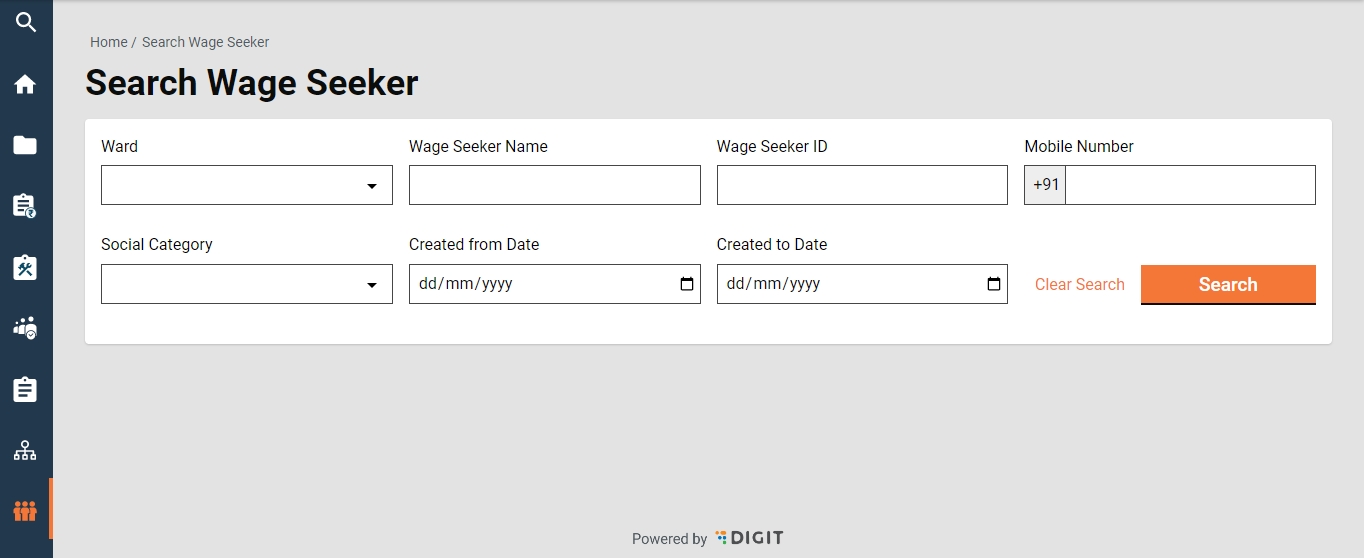
From the homepage, click on Wage Seeker to search Wage Seeker.
Fill all the details inquired and click on Search.
Search Criteria
Ward
Wage Seeker Name
Wage Seeker ID
Mobile Number
Search Result
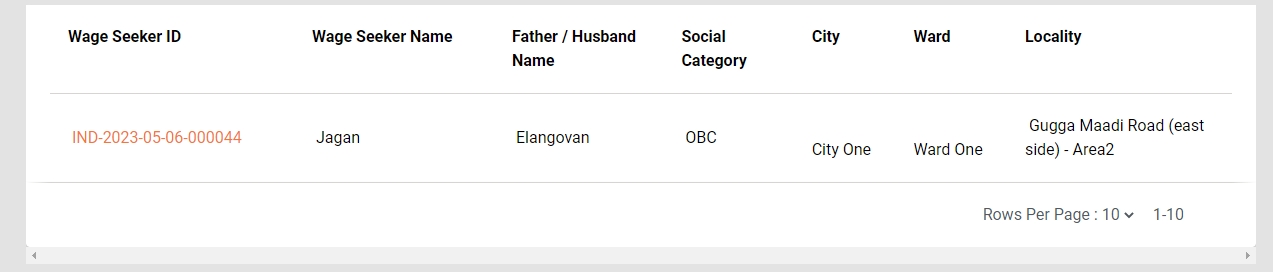
Once you have filled all details and clicked on Search, it displays the following details:
Wage Seeker ID
Wage Seeker Name
Father/ Husband Name
Social Category
View
Sidebar Menu / Homepage > Wage Seeker > Search Wage Seeker > Wage Seeker Result > Wage Seeker ID > View Wage Seeker
To View the Wage Seeker, one must Search Wage Seeker.
Once you have filled all details and clicked on Search, it displays the Search Result
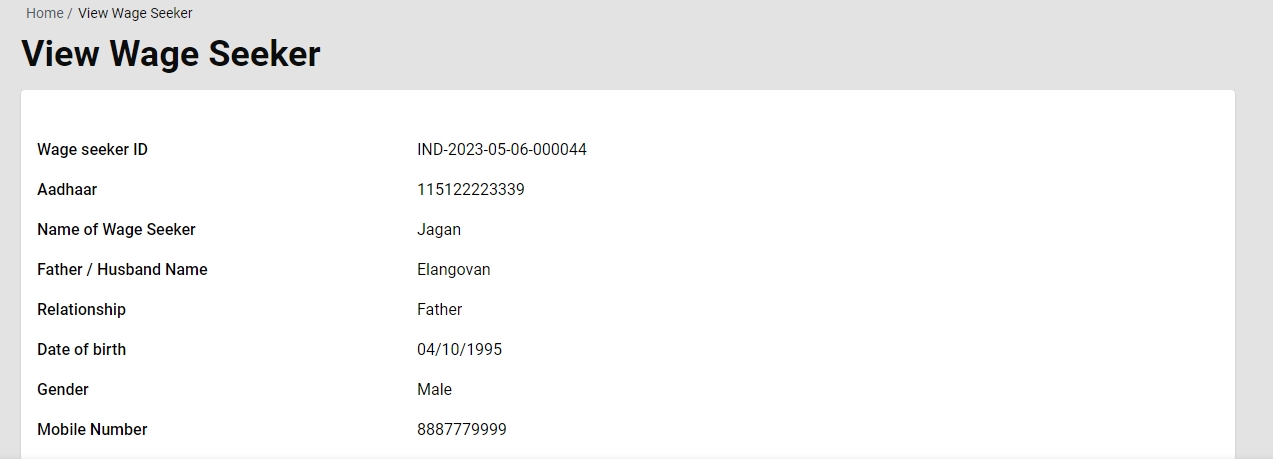
Click on the Wage Seeker ID in orange.
This displays the View Wage Seeker.
Modify
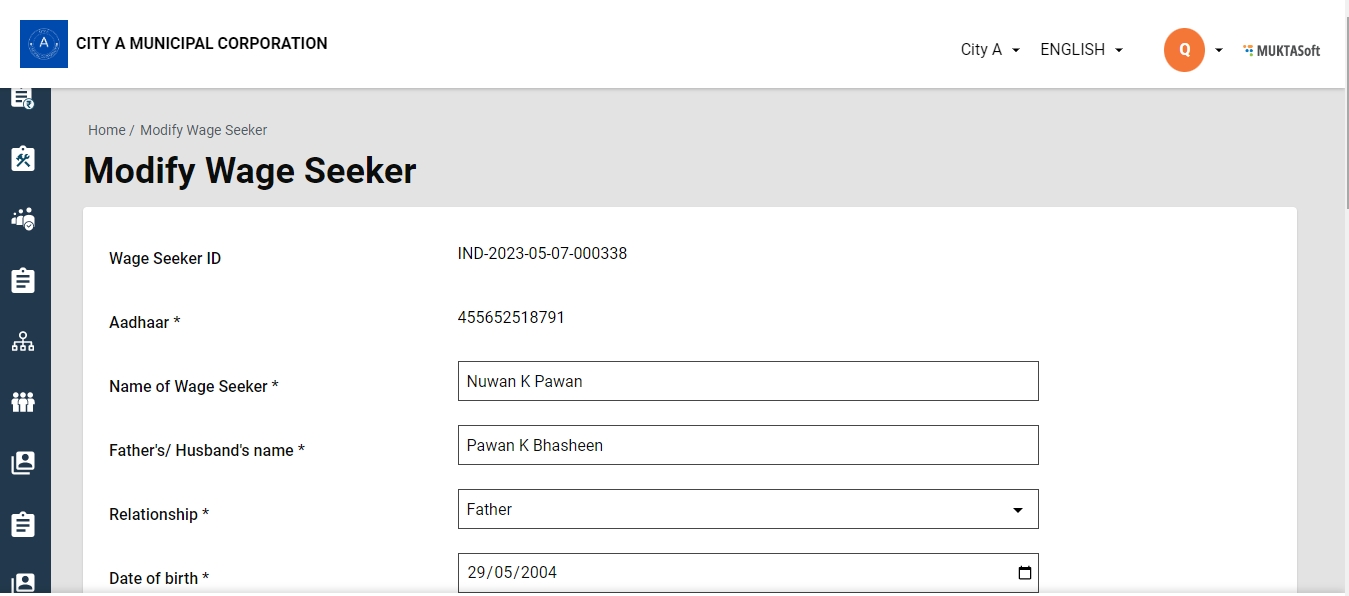
Sidebar Menu/ Homepage > Wage Seeker > Search Wage Seeker > Wage Seeker Result > Wage Seeker ID > View Wage Seeker > Modify Wage Seeker
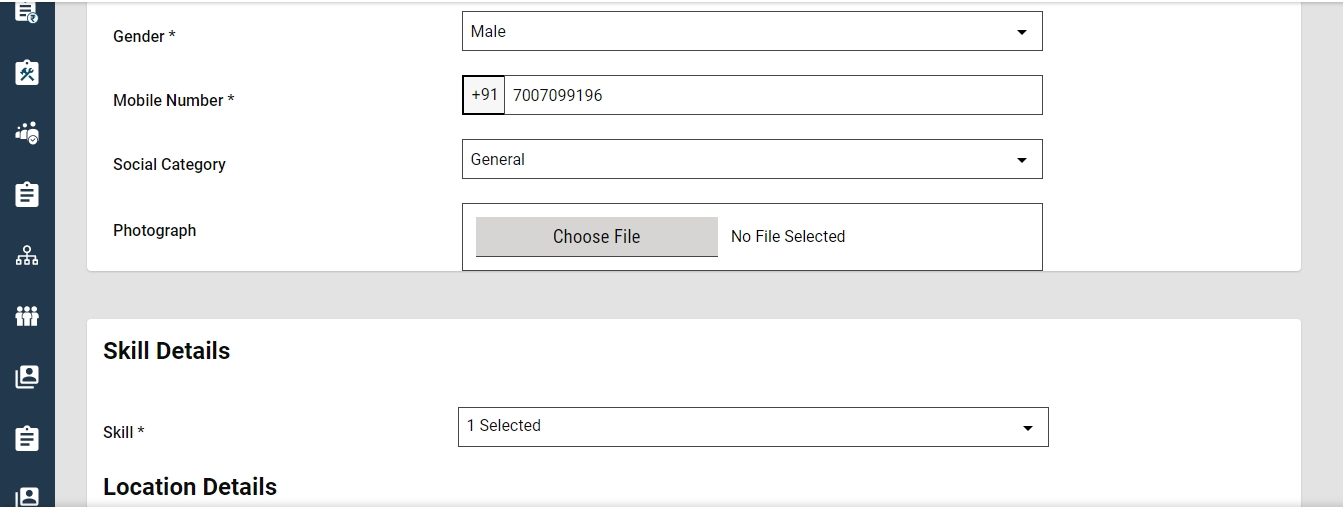
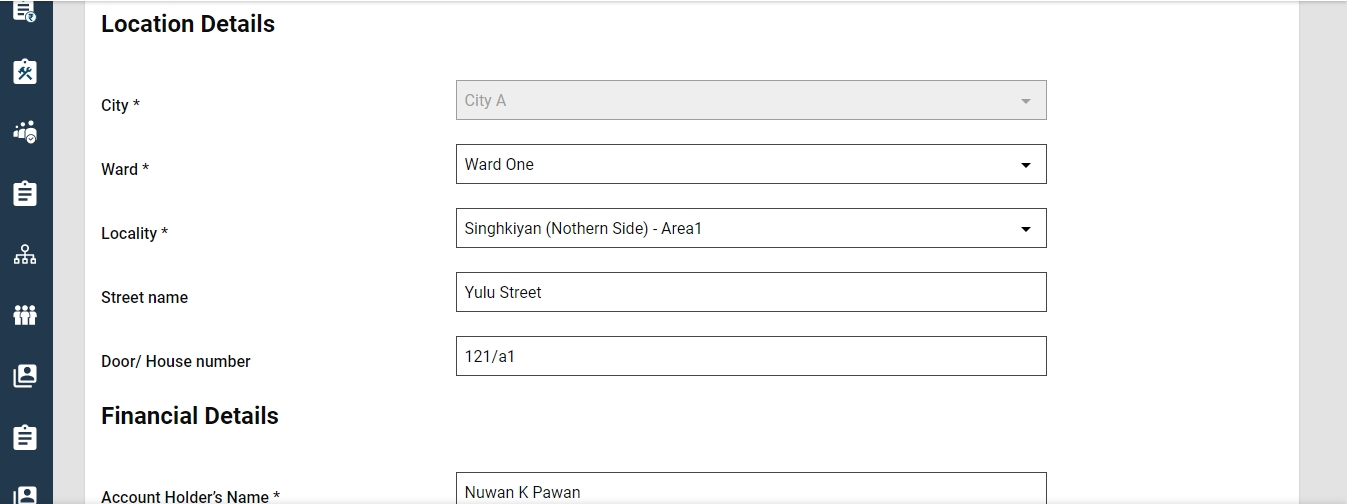
To modify any details regarding Wage Seekers, one must view the Wage Seeker and then click on Modify at the bottom of the page. This will display all details of the Wage Seeker. Make necessary changes and click on Save at the bottom.
Social Category
Created from Date
Created to Date
City
Ward
Locality
Create
Home > Sidebar Menu/ Homepage > Organization > Search Organization > Create Organization
To Create Organization for a project
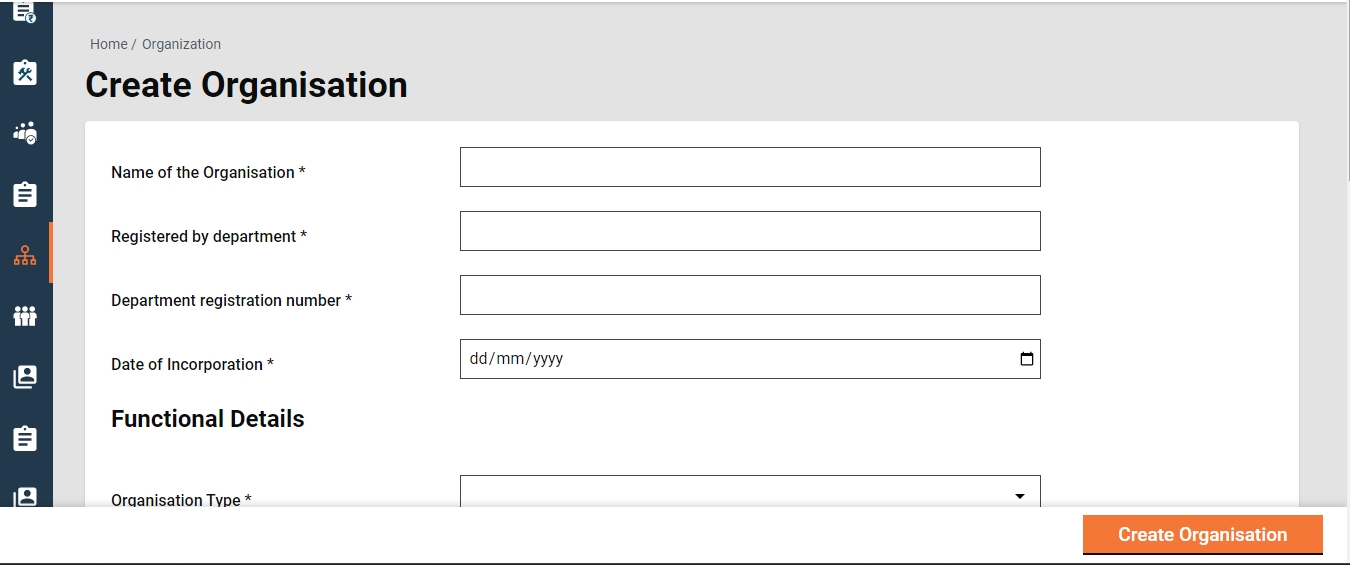
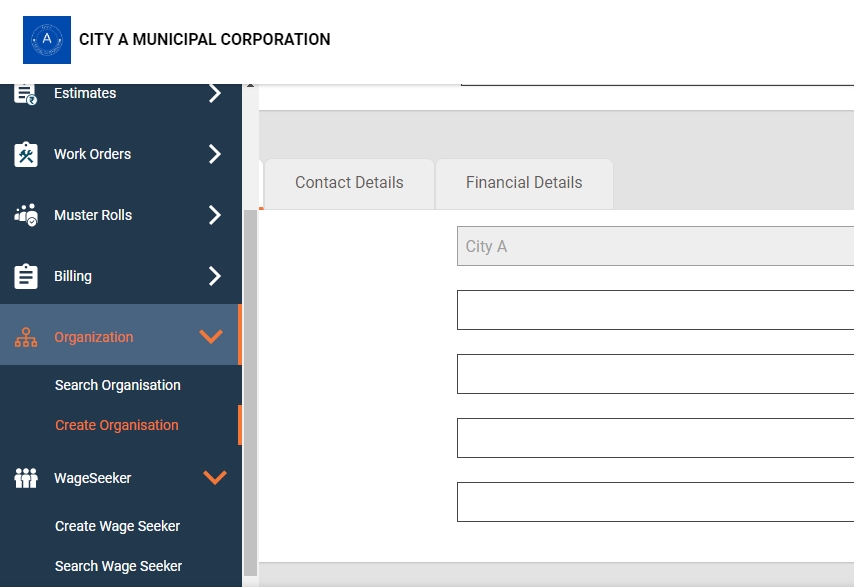
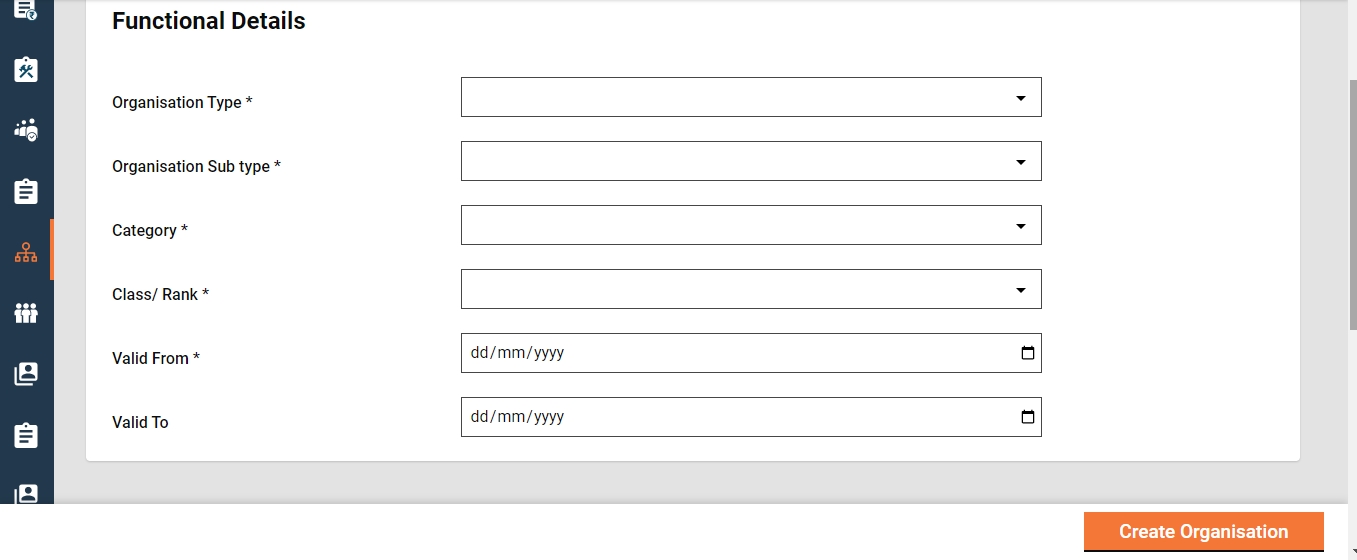
Click on Organization in the sidebar menu from the homepage and select to Create Organization. Alternatively, one can click on Organization from the homepage to view Search Organization and click on Add New Organization.
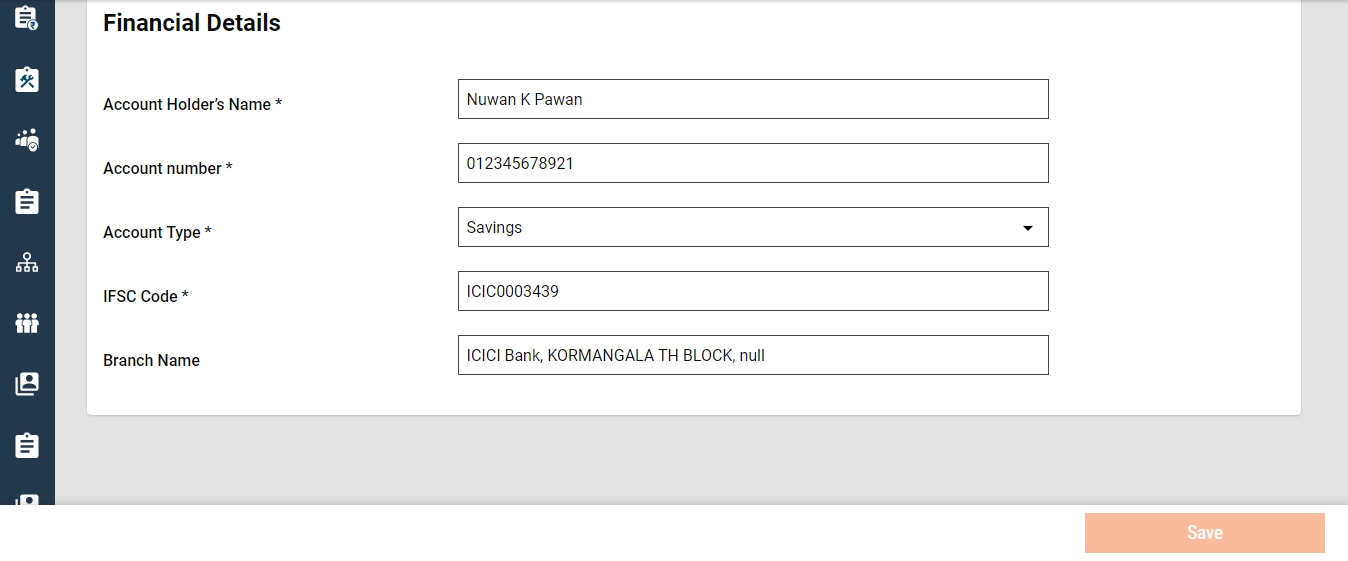
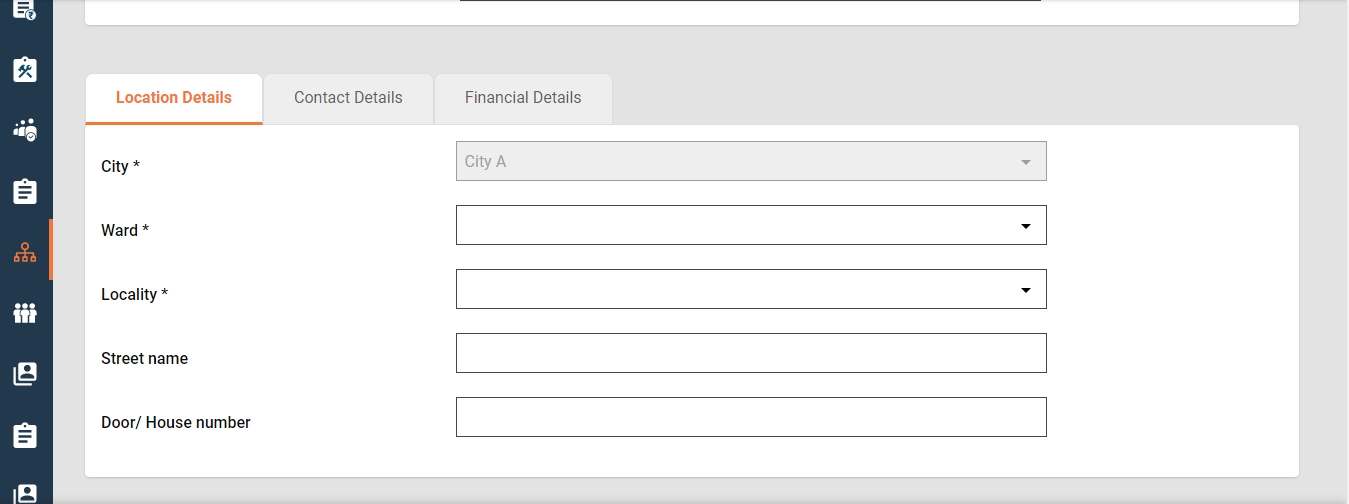
This will display the Create Organization Page with various details such as name of organization, functional details, contact, financial and location details to be filled.
Click on Create Organization after filling the details.
Search
Home >Sidebar Menu/ Homepage > Organisation > Search Organisation
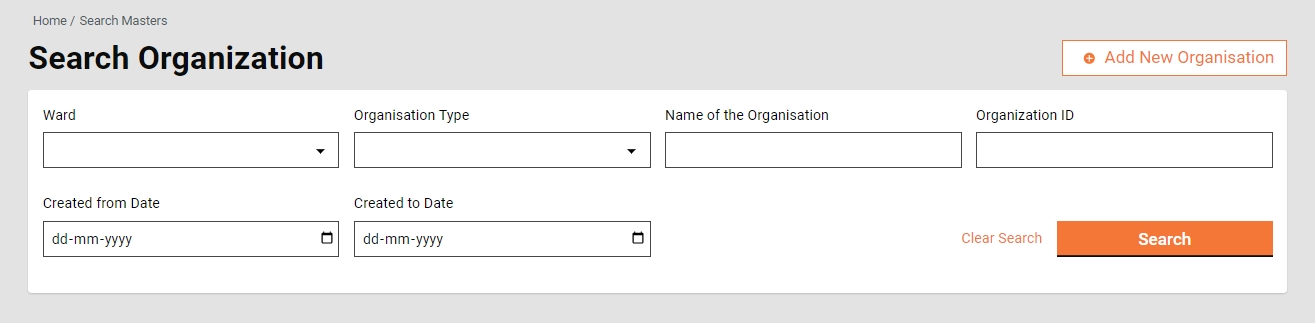
To Search an Organisation for a project
Click on Organisation in the sidebar menu from the homepage and select to Search Organisation.
This will display the Search Organisation page where details such as Ward, Organisation Type, Name of the Organisation, Organisation ID needs to be filled.
This will view the Search Result; Organisation ID, Name of the Organisation, Organisation Type, Organisation Sub type, Address and the Status.
View
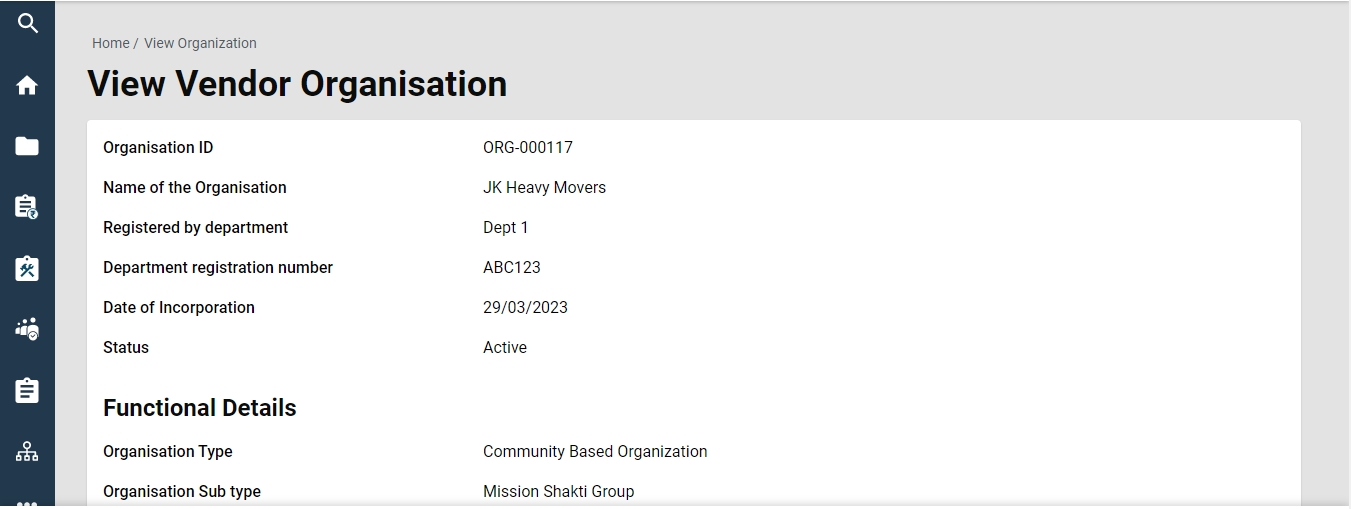
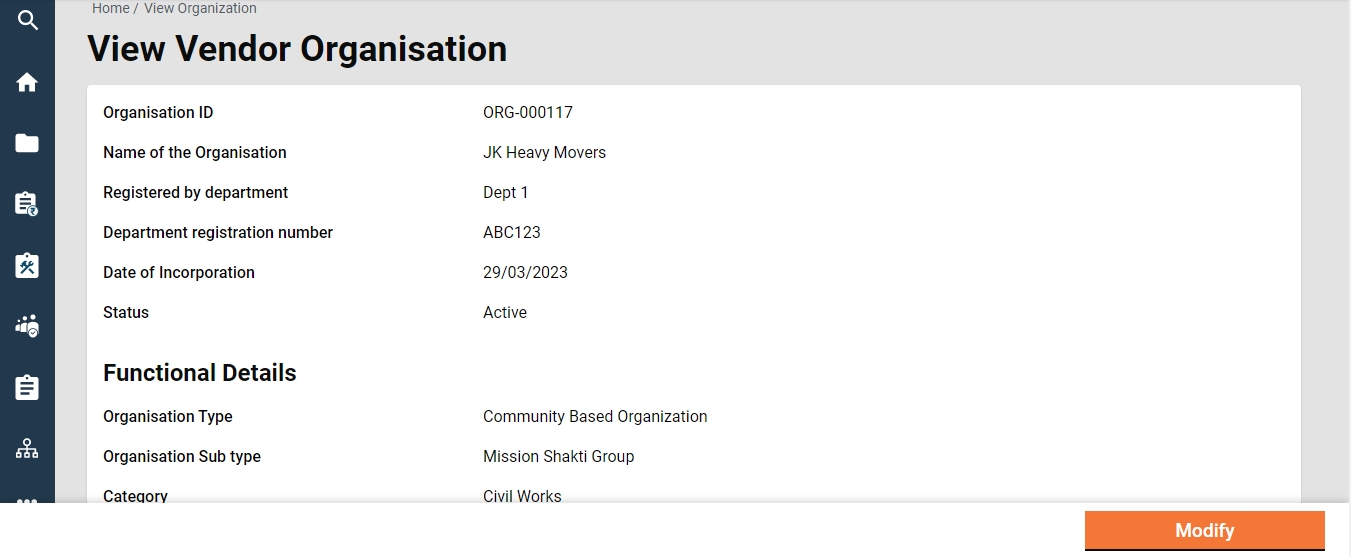
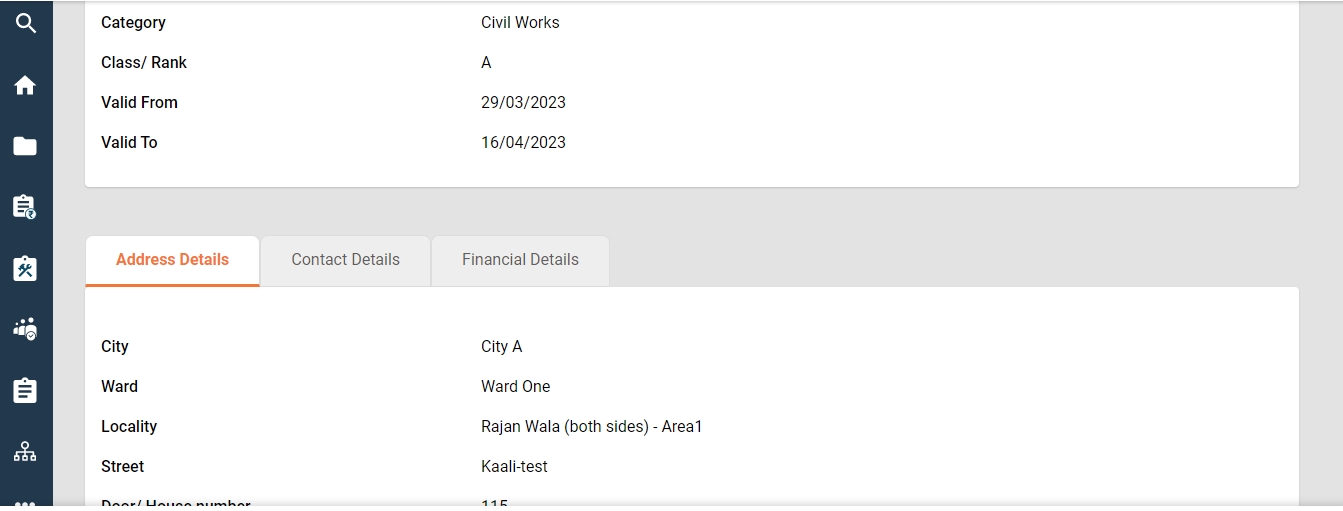
Home >Sidebar Menu/ Homepage > Organisation > Search Organisation > Organisation ID > View Vendor Organisation
Click on Organisation in the sidebar menu from the homepage and select to Search Organisation.
This will display the Search Organisation page where details such as Ward, Organisation Type, Name of the Organisation, Organisation ID needs to be filled.
This will view the Search Result; Organisation ID , Name of the Organisation, Organisation Type, Organisation Sub type, Address and the Status.
Modify
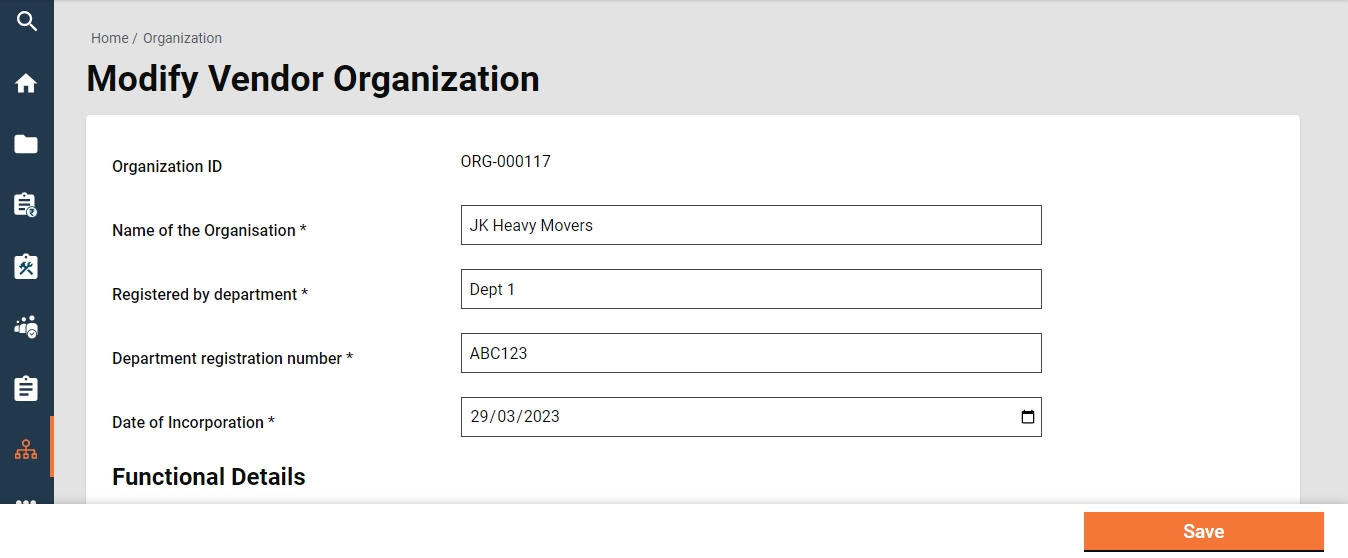
Home > Sidebar Menu/ Homepage > Organisation > Search Organisation > Organisation ID > View Vendor Organisation
To modify any details regarding Organizations, one must view the Organizations and then click on Modify at the bottom of the page. This will display all details of the Organization. Make necessary changes and click on Save at the bottom.