Inbox/Search Screen

Overview

The Inbox Service is an event-based service designed to:

  • Fetch pre-aggregated data of municipal services and workflows.

  • Perform complex search operations.

  • Return applications and workflow data in a paginated manner.

  • Provide the total count of entries matching the search criteria.

This page outlines the following:

  • Rendering the Inbox or Search screen based on configurations.

  • Dynamically calling APIs using details provided in configurations.

Common Components Used

InboxSearchComposer

InboxSearchComposer is a container component for the inbox and search screens. It consists of four child components, which can be rendered conditionally.

Prop Name
Description

configs

Config fetched from MDMS data

The InboxSearchLinks component is used to render titles and links in the inbox.

Prop Name
Description

headerText

Config fetched from MDMS data

links

Links to navigate to other screens

customClass

Class to update styling

logoIcon

Icon name and class to render in component

SearchComponent

The SearchComponent is used to render search or filter forms. It includes 'clear' and 'search' buttons for user interaction.

Prop Name
Description

uiConfig

Config to render search/filter form

header

Title of form

screenType

Type of parent screen, can be either ‘inbox’ or ‘search’

fullConfig

Entire config of screen which also includes API details

Results table

The Results table component is used to render a table with searched results.

Prop Name
Description

config

Config to render table

data

Search results need to be populated in table

isLoading

Flag to pass to handle loading state

isFetching

Flag to pass to handle loading state

fullConfig

Entire config of screen which also includes API details

RenderFormFields

The RenderFormFields component is used to render form fields specified in the 'fields' parameter of the configuration.

Prop Name
Description

fields

Config to render all form fields

control, formData, errors, register, setValue, getValues, setError, clearErrors

Props to handle all form actions like collectibe data, setting errors, clearing errors etc.

apiDetails

Includes all API details required to fetch data

Hooks Used

To fetch inbox details, the useCustomAPIHook is utilised. This hook takes all necessary API details, such as URL, query parameters, body, and config, from the configuration (defined in MDMS).

Sample MDMS Data For Inbox

Configure Screens - Steps

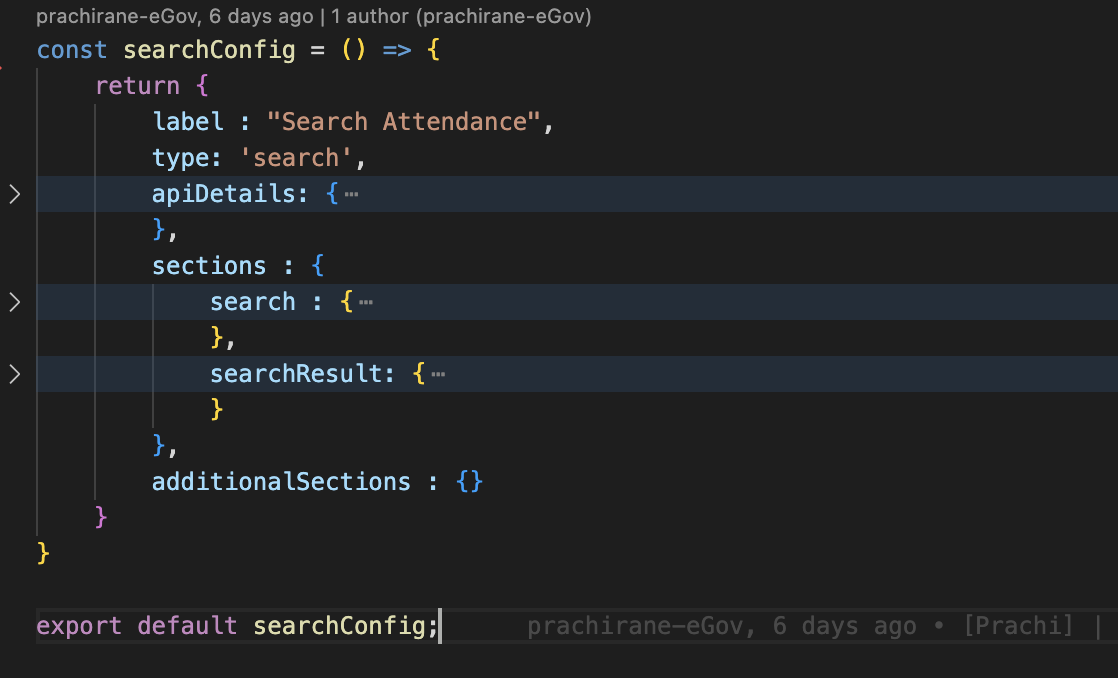
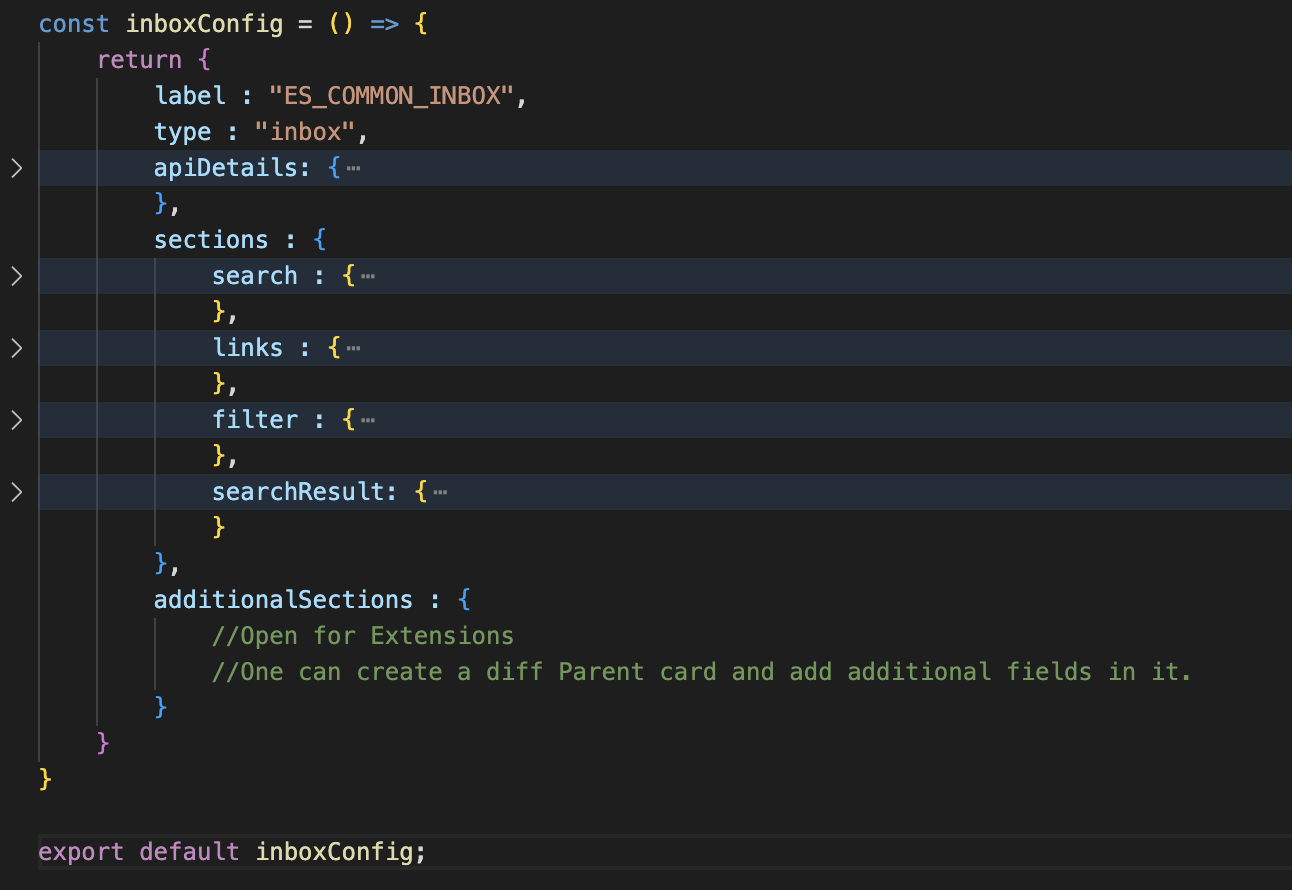
  1. Create a config based on the sections to be displayed on the screen. The basic structure for the Inbox and Search screens is given below.

base search config
Base Inbox config
  1. Based on the flag given for each section, its visibility is controlled. If the ‘show’ flag is true, then the section is visible; else it is hidden.

  2. Add API details in the top section. This API will be called via useCustomAPIHook and return the data. This consists of the following details.

    Api details section
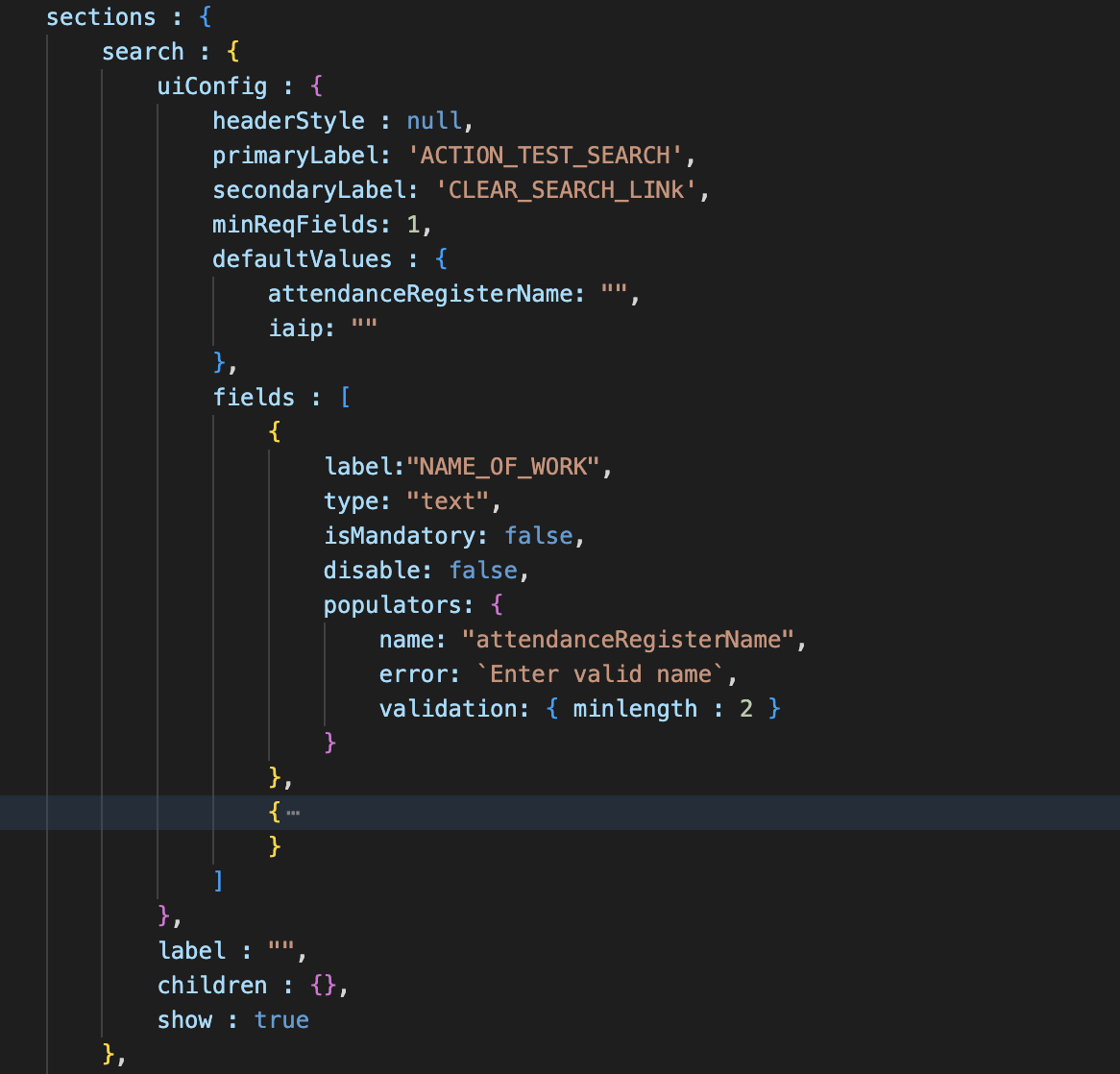
  3. Add search form config which can be used in both the inbox/search screen. It consists of UIconfig containing label info, styling info, default form values, and fields which need to be rendered in the form. Refer below

    search
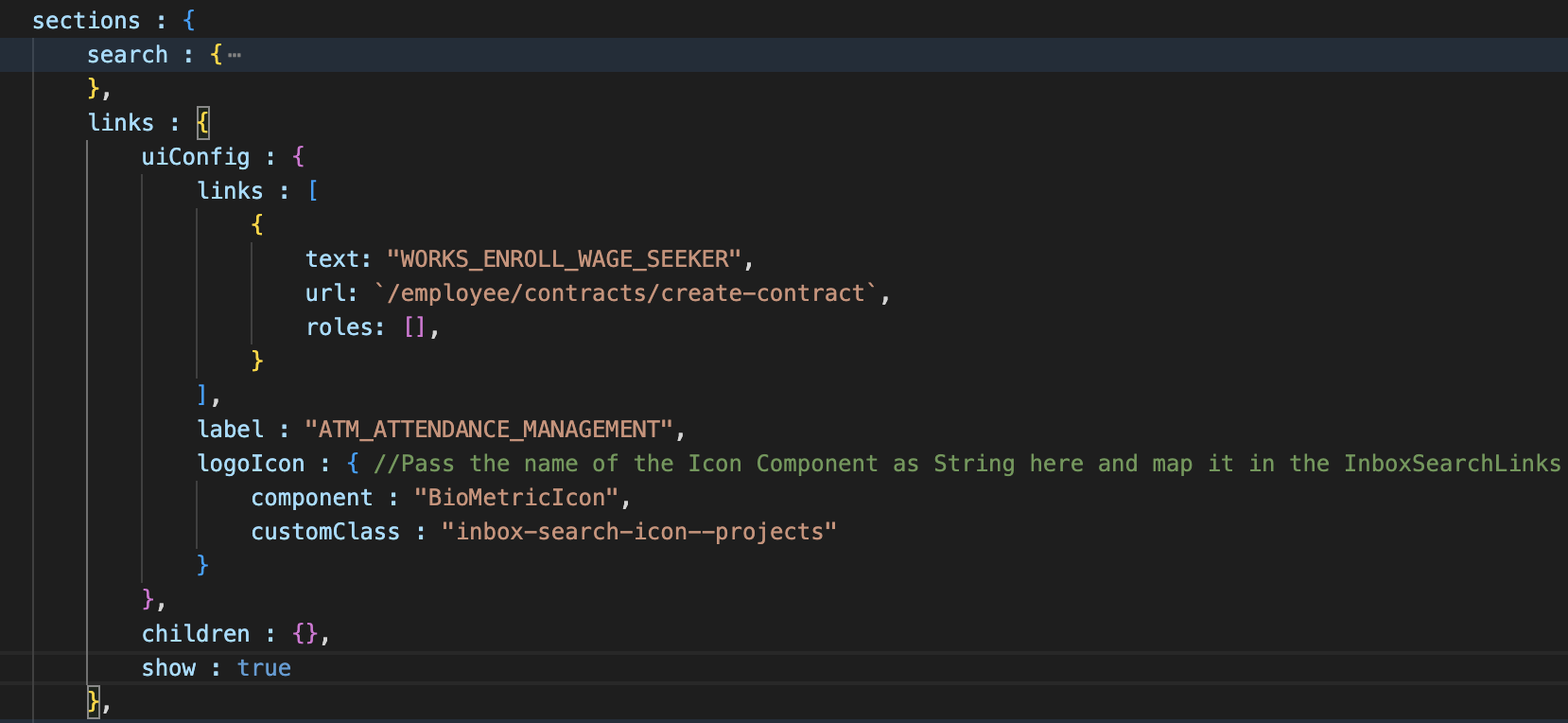
  4. Add Links config consists of link info, logo to be shown and title. Refer below

    Links
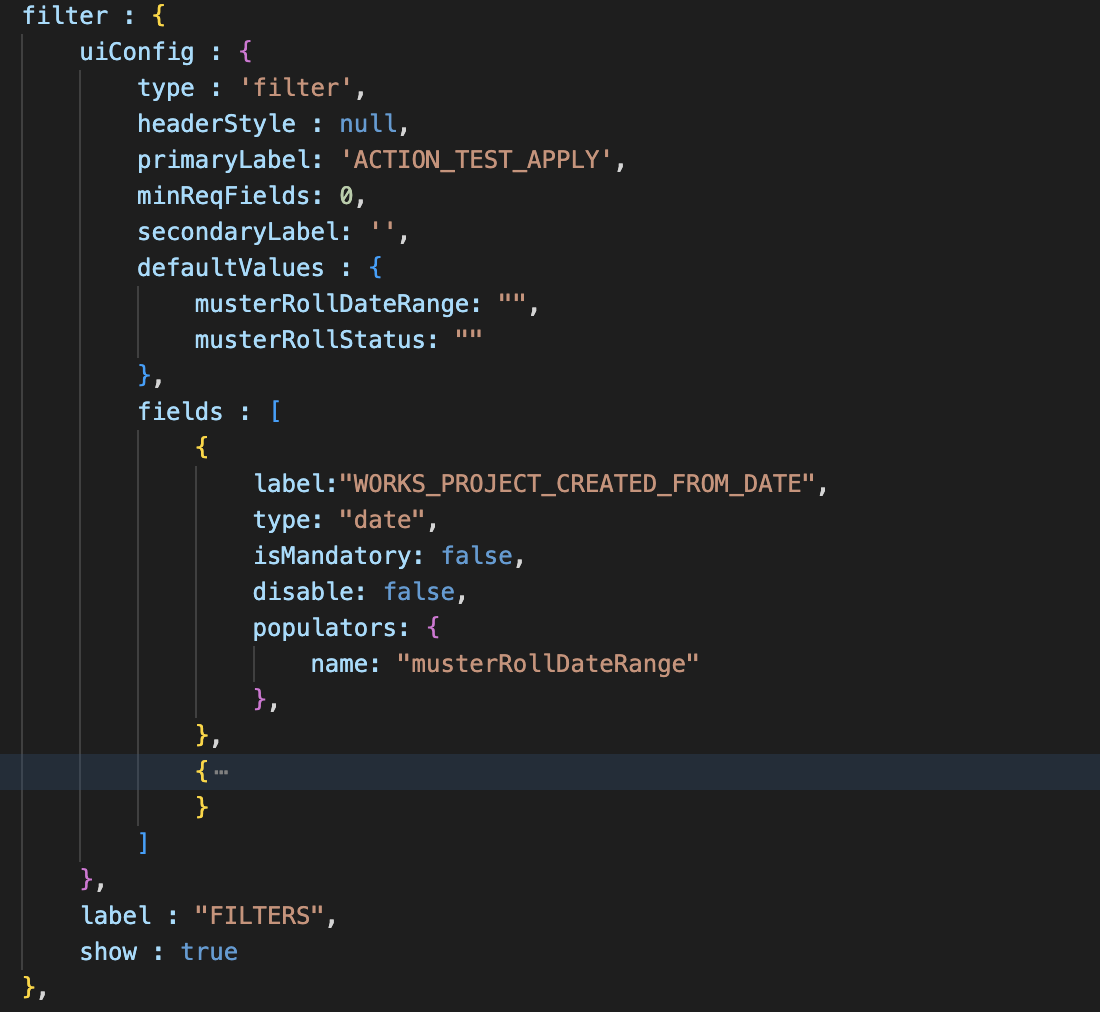
  5. Add a Filter form config, which is similar to the search form. Refer below

    Filter section
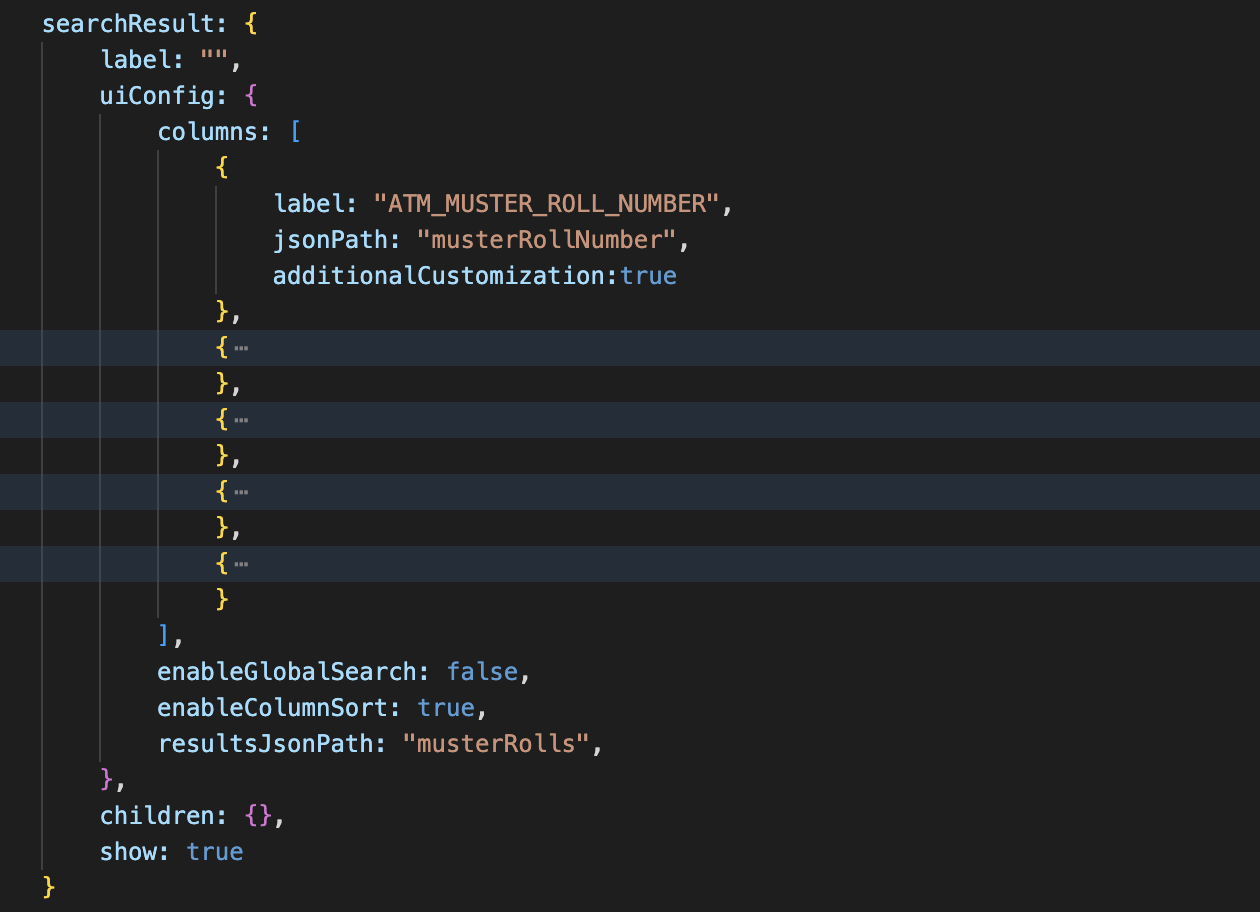
  6. Add table (Search result) config consists of labels, column data and related JSON paths to access the data passed. Refer below -

    Results Table
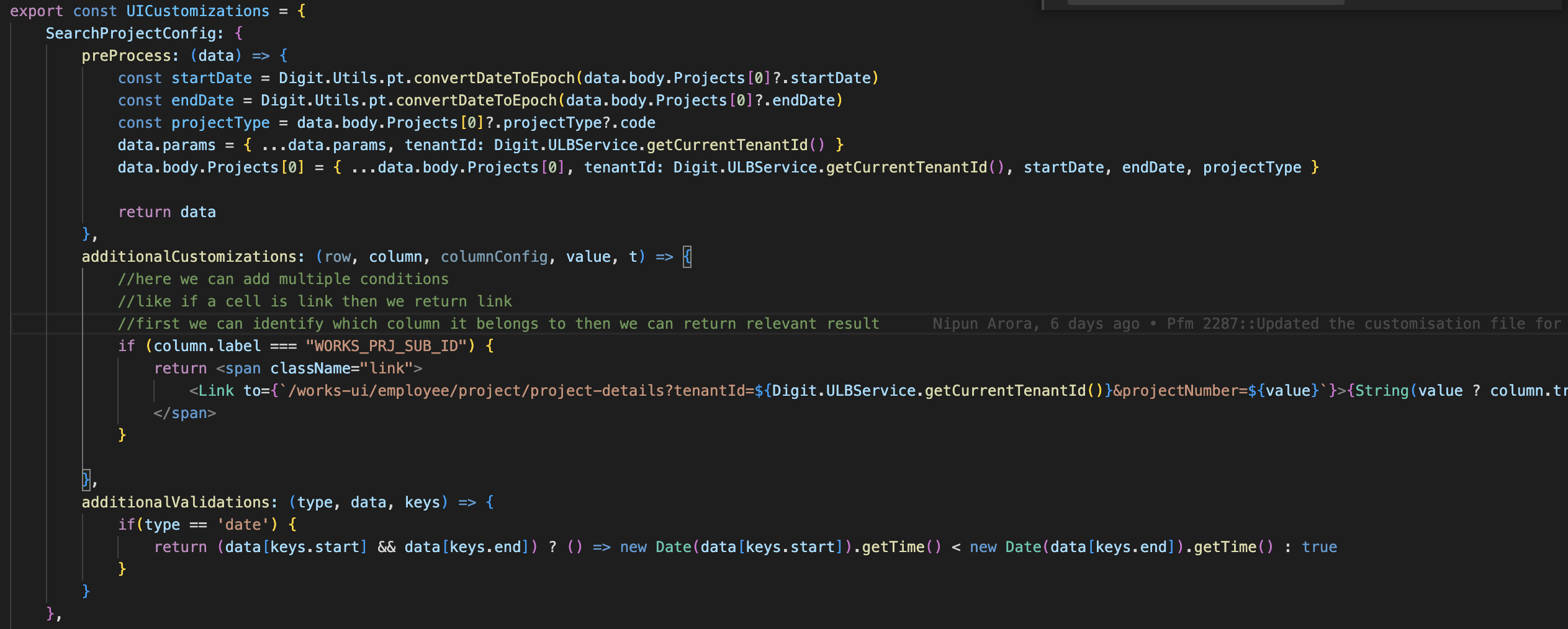
  7. To add any customisations on query params, request body, table columns or to add any custom validations in forms, related code can be added in the UICustomisations file as below

    Ui customisations for Search project screen
  8. Once the above config is defined, create an index file/ Component in the pages folder. Fetch the config from MDMS and pass it to the inboxSearchComposer component as below

    Sample code for project search page

Limitations

  • This approach is followed only in the Inbox and Search screens currently.

  • Only one API can be called dynamically based on given configurations.

Usage

To use the latest Inbox search composer, it has to be imported from the React components or Utilities

React components

package

Utilities:

package

Last updated

Was this helpful?