> For the complete documentation index, see [llms.txt](https://docs.digit.org/llms.txt). Markdown versions of documentation pages are available by appending `.md` to page URLs; this page is available as [Markdown](https://docs.digit.org/health/v1.5/setup/installation/system-data-setup.md).
# System Data Setup
## **Overview**
Before you run the DIGIT HCM product, you need to set up the basic system data such as boundaries of the geography and the master data. In this document, we will load the base data for the server.
### **Download Database Dump File**
Download the `seed_data_dump.sql` file into your local system and save it in a folder/directory.
{% file src="/files/byhHFVW8WRZ8VLYVm0yJ" %}
### Load the Backup File into the Database
#### To load the file to the database:
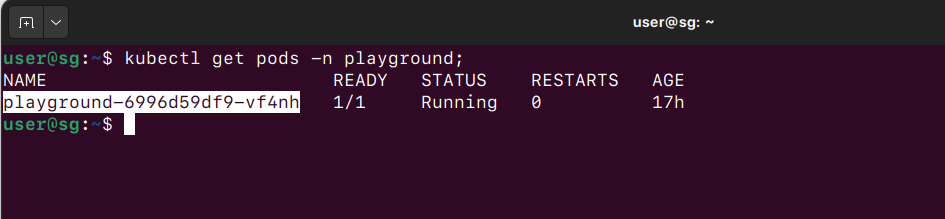
* Get the database **pod name** by executing the following command and copy the **NAME** from the output. Refer to the screenshot below:
```
kubectl get pods -n playground
```
Sample screenshot of database pod
* We also need db\_name, and db\_username. We configured these values earlier in the forked repository **infra-as-code/terraform/sample-aws/input.yaml** file.
* Navigate to `infra-as-code/terraform/sample-aws`.
* Open `input.yaml`and note down **db\_username**, **db\_name**, which configured earlier.
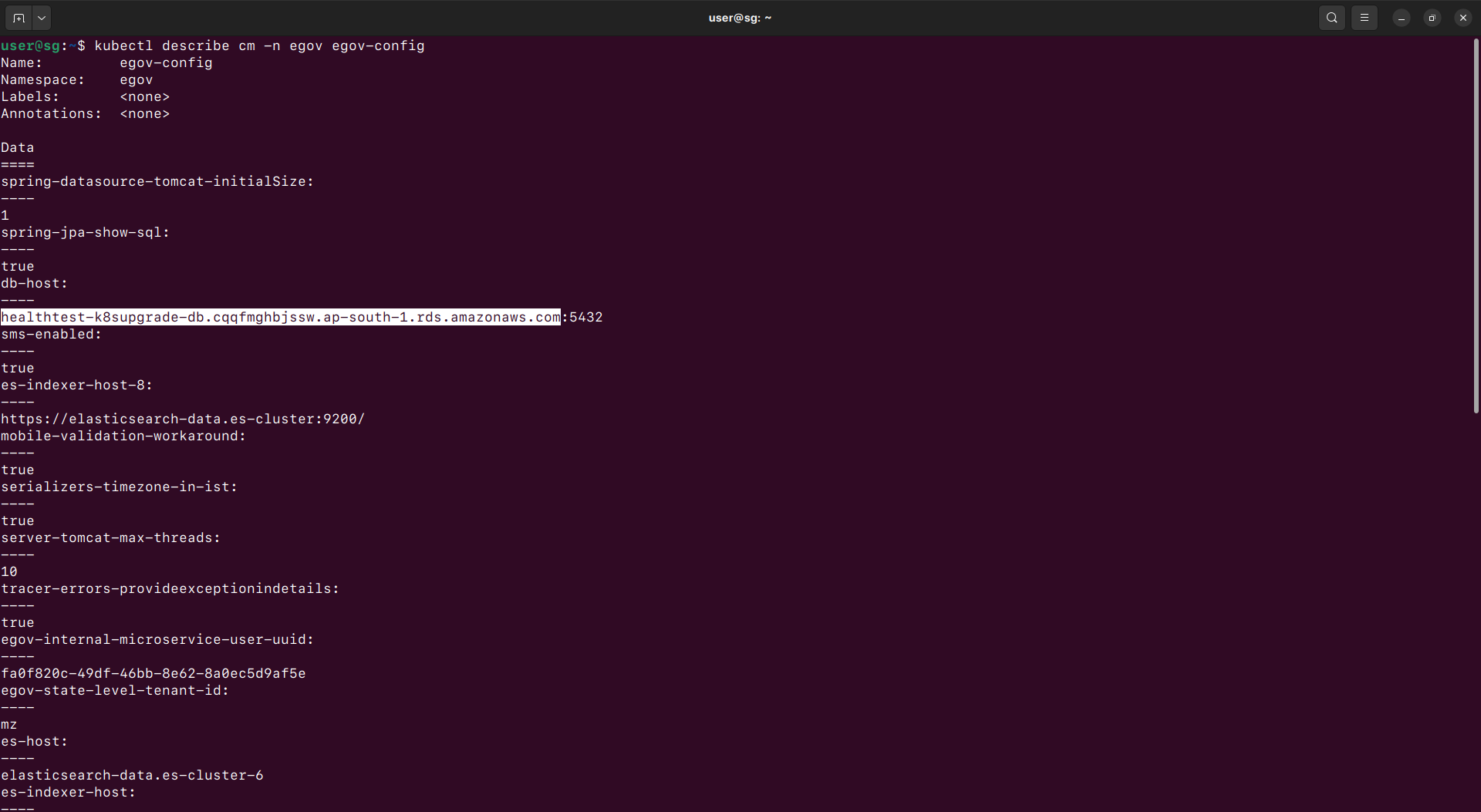
* Get {DB\_HOST} the value by executing the command below, and find and copy the "db-host" value. Refer to the screenshot below for select and copy of "db-host". This will be used in the next commands.
```
kubectl describe cm -n egov egov-config
```
Sample Screenshot of command output for db_host
### Load Data into the Database
Now we have all the data required to run the command below which will load the data into the database.
* Go to the folder/directory where the dump file was downloaded and open the terminal in that folder or use the '`cd`' command to change to that directory:
Example screenshot with cd command to download folder
* Replace `{PLAYGROUND_POD_NAME}` , `{DATABASE_HOST}`, {`DATABASE_USERNAME}`, {`DB_NAME}` in the command given below and run it:
```
kubectl cp seed_data_dump.sql playground/{PLAYGROUND_POD_NAME}:/home/seed_data_dump.sql && kubectl exec -n playground {PLAYGROUND_POD_NAME} -- sh -c "PGPASSWORD=demo123456 psql -h {DATABASE_HOST} -p 5432 -U {DATABASE_USERNAME} -d {DATABASE_NAME} -f /home/seed_data_dump.sql"
```
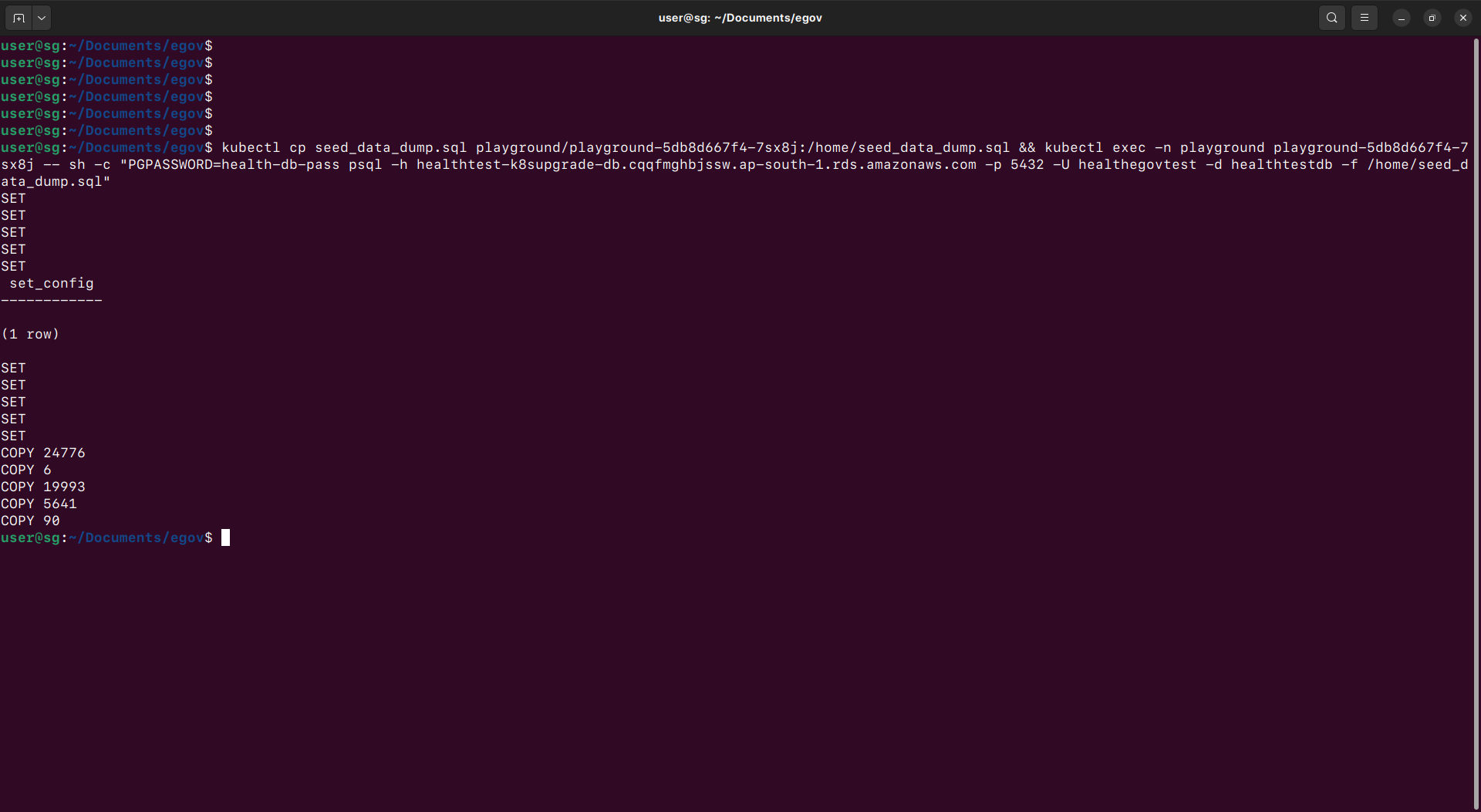
### Verify the Output
After running the above command, the output should look like it is shown below:
### To Enable File Store
* Encode Aws access key and secret key to base64 encoding
```
echo -n "" | base64
```
* Update the secrets in the cluster (\*do not put these is the git DevOps repo files and commit)
```
kubectl edit secrets egov-filestore -n egov
```
* If it is not editable by vi editor, we can use vs code to edit the file, run the below command, and run the above step again
```
export EDITOR='code --wait'
```
### Redeploy all the services at once to read from new data
* Run the below command to delete and restart all the services
```
kubectl delete pods --all -n egov
```
* Run the command below to check if all pods/services are running. If not, wait for some time and check again:
```
kubectl get pods -n egov
```
### Setup PGR Workflow
If the PGR Module is enabled, follow the below steps to set it -
* Port Forward workflow v2 service using the below command
```
kubectl port-forward svc/egov-workflow-v2 -n egov 8080:8080
```
* Run the below cURL to create a business service
```
curl --location 'http://localhost:8080/egov-workflow-v2/egov-wf/businessservice/_create' \
--header 'Content-Type: application/json' \
--data-raw '{"RequestInfo":{"apiId":"Rainmaker","action":"","did":1,"key":"","msgId":"20170310130900|en_IN","requesterId":"","ts":1513579888683,"ver":".01","authToken":"67f85f54-5cac-4aa6-b90f-828996cc2e30","userInfo":{"id":24226,"uuid":"11b0e02b-0145-4de2-bc42-c97b96264807","userName":"amr001","name":"leela","mobileNumber":"9814424443","emailId":"leela@llgmail.com","locale":null,"type":"EMPLOYEE","roles":[{"name":"CSC Collection Operator","code":"CSC_COLL_OPERATOR","tenantId":"pb.amritsar"},{"name":"Employee","code":"EMPLOYEE","tenantId":"pb.amritsar"},{"name":"Grievance Routing Officer","code":"GRO","tenantId":"pb.amritsar"},{"name":"NoC counter employee","code":"NOC_CEMP","tenantId":"pb.amritsar"},{"name":"TL Counter Employee","code":"TL_CEMP","tenantId":"pb.amritsar"},{"name":"TL Field Inspector","code":"TL_FIELD_INSPECTOR","tenantId":"pb.amritsar"},{"name":"TL Creator","code":"TL_CREATOR","tenantId":"pb.amritsar"},{"name":"Customer Support Representative","code":"CSR","tenantId":"pb.amritsar"},{"name":"NoC counter Approver","code":"NOC_APPROVER","tenantId":"pb.amritsar"},{"name":"TL Approver","code":"TL_APPROVER","tenantId":"pb.amritsar"},{"name":"Super User","code":"SUPERUSER","tenantId":"pb"},{"name":"BPA Services Approver","code":"BPA_APPROVER","tenantId":"pb.amritsar"},{"name":"Field Employee","code":"FEMP","tenantId":"pb.amritsar"},{"name":"Counter Employee","code":"CEMP","tenantId":"pb.amritsar"},{"name":"NoC Field Inpector","code":"NOC_FIELD_INSPECTOR","tenantId":"pb.amritsar"},{"name":"NOC Department Approver","code":"NOC_DEPT_APPROVER","tenantId":"pb.amritsar"},{"name":"Super User","code":"SUPERUSER","tenantId":"pb.amritsar"},{"name":"Grievance Officer","code":"GO","tenantId":"pb.amritsar"},{"name":"Anonymous User","code":"ANONYMOUS","tenantId":"pb.amritsar"},{"name":"Collection Operator","code":"COLL_OPERATOR","tenantId":"pb.amritsar"},{"name":"NoC Doc Verifier","code":"NOC_DOC_VERIFIER","tenantId":"pb.amritsar"},{"name":"TL doc verifier","code":"TL_DOC_VERIFIER","tenantId":"pb.amritsar"}],"active":true,"tenantId":"mz"}},"BusinessServices":[{"tenantId":"mz","businessService":"PGR","business":"pgr-services","businessServiceSla":432000000,"states":[{"tenantId":"mz","sla":null,"state":null,"applicationStatus":null,"docUploadRequired":false,"isStartState":true,"isTerminateState":false,"isStateUpdatable":true,"actions":[{"tenantId":"mz","action":"CREATE","nextState":"PENDING_ASSIGNMENT","roles":["REGISTRAR","DISTRIBUTOR","WAREHOUSE_MANAGER","HELPDESK_USER","SYSTEM_ADMINISTRATOR","PGR-ADMIN"],"active":true}]},{"tenantId":"mz","sla":null,"state":"PENDING_ASSIGNMENT","applicationStatus":"PENDING_ASSIGNMENT","docUploadRequired":false,"isStartState":false,"isTerminateState":false,"isStateUpdatable":false,"actions":[{"tenantId":"mz","currentState":"PENDING_ASSIGNMENT","action":"RESOLVE","nextState":"RESOLVED","roles":["HELPDESK_USER","L2_SUPPORT","SYSTEM_ADMINISTRATOR","PGR-ADMIN"],"active":true},{"tenantId":"mz","currentState":"PENDING_ASSIGNMENT","action":"ASSIGN","nextState":"PENDING_ASSIGNMENT","roles":["HELPDESK_USER","L2_SUPPORT","SYSTEM_ADMINISTRATOR","PGR-ADMIN"],"active":true},{"tenantId":"mz","currentState":"PENDING_ASSIGNMENT","action":"REJECT","nextState":"REJECTED","roles":["HELPDESK_USER","SYSTEM_ADMINISTRATOR","PGR-ADMIN"],"active":true}]},{"tenantId":"mz","sla":null,"state":"RESOLVED","applicationStatus":"RESOLVED","docUploadRequired":false,"isStartState":false,"isTerminateState":true,"isStateUpdatable":false,"actions":null},{"tenantId":"mz","sla":null,"state":"REJECTED","applicationStatus":"REJECTED","docUploadRequired":false,"isStartState":false,"isTerminateState":true,"isStateUpdatable":false,"actions":null},{"tenantId":"mz","sla":null,"state":"CANCELLED","applicationStatus":"CANCELLED","docUploadRequired":false,"isStartState":false,"isTerminateState":true,"isStateUpdatable":false,"actions":null}]}]}'
```
### Create Superuser
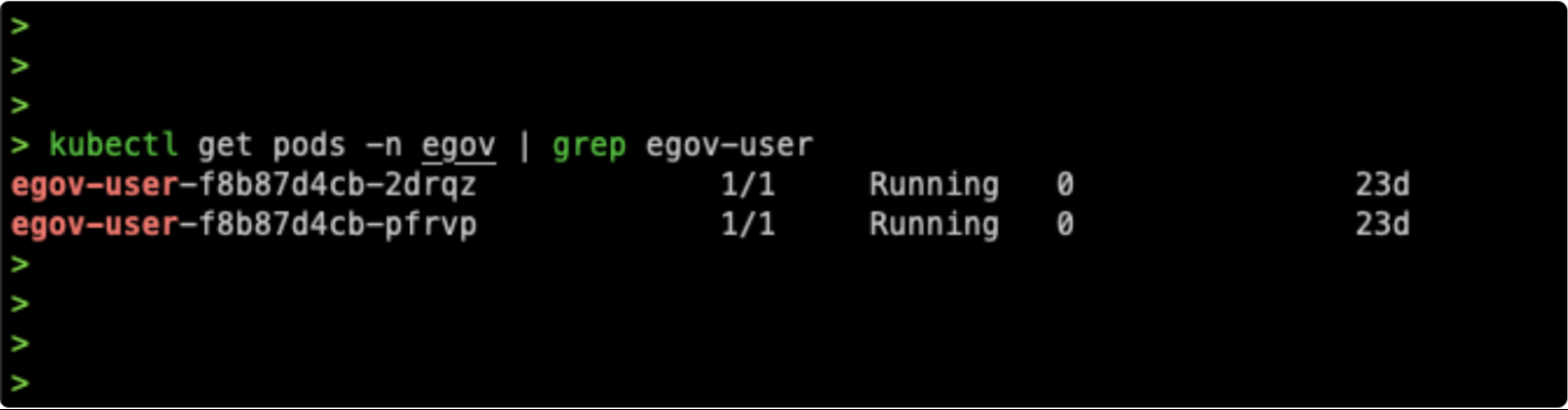
* Check if the egov-user service is up and running by using the following command:
```
kubectl get pods -n egov | grep egov-user
```
If the egov-user service is running with Ready 1/1, then connect to it by port forwarding:
```
kubectl port-forward svc/egov-user -n egov 8080:8080
```
* Import the below curl in Postman or execute it in another terminal window:
```
curl --location 'http://localhost:8080/user/users/_createnovalidate' \
--header 'Content-Type: application/json' \
--data-raw '{
"requestInfo": {
"apiId": "Rainmaker",
"ver": ".01",
"ts": null,
"action": "_update",
"did": "1",
"key": "",
"msgId": "20170310130900|en_IN",
"authToken": "51e00caf-3218-4f15-ba70-a45f7d40abc1"
},
"user": {
"userName": "{{username}}",
"name": "Admin User",
"gender": null,
"mobileNumber": "9898989898",
"type": "EMPLOYEE",
"active": true,
"password": "{{password}}",
"roles": [
{
"name": "Super User",
"code": "SUPERUSER",
"tenantId": "mz"
},
{
"name": "CAMPAIGN_MANAGER",
"code": "CAMPAIGN_MANAGER",
"tenantId": "mz"
}
],
"emailId": "xyz@gmail.com",
"tenantId": "mz"
}
}'
```
* Replace the username, password, and tenantId with proper values (keep tenantid as 'mz' if master data is loaded in DB unchanged).
---
# Agent Instructions
This documentation is published with GitBook. GitBook is the documentation platform designed so that both humans and AI agents can read, navigate, and reason over technical content effectively. Learn more at gitbook.com.
## Querying This Documentation
If you need additional information that is not directly available in this page, you can query the documentation by asking a question.
Perform an HTTP GET request on the following URL with the `ask` and `goal` query parameters:
```
GET https://docs.digit.org/health/v1.5/setup/installation/system-data-setup.md?ask=&goal=
```
`ask` is the immediate question: it should be specific, self-contained, and written in natural language.
`goal` is what the user is ultimately trying to achieve, the reason they need the answer. Sharing it helps GitBook give you a better, more relevant answer. A goal is most helpful when it describes the outcome the user wants rather than restating the question. For example, with `ask=how do I create an API token`, a goal like `automate deployments from our CI pipeline` lets GitBook tailor the answer to that use case.
The response will contain a direct answer to the question and relevant excerpts and sources from the documentation.
Use this mechanism when the answer is not explicitly present in the current page, you need clarification or additional context, or you want to retrieve related documentation sections.