> For the complete documentation index, see [llms.txt](https://docs.digit.org/llms.txt). Markdown versions of documentation pages are available by appending `.md` to page URLs; this page is available as [Markdown](https://docs.digit.org/platform/guides/operations-guide/setup-jenkins-docker-way.md).
# Setup Jenkins - Docker way
Jenkins for Build, Test and Deployment Automation
While we are adopting the Microservices architecture, it also demands to have an efficient CI/CD tools like jenkins. Along the cloud-native application developement and deployment jenkins can also be run cloud-native.
Since all processes, including software build, test and deployment, are performed every two or four weeks, this is an ideal playground for automation tools like Jenkins: After the developer commits a code change to the repository, Jenkins will detect this change and will trigger the build and test process. So Let's setup Jenkins as a docker container. Step-by-step.
## Installing Jenkins the Docker Way
### Tools and Versions used
* VM or C2 Instance or a Standalone on-premisis machin
* Docker 1.12.1
* Jenkins 2.32.2
* Job DSL Plugin 1.58
### Prerequisites:
* Ubuntu or an Liniux Machine
* Free RAM for the a VM/Machine >\~ 4 GB.
* Docker Host is available.
* Tested with 3 vCPU (2 vCPU might work as well).
## Step 1: Install a Docker on the Host you provisioned for Jenkins & Connect to the Host via SSH
If you are using a host that already has docker installed, you can skip this step. Make sure that your host has enough memory.
We will run Jenkins in a [Docker](https://www.docker.com/) container to allow for maximum interoperability. This way, we always can use the latest Jenkins version without the need to control the Java version used.
If you are new to Docker, you might want to read [this blog post](https://vocon-it.com/2015/09/28/what-are-containers-why-to-start-with-docker/).
Installing Docker on Windows and Mac can be a real challenge, but possible: here we will see an efficient way by using a Linux machine.
**Prerequisites of this step:**
* I recommend having direct access to the Internet: via Firewall, but without HTTP proxy.
* Administration rights on your computer.
#### Step 2: Download Jenkins Image
This extra download step is optional since the Docker image will be downloaded automatically in step 3 if it is not already found on the system:
(dockerhost)$ sudo docker pull jenkins
Using default tag: latest
latest: Pulling from library/jenkins
Digest: sha256:8820149b54bfc5d05146b82150b5fdab583eef3e0499fb4ed630f77647a42942
Status: Image is up to date for jenkins:latest
The version of the downloaded Jenkins image can be checked with the following command:
(dockerhost)$ sudo docker run -it --rm jenkins --version
2.19.3
We are using version 2.9.13 currently. If you want to make sure that you use the exact same version as I have used in this blog, you can use the imagename `jenkins:2.19.3` in all docker commands instead of `jenkins` only.
> Note: The content of the jenkins image can be reviewed on [this link](https://imagelayers.io/?images=jenkins:2.3). There, we find that the image has an entrypoint `/bin/tini -- /usr/local/bin/jenkins.sh`, which we could override with the `--entrypoint bash` option, if we wanted to start a bash shell in the jenkins image. However, in Step 3, we will keep the entrypoint for now.
#### Step 3: Start Jenkins in interactive Terminal Mode
In this step, we will run Jenkins interactively (with `-it` switch instead of `-d` switch) to better see, what is happening. But first, we check that the port we will use is free:
(dockerhost)$ sudo docker ps
CONTAINER ID        IMAGE                    COMMAND                  CREATED             STATUS              PORTS                                            NAMES
0ec82b4ca2fd        google/cadvisor:latest   "/usr/bin/cadvisor -l"   2 days ago          Up 2 days           0.0.0.0:8080->8080/tcp                           cadvisor
...
Since we see that one of the standard ports of Jenkins (8080, 50000) is already occupied and I do not want to confuse the readers of this blog post by mapping the port to another host port, I just stop the cadvisor container for this „hello world“:
(dockerhost)$ sudo docker stop cadvisor
cadvisor
Jenkins will be in need of a persistent storage. For that, we create a new folder on the Docker host:
(dockerhost)$ mkdir jenkins_home; cd jenkins_home
> Note: The content of the jenkins image can be reviewed on [this link](https://imagelayers.io/?images=jenkins:2.3). There, we find that the image has an entrypoint `/bin/tini -- /usr/local/bin/jenkins.sh`, which we could override with the `--entrypoint bash` option, if we wanted to start a bash shell in the jenkins image.
We start the Jenkins container with the jenkins\_home Docker host volume mapped to `/var/jenkins_home`:
(dockerhost)$ sudo docker run -it --rm --name jenkins -p8080:8080 -p50000:50000 -v`pwd`:/var/jenkins_home jenkins
Running from: /usr/share/jenkins/jenkins.war
webroot: EnvVars.masterEnvVars.get("JENKINS_HOME")
Nov 30, 2016 6:12:14 PM Main deleteWinstoneTempContents
WARNING: Failed to delete the temporary Winstone file /tmp/winstone/jenkins.war
Nov 30, 2016 6:12:14 PM org.eclipse.jetty.util.log.JavaUtilLog info
INFO: Logging initialized @347ms
Nov 30, 2016 6:12:14 PM winstone.Logger logInternal
INFO: Beginning extraction from war file
Nov 30, 2016 6:12:14 PM org.eclipse.jetty.util.log.JavaUtilLog warn
WARNING: Empty contextPath
Nov 30, 2016 6:12:14 PM org.eclipse.jetty.util.log.JavaUtilLog info
INFO: jetty-9.2.z-SNAPSHOT
Nov 30, 2016 6:12:16 PM org.eclipse.jetty.util.log.JavaUtilLog info
INFO: NO JSP Support for /, did not find org.eclipse.jetty.jsp.JettyJspServlet
Jenkins home directory: /var/jenkins_home found at: EnvVars.masterEnvVars.get("JENKINS_HOME")
Nov 30, 2016 6:12:17 PM org.eclipse.jetty.util.log.JavaUtilLog info
INFO: Started w.@7674f035{/,file:/var/jenkins_home/war/,AVAILABLE}{/var/jenkins_home/war}
Nov 30, 2016 6:12:17 PM org.eclipse.jetty.util.log.JavaUtilLog info
INFO: Started ServerConnector@548d708a{HTTP/1.1}{0.0.0.0:8080}
Nov 30, 2016 6:12:17 PM org.eclipse.jetty.util.log.JavaUtilLog info
INFO: Started @3258ms
Nov 30, 2016 6:12:17 PM winstone.Logger logInternal
INFO: Winstone Servlet Engine v2.0 running: controlPort=disabled
Nov 30, 2016 6:12:17 PM jenkins.InitReactorRunner$1 onAttained
INFO: Started initialization
Nov 30, 2016 6:12:17 PM jenkins.InitReactorRunner$1 onAttained
INFO: Listed all plugins
Nov 30, 2016 6:12:19 PM jenkins.InitReactorRunner$1 onAttained
INFO: Prepared all plugins
Nov 30, 2016 6:12:19 PM jenkins.InitReactorRunner$1 onAttained
INFO: Started all plugins
Nov 30, 2016 6:12:19 PM jenkins.InitReactorRunner$1 onAttained
INFO: Augmented all extensions
Nov 30, 2016 6:12:20 PM jenkins.InitReactorRunner$1 onAttained
INFO: Loaded all jobs
Nov 30, 2016 6:12:20 PM hudson.model.AsyncPeriodicWork$1 run
INFO: Started Download metadata
Nov 30, 2016 6:12:20 PM hudson.model.AsyncPeriodicWork$1 run
INFO: Finished Download metadata. 97 ms
Nov 30, 2016 6:12:20 PM org.jenkinsci.main.modules.sshd.SSHD start
INFO: Started SSHD at port 44955
Nov 30, 2016 6:12:21 PM jenkins.util.groovy.GroovyHookScript execute
INFO: Executing /var/jenkins_home/init.groovy.d/tcp-slave-agent-port.groovy
Nov 30, 2016 6:12:22 PM jenkins.InitReactorRunner$1 onAttained
INFO: Completed initialization
Nov 30, 2016 6:12:22 PM org.springframework.context.support.AbstractApplicationContext prepareRefresh
INFO: Refreshing org.springframework.web.context.support.StaticWebApplicationContext@453fc3cf: display name [Root WebApplicationContext]; startup date [Wed Nov 30 18:12:22 UTC 2016]; root of context hierarchy
Nov 30, 2016 6:12:22 PM org.springframework.context.support.AbstractApplicationContext obtainFreshBeanFactory
INFO: Bean factory for application context [org.springframework.web.context.support.StaticWebApplicationContext@453fc3cf]: org.springframework.beans.factory.support.DefaultListableBeanFactory@79a53f4b
Nov 30, 2016 6:12:22 PM org.springframework.beans.factory.support.DefaultListableBeanFactory preInstantiateSingletons
INFO: Pre-instantiating singletons in org.springframework.beans.factory.support.DefaultListableBeanFactory@79a53f4b: defining beans [authenticationManager]; root of factory hierarchy
Nov 30, 2016 6:12:22 PM org.springframework.context.support.AbstractApplicationContext prepareRefresh
INFO: Refreshing org.springframework.web.context.support.StaticWebApplicationContext@7ea44b7: display name [Root WebApplicationContext]; startup date [Wed Nov 30 18:12:22 UTC 2016]; root of context hierarchy
Nov 30, 2016 6:12:22 PM org.springframework.context.support.AbstractApplicationContext obtainFreshBeanFactory
INFO: Bean factory for application context [org.springframework.web.context.support.StaticWebApplicationContext@7ea44b7]: org.springframework.beans.factory.support.DefaultListableBeanFactory@12544046
Nov 30, 2016 6:12:22 PM org.springframework.beans.factory.support.DefaultListableBeanFactory preInstantiateSingletons
INFO: Pre-instantiating singletons in org.springframework.beans.factory.support.DefaultListableBeanFactory@12544046: defining beans [filter,legacy]; root of factory hierarchy
Nov 30, 2016 6:12:22 PM jenkins.install.SetupWizard init
INFO:

*************************************************************
*************************************************************
*************************************************************

Jenkins initial setup is required. An admin user has been created and a password generated.
Please use the following password to proceed to installation:

0c4a8413a47943ac935a4902e3b8167e

This may also be found at: /var/jenkins_home/secrets/initialAdminPassword

*************************************************************
*************************************************************
*************************************************************

Nov 30, 2016 6:12:27 PM hudson.model.UpdateSite updateData
INFO: Obtained the latest update center data file for UpdateSource default
Nov 30, 2016 6:12:27 PM hudson.WebAppMain$3 run
INFO: Jenkins is fully up and running
--> setting agent port for jnlp
--> setting agent port for jnlp... done
#### Step 4: Open Jenkins in a Browser
Now we want to connect to the Jenkins portal. For that, open a browser and open the URL
```
:8080
```
In our case, Jenkins is running in a container and we have mapped the container-port 8080 to the local port 8080 of the Docker host. On the Docker host, we can open the URL.
```
localhost:8080
```
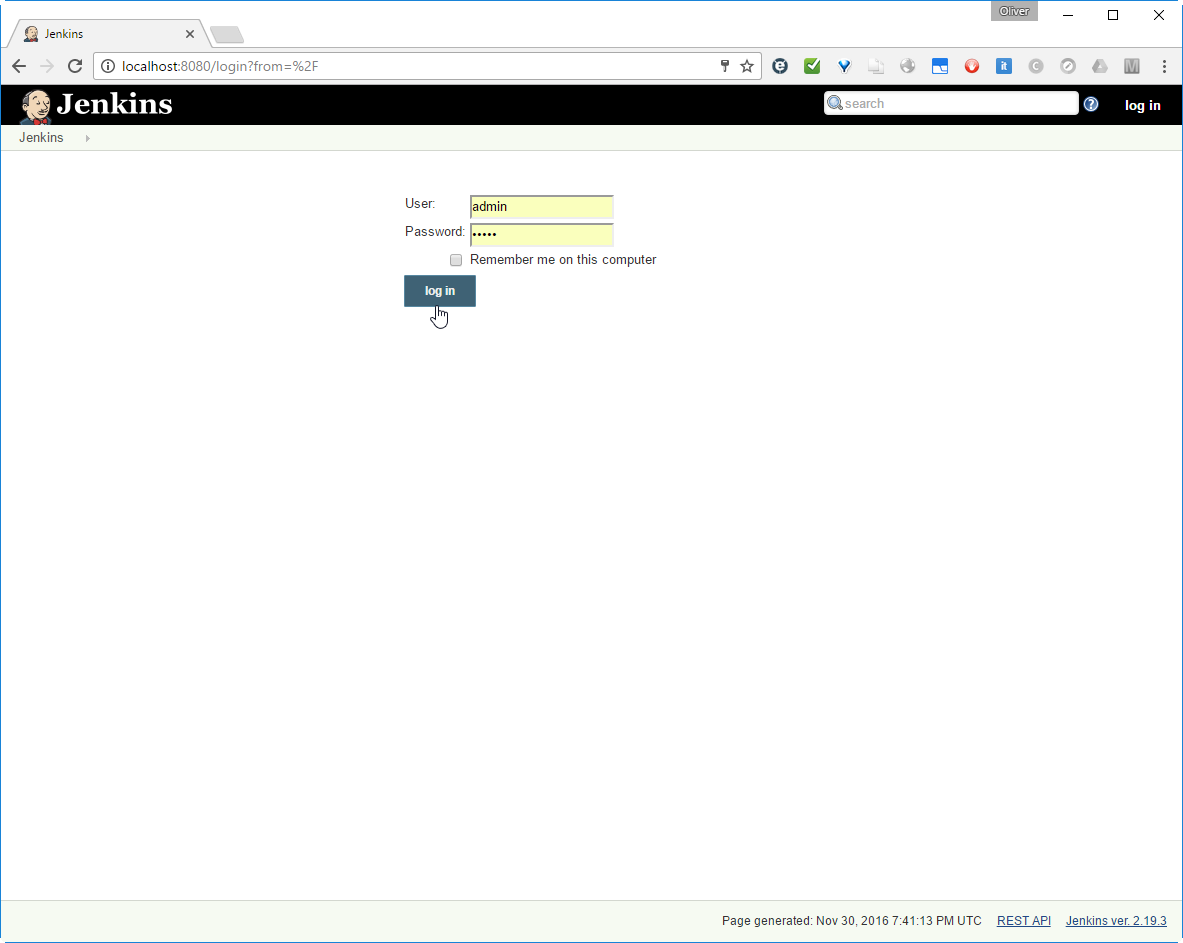
The Jenkins login screen will open:
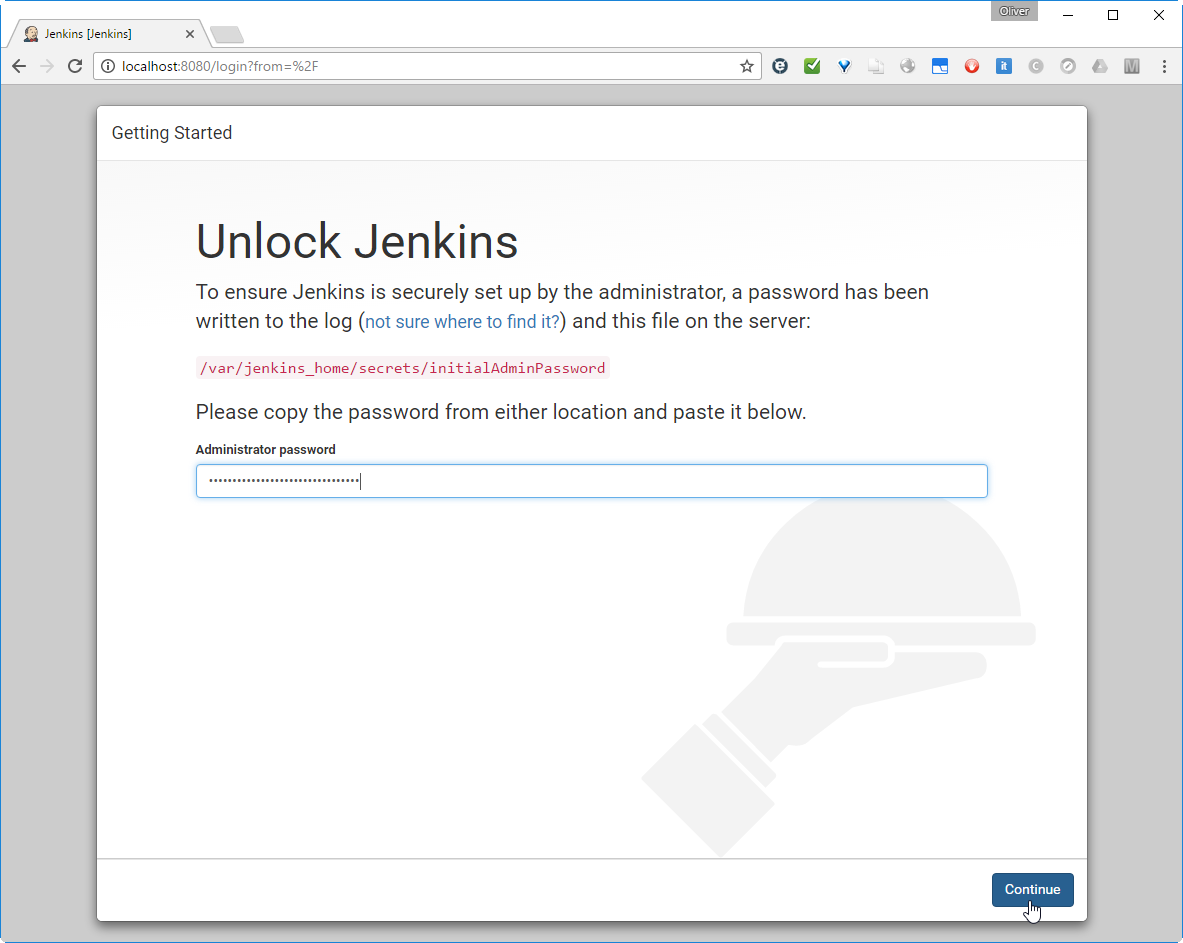
The admin password can be retrieved from the startup log, we have seen above (`0c4a8413a47943ac935a4902e3b8167e`), or we can find it by typing
on the mapped jenkins\_home folder on the Docker host.
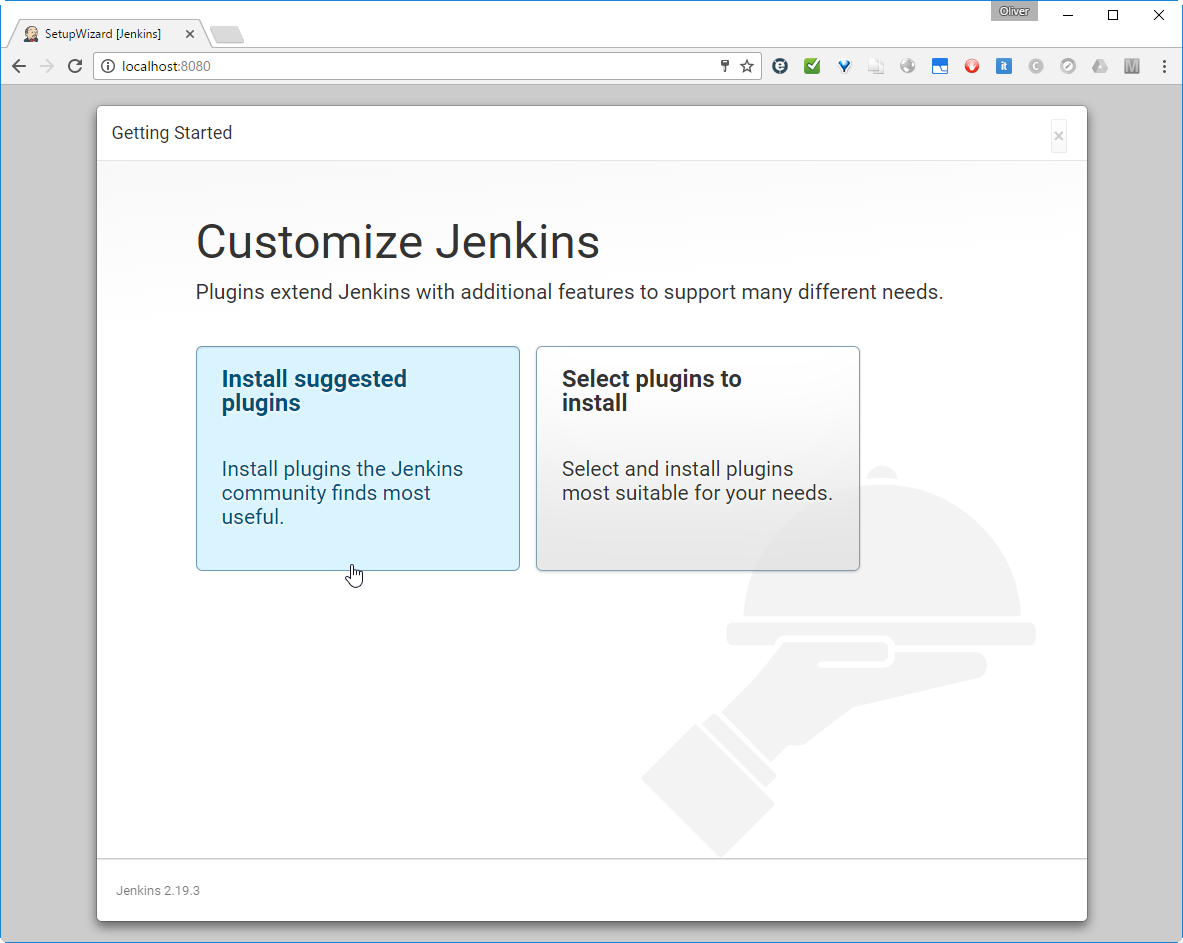
#### Step 5: Install Plugins
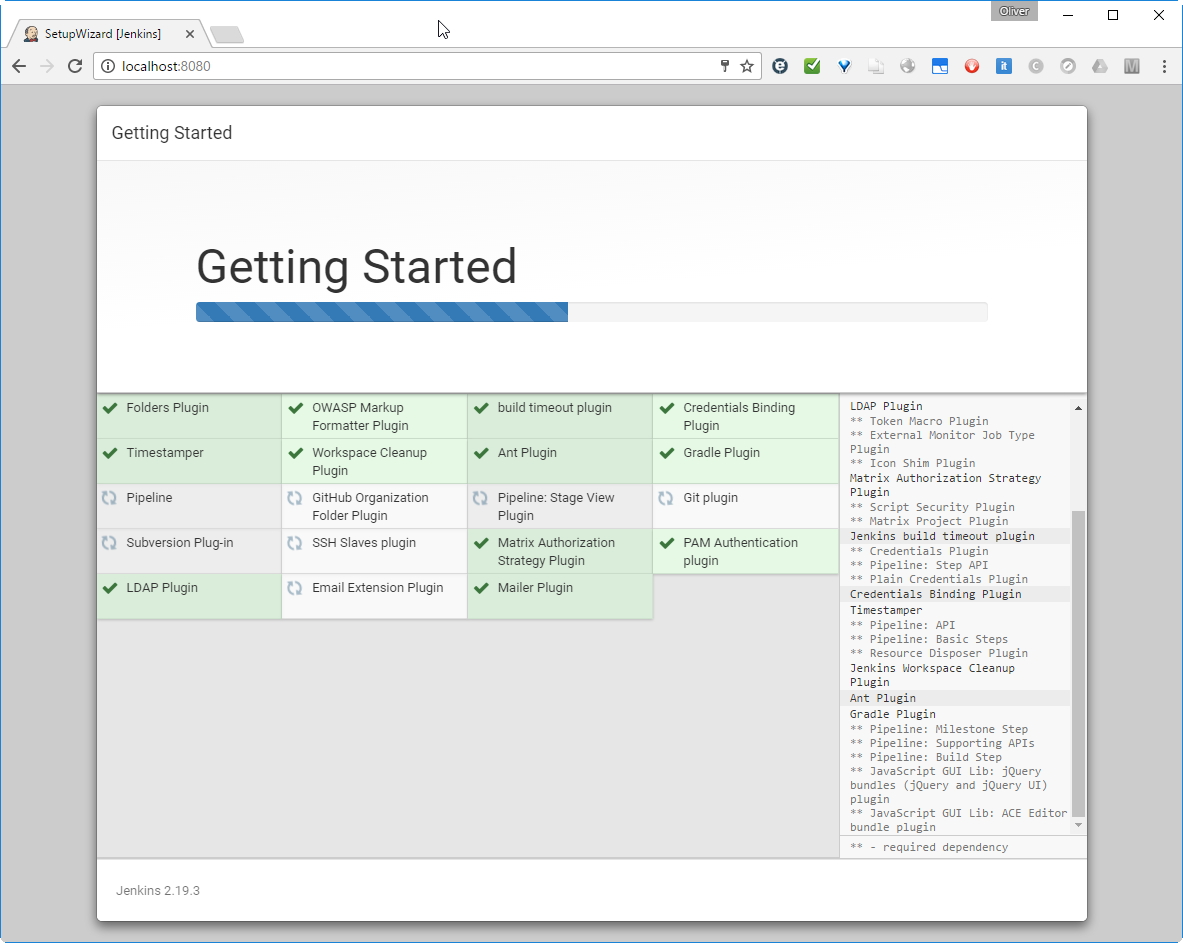
Let us install the suggested plugins:
This may take a while to finish:
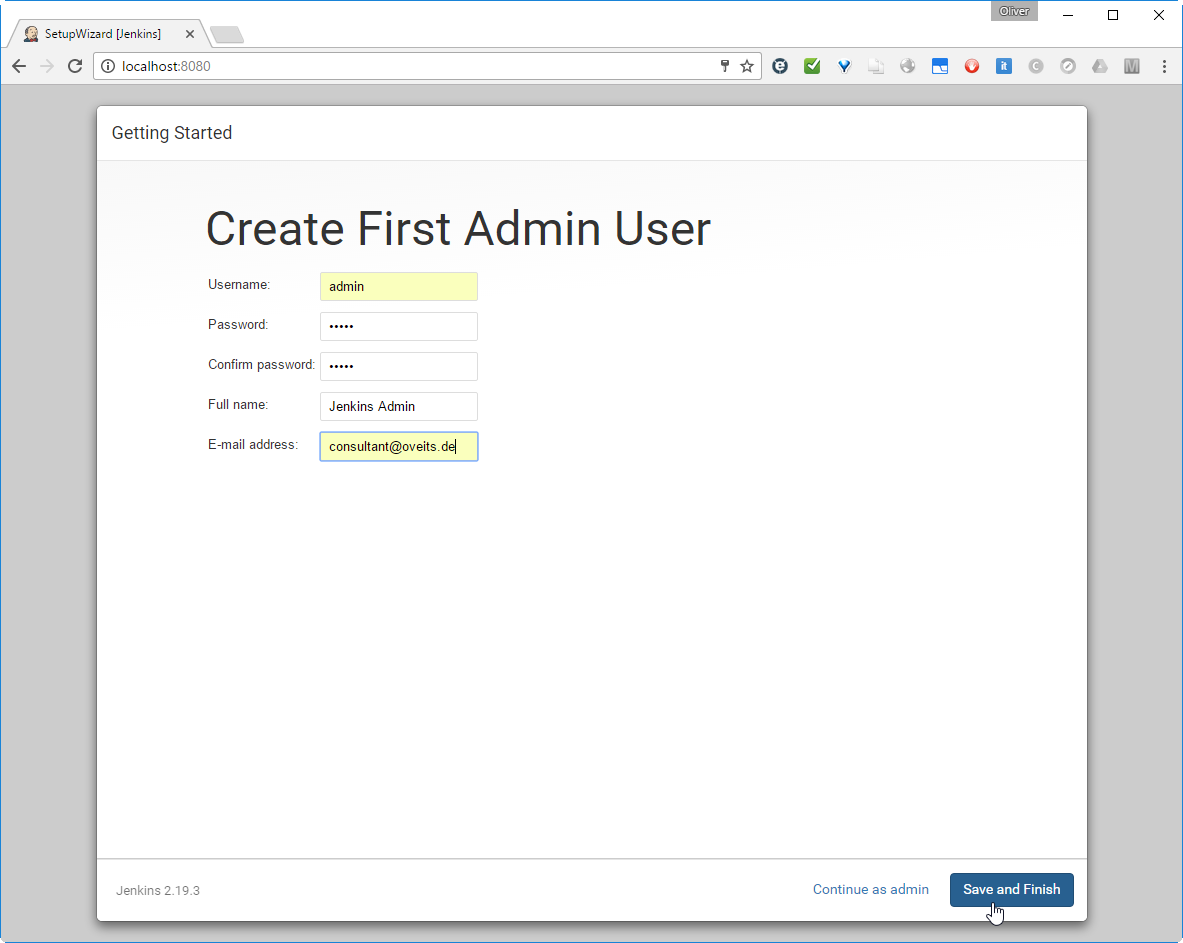
#### Step 6: Create an Admin User and log in
Then we reach a page, where we can create an Admin user:
Let us do so and save and finish.
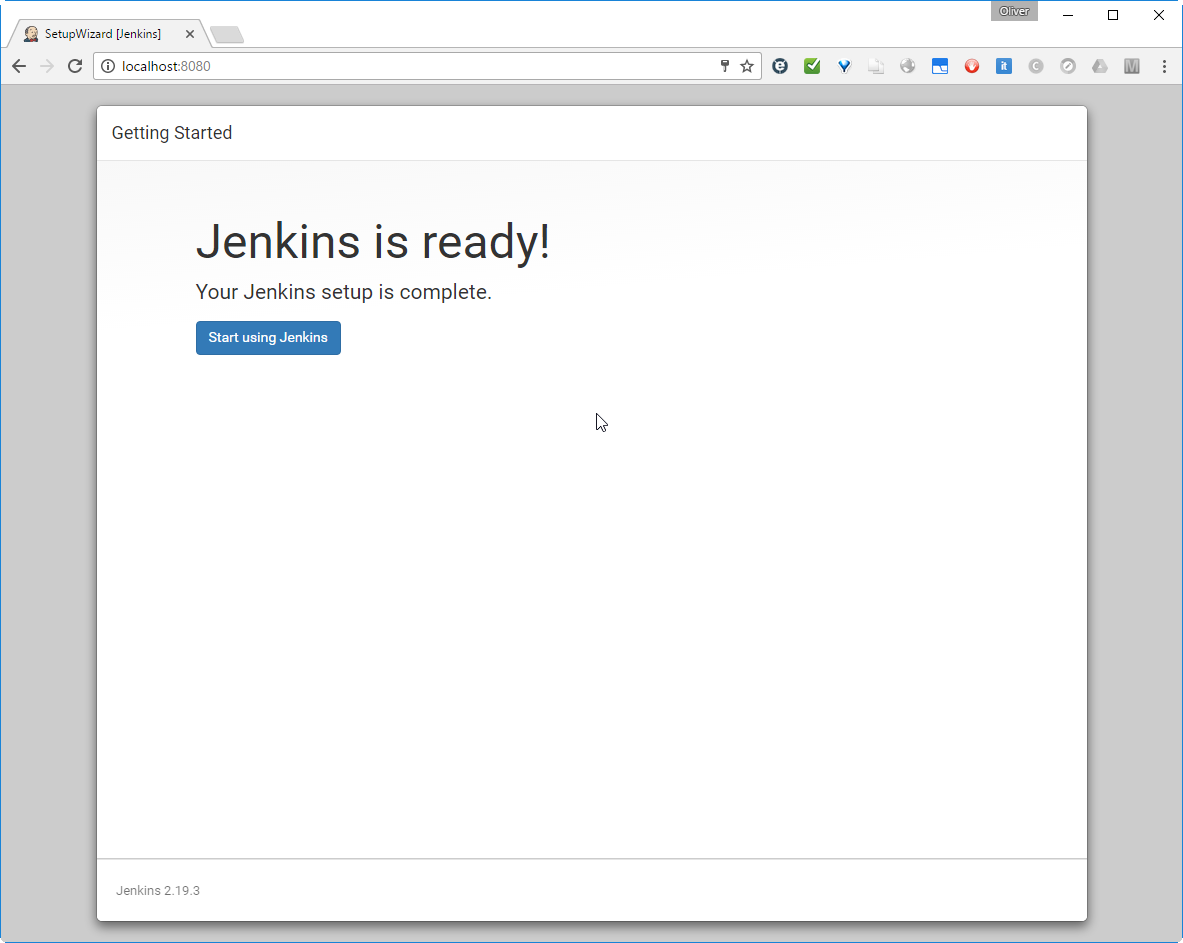
> Note: After this step, I have deleted the Jenkins container and started a new container attached to the same Jenkins Home directory. After that, all configuration and plugins were still available and we can delete containers after usage without loosing relevant information.
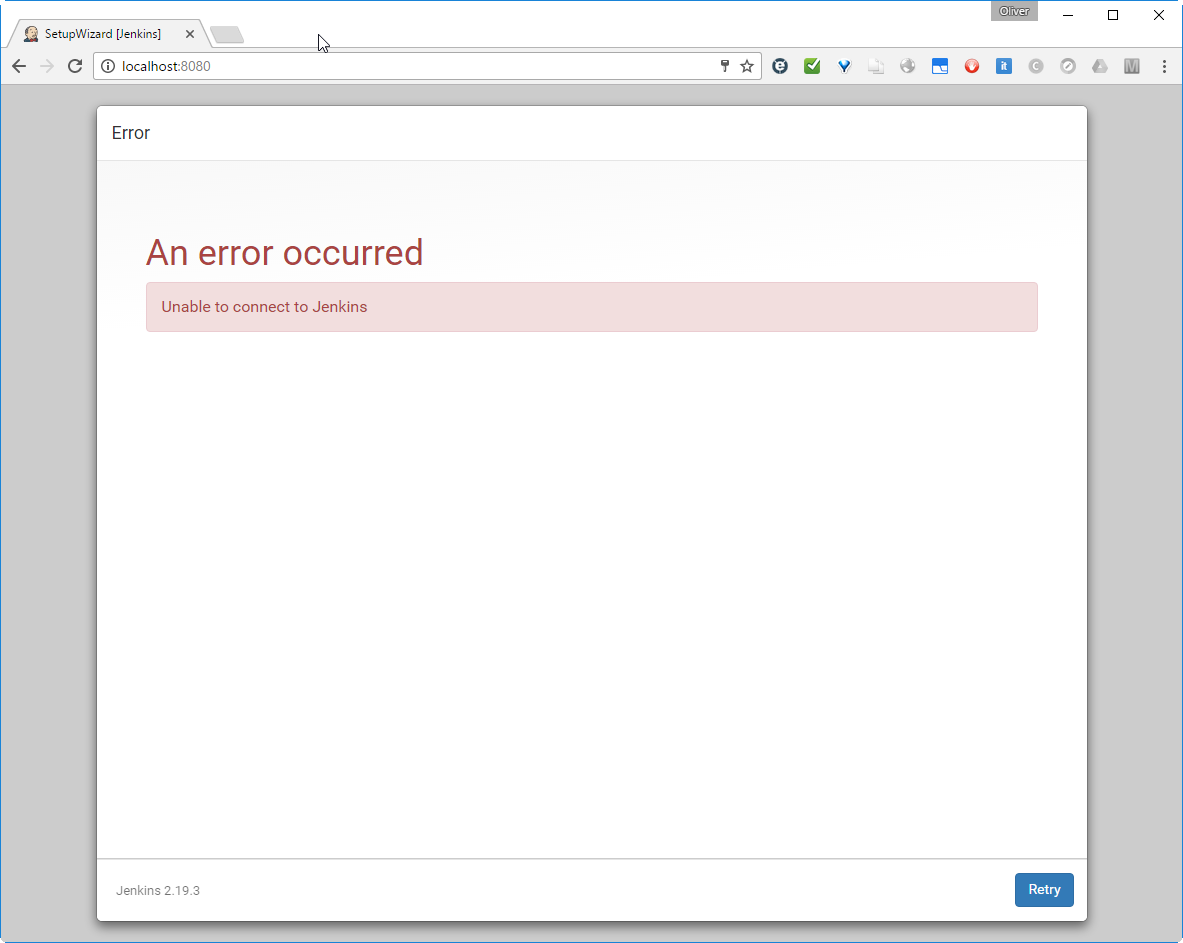
I have had a dinner break at this point. Maybe this is the reason I got following message when clicking the „Start using Jenkins“ button?
What ever. After clicking „retry“, we reach the login page:
#### Create a New Job
In the nex, we will create our first Jenkins job. I plan to trigger the Maven and/or Gradle build of a Java executable file upon detection of a code change.
## Step 2: Install the Job DSL Plugin
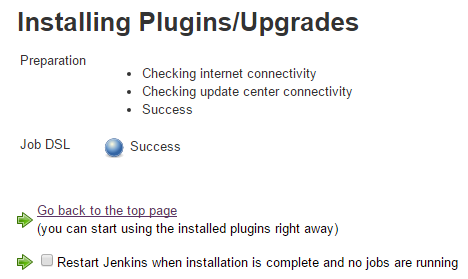
The [Job DSL Plugin](https://wiki.jenkins-ci.org/display/JENKINS/Job+DSL+Plugin) can be installed like any other Jenkins plugin:
-> \
-> \
-> 
->  (with dash between job and dsl; wait for the filter to become active and do not press enter, otherwise you will get an error message)
-> 
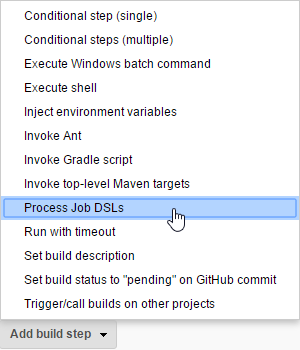
## Step 3: Create Job DSL Jenkins Project
We create a Job DSL Job like follows:
-> 
-> 
-> 
##
## Step 4: Configure Job DSL Project
-> 
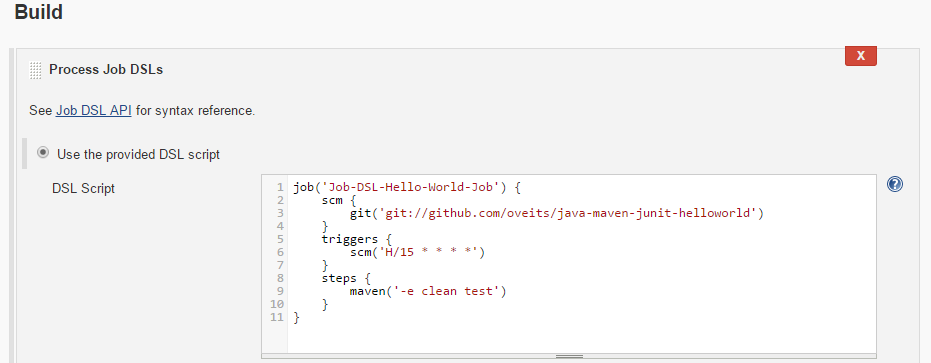
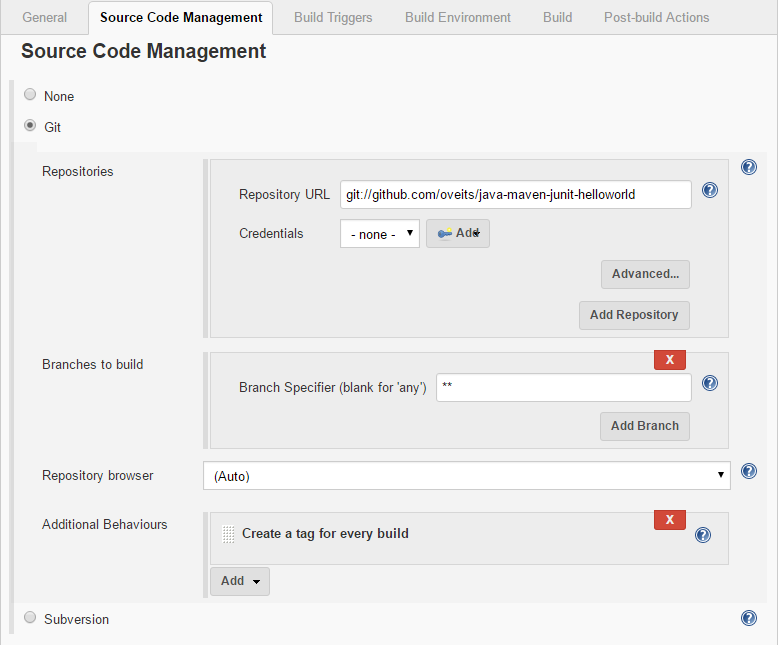
-> if you have got a [Github](https://github.com/) account, fork [this open source Java Hello World software](https://github.com/oveits/java-maven-junit-helloworld) (originally created by of [LableOrg](https://github.com/LableOrg)) that will allow you to see, what happens with your Jenkins job, if you check in changed code. Moreover the hello world software allows you to perform [JUnit 4](http://junit.org/) tests, run [PowerMockito](https://code.google.com/p/powermock/) Mock services, run JUnit 4 Integration tests and calculate the code coverage using the tool [Cobertura](http://cobertura.github.io/cobertura/).
-> [](https://vocon-it.com/wp-content/uploads/2017/02/2017-02-25-08_47_19-jobdsljob-config-jenkins.png)
-> insert:
```
job('Job-DSL-Hello-World-Job') {
scm {
git('git://github.com//java-maven-junit-helloworld')
}
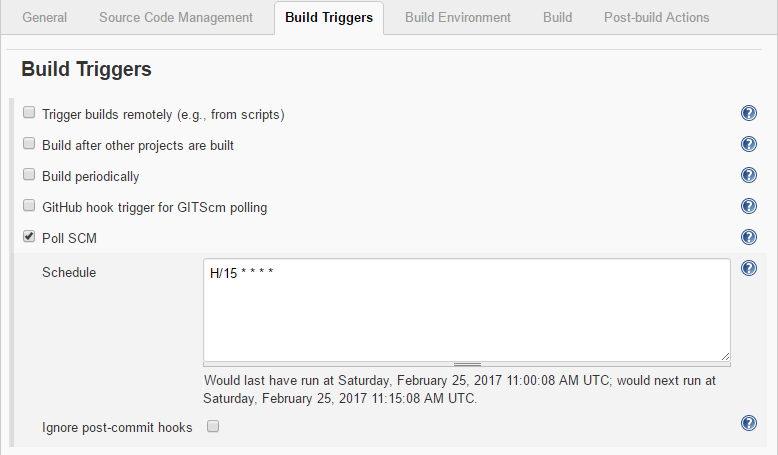
triggers {
scm('H/15 * * * *')
}
steps {
maven('-e clean test')
}
}
```
here, exchange the username oveits by your own [Github](https://github.com/) username.\\
-> 
## Step 5: Prepare Maven Usage
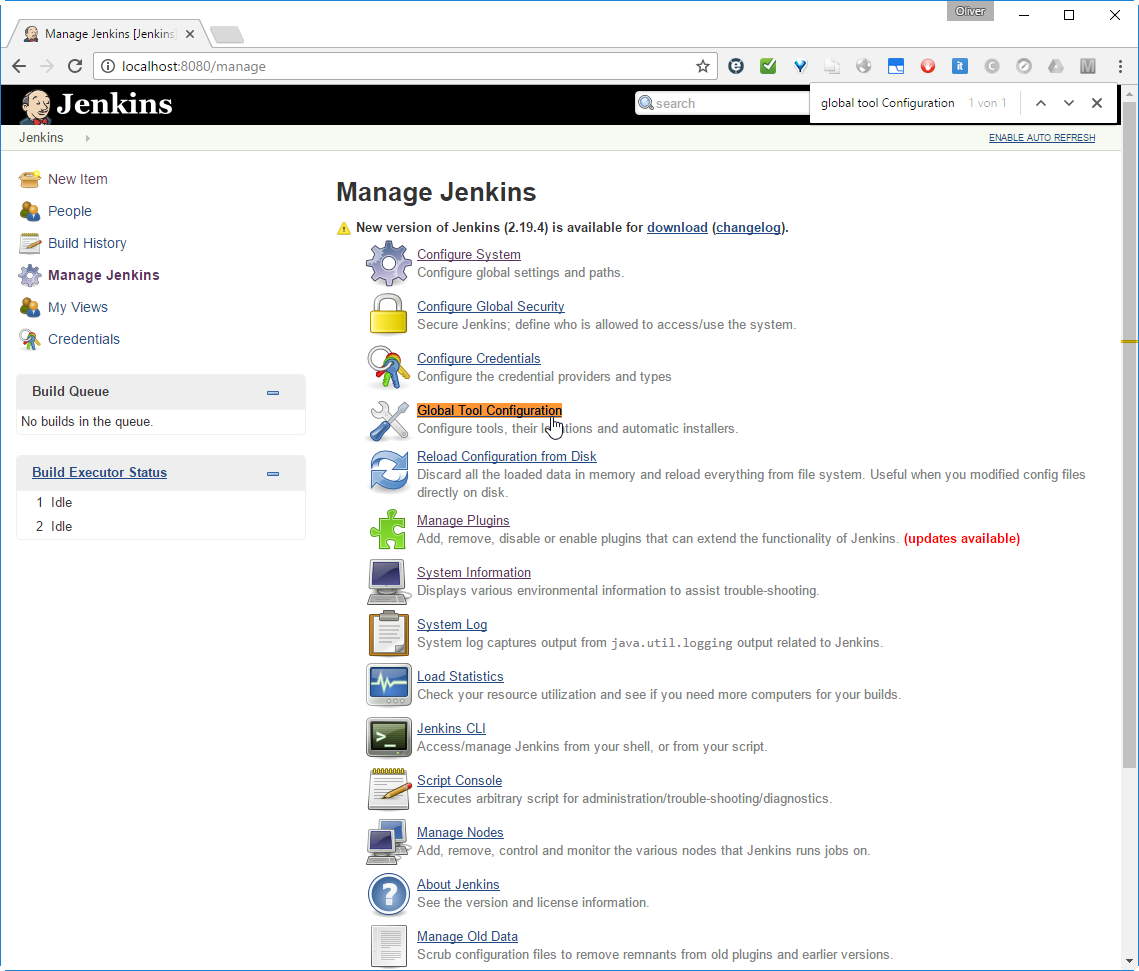
Goto Jenkins -> Manage Jenkins -> Global Tool Configuration (available for Jenkins >2.0)
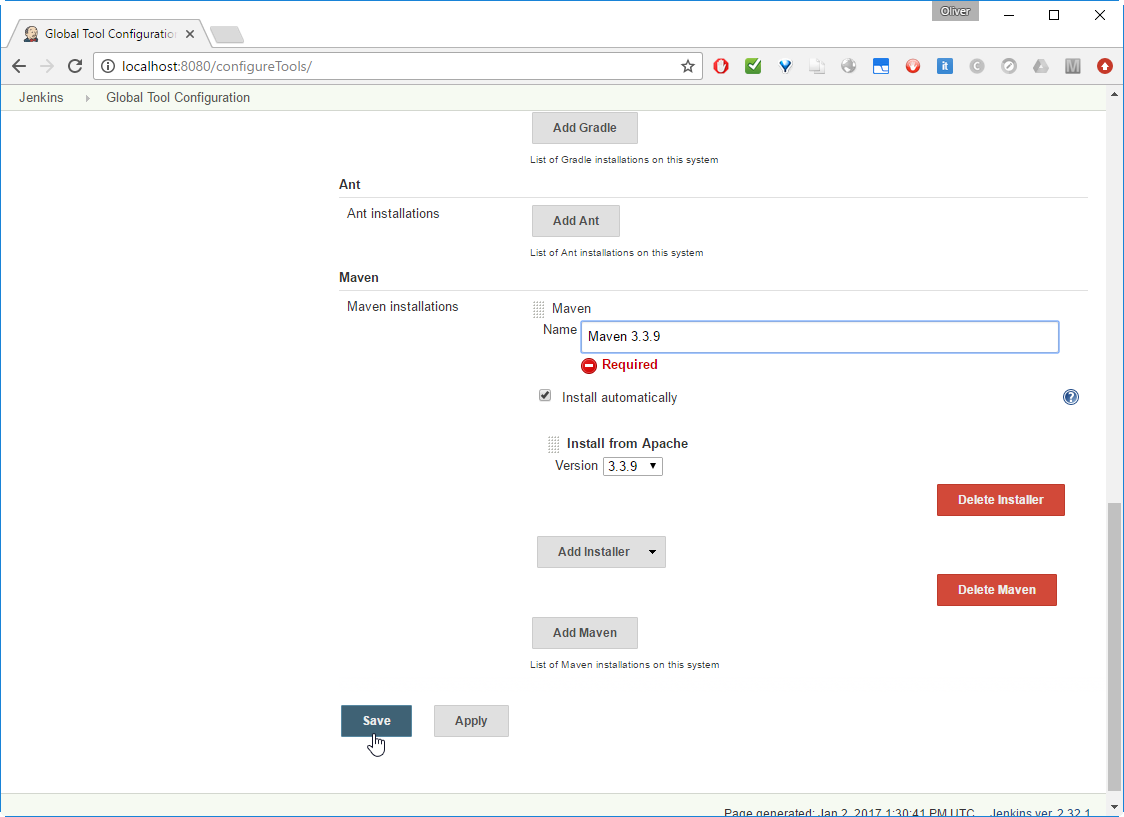
Scroll down to Maven -> 
-> choose Version (3.3.9 in my case)
-> Add a name („Maven 3.3.9“ in my case)
-> 
Since we have checked „Install automatically“ above, I expect that it will be installed automatically on first usage.
## Step 6: Prepare Git Usage
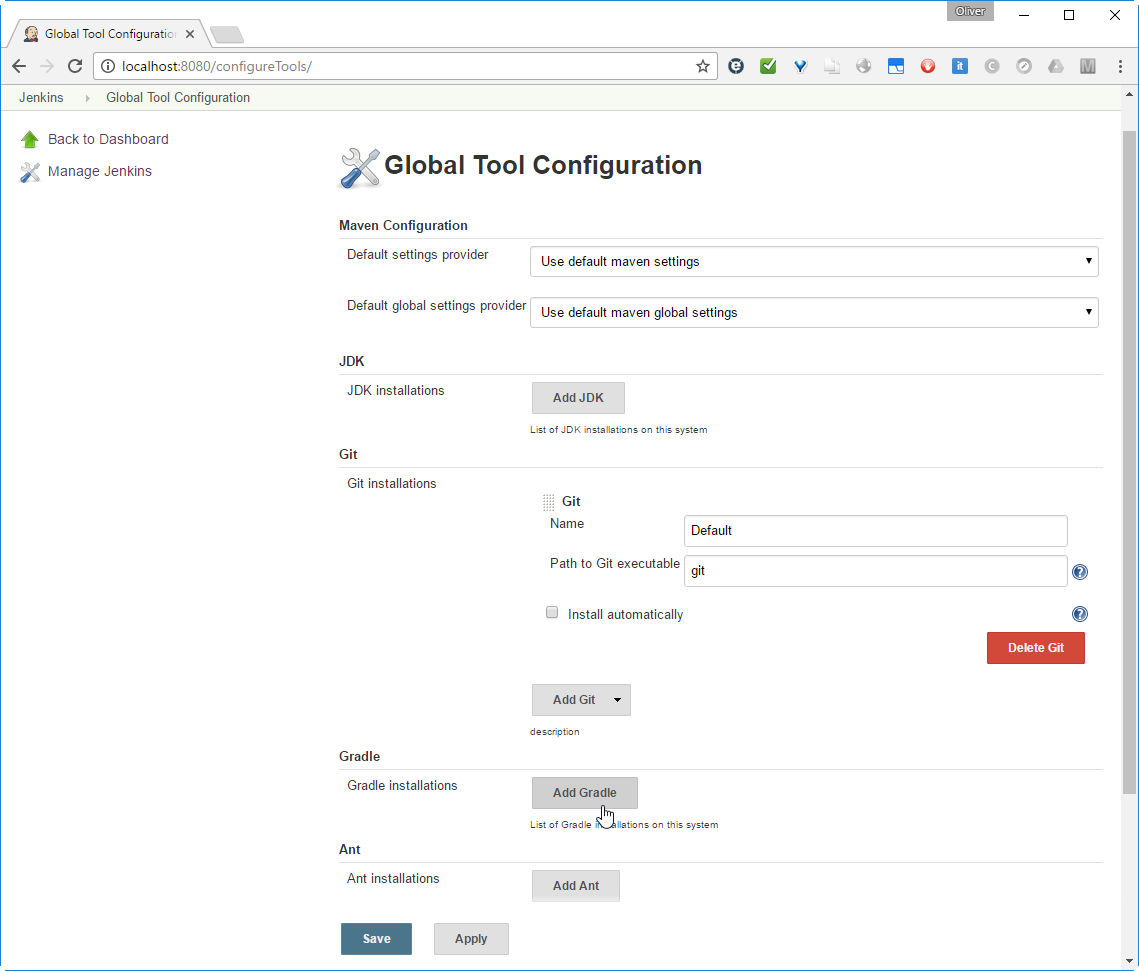
As described in [this StackOverflow Q\&A](http://stackoverflow.com/questions/11122913/jenkins-git-tell-me-who-you-are-error-why-does-it-need-to-tag), we need to add the Git username and email address, since Jenkins tries to tag and commit on the Git repo, which requires those configuration items to be set. For that, we perform:
-> 
-> 
-> 
-> scroll down to „Git plugin“
->
## Step 7: Create Jenkins Job from Code
### Step 7.1 Build Project
-> 
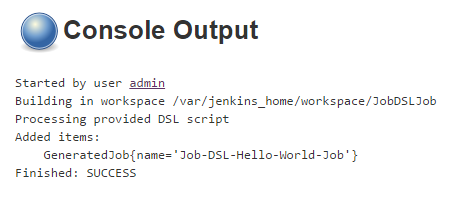
### Step 7.2 (optional): Check Console Output
-> 
-> 
-> 
### Step 7.3: Review automatically built Project
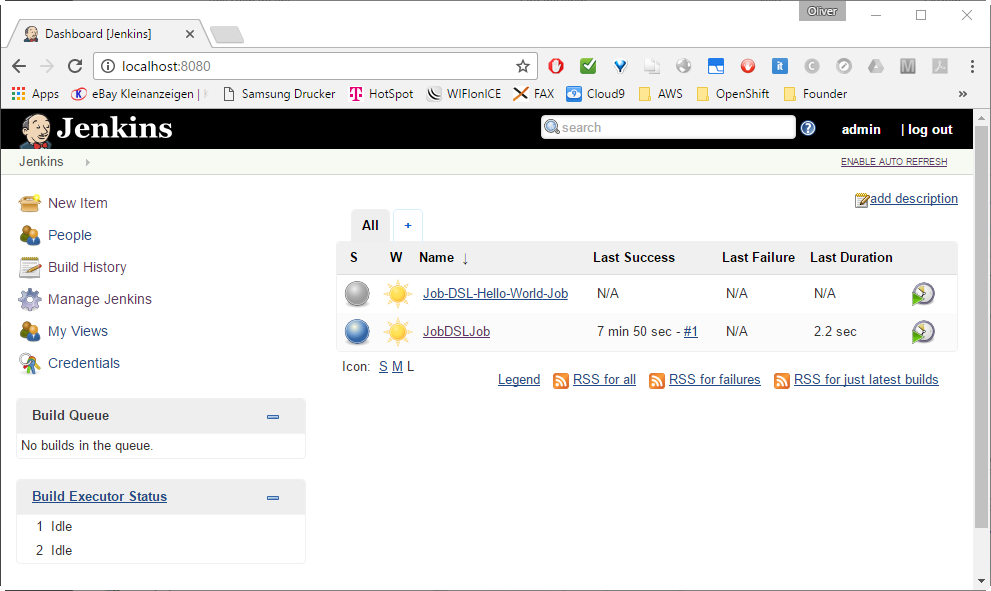
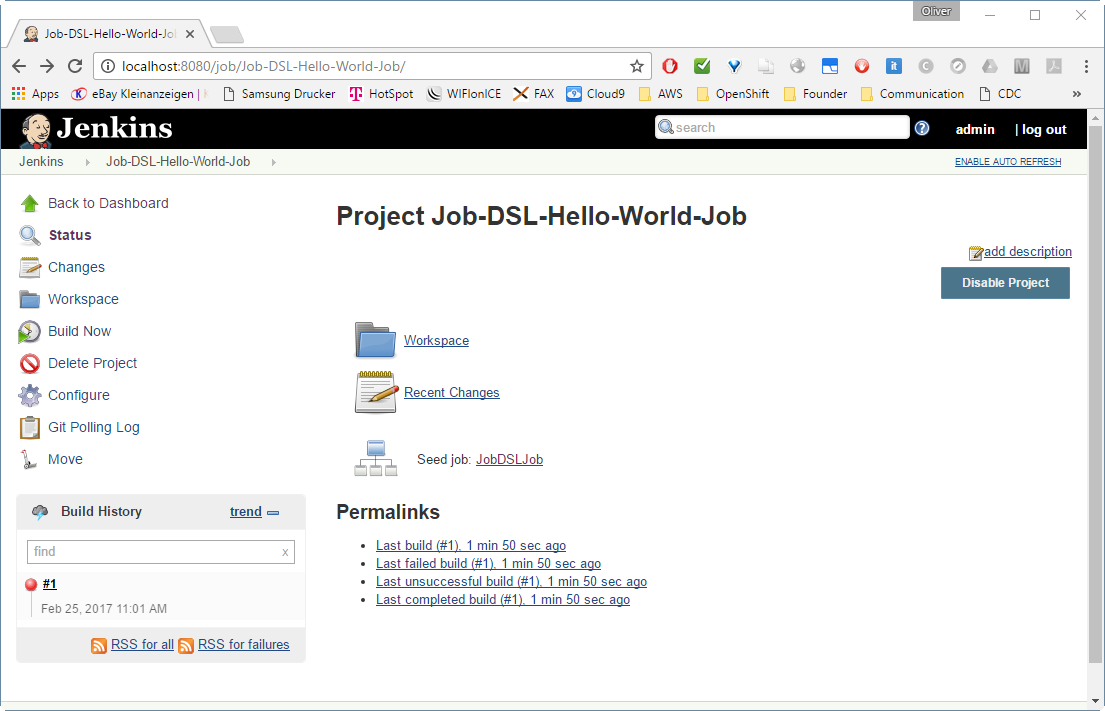
-> 
-> 
This is showing a build failure, since I had not performed Step 5 and 6 before. In your case, it should be showing a success (in blue). If you are experiencing problems here, check out the Appendices below.
-> 
-> scroll down to Source Code Management
-> Scroll down to Build Triggers
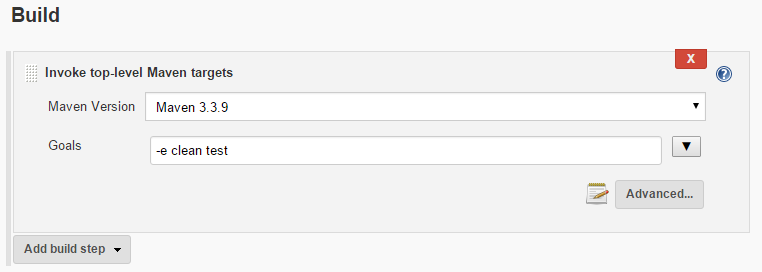
-> Scroll down to Build
-> verify that „Maven 3.3.9“ is chosen as defined in Step 5
-> enter „-e clean test“ as Maven Goal
-> 
See, what happens by clicking on:
-> Build History
-> #nnn
-> 
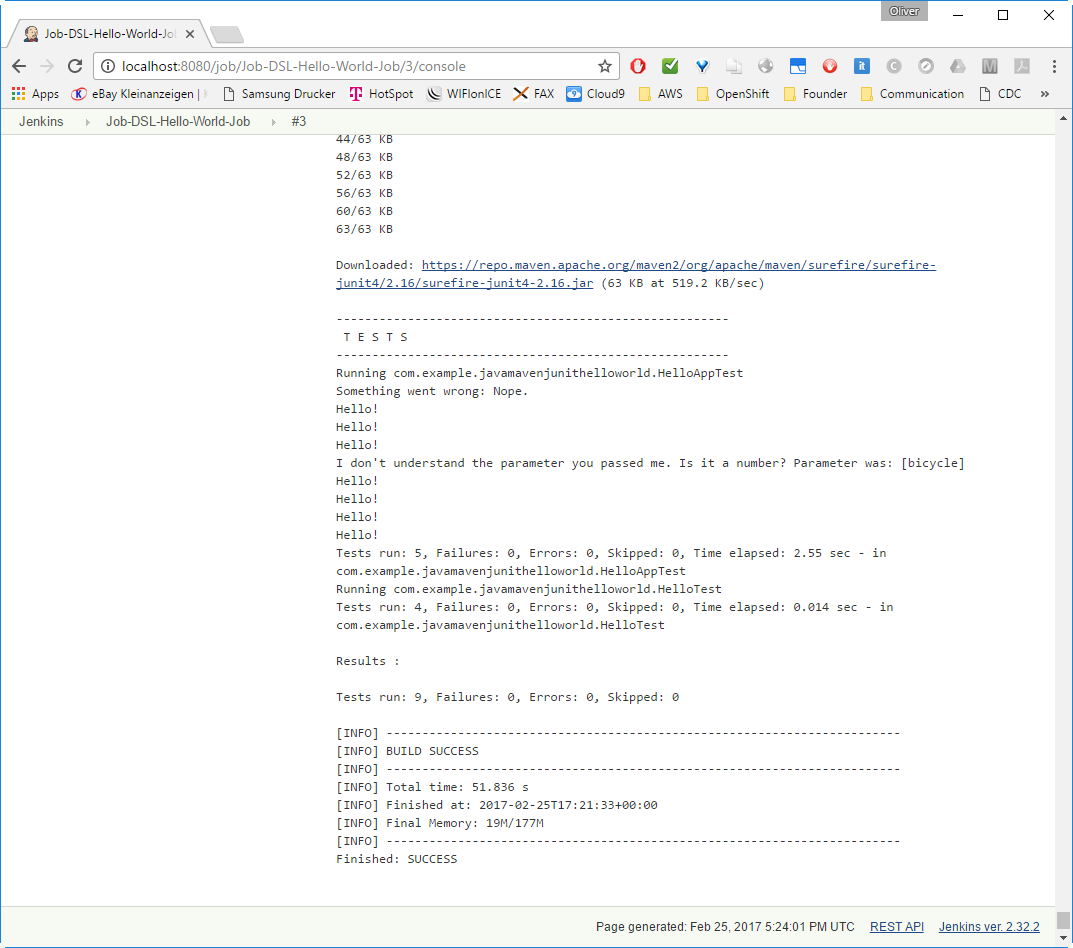
If everything went fine, we will see many downloads and a „BUILD SUCCESS“:
## Appendix A: Solve Git Problem: „tell me who you are“
### Symptoms: Git Error: status code 128
In a new installation of Jenkins, Git does not seem to work out of the box. You can see this by choosing the Jenkins project Job-DSL-Hello-World-Job on the dashboard, then click „build now“, if the build was not already automatically triggered. Then:
-> Build History
-> [Last Build](http://localhost:8080/job/Job-DSL-Hello-World-Job/lastBuild/) (link works only, if Jenkins is running on localhost:8080 and you have chosen the same job name)
-> 
There, we will see:
```
Caused by: hudson.plugins.git.GitException: Command "git tag -a -f -m Jenkins Build #1 jenkins-Job-DSL-Hello-World-Job-1" returned status code 128:
stdout:
stderr:
*** Please tell me who you are.
Run
git config --global user.email "you@example.com"
git config --global user.name "Your Name"
to set your account's default identity.
Omit --global to set the identity only in this repository.
fatal: empty ident name (for ) not allowed
```
### Resolution:
#### Step 1: Enter Git Username and Email
As described in [this StackOverflow Q\&A](http://stackoverflow.com/questions/11122913/jenkins-git-tell-me-who-you-are-error-why-does-it-need-to-tag): we can resolve this issue by either suppressing the git tagging, or (I think this is better) by adding your username and email address to git:
-> 
-> 
-> 
-> scroll down to „Git plugin“
-> 
Step 2: Re-run „Build Now“ on the Project
To test the new configuration, we go to
-> the [Job-DSL-Hello-World-Job](http://localhost:8080/job/Job-DSL-Hello-World-Job/) and press
-> [](http://localhost:8080/job/Job-DSL-Hello-World-Job/build?delay=0sec)
Now, we should see a BUILD SUCCESS like follows:
-> Build History
-> #nnn
-> [](http://localhost:8080/job/Job-DSL-Hello-World-Job/lastBuild/console)
If everything went fine, we will a „BUILD SUCCESS“:
## Appendix B: Maven Error: Cannot run program „mvn“
### Symptoms:
When running a Maven Goal, the following error may appear on the Console log:
```
FATAL: command execution failed
java.io.IOException: Cannot run program "mvn" (in directory "/var/jenkins_home/workspace/Job-DSL-Hello-World-Job"): error=2, No such file or directory
at java.lang.ProcessBuilder.start(ProcessBuilder.java:1048)
at hudson.Proc$LocalProc.(Proc.java:245)
at hudson.Proc$LocalProc.(Proc.java:214)
at hudson.Launcher$LocalLauncher.launch(Launcher.java:846)
at hudson.Launcher$ProcStarter.start(Launcher.java:384)
at hudson.Launcher$ProcStarter.join(Launcher.java:395)
at hudson.tasks.Maven.perform(Maven.java:367)
at hudson.tasks.BuildStepMonitor$1.perform(BuildStepMonitor.java:20)
at hudson.model.AbstractBuild$AbstractBuildExecution.perform(AbstractBuild.java:779)
at hudson.model.Build$BuildExecution.build(Build.java:205)
at hudson.model.Build$BuildExecution.doRun(Build.java:162)
at hudson.model.AbstractBuild$AbstractBuildExecution.run(AbstractBuild.java:534)
at hudson.model.Run.execute(Run.java:1728)
at hudson.model.FreeStyleBuild.run(FreeStyleBuild.java:43)
at hudson.model.ResourceController.execute(ResourceController.java:98)
at hudson.model.Executor.run(Executor.java:404)
Caused by: java.io.IOException: error=2, No such file or directory
at java.lang.UNIXProcess.forkAndExec(Native Method)
at java.lang.UNIXProcess.(UNIXProcess.java:247)
at java.lang.ProcessImpl.start(ProcessImpl.java:134)
at java.lang.ProcessBuilder.start(ProcessBuilder.java:1029)
... 15 more
Build step 'Invoke top-level Maven targets' marked build as failure
Finished: FAILURE
```
Resolution:
Perform Step 5
and
For Test, you can test a manual: choose the correct Maven version, when configuring a Maven build step like in Step 7:
and verify that  does not throw the Maven error anymore.
For our case, we need to correct the Job DSL like follows:
In the Script, we had defined the step:
```
steps {
maven('-e clean test')
}
```
However, we need to define the Maven Installation like follows:
```
steps {
maven {
mavenInstallation("Maven 3.3.9")
goals('-e clean test')
}
}
```
Here, the mavenInstallation needs to specify the exact same name, as the one we have chosen in Step 5 above.
After correction, we will receive the correct Maven goal
-> JobDSL -> 
Now, we can check the Maven configuration:
-> 
-> 
-> 
After scrolling down, we will see the correct Maven Version:
DONE
## Appendix C: Updating Jenkins
Updating Jenkins (in my case: from 2.32.1 to 2.32.2) was as simple as following the steps below
> Note: you might want to make a backup of your jenkins\_home though. Just in case…
(dockerhost)$ cd <path_to_jenkins_home> # in my case: cd /user/jenkins_home/
(dockerhost)$ docker pull jenkins # to update the jenkins image
(dockerhost)$ docker rm jenkins # to make shure the container named jenkins is removed
(dockerhost:jenkins_home)$ sudo docker run -d --rm --name jenkins -p8080:8080 -p50000:50000 -v`pwd`:/var/jenkins_home jenkins
However, after that, some data was unreadable:
[](https://vocon-it.com/wp-content/uploads/2017/02/2017-02-24-20_04_36-manage-old-data-jenkins.png)
I have clicked
-> Manage Jenkins\
-> Manage\
-> [](https://vocon-it.com/wp-content/uploads/2017/02/2017-02-24-20_05_42-manage-old-data-jenkins.png)
to resolve the issue (hopefully…). At least, after that, the warning was gone.
## Appendix D: Job DSL Syntax
The reference for the Job DSL syntax can be found on the [Job DSL Plugin API pages](https://jenkinsci.github.io/job-dsl-plugin/). As an example, the syntax of Maven within a Freestyle project can be found on [this page](https://jenkinsci.github.io/job-dsl-plugin/#path/freeStyleJob-steps-maven) found via the path
\> freeStyleJob > steps > maven:
```
maven {
```
* // Allows direct manipulation of the generated XML.
[configure](https://jenkinsci.github.io/job-dsl-plugin/#path/freeStyleJob-steps-maven-configure)(Closure configureBlock)
* // Specifies the goals to execute including other command line options.
[goals](https://jenkinsci.github.io/job-dsl-plugin/#path/freeStyleJob-steps-maven-goals)(String goals)
* // Skip injecting build variables as properties into the Maven process.
[injectBuildVariables](https://jenkinsci.github.io/job-dsl-plugin/#path/freeStyleJob-steps-maven-injectBuildVariables)(boolean injectBuildVariables = true)
* // Set to use isolated local Maven repositories.
[localRepository](https://jenkinsci.github.io/job-dsl-plugin/#path/freeStyleJob-steps-maven-localRepository)(javaposse.jobdsl.dsl.helpers.LocalRepositoryLocation location)
* // Specifies the Maven installation for executing this step.
[mavenInstallation](https://jenkinsci.github.io/job-dsl-plugin/#path/freeStyleJob-steps-maven-mavenInstallation)(String name)
* // Specifies the JVM options needed when launching Maven as an external process.
[mavenOpts](https://jenkinsci.github.io/job-dsl-plugin/#path/freeStyleJob-steps-maven-mavenOpts)(String mavenOpts)
* // Adds properties for the Maven build.
[properties](https://jenkinsci.github.io/job-dsl-plugin/#path/freeStyleJob-steps-maven-properties)(Map props)
* // Adds a property for the Maven build.
[property](https://jenkinsci.github.io/job-dsl-plugin/#path/freeStyleJob-steps-maven-property)(String key, String value)
* // Specifies the managed global Maven settings to be used.
[providedGlobalSettings](https://jenkinsci.github.io/job-dsl-plugin/#path/freeStyleJob-steps-maven-providedGlobalSettings)(String settingsIdOrName)
* // Specifies the managed Maven settings to be used.
[providedSettings](https://jenkinsci.github.io/job-dsl-plugin/#path/freeStyleJob-steps-maven-providedSettings)(String settingsIdOrName)
* // Specifies the path to the root POM.
[rootPOM](https://jenkinsci.github.io/job-dsl-plugin/#path/freeStyleJob-steps-maven-rootPOM)(String rootPOM)
```
}
```
A Maven example can be found on the same page:
```
job('example') {
steps {
maven('verify')
maven('clean verify', 'module-a/pom.xml')
maven {
goals('clean')
goals('verify')
mavenOpts('-Xms256m')
mavenOpts('-Xmx512m')
localRepository(LocalRepositoryLocation.LOCAL_TO_WORKSPACE)
properties(skipTests: true)
mavenInstallation('Maven 3.1.1')
providedSettings('central-mirror')
}
}
}
```
## Summary
In this blog post, we have learned how to
1. Start and initialize Jenkins via Docker
2. Prepare the usage of Git and Maven
3. Install the Job DSL Plugin
4. Define a Jenkins Job via Groovy script
5. Create a Jenkins Job by a push of the „Build now“ button
6. Review and run the automatically created Jenkins job
We have seen that the usage of the Job DSL is no rocket science. The only topic, we had to take care, is, that Git and Maven need to be prepared for first usage on a Jenkins server.
\\
---
# Agent Instructions
This documentation is published with GitBook. GitBook is the documentation platform designed so that both humans and AI agents can read, navigate, and reason over technical content effectively. Learn more at gitbook.com.
## Querying This Documentation
If you need additional information that is not directly available in this page, you can query the documentation by asking a question.
Perform an HTTP GET request on the following URL with the `ask` and `goal` query parameters:
```
GET https://docs.digit.org/platform/guides/operations-guide/setup-jenkins-docker-way.md?ask=&goal=
```
`ask` is the immediate question: it should be specific, self-contained, and written in natural language.
`goal` is what the user is ultimately trying to achieve, the reason they need the answer. Sharing it helps GitBook give you a better, more relevant answer. A goal is most helpful when it describes the outcome the user wants rather than restating the question. For example, with `ask=how do I create an API token`, a goal like `automate deployments from our CI pipeline` lets GitBook tailor the answer to that use case.
The response will contain a direct answer to the question and relevant excerpts and sources from the documentation.
Use this mechanism when the answer is not explicitly present in the current page, you need clarification or additional context, or you want to retrieve related documentation sections.