My Campaign

Overview

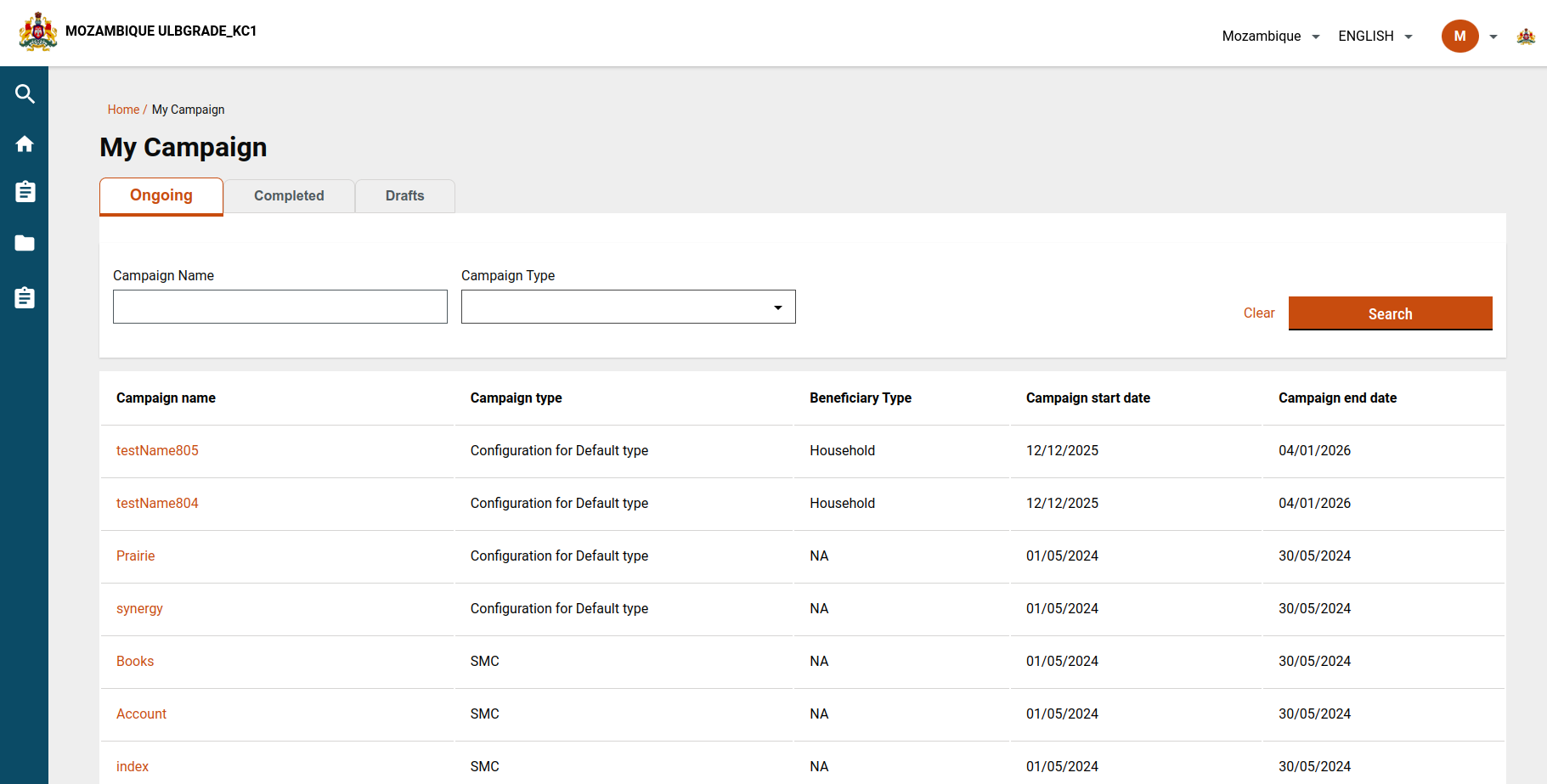
The My Campaign screen provides users with a consolidated view of all campaigns they have access to. Campaigns are grouped by status, allowing users to track progress, review details, and continue campaign creation where applicable.

The screen supports:

  • Viewing campaigns by status

  • Searching campaigns by name or type

  • Accessing campaign summaries

  • Completing draft campaigns

Steps

Step 1: Access the My Campaign Screen
User Action

  • From the HCM Campaign module card, click My Campaign.

Outcome

  • The user lands on the My Campaign screen.

  • Campaigns are displayed under separate tabs based on status.

Implementation Reference

  • Screen file: MyCampaign.js

Step 2: Display Campaign Status Tabs

The following status tabs are shown on the My Campaign screen:

  • Ongoing

  • Completed

  • Upcoming

  • Drafts

  • Failed

Each tab displays campaigns filtered using predefined logic.

Step 3: Apply Campaign Status Logic

Campaign status is determined using campaign metadata such as start date, end date, and campaign status.

UI Logic Reference

Status Rules

  • Completed

    • The campaign end date is before the current date.

  • Ongoing

    • Campaign status is Started

    • End date is in the future or not defined.

  • Upcoming

    • The campaign start date is in the future.

  • Draft

    • Campaign status is drafted.

  • Failed

    • Campaign status is failed.

Step 4: Configure Ongoing Campaign Filtering

Purpose: Show campaigns that are active today.

Filter Parameters

  • campaignsIncludeDates: true

  • startDate: Today’s date (epoch)

  • endDate: Today’s date (epoch)

  • status: created, creating

Sample Payload

Logic

  • campaignsIncludeDates = true: This activates the date range filtering feature.

  • startDate and endDate = today: By setting both the start and end dates to today's date, the filter will capture any campaigns that are active today.

  • status = ["created", "creating"]: Filters the campaigns to only include those that are currently in the created or creating status.

Step 5: Configure Completed Campaign Filtering

Purpose: Show campaigns that have already ended.

File Patharrow-up-right for Campaign Summary

Filter Parameters

  • endDate: Yesterday’s date (epoch)

  • status: created, creating

Sample Payload

Logic

  • endDate = yesterday: By setting the end date to yesterday's date, the filter will capture any campaigns that have ended by the end of the previous day.

  • status = ["created", "creating"]: Filters the campaigns to include only those that were in the created or creating status when they ended.

User Action

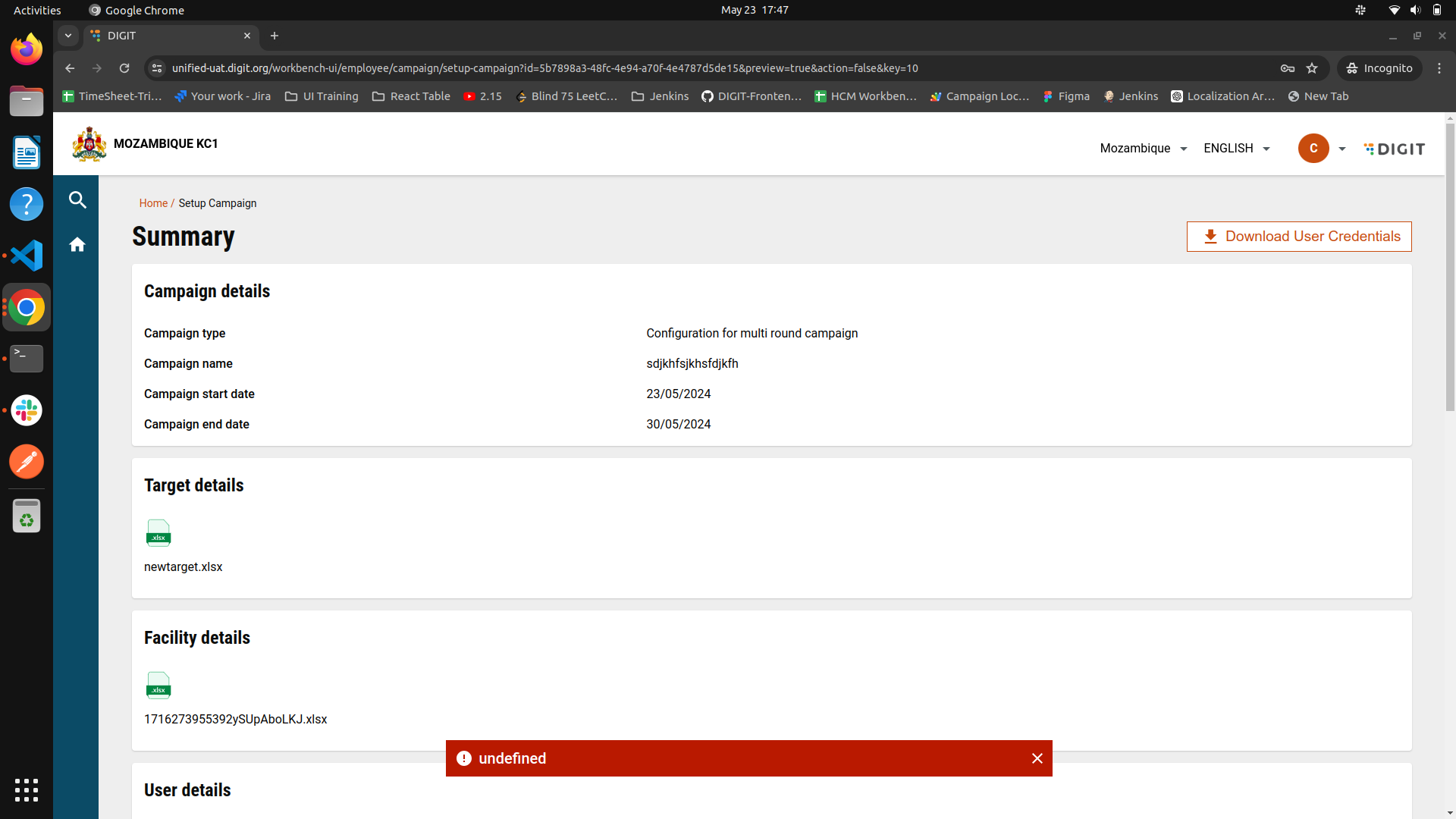
  • Clicking a completed campaign opens the Campaign Summary page.

  • If user credential generation succeeds, a success toast is shown.

  • Users can view or download credentials from the summary page.

Step 6: Configure Upcoming Campaign Filtering

Purpose: Show campaigns scheduled to start in the future.

Filter Parameters

  • campaignsIncludeDates: false

  • startDate: Tomorrow’s date (epoch)

  • status: created, creating

Sample Payload

Logic

  • campaignsIncludeDates = false: This deactivates the date range filtering feature, focusing the filter on a specific start date.

  • startDate = tomorrow (epoch date): By setting the start date to tomorrow's date in epoch format, the filter will capture any campaigns scheduled to start tomorrow.

  • status = ["created", "creating"]: Filters the campaigns to include only those that are in the created or creating status and is scheduled to start tomorrow.

User Action

  • Clicking an upcoming campaign opens the Campaign Summary page.

Step 7: Configure Draft Campaign Filtering

Purpose: Show campaigns that are not yet completed.

Filter Parameters

  • status: drafted

Outcome

  • All campaigns in draft state are listed.

  • Users can continue campaign setup from where they left off.

Step 8: Configure Failed Campaign Filtering

Purpose: Show campaigns that failed during creation or processing.

Filter Parameters

  • status: failed

User Experience

  • Clicking a failed campaign opens the Campaign Summary page.

  • An error toast is displayed with the failure reason.

Configuration & Reference Data

MDMS

API Details

End Point
Payload

/project-factory/v1/project-type/search

{ "RequestInfo": { }, "CampaignDetails": { "tenantId": "mz", "status": [ "failed" ], "createdBy": "ff98f9f6-192b-4e12-8e90-7b73dcd0ad4d", "pagination": { "sortBy": "createdTime", "sortOrder": "desc", "limit": 10, "offset": 0 } } }

Last updated

Was this helpful?