Actions

Overview

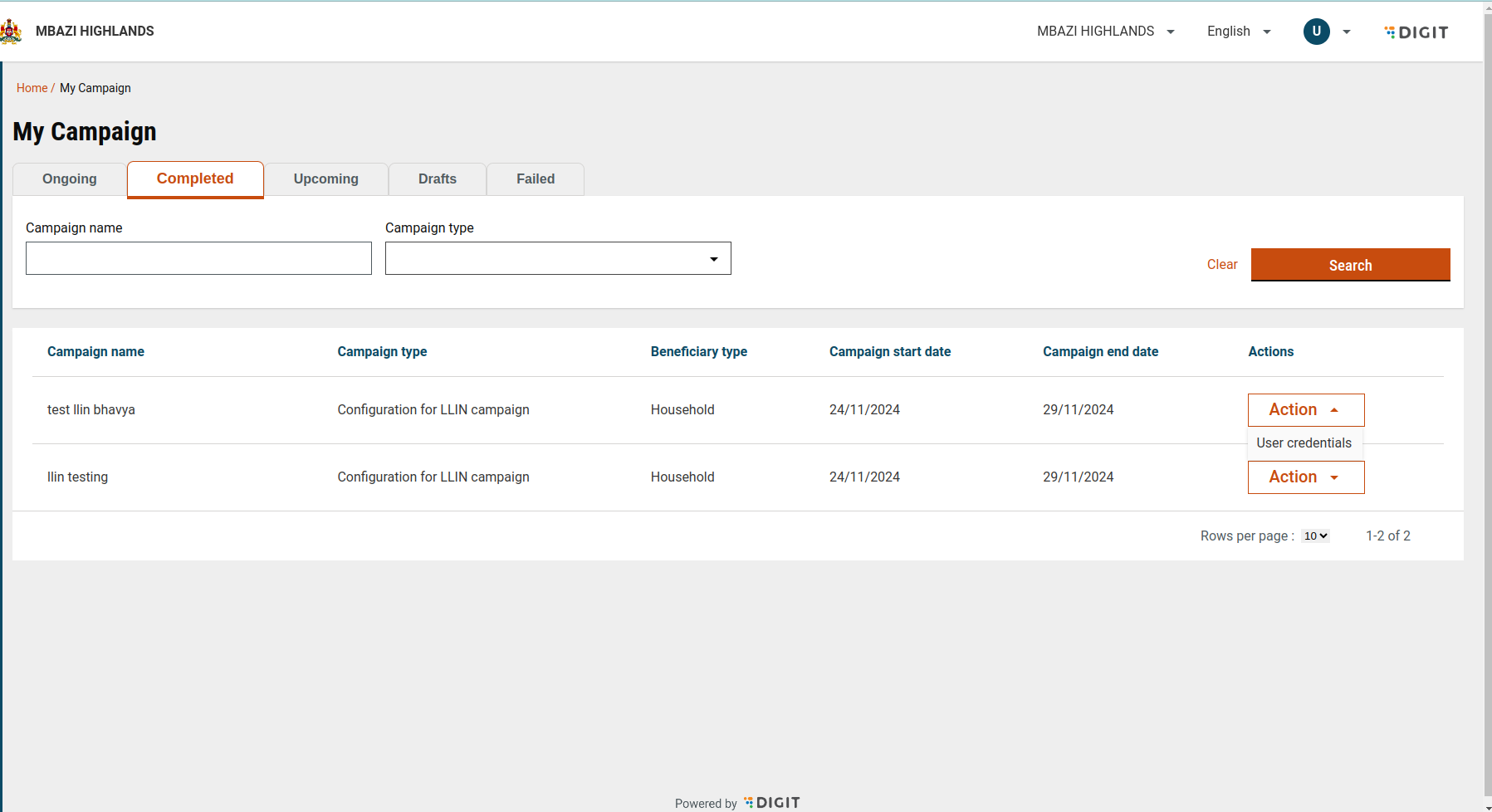
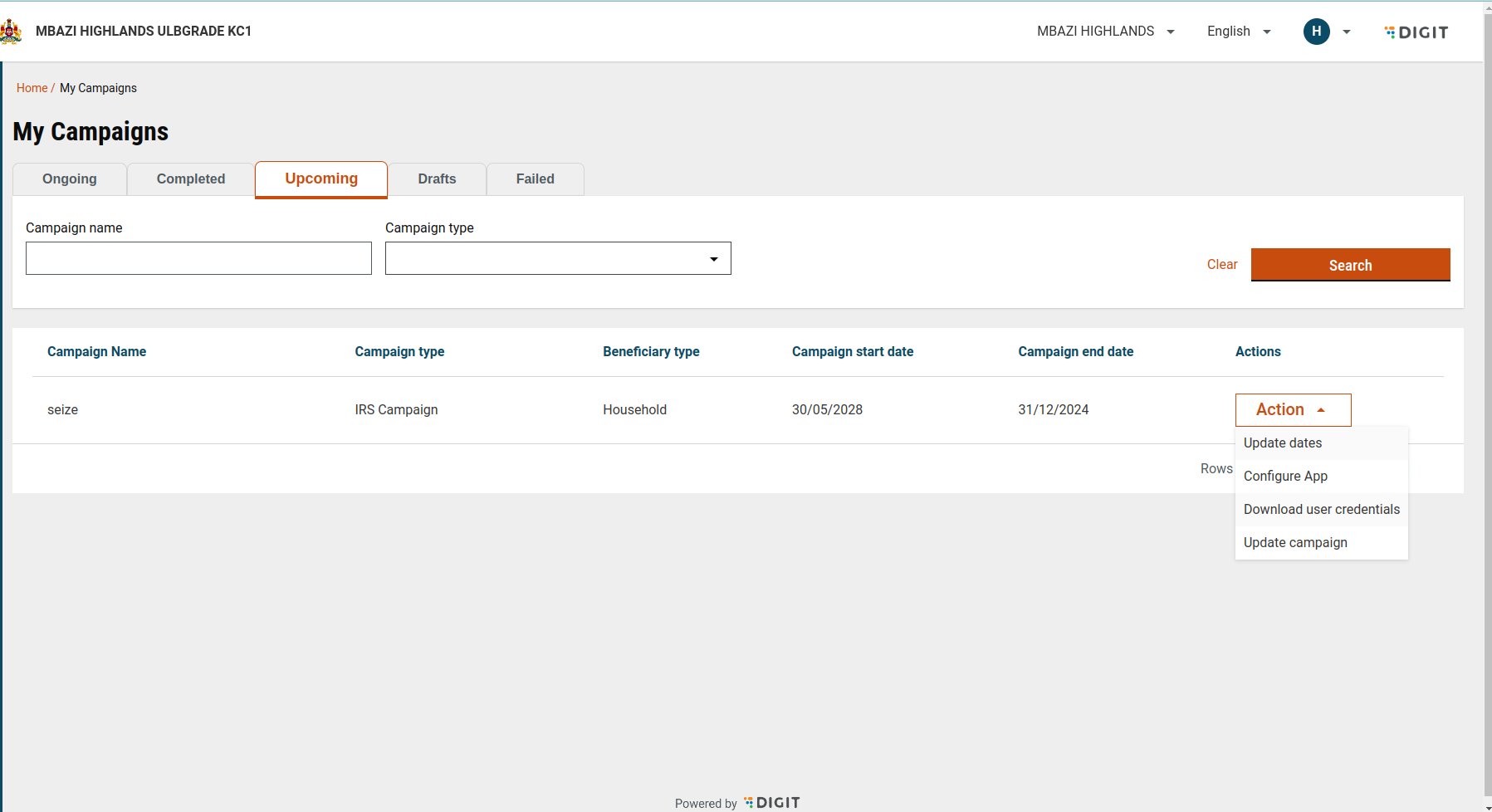
The My Actions feature adds an Actions column to the My Campaign screen. This column allows users to perform context-specific tasks on a campaign—based on its current status—using a simple action menu.

Steps

Step 1: Enable the Actions Column

Purpose: Add an Actions column to the My Campaign table.

Configuration

  • The Actions column is defined in myCampaignConfig.js.

Outcome

  • An Actions column is rendered for each campaign row.

  • The column supports custom UI rendering.

Step 2: Render the Actions Button

Purpose: Display an interactive action menu for each campaign.

Implementation

  • In UICustomizations.js, a custom component is rendered using additionalCustomizations.

Outcome

  • Each campaign row displays an Action button.

  • Clicking the button opens a dropdown menu with available actions.

Step 3: Handle Action Selection

Purpose: Trigger the correct behaviour when a user selects an action.

Implementation

  • An onActionSelect function is used to handle user selections.

  • The function:

    • Reads the selected option

    • Determines the campaign status

    • Executes the corresponding action

Step 4: Configure Actions by Campaign Status
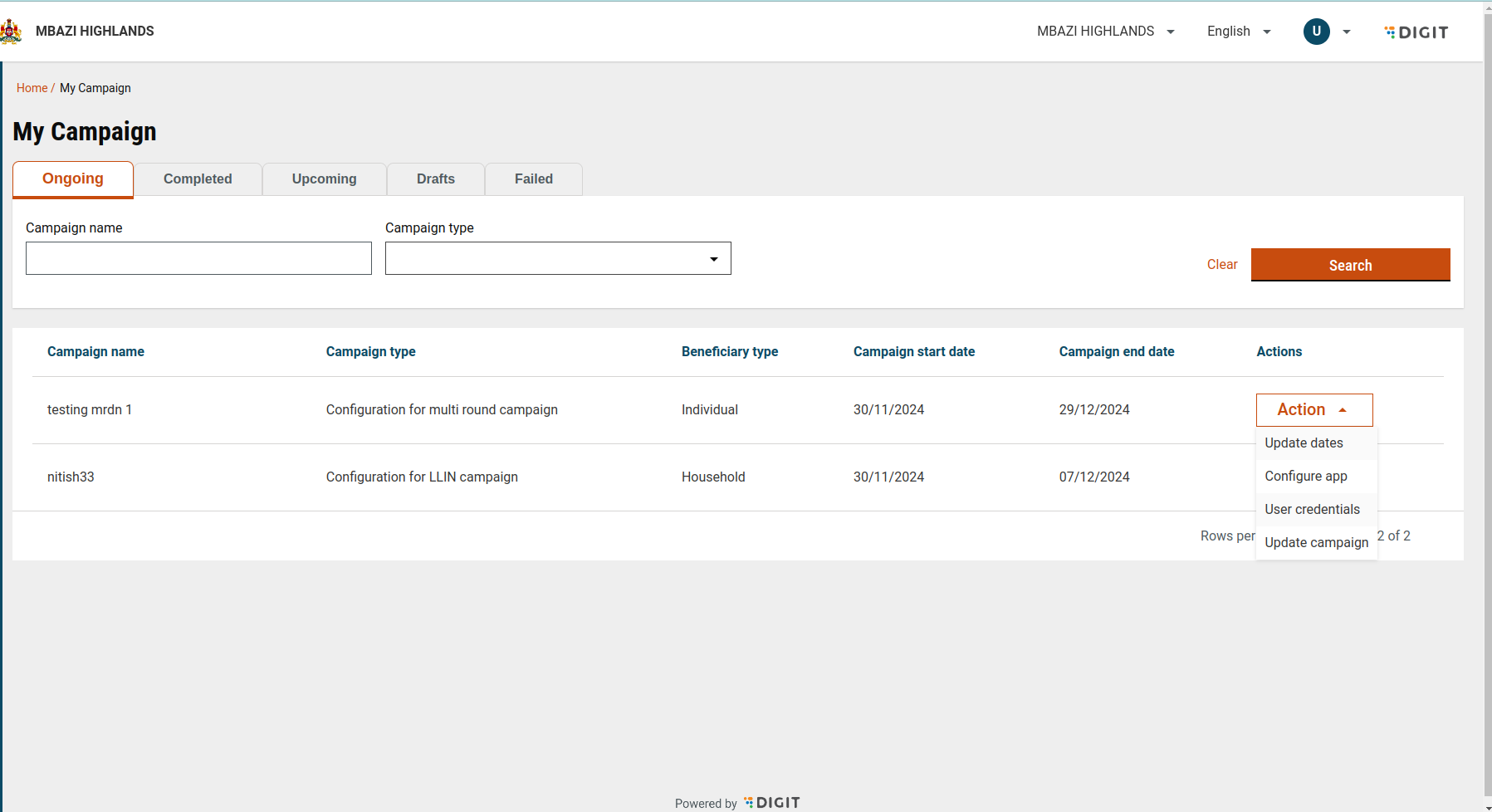
Available actions vary depending on the campaign’s current state.

Available Actions:

  • Update campaign

  • Configure checklist

  • View user credentials ➡️ All actions are enabled.

Action Ongoing

Last updated

Was this helpful?