Campaign Timeline

Overview

The Campaign Timeline provides a visual view of a campaign’s progress across its lifecycle. It helps users track creation stages and understand the current state of a campaign.

The timeline is available for campaigns in the following states:

  • Upcoming

  • Ongoing

  • Completed

  • Failed

Users can access the timeline from:

  • The Campaign Summary page

  • The My Campaign screen (via the Actions menu)

Steps

Step 1: Enable Timeline Access

Access Points
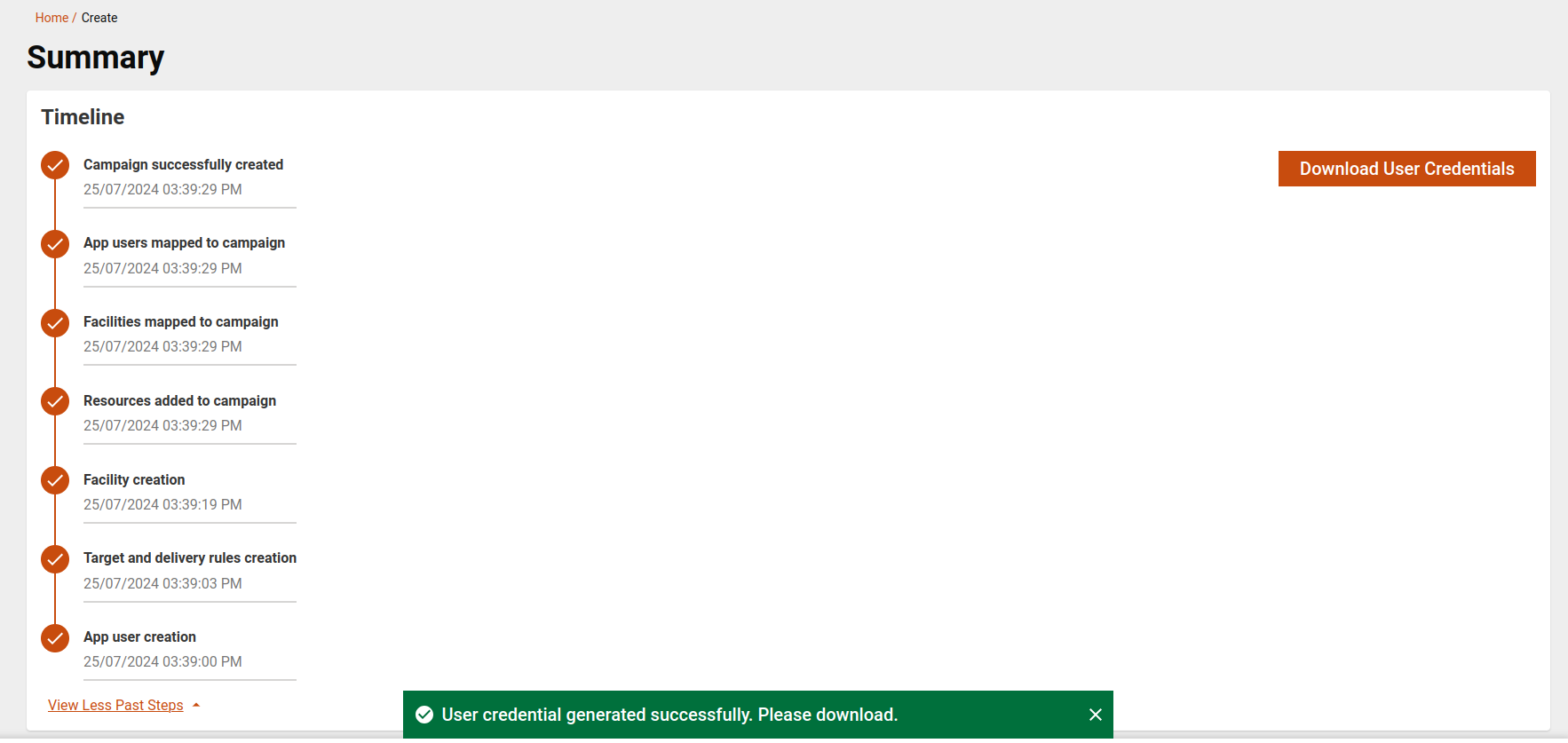
  1. Campaign Summary

    • The timeline is displayed directly on the summary page.

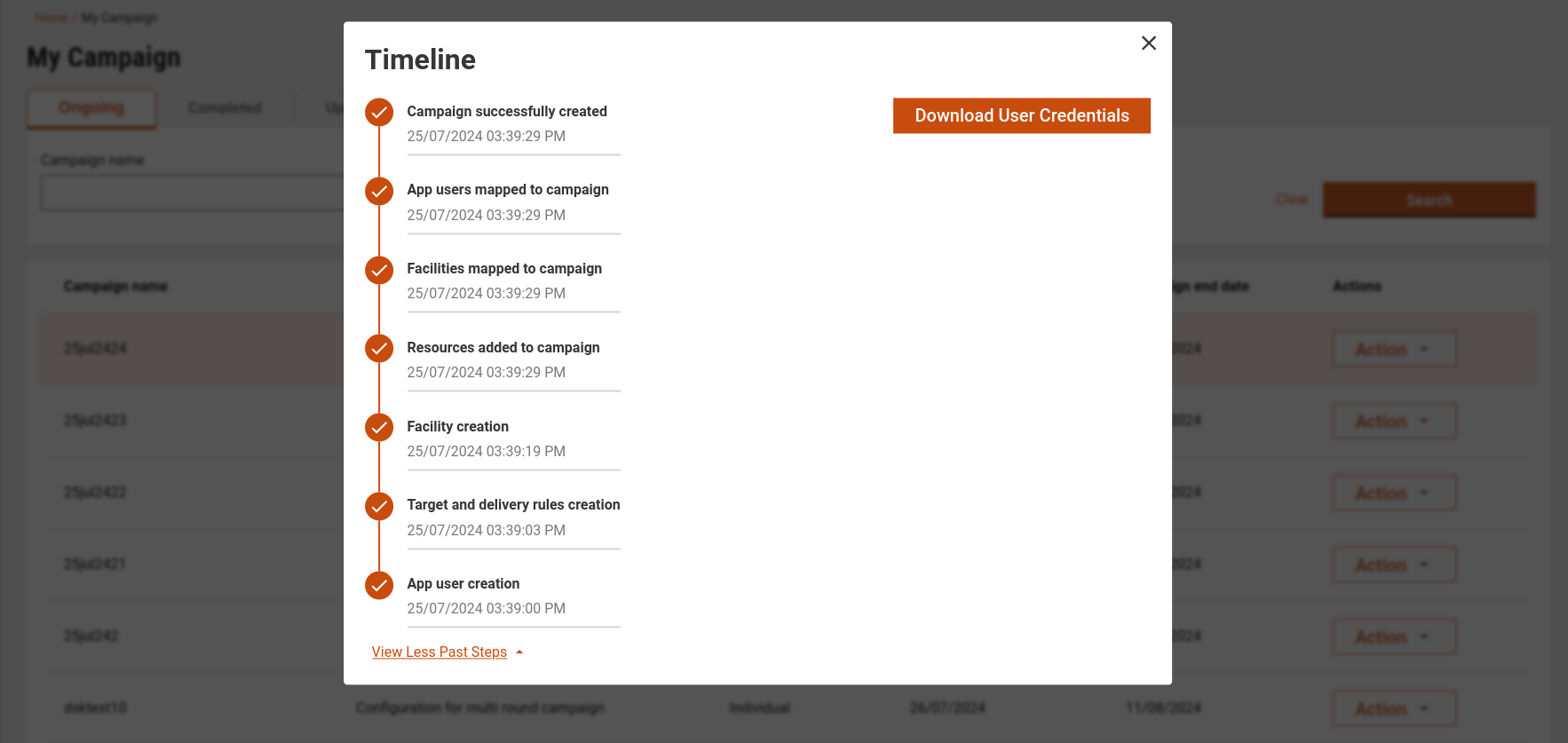
  2. My Campaign Screen

    • Users click the Action button for a campaign.

    • The timeline opens as a pop-up modal.

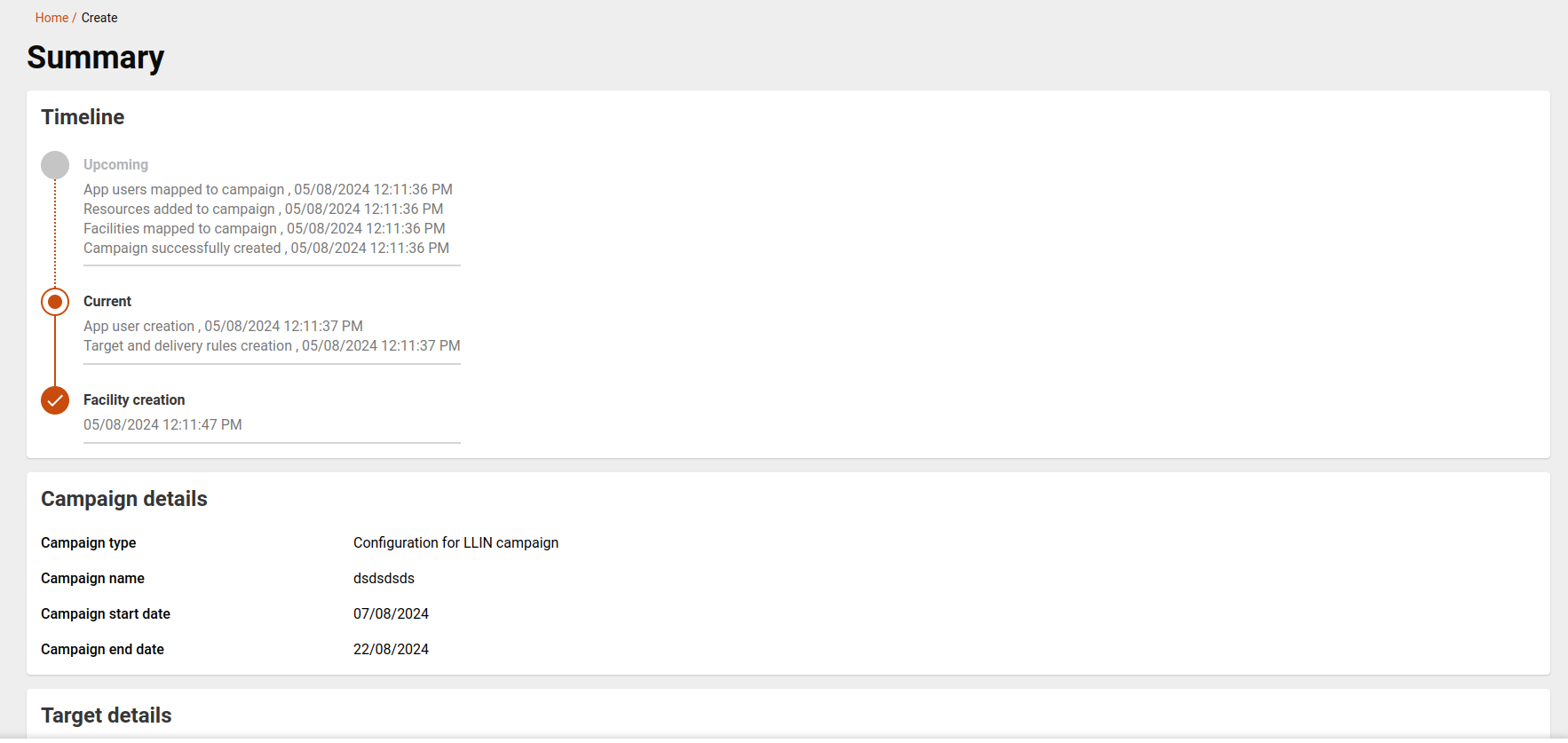
Timeline In summary page

Step 2: Render Timeline Stages

Purpose: Show campaign progress visually.

Timeline States

The timeline displays campaign stages as:

  • Upcoming – Steps that are yet to start

  • Current – The step currently in progress

  • Completed – Steps that have finished successfully

These states update dynamically based on campaign status.

Step 3: Display Timeline During Campaign Creation
Behaviour

  • While campaign creation is in progress:

    • The timeline shows:

      • Completed steps

      • The current step

      • Upcoming steps

  • This view is consistent across:

    • Summary screen

    • My Campaign timeline pop-up

Timeline in my campaign

Step 4: Configure Timeline Pop-up from My Campaign

Behaviour

  • Clicking Action → View Timeline (or equivalent option):

    • Opens the timeline as a pop-up

    • Displays the same step progression as the summary screen

  • User credentials become available once campaign creation completes successfully.

API Details

End point
Method
Params

/project-factory/v1/project-type/getProcessTrack

POST

params: { campaignId: campaignId, },

Last updated

Was this helpful?