Update Campaign Boundary & Data

Overview

The Update Campaign flow allows users to modify campaign boundaries, facilities, users, and targets after a campaign has been created.

⚠️ Important rules

  • Campaign updates are allowed only for Ongoing and Upcoming campaigns.

  • Updates are initiated from the My Campaign screen using the Actions menu.

Steps

Step 1: Start the Update Campaign Flow
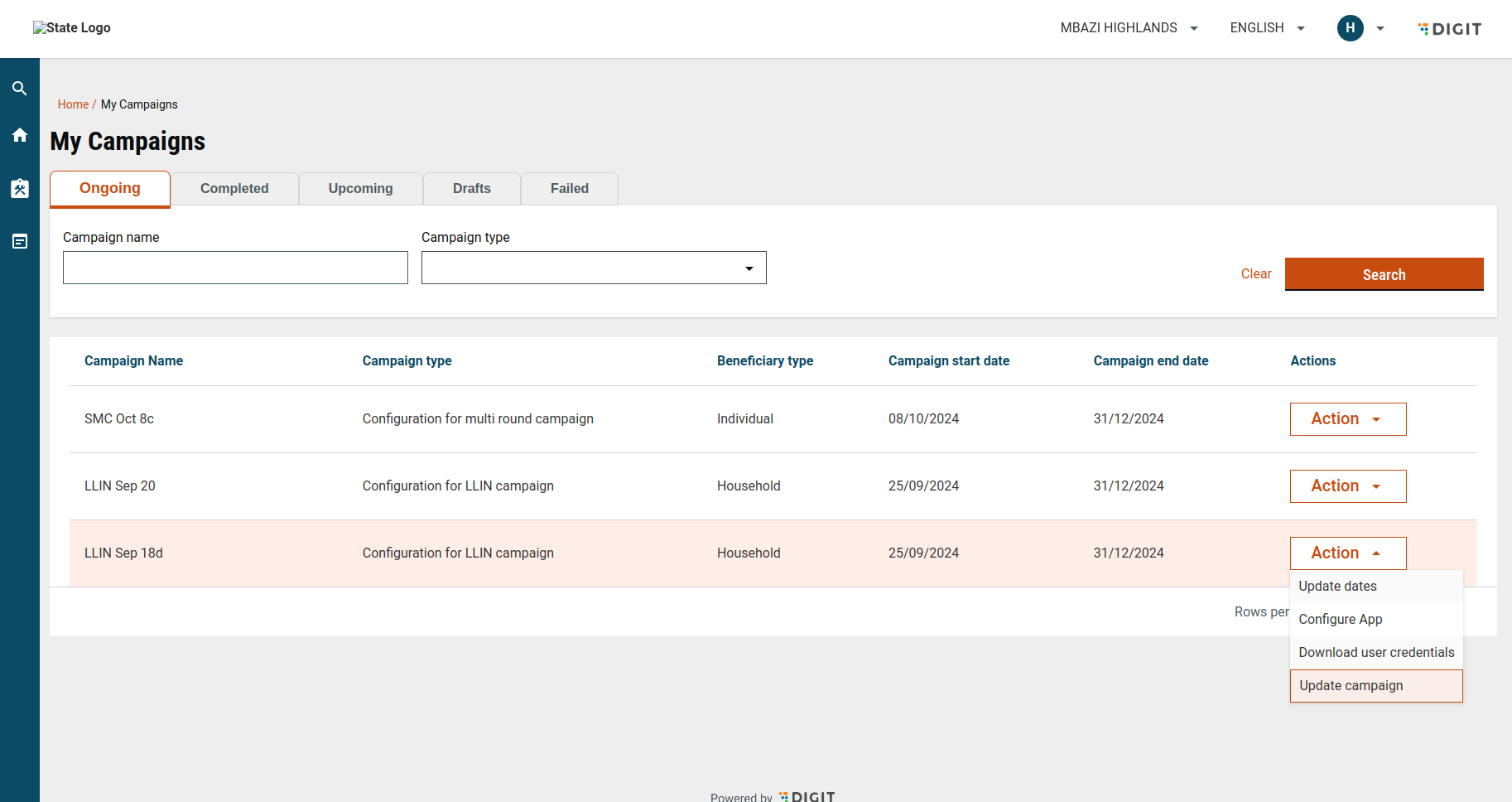
User Action

  • Go to My Campaign.

  • Click the Action button for an ongoing or upcoming campaign.

  • Select Update Campaign.

Outcome

  • The user is redirected to the update flow.

  • The campaign’s existing data is loaded for editing.

My campaign

Step 2: Select or Add Campaign Boundaries

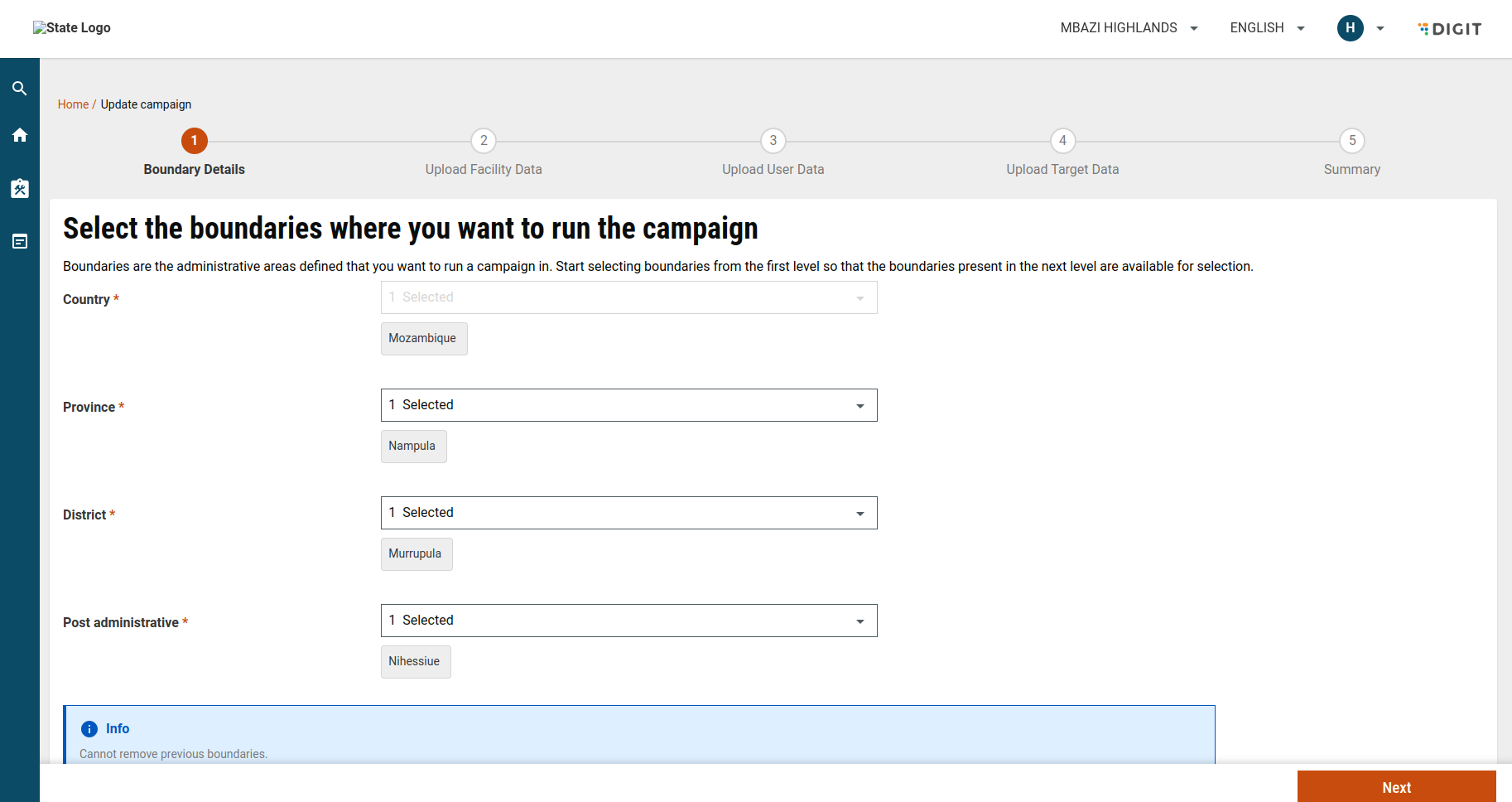
Screen: Select Boundary

Purpose: Review and extend campaign coverage.

Behaviour

  • Previously selected boundaries are pre-filled.

  • Existing boundaries cannot be removed.

  • Users may add new boundaries if required.

File Reference

Boundary details

Step 3: Update Facility Details

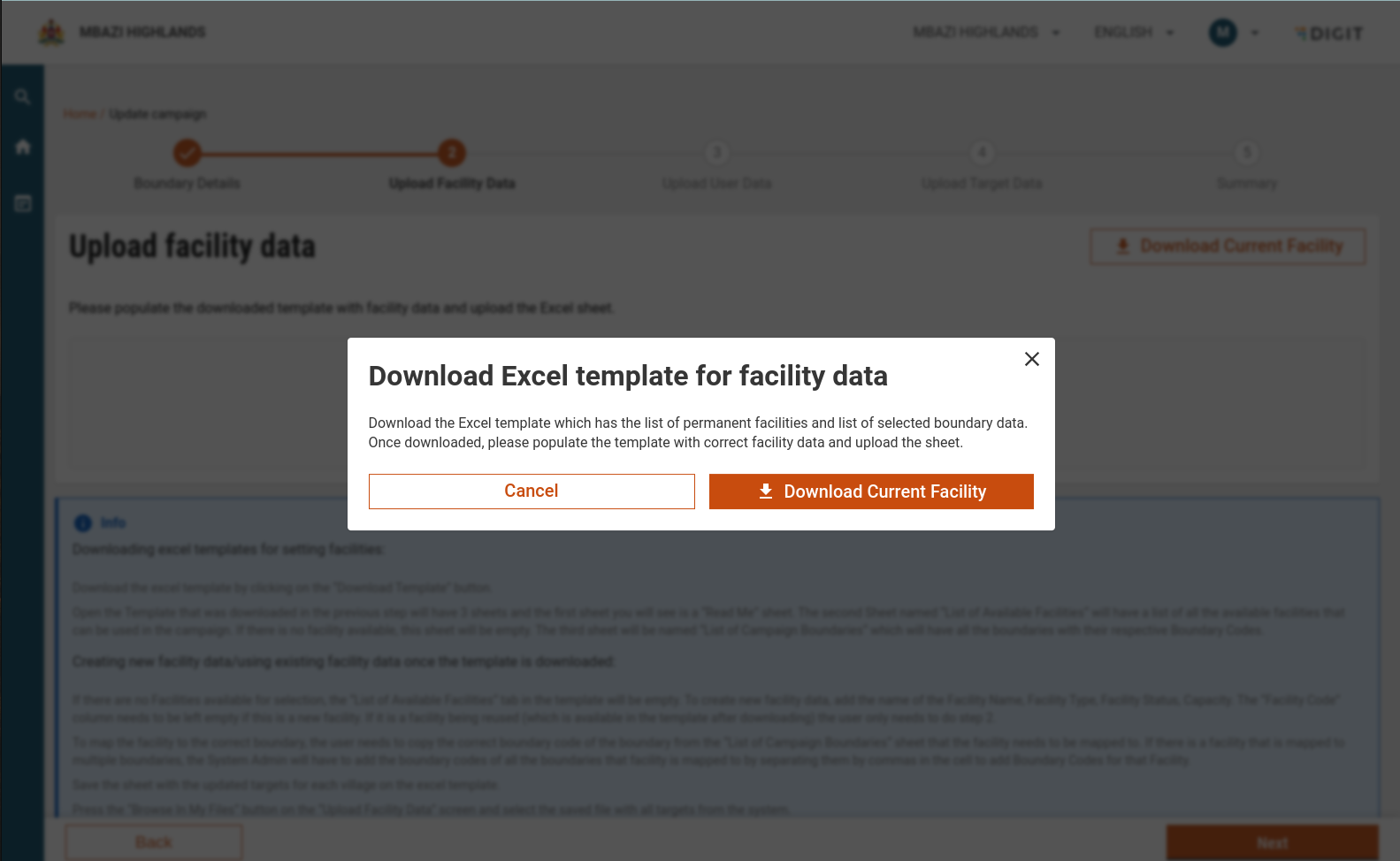
Purpose: Modify or add facilities linked to the campaign.

Actions

  1. Download the current Facility template.

    • The file is pre-filled with existing facility data.

  2. Update the template:

    • Add new facilities if required.

  3. Upload the updated file for validation.

Update Facility Data

Step 4: Update User Details

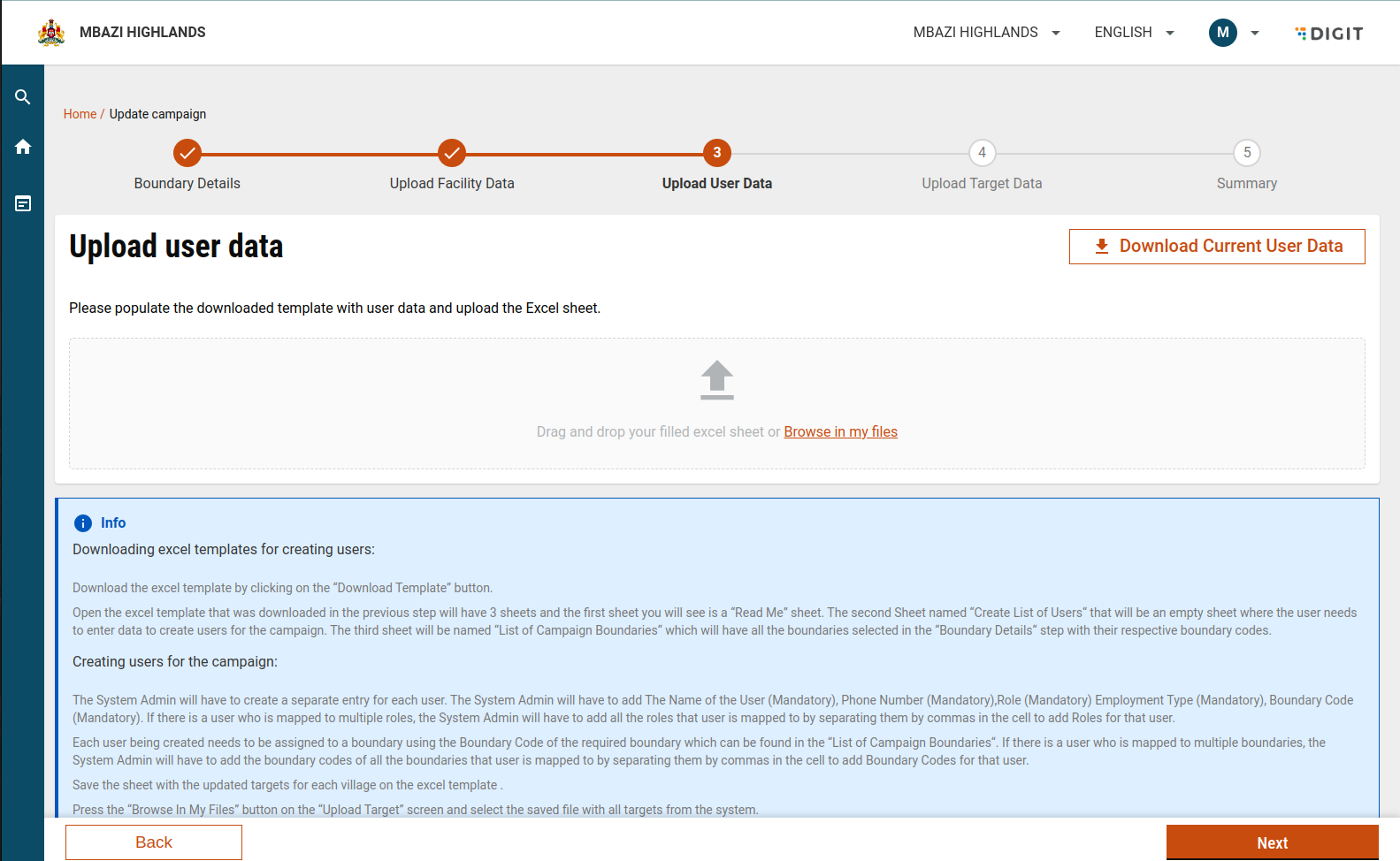
Purpose: Modify or add users assigned to the campaign.

Actions

  1. Download the current User template.

    • The file is pre-filled with existing user data.

  2. Update the template:

    • Add new users if required.

  3. Upload the updated file for validation.

Update user details

Step 5: Update Target Details

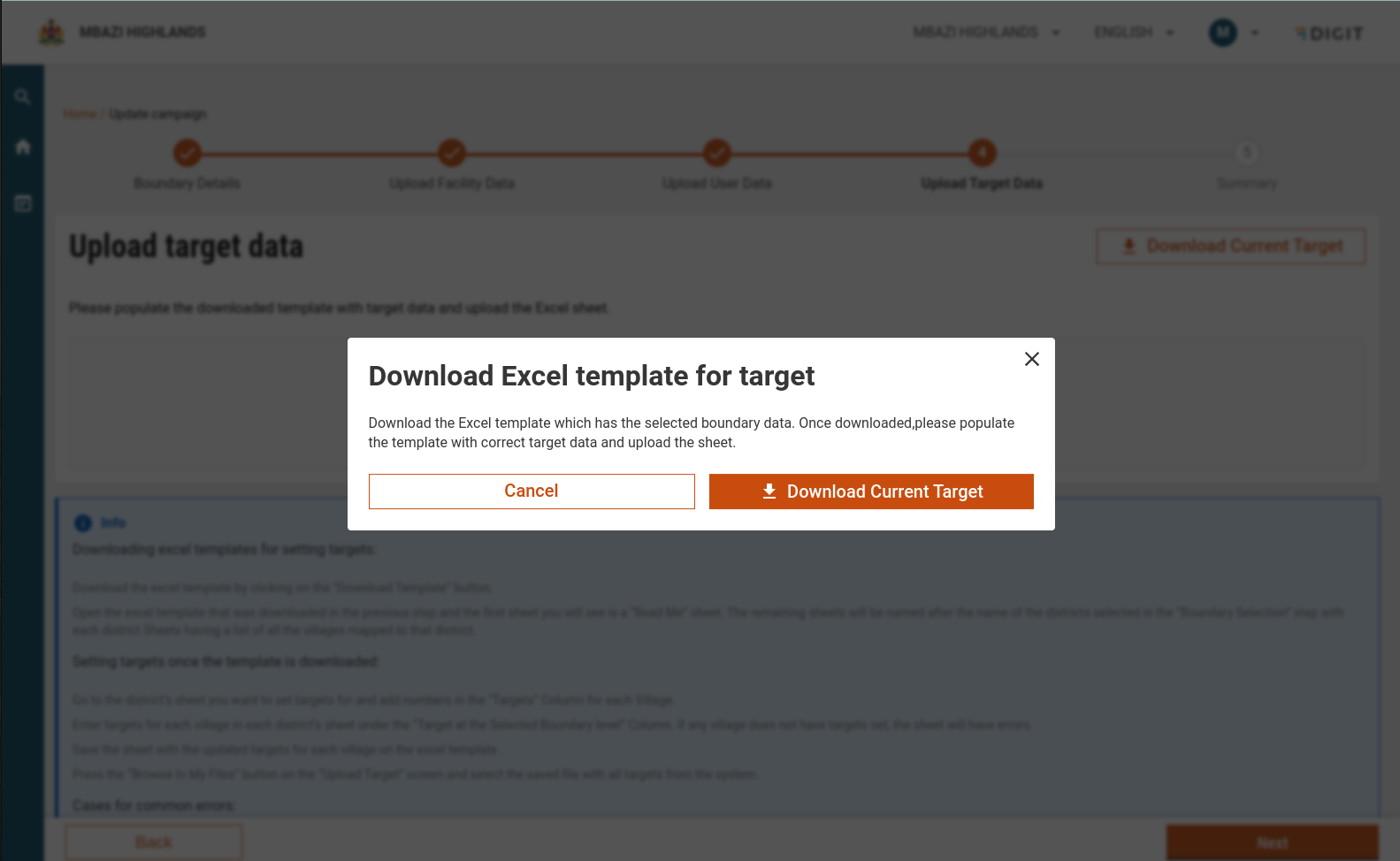
Purpose: Modify or add campaign targets.

Actions

  1. Download the current Target template.

    • The file is pre-filled with existing target values.

  2. Update the template:

    • Add new targets or modify existing ones.

  3. Upload the updated file for validation.

Common Upload Component

Update target details

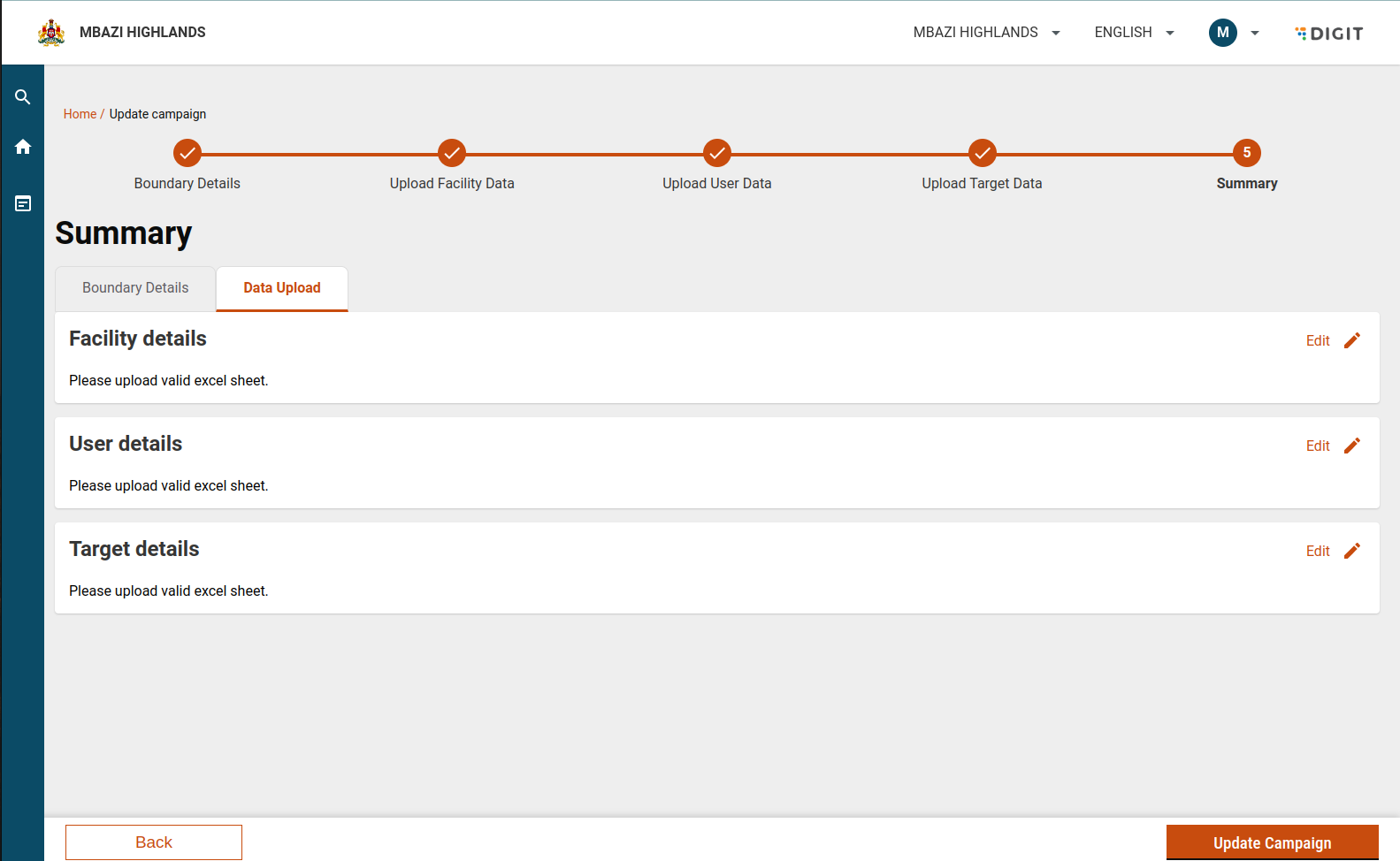
Step 6: Review Update Summary

Purpose: Verify all updates before final submission.

Summary Screen

  • Displays:

    • Updated boundaries

    • Facility changes

    • User changes

    • Target changes

File Reference

Summary

Step 7: Submit Campaign Updates

Flow Logic

  • The update flow closely follows the setup campaign flow with key differences:

API Behaviour

  1. After Boundary Selection

    • create API is called with:

      • parentId (original campaign ID)

      • action = draft

  2. During Facility/User/Target Updates

    • update API is used.

  3. On Summary Submission

    • create API is called again with:

      • action = create

    • The campaign is updated successfully.

File Reference

Step 8: Validate Update Rules

Validation Scenarios

No New Boundaries Added

  • At least one data upload (facility, user, or target) is mandatory.

New Boundaries Added

  • All three uploads are mandatory:

    • Facility

    • User

    • Target

If validation fails, the user is prompted to complete the required steps.

API Details

Action
Role
Payload

/project-factory/v1/project-type/create

CAMPAIGN_MANAGER

"action": "draft", "action": "create", to update the campaign

/project-factory/v1/project-type/search

CAMPAIGN_MANAGER

only id is required in params

/project-factory/v1/project-type/update

CAMPAIGN_MANAGER

/project-factory/v1/data/_download

CAMPAIGN_MANAGER

Params will be different for different types- 1) boundary tenantId:mz

type:boundary

hierarchyType:ADMIN

id:987eadc3-55a0-4553-925d-bf8087f57e5a 2) facilityWithBoundary tenantId:mz

type:facilityWithBoundary

hierarchyType:ADMIN

id:052f59fc-18a7-4e07-816a-f5d8062b56b5 3) userWithBoundary tenantId:mz

type:userWithBoundary

hierarchyType:ADMIN

id:fbfbd393-d053-4f51-9e12-1068b97da292

Last updated

Was this helpful?