> For the complete documentation index, see [llms.txt](https://docs.digit.org/llms.txt). Markdown versions of documentation pages are available by appending `.md` to page URLs; this page is available as [Markdown](https://docs.digit.org/sanitation/water-sanitation-product-suite/waste-management-system/faecal-sludge-management-fsm/fsm-user-manual/dso-user-manual.md).
# DSO User Manual
The Desludging Operators or DSOs are responsible for initiating and completing action on citizen requests for desludging services. The requests are routed to the respective DSOs by the urban local body (ULB) officials. The DSOs update the application status once the services are delivered and the payments are collected.
DSOs can do the following:
* Assign vehicles for desludging services
* Decline service requests
* Complete service requests
## Login
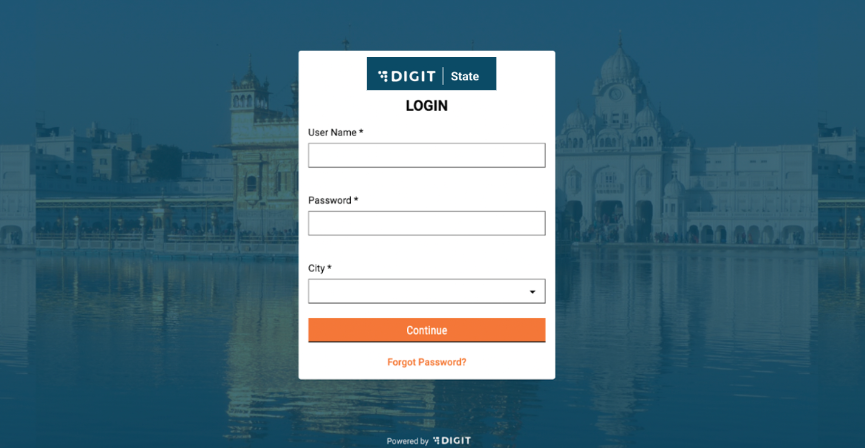
DSOs operators are provided with credentials to log in to the system.
#### User Actions
On this page, the following actions can be performed:
* Enter username and password
* Select city for login
* Reset password by clicking on the “Forgot Password” link
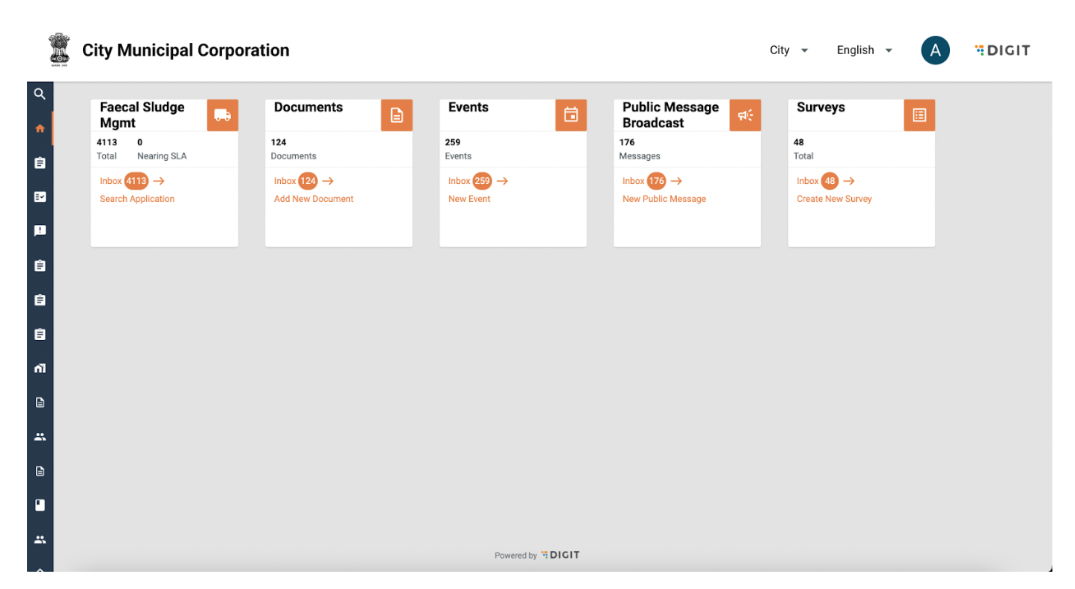
On clicking continue, DSOs are redirected to the FSM homepage.
#### User Actions
On this page, the following actions can be performed in the FSM card:
* Click on Inbox to view assigned requests
* Search for historical requests serviced
* Change language
* Edit profile details by clicking on the user icon on top right hand corner
* Logout by clicking on the user icon on the top right hand corner
## Approve requests
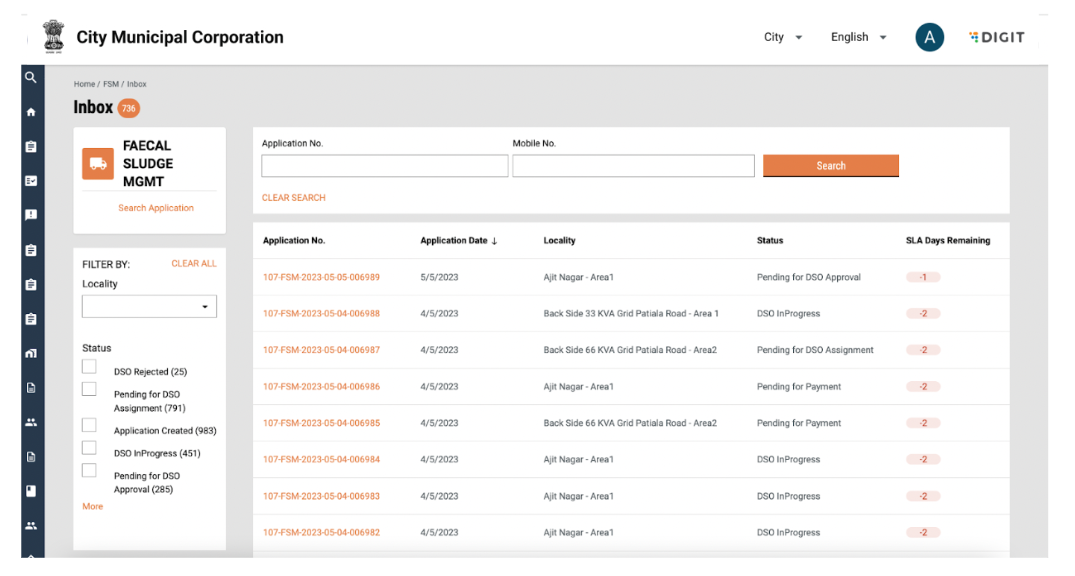
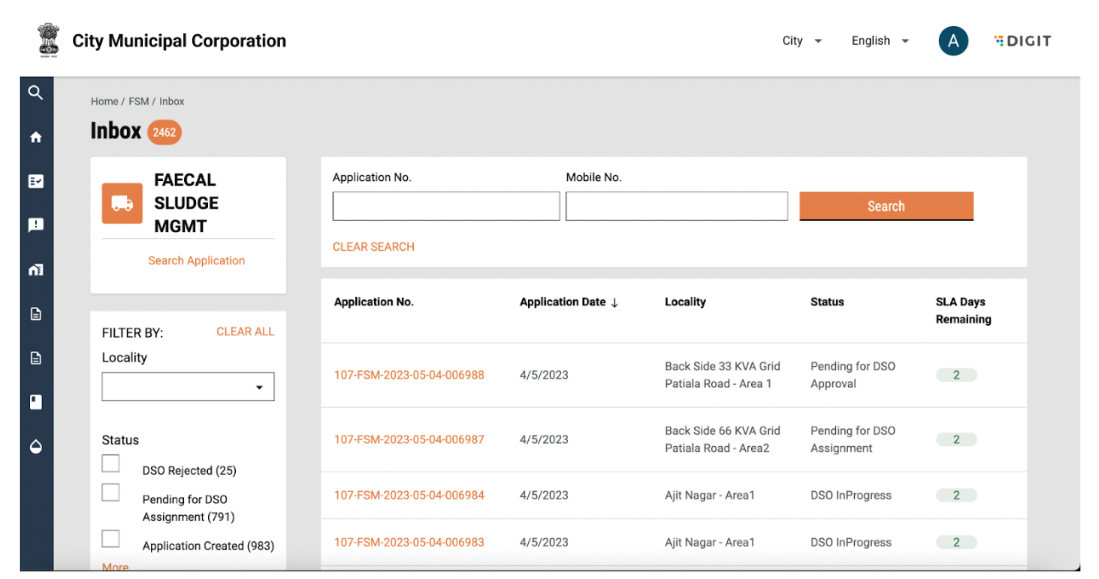
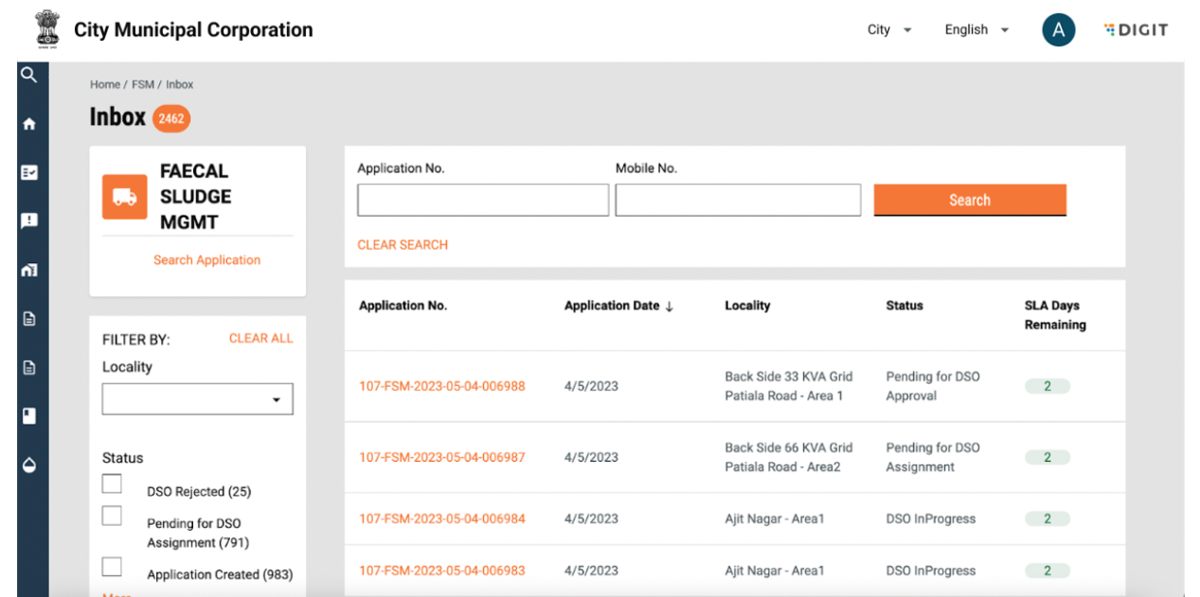
Requests assigned to the DSO can be viewed by clicking on the Inbox link in the FSM homepage.
Requests pending for acceptance will be viewable in the status: Pending for DSO Approval.
#### User Actions
The following actions can be performed:
* Search for an active application using “Application No.” and “Mobile No.”
* Clear search by clicking on “Clear Search’”
* View and update applications by clicking on an application number
* Filter applications by locacilty using the ‘Locality’ dropdown
* Filter applications by ‘Status’
* Search for past applications by using “Search Application”
* Sort applications by Application date.
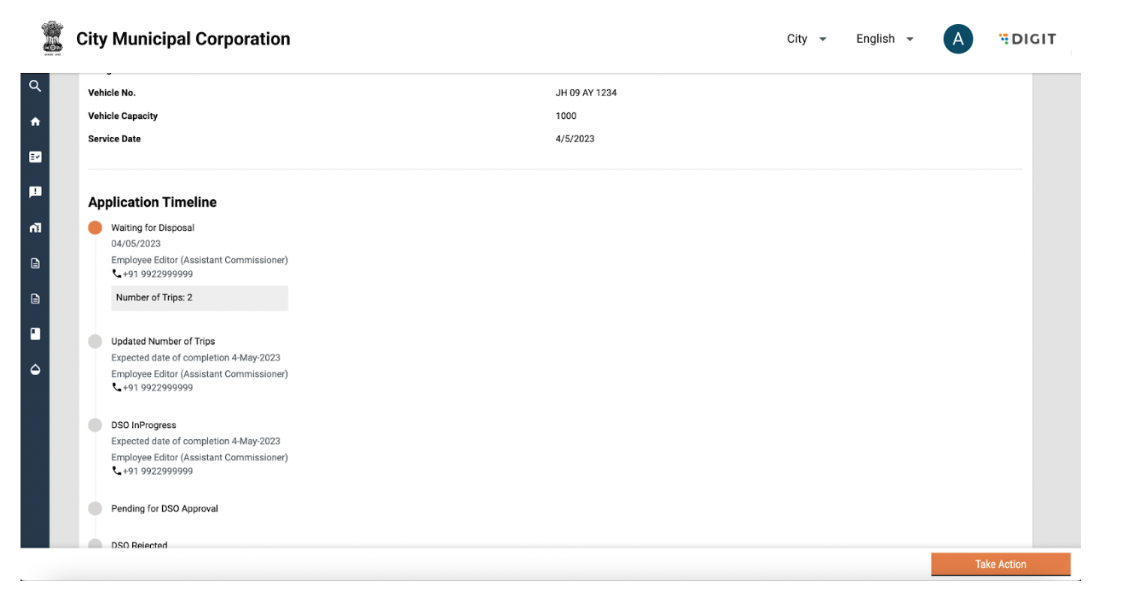
On clicking on an application number, application details are displayed.
#### User Actions
The following actions can be performed:
* View application details
* Click on the “Take Action” button
The take action button has the following options:
* Assign Vehicle
* Decline Request
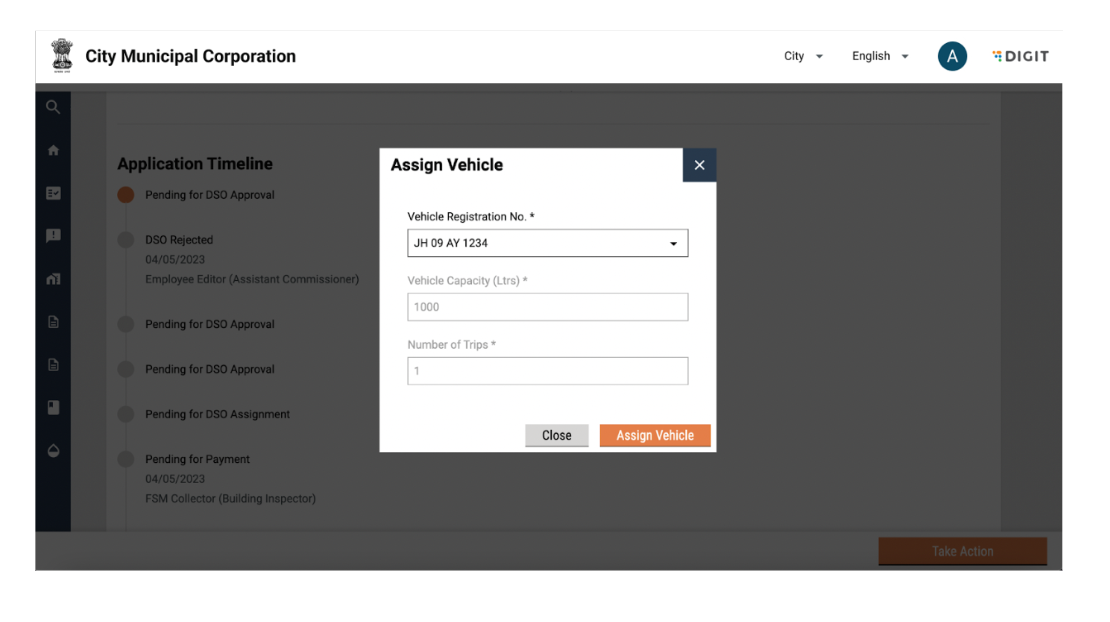
A request can be approved by assigning a vehicle. Clicking on “Assign Vehicle’’ will display the following pop-up:
#### User Actions
The following actions can be performed:
* Update Vehicle Registration No.
* Close pop-up by clicking on the Close button on the pop-up.
* Close pop-up by clicking on the cross icon on the top right of the pop-up
* Confirm decline request by clicking on the “Assign Vehicle” button
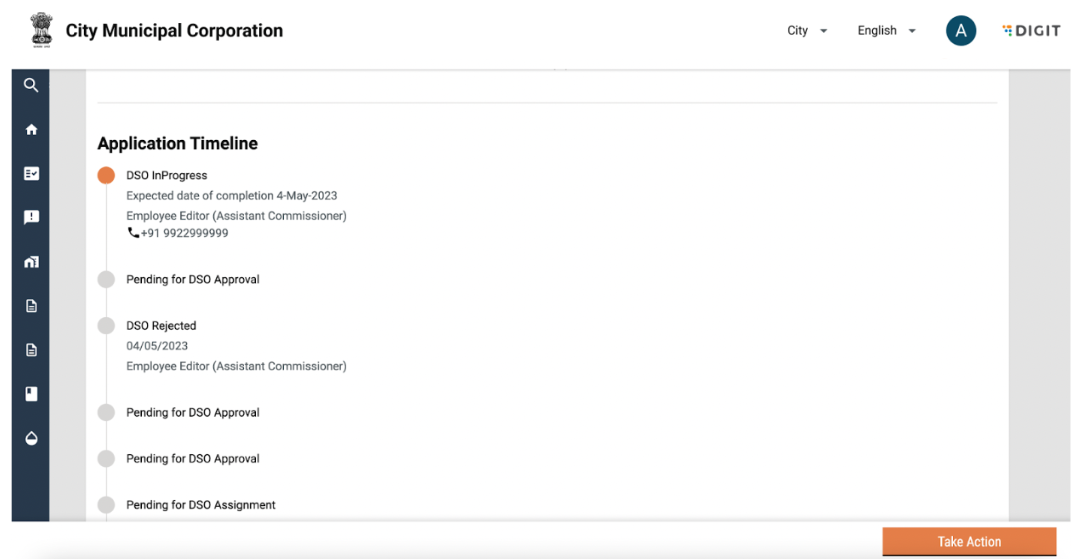
A snack bar will confirm assignment of vehicle and the application timeline will be updated to DSO in Progress.
## Update/Schedule Trips
Once DSO is in progress, the number of trips can be updated.
#### User Actions
The following actions can be performed:
* Search for an active application using “Application No.” and “Mobile No.”
* Clear search by clicking on “Clear Search”
* View and update applications by clicking on an application number
* Filter applications by ‘Locacilty’ using the locality dropdown
* Filter applications by ‘Status’
* Search for past applications by using “Search Application”
On clicking on an application number, application details are displayed.
#### User Actions
The following actions can be performed:
* View application details
* Click on the ‘Take Action’ button
The take action button has the following options:
* Complete Request
* Update/Schedule Trips
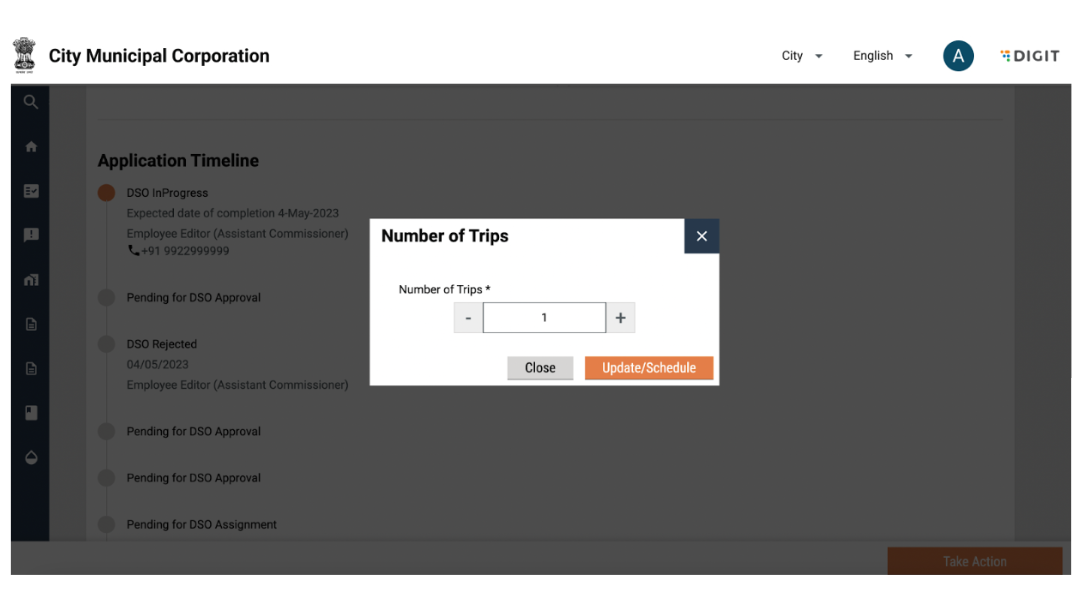
On clicking on Update/Schedule trips, the following pop up is displayed:
#### User Actions
The following actions can be performed:
* Increase the number of trips by clicking on the + button
* Decrease the number of trips by clicking on the - button
* Close pop-up by clicking on the Close button on the pop-up.
* Close pop-up by clicking on the cross icon on the top right of the pop-up
* Confirm update/schedule trips by clicking on the “Update/schedule” button
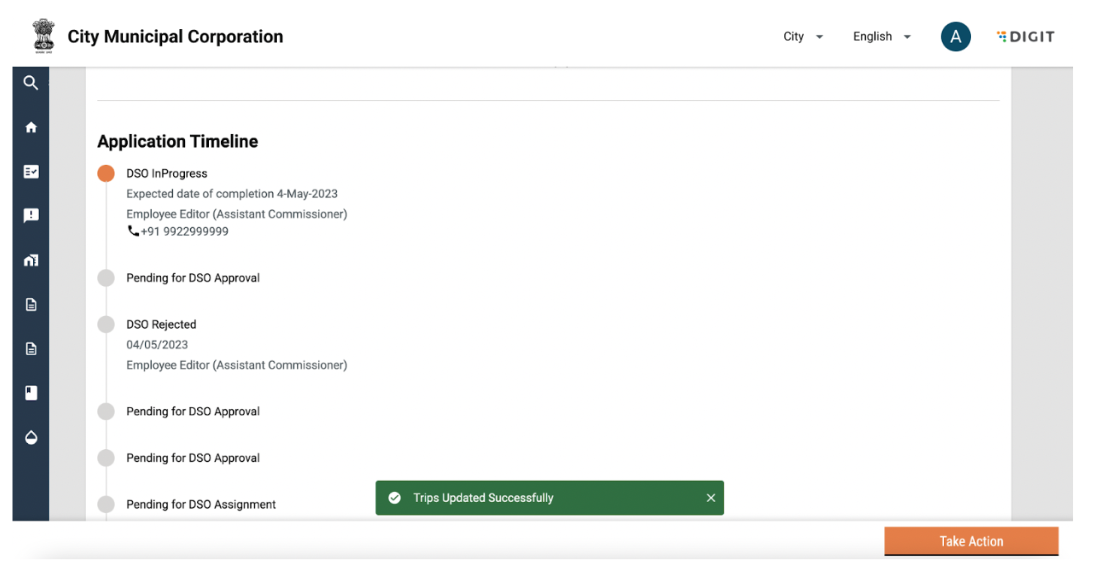
A snack bar will confirm that the number of trips have been updated
## Complete Request
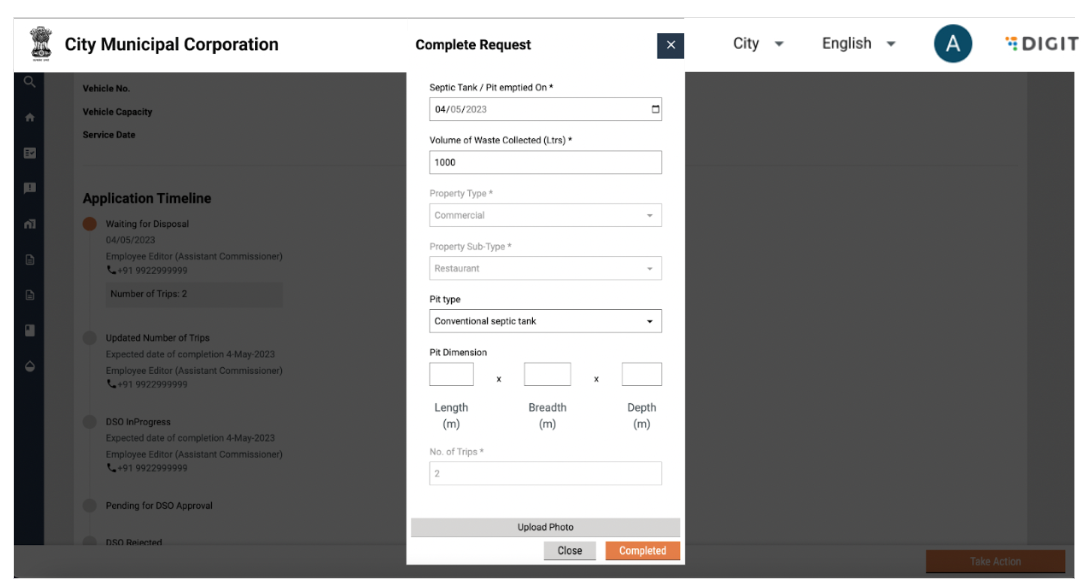
Once the service request has been completed and all pending payments have been collected, the same has to be confirmed in the system. This can be done by selecting the “Complete Request” button in the “Take Action” button. On clicking on Complete Request, the following pop up is displayed:
#### User Actions
The following actions can be performed:
* Confirm/Update service date
* Confirm/Update Volume of waste collected
* Confirm/Update pit details
* Upload pit photo
* Close pop-up by clicking on the Close button on the pop-up.
* Close pop-up by clicking on the cross icon on the top right of the pop-up
* Confirm details by clicking on the ‘Completed’’ button
A snack bar will confirm that request has been completed and the status will be updated to “Waiting for Disposal”.
## Decline Request
DSOs can choose to decline unserviceable service requests. Applications can be rejected by a DSO in the “Pending for DSO Approval” stage.
#### User Actions
The following actions can be performed:
* Search for an active application using “Application No.” and “Mobile No.”
* Clear search by clicking on “Clear Search”
* View and update applications by clicking on an application number
* Filter applications by ‘Locacilty’ using the locality dropdown
* Filter applications by ‘Status’
* Search for past applications by using “Search Application”
On clicking on an application number, application details are displayed.
#### User Actions
The following actions can be performed:
* View application details
* Click on the “Take Action” button
The take action button has the following options:
* Assign Vehicle
* Decline Request
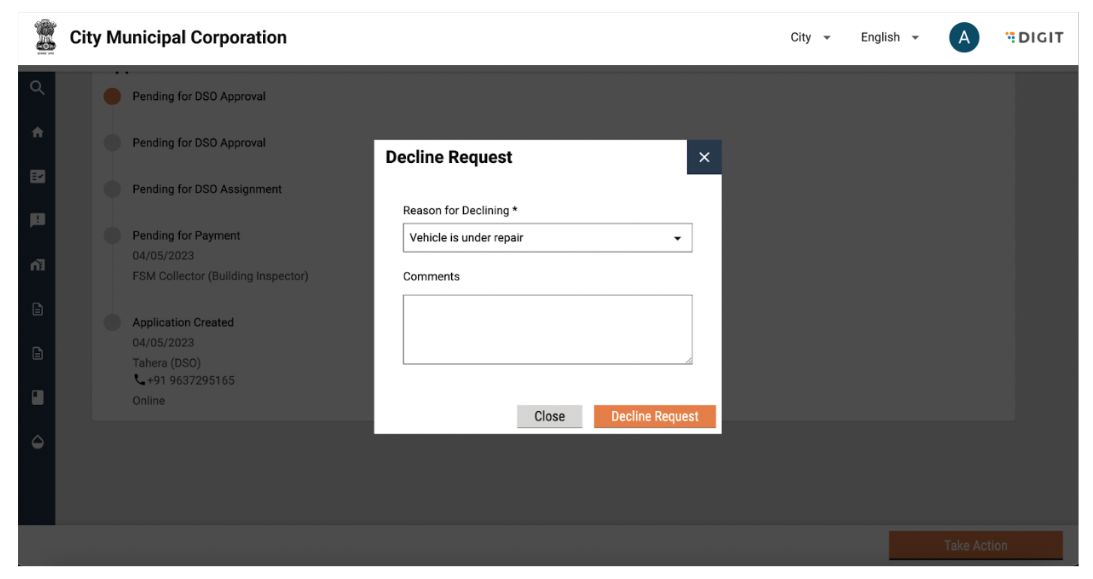
Clicking on “Decline Request’’ will display the following pop-up:
#### User Actions
The following actions can be performed:
* Reason for declining
* Enter comments
* Close pop-up by clicking on the Close button on the pop up.
* Close pop-up by clicking on the cross icon on the top right of the pop-up
* Confirm decline Request by clicking on the “Decline Request” button
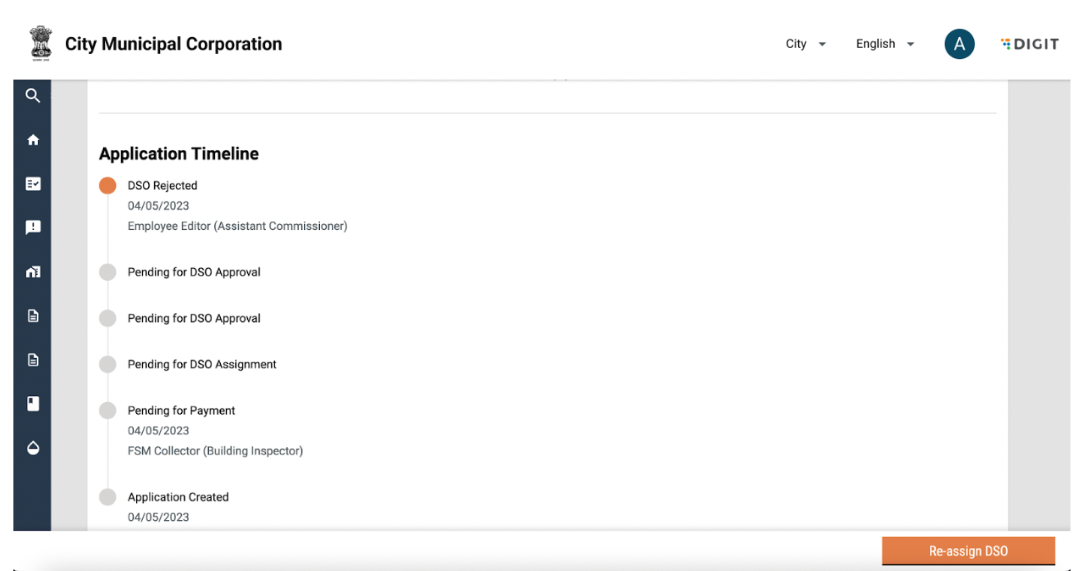
A snack bar will confirm decline and the application timeline will be updated to DSO Rejected.
---
# Agent Instructions
This documentation is published with GitBook. GitBook is the documentation platform designed so that both humans and AI agents can read, navigate, and reason over technical content effectively. Learn more at gitbook.com.
## Querying This Documentation
If you need additional information that is not directly available in this page, you can query the documentation by asking a question.
Perform an HTTP GET request on the following URL with the `ask` and `goal` query parameters:
```
GET https://docs.digit.org/sanitation/water-sanitation-product-suite/waste-management-system/faecal-sludge-management-fsm/fsm-user-manual/dso-user-manual.md?ask=&goal=
```
`ask` is the immediate question: it should be specific, self-contained, and written in natural language.
`goal` is what the user is ultimately trying to achieve, the reason they need the answer. Sharing it helps GitBook give you a better, more relevant answer. A goal is most helpful when it describes the outcome the user wants rather than restating the question. For example, with `ask=how do I create an API token`, a goal like `automate deployments from our CI pipeline` lets GitBook tailor the answer to that use case.
The response will contain a direct answer to the question and relevant excerpts and sources from the documentation.
Use this mechanism when the answer is not explicitly present in the current page, you need clarification or additional context, or you want to retrieve related documentation sections.